Fathom Actions & Triggers
Managing meetings can quickly become overwhelming—especially when you have to review recordings, write notes, and send follow-ups. The good news is that you can automate most of this work using a smart integration that connects your meetings directly to your workflows. This guide will walk you through how it works and how to start using it.
What This Integration Can Do
Once connected, this integration helps you automatically:
- Access meeting recordings
- Pull transcripts of conversations
- Retrieve AI-generated summaries
- Trigger workflows when a new meeting is ready
This means you can automate things like follow-up emails, task creation, and note organization—saving you time and effort.
Triggers vs Actions
Triggers (What starts a workflow)
- New Recording: This trigger starts a workflow whenever a new meeting recording becomes available.
Actions (What the workflow does)
- List Recordings: Get a list of all your available recordings.
- Fetch Transcript: Pull the full conversation from a meeting.
- Fetch Summary: Get a short AI-generated summary of the meeting.
How to Get Started
Add the Integration to a Workflow
Open your workflow builder and add a new trigger or action. You can locate the Fathom integration in the Apps section.
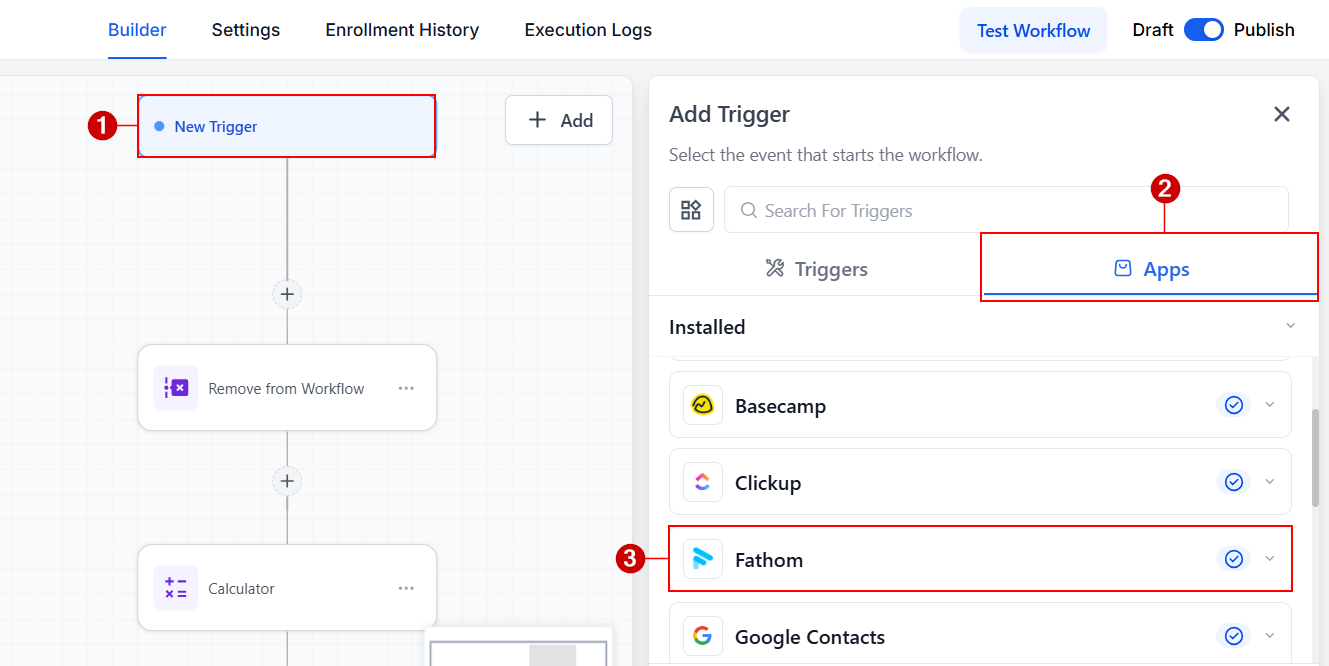
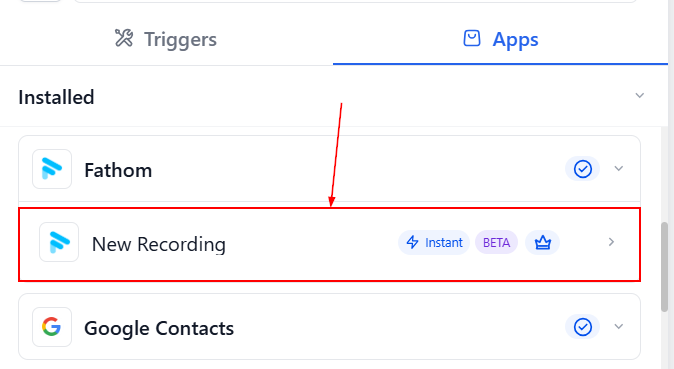
Choose a trigger or action (for example, New Recording or Fetch Transcript).
Connect Your Account
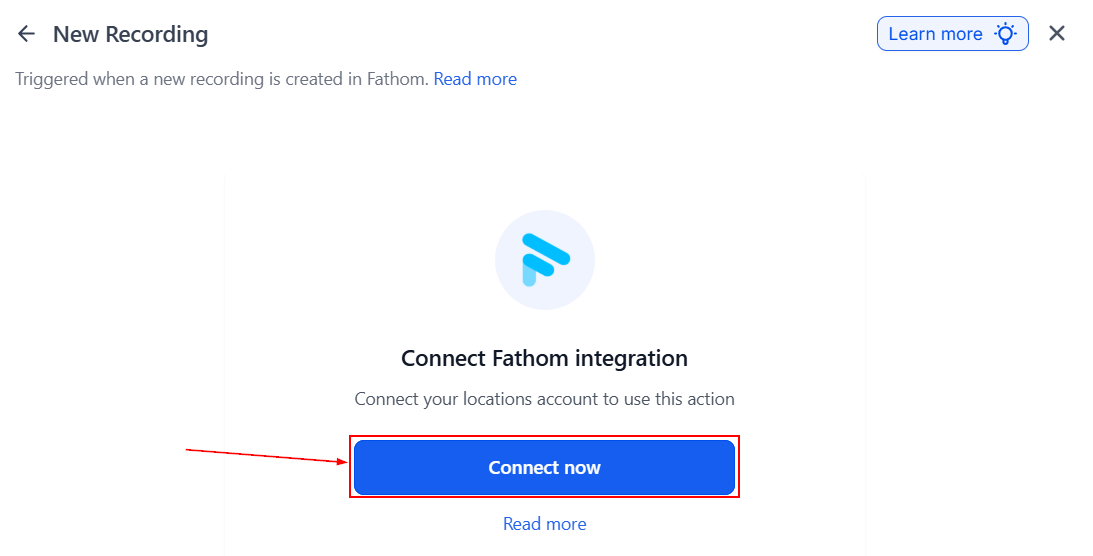
If your account is already connected, you’ll see options right away. If not, click Connect Now and log in.
You can also connect it from your Settings → Integrations area.
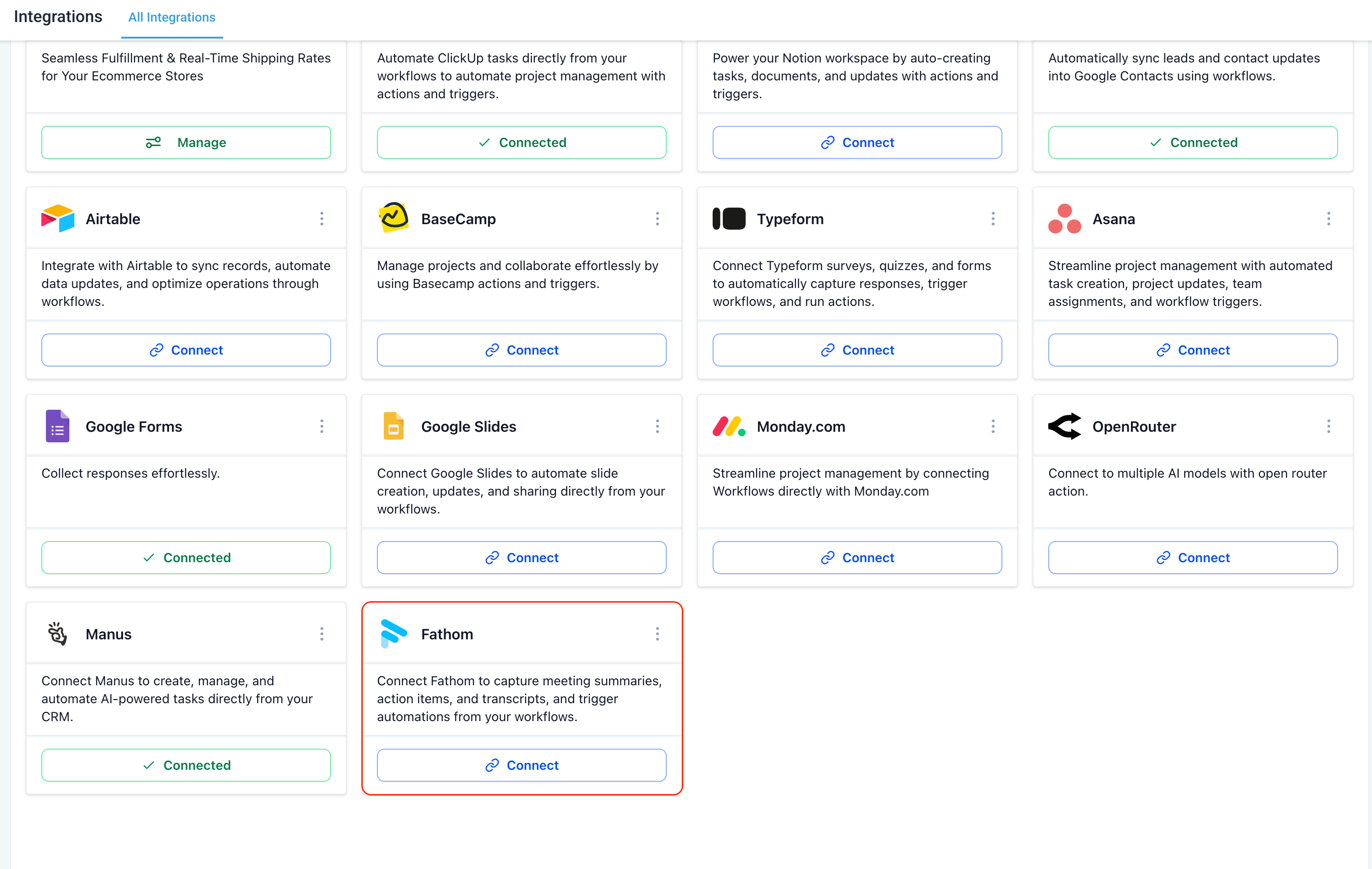
Once connected, you’ll be able to pull recordings, transcripts, and summaries directly into your workflows.
Automating your meeting workflows can make a huge difference in productivity. Instead of manually reviewing calls and writing notes, you can let your system handle it for you—quickly and consistently.
Practical Examples & Use Cases
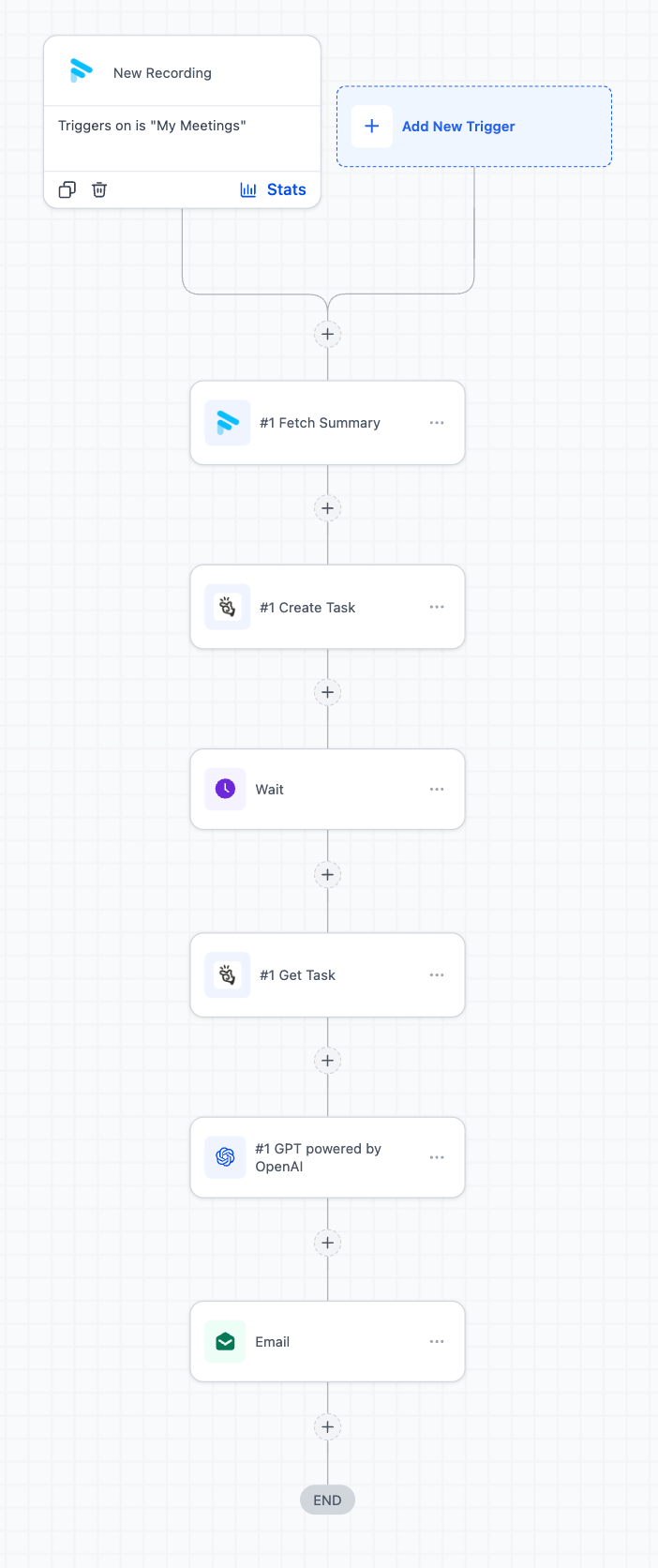
Automatic Follow-Up Emails After Sales Calls
Problem: Follow-ups are often rushed or inconsistent.
Solution: Automatically generate them from meeting data.
How it works:
- New recording triggers the workflow
- Transcript is pulled via the Fetch Transcript action.
- AI analyzes the conversation (including competitors)
- A personalized email is generated and sent
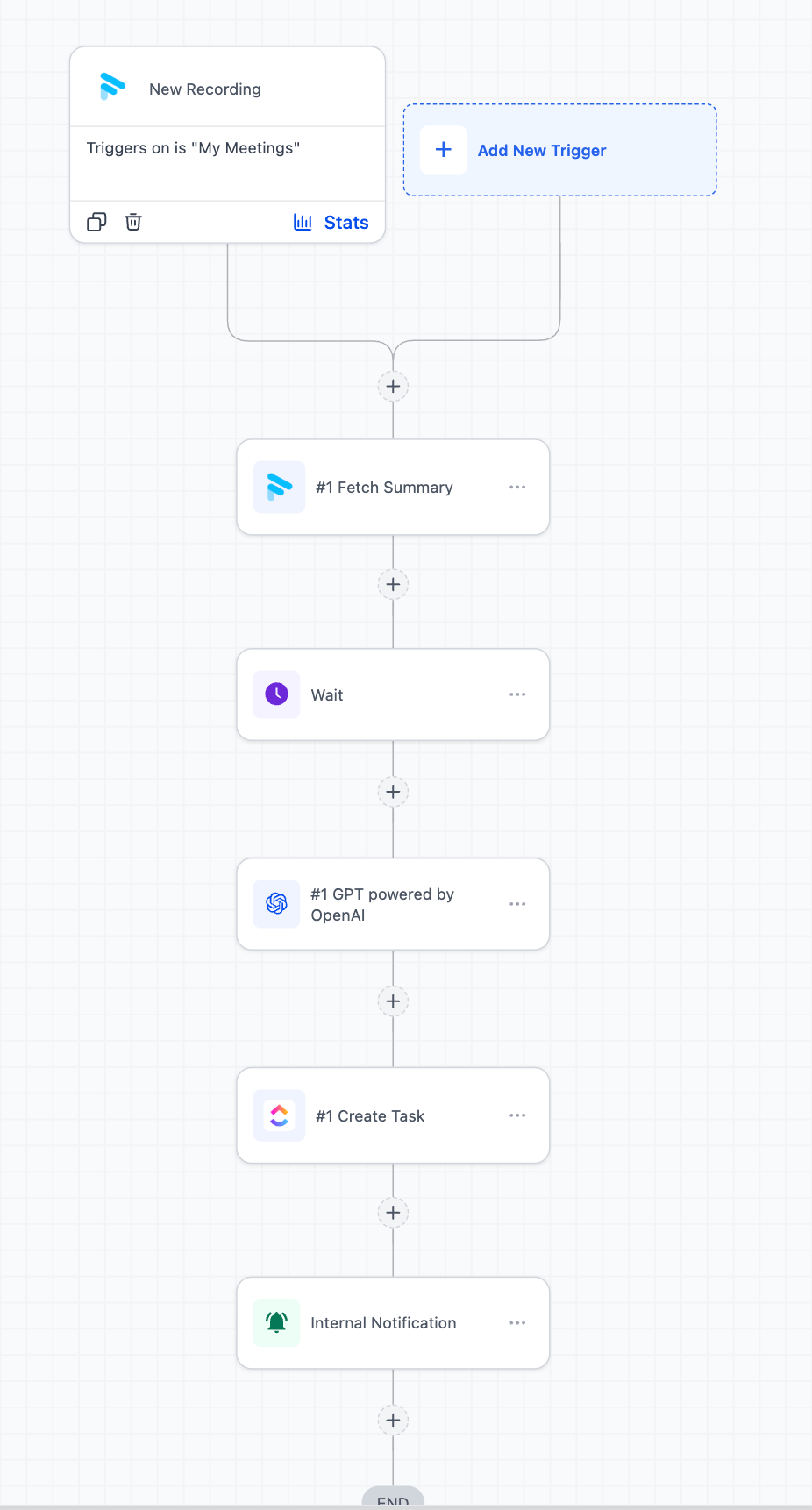
Automatic Summaries + Task Creation
Problem: Action items are often missed or unclear.
Solution: Turn meeting summaries into tasks automatically.
How it works:
- New recording triggers the workflow
- Summary is pulled via the Fetch Summary action
- AI extracts action items
- Tasks are created and team is notified
Frequently Asked Questions
When does the “New Recording” trigger start?
- It runs after the meeting is processed and available. This usually takes a few minutes.
Can I match recordings to contacts?
- Yes, but it’s not automatic. You can match people using details like their email inside your workflow.
Are these actions free?
- No, actions like fetching transcripts or summaries are considered premium and have a cost per use.
Not a Funnelbud customer yet?
Try our all-in-one CRM for sales and marketing — free for 7 days, no commitment.