How to Send Automated Abandoned Cart Emails
Abandoned cart notifications can help you recover lost sales by reminding customers to finish their purchase. Saving you time and allowing personalized follow-ups that align with your brand’s voice. Let’s check how to set them up!
Setting Abandoned Cart Notifications
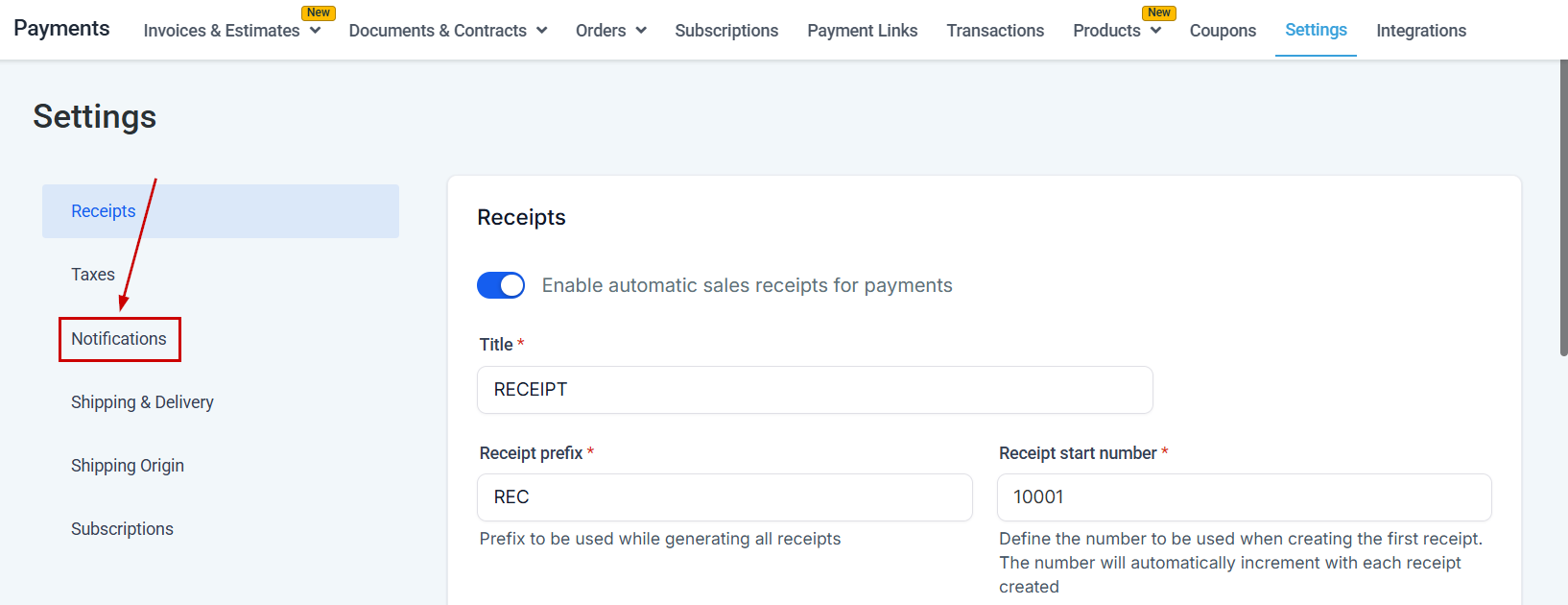
Head to the Settings tab of the Payments section and open the Notifications option.
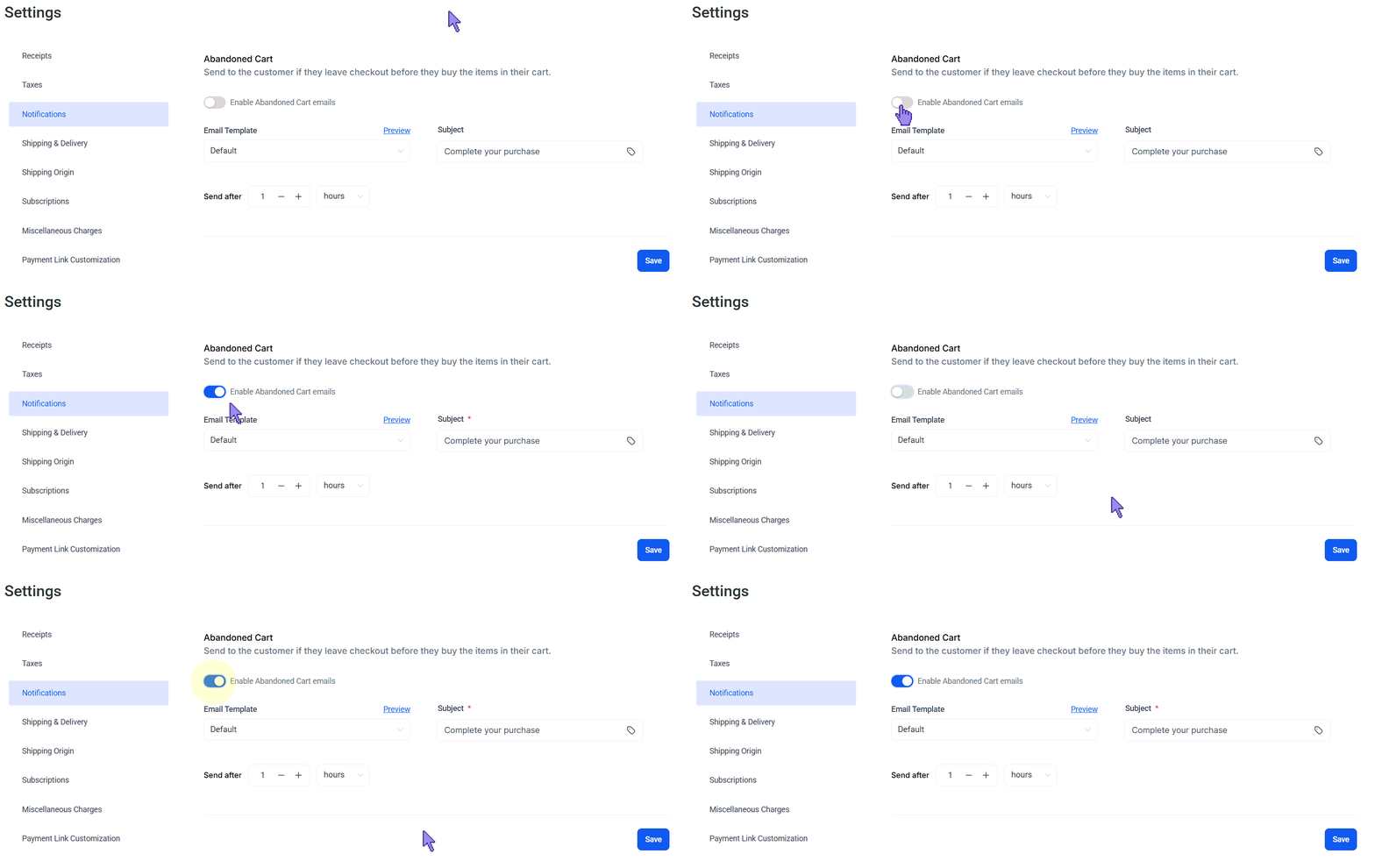
Enable abandoned cart emails with the toggle option. This process is the same for all email notifications; therefore, you can apply the same steps to Order Confirmation and Order Fulfillment Emails.
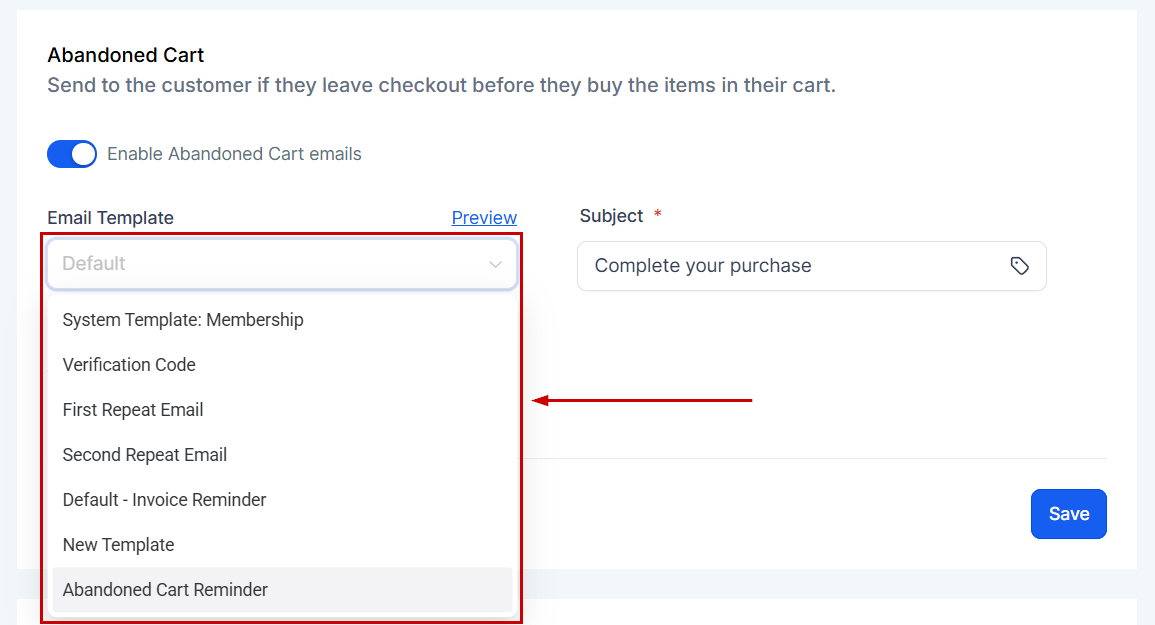
Select and Preview Templates
Select the email template you want to use from the dropdown. You can choose from professionally designed system templates or your own. All templates are fully editable, allowing you to align the content and design with your brand’s voice, style, and messaging standards.
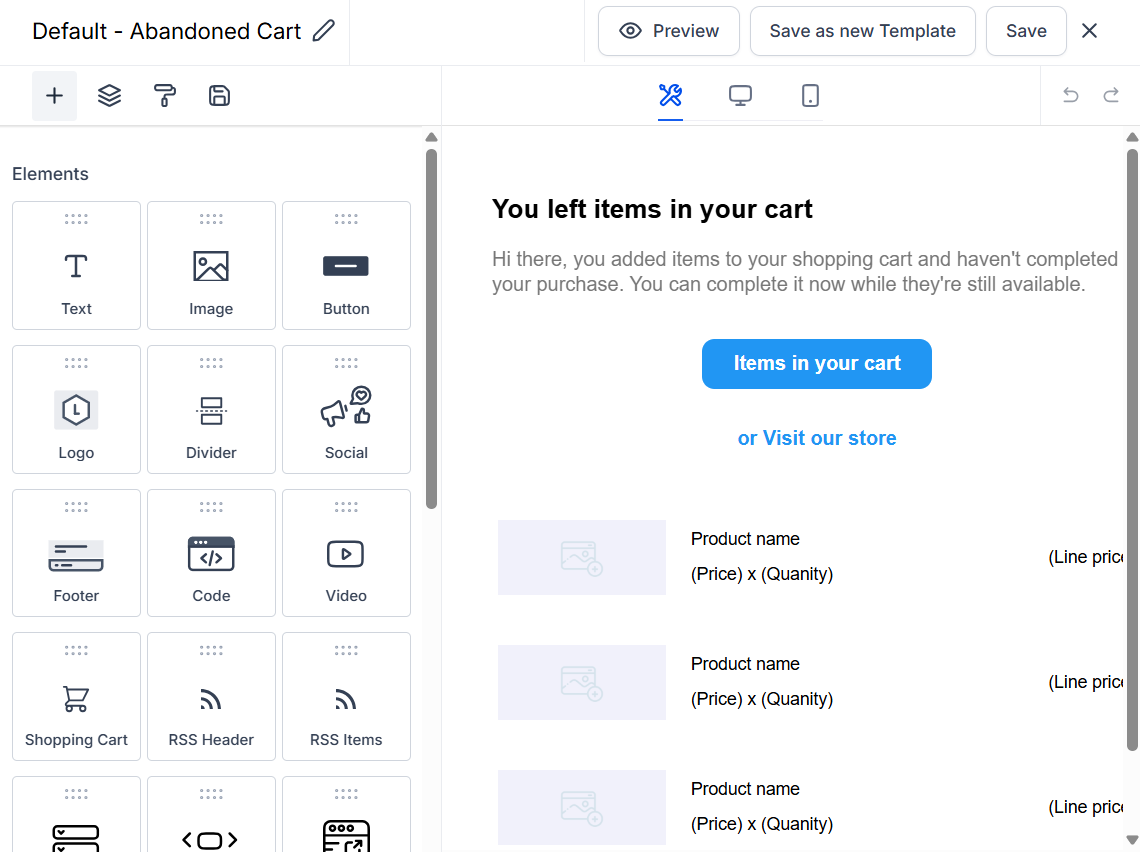
Click the Preview button if you need to edit the template.
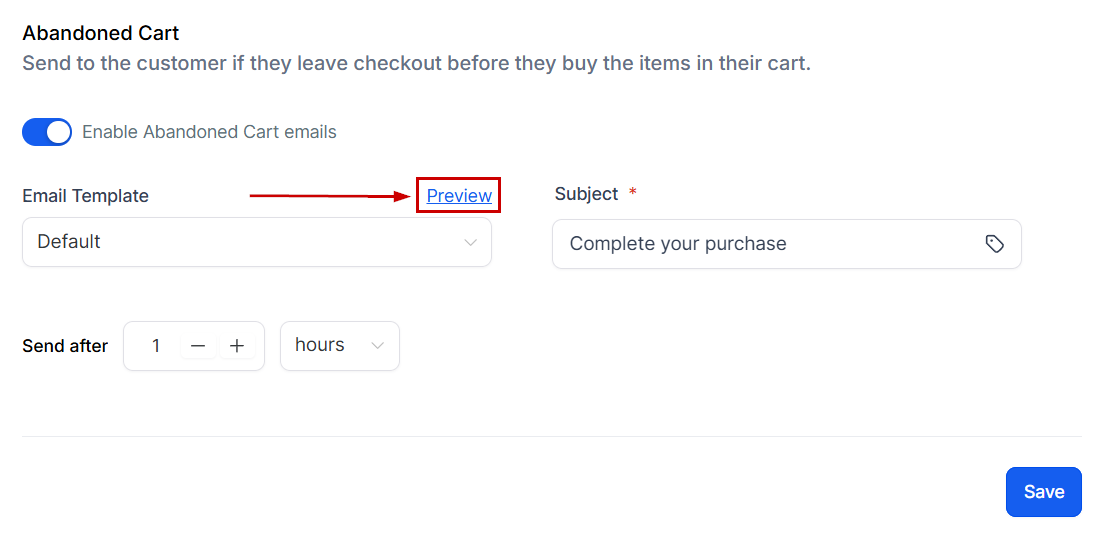
This will allow you to view and edit the template content in real time.
Edit Subject Lines
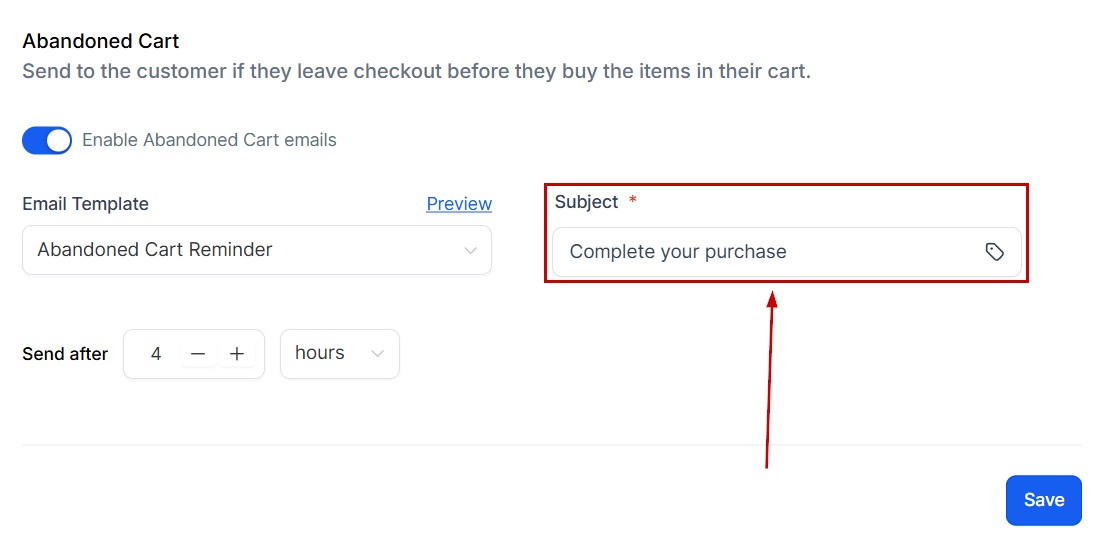
Edit your subject to increase the personalization. You can use custom values here by clicking the tag icon.
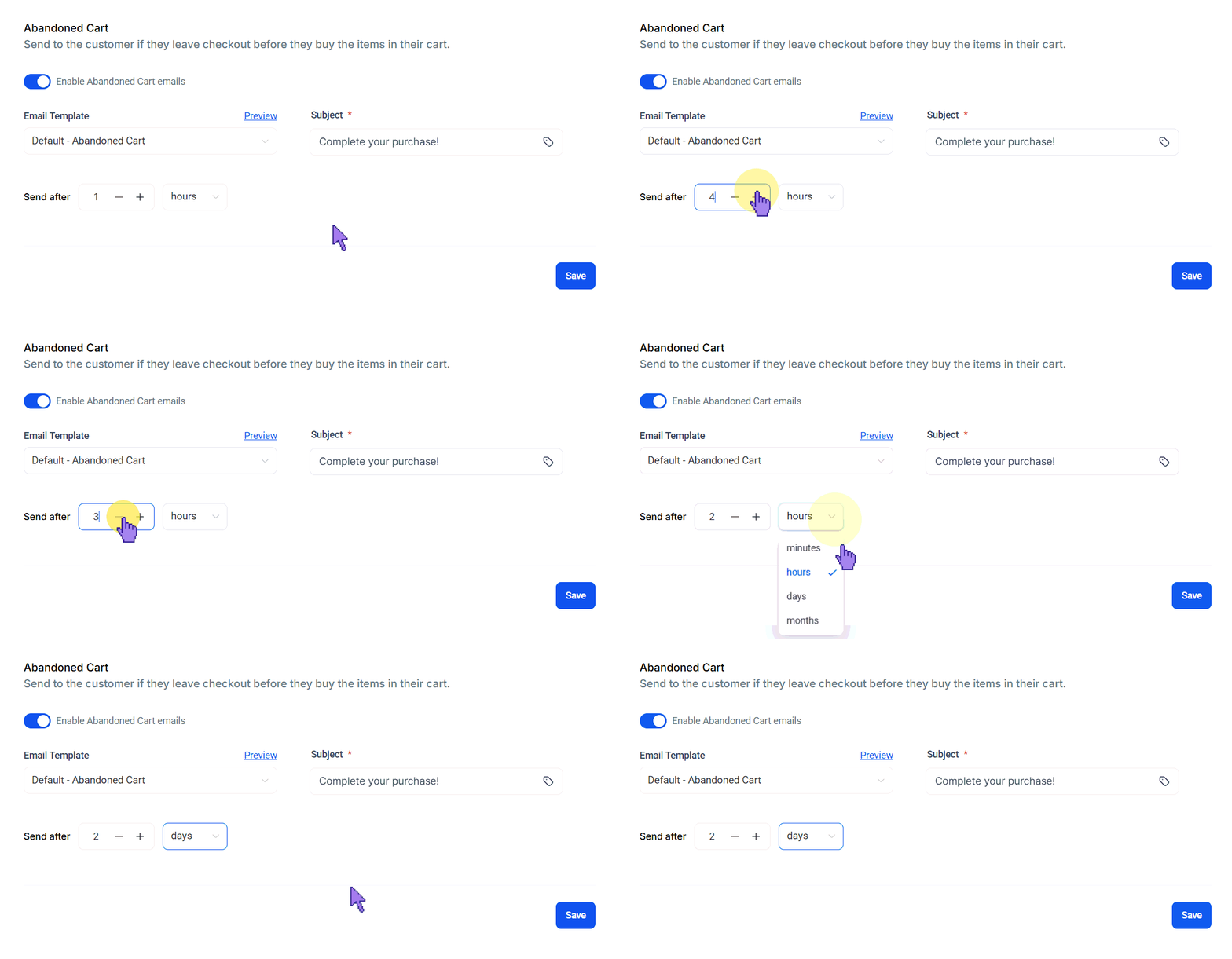
Configure how long after the cart is abandoned the email should be sent by selecting a time measurement from the drop-down menu and using the “+ or -” buttons to change the total.
Save Your Changes
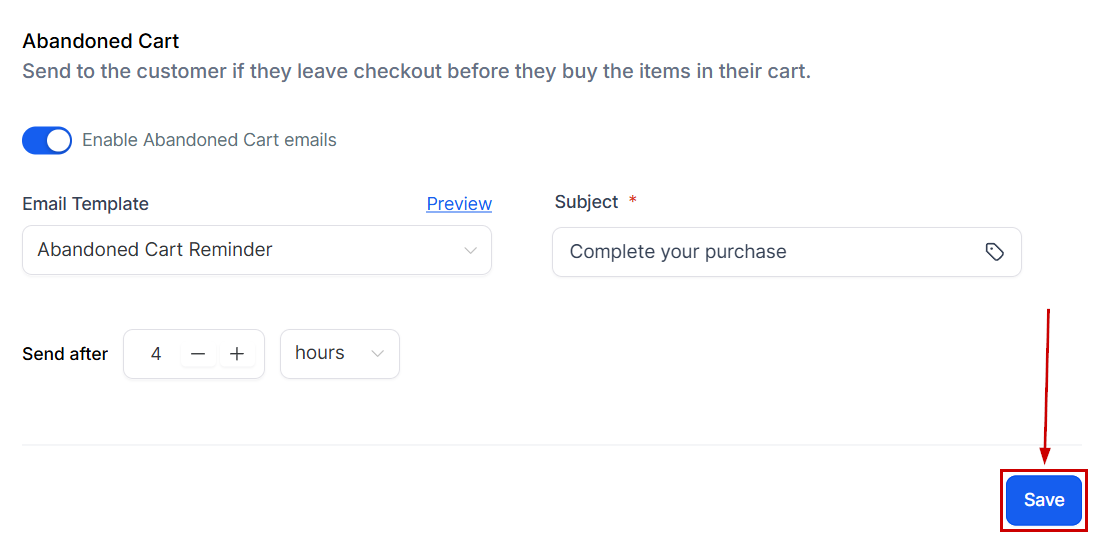
Finally, be sure to save your changes. All changes must be saved for them to take effect - unsaved edits will not be reflected in outgoing emails.
By following these steps, you can create effective and personalized abandoned cart emails that persuade your customers and encourage them to complete their purchases.
✍️Important Notes
- A unique checkout link is automatically generated whenever a customer abandons their cart in your e-commerce store. If the Abandoned Cart Email notification is enabled, this link is sent to the customer via email.
- This link remains functional across different browsers, devices, and sessions, ensuring a seamless and dependable cart recovery experience that helps boost overall conversion rates.
- The link allows customers to complete their purchase with up-to-date product names, pricing, and inventory availability and displays clear indicators for out-of-stock or removed items, along with actionable prompts (e.g., replace or remove).
- Each checkout URL is uniquely tied to a specific abandoned session and displays only the products associated with that session.
- Customers cannot modify the cart when accessing the checkout via the abandoned cart link. The link is intended solely for completing the original purchase.
- For guest users, a temporary session is created to display the contents of the abandoned cart and facilitate checkout.
Frequently Asked Questions
Q: Can I use my email design for the abandoned cart notifications?
- A: Absolutely! You’re not restricted to the default template, which can also be edited with the Preview option.
Q: How soon after a cart is abandoned should I send the email?
- A: Choose a time frame that aligns with your audience’s behavior. Some businesses find that sending it within the first few hours is most effective, while others might wait a day or two.
Q: What if the customer completes their purchase before the email is sent?
- A: Don’t worry—the CRM is smart! It tracks cart activity in real-time, so if a customer completes their purchase, it will automatically cancel the abandoned cart email to avoid unnecessary reminders.
Not a Funnelbud customer yet?
Try our all-in-one CRM for sales and marketing — free for 7 days, no commitment.