How to Create a Manual Collection
Manual Collections allow you to handpick and organize specific products to match your campaign goals or promotional themes. This approach gives you full control over which items appear, making it ideal for curated assortments, seasonal highlights, or themed promotions that require a personal touch. Continue reading to learn how you can create a manual collection in your account.
How It Works
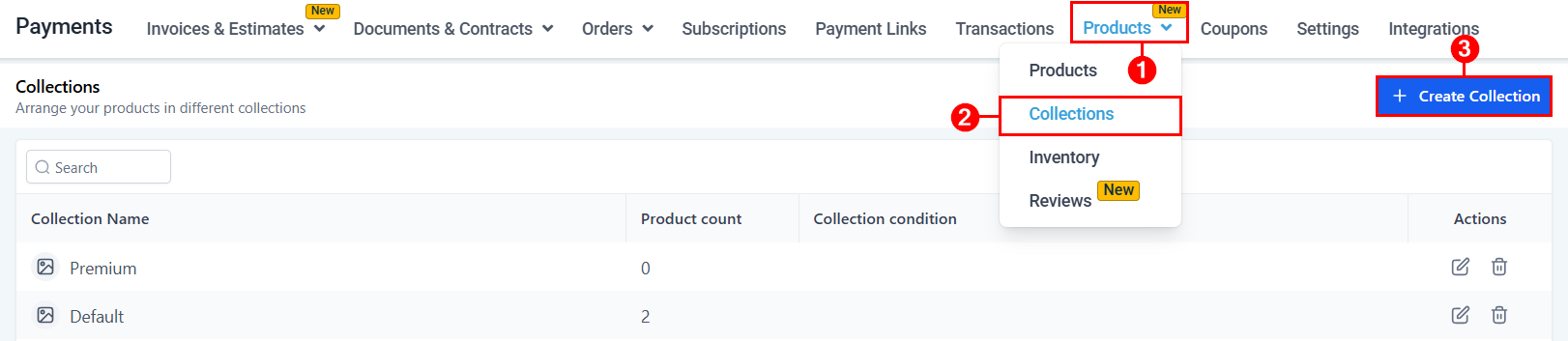
Start by accessing the Payments tab in your account. Here, you will find the Collections option within the Products dropdown. Select the “+ Create Collection” button to begin setting up your collection.
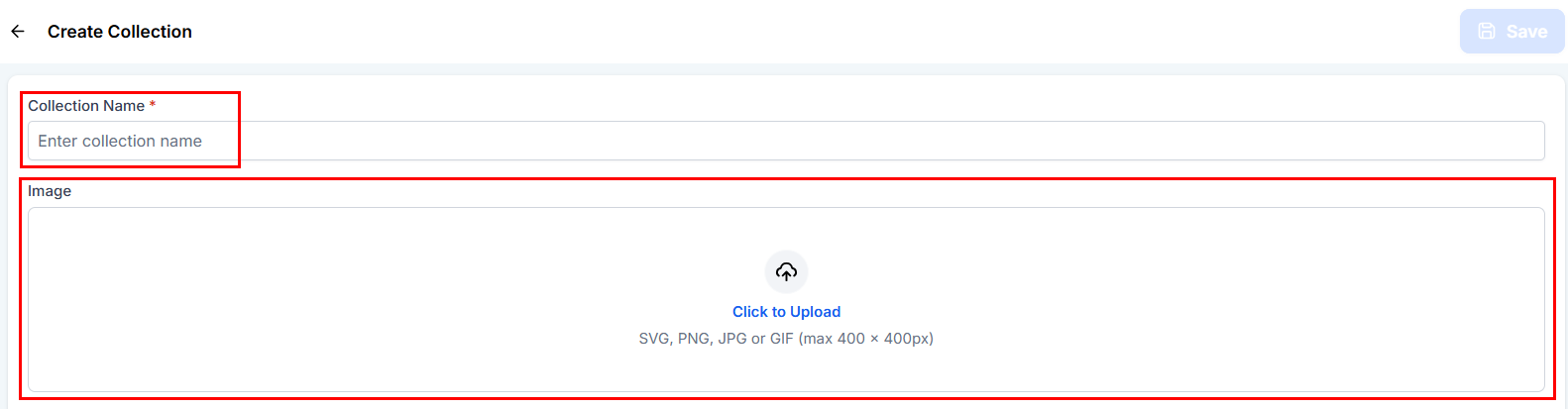
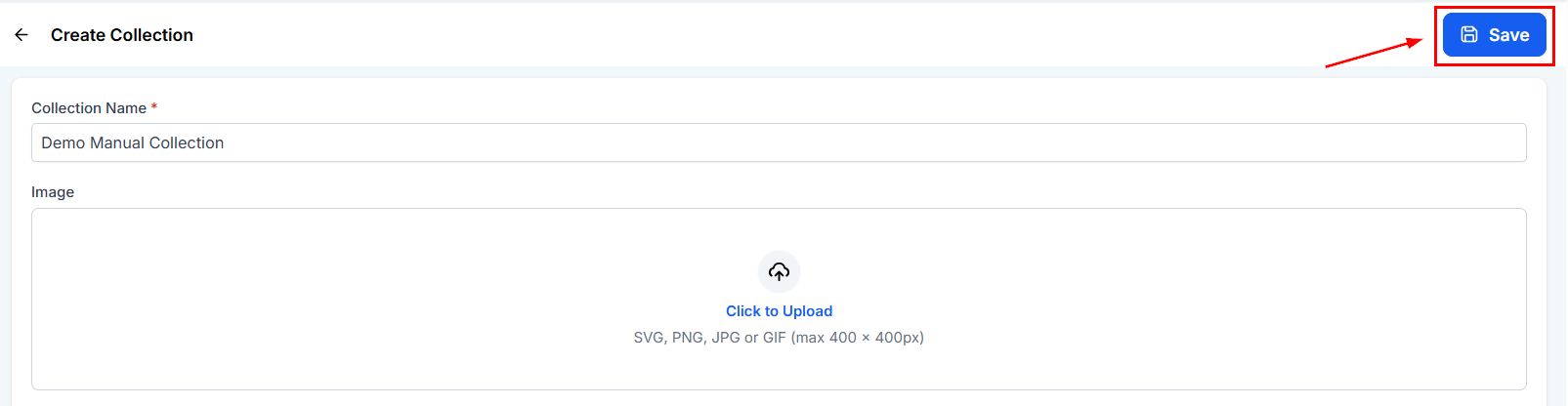
In the new view, you will first be prompted to assign a name to the collection. You can also add an image to enhance its appearance if you so desire.
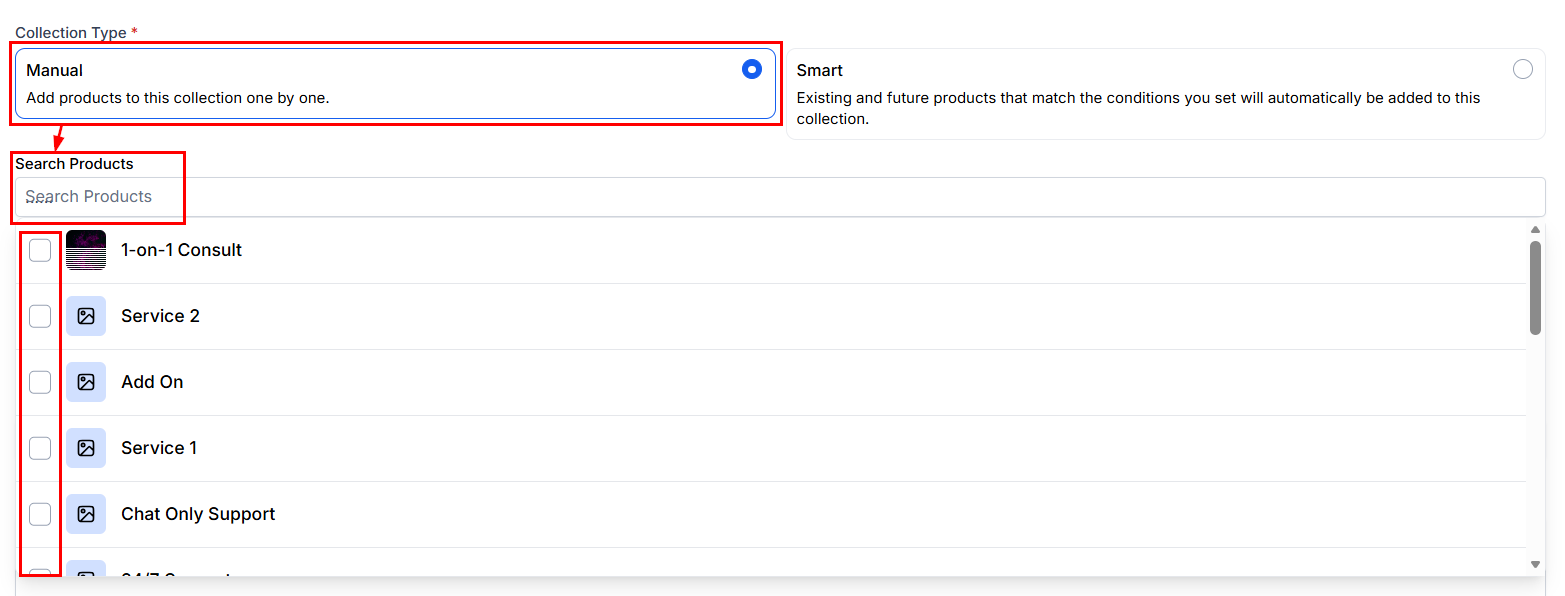
From the Collection Type section, click “Manual”, then add products by scrolling through the product list or utilizing the search bar.
📌Note: Manual Collections can be updated at any time by adding or removing products, allowing you to easily keep your curated selections current and relevant.
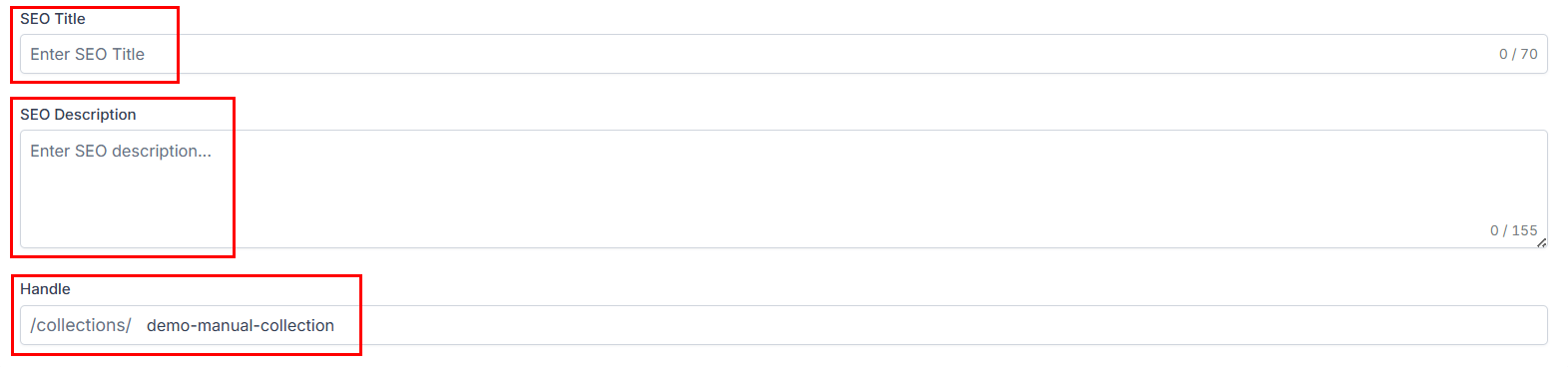
Add a title and description optimized for search engines (SEO) and review the collection handle. By default, the handle automatically matches the collection name, but you can edit it as needed to improve visibility or maintain consistency across your store.
Finally, click save to add the collection to your list.
With the flexibility to adjust products and their order at any time, Manual Collections provide an efficient way to maintain precise control over your store’s featured offerings. They’re the perfect choice for managing fixed product sets, limited-time campaigns, or carefully crafted shopping experiences.
Frequently Asked Questions
Q: Can I switch a Manual Collection to a Smart Collection (or vice versa)?
- No. Once a collection is created, its type cannot be changed.
Q: Can products be included in multiple collections?
- Yes. A single product can belong to multiple collections, either through manual selection or rule-based criteria.
Q: Where can collections be displayed?
- Collections can be featured on Store Pages, included in Email Templates, and utilized within Workflows for filtering and automation purposes.
Not a Funnelbud customer yet?
Try our all-in-one CRM for sales and marketing — free for 7 days, no commitment.