Goal Event Action
The Goal Event feature automatically advances contacts to the next step in the workflow once they meet the goal conditions specified by the user. This can occur regardless of the contact’s position in the workflow. This workflow action is great for ending a stream of workflow actions once a customer has met your goal, such as completing a Purchase.
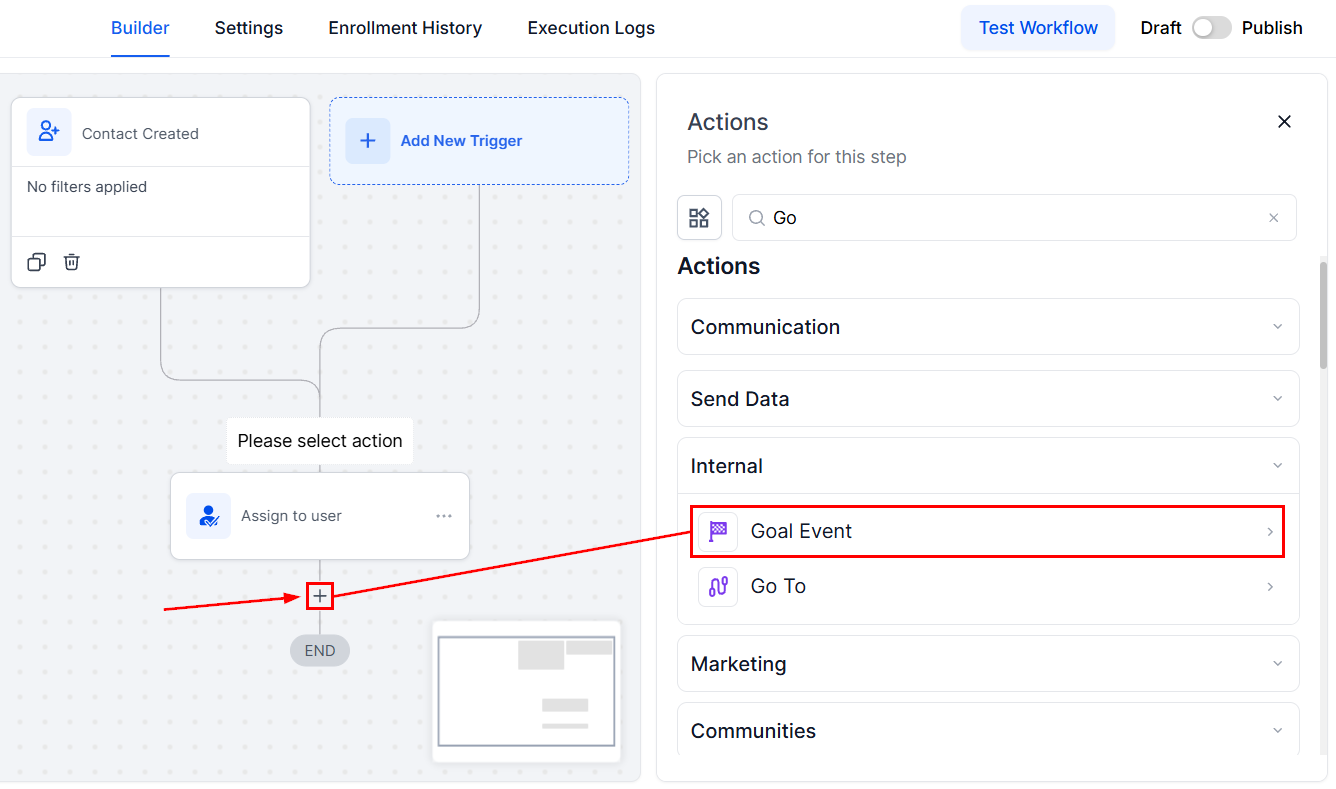
Action Name
The user can customize the name of the Goal Event according to the objective or leave it as the original conventional name.
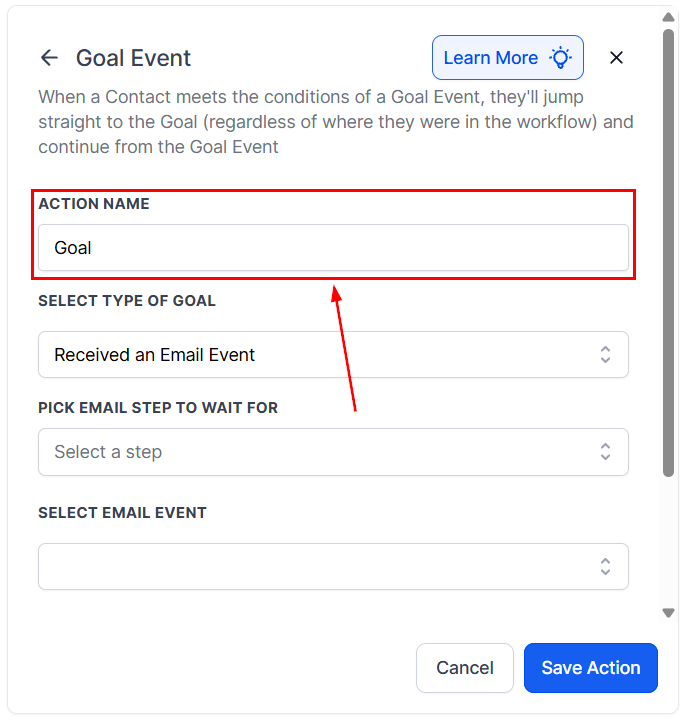
Select Type of Goal
Goal Events can be chosen to establish a contact Goal for a workflow. Once a contact joins the workflow, the system starts monitoring the specified Goal Event to occur regardless of the current step of the contact.
- Received an Email Event: The Email event enables the system to pull prospects into the workflow, irrespective of their current step, when certain conditions relating to the email event occur. Users can select the specific email event they want the system to recognize, such as email opened or unsubscribed.
- Clicked a Trigger Link: Once the prospect clicks on a trigger link, they will be pulled into the workflow regardless of where they are in the step.
- Added a Contact Tag: When a specific tag is added to a contact, the system triggers the goal and moves the contact to the next step of the workflow.
- Removed a Contact Tag: If a tag is removed from a contact, it serves as the goal condition, advancing the contact through the workflow.
- Appointment Status: When a specific appointment status is updated (e.g., booked, canceled, or no-show), the system recognizes this as the goal and takes appropriate action based on the workflow setup.
- Payment Received: When a payment is successfully processed, the system triggers the goal, allowing the contact to advance in the workflow or initiate subsequent automated actions as defined in the setup.
- Form Submitted: When a contact submits a designated form, the system recognizes this submission as the goal condition and moves the contact to the next relevant step in the workflow.
- Document Status: When the status of a document changes (e.g., sent, viewed, signed, or declined), the system identifies this update as the goal event and progresses the contact through the workflow accordingly.
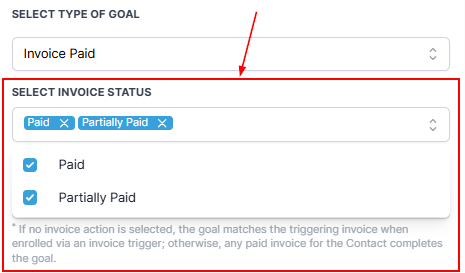
- Invoice Paid: When a contact has an invoice marked as Paid or Partially Paid, the system recognizes this as the goal—either for any invoice associated with the contact or specifically the one linked to a selected Send Invoice step (if configured).
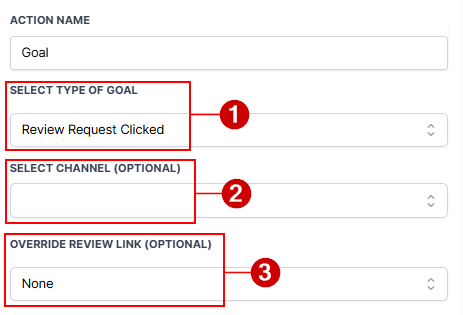
- Review Request Clicked: When a contact clicks a review request link, the system triggers the goal—either across any channel or limited to selected channel(s) and/or a specific review link based on applied filters.
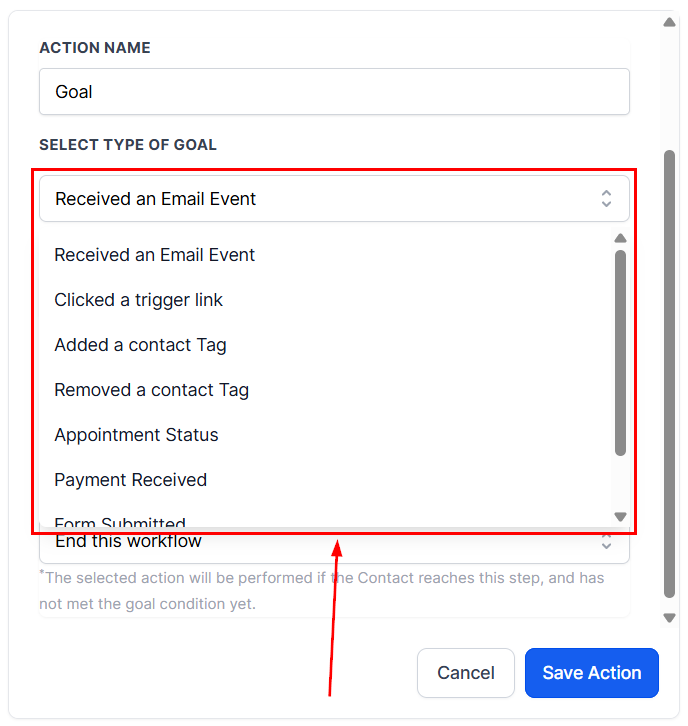
📌Note: Currently, only one goal event can be added per workflow. Each goal configuration may vary, but this guide will focus specifically on setting up the Email Event goal.
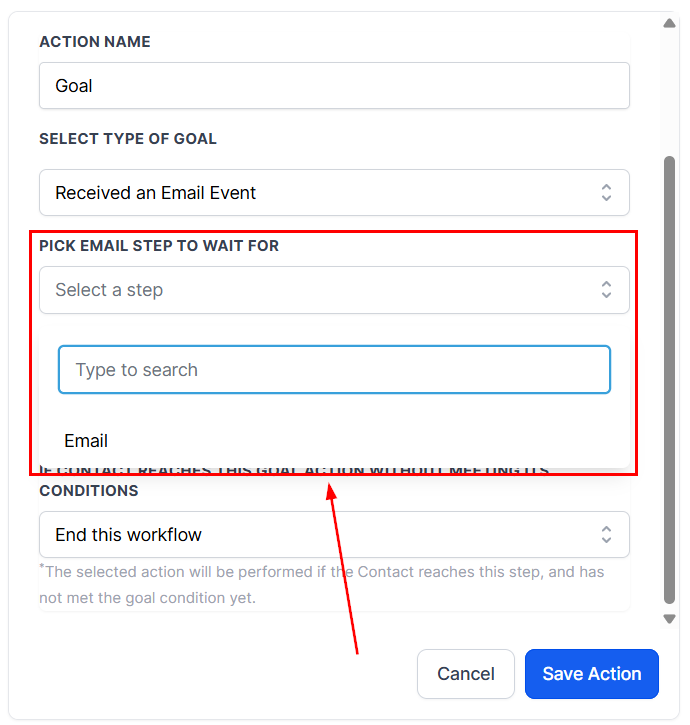
Pick Event To Wait For
Users can select the step for the email, trigger link, tag, or form interaction event using the Pick email/Select step to wait for the option.
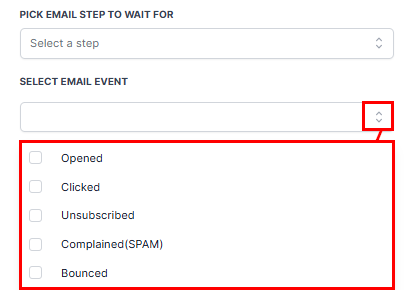
Selecting Email Event
From the options below, you can select the email event depending on your objective. From the checkboxes, you can select one or more events as per your goal.
- Opened: Use this to activate the goal event after the email is opened.
- Clicked: Use this when you need the goal event after the prospect has clicked on the link.
- Unsubscribed: Use this when you have several goal actions after the prospect clicks on the unsubscribe link.
- Complained: This is used to perform the actions when the client has marked your email as spam, and you have already created the actions to be performed in such events.
- Bounced: In case one of your emails was bounced, you will have the ability to remove such emails from the list.
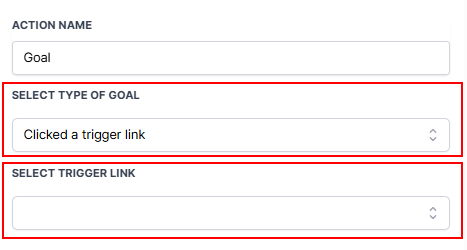
Clicked a Trigger Link
The Trigger link option only requires you to select the applicable trigger link from the dropdown.
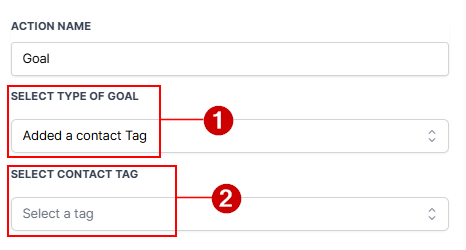
Add and Remove Contact Tag
For the contact tag goals, choose the tag from the list.
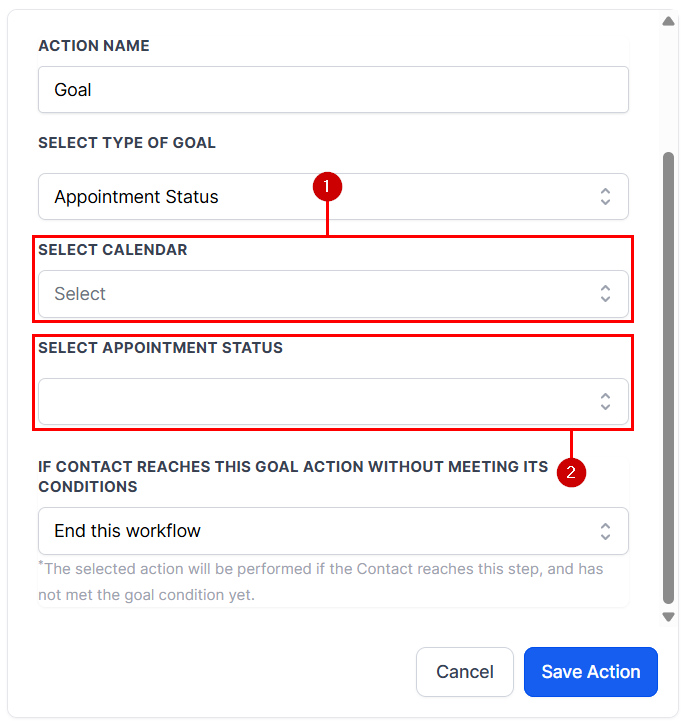
Appointment Status
For the Appointment Status option, select the calendar (1) you want the appointment to be from, then select your desired status (2).
Payment Received
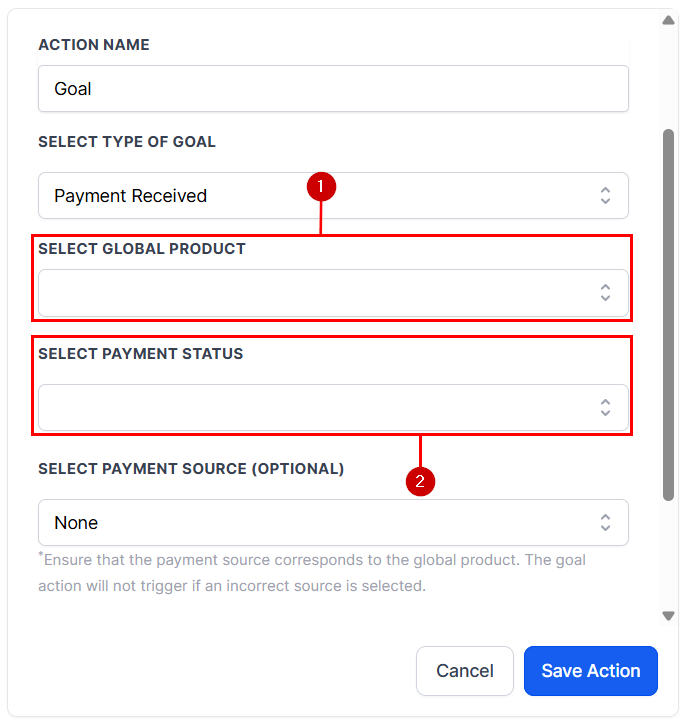
For the Payment Received option, select the Global product (1) you want the payment to be for, then select your desired status (2).
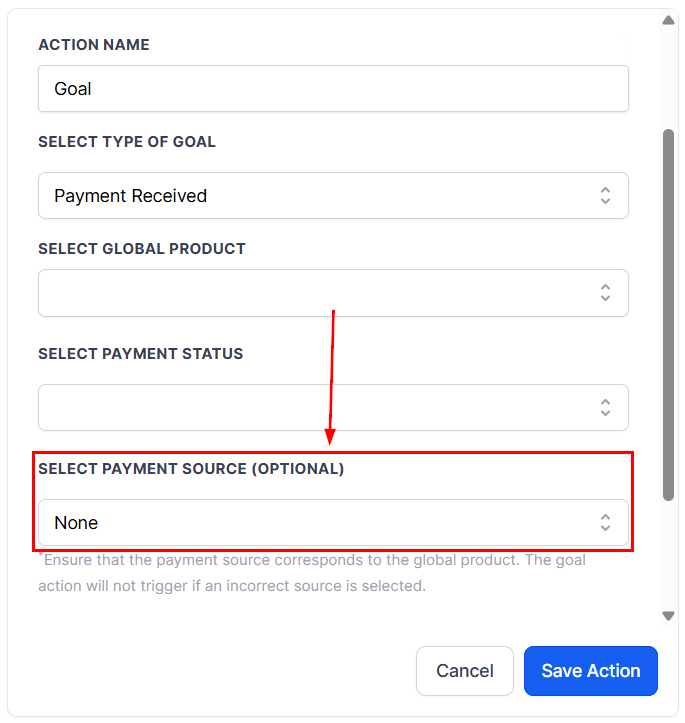
Additionally, you can select a Payment Source to limit the triggering sources.
Document Status
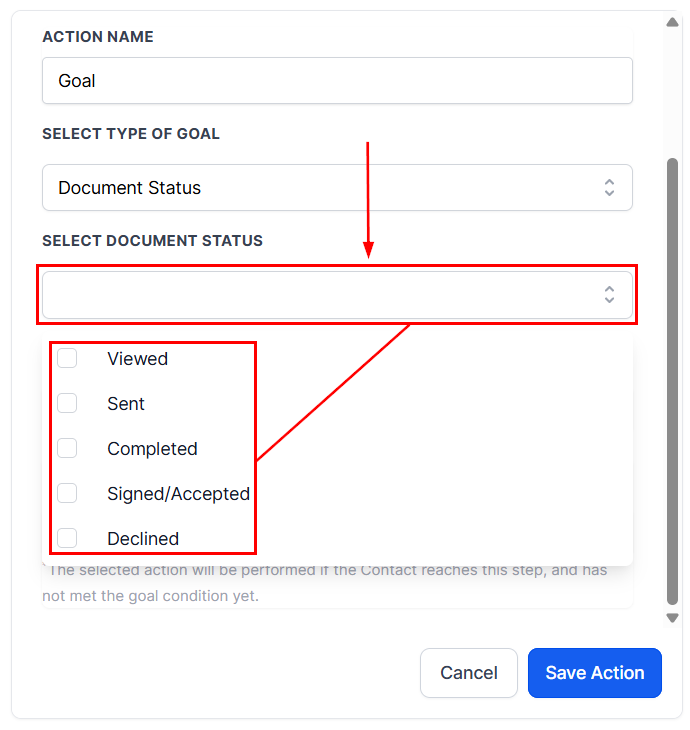
For the Document Status option, open the dropdown menu and select the statuses you want to trigger this action.
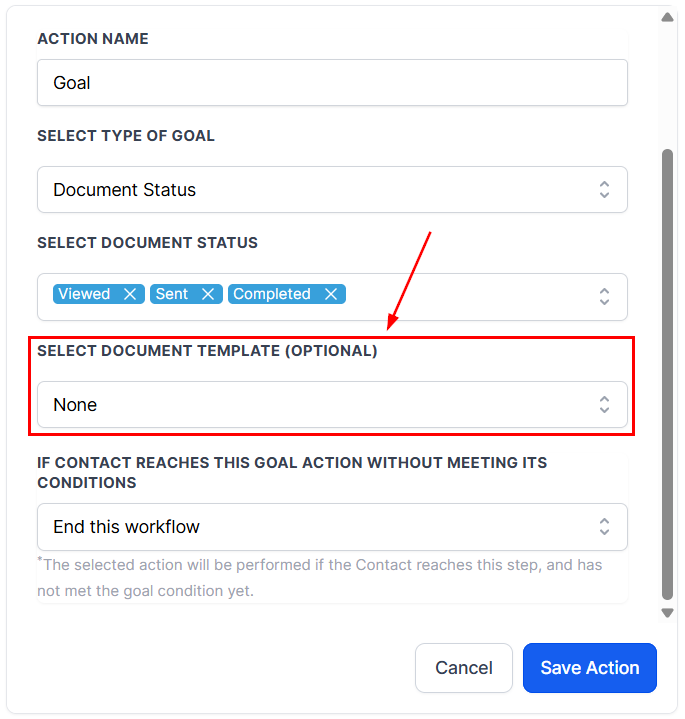
Additionally, you can select a Document Template to limit the triggering sources.
Invoice Paid
The Invoice Paid goal requires you to select invoices with the partially paid or fully paid status, or both.
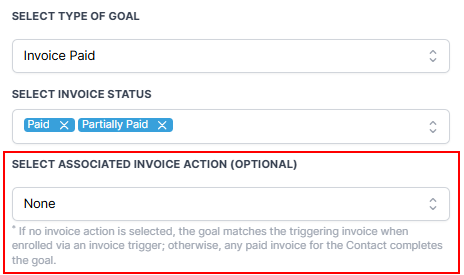
If an invoice action has been added to the workflow, you may optionally select it from the list.
Note: If the Invoice Paid goal is not associated with a specific invoice action, any qualifying paid invoice for the contact will satisfy the goal condition.
Review Request Clicked
For the review request clicked goal (1), you can select the channel (2) or override review link(3) from the dropdown.
If Contact Reaches the Goal Without Meeting Its Conditions
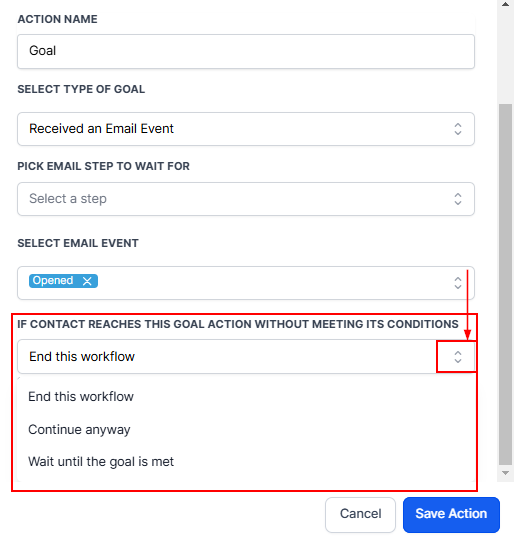
If the Goal event was not reached by the time the contact reaches the goal action in your automation, there will be 3 options to select from:
- End this workflow: This allows you to end the workflow even if the contact has not met the goal condition yet.
- Continue Anyway: If you need the system to perform several actions when the contact has not met the goal condition, you can use this
- Wait until the Goal is met: With this option, you can let the system wait until the goal conditions are met.
Save Actions
Click the Save Action button to save the changes you have made in your goal event.
The Goal Event feature is a powerful action for streamlining workflows by intuitively advancing contacts based on specific conditions. Whether your objective is to track email interactions, link clicks, or other key actions, this feature ensures that your workflows are responsive and efficient. By customizing goal types and subsequent actions, you can tailor the system to align with your business needs.
Not a Funnelbud customer yet?
Try our all-in-one CRM for sales and marketing — free for 7 days, no commitment.