General CRM Overview
Navigating your platform effectively is essential to unlocking its full potential and maximizing your business productivity. This guide provides an in-depth overview of your platform’s dashboard and the various features accessible through its intuitive interface. Whether you’re managing contacts, tracking opportunities, or automating workflows, understanding the layout and functionality of each section will empower you to manage and optimize your operations efficiently. Keep in mind that the availability of certain features may vary depending on your specific plan, so this guide will help you familiarize yourself with the tools at your disposal.
Navigation Sidebar
The left sidebar serves as a central navigation hub, offering a menu list of all available sections within your platform. This menu facilitates easy access to different features, allowing you to efficiently manage various aspects of your platform’s functionalities.
If you manage multiple accounts, you can effortlessly switch between them using the drop-down menu located in the upper section of the navigation sidebar. This functionality facilitates seamless and efficient account management across the platform.
Search Bar
Located below the drop-down menu, the search bar allows you to quickly find and manage specific contacts by entering their names. Additionally, you can use the search bar to add opportunities or view payment information related to the selected contact.
Quick Actions
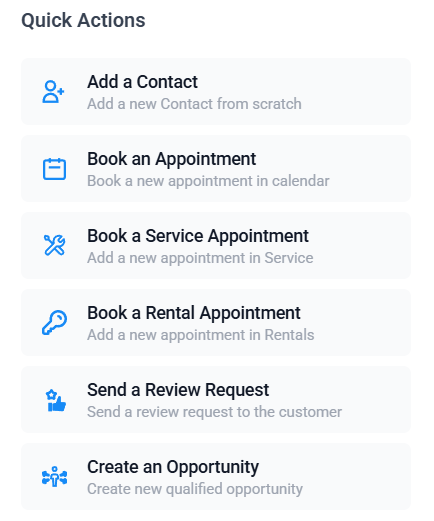
To access Quick Actions, look for the green lightning bolt icon located on the right side of the search bar. Clicking this icon opens up a menu of shortcuts.
The Quick Actions section provides a set of tools for performing common tasks efficiently. You can quickly add a new contact, schedule an appointment, send a review request, or create an opportunity with just a few clicks. This feature streamlines the initiation of these tasks, reducing the need for extensive navigation.
Dashboard View
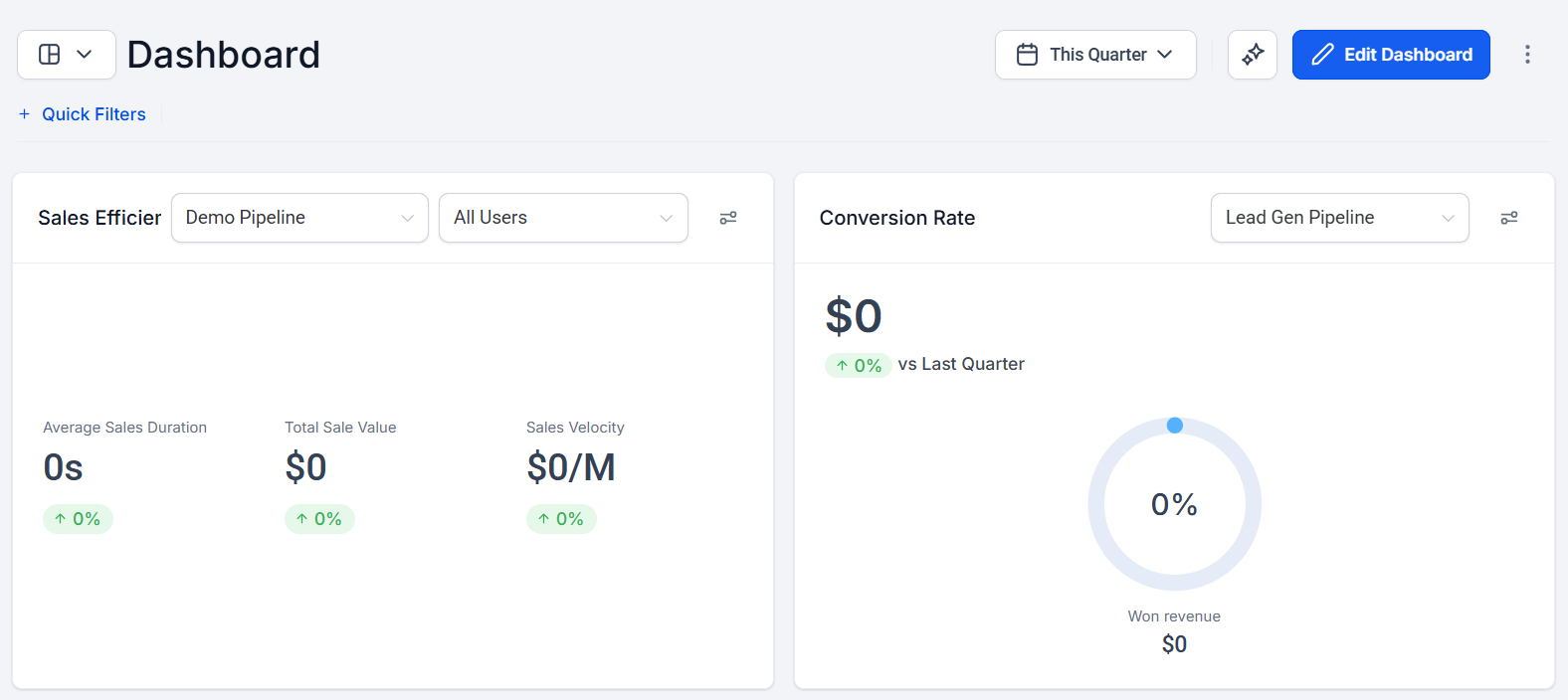
Clicking on the “Dashboard” option from the left sidebar displays your Dashboard, which provides general reports on your contacts, pipelines, and other key business metrics. This centralized hub offers valuable insights into your business activities and is the default page you will see after logging into your account.
Conversations
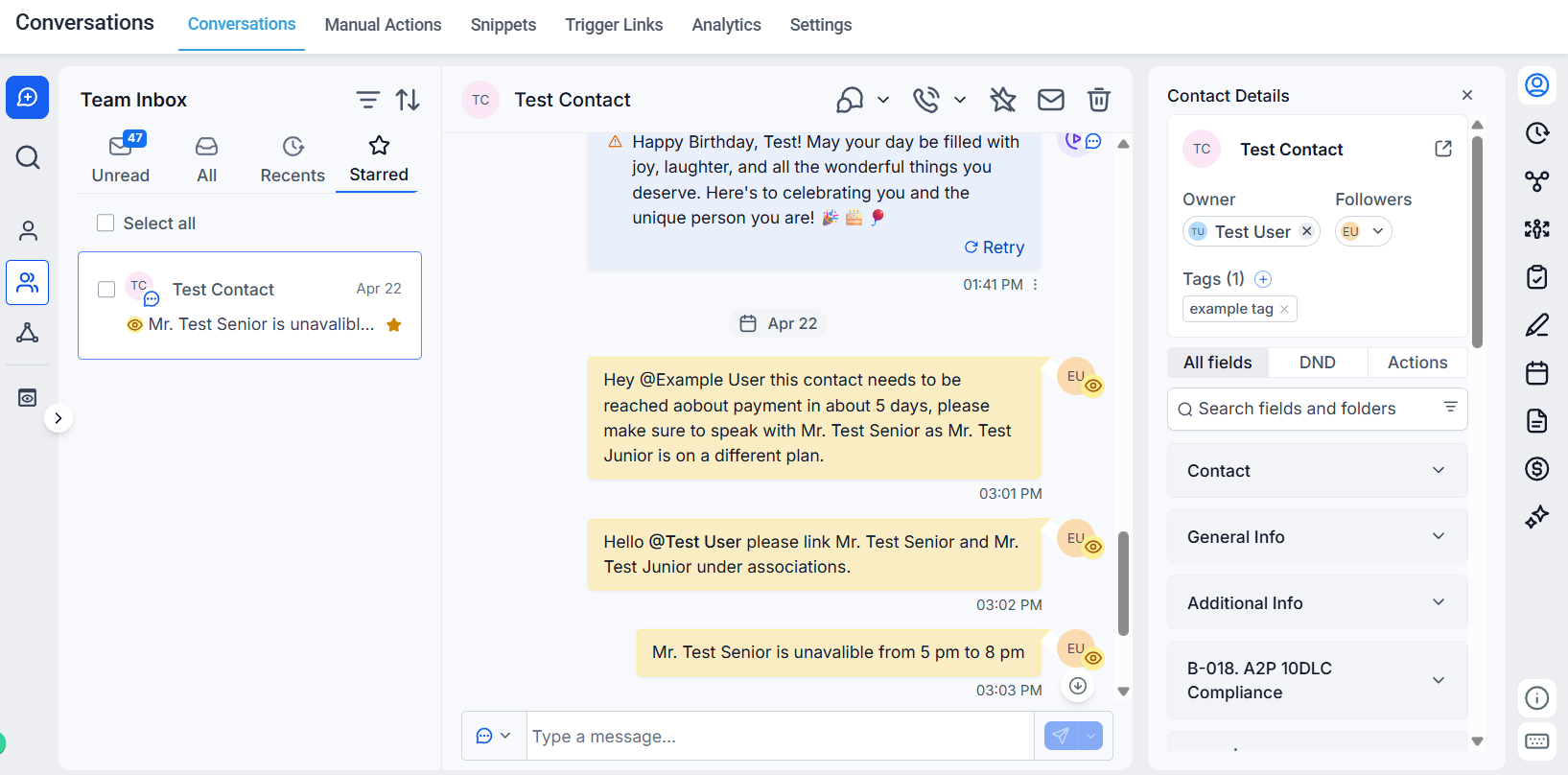
The Conversations section serves as a unified communications center, consolidating all interactions with your contacts, including emails, SMS, and other communication channels. This centralized view helps you manage and track all contact communications.
Within Conversations, there are several tabs:
- Manual Actions: Set up and manage manual tasks such as calls, which are listed as pending, and automatically trigger the next task upon completion.
- Snippets: Create reusable email and SMS templates for your automation campaigns, ensuring consistent messaging and saving time.
- Trigger Links: Use custom links that trigger specific actions when clicked, automating tasks based on user interactions.
- Analytics: Monitor response times and evaluate how consistently SLAs are met or breached.
- Settings: Set your SLAs and define how quickly your team should respond to customer messages
Calendar
The Calendar section provides an overview of all the calendars and upcoming events within your platform. The Appointments tab, found within the Calendar section, displays all booked appointments, offering a centralized view of your schedule.
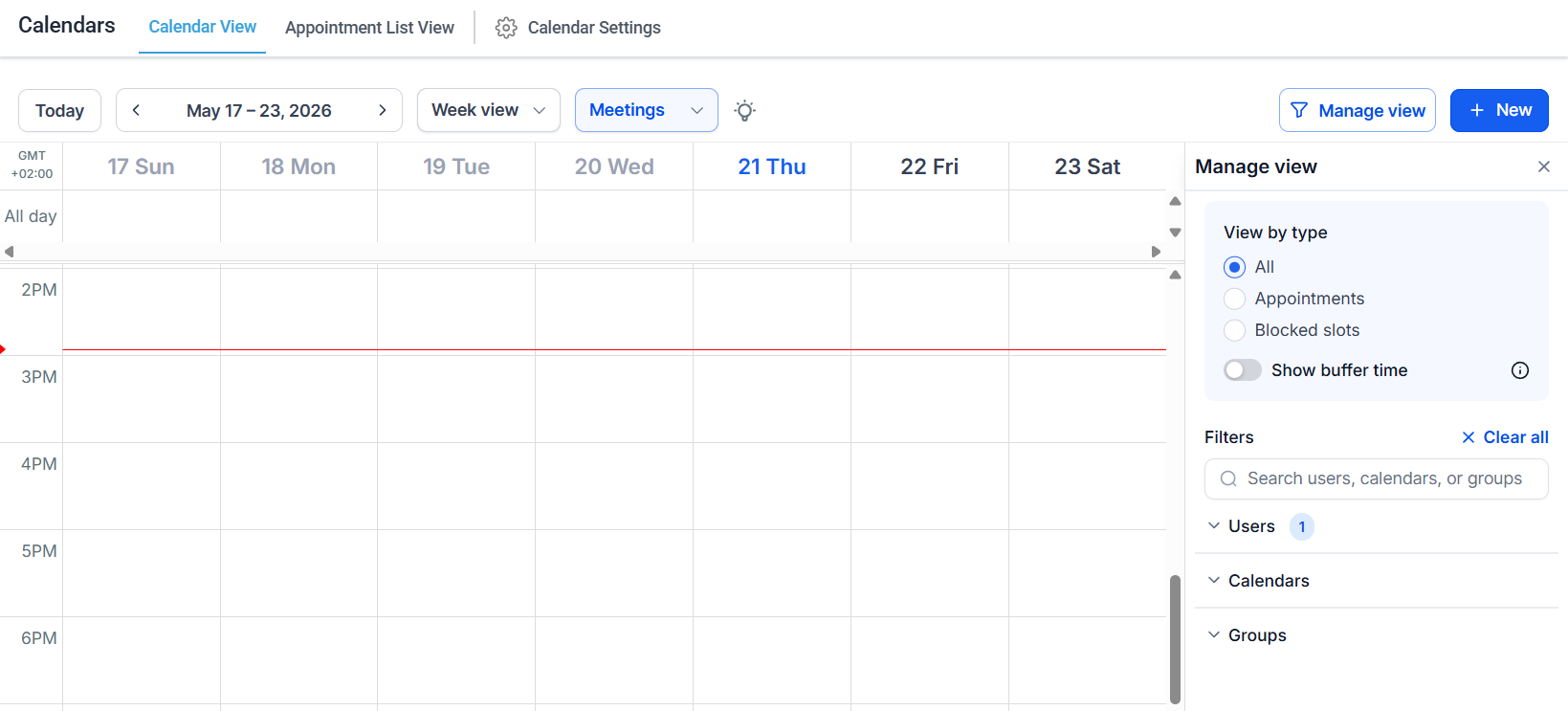
Navigate to “Calendars” from the sidebar menu to access the Appointments tab in the main view.
Contacts
The Contacts section allows you to store and manage all contacts within your platform. You can add contacts individually, import them in bulk, or use marketing forms to collect contact information. This section is essential for maintaining an organized contact database.
The Contacts tab includes:
- Smart Lists: Create dynamic contact lists using filters and save rules for future use, simplifying contact segmentation.
- Bulk Actions: Quickly apply campaigns to large groups of contacts, streamlining your marketing efforts.
- Tasks: Create, assign, and monitor tasks within this section to ensure that important assignments are not overlooked.
- Companies: Manage and store information related to companies or organizations associated with your contacts.
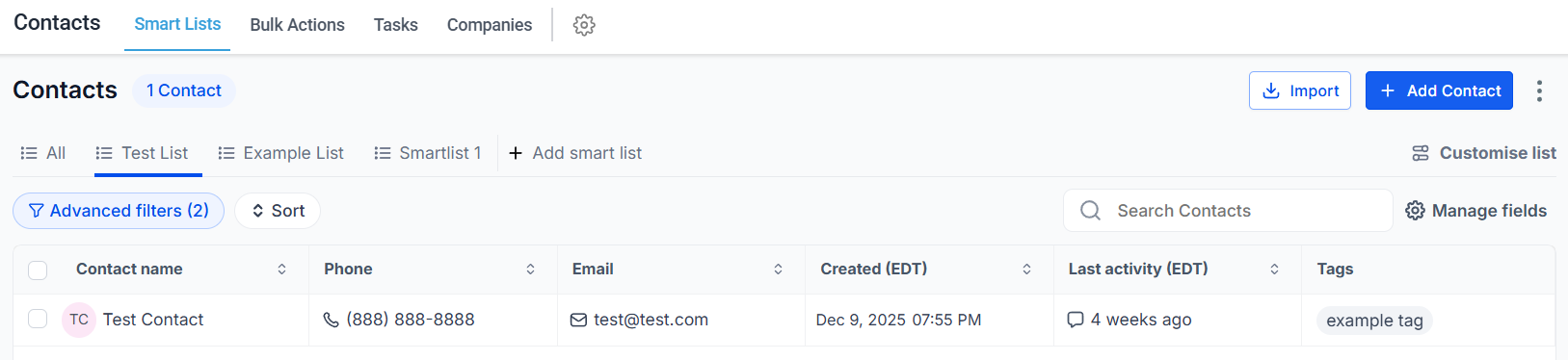
Access these tabs by selecting “Contacts” from the sidebar menu.
Opportunities
The Opportunities section, particularly the Pipelines tab, allows you to track and manage the progress of contacts through various stages. This feature provides an overview of your pipelines, enabling effective contact management.
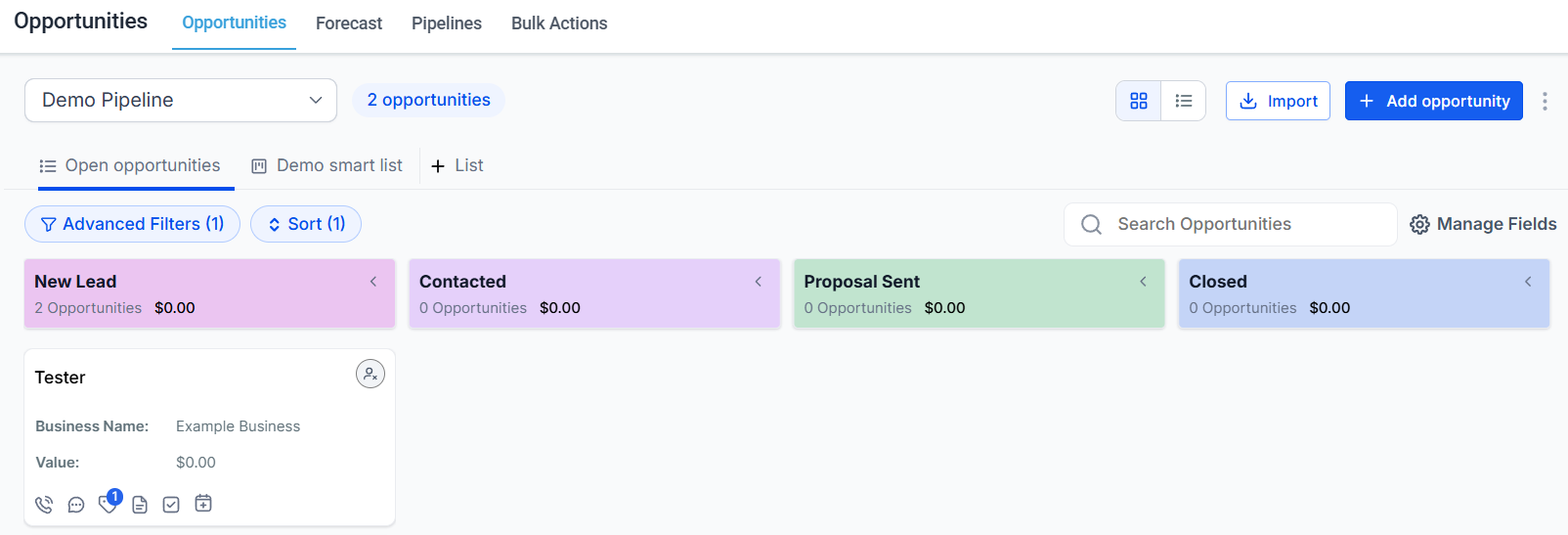
Navigate to “Opportunities” from the sidebar to find the Opportunities, Pipelines, and Bulk Actions tabs.
Payments
In the Payments section, you can manage products, transactions, and integrations with payment processors like Stripe or PayPal. The Transactions tab lists all product-related transactions, while the Integrations tab allows you to connect payment gateways.
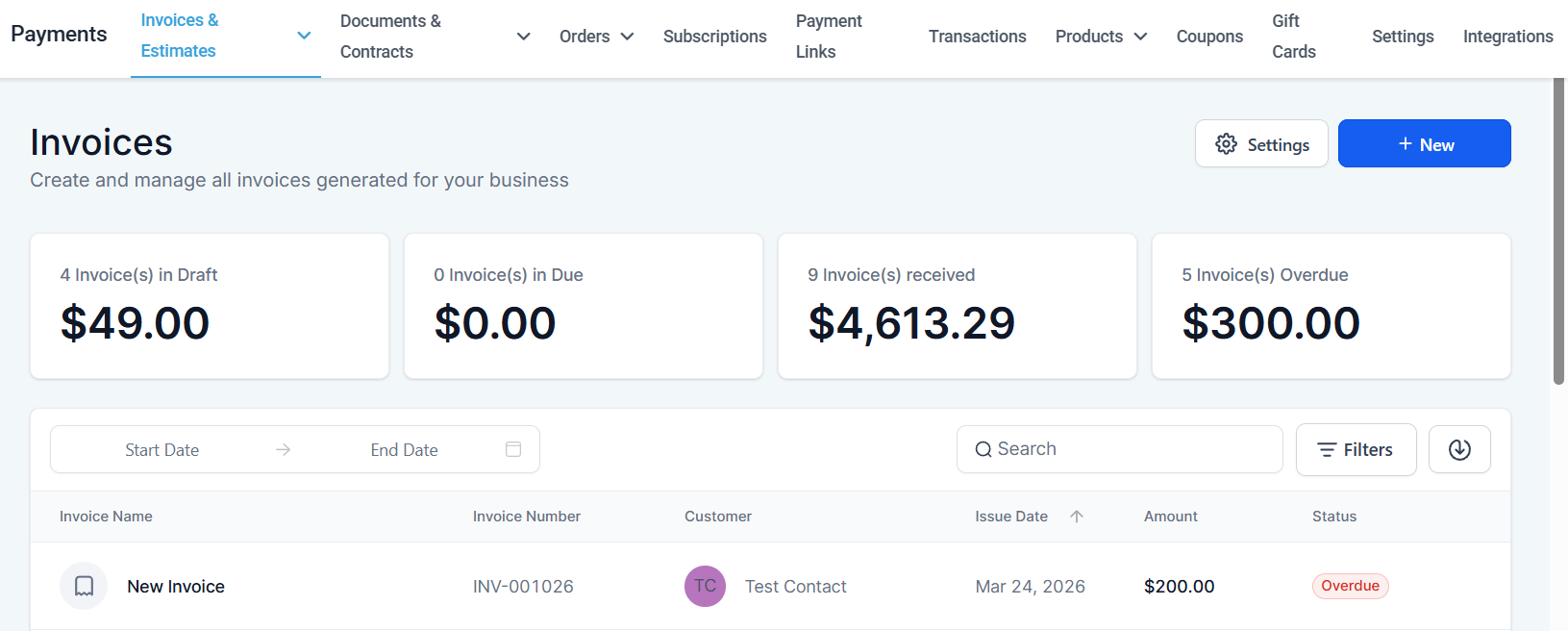
To explore these options, go to “Payments” from the sidebar menu, where you’ll find the Invoices, Documents & Contracts, Orders, Subscriptions, Payment Links, Transactions, Products, Coupons, Settings, and Integrations tabs.
Marketing
The Marketing section offers tools for managing your marketing activities:
- Social Planner: Schedule and create social media posts.
- Emails: Design and send email campaigns.
- Snippets: Build emails and sms using pre-designed templates.
- Countdown Timers: Create interactive countdown elements for your funnels, sites, and campaigns.
- Trigger Links: Use custom links in campaigns to automate specific actions.
- Affiliate Manager: Automate the tracking of referrals, commissions, and payouts.
- Brand Boards: Create preset templates for texts, colors, and other brand essentials.
- Ad Manager: Launch & manage ad campaigns.
- Prospecting: Identify and engage potential leads.
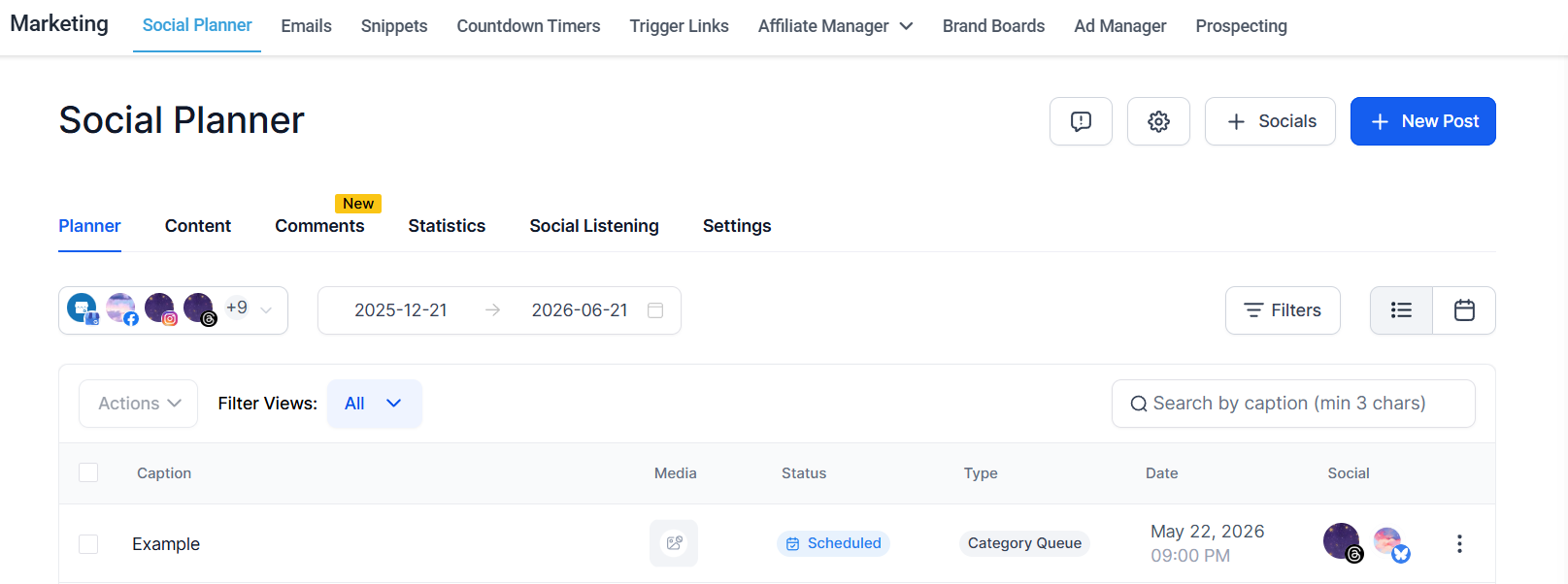
Access these tools by selecting “Marketing” from the sidebar menu.
Automation
The Automation section enables you to design and implement automated workflows, replacing manual campaigns and triggers. This feature enhances efficiency by streamlining tasks that previously required manual intervention.
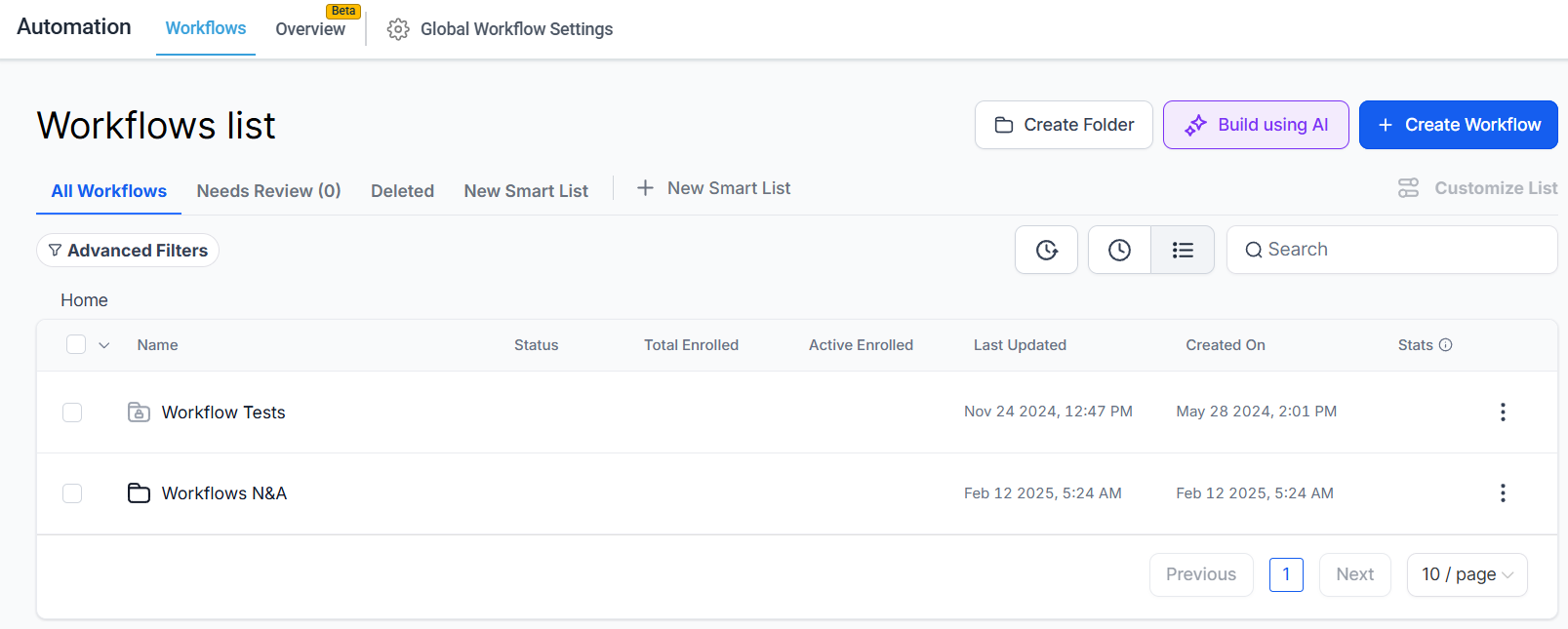
Navigate to “Automation” from the sidebar to access the Workflows and Overview tabs.
📌 NOTE: If you prefer to use traditional campaigns and triggers instead of automation, this option can be enabled in Settings under the “Enable/Disable Deprecated Features” toggle.
Sites
The Sites section provides tools for creating and managing marketing funnels, websites, and other digital assets:
- Funnels & Websites: Build multi-page funnels and websites with ease.
- Stores: Create and manage online stores.
- Webinars: Host virtual events.
- Analytics: Track and analyze the performance of your sites.
- Blogs: Publish and organize blog content.
- WordPress: Integrate and manage your WordPress sites.
- Client Portal: Set up and customize client-facing portals.
- Forms & Surveys: Collect visitor information and feedback.
- Quizzes: Engage users with interactive quizzes.
- Chat Widget: Enable and customize a chat widget for enhanced customer interaction.
- QR Codes: Generate QR codes for easy access.
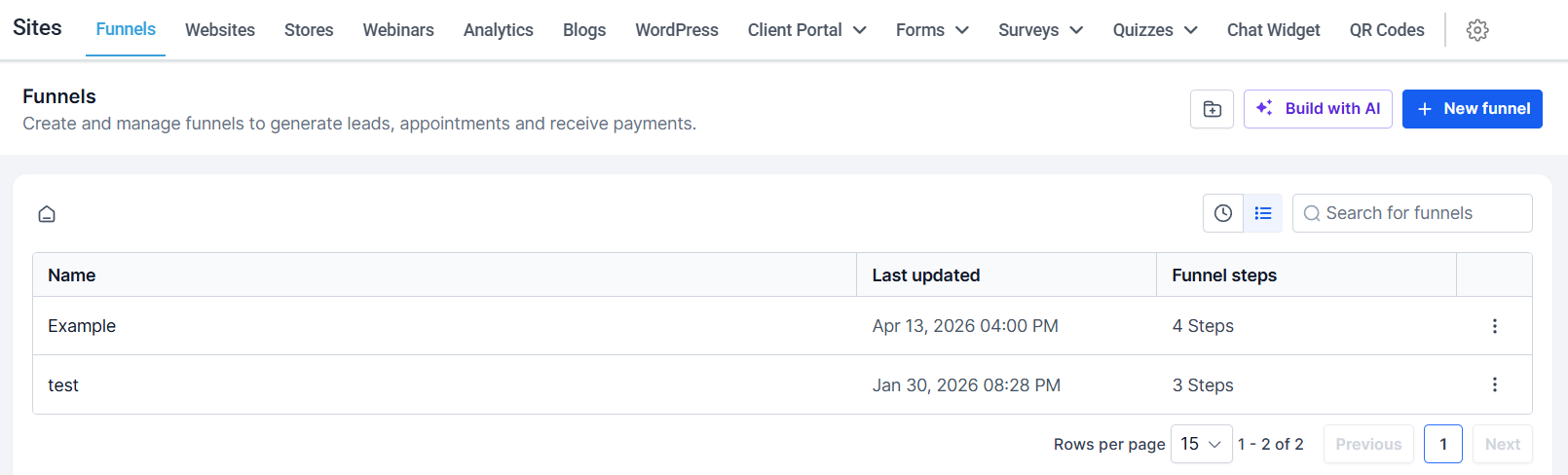
Access these tools by selecting “Sites” from the sidebar menu, where you’ll find the Funnels, Websites, Stores, Analytics, Blogs, WordPress, Client Portal, Forms, Surveys, Chat Widget, and URL Redirects tabs.
Membership
The Membership section allows you to create and manage online courses, offering a structured learning experience for your audience. It includes tools for accessing the Client Portal, building courses, organizing content, tracking performance, issuing credentials, and using the Gokollab Marketplace.
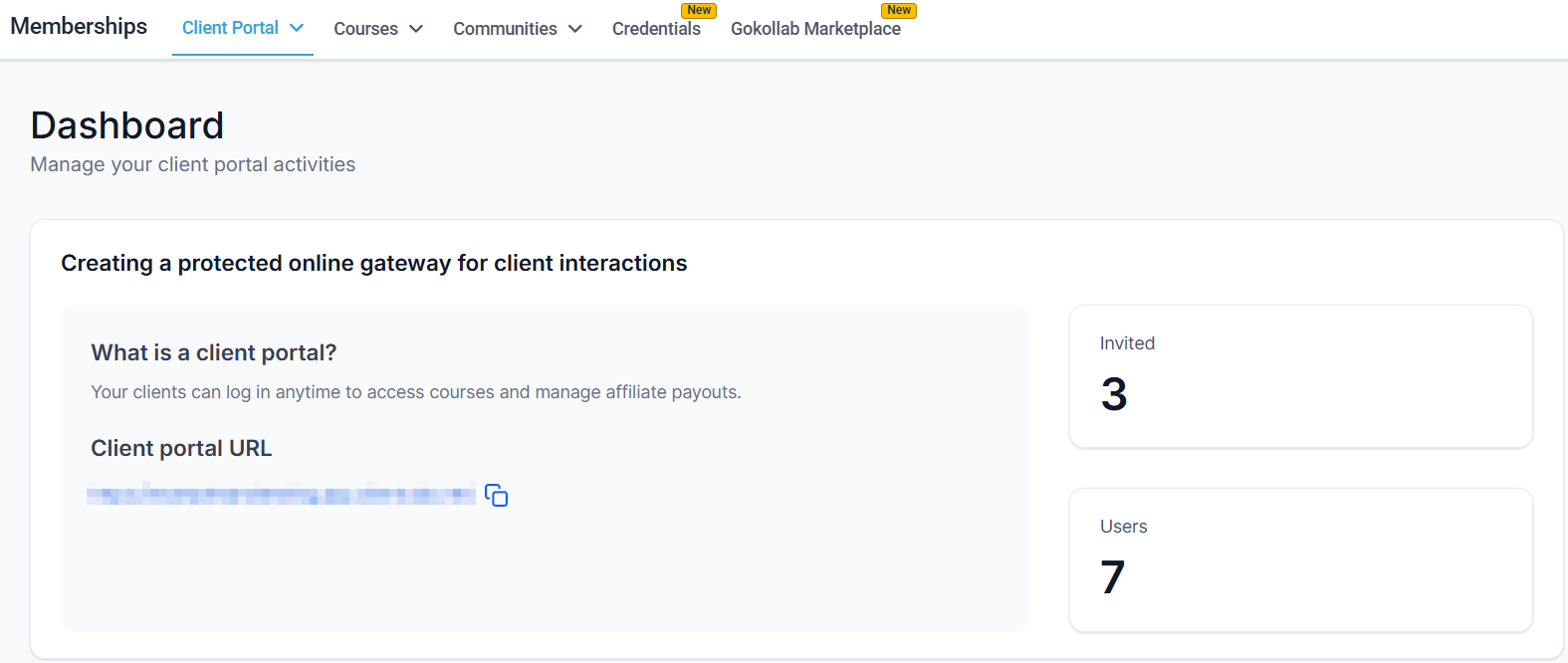
Access the Membership section from the sidebar menu.
Media Storage
The Media Storage tab allows you to organize and access your digital assets, such as images and videos. It provides a centralized location for storing media files, making it easy to retrieve and utilize them across various sections of your platform.
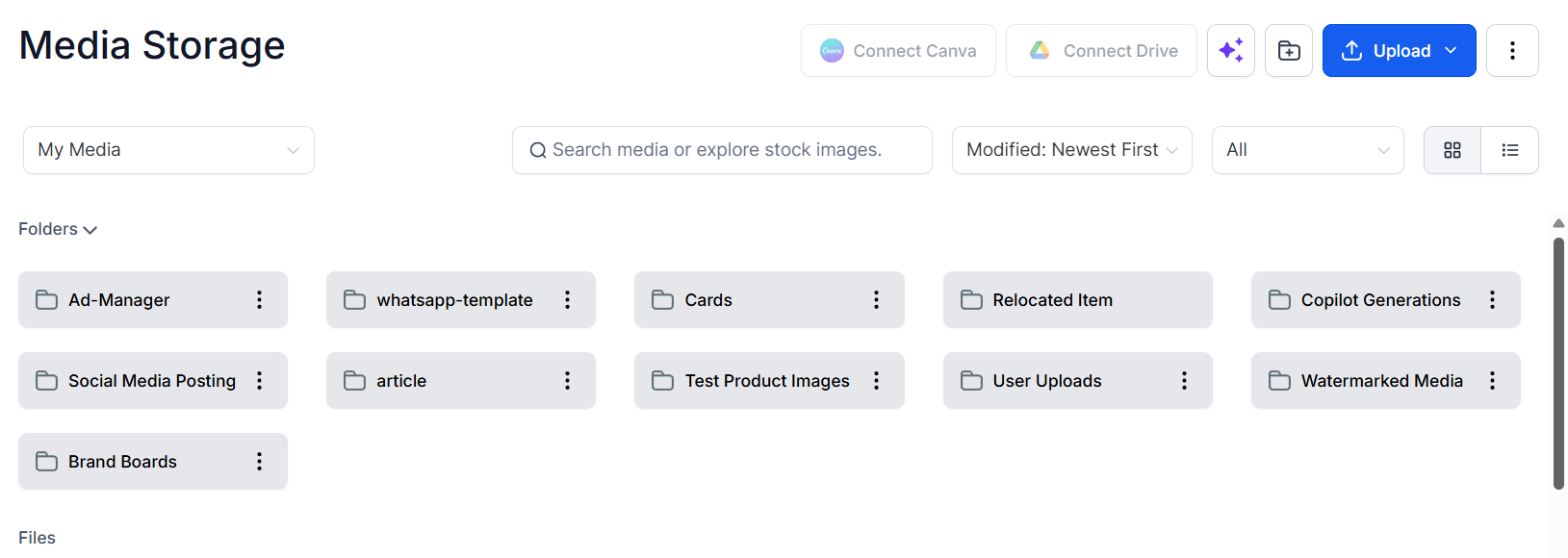
Click the Media Storage option from the sidebar to access it.
Reputation
The Reputation section helps you manage your online reputation by providing an overview of reviews and review requests. It includes tabs for sending review requests, responding to reviews, and managing business widgets and listings.
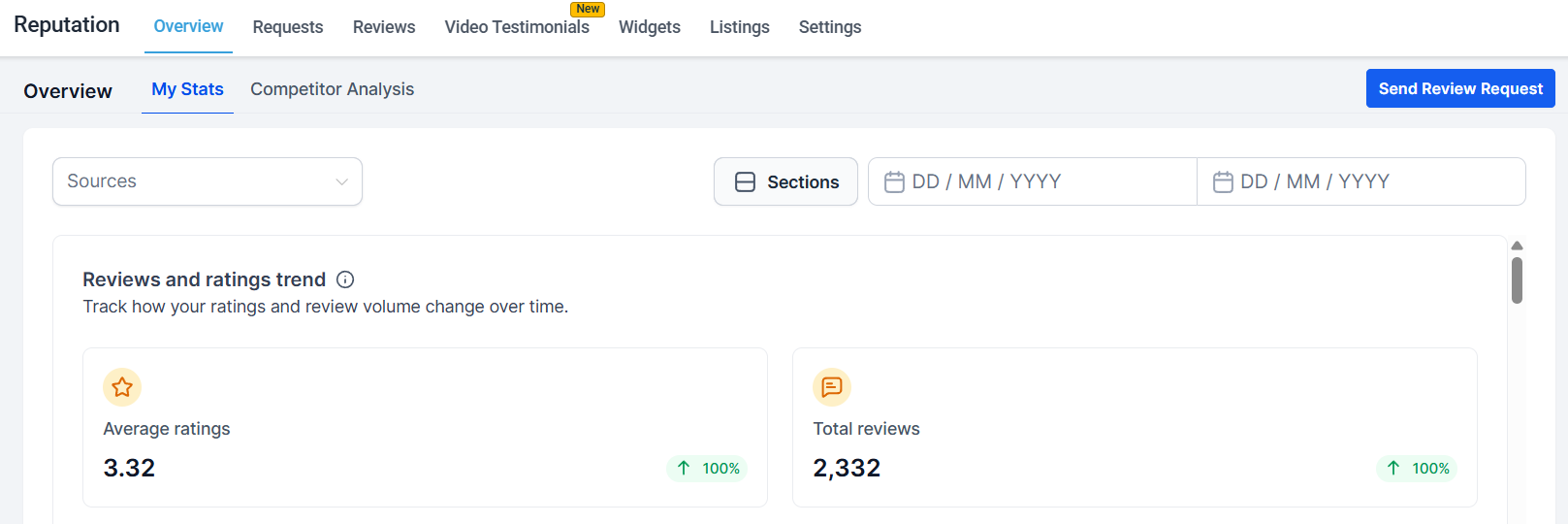
Access the Reputation section from the sidebar.
Reporting
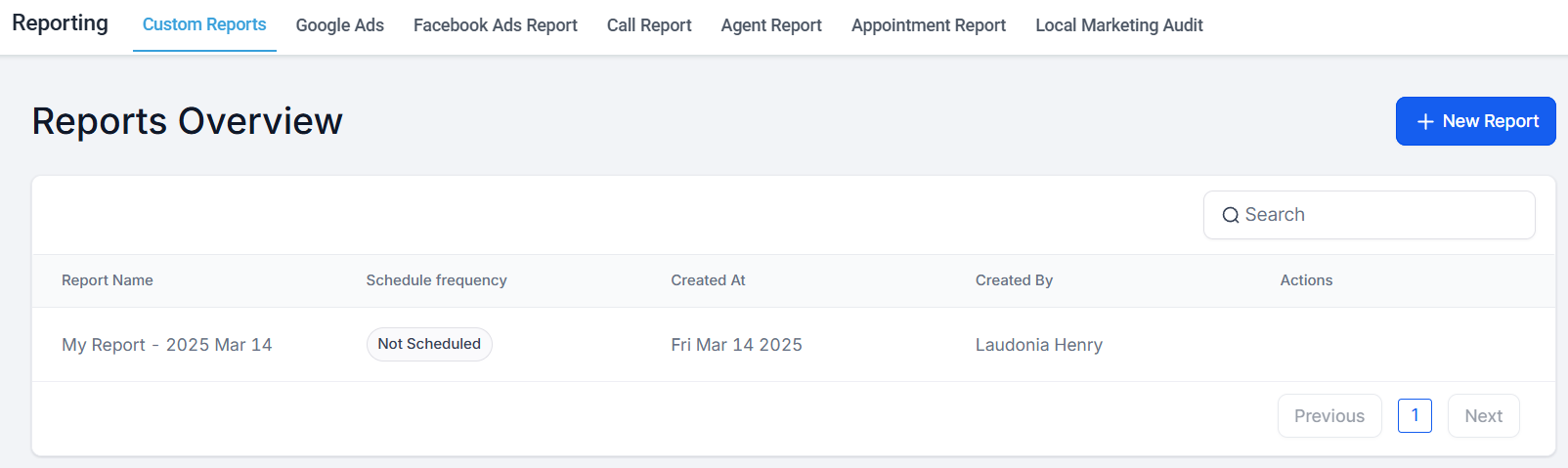
The Reporting section offers detailed insights and analytics on your marketing campaigns and business activities. The tabs within this section include:
- Custom Report: Create tailored reports to analyze specific metrics and KPIs that matter most to your business.
- Google Ads & Facebook Ads: Monitor and analyze the performance of your advertising campaigns.
- Attribution Report: Track lead conversion rates.
- Call & Appointment Reports: Review call and appointment metrics.
- Agent Report: Gain insights into the performance of your users.
Settings
The Settings section, located at the bottom of the left menu, provides options for configuring and customizing your platform. It serves as a central hub for managing settings, enabling features, and aligning the platform with your business needs.
Mastering platform navigation is key to optimizing your workflow and leveraging the full potential of its features. By familiarizing yourself with the dashboard, sidebar, and various sections, you can efficiently manage your business operations and enhance productivity.
Not a Funnelbud customer yet?
Try our all-in-one CRM for sales and marketing — free for 7 days, no commitment.