Manage Settings
Customizing your Funnel or Website Builder is essential for creating a professional and engaging user experience. Each element in the builder comes with various settings that allow you to adjust appearance, structure, and behavior. This guide will walk you through the General and Advanced settings available for managing sections, rows, columns, and elements.
Accessing Settings
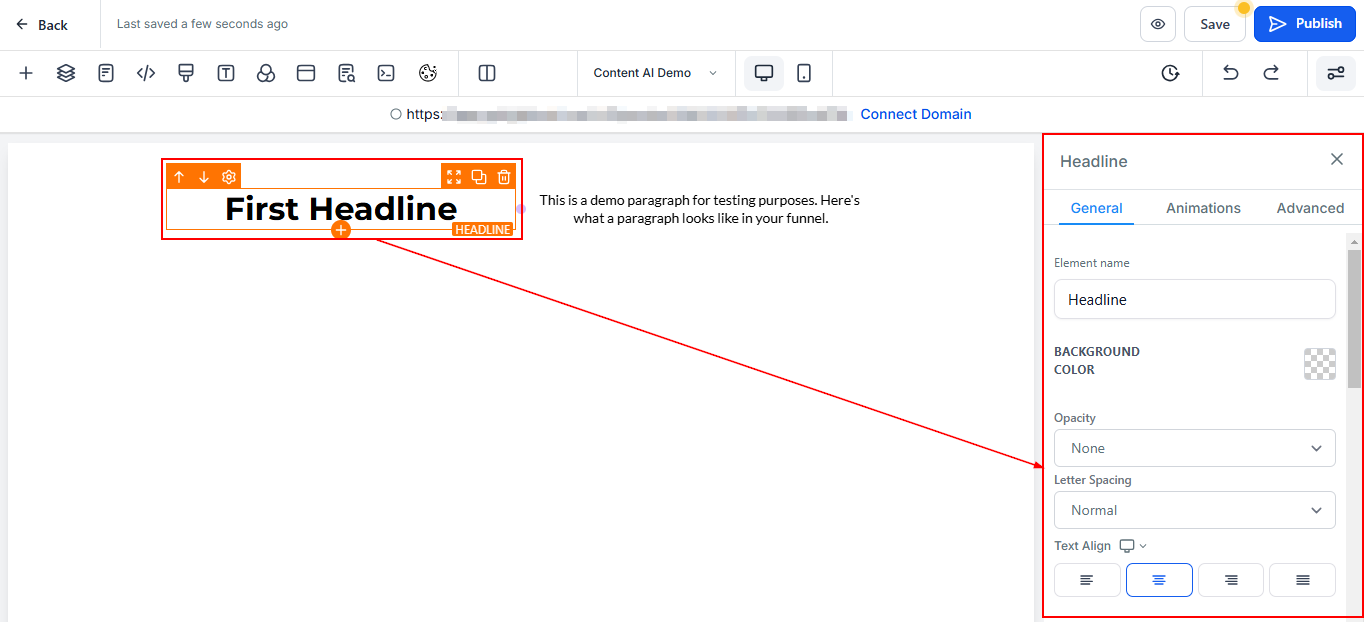
There are three ways to access settings for any section, row, column, or element:
- Click on the Settings icon attached to each area box (GREEN, BLUE, LILAC, and ORANGE).
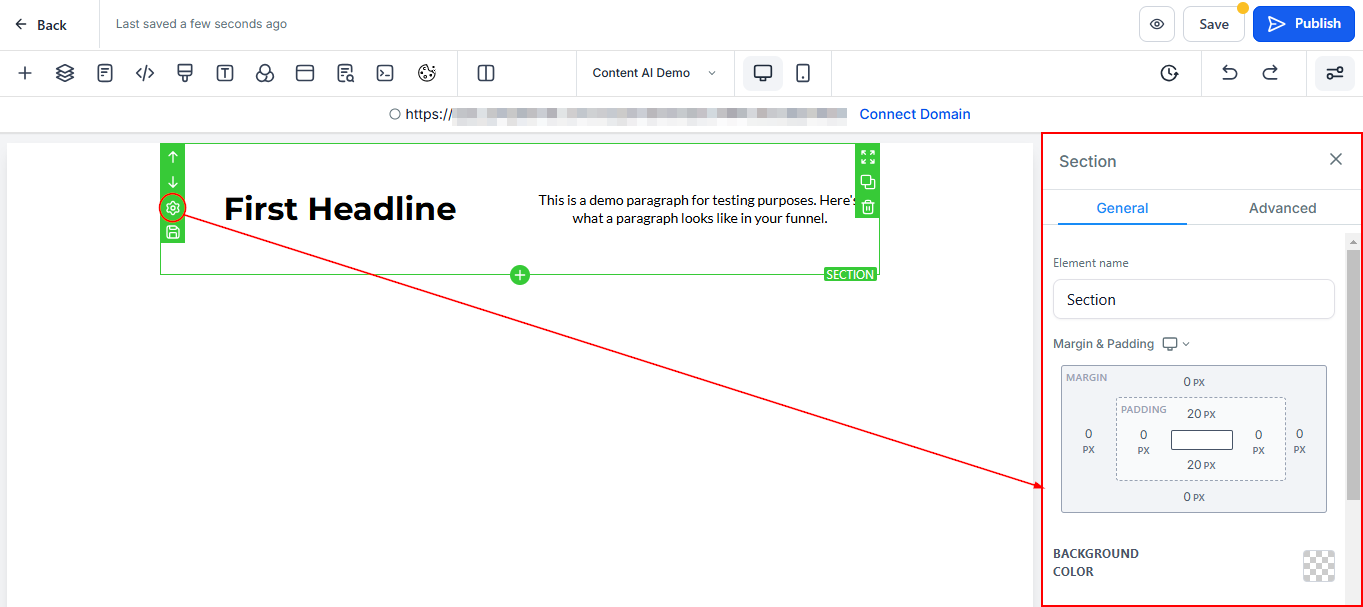
2. Click on the element itself.
3. Use the Show Settings button to open the settings panel.
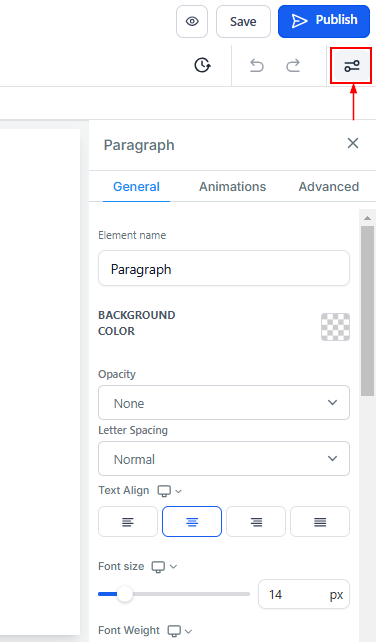
All these methods direct you to the Settings Panel, which is divided into General Settings and Advanced Settings for Sections and Rows, and General, Animation, and Advanced for Elements.
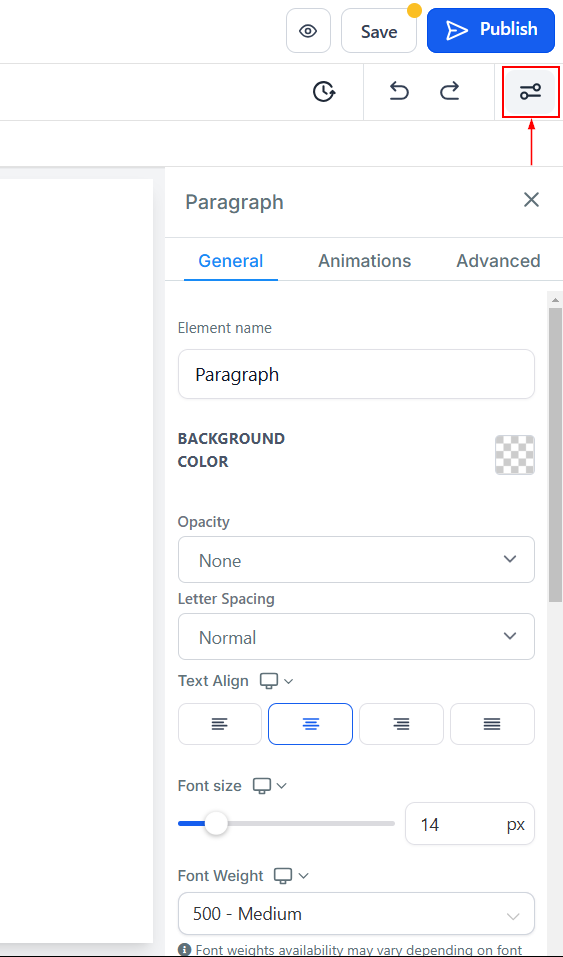
General Settings
This is where the majority of the edits are made.
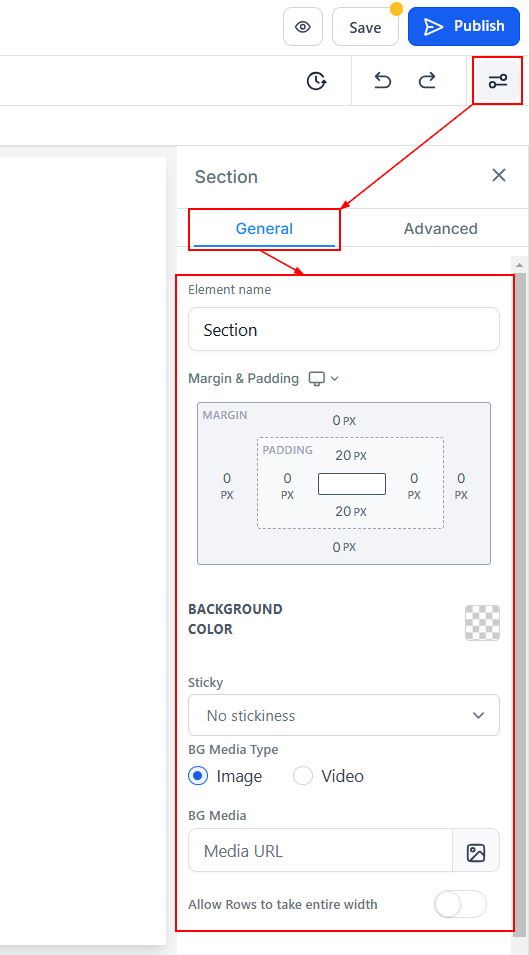
- Element Name/Title: Here you will see the default name/title of the Edit option you are working on. You can decide to leave it at that or rename it.
- Margin & Padding:
-
- Margin: Adjust the top or bottom margin of your content using toggle bars.
- Padding: Move content left, right, top, or bottom by adjusting the four padding toggle bars.
- Background Color: To change the background color of a specific edit option, such as the Section, Row, Column, or Element, simply click on the content that you want to adjust the background of.
- Sticky: You can use the Sticky option to choose whether your Sections will remain at the top or bottom of the page when you scroll down.
- BG Media Type: You can select between image and video type here
- BG Media: To add a background image, click on the image button on the right side of the BG image box, upload or select an image, and copy the URL from the right upper corner of the page to add it.
- Allow Row to Take the Entire Width: Toggle this button to activate the full width for the Row option.
Advanced Settings
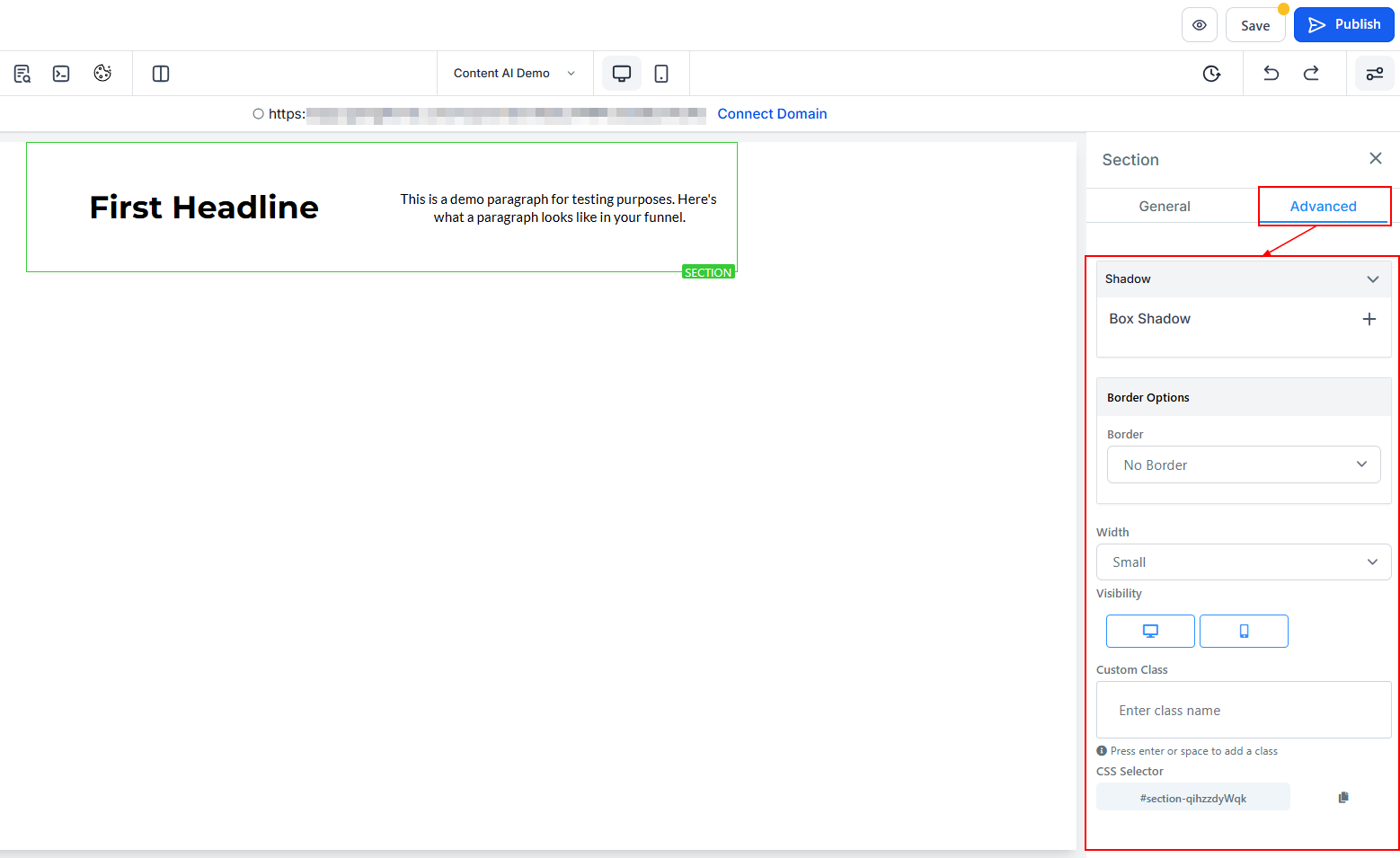
In advanced settings, you will have options for borders, visibility, custom classes, and CSS selectors.
- Box Shadow: Adding a box shadow can also make the border visible on a box.
- Border Option: Customize borders by selecting style, width, color, and radius.
- Style: Choose the type of border (e.g., solid, dashed).
- Width: Adjust the thickness of the border.
- Color: Select a color for the border.
- Width: The width option allows you to select how thick you want the border to be.
- Visibility: To customize the visibility of an Edit option, select the icon to highlight either mobile devices, desktops, or both.
- Custom Class: You can also input your custom class in the Custom Class field.
- CSS Selector: If you need to copy the Custom CSS, select the Copy icon located on the right side of the reference code.
With the right tools at your fingertips, tailoring your funnel or website to perfection is easier than ever. Dive into General and Advanced Settings to tweak spacing, borders, visibility, and more, ensuring every detail reflects your brand’s unique style. These customization options let you craft a polished, professional design that not only looks great but also delivers an exceptional user experience.
Not a Funnelbud customer yet?
Try our all-in-one CRM for sales and marketing — free for 7 days, no commitment.