Customizing CRM Login Page
Customizing the login page of your CRM account allows you to tailor the first point of interaction users have with your CRM. This can include adding your company’s branding, such as logos and color schemes, or even modifying the layout to better suit your needs. Customization not only improves the aesthetic appeal but also reinforces your brand identity every time a user logs in.
Accessing Your Agency View
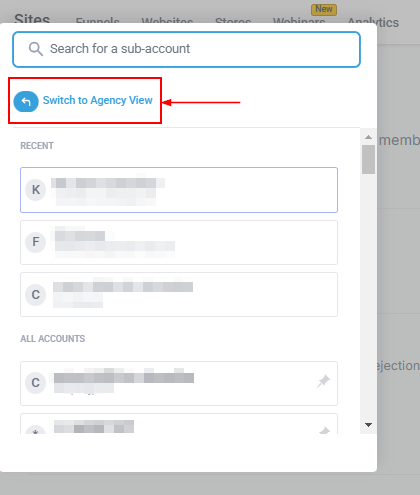
To begin customizing your login page, you first need to navigate to your agency view within the CRM. This is typically accessible from the main dashboard or home screen of your CRM account. However, if you are in Sub-Account, click on the sub-account name, then in the popup select the “Switch to Agency View” option and click on it to proceed.
Navigating to Settings
Once in the agency view access the CRM Settings option on the left-side bar. Clicking on this will take you to a page where you can manage various aspects of your CRM account.
Modifying Company Settings
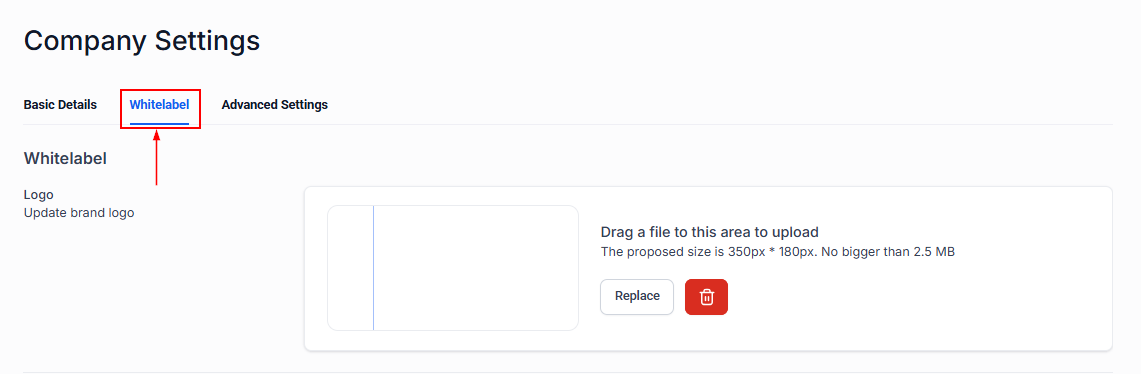
Within the settings menu, locate and select the option for “Company” settings. This section allows you to manage company-related information and settings, including customizing your login page. Once in the company settings click on the Whitelabel tab to access the relevant section for customizing your login page.
📌NOTE: For users without coding experience or those looking for a simpler solution, using a customization platform can be incredibly helpful. Select a login design template that suits your preferences.
Applying Custom CSS
After choosing a design, you will be provided with a custom CSS code. Copy this code and return to the Whitelabel tab on your CRM’s company settings page. Scroll down to the section labeled “Custom CSS” or similar, where you can paste the copied code. This code will apply the selected design to your login page.
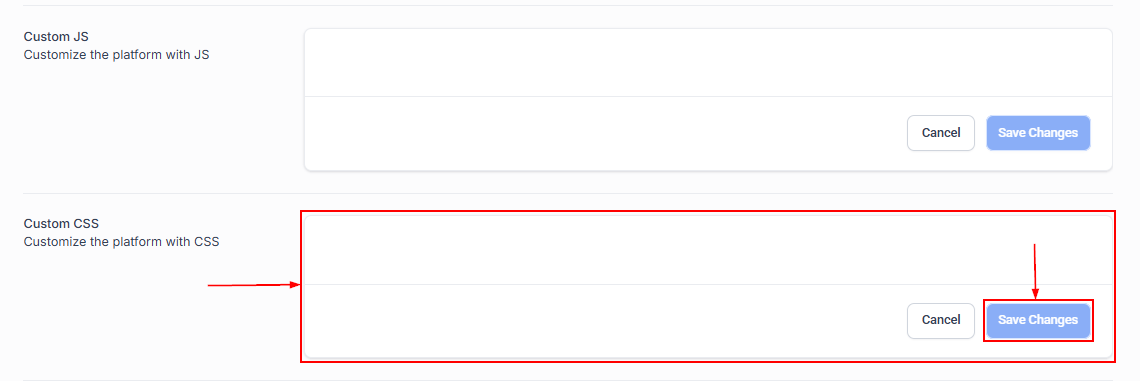
Once the custom CSS code is pasted, click the Save Changes button to apply the changes. You may receive a prompt or alert confirming the update. Proceed as instructed to finalize the customization of your login page.
By personalizing your CRM login page, you create a branded, welcoming experience for users every time they log in.
Troubleshooting and FAQs
Q: What if the custom CSS doesn’t apply immediately?
- A: Try refreshing your browser or clearing the cache. If the issue persists, double-check the code for any errors or contact support for assistance.
Q: Can I revert to the default login page design?
- A: Yes, simply remove the custom CSS code from your settings and update to revert to the original design.