How to Send Documents & Contracts
After preparing a document or contract for your client, the next step is to issue it to them for review and signing. This signature serves as a confirmation of their understanding, agreement, and acceptance of the terms outlined. By securing their signed approval, both parties establish a mutual commitment, providing legal and operational clarity for moving forward with the agreed-upon services or arrangements.
How to Send Documents & Contracts
Once you have verified the document details, click the recipients icon to add the contacts who should sign.
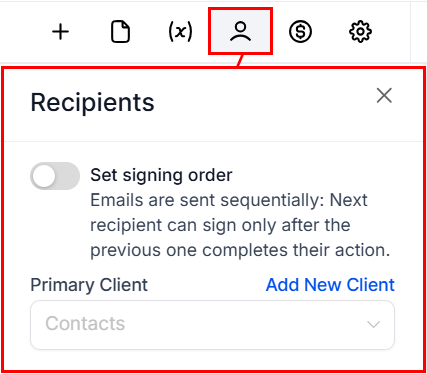
Next, click the save button on the upper right-hand section of the builder, then click the Send button.

If there are any missing fields in the document, you will be prompted to resolve them before proceeding.
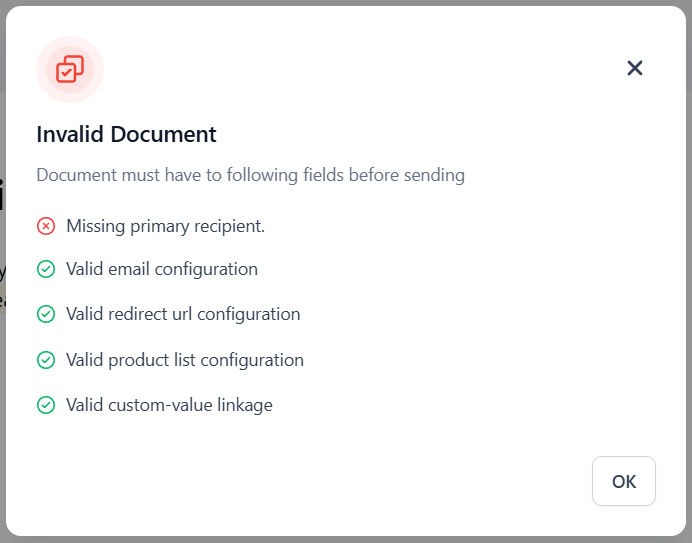
Once you have fixed any issues, you will see options to send the document or use a link.
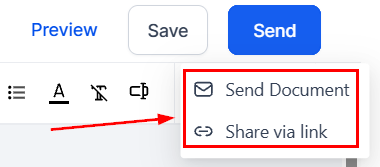
Send Document
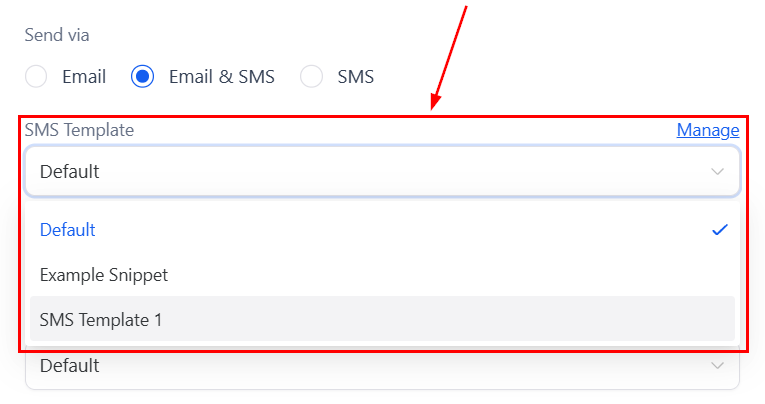
The Send Document option allows you to pick a sending channel for your document, which can be email, SMS, or both.
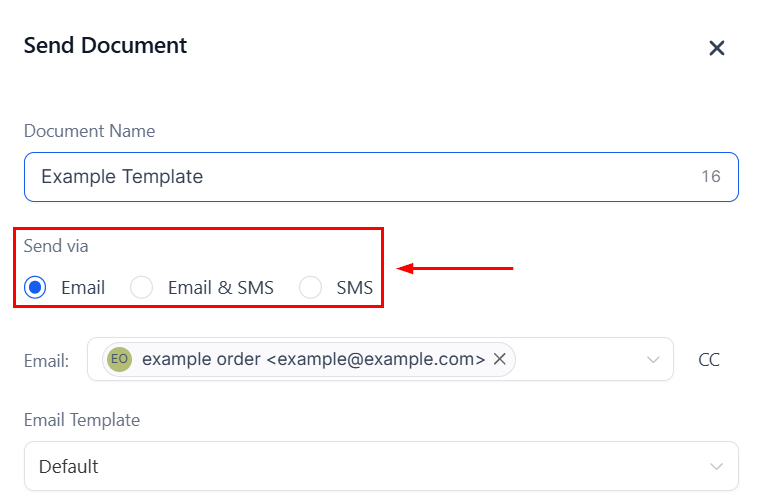
To send via SMS, select one of your snippet templates for sending.
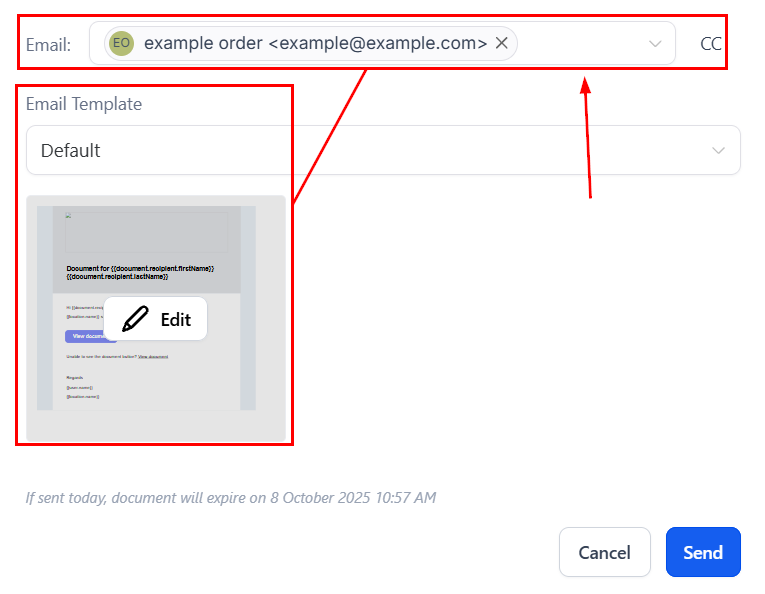
To send via add CC contacts, and choose an email template to accompany the document. Additionally, email templates can be customized directly within this window using the available edit option before sending.
Share Via Link
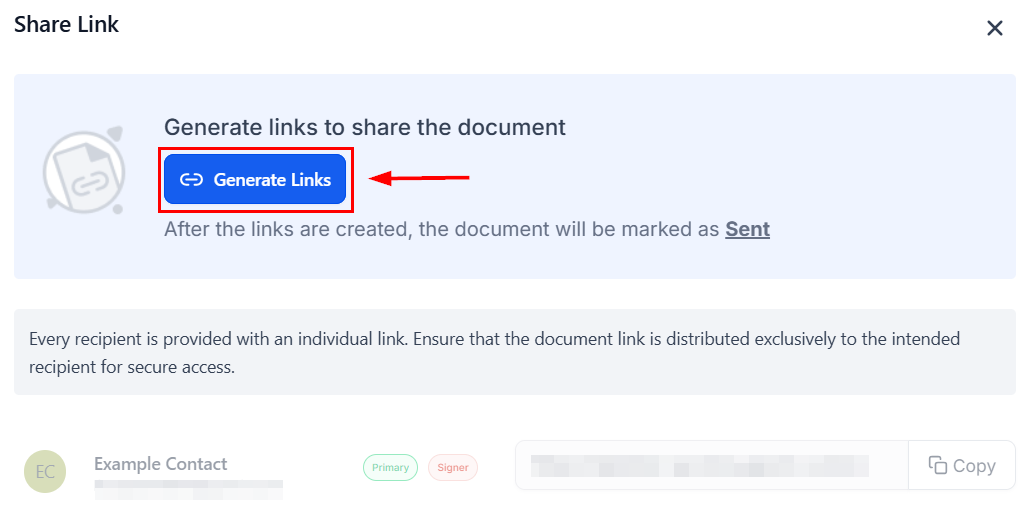
Alternatively, you can click the Share via Link option to generate individual links for each recipient.
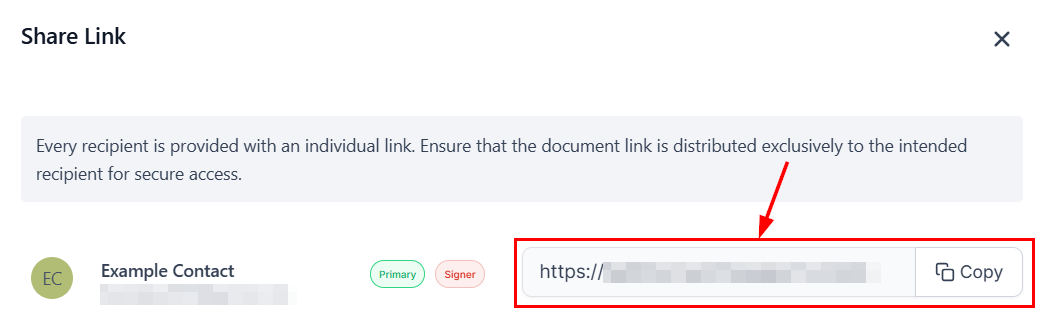
Once generated, you can copy each link and distribute it to your contacts via SMS or another communication channel.
📌Note: After the links are created, the document will be marked at Sent.
By following these steps, you can efficiently send documents and contracts for signing, ensuring a smooth and streamlined process for both you and your clients. Whether you choose to send via email or share individual links, the platform provides flexible options to help you manage document delivery with ease and confidence.
Not a Funnelbud customer yet?
Try our all-in-one CRM for sales and marketing — free for 7 days, no commitment.