GPT Powered by OpenAI
GPT powered by OpenAI, revolutionizes your workflow by integrating advanced AI capabilities with your CRM system. It responds intelligently to triggers and actions, optimizing communication processes with contextually relevant responses. Compatible with platforms like social media, e-commerce, and learning management systems, GPT enhances accuracy, efficiency, and adaptability in your business operations.
Setting Workflow
To begin, create a workflow or open an existing workflow. Add an appropriate Workflow Trigger and the “GPT powered by OpenAI” Action.
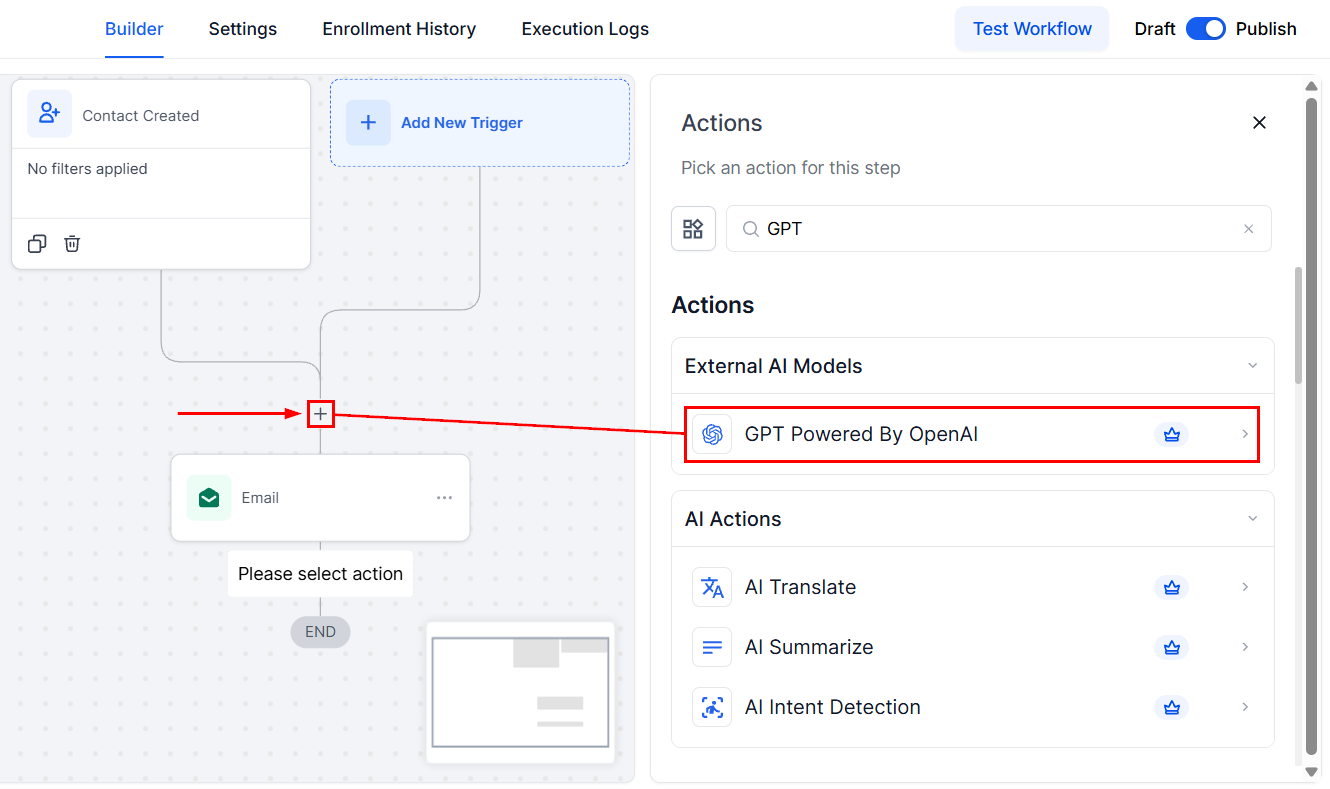
Action Name
Update the name of the action to reflect its core purpose.
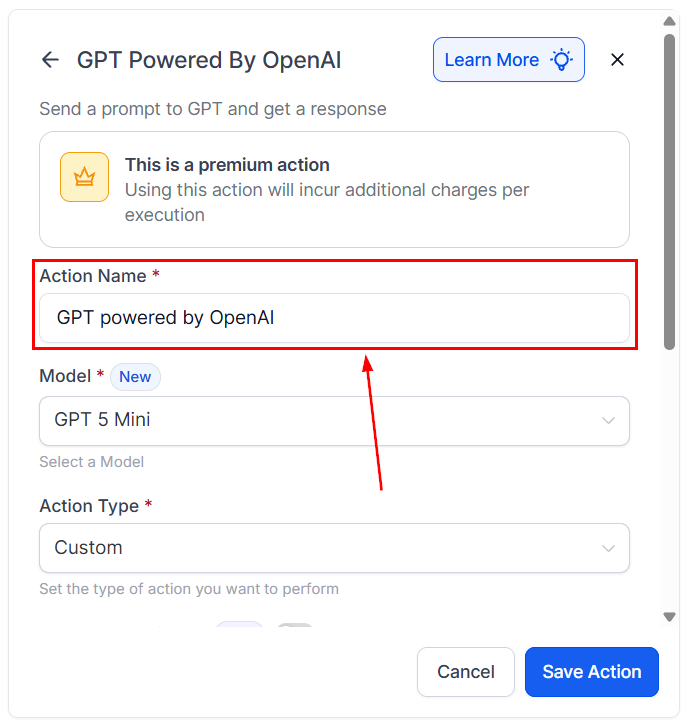
Model
By default, GPT 5 Mini will be selected. However, you can choose other models by clicking the drop-down menu and selecting your preferred version.
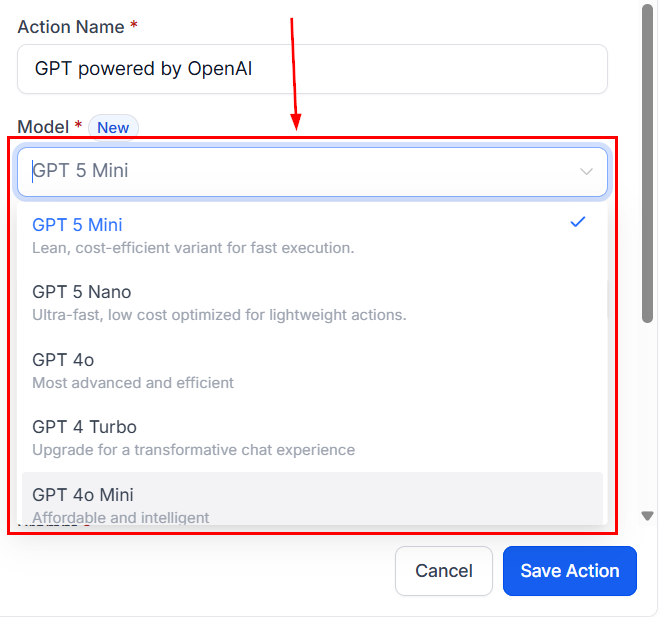
Action Type
If you’re unsure which prompt to use, consider trying our pre-made action types. The prompt will auto-populate based on your selection, allowing you to use the action effectively. Available options include:
- Analyze Text Sentiment
- Summarize Text
- Translate Content
- Custom
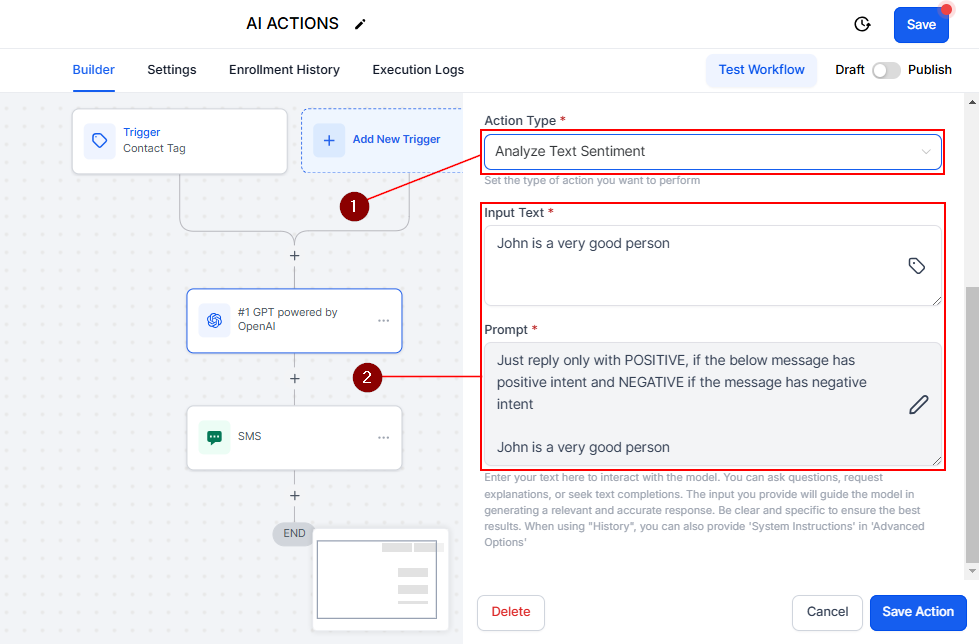
Analyze Text Sentiment
Assess whether the received message has positive or negative intent and take appropriate action based on the analysis. Use custom fields for further customization of the input text or start typing directly into the field to modify the input. If you alter the prompt, the action type will automatically update to Custom.
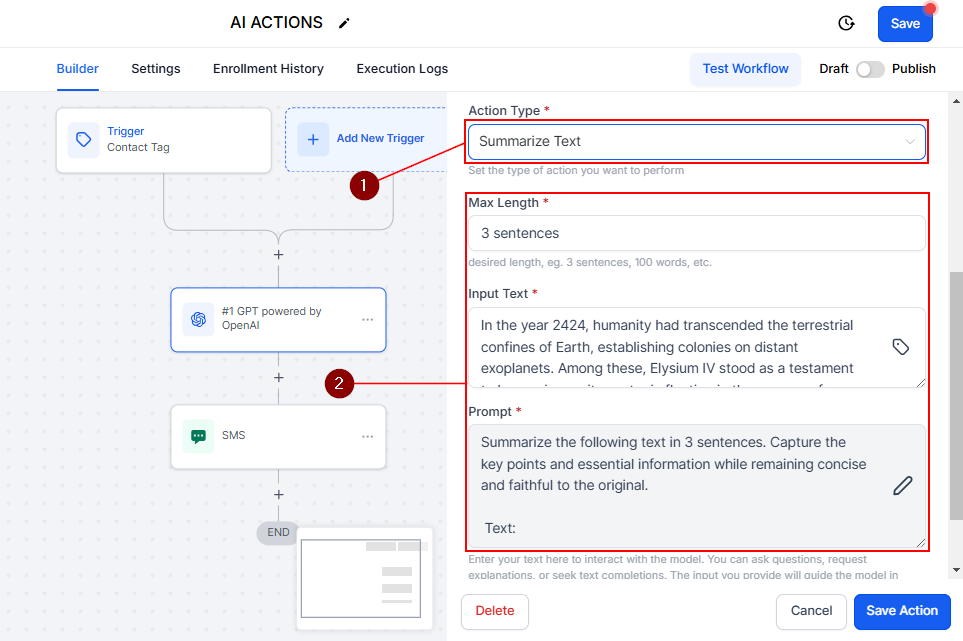
Summarize Text
This will help you shorten any text to the length chosen in the max length field. Use custom fields for further customization of the input text or start typing directly into the field to modify the input. If you alter the prompt, the action type will automatically update to Custom.
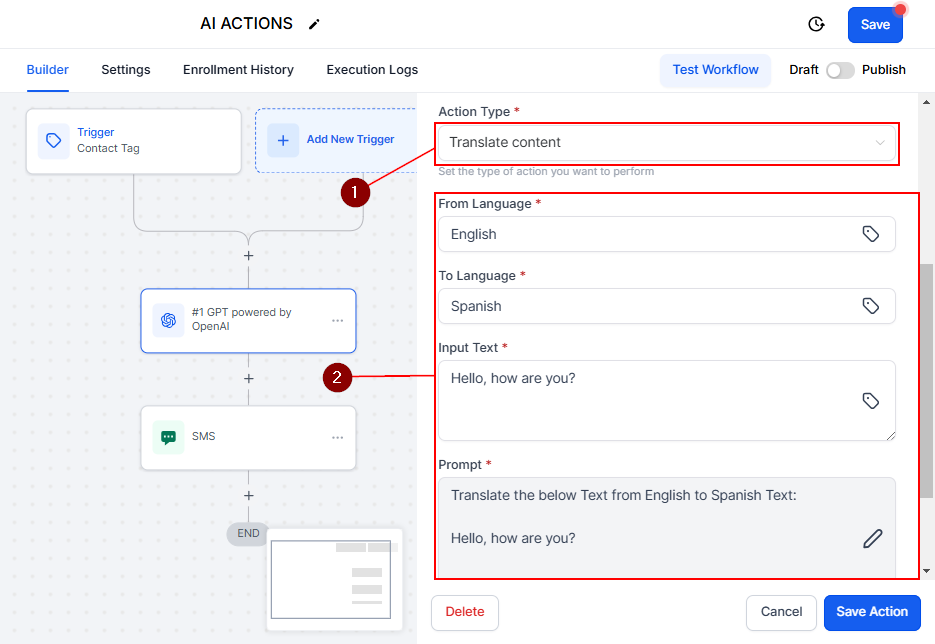
Translate Content
Select the from and to language for translation. Use custom fields for further customization of the input text or start typing directly into the field to modify the input. If you alter the prompt, the action type will automatically update to Custom.
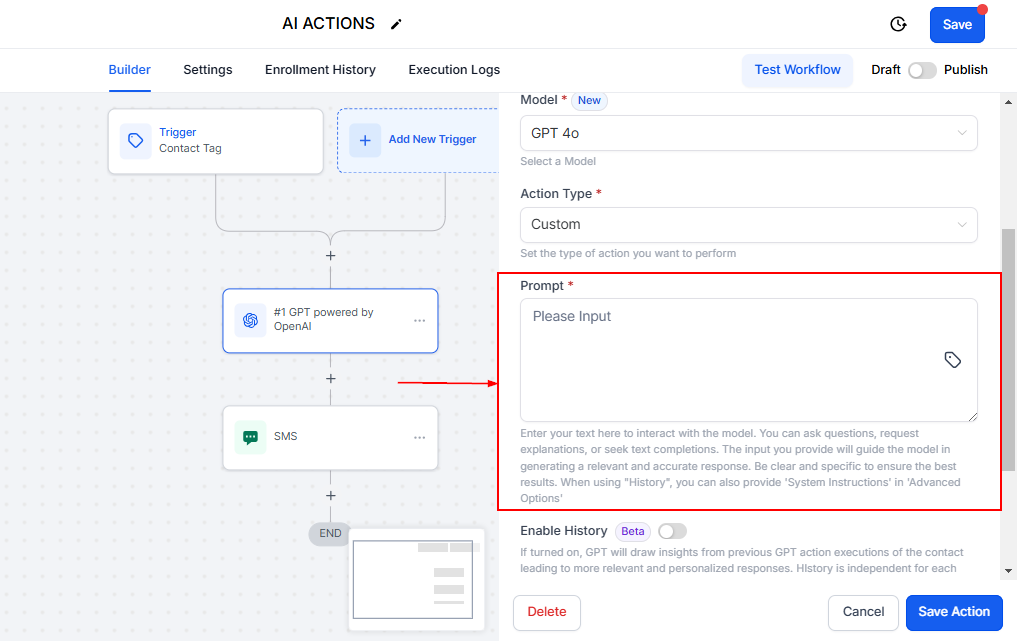
Custom
For custom actions, enter a Prompt by typing in this section or using custom fields so the necessary content can be generated.
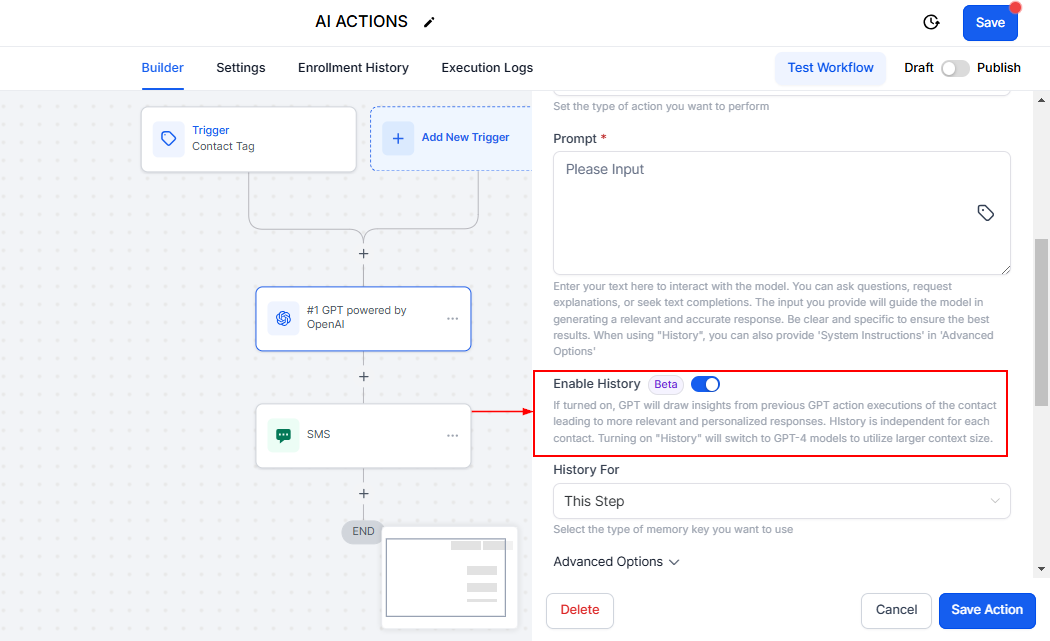
Enable History
When enabled, GPT will leverage insights from previous actions involving the contact to provide more relevant and personalized responses. The history is maintained independently for each contact. Activating “History” will switch to GPT-4 models, allowing for a larger context size.
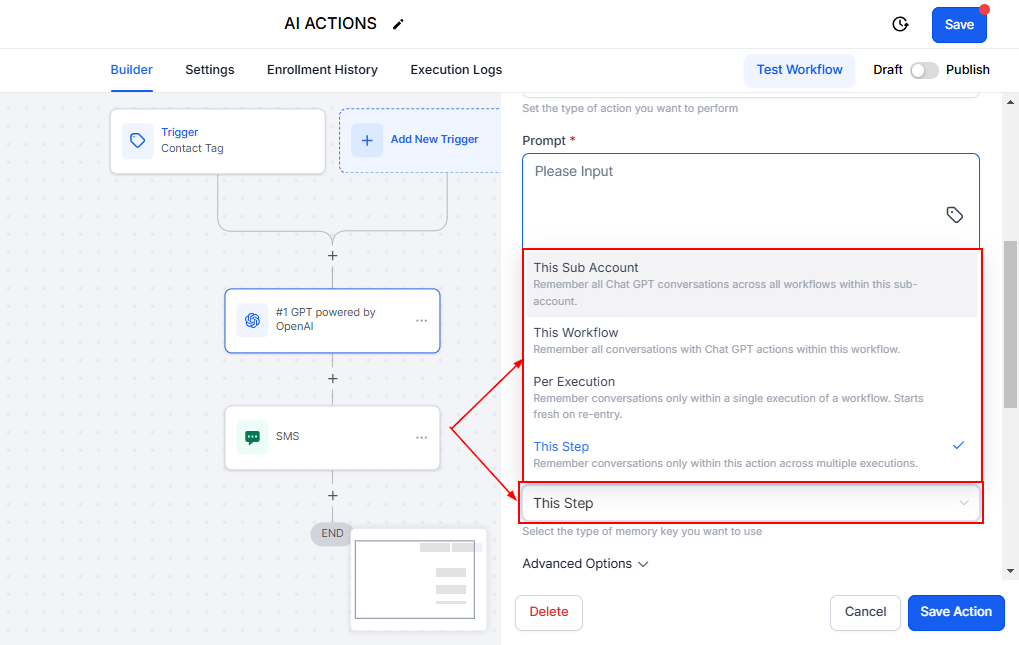
Five types of history can be stored:
- This Sub Account: Retains all GPT conversations across all workflows within the sub-account.
- This Workflow: Keeps track of all GPT conversations within the specific workflow.
- Per Execution: Stores all GPT conversations within the workflow for a single execution.
- This Step: Remembers all GPT conversations for a specific action across multiple executions.
- Custom: Allows users to create a custom history type for use within the same workflow or across multiple workflows.
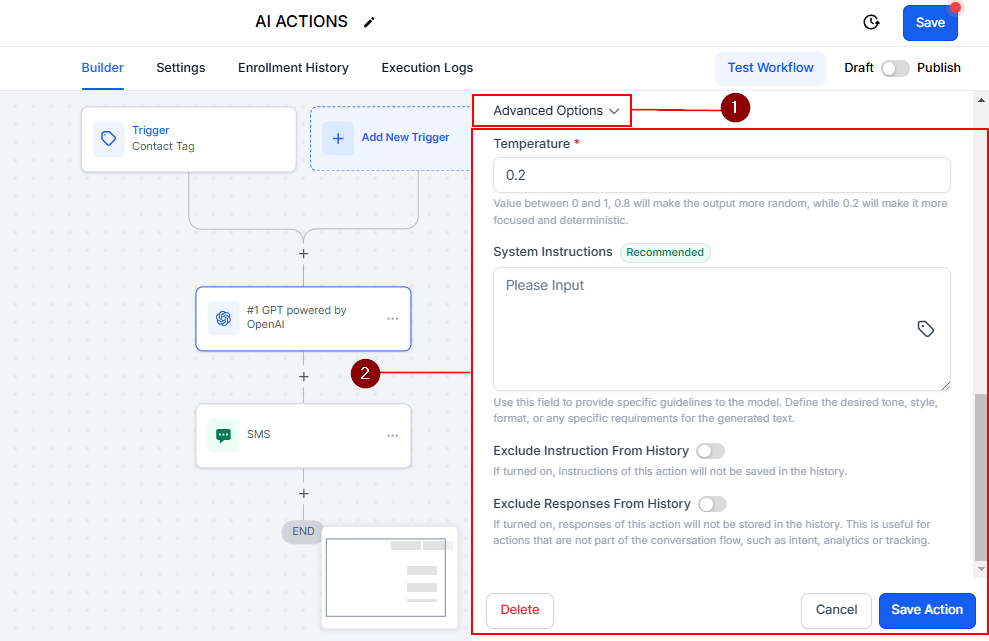
Advanced Options
Expand the Advanced Options menu to further customize this action according to your specific requirements. This section provides additional settings and configurations to fine-tune the action’s behavior and ensure it aligns with your needs. Selecting GPT-5, GPT-5 mini, GPT-5 nano, and GPT-5.1 will remove the Advanced Options since they don’t allow you to set a temperature.
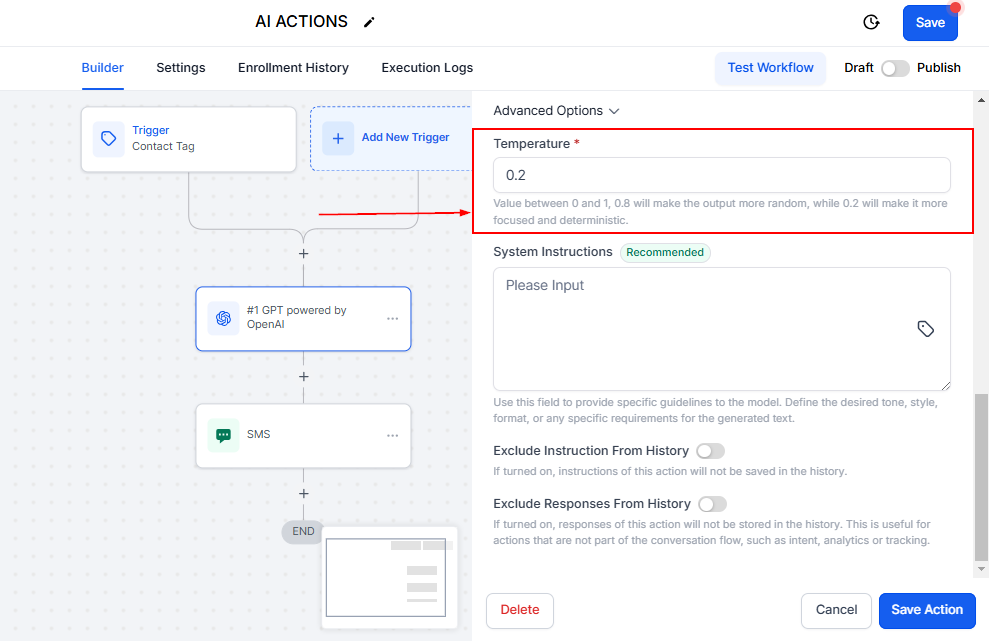
Temperature
Sampling temperature is a key factor in producing AI text with different degrees of randomness. It operates on a scale from 0 to 1. Setting at higher levels, say 0.8, yields more varied and unpredictable text. Conversely, setting at lower levels, such as 0.2, creates more consistent and expected outcomes. By modifying the sampling temperature, users can tailor the balance between creativity and predictability in AI-generated content. This flexibility enables users to customize the AI’s output based on their unique needs and preferences.
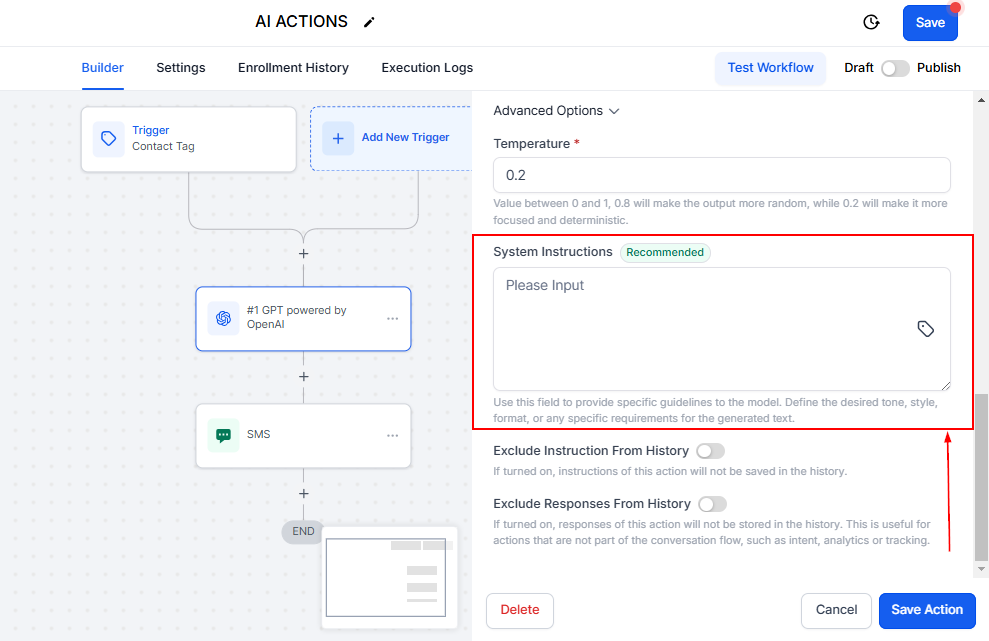
System Instructions
Users can input additional instructions to provide GPT with more detailed guidance, enhancing the specificity and relevance of the output generated by the action.
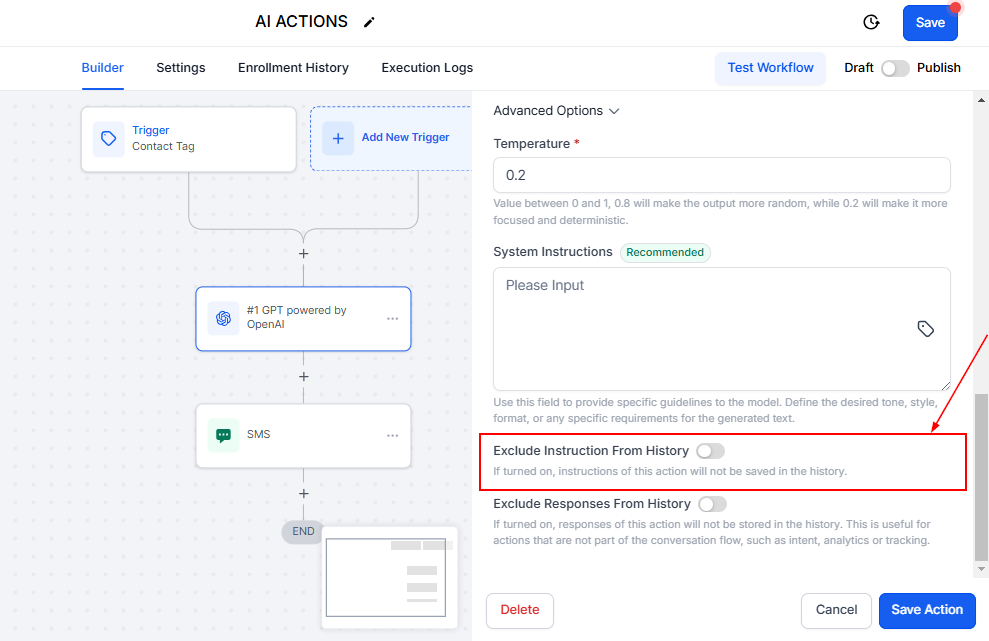
Exclude Instruction From History
Use this toggle to exclude System Instructions from being stored in the history, ensuring that these instructions do not impact future interactions or analyses.
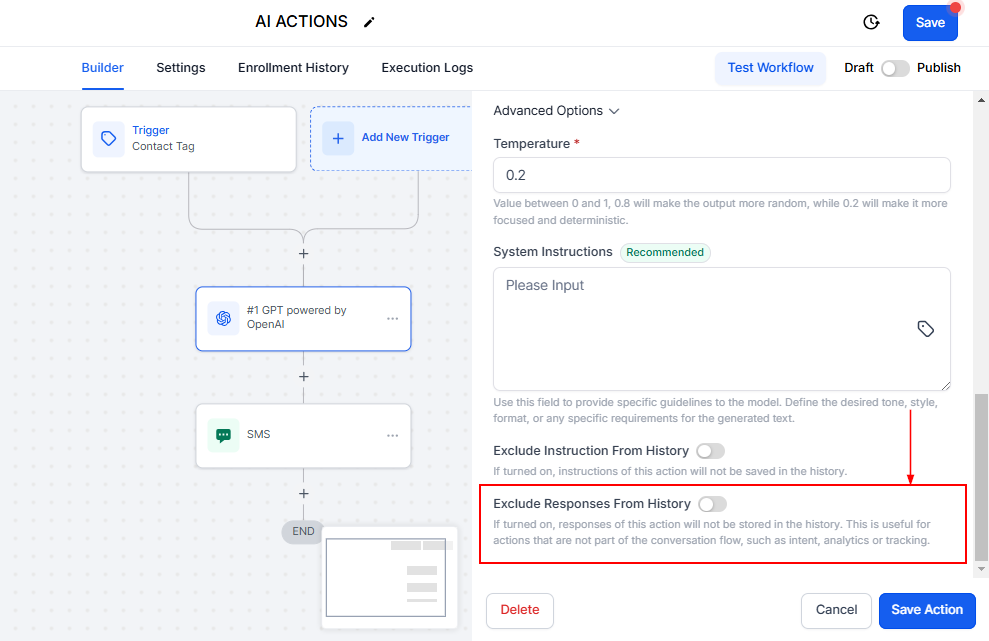
Exclude Responses from History
Enabling this option will prevent the responses generated by this action from being stored in the history. This is particularly useful for excluding sentiment analysis results or other analytics outputs from being recorded.
Output
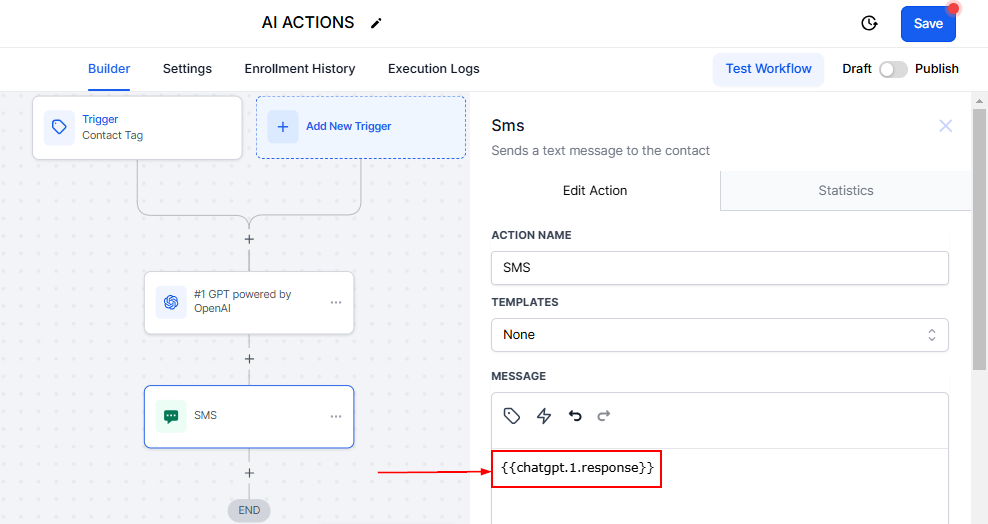
Once the ChatGPT has been configured, the outcomes it generates can be incorporated into subsequent steps within your Workflow. For example in the SMS Action within the message box click on Tag Icon which is the Custom Value, in the dropdown select GPT, choose #1 GPT powered by OpenAI, and finally click on “Response”.
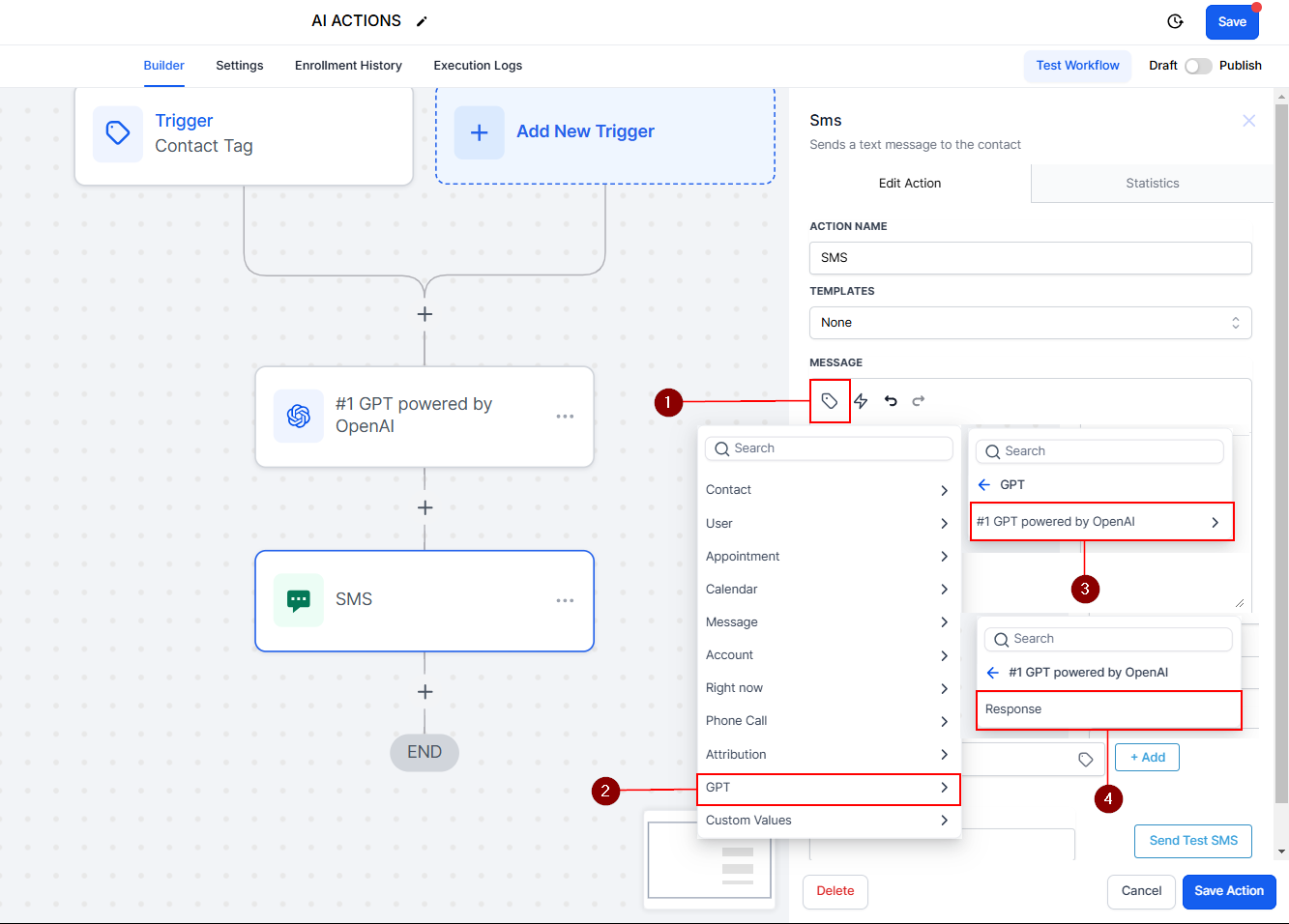
In your process, you would reference these results as {{chatgpt.1.response}}.
Usage Cases with Other Workflow Actions and Triggers
- Social Media Auto-Responder: Use Inbound Webhooks from supported social media platforms to trigger a GPT response. The response can be a general appreciation for every new follower or a direct message.
- Automated Birthday Wishes: Utilize the “Birthday Reminder” trigger to activate GPT powered by OpenAI to send contacts a standard birthday wish via email or SMS.
- E-Commerce Abandoned Cart Recovery: Utilize the “Abandoned Checkout” trigger to send clients a GPT-generated reminder email or SMS about their abandoned cart.
- Opportunity Management: Using the “Opportunity Status Changed” trigger, automatically update Google Sheets with new data and send update emails to potential clients via GPT powered by OpenAI.
- Course Completion Certificates: Using the “Product Completion” trigger, GPT powered by OpenAI generates a congratulatory email, SMS, and certificate upon completing a course product.
- Automated Booking Confirmation: Using the “Customer Booked Appointment” trigger, send a GPT-generated confirmation with booking details.
- Post-Purchase Survey: Using the “Payment Received” trigger, send customers a thank you message and post-purchase survey link via GPT powered by OpenAI.
- Form Submission Follow-Up: Use the “Form Submitted” trigger to create a GPT-generated acknowledgment message to clients when they submit a form on your website.
By combining the power of the GPT powered by OpenAI Action with other Workflow actions and Triggers, you can create intelligent and dynamic workflows that automate processes, personalize interactions, and streamline your business operations.
Frequently Asked Questions
Q: Can I customize the behavior and responses of the GPT powered by OpenAI Action?
- Absolutely! You can configure the GPT powered by OpenAI Action by setting the desired temperature, which controls the randomness of the generated responses. Higher temperatures produce more creative but less predictable responses, while lower temperatures produce more focused and deterministic outputs.
Q: Are there any limitations or considerations when using the GPT powered by OpenAI Action?
- While the GPT powered by OpenAI Action offers powerful capabilities, it’s important to note that it relies on the underlying ChatGPT model. The responses generated by the AI may not always be perfect, and it’s recommended to review and validate the output before sending it to customers. Additionally, extensive testing and monitoring are crucial to ensure the quality and accuracy of the generated responses.
Not a Funnelbud customer yet?
Try our all-in-one CRM for sales and marketing — free for 7 days, no commitment.