Dashboard Permissions
Dashboards play a crucial role in decision-making and performance tracking. To enhance user experience and security, the platform offers advanced custom permissions for dashboards, providing more control over who can view, edit, and manage dashboards. This feature allows users to tailor their dashboard experience by setting permissions according to their preferences, whether for privacy or collaborative sharing.
Choose from four distinct levels of permissions:
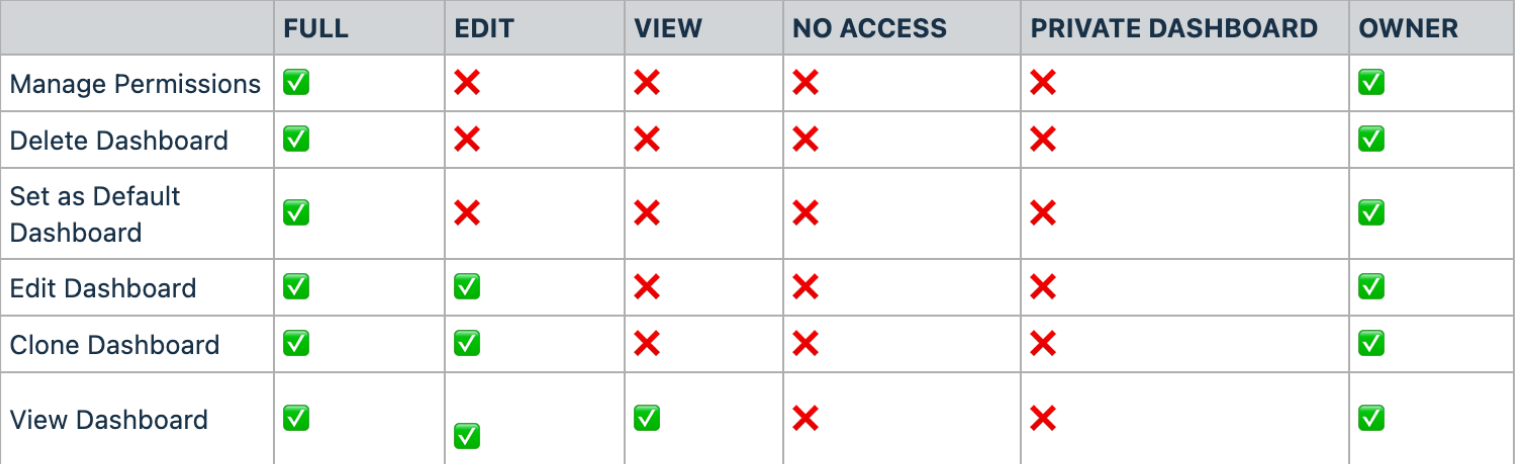
- FULL: Grants the ability to create, edit, share, and delete dashboards.
- EDIT: Allows editing of a dashboard and its widgets, without the ability to delete it.
- VIEW: Provides read-only access to a dashboard.
- NO ACCESS: Restricts access to the dashboard entirely.
Setting Up Permissions
- Customize Permissions While Creating a New Dashboard: During the Dashboard creation process, set the desired permissions for your new dashboard.
- Toggle the Private Dashboard Option: If you need a private dashboard, toggle the private option.
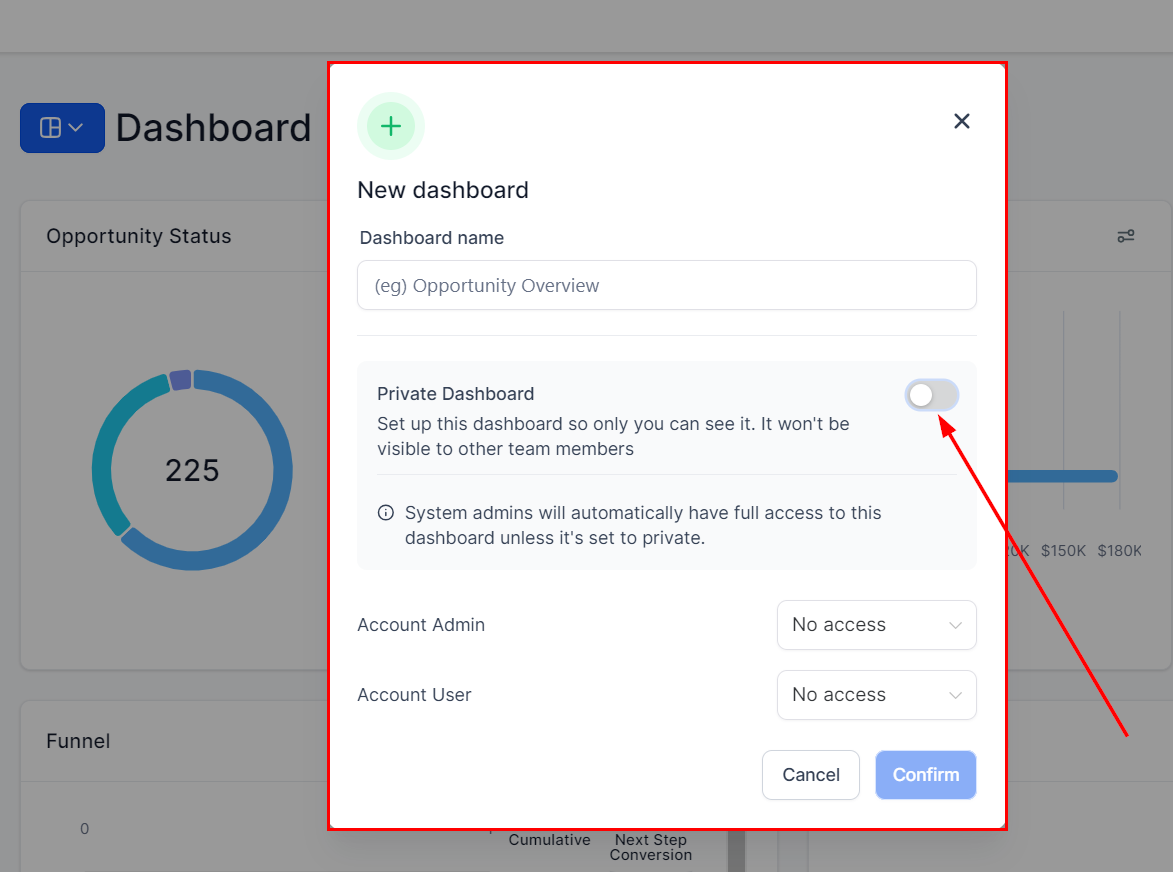
Managing Permissions for Existing Dashboards
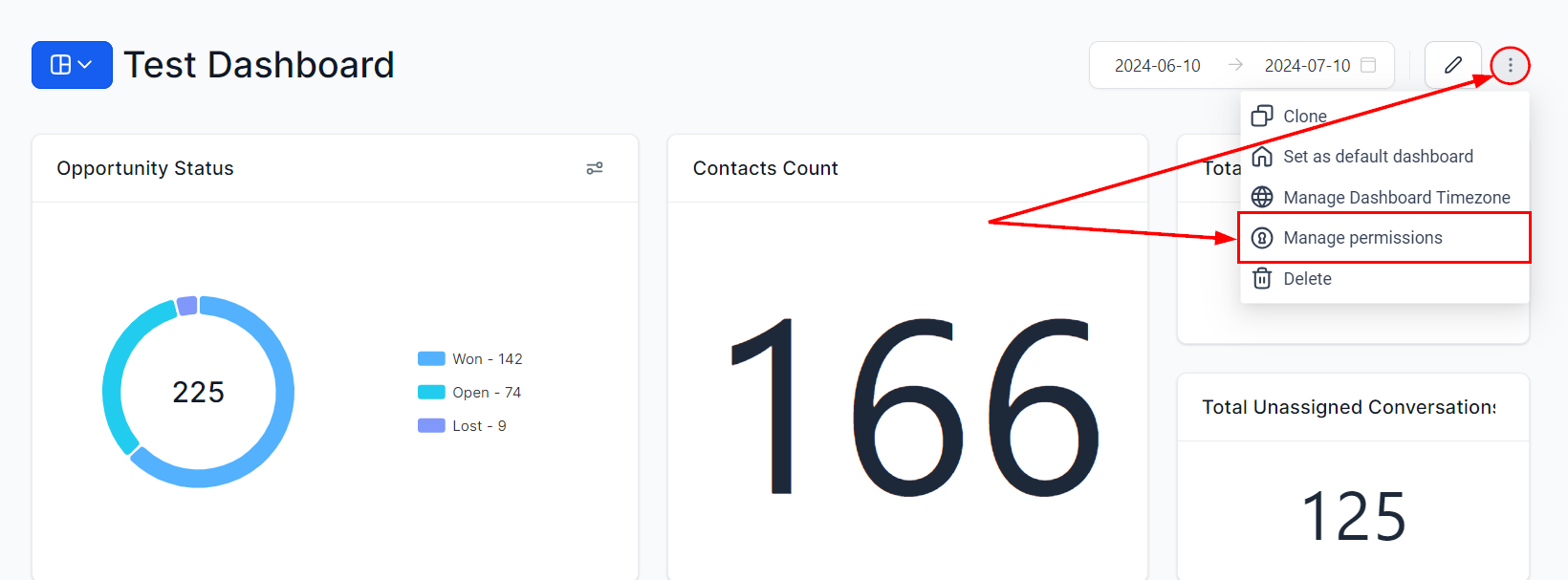
Access the Dashboard
Click the three dots at the top right corner of the dashboard and select “Manage Permissions” to update permissions.
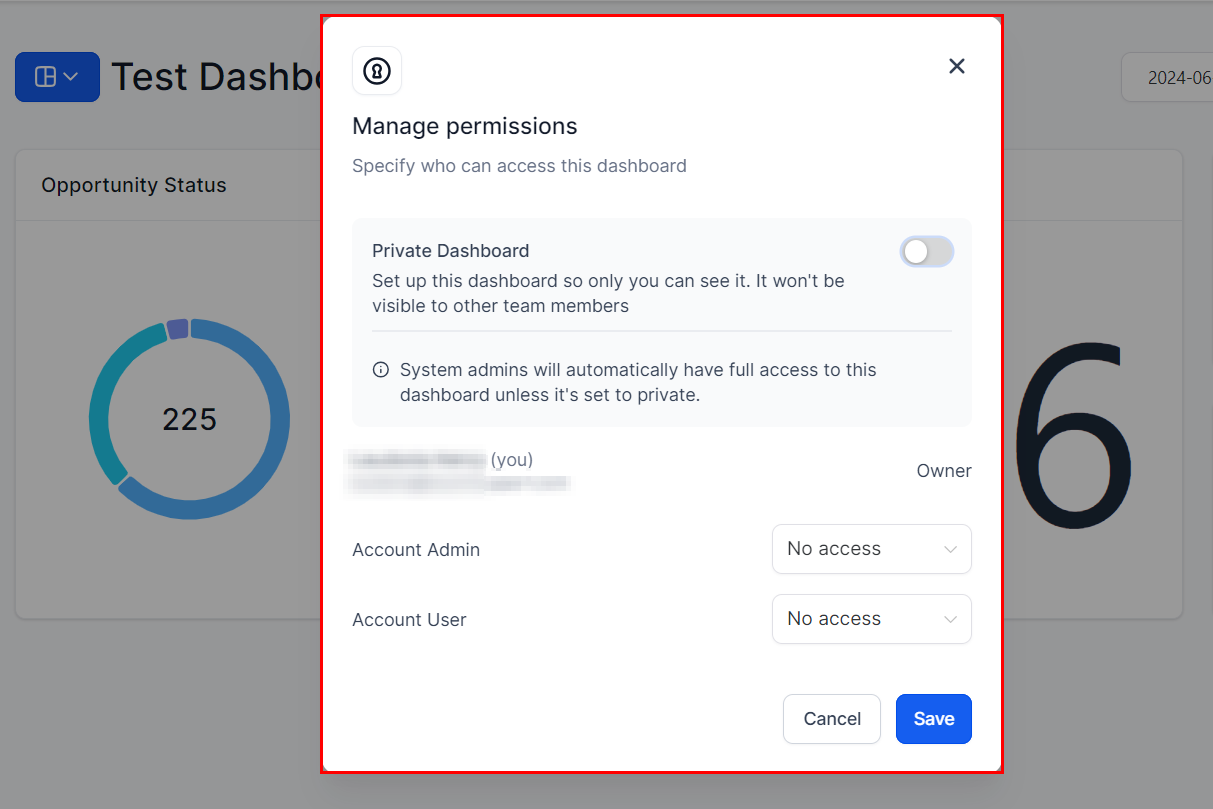
Updating Permissions
Toggle the “Private Dashboard” option if needed and select the desired permission level for each user.
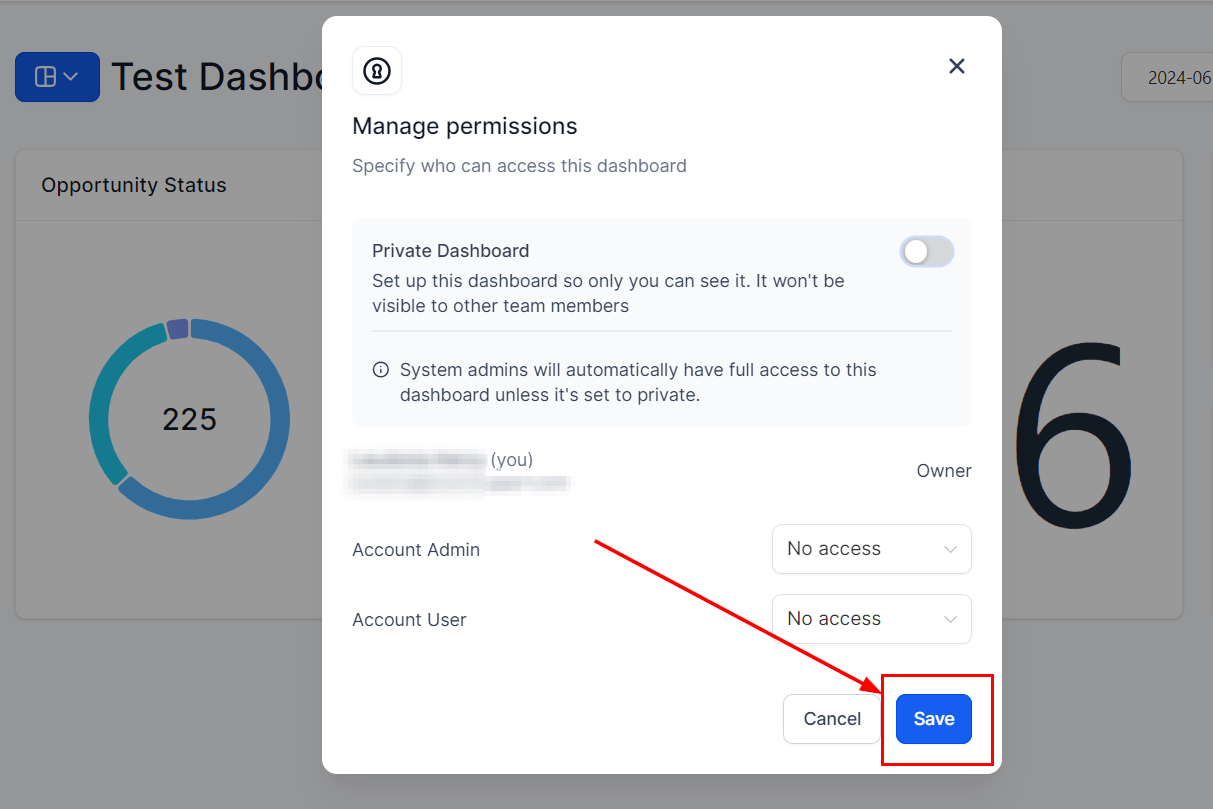
Saving Changes
Click “Save” to apply the updated permissions.
Here is an overview of how various actions on dashboards are managed based on different permission levels.
Why it Matters
- Customized Permissions for Better Privacy and Collaboration: Tailor permissions to suit your needs, ensuring appropriate access levels.
- Enhanced Security: Ensure that only the right people have access to sensitive data.
- Streamlined Workflow: Grant appropriate access levels to team members to improve collaboration and efficiency.
With these enhancements, you can now customize your dashboard permissions more effectively, ensuring better privacy, security, and collaboration within your team.
Frequently Asked Questions
Q: How do I set permissions when creating a new dashboard?
- During the creation process, you will have the option to set permissions. Toggle the Private Dashboard option if required and assign the desired permission levels.
Q: Can I update permissions for an existing dashboard?
- Yes, click on the three dots at the top right corner of the dashboard and select “Manage Permissions” to update them.
Q: What are the four levels of permissions available?
- The four levels are FULL (create, edit, share, delete), EDIT (edit only), VIEW (read-only), and NO ACCESS (restricted access).
Q: How does the role hierarchy affect permissions?
- Permissions are automatically adjusted based on the role hierarchy. Lower-level roles cannot possess higher access levels compared to higher-level roles.
Troubleshooting Tips
Unable to update permissions for a dashboard
- Ensure you have the necessary permissions to manage the dashboard. Check if the role hierarchy restricts your ability to update permissions.
Permission changes not saving
- Verify that you clicked “Save” after making changes. If the problem persists, try refreshing the page and reapplying the permissions.
Users cannot access a dashboard despite permissions being set
- Confirm that the correct permission level is assigned to the users. Check if the dashboard is set to private and adjust as necessary.
Not a Funnelbud customer yet?
Try our all-in-one CRM for sales and marketing — free for 7 days, no commitment.