Webhook Action
Webhooks can capture and export data, such as form submissions or customer interactions, to other software tools or databases. This automatic data transfer enables seamless integration and synchronization across different platforms, enhancing productivity and data management.
Setting Up Webhooks
Within your account, navigate to the Automation or Workflow section and select an existing workflow from the list, or create a new one.
Identify the Data to Export
Determine which events or actions in your CRM should trigger the webhook. Common triggers include form submissions, new contacts, or updates to existing records.
Add the Webhook Action
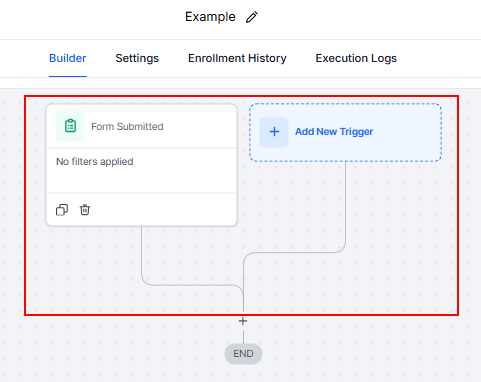
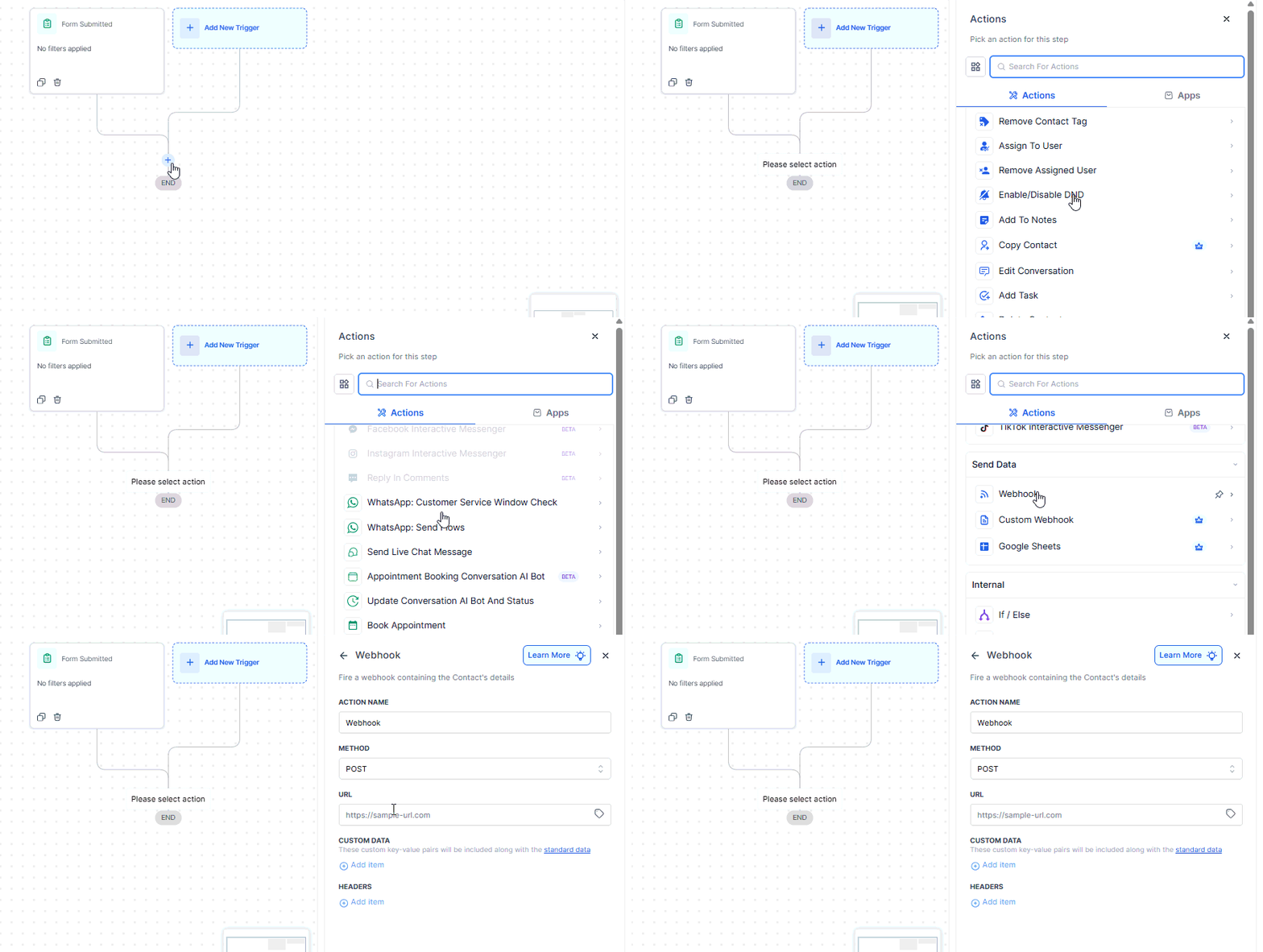
Click the option to add an action to the workflow, then select the Webhook action.
Action Name
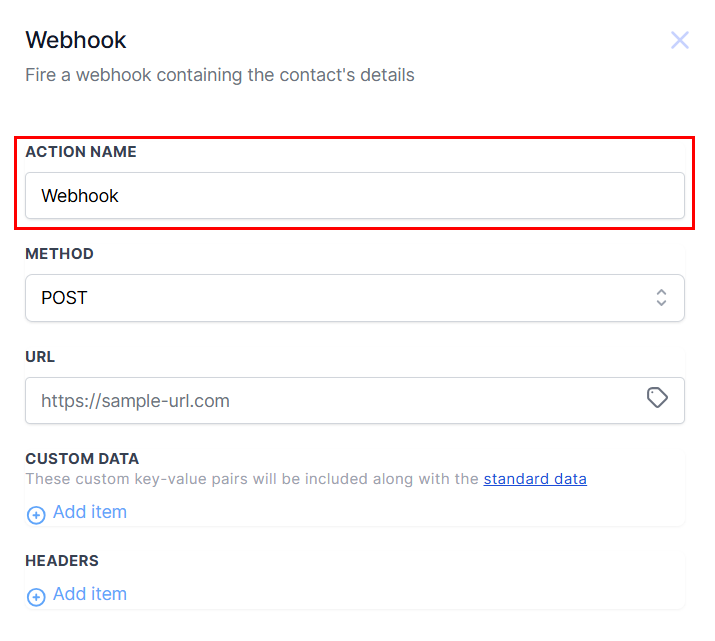
Enter a descriptive name for the action to reflect its purpose.
Method
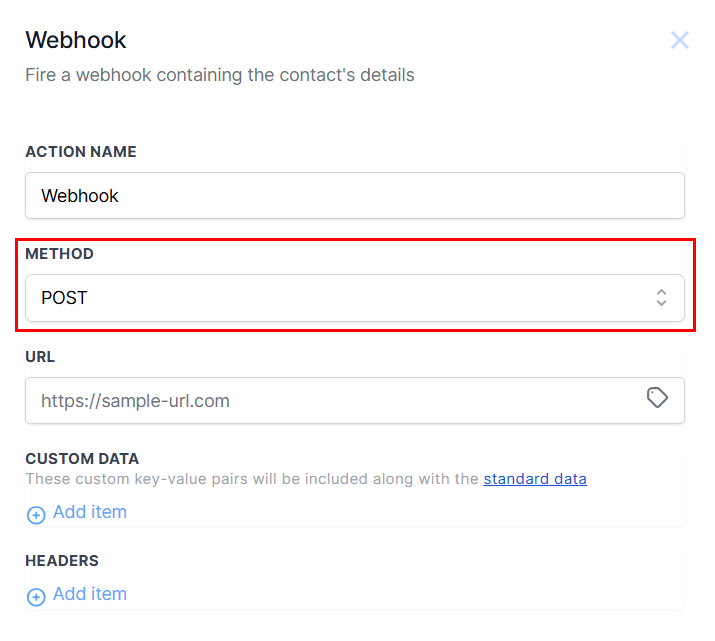
Select either the POST or GET method depending on your needs. The GET method typically retrieves information, while the POST method usually sends information to another system to make a change.
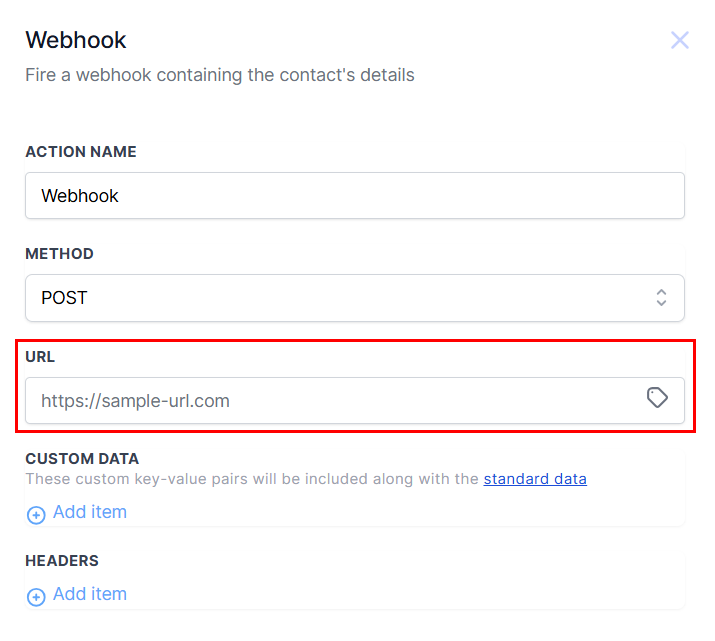
URL
Provide the webhook URL of the external application where the data should be sent or received.
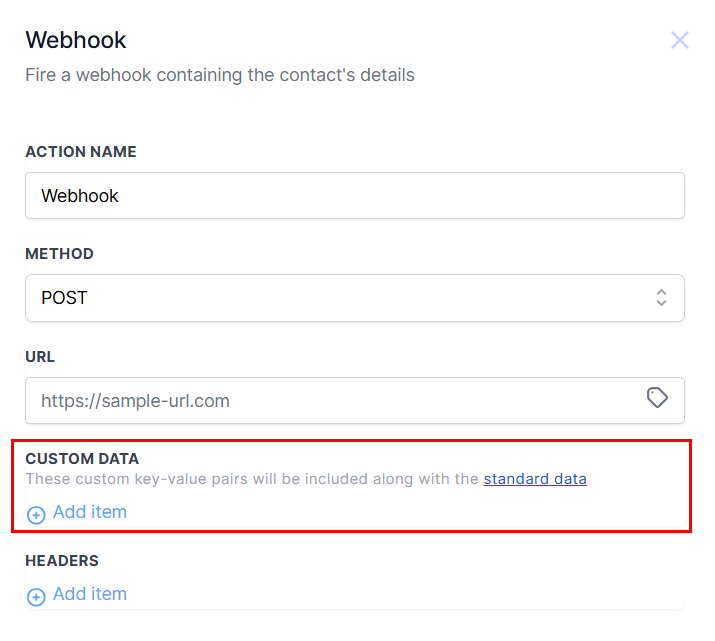
Custom Data
Specify the key-value pair for POST methods, for example- Key: Addr, Value: Address (selected from the value picker)
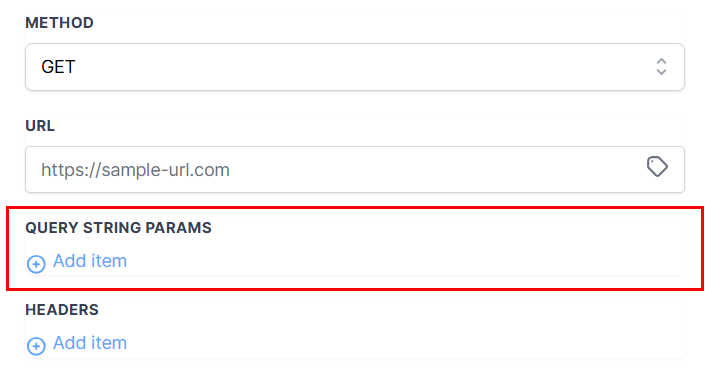
Query String Parameters
Define the data to be transmitted through the webhook in JSON format if you are using the GET method. Utilize merge fields to dynamically populate information such as contact details, opportunity status, or custom fields. For example: “first_name”: “{{contact.first_name}}”, “last_name”: “{{contact.last_name}}”, “email”: “{{contact.email}}”, “phone”: “{{contact.phone}}”, “status”: “{{contact.status}}”.
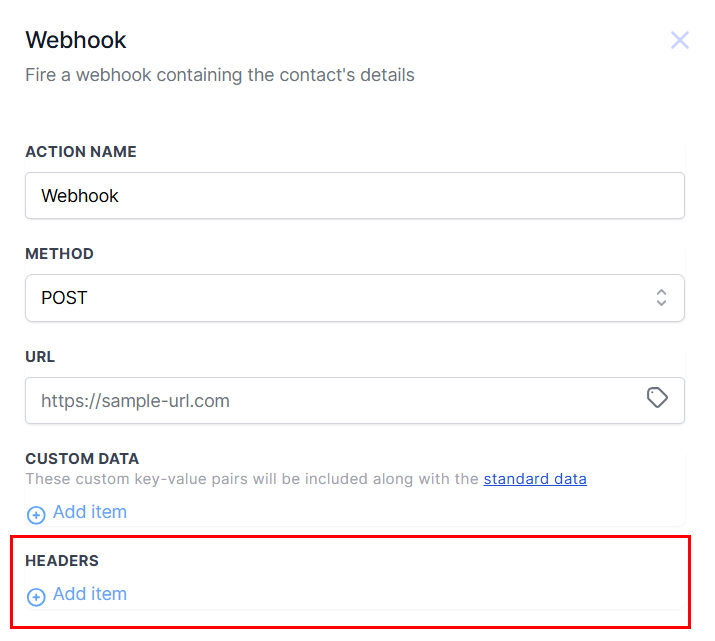
Headers
If the external system requires authentication or specific headers, you can include them here. For instance, you may need to add an API key or specify the content-type header, such as Authorization: Bearer <API_KEY>; Content-Type: application/json.
Save the action, then save and publish the workflow.
Perform a test by triggering the event in your CRM and verifying that the data is correctly received and processed by the third-party application. Adjust configurations as necessary to ensure accurate data transfer.
That’s it! Now you can use webhooks for the seamless transfer and retrieval of data between an external system and your account.
Practical Example: Exporting Form Submissions
Imagine you have an opt-in page where visitors can sign up for a free trial. You want to automate the creation of accounts for these new sign-ups in an external dashboard. Here’s how you could set up a webhook for this scenario:
- Trigger Event: Form submission on the opt-in page.
- Data to Export: Contact information from the form (e.g., name, email).
- Receiving Application: An external dashboard for account creation.
- Webhook Configuration: Set up the webhook in your CRM to capture the form submission data and send it to the dashboard’s webhook URL. Once the data reaches the dashboard, it triggers the creation of a new account for the user.
Troubleshooting Tips
Webhook Not Triggering
- Ensure the trigger event is correctly defined and that the webhook URL is accurately entered in your CRM. Test with different scenarios to isolate the issue.
Data Not Received
- Check the receiving application for any errors in processing the webhook data. Verify that the data format sent by the CRM matches the expected format of the receiving application.
Frequently Asked Questions
Q: Can I use webhooks with any third-party application?
- Most modern applications support webhooks, but it’s essential to check the documentation of the specific software you’re integrating with for compatibility and setup instructions.
Not a Funnelbud customer yet?
Try our all-in-one CRM for sales and marketing — free for 7 days, no commitment.