How To Add Tags To Multiple Contacts
Tags help you easily identify contacts, making it easy to group, separate, and interact with them. Besides automation, you can add tags to contacts manually, and the quickest way to do this when managing multiple contacts is by using the “Add Tag” bulk action. Let’s learn how!
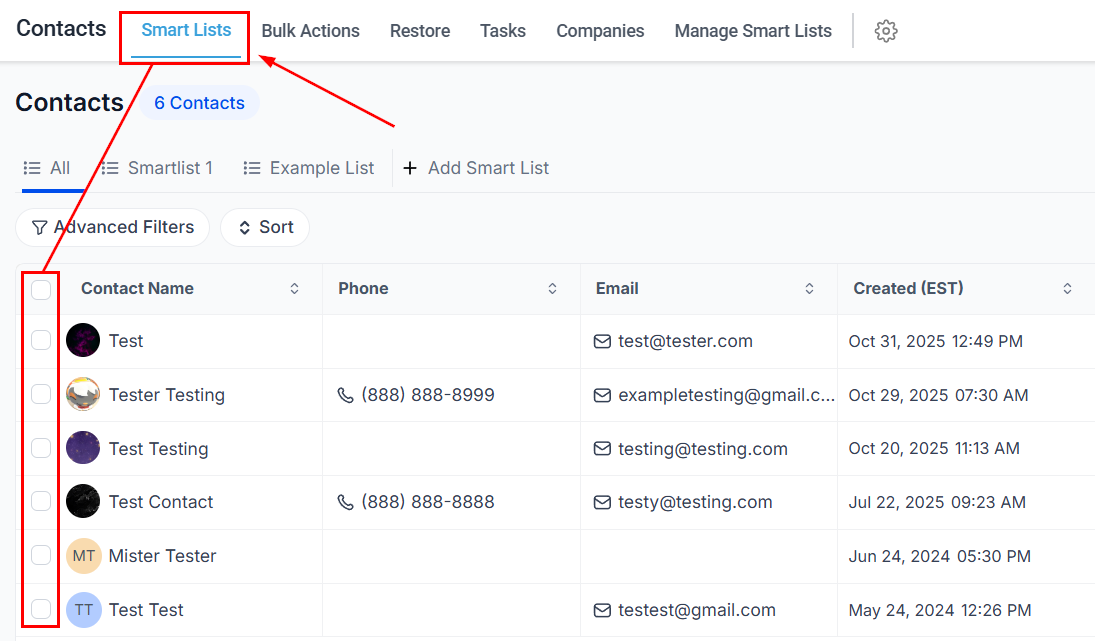
Start by navigating to the Smart Lists tab inside the Contacts section, and select the desired contacts.
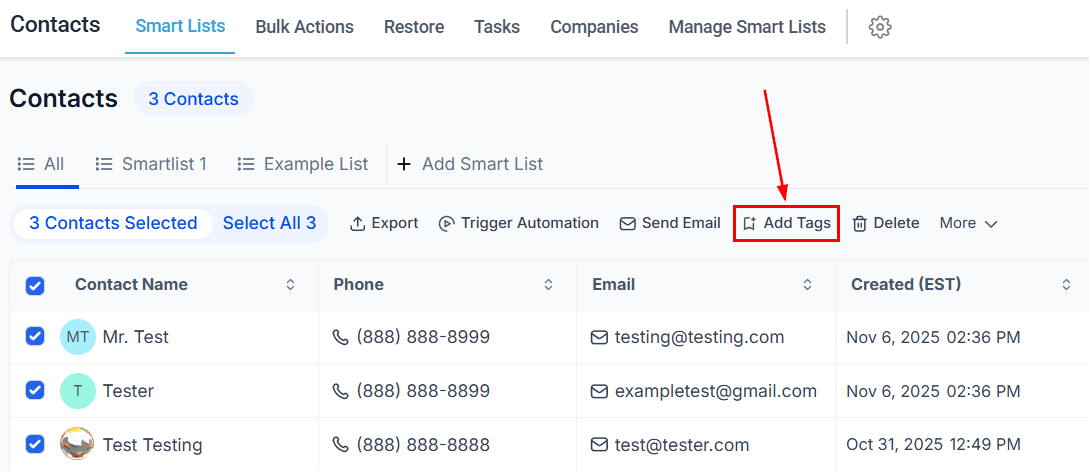
Next, locate the “Add Tag” button on the Bulk Actions panel.
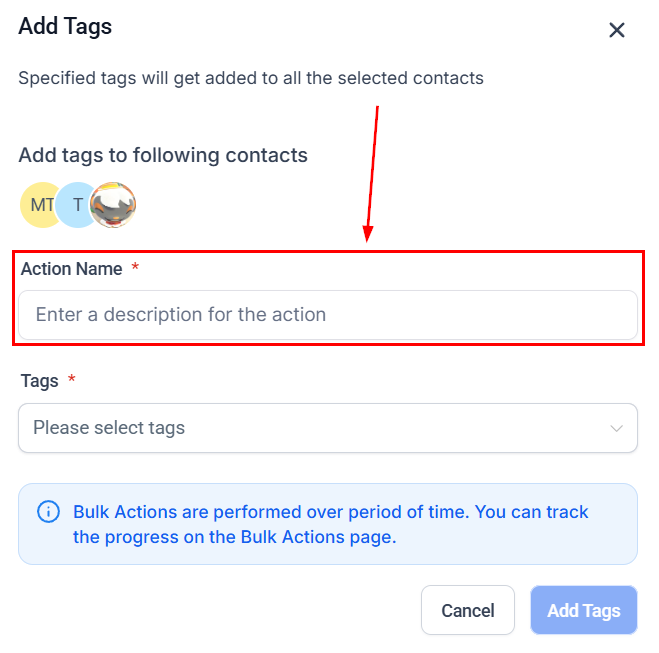
Action
Enter a descriptive name or phrase in the Action text box. This description will appear in the tracking report and can be a brief term or a more detailed expression reflecting the nature or purpose of the action.
Add Contact Tag
Click on the tags field to reveal the drop-down menu. From this menu, select the tags you wish to apply. Tags that have already been selected will not appear in the list.
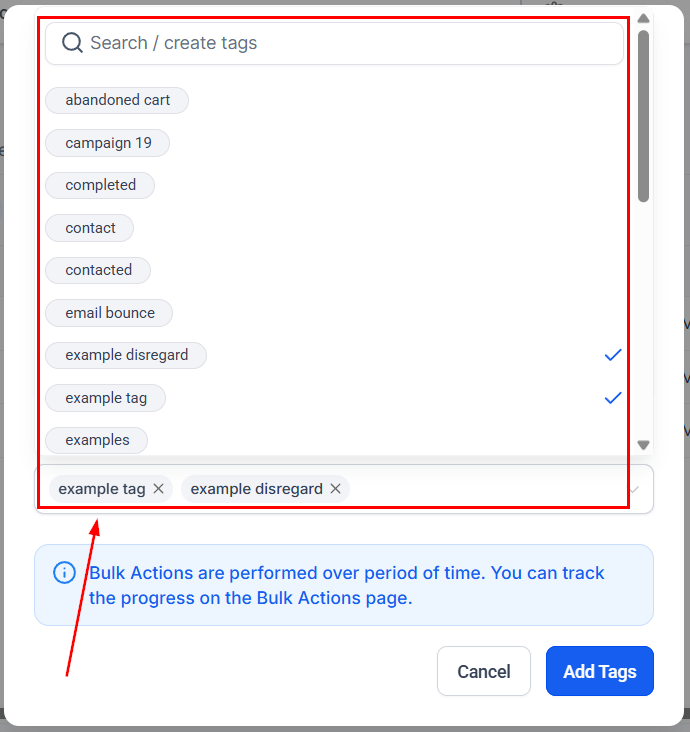
Click the “Add Tags” button to queue the bulk action.
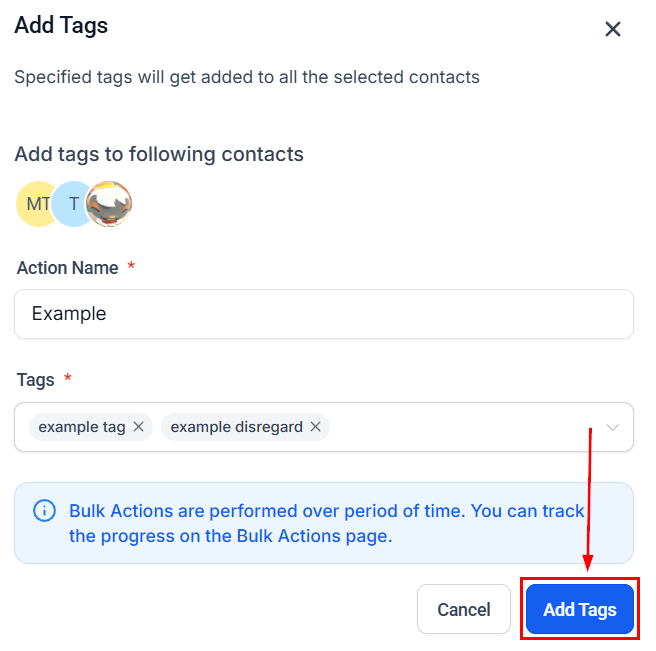
You can then monitor its progress in the Bulk Actions tab. This helps you ensure all contacts are properly identified inside the system, even when dealing with big contact groups. We hope this makes your comment management easier!
Not a Funnelbud customer yet?
Try our all-in-one CRM for sales and marketing — free for 7 days, no commitment.