How to Connect Google Contacts
Keeping your contacts up to date across platforms can be a tedious task—but connecting Google Contacts to your account makes it effortless. With this integration, you can automatically sync, update, and organize your contacts, ensuring that your information is always accurate and accessible wherever you need it. In this guide, we’ll walk you through how to connect Google Contacts and streamline your contact management.
📌Note: The Google Contacts integration is primarily designed to work with workflow actions and triggers, enabling you to automate processes and keep your contacts in sync effortlessly.
Connecting Google Contacts
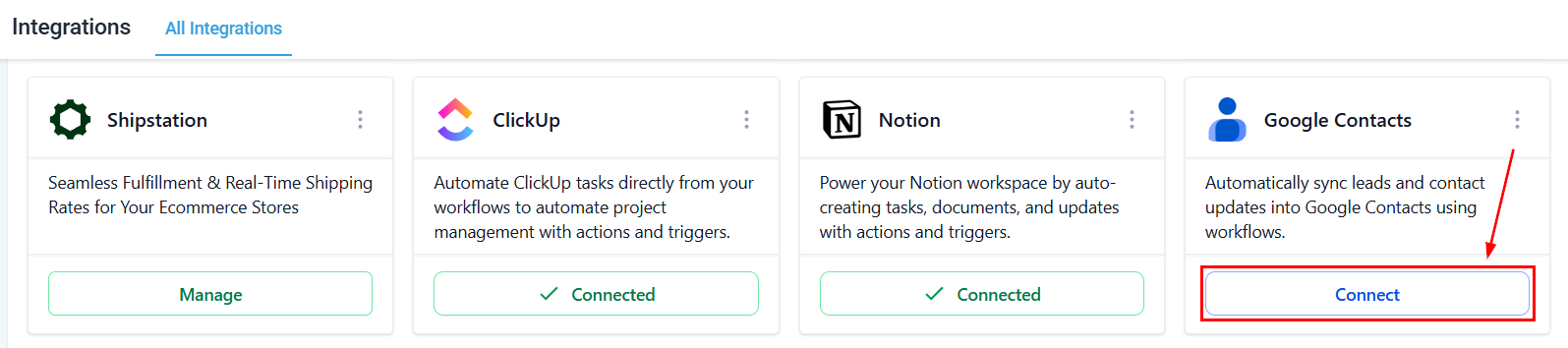
Navigate to the Settings section within your account, and locate the Integrations tab. From there, click the Connect button within the Google Contacts tile to initiate the setup process.
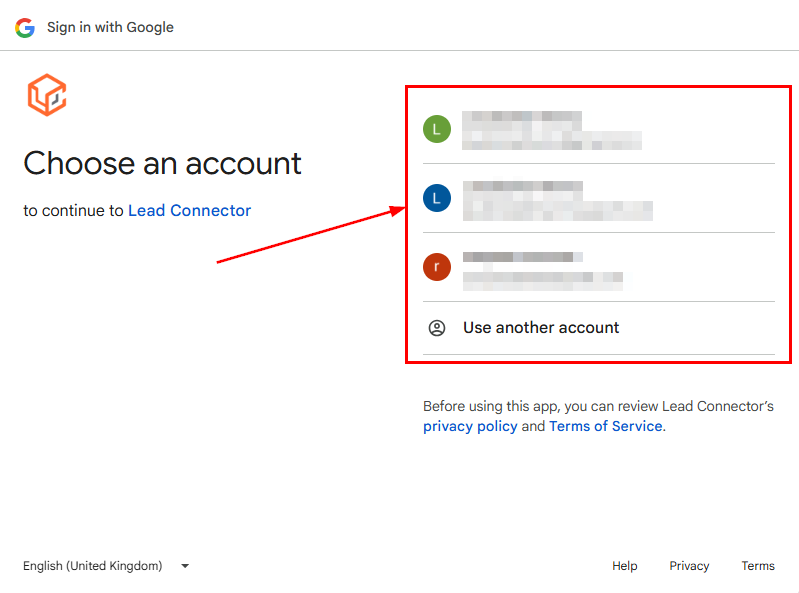
Choose the Google account you wish to connect or sign in to a new account.
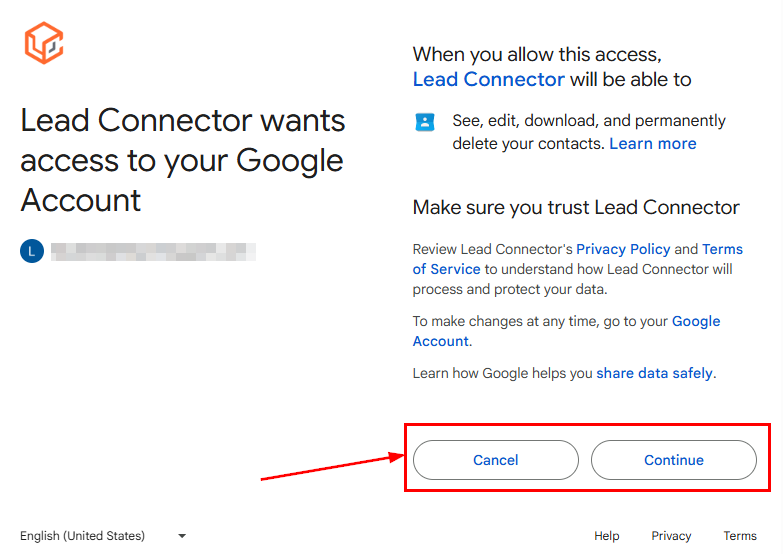
Once selected, revise the permissions, then click Continue to proceed with the integration. Otherwise, click Cancel to return to the Integrations page.
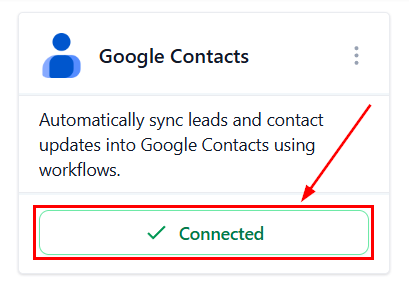
That’s all there is to it! The tile will now display options to disconnect the app or refresh the pages, giving you full control over your integration.
By connecting Google Contacts, you eliminate the hassle of manual updates and ensure your data stays consistent across platforms. With everything synchronized, you’ll save time, reduce errors, and keep your contact management running smoothly.
Not a Funnelbud customer yet?
Try our all-in-one CRM for sales and marketing — free for 7 days, no commitment.