How to Map Quiz Results to Custom Fields
Quizzes are excellent tools for gathering insight, but their true value comes from what you do with the data afterward. Quiz Results to Custom Field Mapping transforms raw quiz submissions into structured, contact-level fields that you can use for segmentation, personalization, and automated follow-ups. This guide explains how the feature works, the benefits it delivers, and the steps to set it up successfully.
Key Benefits of Quiz Result Mapping
- Auto-generated fields: Fields for overall score, overall tier, category-specific scores/tiers, and highest/lowest categories are created automatically.
- Real-time updates: If a contact retakes the same quiz, their mapped fields are overwritten with the latest values. This guarantees that automations always rely on current data without requiring cleanup rules or duplicate handling.
- Enhanced segmentation: Create smart lists based on outcome tiers, score thresholds, or category rankings.
Auto-Generated Quiz Result Fields
When a user submits a quiz for the first time, the system scans its structure and generates fields following a consistent naming pattern. Examples include: {{quiz_name}} – Overall Score, {{quiz_name}} – Overall Score – Tier, and {{quiz_name}} – {{category_name}} – Score.
Data types:
- Scores are stored as Number fields
- Tiers and category names are stored as Text fields
This ensures compatibility with standard filtering and workflow logic.
Setting Up Quiz Result Mapping
Start by going to Sites > Quizzes and opening an existing quiz or clicking + Add Quiz to create a new one.
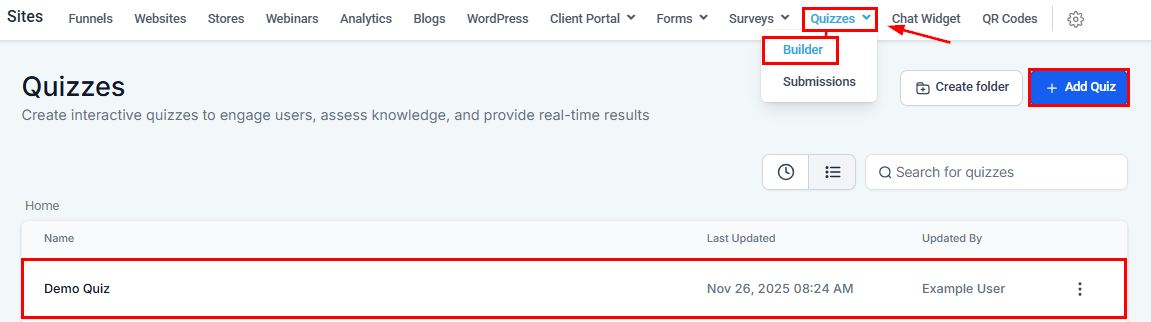
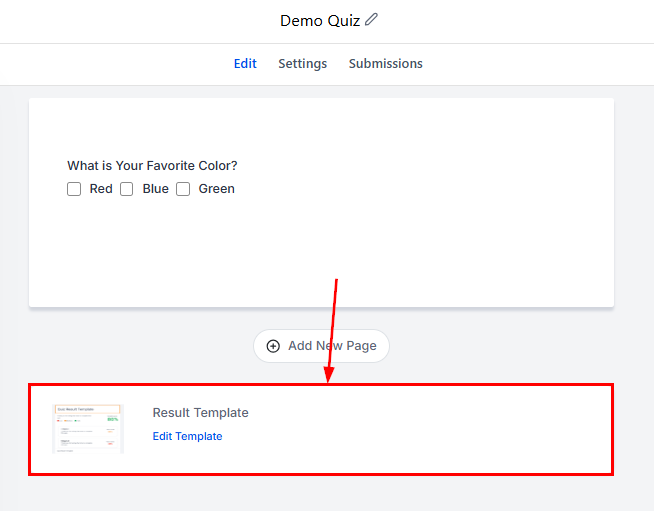
Open the Results Page
Scroll to the end of the quiz and select Edit Template on the Results Template.
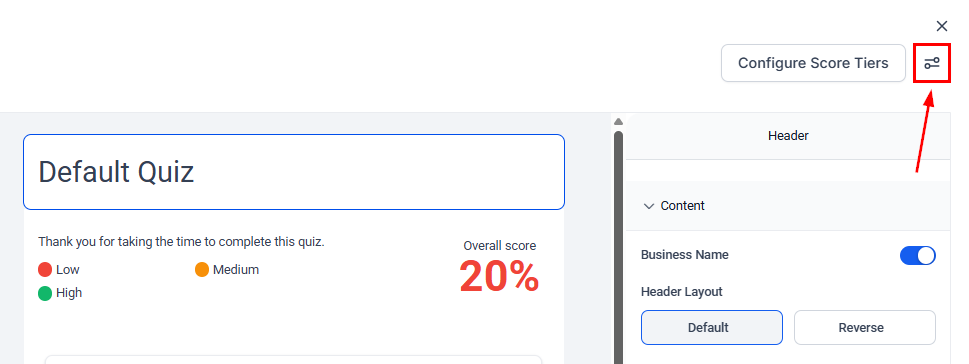
Next, click the Settings icon in the upper-right corner.
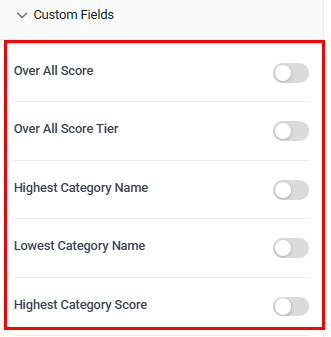
Expand the Custom Fields dropdown to enable the fields you want to sync.
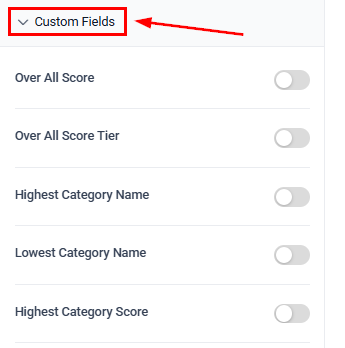
These fields include: Overall Score, Overall Score Tier, Category Scores and Tiers, and Highest/Lowest Scoring Categories.
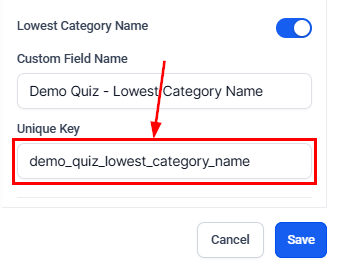
The system automatically assigns each field a name and unique key.
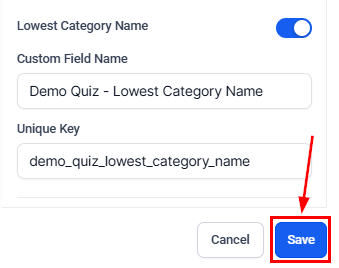
When you are satisfied, click Save. Once a user completes the quiz, their scores, tiers, and category data are captured.
After submission, selected fields populate immediately in the contact record.
Using Quiz Result Fields in Workflows & Automations
Once your quiz fields are mapped, they can be leveraged throughout your CRM strategy.
Segment Contacts
Create groups or smart lists based on quiz outcomes.
Examples:
- Build a list of users with “Overall Score ≥ 80.”
- Group contacts by “Fitness Tier = Beginner” for tailored coaching content.
Personalize Automations
Trigger targeted workflows based on results.
Examples:
- Send different nurture sequences depending on a user’s highest category.
- Trigger actions when a category score crosses a specific threshold.
Power Conditional Logic
Route contacts through different workflow branches based on mapped fields.
Examples:
- If “Diet Tier = Advanced,” send an advanced meal plan.
- If “Fitness Score < 50,” enroll the user in an introductory program.
Whether you use quizzes for assessments, lead qualification, or onboarding, this feature ensures every response becomes actionable insight that strengthens your customer journey.
Frequently Asked Questions
Can I rename or delete the auto-generated fields?
- You can rename or reorganize them, but deleting a field removes historical quiz data from all contacts.
Are these contact or opportunity fields?
- They are Contact Custom Fields, usable in forms, workflows, and smart lists.
Can I export quiz fields to CSV?
- Yes. Contact exports include all custom fields, including quiz scores and tiers
Not a Funnelbud customer yet?
Try our all-in-one CRM for sales and marketing — free for 7 days, no commitment.