Quiz Notifications
Email notifications for quiz submissions help streamline internal communication and ensure your team stays informed the moment a quiz is completed. By automatically alerting the right people, this feature supports faster follow-ups, improved lead handling, and better engagement overall.
Create or Edit a Quiz
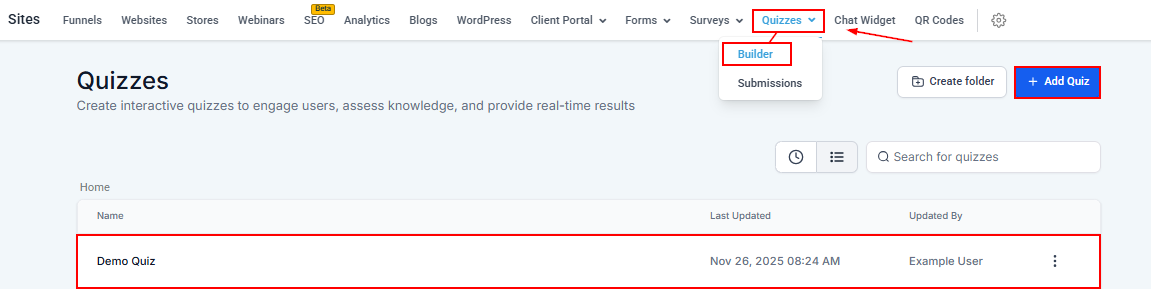
From the left-hand navigation menu, go to Sites, then select Quizzes from the top menu. Click Add Quiz to create a new quiz, or select an existing quiz to open it in the builder.
Enable Notifications
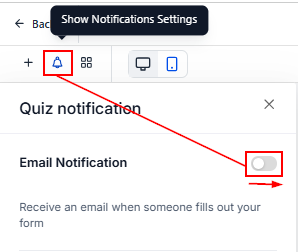
Once inside the builder, click the bell icon in the top menu to open the notification settings. Toggle the switch on to activate email notifications for quiz submissions.
Configure Notification Settings
After enabling notifications, several configuration options will become available:
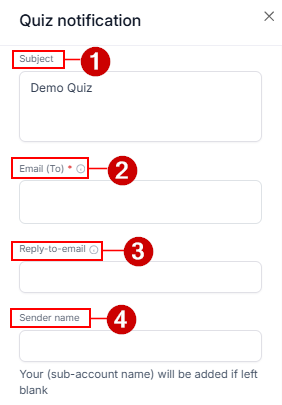
- Subject Line: Customize the email subject line as needed. By default, the quiz name will populate this field.
- Email Recipients: In the Email To field, enter the email address of the primary recipient. Additional email addresses can be added and will be included as Cc recipients.
- Reply-To Address: Update the Reply-To email address if desired. You may use
{{contact.email}}so replies go directly to the quiz respondent. - Sender Name: Optionally define a sender name. If left blank, the system will use your business or account name by default.
PDF Attachment
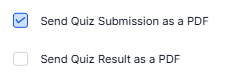
When enabled, quiz submission and result details are automatically generated as a PDF and attached to the notification email.
Auto Responder
Turn on the Auto Responder option to send an automated confirmation email to the quiz participant, including a copy of their submission details.
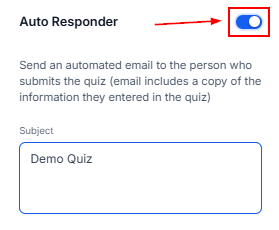
Customize the content of this email to control what information is shared with the respondent.
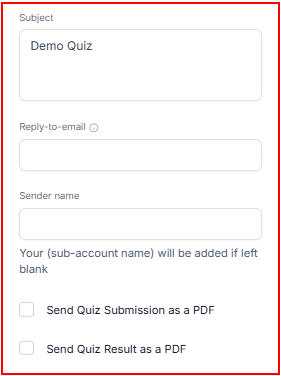
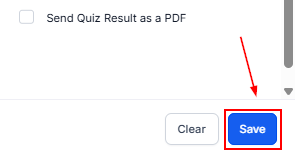
After configuring all settings, click Save to apply the notification preferences.
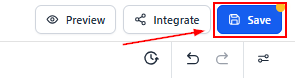
Save Your Quiz
Be sure to save the quiz itself to ensure all notification settings are properly applied.
Once configured, every new quiz submission will trigger an email notification to the designated recipients. This automation ensures your team never misses a response and can act quickly on new leads or quiz results. The outcome is faster engagement, better responsiveness, and a more consistent experience for both your team and your audience.
Frequently Asked Questions
Q: I’m not receiving email notifications. What should I check?
- Confirm that email notifications are enabled and that all recipient email addresses are entered correctly. Also, check spam or junk folders to ensure notifications are not being filtered.
Q: Can notifications be sent to multiple recipients?
- Yes. Multiple email addresses can be added in the Email To field, separated by commas, to notify all relevant team members.
Q: How can I test quiz email notifications?
- Submit a test quiz response after setup. This allows you to confirm that notifications are being delivered correctly before publishing the quiz.
Not a Funnelbud customer yet?
Try our all-in-one CRM for sales and marketing — free for 7 days, no commitment.