How To Schedule Posts Using RSS URL?
Social Planner has introduced a game-changing feature that allows you to schedule posts effortlessly using RSS (Really Simple Syndication) URLs. This powerful tool enables you to automate your content sharing, saving time and ensuring your feeds stay up-to-date.
How to Find RSS Feeds?
While RSS feeds may not be as prominently displayed as before, they are still widely available. Here are some quick ways to find them:
WordPress Sites: Add “/feed” to the end of the URL (e.g., https://example.com/feed).
Other Sites:
- For Tumblr-hosted sites, append “/rss” to the URL.
- On Blogger-hosted sites, add “feeds/posts/default” to the end of the URL.
- For Medium publications, insert “/feed/” before the publication’s name.
YouTube Channels: Copy and paste the channel’s URL into your RSS reader or find an OPML file containing all subscriptions.
Source Code Check: Right-click on the website, select “View Page Source,” and search for “rss” or “atom” to find the RSS URL in the source code.
Creating Posts with RSS Feed
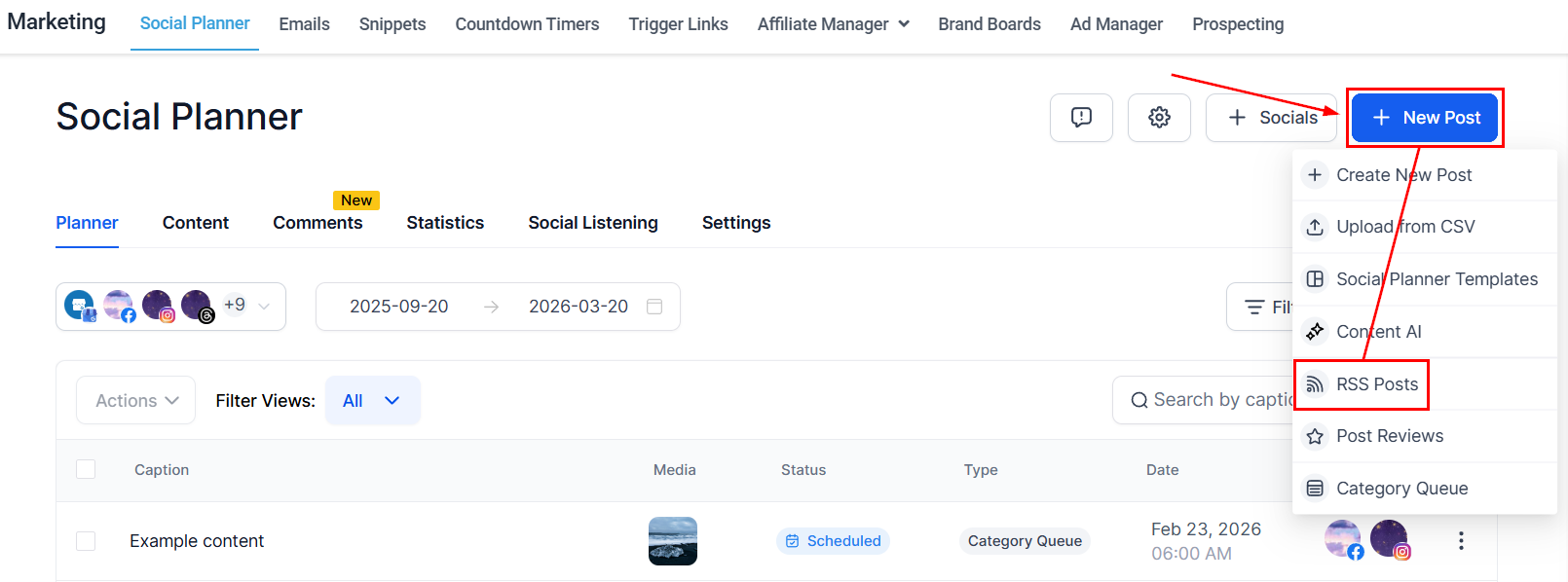
Navigate to the Social Planner tab inside the Marketing section. Click “New Post” and select the “RSS Post” option.
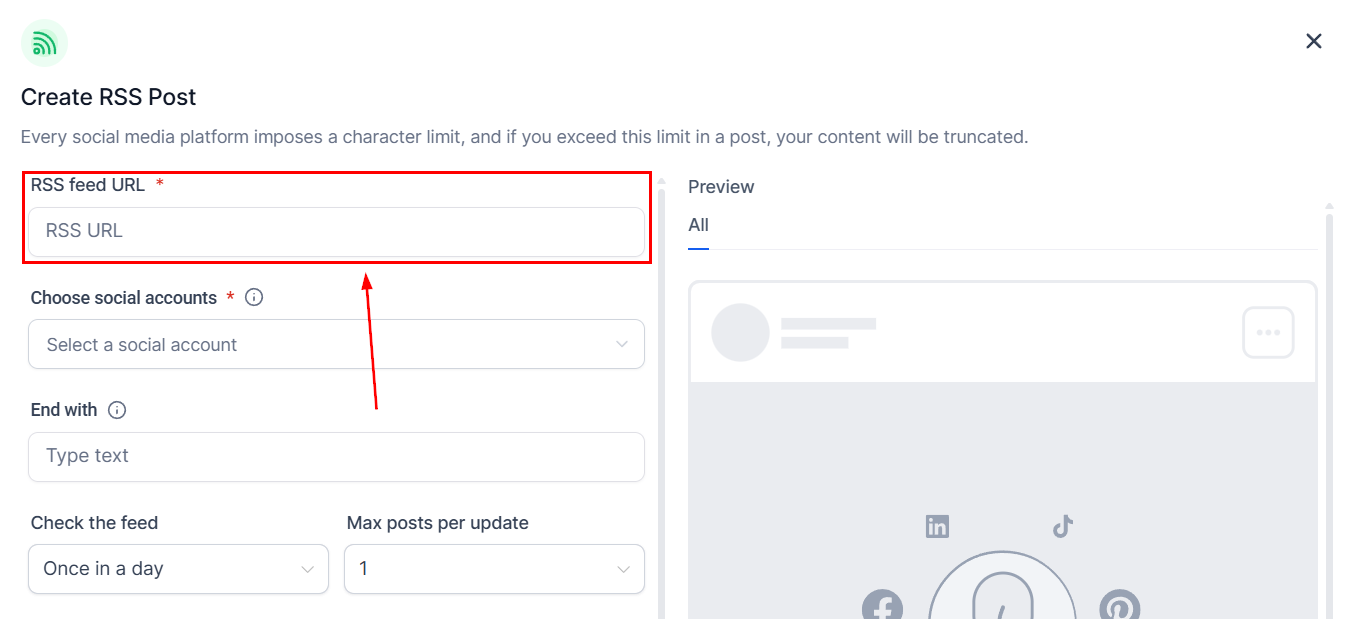
Add the RSS Feed URL (refer to the above section on finding RSS URLs).
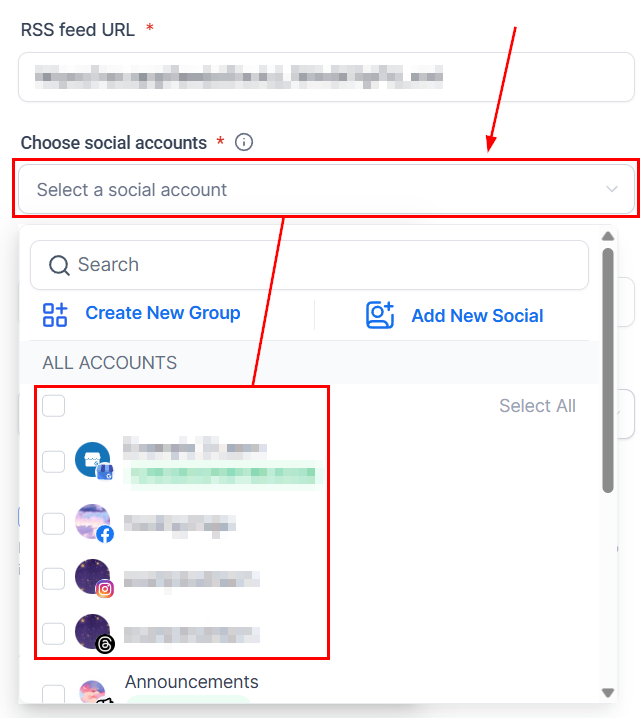
Select the social media platforms where you want to post.
Add text, hashtags, or links under “End with.”
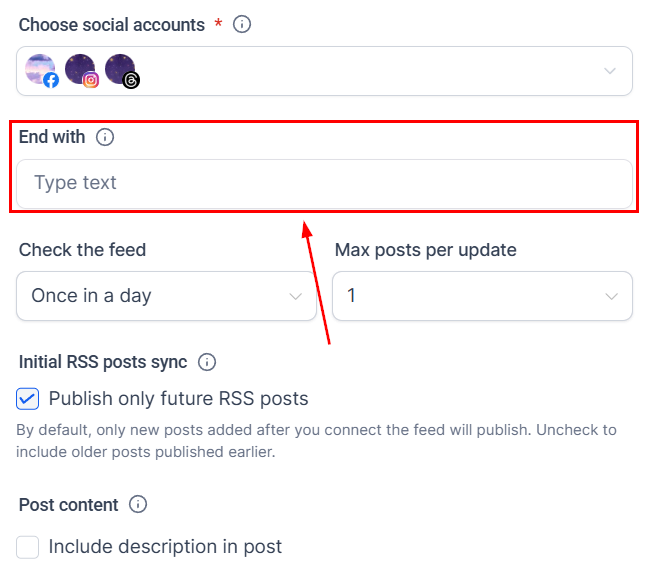
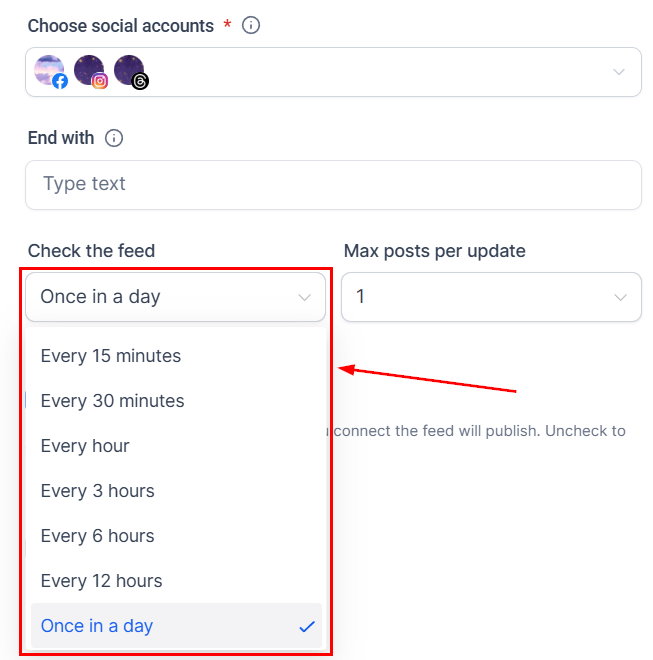
Choose the frequency of feed updates (from every 5 minutes to once a day).
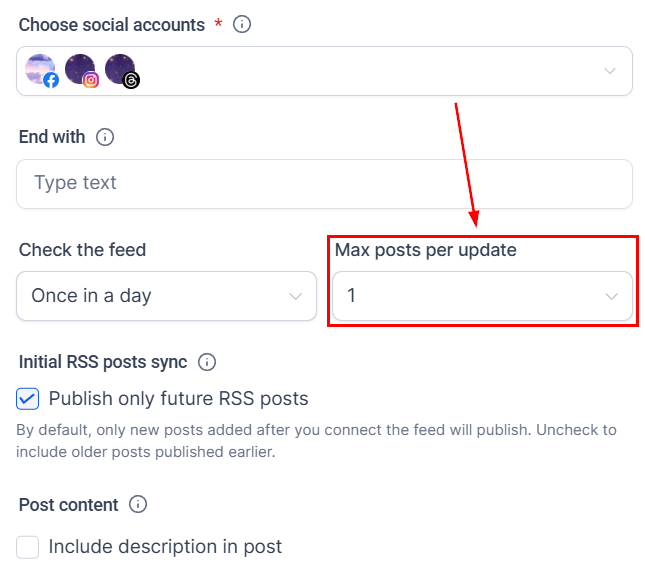
Select the number of posts to be generated (1 to 5).
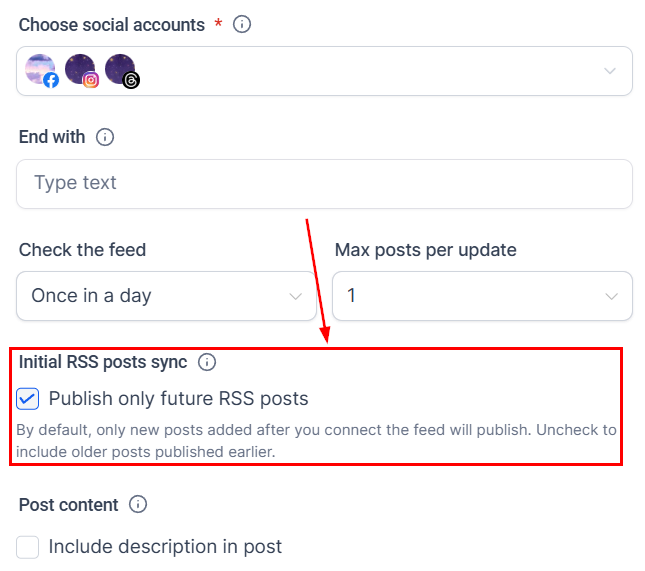
Check the box under Initial RSS posts sync to fetch future posts automatically; if unchecked, older posts will sync instead.
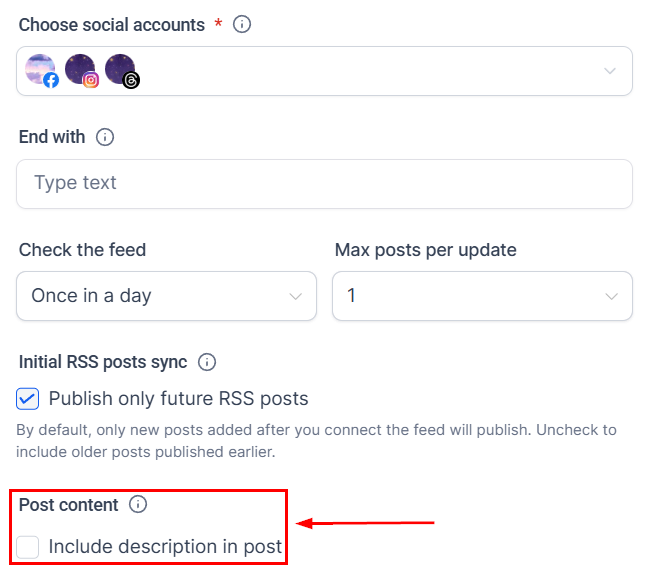
Toggle the box under Post content on to include the RSS item description along with the title.
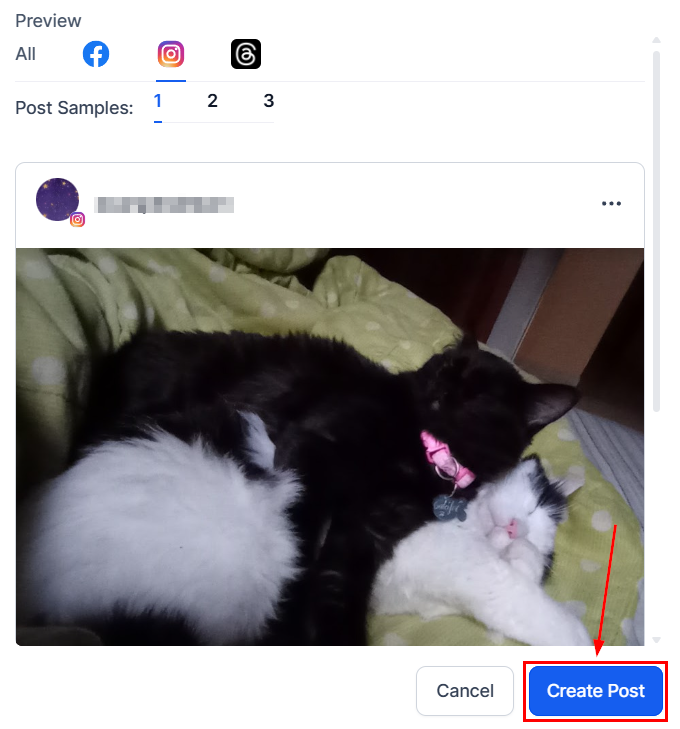
Review the item preview, then click Create Post to save and automate RSS posts.
Why Should You Use This Tool?
RSS proves to be a valuable asset for social media management in several ways, including:
- Content Curation: Aggregate content from various sources into one feed, making it easier to discover relevant and interesting content for social media sharing.
- Automated Content Sharing: Set up RSS feeds to automatically post content to your social media accounts, ensuring a consistent flow of content and saving time.
- Stay Updated with Industry Trends: Subscribe to industry-specific blogs and news sites via RSS to stay informed about the latest trends, news, and developments for creating timely and relevant social media posts.
- Reduce Information Overload: Efficiently manage information by consolidating content from various websites and social media platforms into one place using RSS.
- Share User-Generated Content: Monitor user-generated content in community forums using RSS feeds, making it easy to share and promote content created by community members.
- Maintain a Consistent Posting Schedule: Utilize scheduling tools along with RSS feeds to ensure a consistent posting schedule, even during busy times.
Not a Funnelbud customer yet?
Try our all-in-one CRM for sales and marketing — free for 7 days, no commitment.