How To Merge Multiple Contacts
If you have multiple contact records for the same individual, you can consolidate them into a single record using the ‘Merge Contacts’ bulk action. This helps you keep your contact list clean and updated. Let’s learn how!
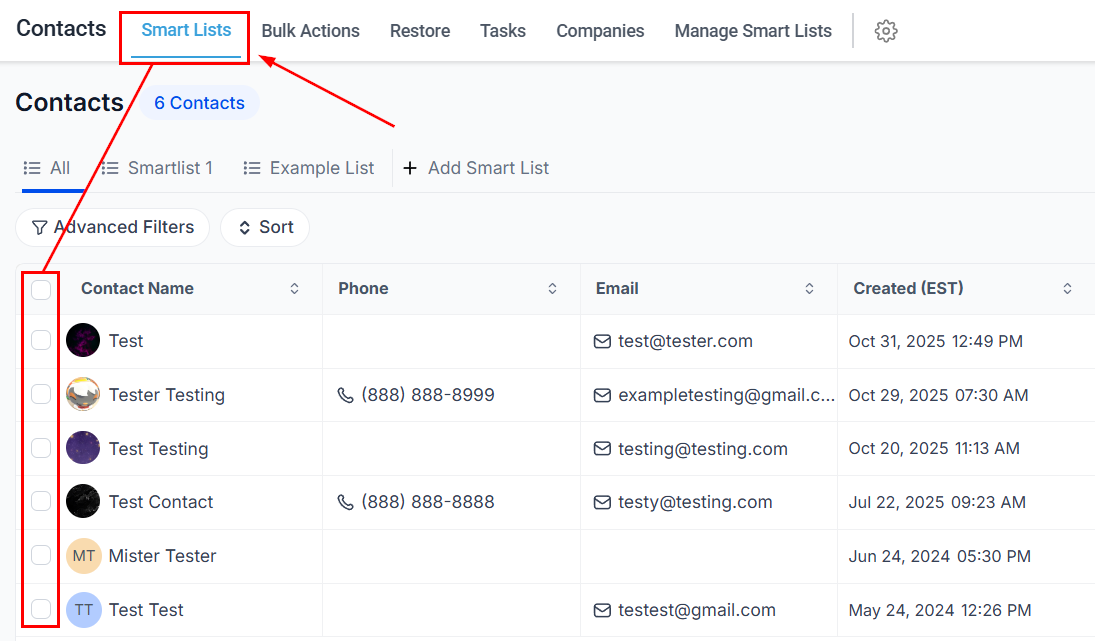
Start by navigating to the Smart Lists tab inside the Contacts section, and select the desired contacts.
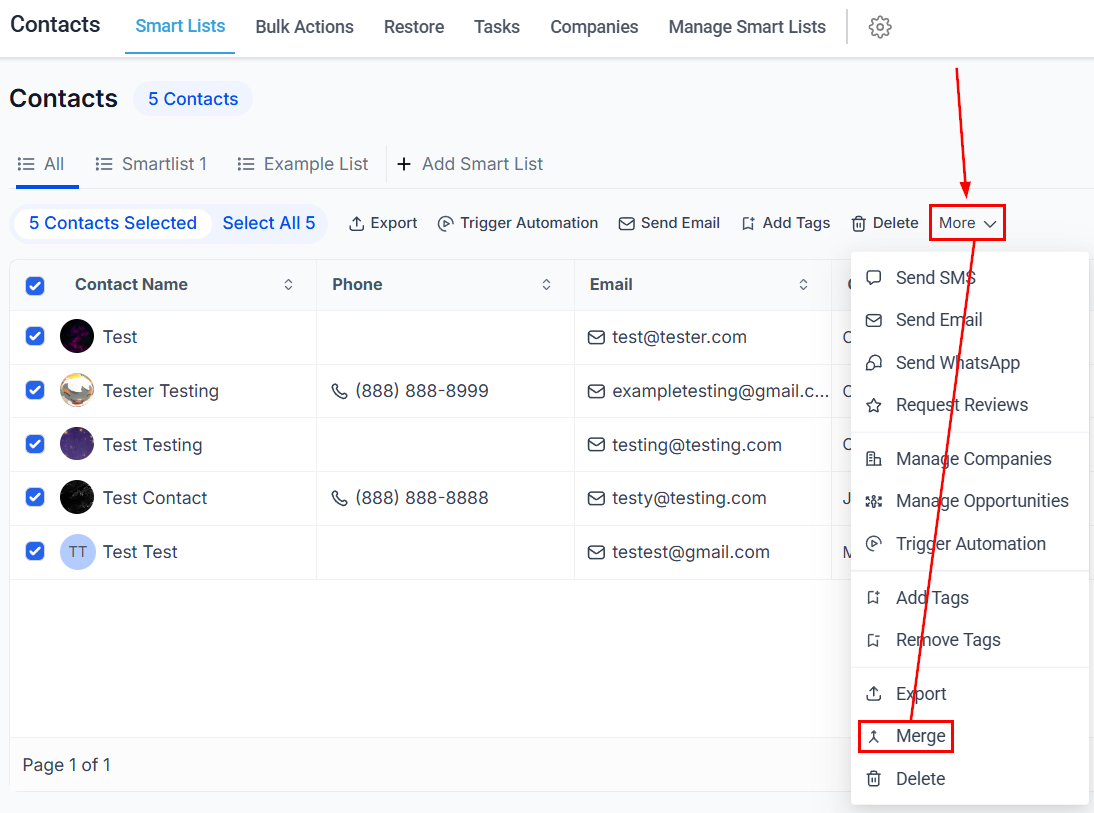
Open the More dropdown menu, then select Merge.
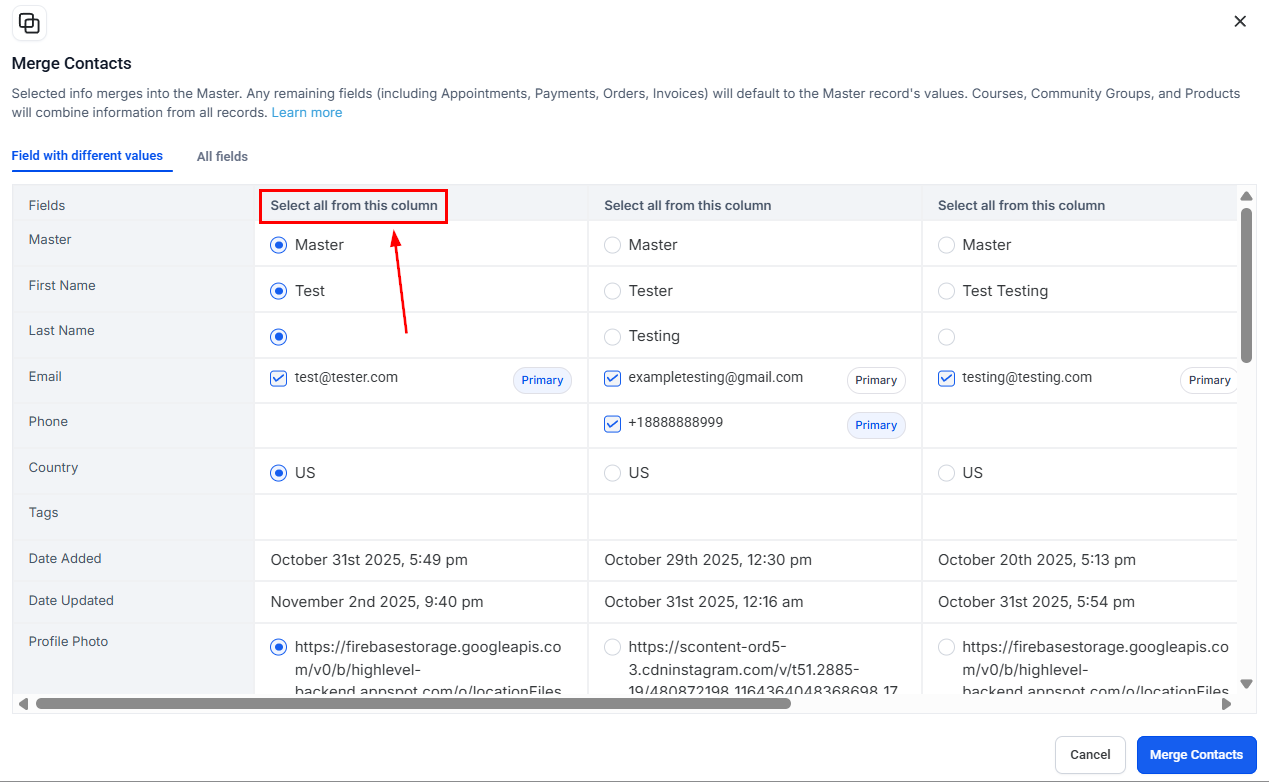
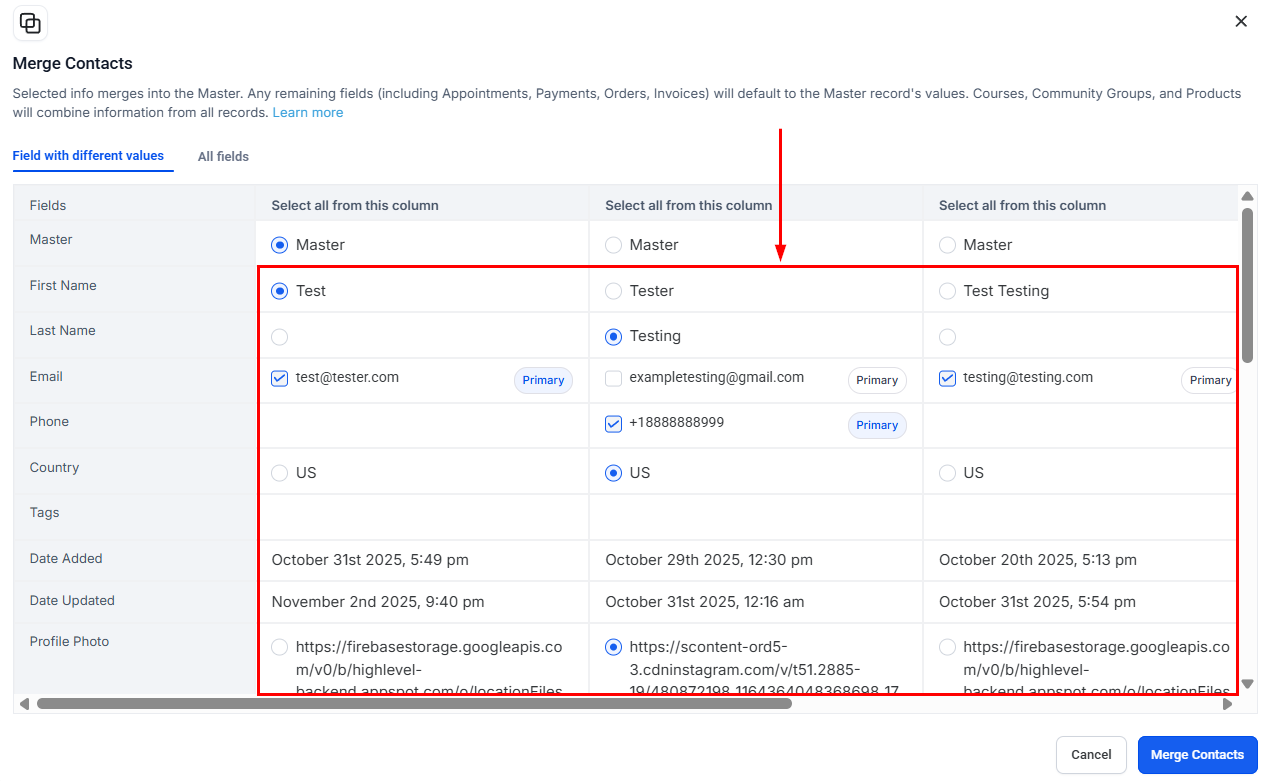
When prompted, you will have the opportunity to determine which information should be retained in the merged contact, ensuring that no critical details are lost.
Select All
Utilize the “Select All from this column” button to effortlessly choose all available information for a specific contact, ensuring that no essential details are overlooked. Clicking this button automatically designates the contact as the master record.
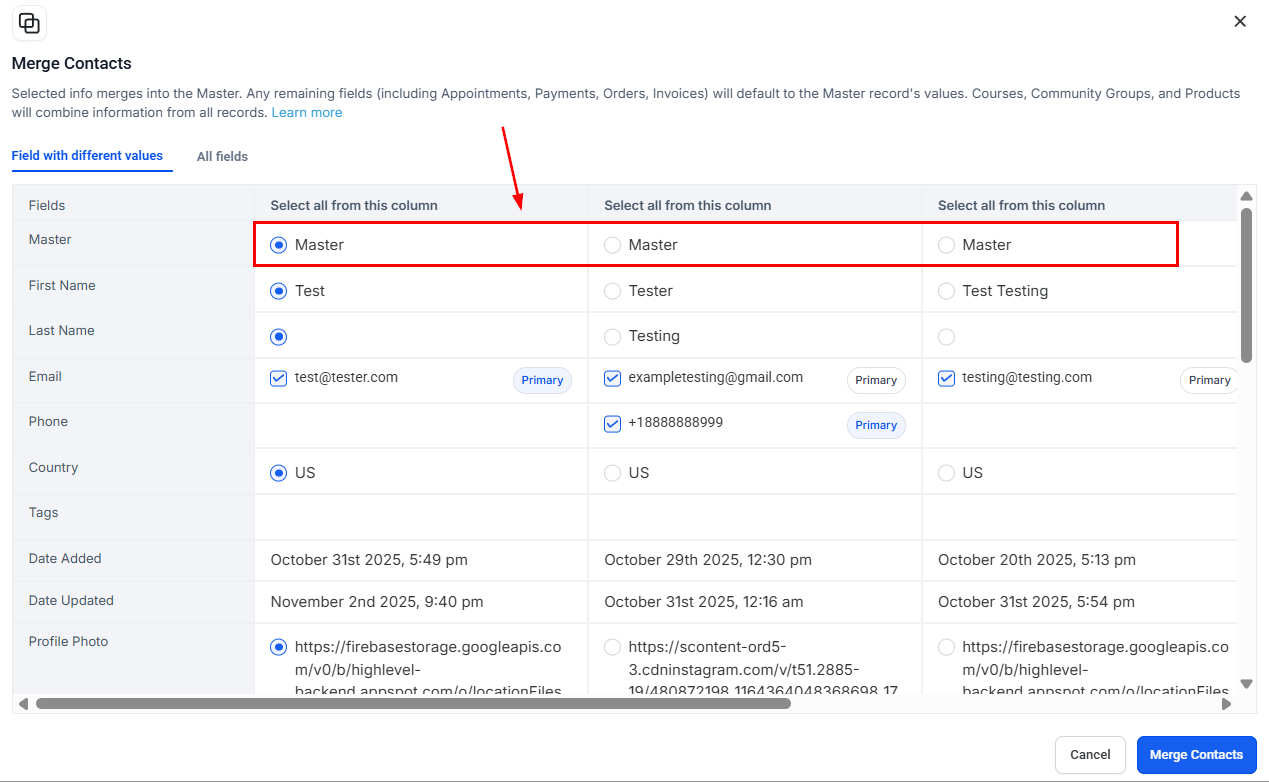
Master Record
During the merge process, you can designate a Master Record by clicking the radio select button corresponding to the contact you wish to use as the primary entry.
Selecting Information to Merge
Select the data from various contacts that you wish to retain and combine it into a single, unified record under the Master Record.
📌Note: The documents associated with secondary contacts will also be transferred upon merging.
Show All Fields
By default, you will be able to view and compare fields containing varying information. This feature helps identify discrepancies or unique data points among contacts, facilitating more accurate record-keeping and analysis. If you wish to view all the fields associated with the contacts, select the “All Fields” option.
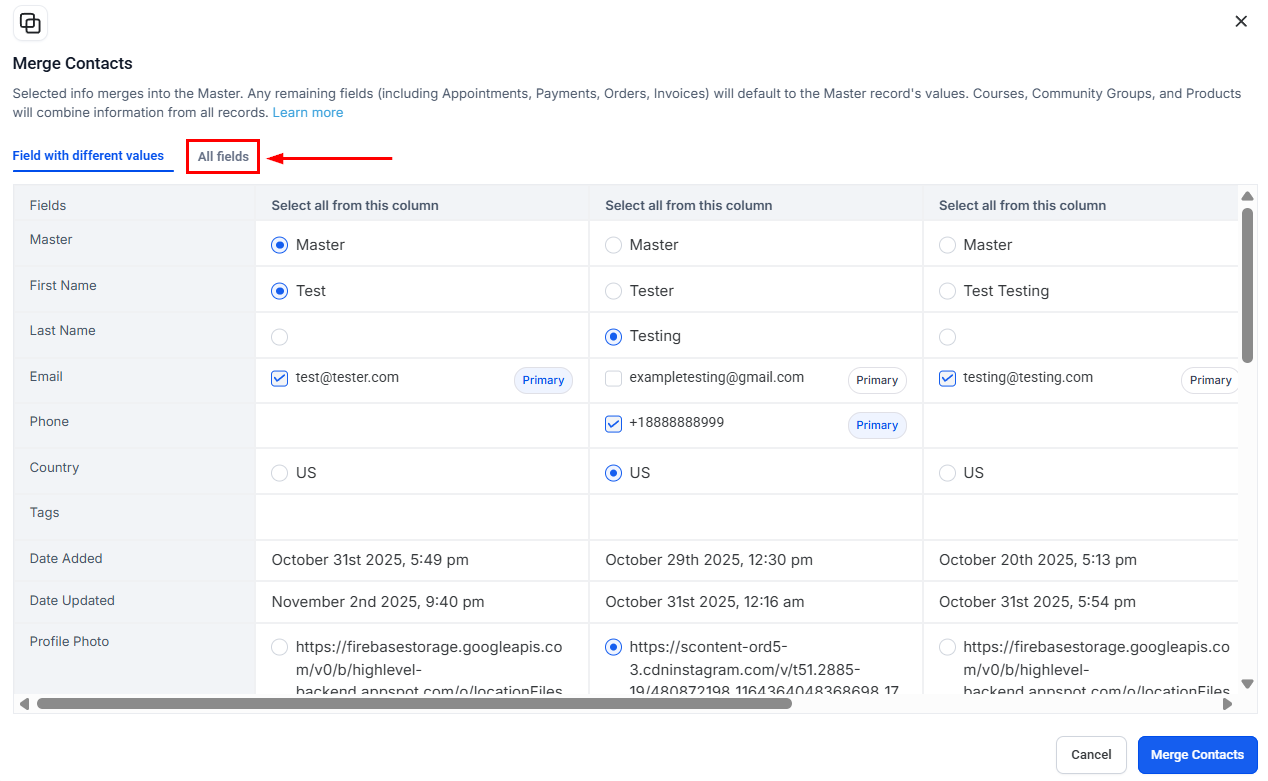
This provides a complete view of all available data for each contact, ensuring you have comprehensive information at your disposal.
Completing the Merge
After verifying your selections, click the “Merge Contact” button.
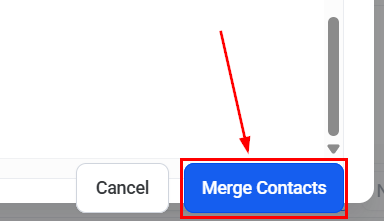
📌NOTE: This action is irreversible.
By utilizing this feature, you can combine all relevant data into one record, eliminating the need to manage multiple entries with similar information.
Not a Funnelbud customer yet?
Try our all-in-one CRM for sales and marketing — free for 7 days, no commitment.