How to Add Facebook Pixel to Funnels for Enhanced Tracking and Analytics
Integrating the Facebook Pixel into your funnel is a critical step for tracking visitor actions, optimizing ad performance, and gaining valuable insights into user behavior. This guide will walk you through the process of adding both the main Pixel code and event-specific codes to your funnel, ensuring seamless tracking and accurate data collection.
First, go to Facebook Events Manager and copy the main pixel code. Once that is done, return to the Sites section in your CRM and choose the Funnel you wish to add the pixel.
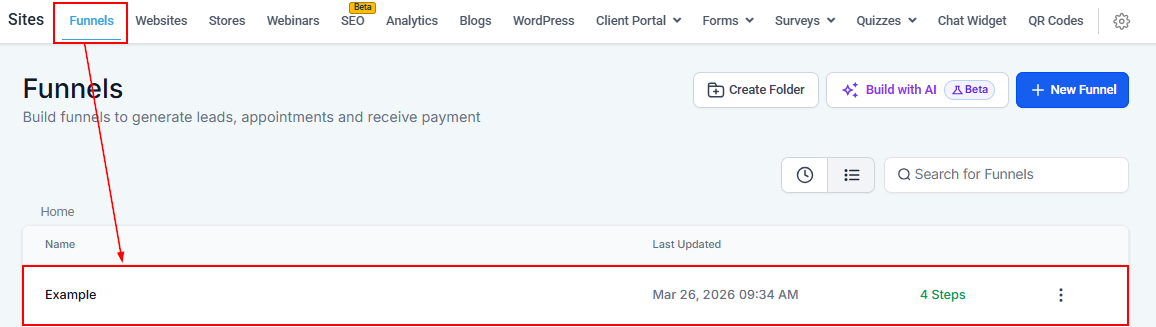
Adding a Pixel Code to Your Funnel
There are two methods to add a pixel to the funnel: through the Events tab or the Settings section. Let’s go through both approaches.
Using the Events Tab
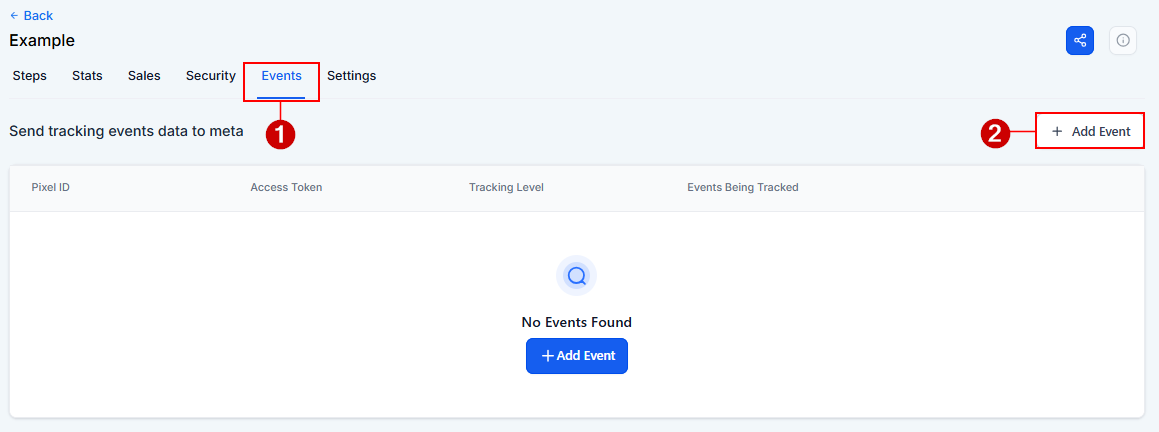
Navigate to the events tab, then click the button to add an event.
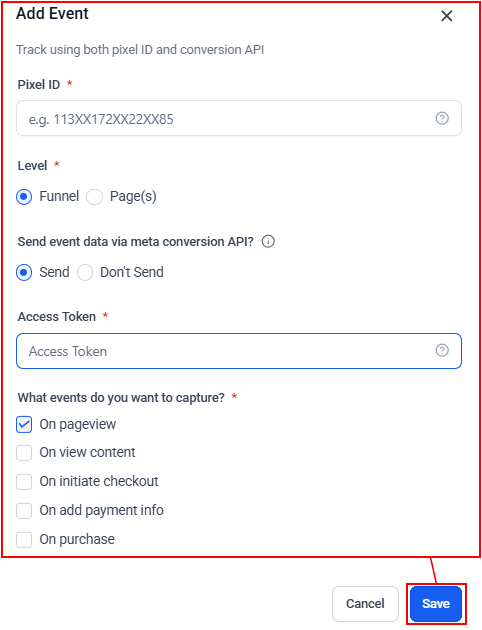
You will be prompted to enter the Pixel ID copied from Events Manager, specify the tracking level, choose whether to send event data via the Meta Conversions API, provide the access token, and select the events to be captured.
Once you have configured these fields, click Save.
Using the Settings Window
The other approach is to open the funnel settings and paste the copied Facebook Pixel code into the Head Tracking Code Section.
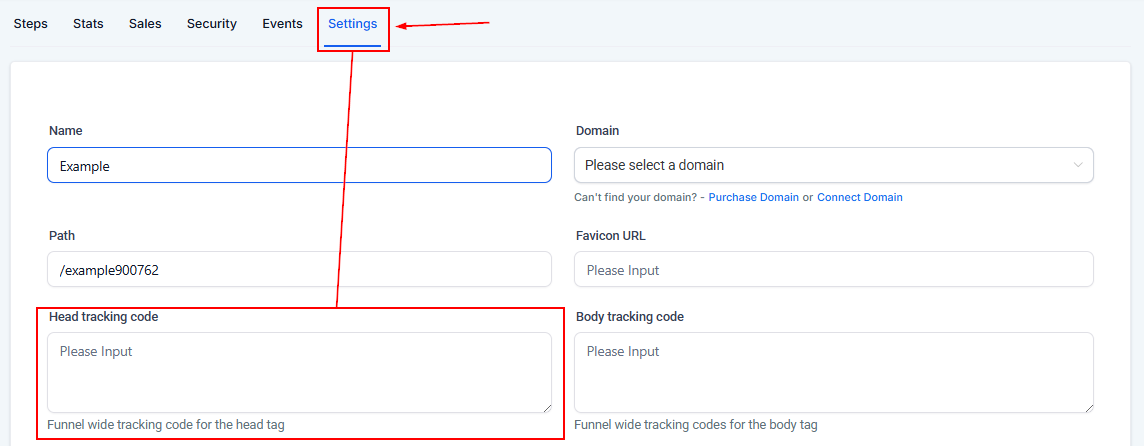
Ensure you save the changes to successfully integrate the Pixel code into your funnel.
Adding Event-Specific Code to Individual Pages
Determine which step of the funnel corresponds with the event you want to track (e.g., a Checkout page). Click on the step to edit it.
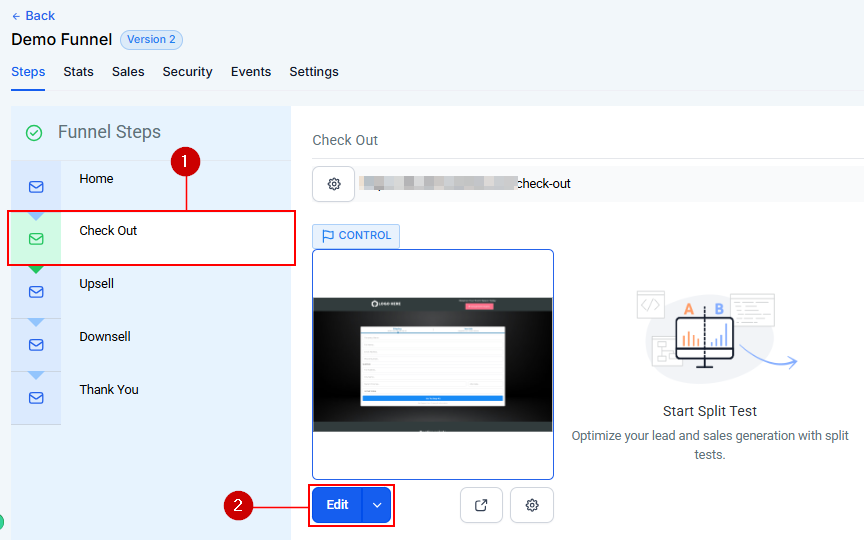
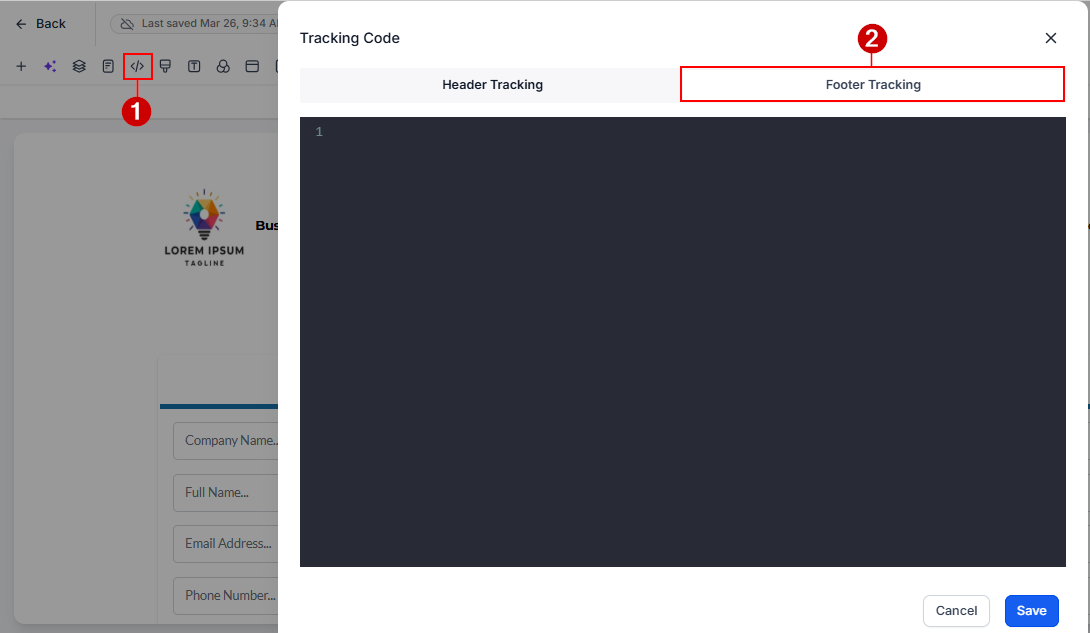
Choose “Tracking Code”. In the “Footer Code” section, paste the event-specific code you want to track. Make sure to save your changes to ensure the event code is added correctly.
By successfully adding the Facebook Pixel and event-specific codes to your funnel, you unlock powerful tools to monitor visitor activity and improve your ad strategy. With proper setup and troubleshooting, your tracking efforts will provide actionable insights, helping you optimize your campaigns and drive better results.
Important Notes
- For optimal results, add events exclusively through the Events tab. Configuring events in both the Events tab and via settings (such as custom scripts) may lead to inconsistent tracking outcomes.
- For a comprehensive list of events you can track, visit Facebook’s Standard Events documentation.
Frequently Asked Question
Q: How long does it take for Pixel data to show up?
- A: It can take up to 24 hours for Pixel data to appear in your Facebook Events Manager. If you don’t see data after this period, double-check your code placement and settings.
Not a Funnelbud customer yet?
Try our all-in-one CRM for sales and marketing — free for 7 days, no commitment.