How to Automate Tagging Based on Email Campaigns
Automatically tagging contacts based on how they interact with your email campaigns can make your marketing efforts more efficient and personalized. This guide will show you how to set up tagging rules, track interactions, and manage tagged contacts, streamlining your workflow while improving your campaign’s effectiveness.
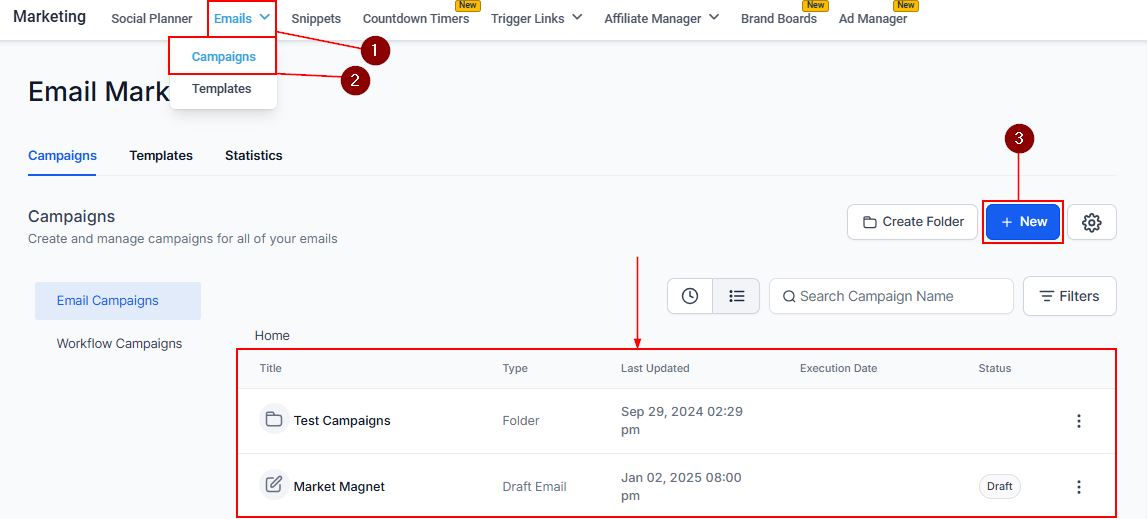
To begin, go to Marketing > Emails > Campaigns. You can click on “+ New” to create a new email campaign or edit an existing campaign of your choice.
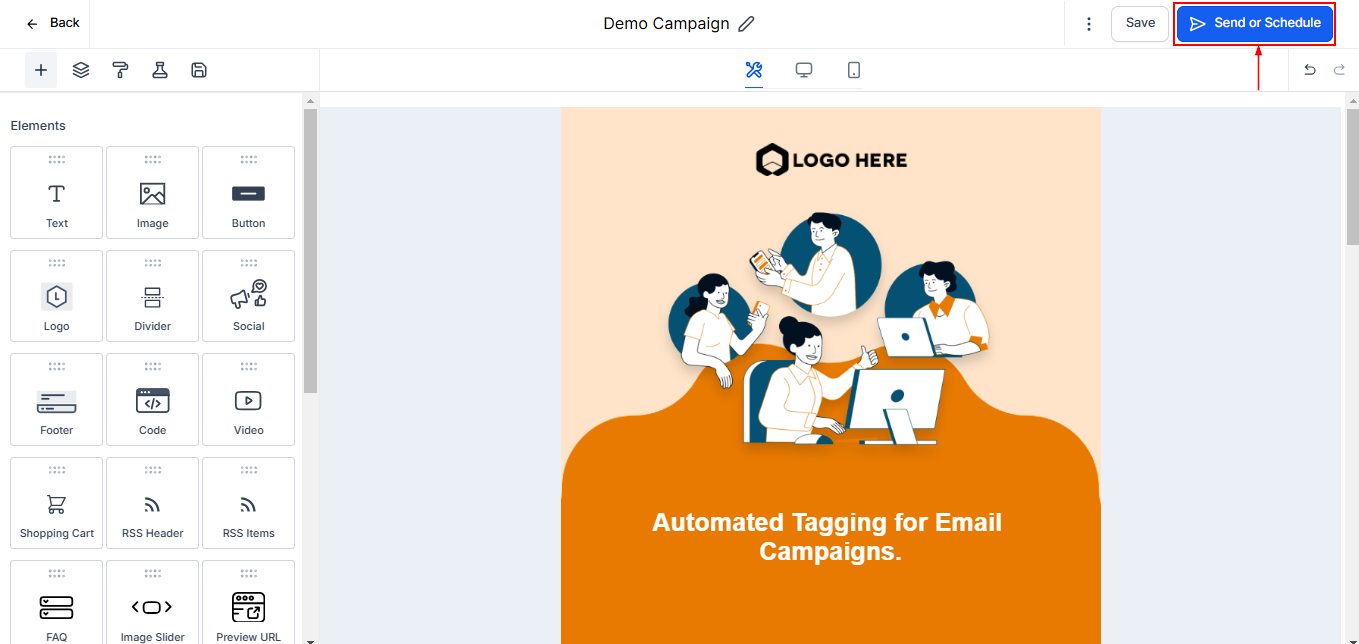
After designing your campaign to suit your target audience, click on the “Send or Schedule” button which reveals more extensive options that you can configure.
Enable Tagging
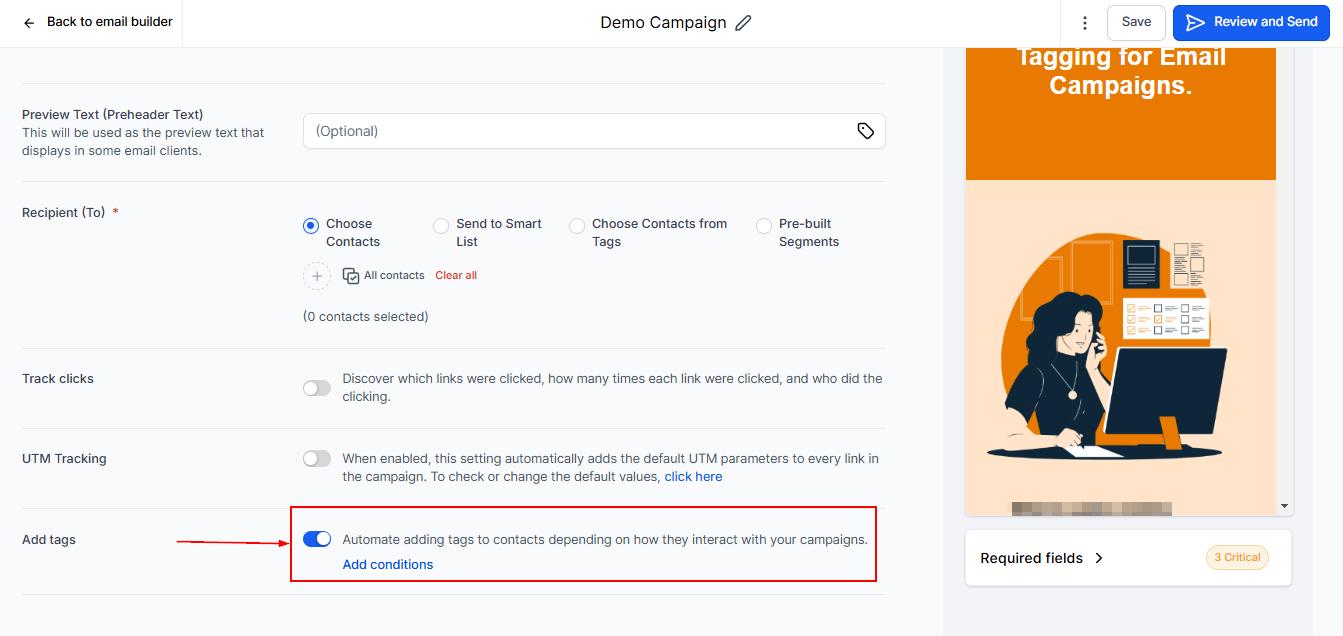
In the settings, scroll down and Toggle on “Add tags”.
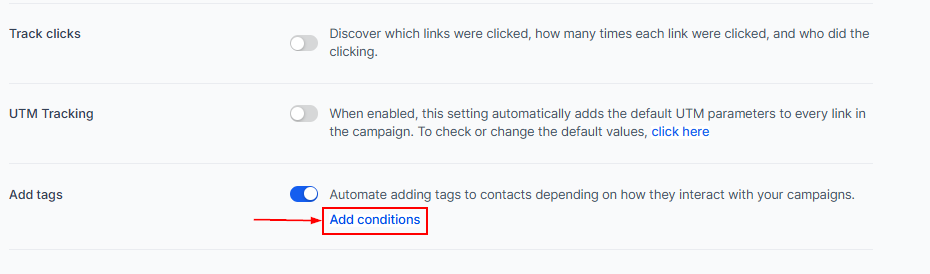
Then click on “Add Conditions” to further narrow down how the tags should work with your contacts, based on how they interact with the email campaign.
Type
In the Pop-up, you can add the Type, Condition, and Add tags if conditions are met. Choose between “Basic Campaign Interaction” (e.g., email opened), and “Contact clicked on a link.”
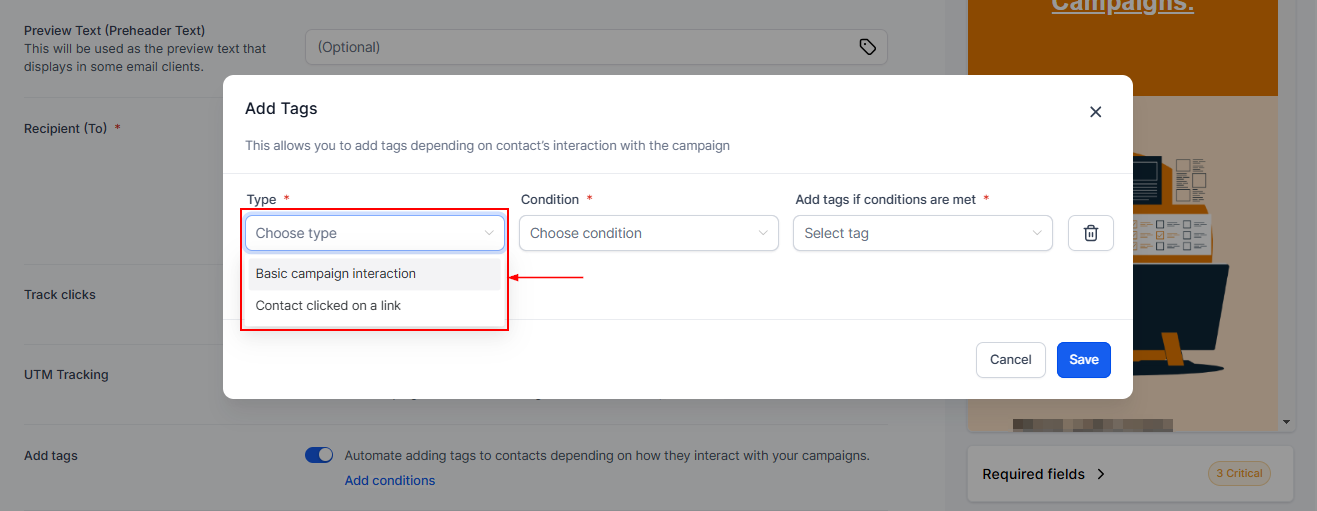
📌NOTE: Track clicks needs to be toggled on for the “Contact clicked on a link” type to be enabled.
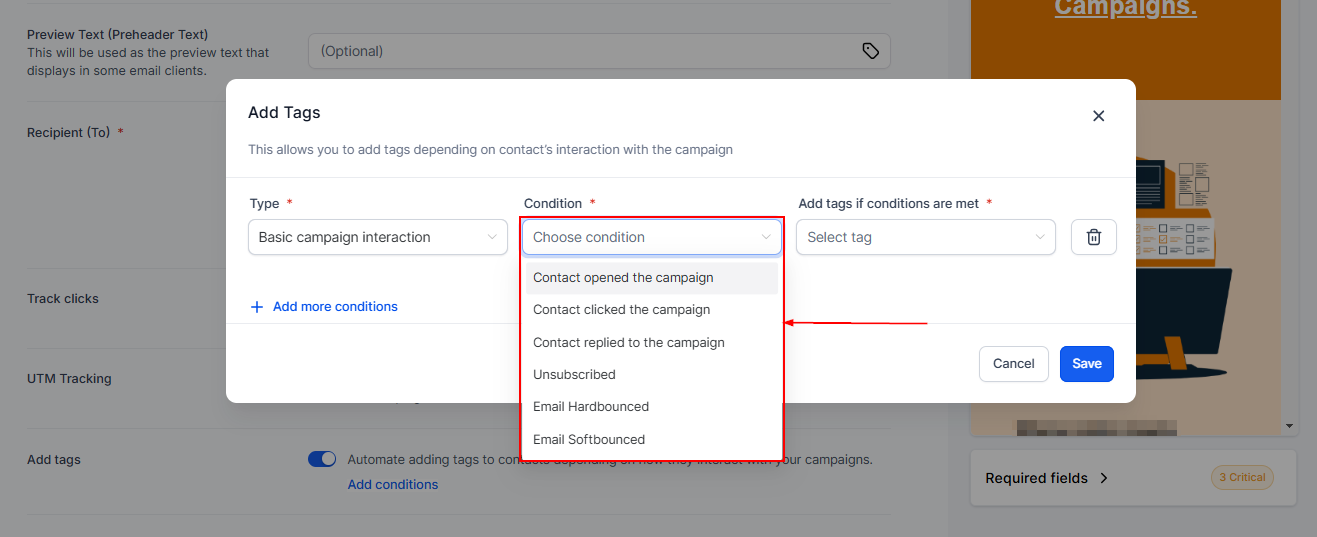
Choose Condition
Select a condition and assign a tag to be added to the contact when the condition is met.
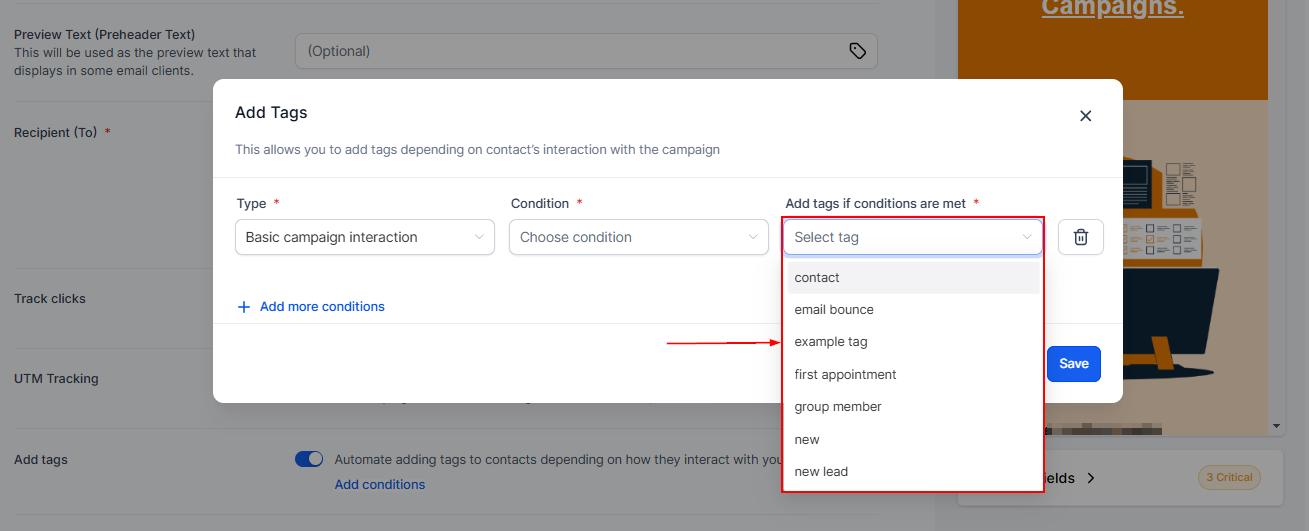
Select Tag
Pick the tag that would be automatically added to the contact when an interaction is complete.
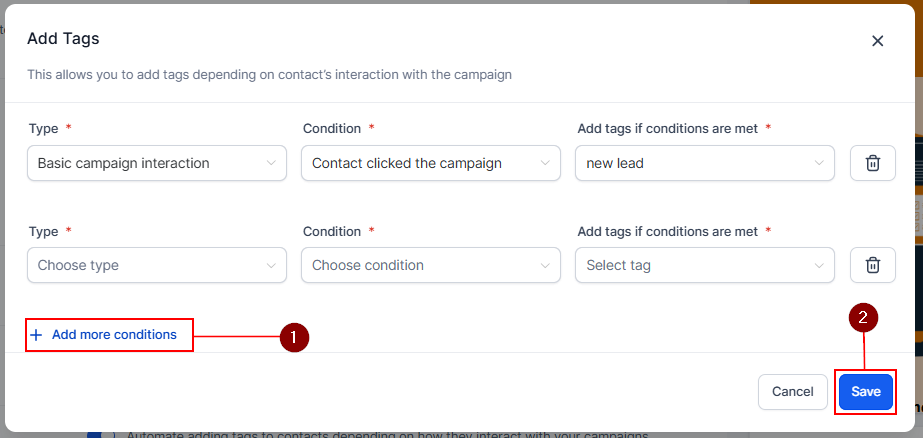
You can add as many tag conditions as possible using the “Add more conditions” option. Click on “Save” to enable the chosen conditions.
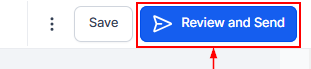
Click on Review and Send to get your campaign started.
By automating tagging based on user interactions, you can personalize campaigns, save time, and create more targeted segments effortlessly. Whether you’re tracking clicks or email opens, this feature empowers you to gain insights and take action without requiring complex workflows.
FAQs
Q: Can tags be added multiple times for the same interaction?
- No, tags can only be added once per interaction to avoid duplicate tagging.
Q: How are links identified for tagging?
- Links are uniquely identified by their URL, ensuring accuracy in tagging.
Q: Are trigger links like unsubscribe links eligible for tagging?
- No, trigger links such as unsubscribe links are excluded from this tagging feature.
Q: What is required to add tags based on specific link clicks?
- To add tags based on clicks on a specific link, the Tracking Links option must be enabled.
Q: Where can I see the contacts tagged in a campaign?
- You can view tagged contacts on the Campaign Stats page by clicking on “Tags” and then “View Contacts.”
Not a Funnelbud customer yet?
Try our all-in-one CRM for sales and marketing — free for 7 days, no commitment.