Local Presence Dialing on the Mobile App
Effective outreach depends on making every call as recognizable and trustworthy as possible. Local Presence Dialing helps achieve exactly that by automatically displaying a phone number that matches—or closely aligns with—the recipient’s area code. This simple enhancement can significantly increase answer rates, strengthen first impressions, and improve overall call performance, whether you’re connecting locally or internationally.
📌Note: Update the mobile app to version 4.0.0 or later to access this feature.
Key Benefits
- Higher answer rates: Contacts are significantly more likely to answer when the caller ID matches their local area.
- City-level precision: The mobile experience prioritizes the closest city first, then the state, before using other fallback options.
- International support: When calling outside the U.S. or Canada, the system automatically searches for numbers you own in the destination country
- Smart fallback: If no local match exists, the dialer uses the user-assigned number, then the workspace default, ensuring every call proceeds.
How to Set Up Local Presence Dialing
Initial configuration takes place in the web interface and applies automatically to all mobile users.
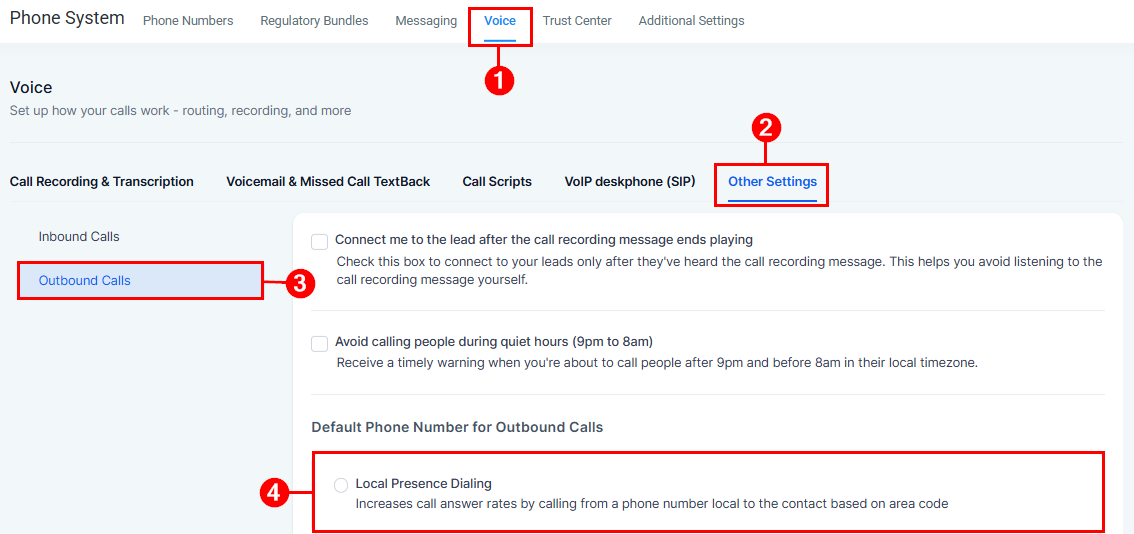
To set it up, navigate to the Voice tab in your Phone System and select Local Presence Dialing from the Outbound Calls section within “Other Settings”.
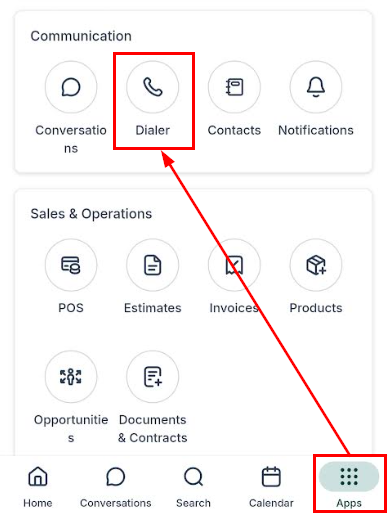
Then, open the app and begin placing calls—Local Presence Dialing will activate automatically.
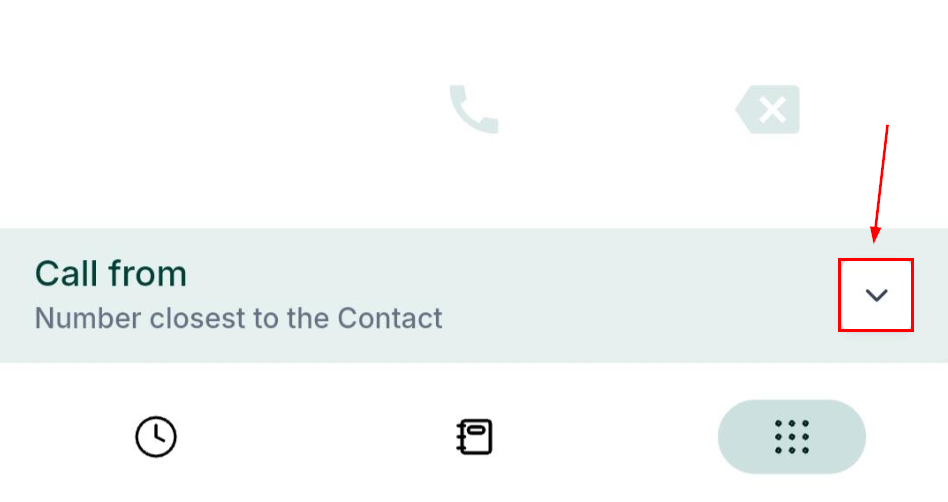
Next, click the Call From dropdown.
Now you can view all available numbers with clear labels for assignment type (user, workspace, etc.) and number category (Local, Mobile, Toll-Free).
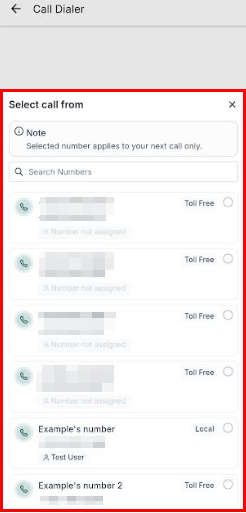
The Number Picker makes it easy to select a different caller ID for a one-off call—simply choose an alternate number in a few taps, and once the call ends, the system automatically returns to your default Local Presence Dialing setting.
Local Presence Dialing empowers your team to connect more effectively by presenting a trustworthy, geographically relevant caller ID every time. Whether you’re reaching out locally or across borders, this feature enhances answer rates, strengthens engagement, and ensures every call begins with a strong first impression.
Frequently Asked Questions
Q: Does Local Presence Dialing cost extra?
- A: No. The feature is included with your existing phone system. The only cost may be purchasing additional numbers if you need expanded coverage.
Q: Can I disable Local Presence Dialing for a specific user?
- A: The configuration is set at the workspace/sub-account level. However, any user may temporarily override the caller ID using the Number Picker.
Q: Does Local Presence apply to SIM-based calling?
- A: No. SIM-based calls use your mobile carrier’s number. Local Presence applies only to VoIP calls made through the app’s dialer.
Q: Is caller reputation affected?
- A: Using multiple numbers distributes call volume, which can help maintain healthier reputations. Regular monitoring for spam tagging is still recommended.
Q: Are toll-free numbers included in the selection process?
- A: Toll-free numbers appear in the Number Picker, but they are not automatically selected unless they match the recipient’s country code.
Not a Funnelbud customer yet?
Try our all-in-one CRM for sales and marketing — free for 7 days, no commitment.