How to Deliver Digital Products in Stores
This guide will show you how to efficiently deliver digital products to customers who purchase from your stores. Upon purchase, customers receive instant access to their products via secure download links sent directly to their email if the email notification is enabled. Digital files for post-purchase delivery can be managed through the Product Details page of each product, with customers able to securely download these files via the Customer Access Center using an OTP login flow.
Product Configurations
Start by setting up your digital product by creating or updating an existing product in the Payments section of your account. Ensure that the “Include in Online Store” option is enabled for each Digital product. For comprehensive guidance, refer to the article titled “How to Create a Digital Product.”
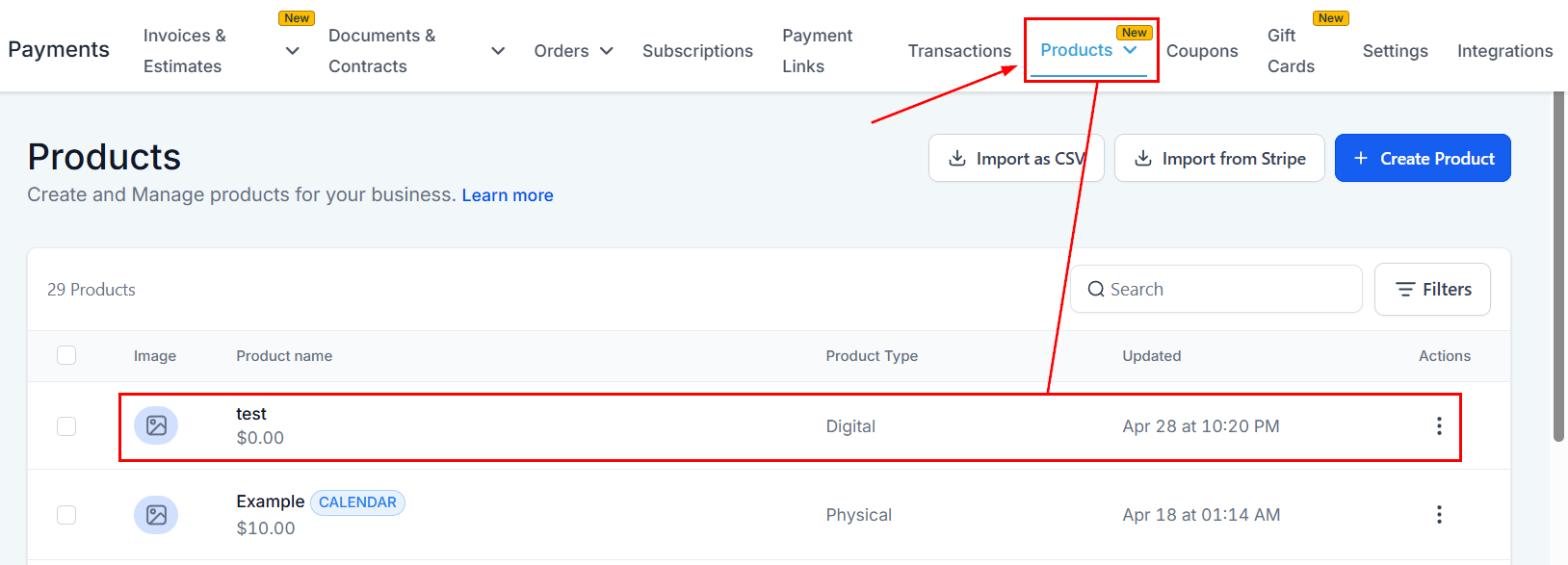
Next, head to the Settings tab and switch to customer notifications.
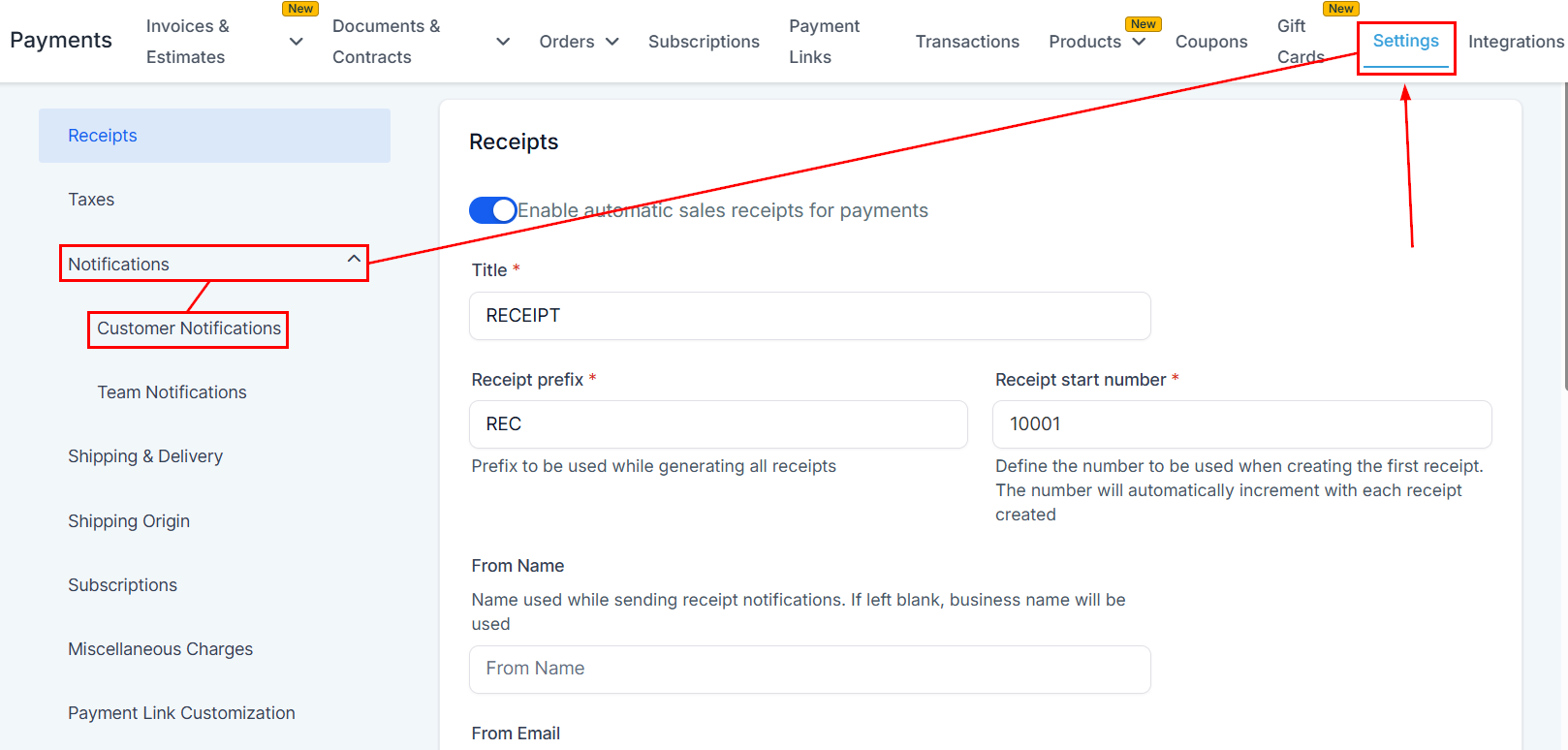
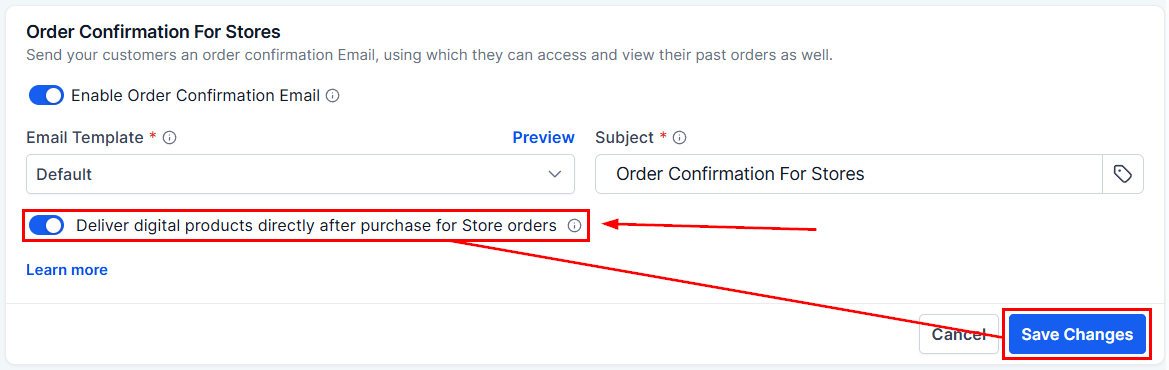
Under Order Confirmation For Stores, toggle “Deliver digital products directly after purchase for Store orders” then click Save changes.
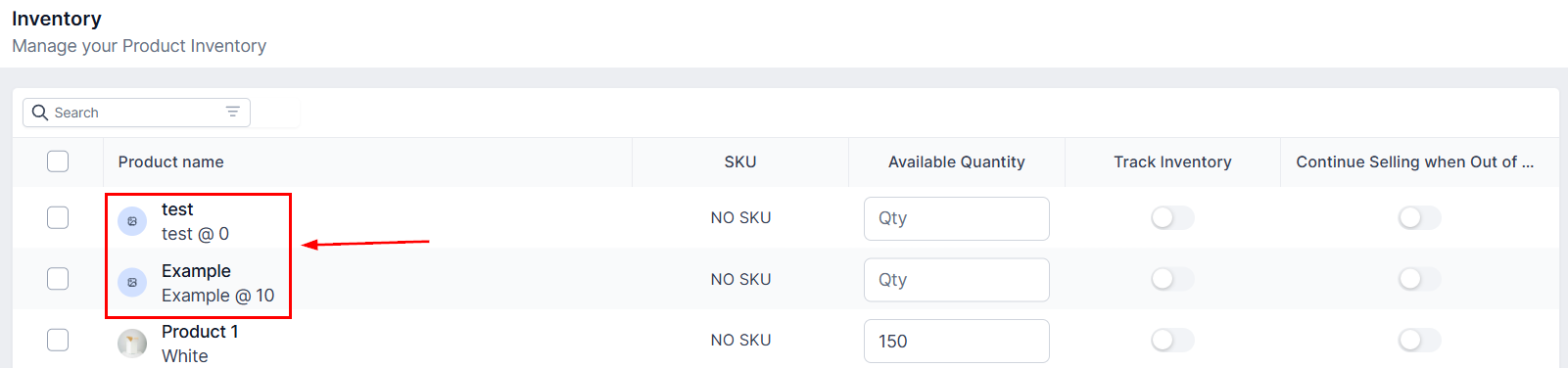
Head to the Inventory section.
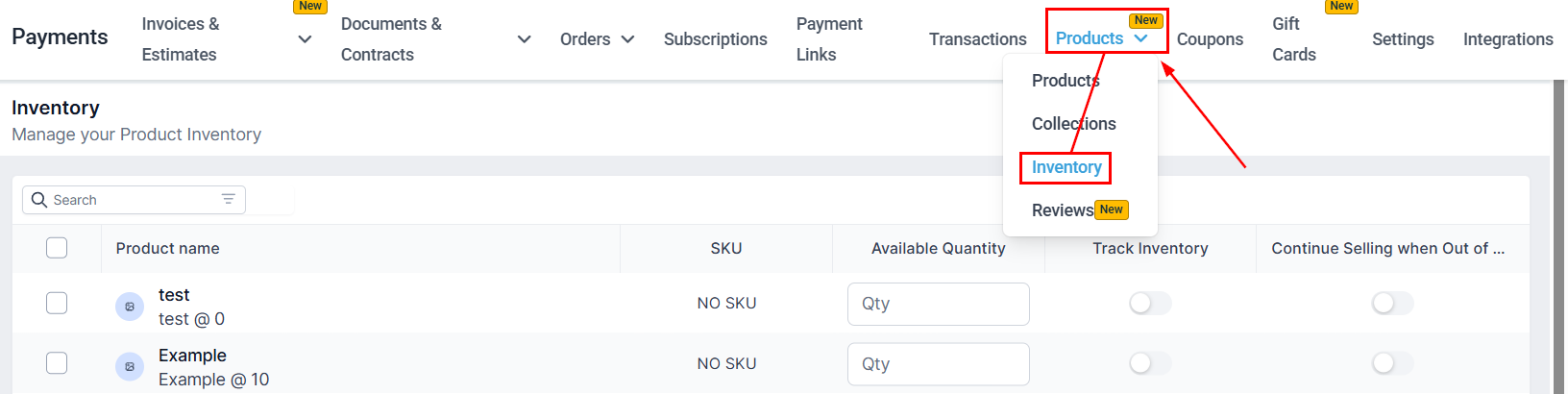
Click one of your digital products to open its configurations.
In Shipping and Delivery, mark Digital Product if not previously selected, then choose a delivery method.
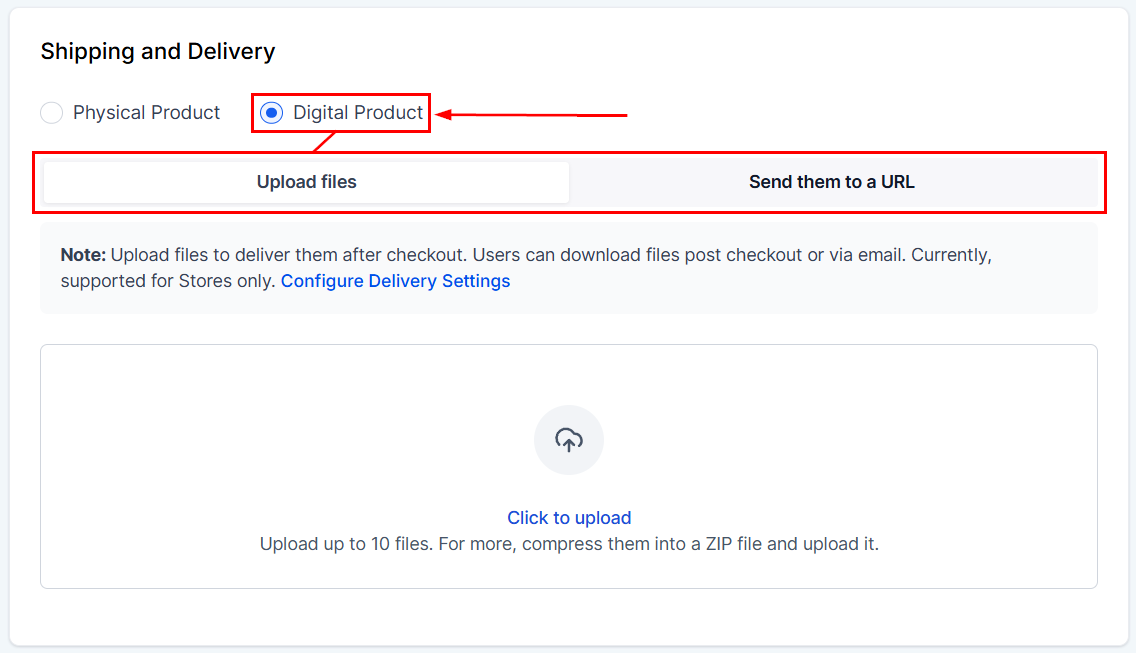
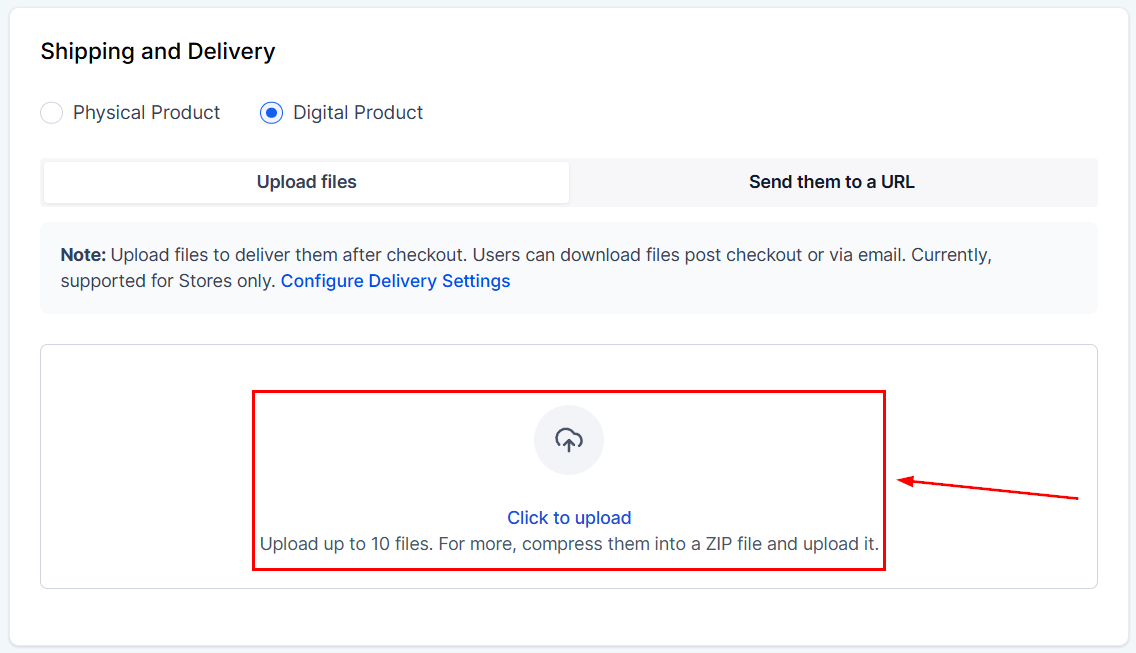
Upload Files
If using this option, you can add up to 10 files that users will receive to the email associated with the purchase and immediately download the files from the Store.
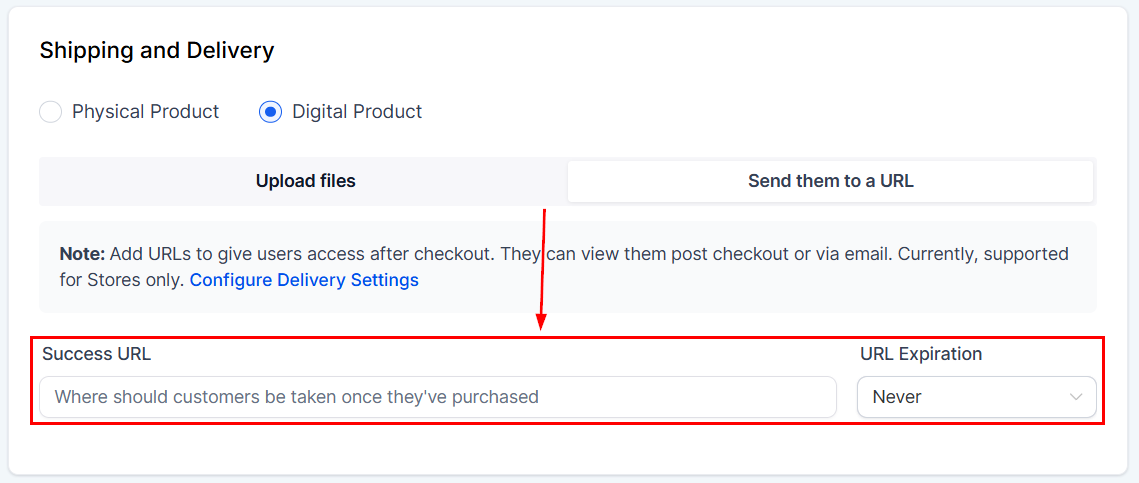
Send them to a URL
If selecting this option, add a URL to give users access after checkout and set when the link should expire. This can be viewed post checkout or via email.
Store Configurations
Ensure you have created and properly configured a store in your account.
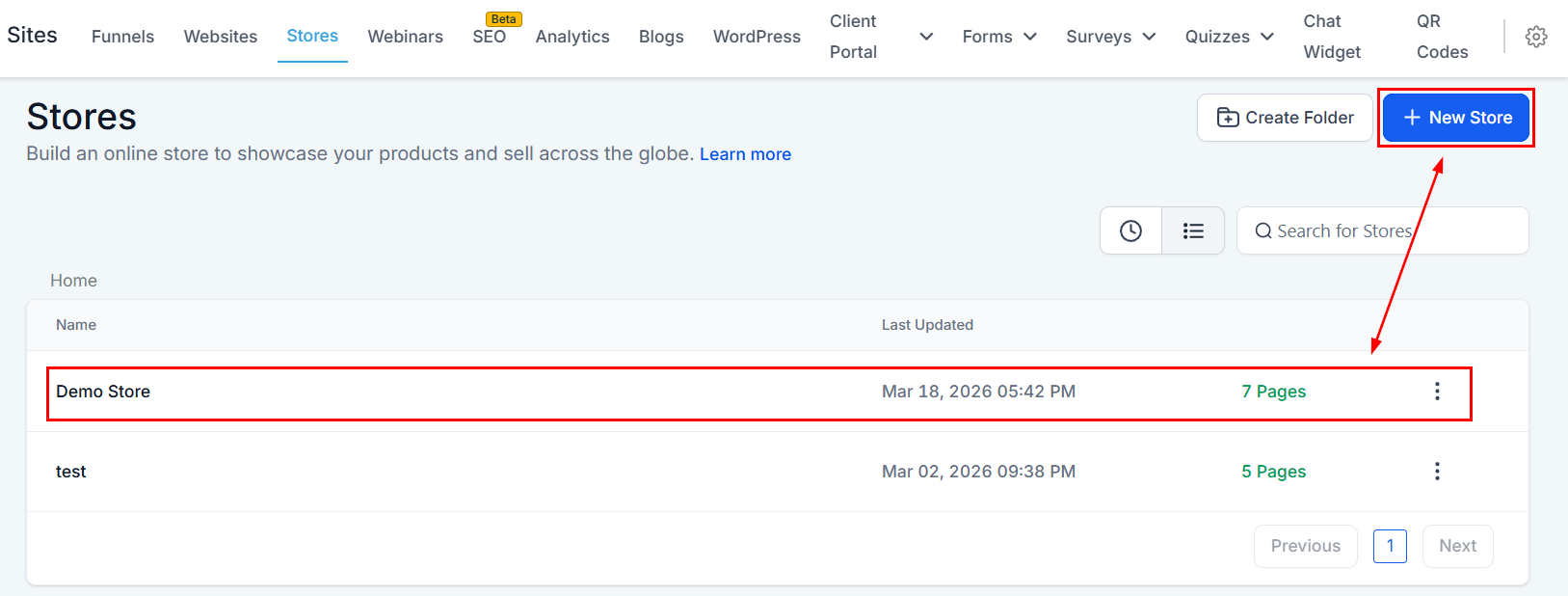
Products with the “Include in Online Store” option enabled will appear on the live Products List page, making them available for customer purchase.
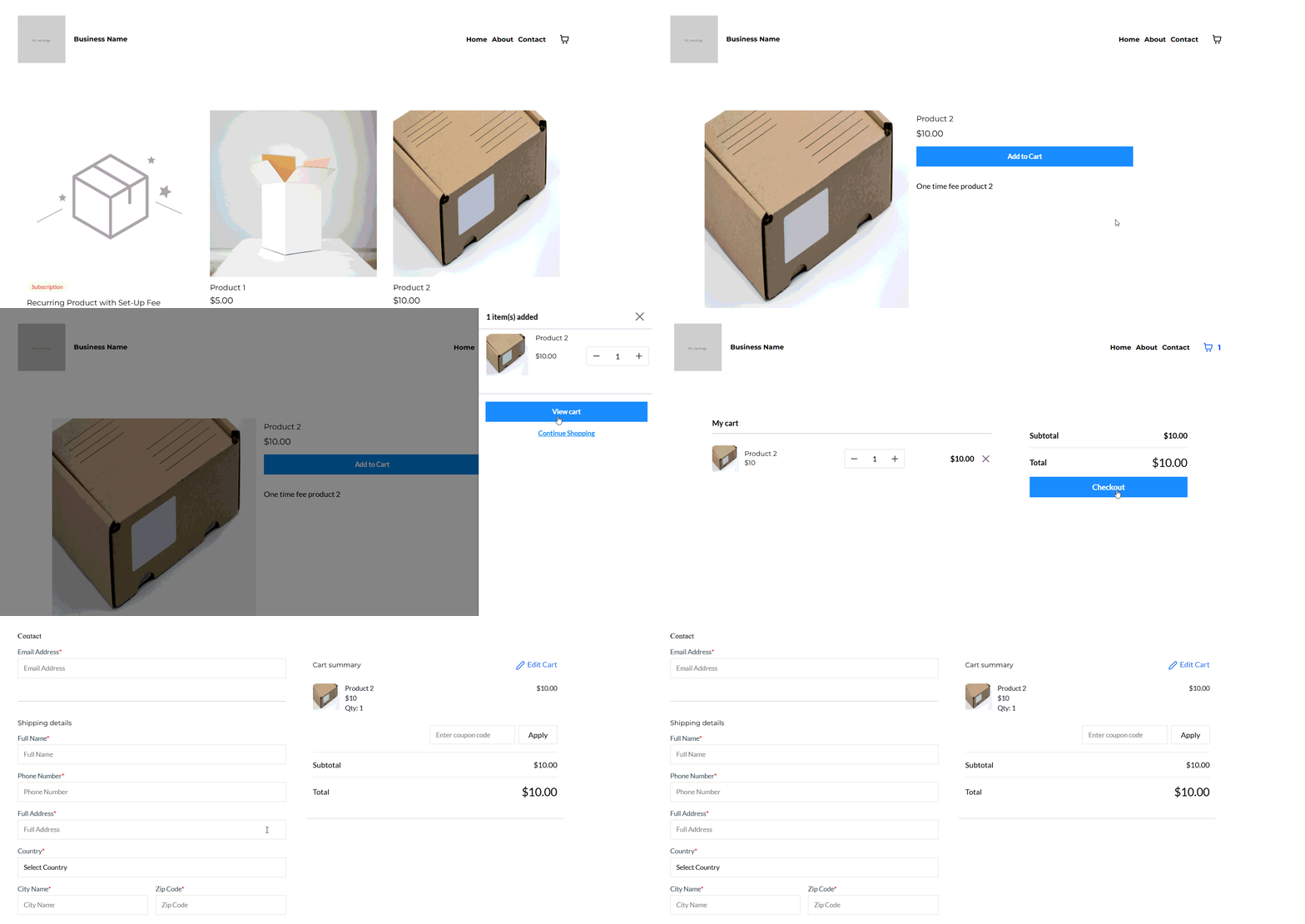
After completing the checkout process, customers will receive an Order Confirmation Email that includes an “Access Downloads” button to retrieve their digital files if the Enable Order Confirmation Email toggle is activated in Payments > Settings > Notifications.
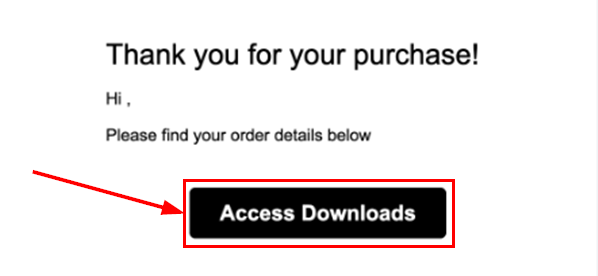
Clicking this button directs customers to the Customer Access Center, where they must log in using the OTP sent to the email used during checkout.
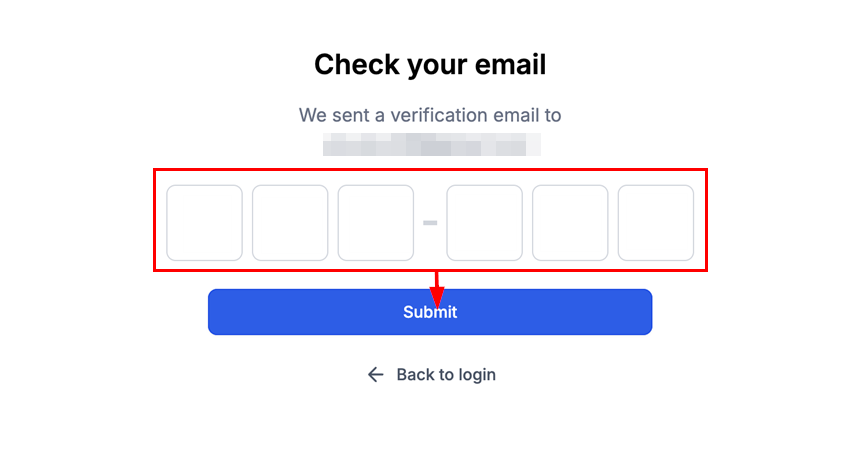
Customers can also access their digital downloads directly via the following unique URL:
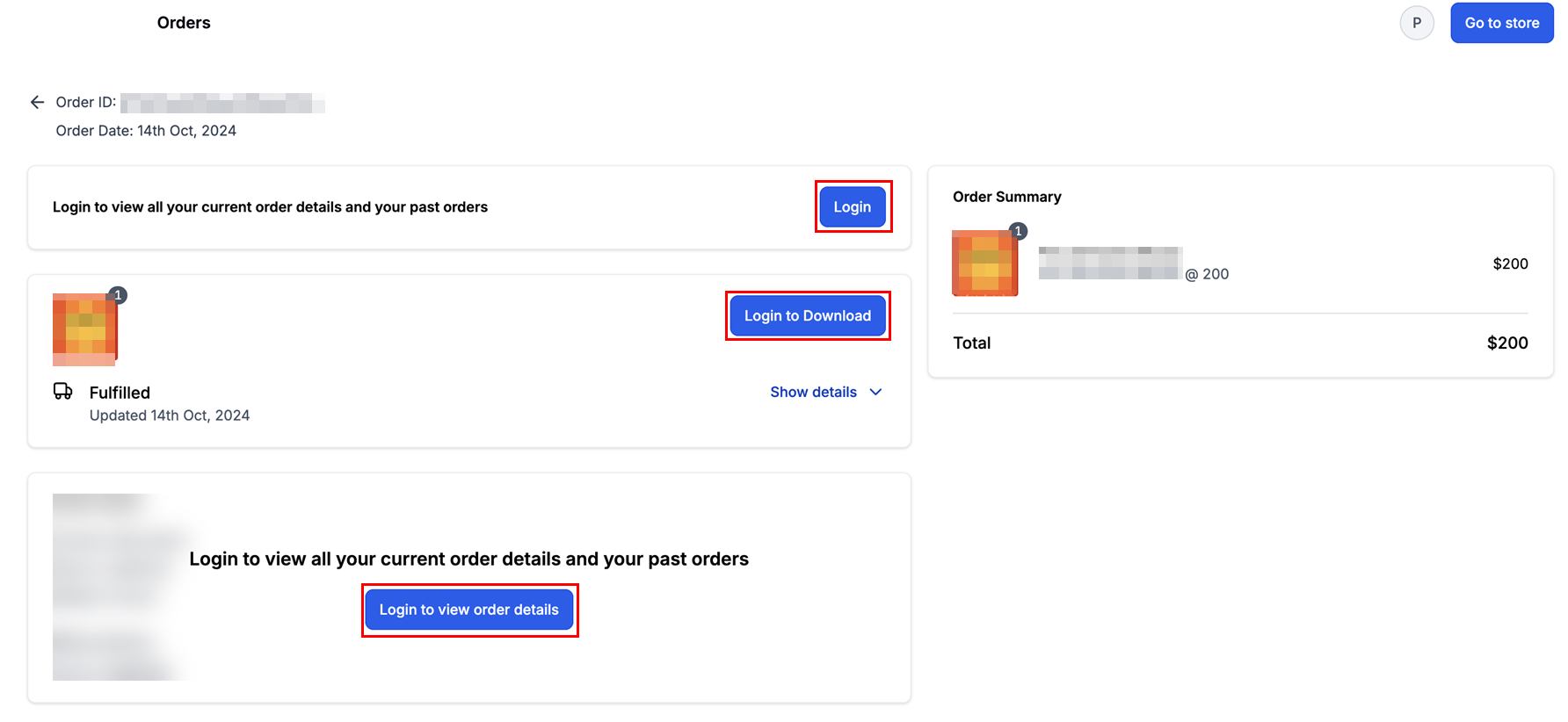
Upon successful login, all available digital products will be displayed for download, allowing customers to save them directly to their devices.
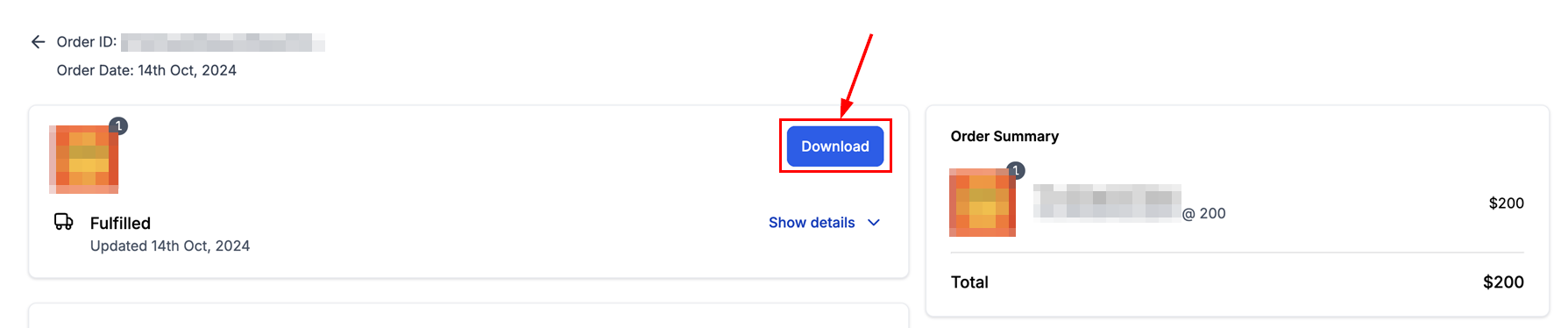
With secure download links and simple login steps, customers can easily access their purchases, while you maintain control over file management and delivery settings. Remember to enable the necessary email notifications and check that your product configurations align with digital delivery requirements. This will optimize the customer experience, making digital products accessible and secure from purchase to download.
✍️Important Notes
- The Cash on Delivery (COD) payment method is not applicable if any product in the order is digital.
- No shipping fees are applied to digital products. If a physical product is included in the cart, standard shipping charges will be calculated.
- If a physical product is purchased using COD, digital upsell products must be paid for with alternative online payment methods.
- Users can download a maximum of 10 files, with each file limited to 100 MB.
- Customers must be logged in to download their files.
- All files will be downloaded separately and not as a zipped file.
- All digital products in an order will be automatically fulfilled, with fulfillment details appearing as empty fields.
Not a Funnelbud customer yet?
Try our all-in-one CRM for sales and marketing — free for 7 days, no commitment.