Add Task Action
The Add Task workflow action in your CRM enables users to assign a task to themselves or another active user within the account. This workflow action allows you to automate task creation to remind users to complete important tasks, such as setting up follow-up sales calls or resolving a client’s issue that requires manual assistance.
📌Note: When the ‘Add Task’ step is executed, it will generate a standalone task if no contact is associated at runtime. If a contact is present, the task will be automatically linked to that contact as expected.
Automating Task Creation
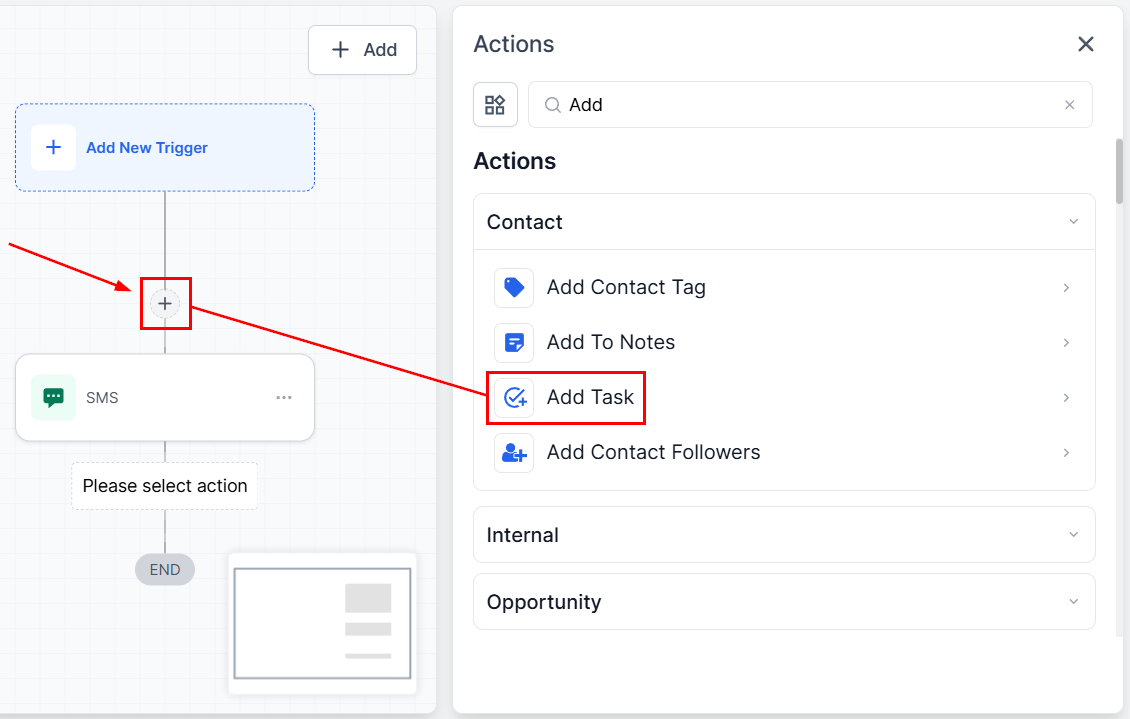
To use this feature, start by creating or editing a Workflow to access the builder. Start by adding the Add Task Action by clicking the plus sign icon.
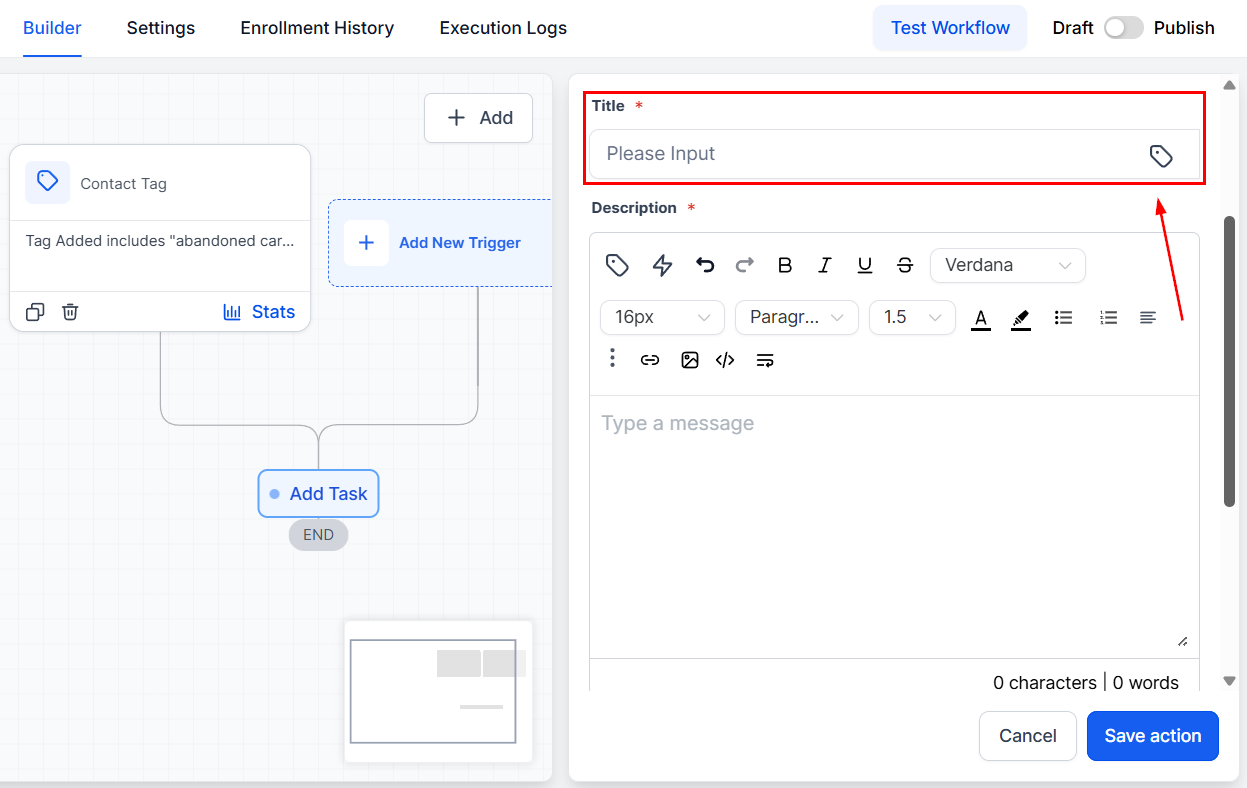
Title
Type the title of the task in the field.
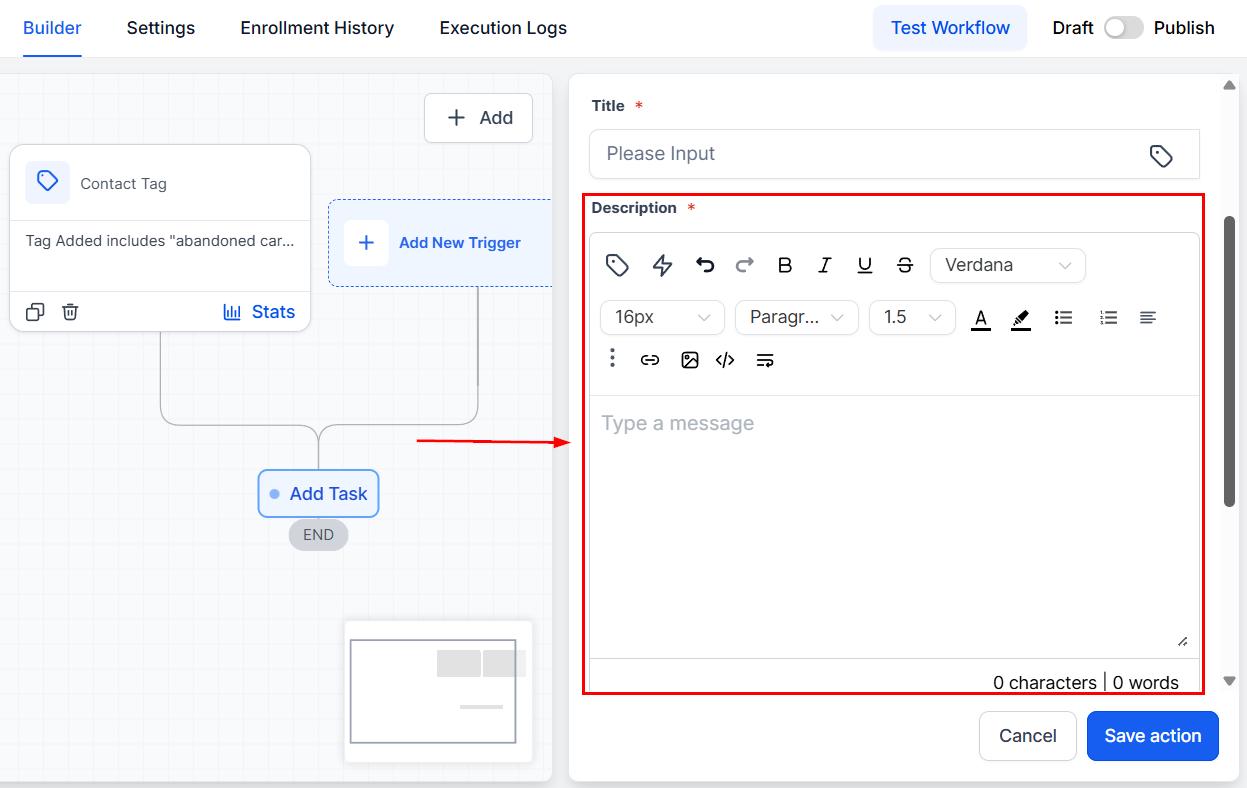
Description
Describe the task in this field provided. Make sure all necessary information is provided here to guide users through the task.
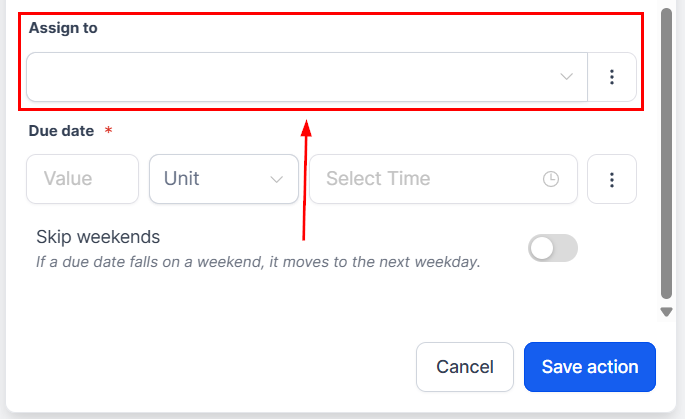
Assign To
Choose the user you want to assign this task to. It could be yourself or other team members, and can be set as a dynamic value that uses custom values.
Due In
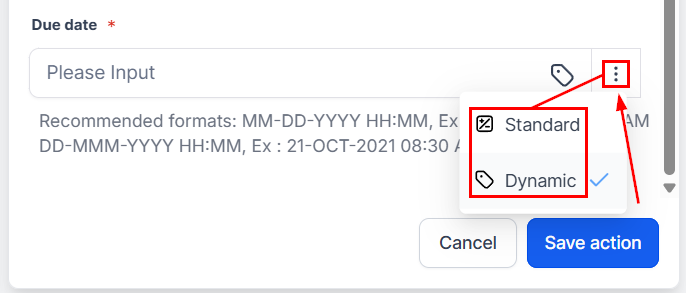
Select a due date for this task. You can set two types of timing, so first select whether this should be a Standard or Dynamic date.
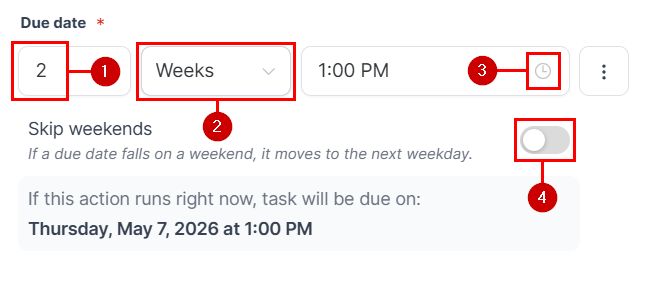
If using a Standard date enter a value (1), selecting a unit type (2), and time of day when the task is due (3). Additionally, you can skip weekends by toggling the option on (4).
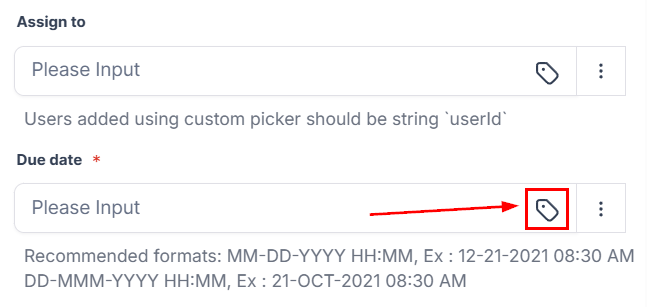
The dynamic option allows you to set a flexible due date by using custom values.
Once you’ve filled in all the needed fields, click Save Action to complete the process. You can continue creating your workflow as normal and publish it when satisfied.
That’s all there is to it. Check out the other articles in this section to learn about other available workflow actions.
Not a Funnelbud customer yet?
Try our all-in-one CRM for sales and marketing — free for 7 days, no commitment.