How to Add a Countdown Timer in WhatsApp Templates
Countdown Timers let you embed a real-time countdown in a WhatsApp template button. When recipients tap the button, they are automatically sent to either your “active” or “expired” page based on the timer’s state. This ensures every message carries a clear deadline and drives recipients to act before the opportunity closes.
Key Benefits of Countdown Timers in WhatsApp
- Urgency That Converts: Real-time countdowns prompt faster decisions and higher click-through rates.
- Flexible Timer Options: Choose fixed, recurring, or dynamic timers depending on your promotional strategy.
- Automatic Routing: Direct recipients to the correct page before or after expiration.
- Workflow Automation: Use button clicks to power branches and follow-up actions.
How to Add a Timer to a WhatsApp Template
Follow these steps to attach a countdown timer, configure its behavior, and ensure proper routing.
Open a WhatsApp Template
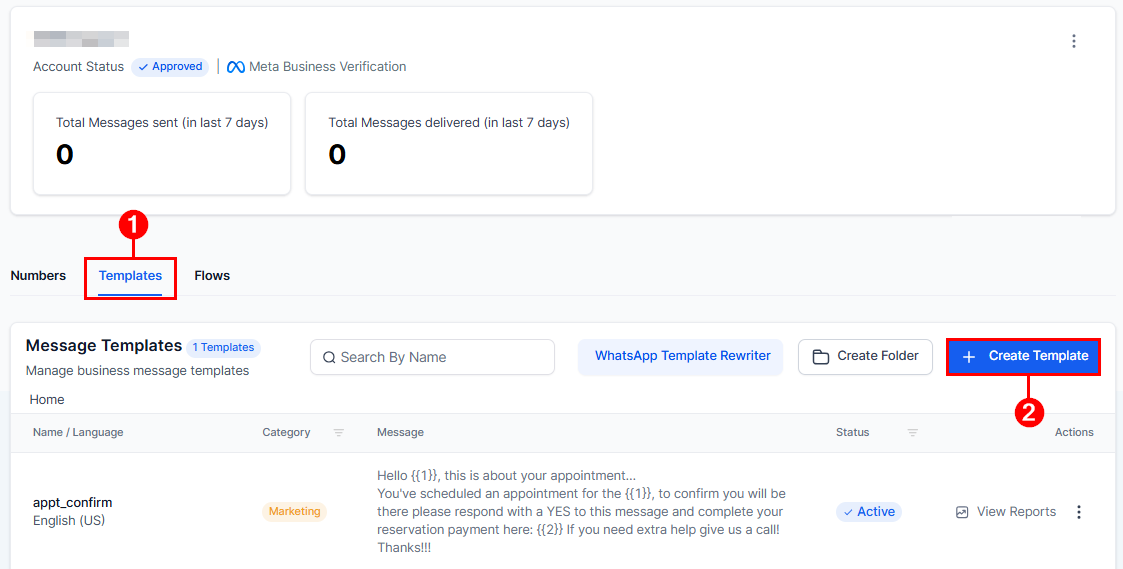
Go to Settings > WhatsApp and select the Templates tab. Click + Create Template to start fresh or select an existing template.
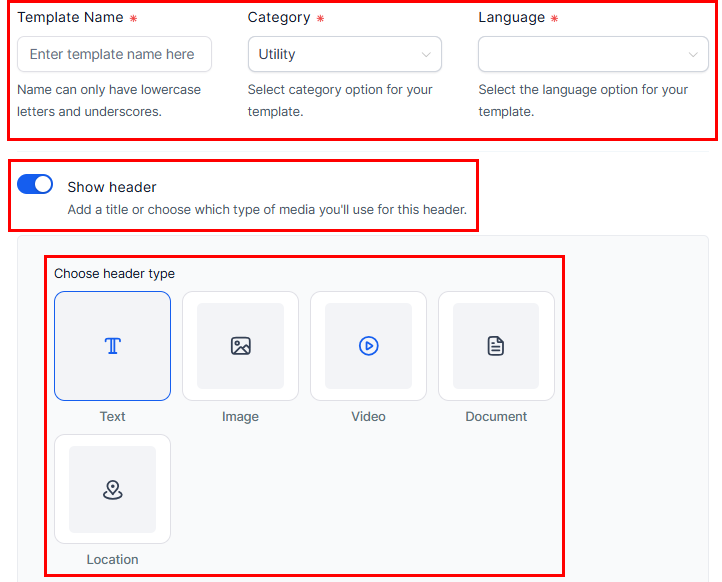
Complete the template details: name, category, language, and message content.
Add the Countdown Timer Button
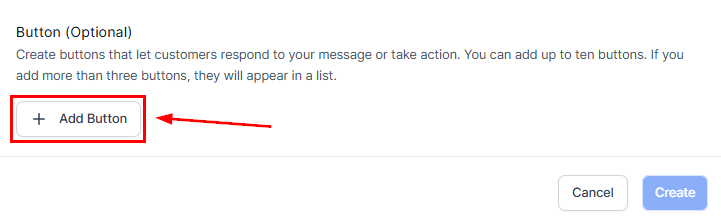
Under the Button section, click + Add Button.
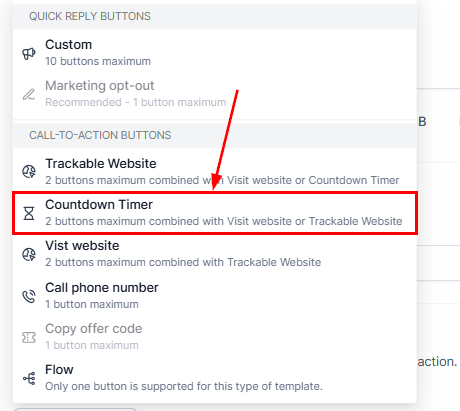
Choose Countdown Timer from the dropdown.
Choose or Create a Timer
Open the timer dropdown. Select an existing timer or click + Create New.
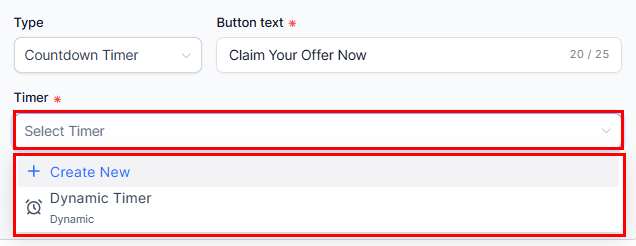
Configure the Timer
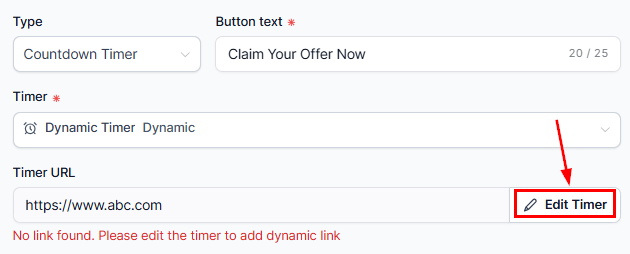
Click Edit Timer under Timer URL to configure:
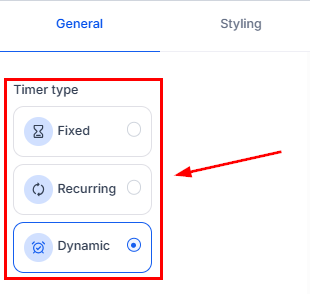
Timer Type: Fixed, Recurring, or Dynamic
- Fixed: Ends at a specific date and time. Ideal for limited-time events such as product launches or holiday sales.
- Recurring: Resets on a repeating schedule (daily or weekly). Useful for evergreen cycles or rotating promotions.
- Dynamic: Starts individually per contact (e.g., when the message is sent or delivered). Best for personalized offers like “Redeem within 12 hours.”
Choosing the correct timer type ensures your offer, routing, and workflow logic stay aligned for every recipient.
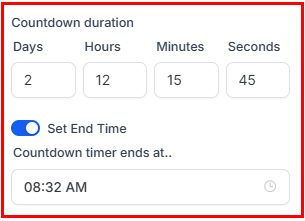
Countdown Duration: Set an end time or duration
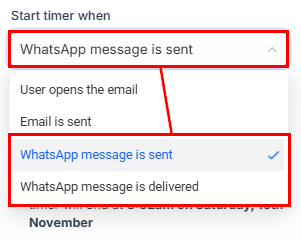
Start Trigger (Dynamic Only):
- When WhatsApp message is sent
- When WhatsApp message is delivered
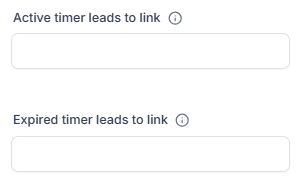
The active link leads to your live offer. The expired link routes users to a fallback page once the timer ends. Ensure your offer page also contains the same timer so it expires consistently.
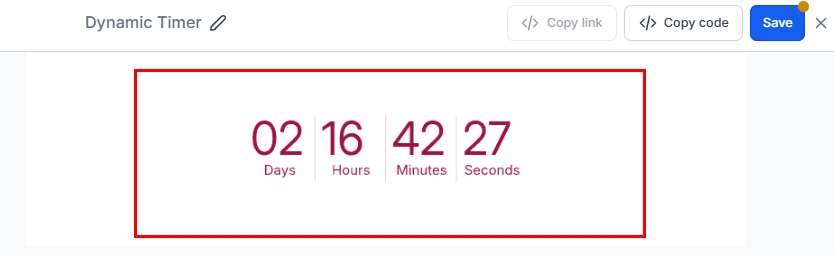
Save and Preview
Review your template preview.
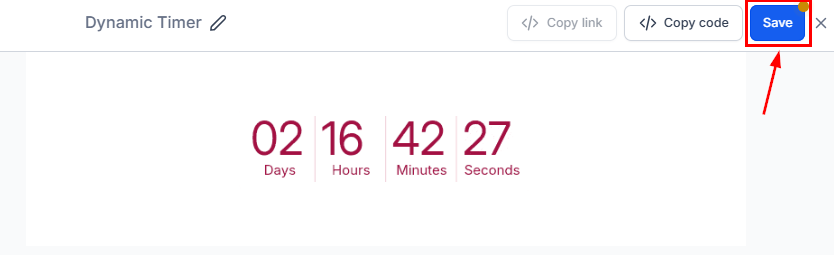
Click Save, then Create to finalize your WhatsApp template.
By selecting the right timer type and configuring routing properly, you can deliver targeted, time-bound offers that significantly improve engagement and conversion rates.
Frequently Asked Questions
Can I use more than one timer in a single WhatsApp message?
- Yes. You can include up to two Countdown Timer buttons along with other button types.
Why do I see “No link found” under Timer URL?
- Your timer does not yet have a redirect link. Open Edit Timer and add the correct URLs.
Can I branch workflows based on a Countdown Timer button click?
- Yes. Use a Trigger Link as your Timer URL to track clicks and route workflow branches.
Not a Funnelbud customer yet?
Try our all-in-one CRM for sales and marketing — free for 7 days, no commitment.