How to Accept Payments in Appointments
Collecting payments for your appointments can be done in many ways, from invoicing customers to charging at the beginning of the meeting. However, if you want to collect payment before the appointment is scheduled, the best way is to use the Accept Payments option in your calendar.
Prerequisites
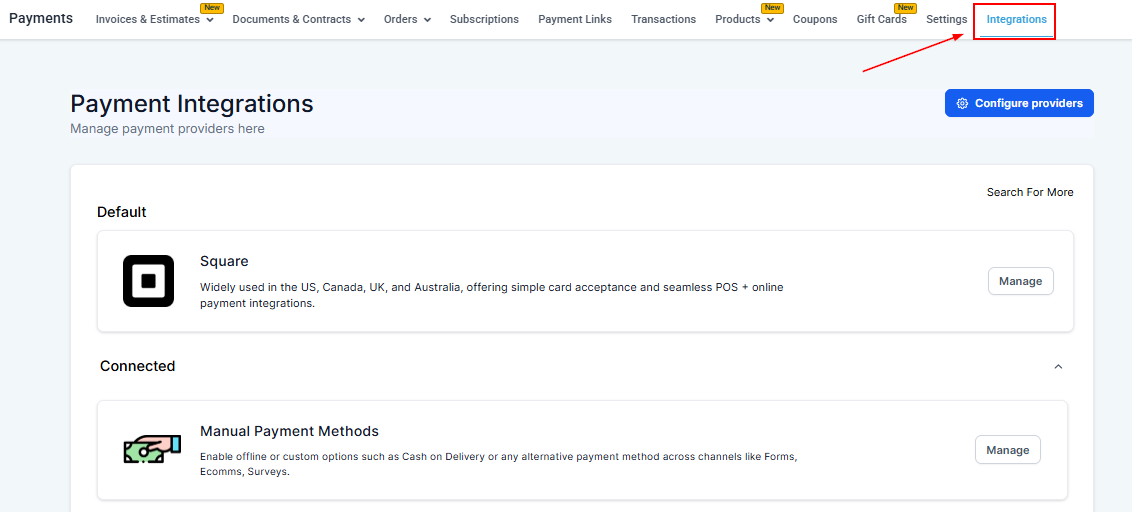
To start, make sure you have a payment gateway connected. If you haven’t done so, go to Payments and select the Integrations tab at the top. If it is already connected, it will display ‘Manage’; otherwise, please connect it before proceeding.
Configuring Your Calendar
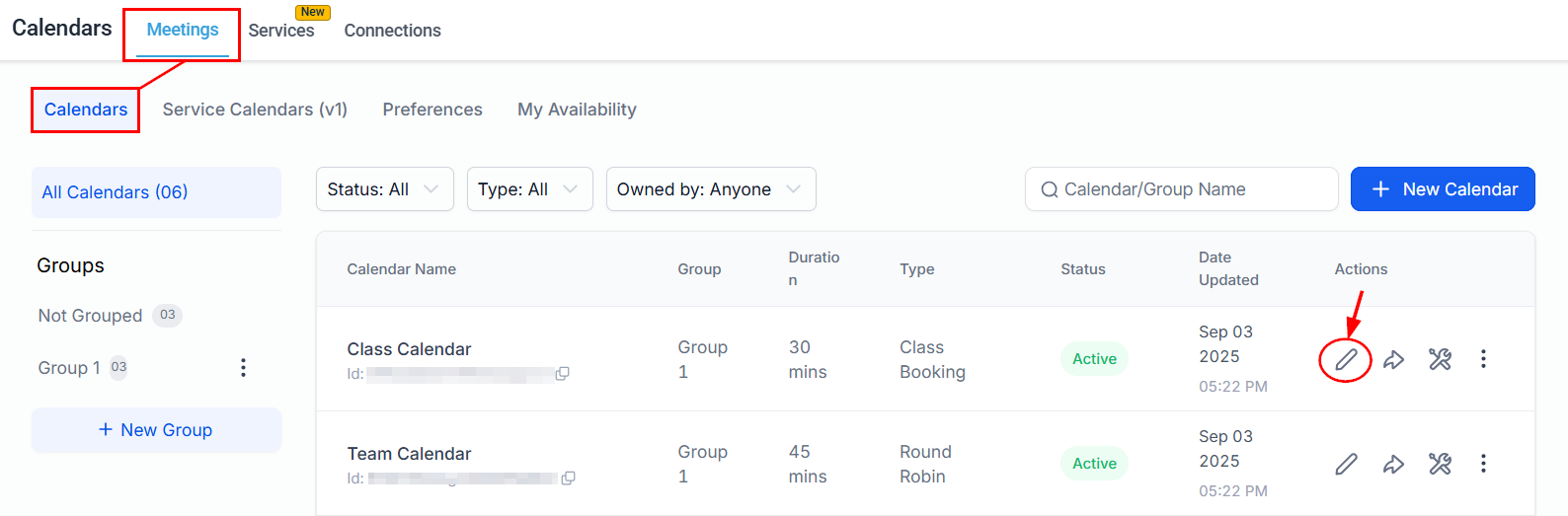
Navigate to your Calendar Settings from the Calendars or Settings section of your account.

Here, you will see a list of all the calendars you have created. Locate the desired calendar, then click the corresponding pencil icon.
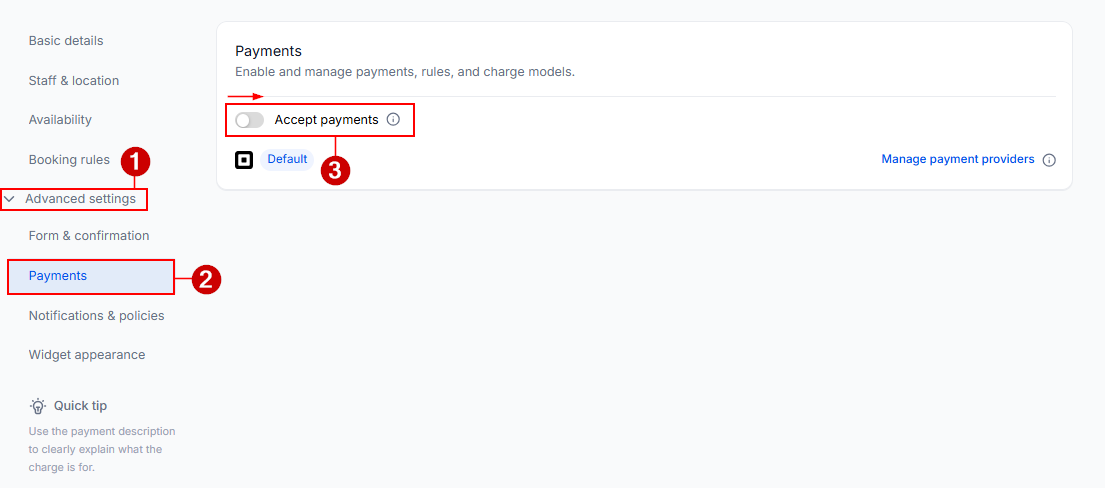
In the Payments tab, enable the “Accept payments” toggle.
Doing so will allow you to enter the amount you’d like to charge for your appointments in the Amount field and select your preferred currency with the dropdown menu.
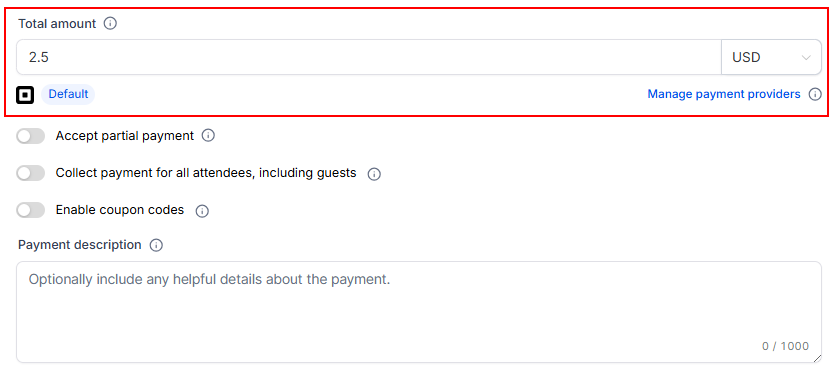
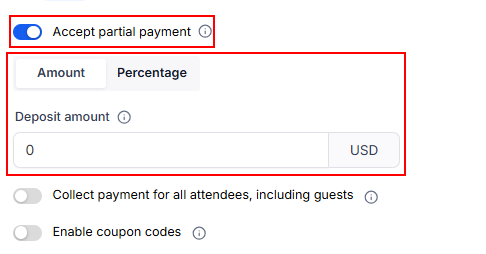
For one-time appointments, you can use the Accept Partial Payment option to collect deposit fees for the appointment. The amount you collect is up to you and can be set as either a fixed amount or a percentage of the total.
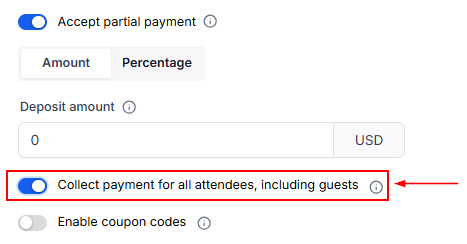
Additionally, collect payment for guests the contact invited by enabling this option. When enabled, the amount to be collected during booking will be multiplied by the total number of attendees.
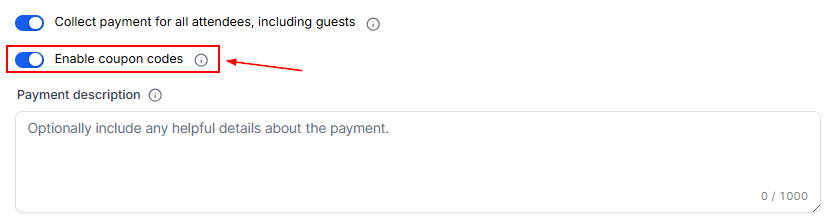
Enable coupon codes to give your clients discounts when booking.
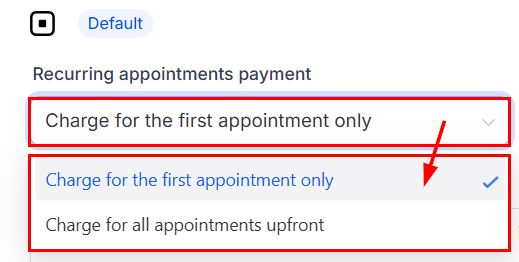
For recurring appointments, select whether you would prefer to charge for the initial appointment only or collect payment for all appointments in advance.
You can also type a description of the payment in the text field.
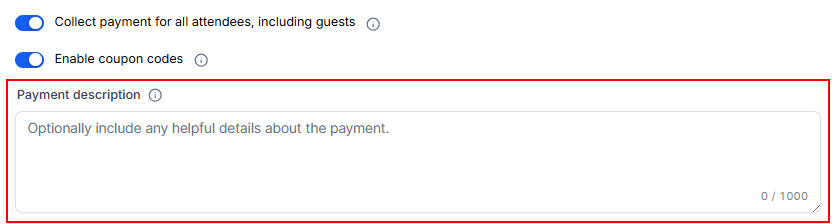
Once you have completed setting it up, click Save to keep the changes.

To see how it works, copy the scheduling link and open the calendar in a new window. Select a day and an available time slot. Then, click Select Date.
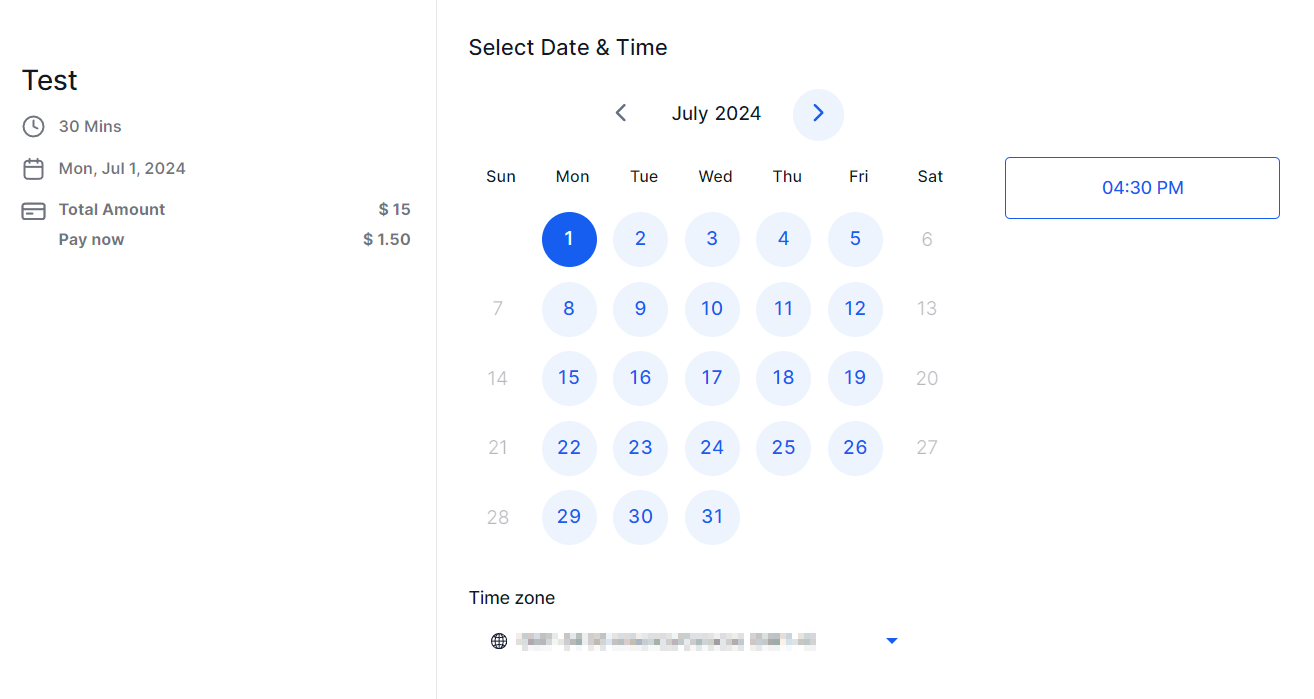
After filling out the information and scheduling a meeting, you can see the payment integration that will appear when someone books an appointment on your calendar.
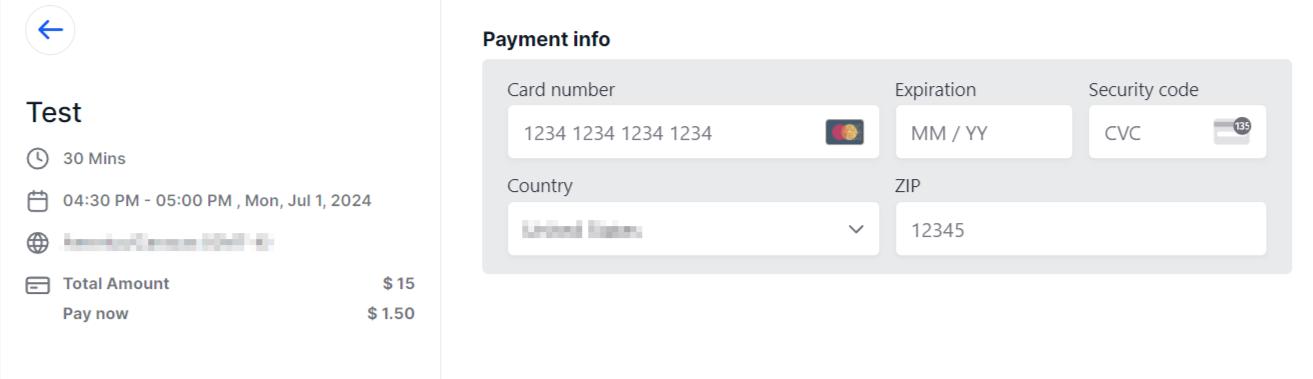
And that’s all there is to it - you can now accept payments when appointments are booked!
Troubleshooting Common Issues
Here are solutions to some common challenges users may encounter:
- Payment Processor Connection Issues: Ensure that your payment processor account is active, and the API keys used for integration are correct.
- Payment Not Processing: Verify that the payment amount is set correctly for the appointment and that there are no restrictions on your payment processor account.
- Customers Unable to See Payment Option: Check that the payment option is enabled for the specific appointment type and that the payment instructions are clear.
Managing Payments
The CRM provides tools to manage and track payments received for appointments:
- Viewing Payment Status: Check the payment status of each appointment directly from the appointment dashboard.
- Processing Refunds: Issue refunds directly from the CRM if necessary.
- Exporting Payment Reports: Generate and export detailed payment reports for accounting purposes.
Frequently Asked Questions
Q: Can I integrate multiple payment processors?
- Yes, the CRM allows integration with payment processors. However, you must select a default processor for processing appointment payments.
Q: Are there any additional fees for accepting payments?
- The CRM does not charge additional fees for payment processing, but standard transaction fees from your payment processor may apply.
Q: How secure is the payment integration feature?
- Industry-standard security measures are employed to protect payment information and transactions.
Not a Funnelbud customer yet?
Try our all-in-one CRM for sales and marketing — free for 7 days, no commitment.