How to Set Up Custom Object & Opportunity Associations
The Opportunity–Custom Object Associations feature introduces flexible relationship mapping between Opportunities and Custom Objects, empowering you to define and visualize how records connect across your CRM. With this capability, you can represent real-world relationships — for example, linking an Opportunity (deal) to Events or other Custom Objects. These connections create a unified, contextual view of your data, helping your team collaborate effectively, reduce manual lookups, and make better-informed decisions.
Key Benefits
- Unified Data Visibility: Gain a complete 360° view of each Opportunity and its related entities.
- Real-World Context: Mirror actual business relationships, such as linking buyers to properties or sponsors to events.
- Enhanced Automation and Reporting: Use association data in workflows, reports, and exports for improved tracking and personalization.
How to Create an Association
Open the Associations Tab
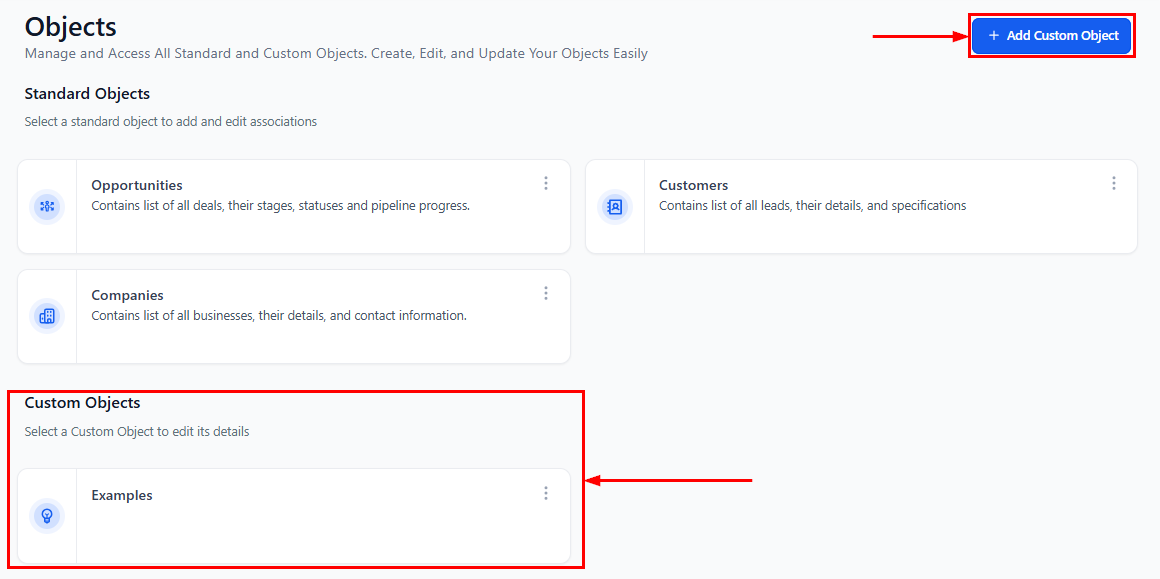
Navigate to Settings > Objects, then click your custom object or the “Add Custom Object” button to add a new one.
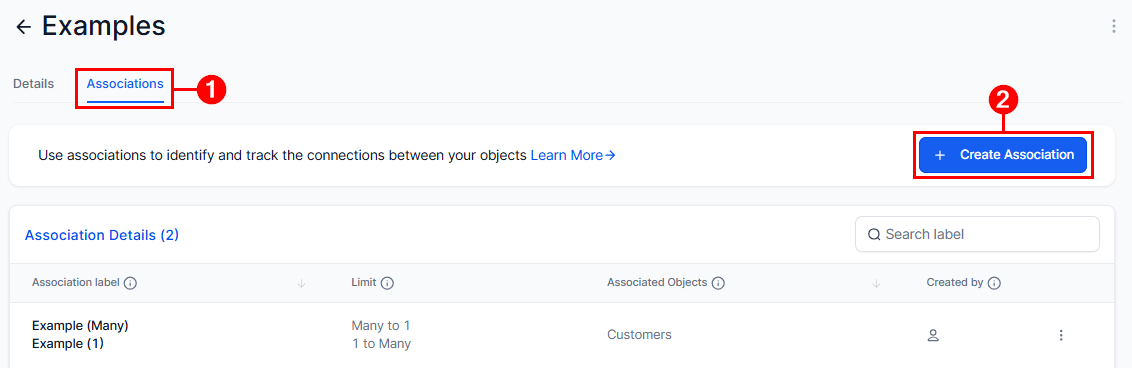
Select the Associations tab at the top of the screen, then click Create Association to begin setting up a new link between your Custom Object and Opportunities.
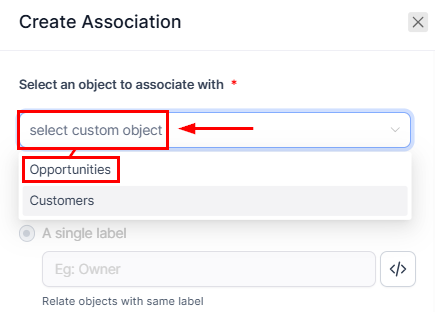
Configure the Association
In the Create Association panel, select the Opportunities Object to associate with.
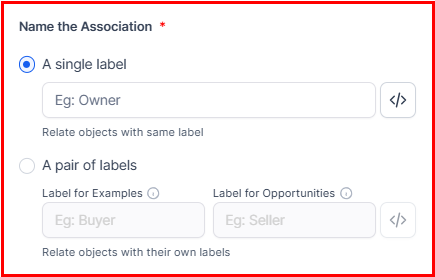
Name the Association
- Use a Single Label (e.g., “Deal”) if both objects share the same reference.
- Use Paired Labels (e.g., “Buyer ↔ Seller”) if each side requires a unique identifier.
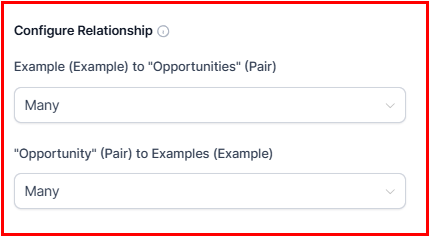
Define the Relationship Type
- One-to-One: Each record connects to only one on the other side.
- One-to-Many / Many-to-One: One record connects to multiple others.
- Many-to-Many: Unlimited connections in both directions.
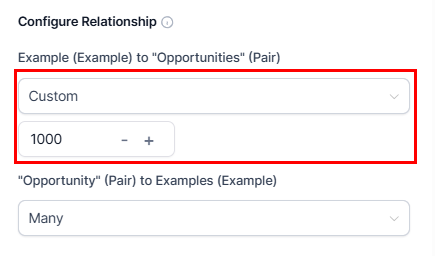
Optionally, set record limits to restrict the number of allowed connections per record (up to 1,000).
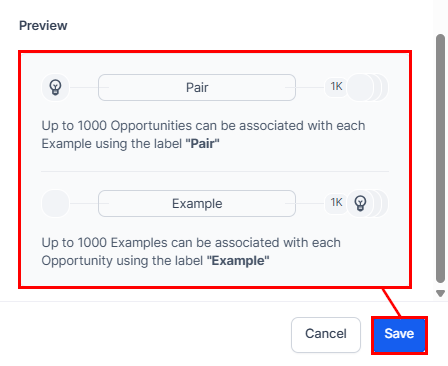
Review the Preview Panel and click Save to finalize.
Managing Associations from Opportunities
Once configured, associations can be managed directly from the Opportunity record.
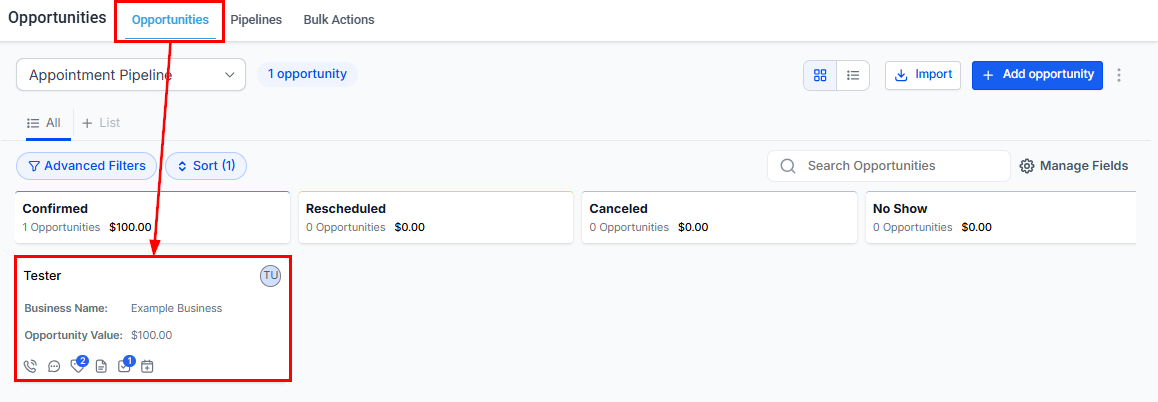
Navigate to the Opportunities tab and open an Opportunity.
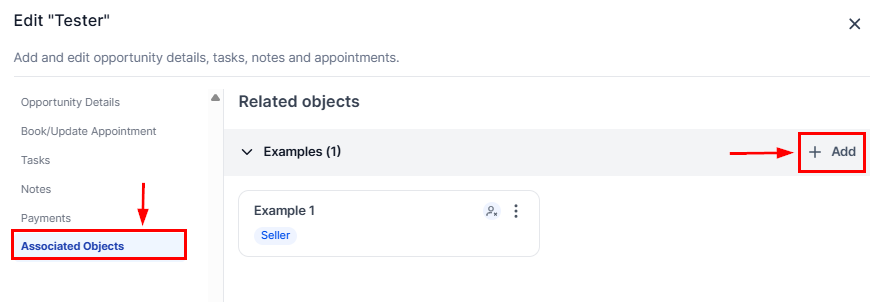
Go to the Associated Objects tab in the left-hand panel, and click + Add.
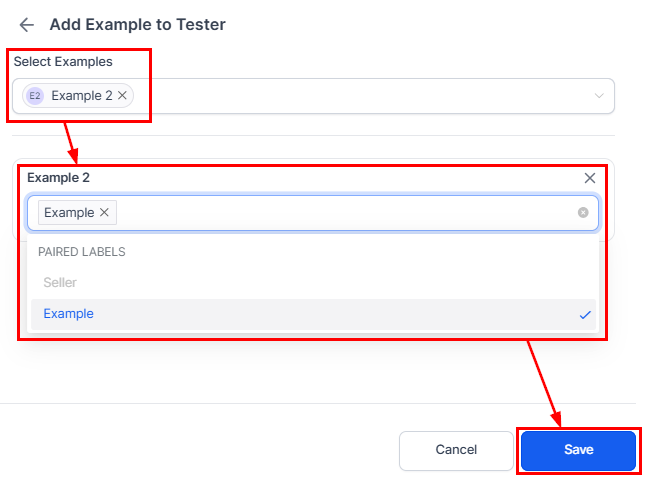
Search for and select the Custom Object you want to link, then choose the appropriate label and click Save.
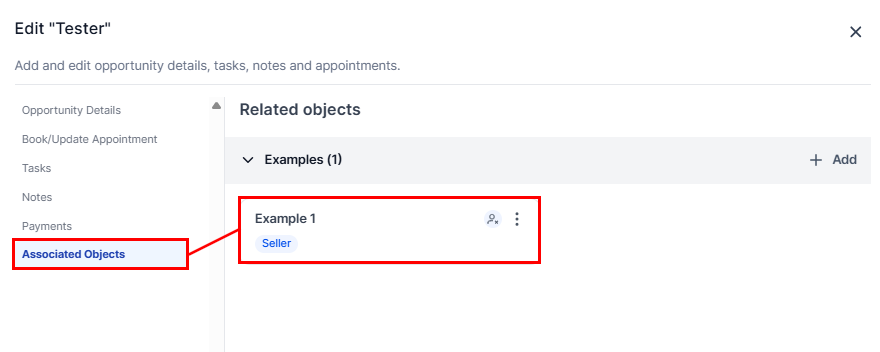
The linked record will appear under its respective category (Contacts, Events, Properties, etc.). You can click any associated record to open it in a side panel for quick edits or details — without leaving the Opportunity view.
Viewing Associations
Opportunity Details
All linked Custom Objects appear within the Associated Objects panel of an Opportunity, giving users instant access to relevant context.
Kanban View
The Kanban view displays associations directly on Opportunity cards for at-a-glance insight.
Start by clicking the Manage Fields button in the view.
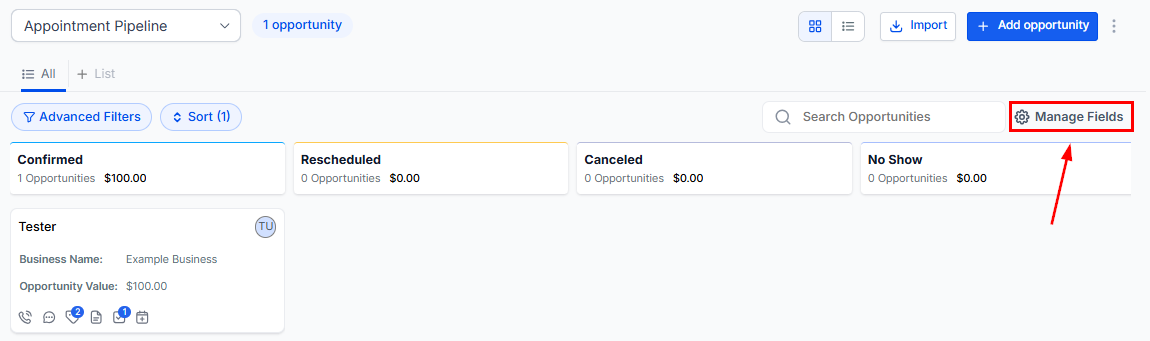
Add the field Association Label (Object Type) to your card layout.
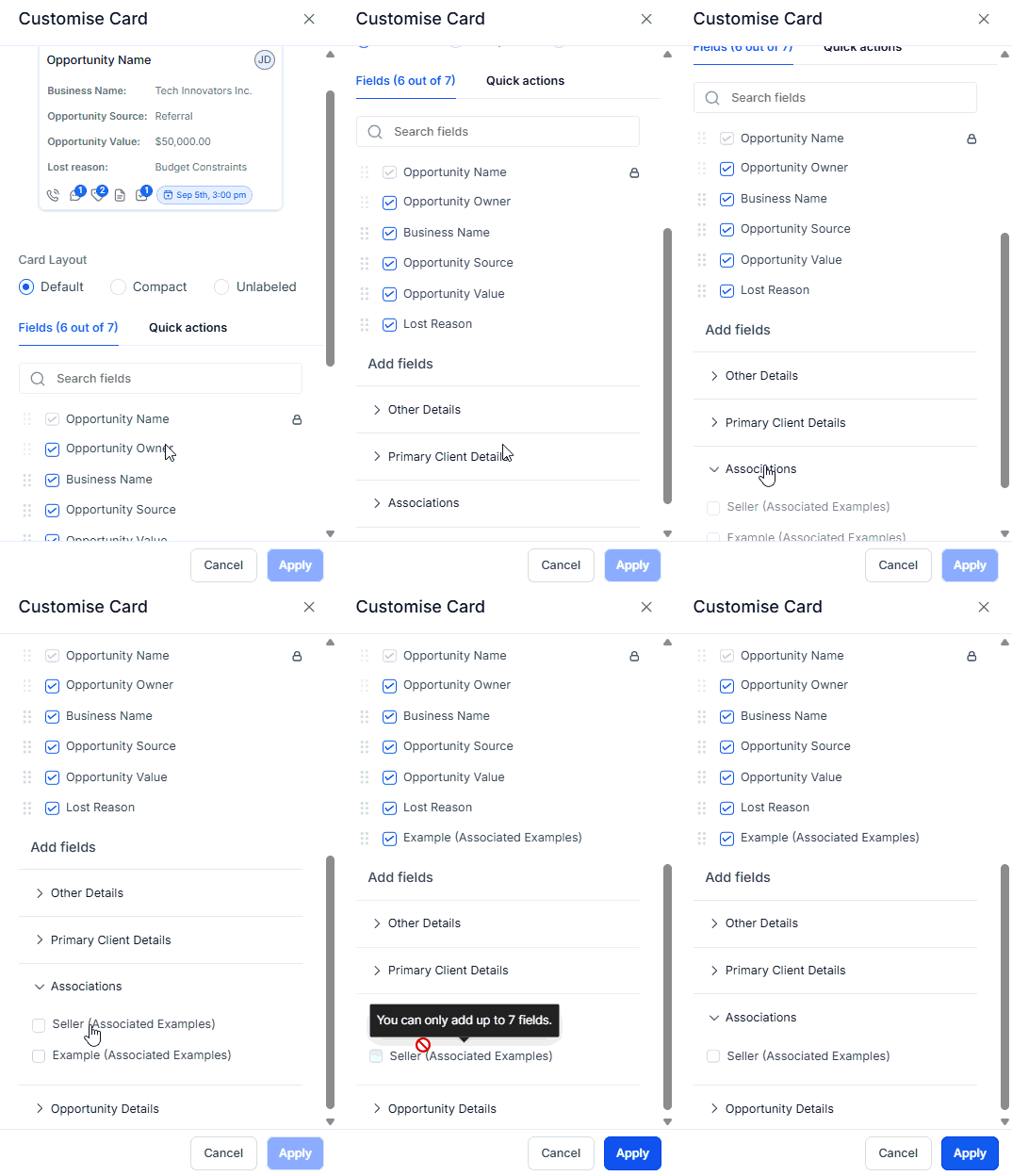
This allows teams to see linked records like Events or Properties directly within their pipeline view.
List View
Add the same Association Label field as a column in your List View for quick visibility, bulk reviews, and export readiness.
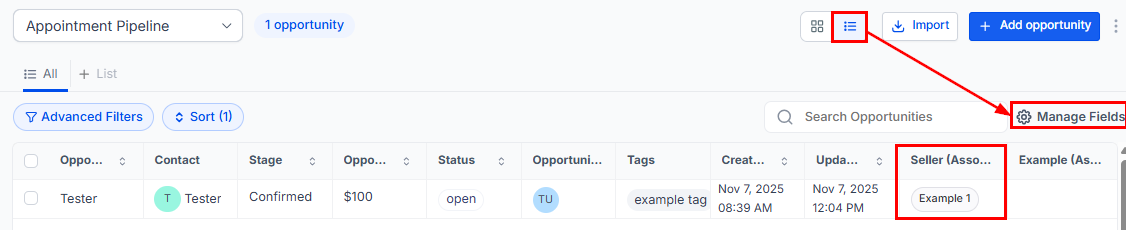
Associations between Opportunities and Custom Objects bring structure, clarity, and intelligence to your CRM. By connecting related records across your ecosystem, your team gains a deeper understanding of each relationship — enabling smarter decision-making, faster navigation, and more personalized automation.
Start using Associations today to create a truly connected and data-driven CRM experience.
Tips
- Up to 10 unique labels can be created between each pair of objects.
- Each label supports up to 1,000 linked records per side.
- Deleting an Opportunity or Custom Object automatically removes its associations.
- To include association data in exports or reports, add the field through Manage Fields.
Frequently Asked Questions
Q: Can I limit an Opportunity to only one Custom Object?
- Yes. When configuring the relationship, choose One-to-One or set One-to-Many with N = 1.
Q: Will renaming a label affect existing associations?
- No. Renaming only changes the display label — the underlying links remain intact.
Q: Can I bulk import associations?
- Not yet. Associations must currently be created manually or through workflows.
Q: Can I include associations in reports and exports?
- Yes. Once the field is added via Manage Fields, it will appear in your reporting and export data.
Q: What happens if a record is deleted?
- When an Opportunity or Custom Object is deleted, all related associations are automatically removed to maintain data integrity.
Not a Funnelbud customer yet?
Try our all-in-one CRM for sales and marketing — free for 7 days, no commitment.