How to Use Universal Sections
Maintaining a cohesive design across multiple digital assets—funnels, websites, blogs, webinars, and stores—can be challenging and time-consuming. With Universal Sections, you can save and sync reusable design elements across your assets to keep your entire team aligned with consistent layouts and branding. If this feature is for you, read on to learn how to incorporate it in your tools.
Key Benefits
- Save Time: Make one update and apply it everywhere.
- Ensure Consistency: Avoid discrepancies between pages or assets.
- Boost Team Productivity: Eliminate redundant work and streamline collaboration.
Types of Saved Sections
- Universal Sections: Changes instantly apply across your entire account.
- Global Sections: Changes affect only the current funnel or website.
- Section Templates: Reusable, static sections—changes do not sync.
How to Use It
Saving a Section
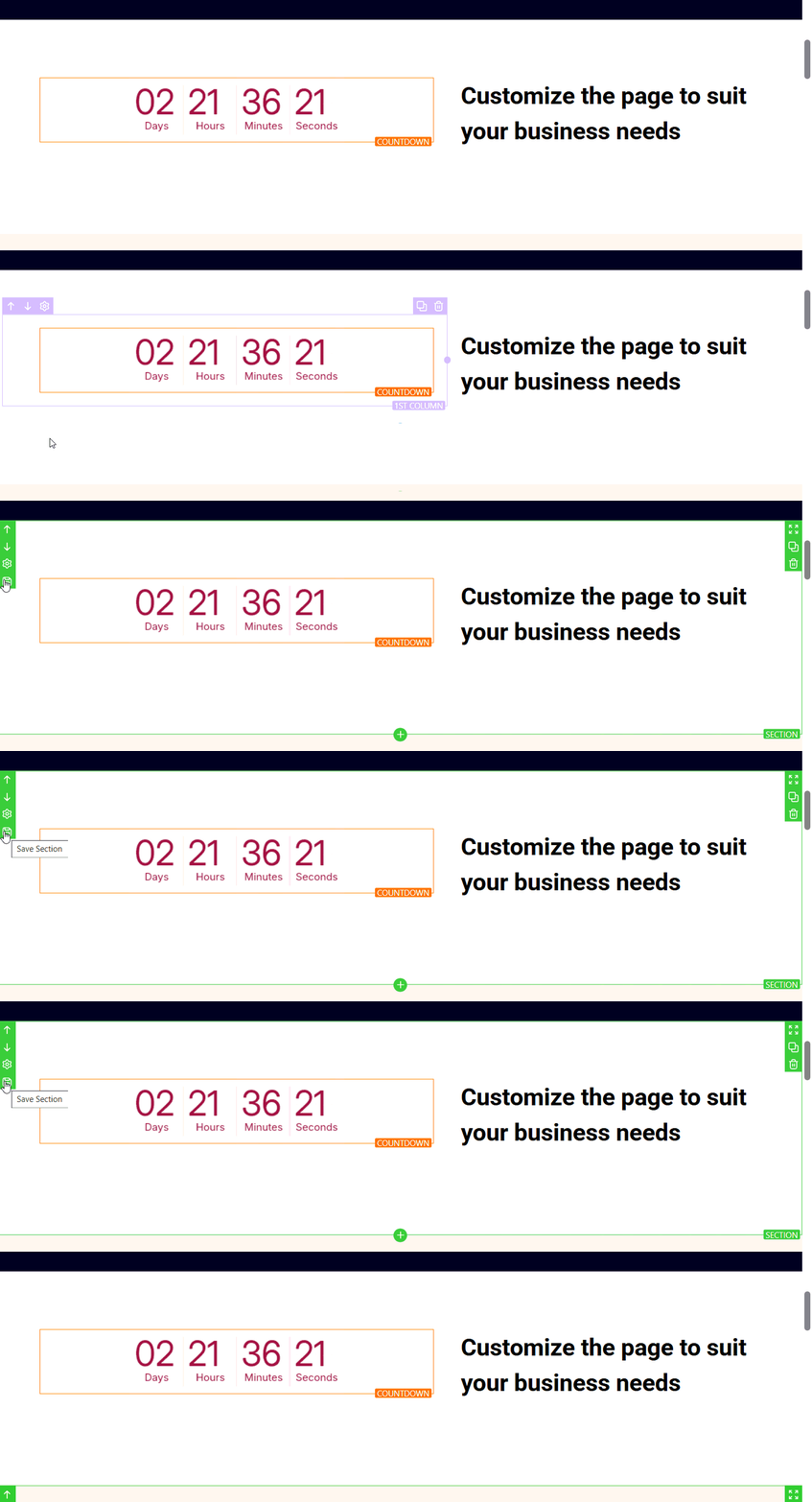
In the Funnels or Websites builder, hover over a section (like a header or CTA), then click Save Section from the left outline.
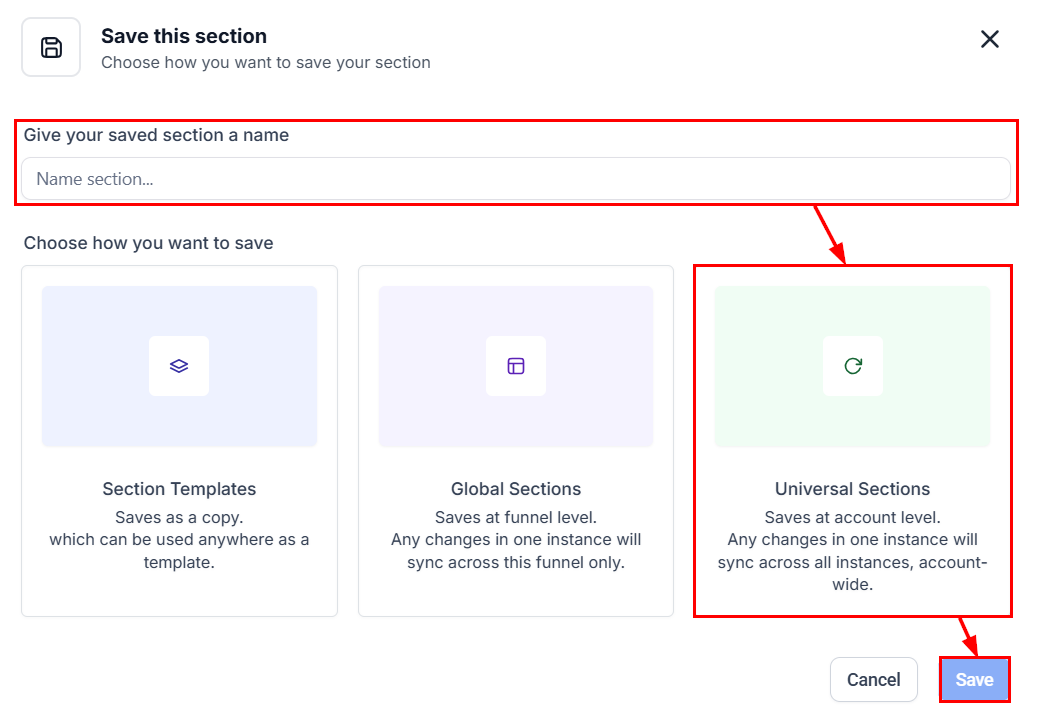
In the Save popup, provide a name, choose the Universal Section option, and click Save.
Using a Saved Section
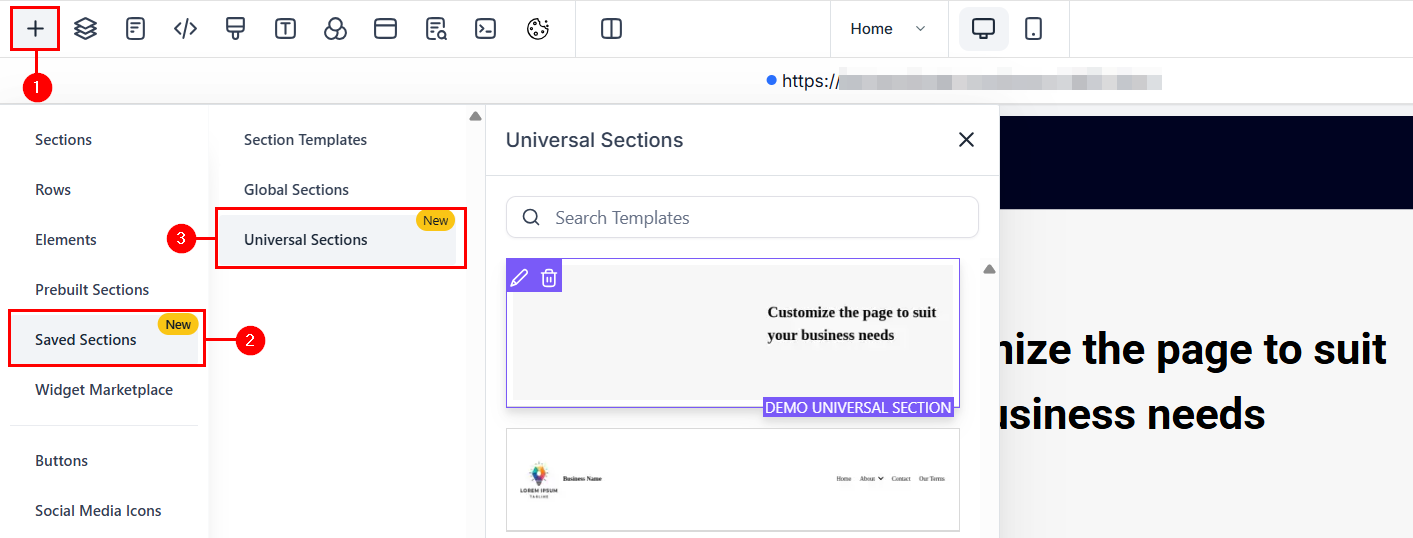
Once a section is saved universally, it becomes accessible to all users within the account. To apply it while building a funnel, website, blog, or store, simply navigate to the ‘Saved Sections’ panel located in the left sidebar.
Next, drag and drop your desired section from the Universal Sections window into the builder.
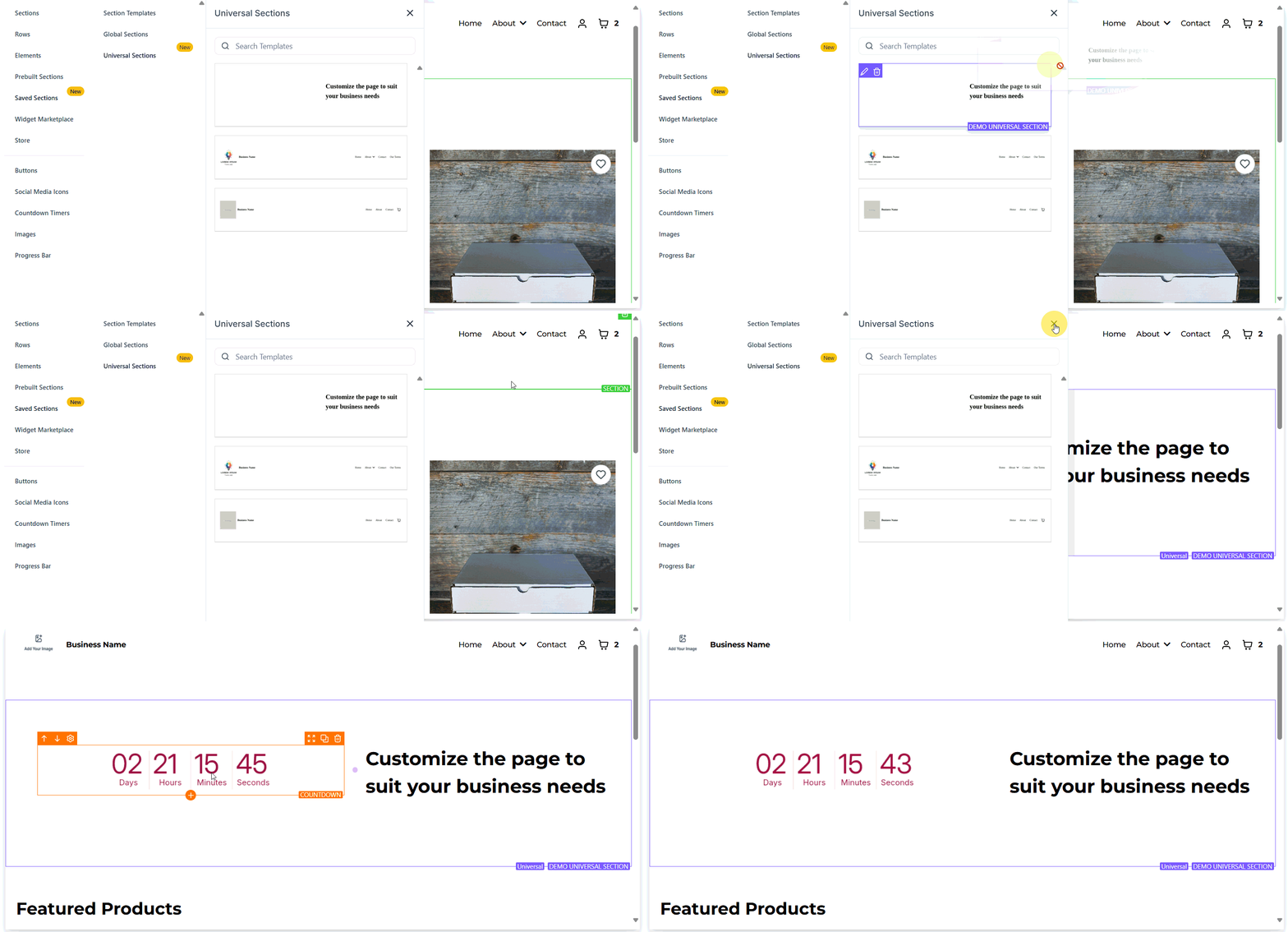
Any changes made to a Universal Section will be automatically reflected across all instances, eliminating the need for manual updates.
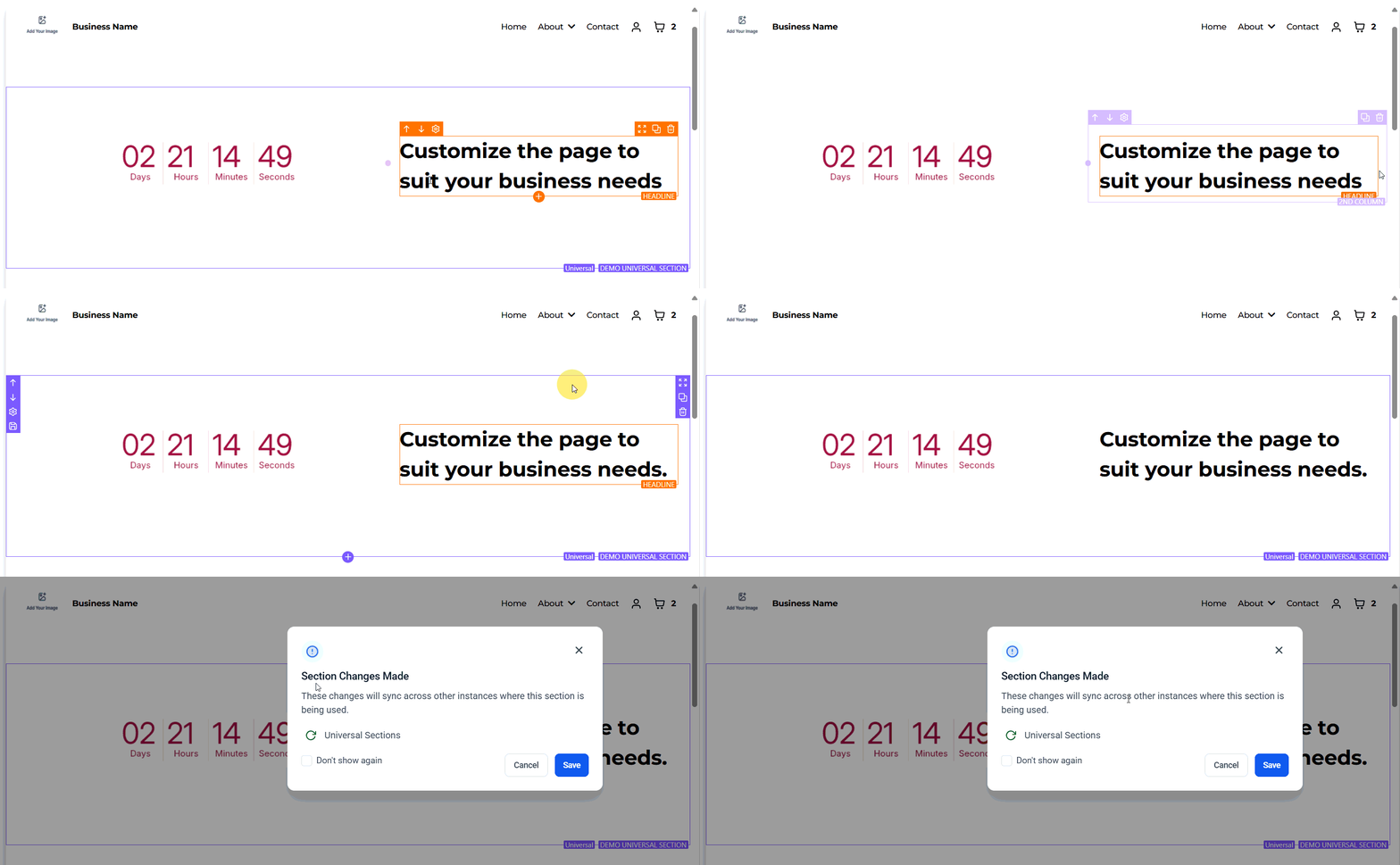
Additionally, you can hover over any saved section to see whether it’s Universal or Global, shown in a bottom-right label for quick identification.
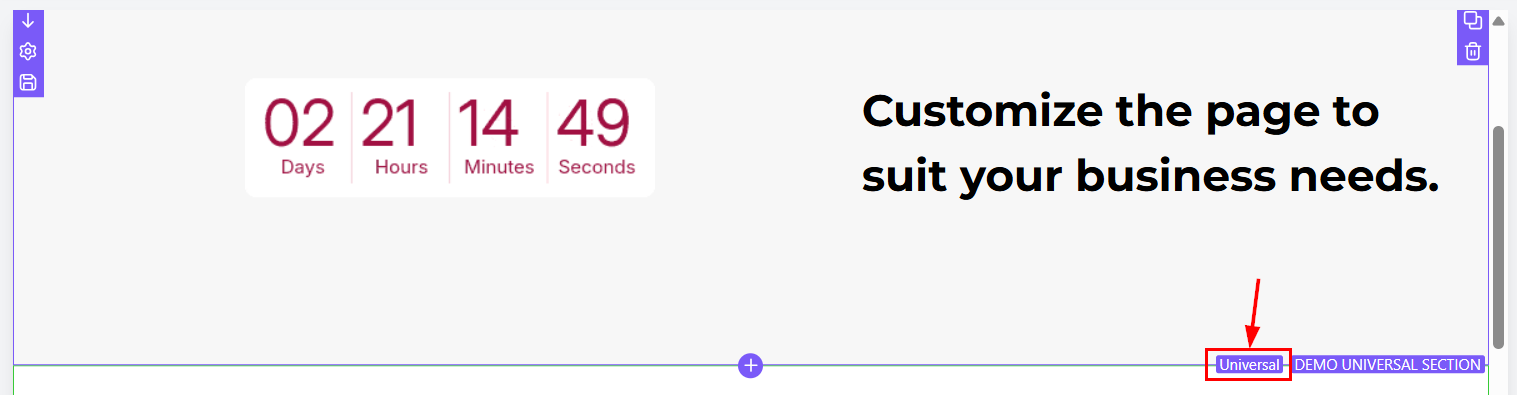
Universal Sections are designed to simplify your workflow, reduce design errors, and empower teams to maintain a unified brand presence with ease. Start using Universal Sections today and experience the power of scalable, consistent design—no more repetitive edits, just seamless updates across your entire brand ecosystem.
✍Important Notes
- Once a section is saved, you cannot change its type. To change the type, clone the section and save the copy into a different category.
- If a Universal/Global Section already exists on a page, it cannot be reused by dragging it again from the sidebar. You’ll need to clone the existing section instead.
Not a Funnelbud customer yet?
Try our all-in-one CRM for sales and marketing — free for 7 days, no commitment.