Understanding and Preventing Double Booking in Your Calendars
Double bookings can disrupt your scheduling process, leading to missed opportunities or overbooked time slots. Understanding the common causes and how to resolve them is essential for efficient calendar management. In this guide, we’ll walk through key steps to diagnose and prevent double bookings, focusing on proper calendar connections, appointment settings, and event visibility.
Double bookings can occur due to several reasons. Here’s how to diagnose and resolve common issues:
Check Calendar Connections
Ensure that the correct Calendar is connected to your account within the Settings > My Profile > Calendar Settings section and that the conflict calendars have been configured.
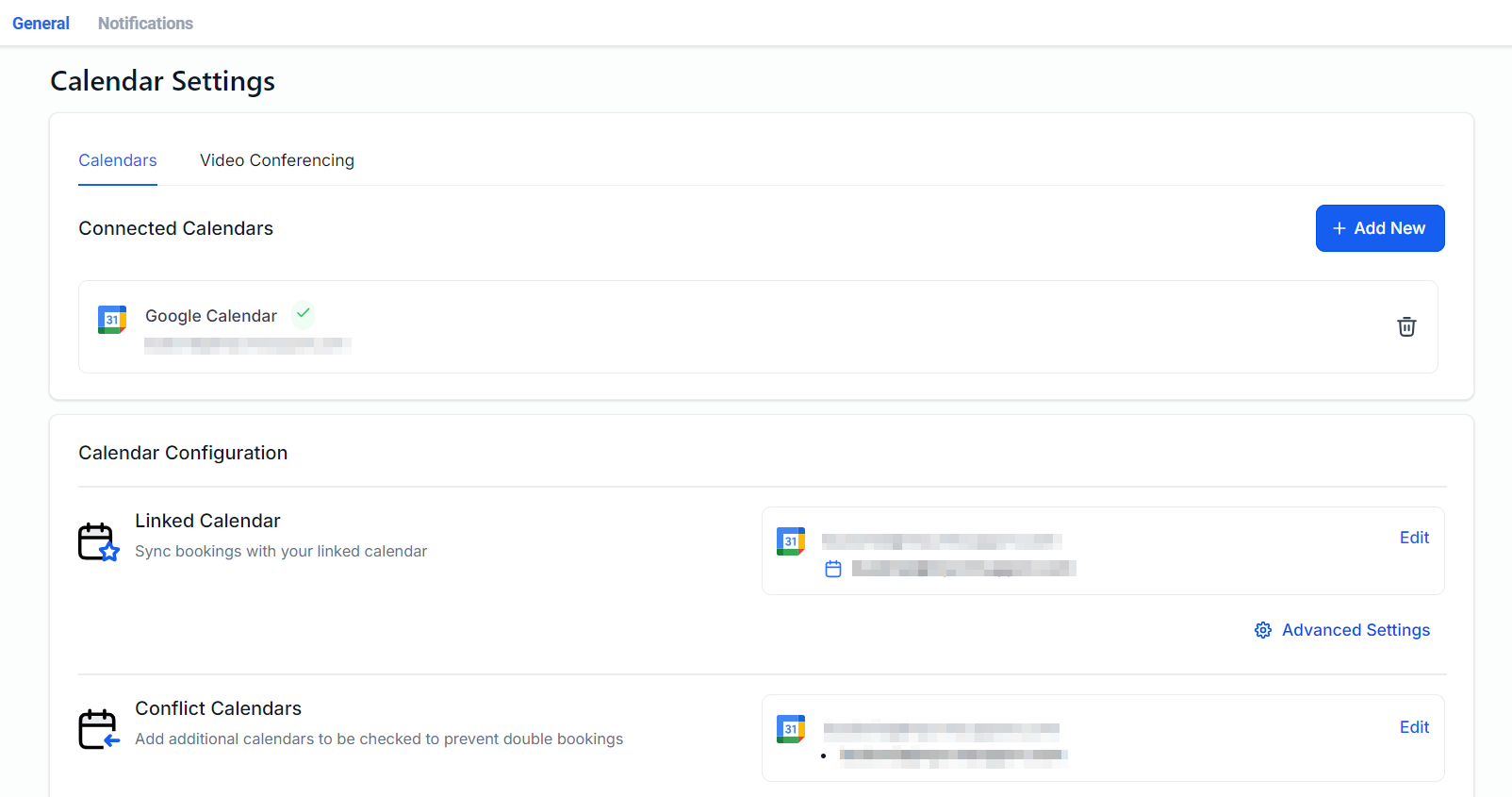
For unassigned calendars, only one Calendar can be checked for conflicts. If appointments from another calendar are causing issues, consider using a team calendar.
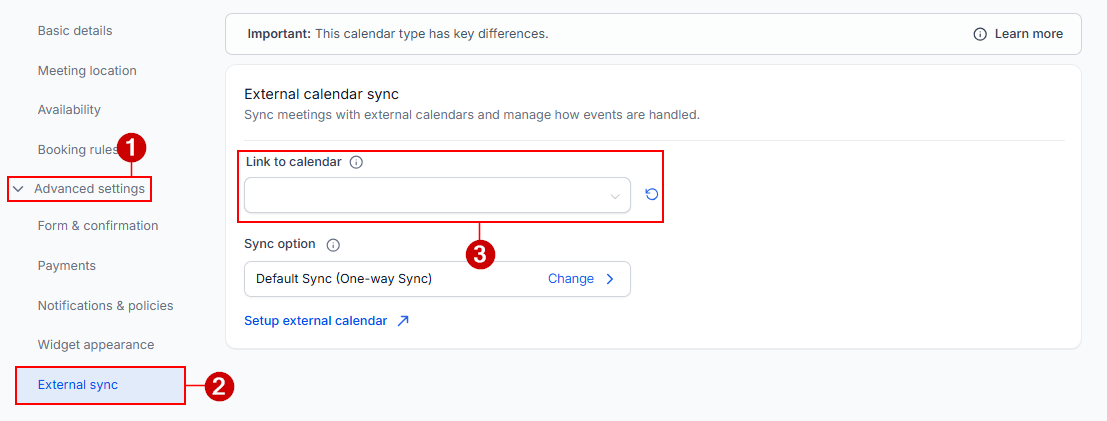
Review Appointment Creation Timing
Double bookings might happen if an appointment was booked before connecting your Google Calendar. Verify the timing to rule out this possibility.
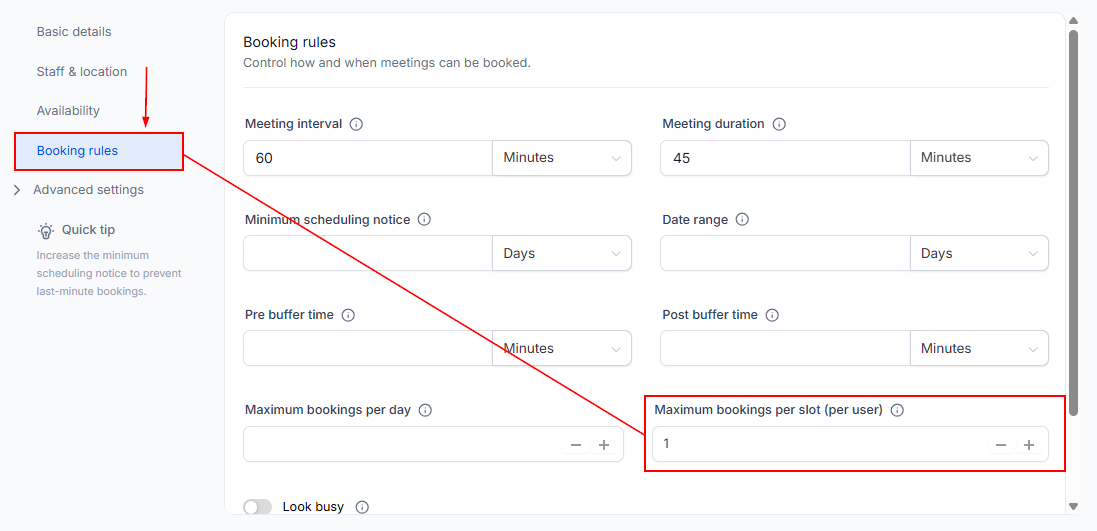
Inspect Appointment Per Slot Settings
If your calendar allows more than one appointment per slot, this could lead to double bookings. Adjust this setting according to your needs.
Examine Event Status
Events marked as canceled, invalid, or no-show in your CRM calendar might still appear, leading to confusion. Check the status of these events to ensure they’re not causing double bookings.
Assess Event Visibility
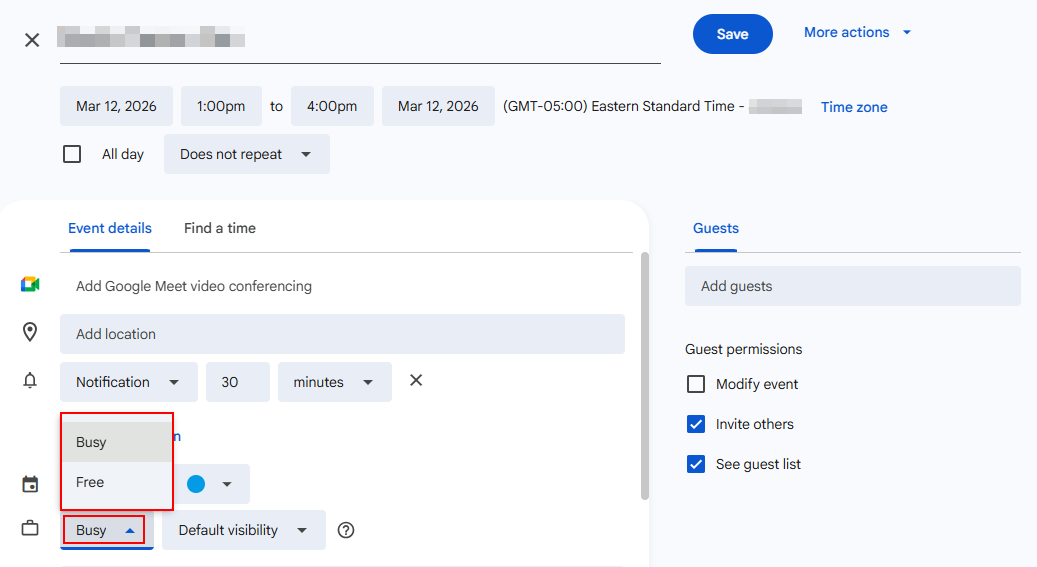
Events marked as ‘free’ or ‘Available’ in your Calendar might not block time slots in your CRM calendar. Ensure that all events meant to block availability are marked as ‘busy’.
Troubleshooting Tips
To prevent double bookings, follow these steps based on your calendar type:
For Unassigned Calendars
- Connect the appropriate Calendar and ensure it’s set to check for conflicts.
- Regularly review and adjust the ‘appointments per slot’ setting to match your availability preferences.
- Verify that all relevant events in your Calendar are marked as ‘busy’.
For Team Calendars
- Assign users correctly and ensure each user’s calendar is connected and configured to check for conflicts.
- Adjust the ‘appointment per slot’ setting for each user, based on their capacity.
- Use the team management settings to review and configure each user’s calendar settings properly.
By following the outlined steps, you can minimize or eliminate double bookings, ensuring a smoother scheduling experience. Regularly checking your calendar settings and syncing preferences will help maintain accurate availability and prevent conflicts.
Frequently Asked Questions
Q: Can I connect more than one Calendar to an unassigned calendar?
- A: No, the unassigned calendar can only check for conflicts with one Calendar. Use a team calendar for multiple calendars.
Q: How do I change an event from ‘free’ to ‘busy’ in Google Calendar?
- A: Edit the event in Google Calendar and ensure the ‘Show as’ option is set to ‘Busy’.
Q: What if I still experience double bookings after following these steps?
- A: Double-check the configurations mentioned above. If issues persist, consider reaching out for support with specific details about your setup.
Not a Funnelbud customer yet?
Try our all-in-one CRM for sales and marketing — free for 7 days, no commitment.