Adding Custom Fields For Documents and Contracts Signing
Custom field support in the CRM’s Document and Contract Editor brings a new level of flexibility that helps businesses streamline their processes.
With this feature, you can add specific text fields to any document, allowing for an easy signing experience. It’s a crucial tool for industries like real estate, legal services, or any business that handles numerous contracts.
What Can Custom Field Support Do for You?
- You can easily incorporate text fields into documents without disrupting the overall flow. Whether you’re customizing a lease agreement, a service contract, or a sales proposal, these fields allow for smooth data entry.
- Need specific information in a particular section of the document? With custom fields, you can place these text boxes anywhere, giving you full control over the document’s structure.
- Assign fields directly to relevant individuals. For instance, if you’re working on a contract with multiple signatories, you can ensure that each party completes their specific section, streamlining the process and improving accuracy.
Accessing The Feature
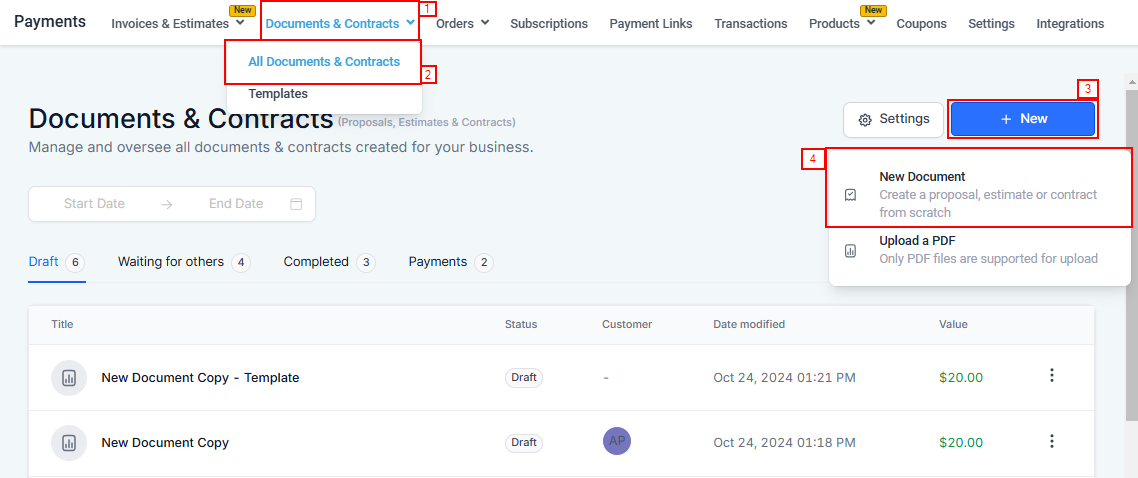
To get started, navigate to the Payments tab on the left navigation menu, and hover on the Documents & Contracts dropdown, then click on All Documents & Contracts. Within that tab, Select the +New button to create a New document or edit an existing one.
Adding Text Fields and Custom Fields
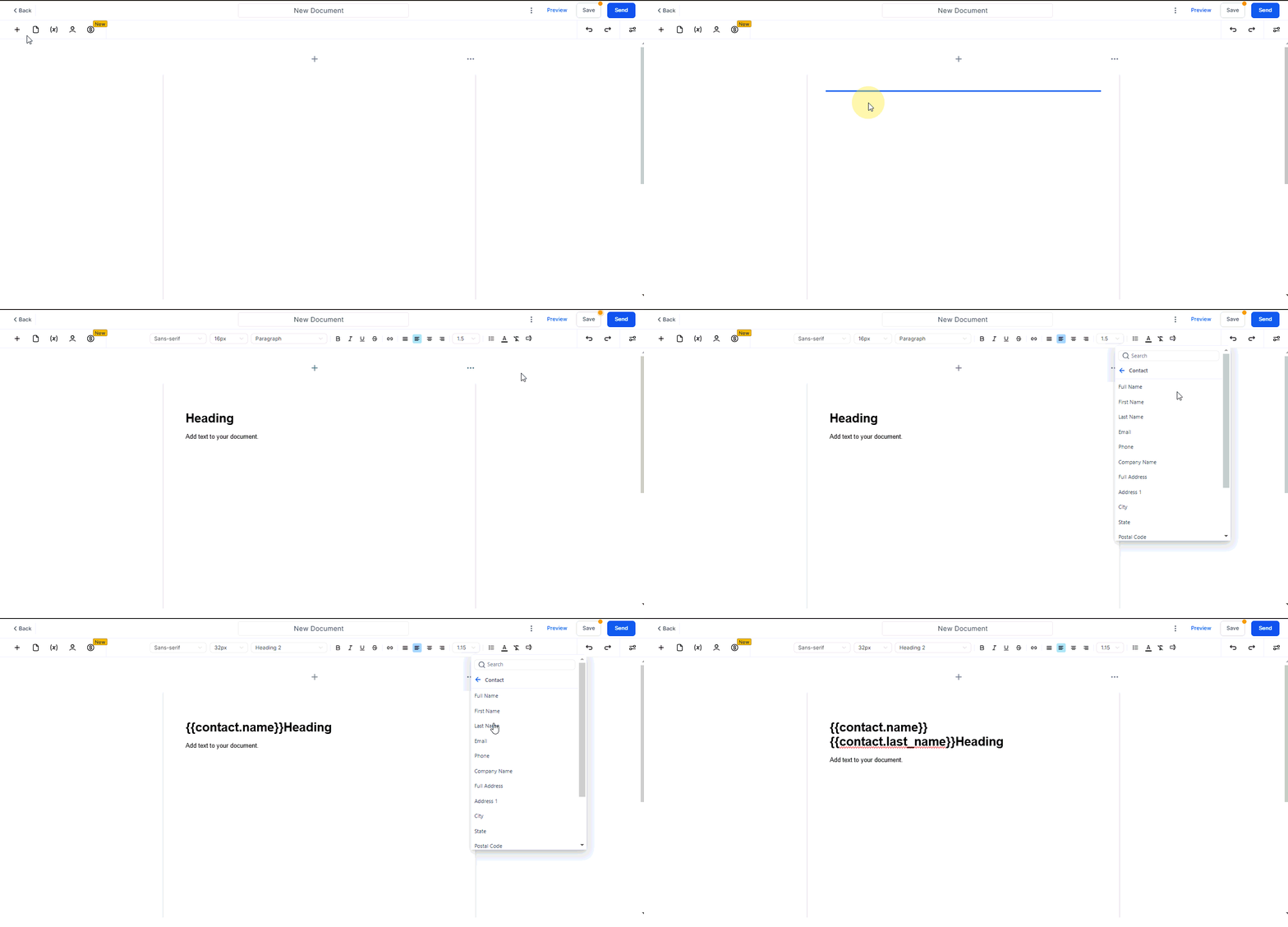
In the document builder, click on the “+” icon, and drag and drop the “Text Element” into the document from the available options.
NOTE: The custom field icon only appears when the text element is present on the page.
Assigning Recipients
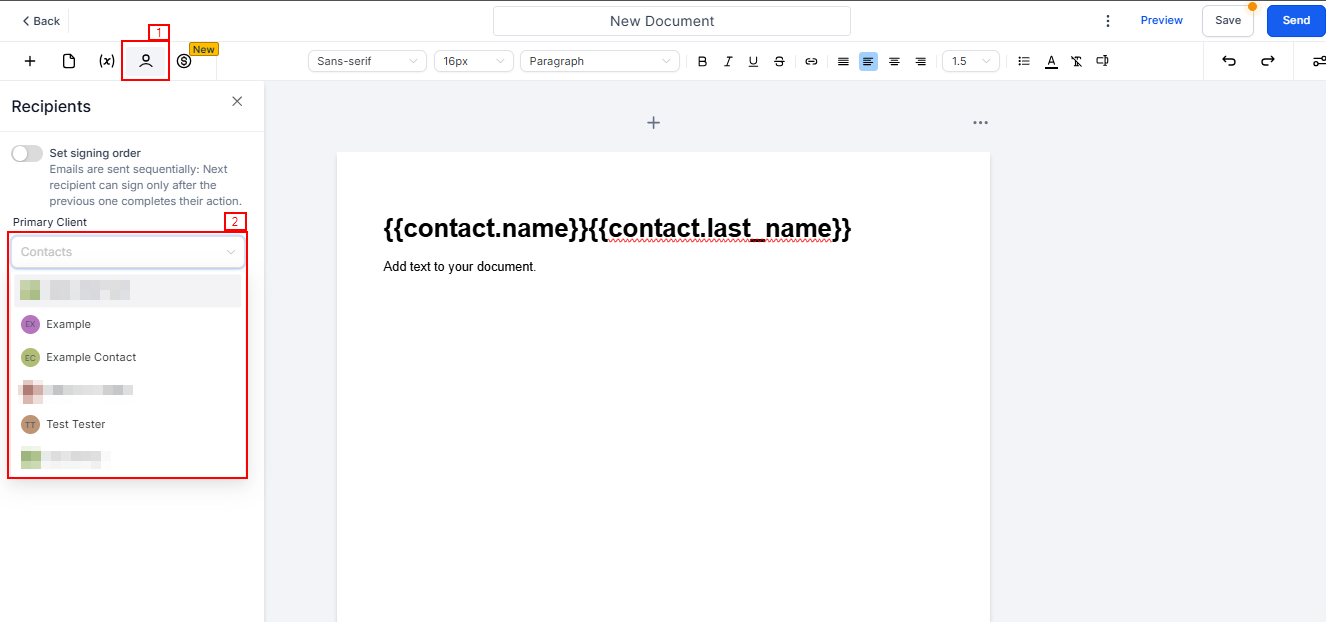
To add recipients click on the person icon. In the Primary Clients dropdown select the clients to whom you want to assign the specific text field.
Adding Signatures and Date Fields
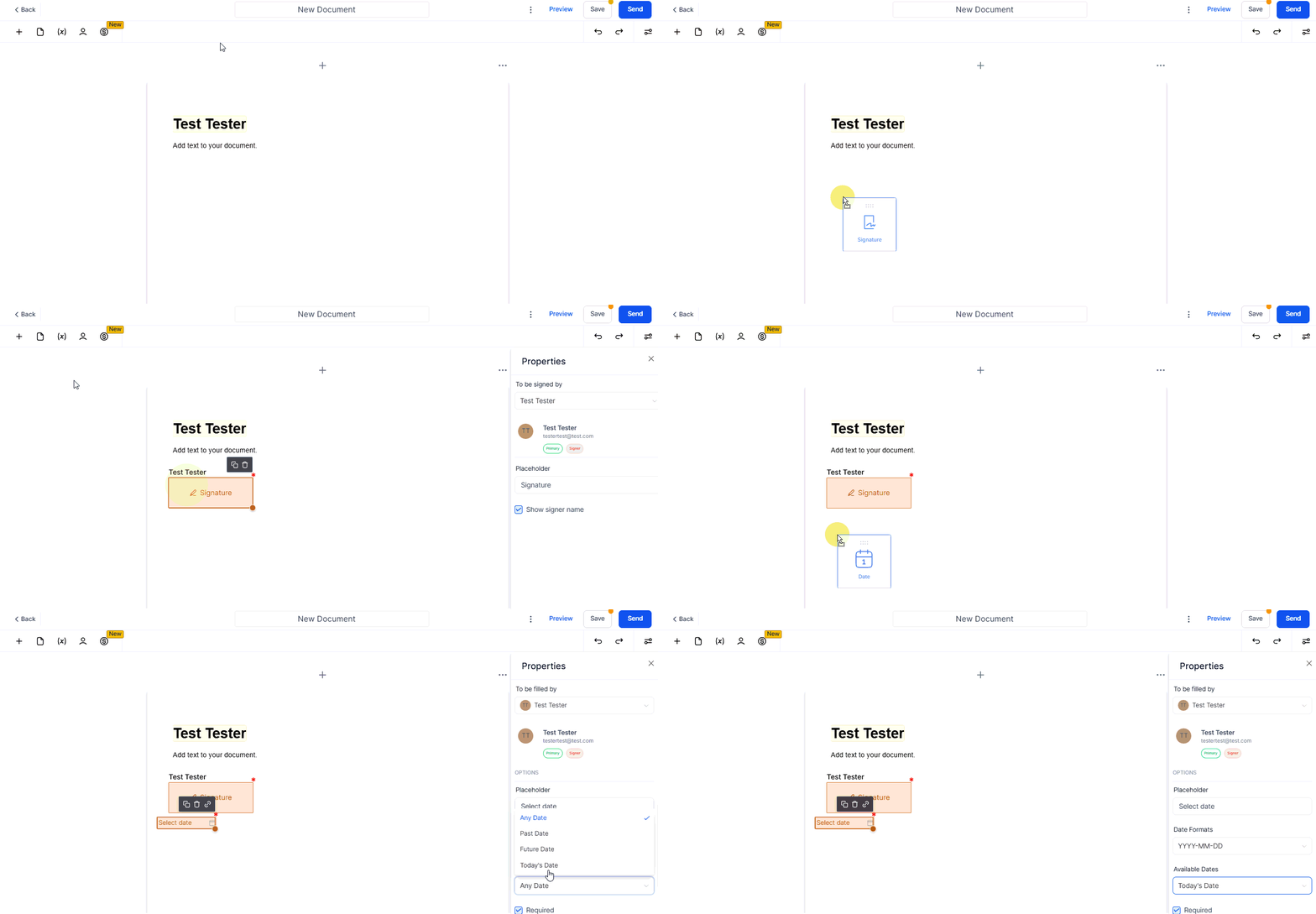
To add Signatures and Dates, click the “+” icon, then drag and drop the signature and date elements. You can set the available dates to Today’s date or future dates.
Preview and Adjust
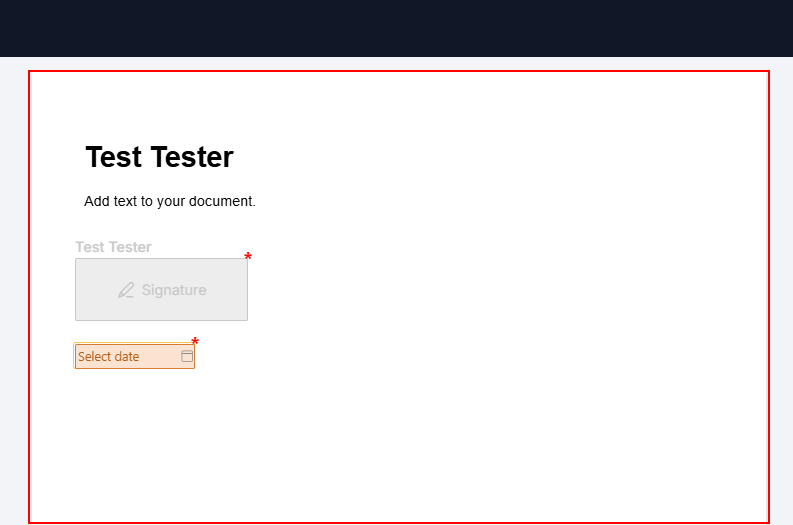
Before sending the document, preview it to check if everything is in place. You can make any adjustments to the placement of text fields and ensure the assignments are correct. Once satisfied, proceed to send it out.
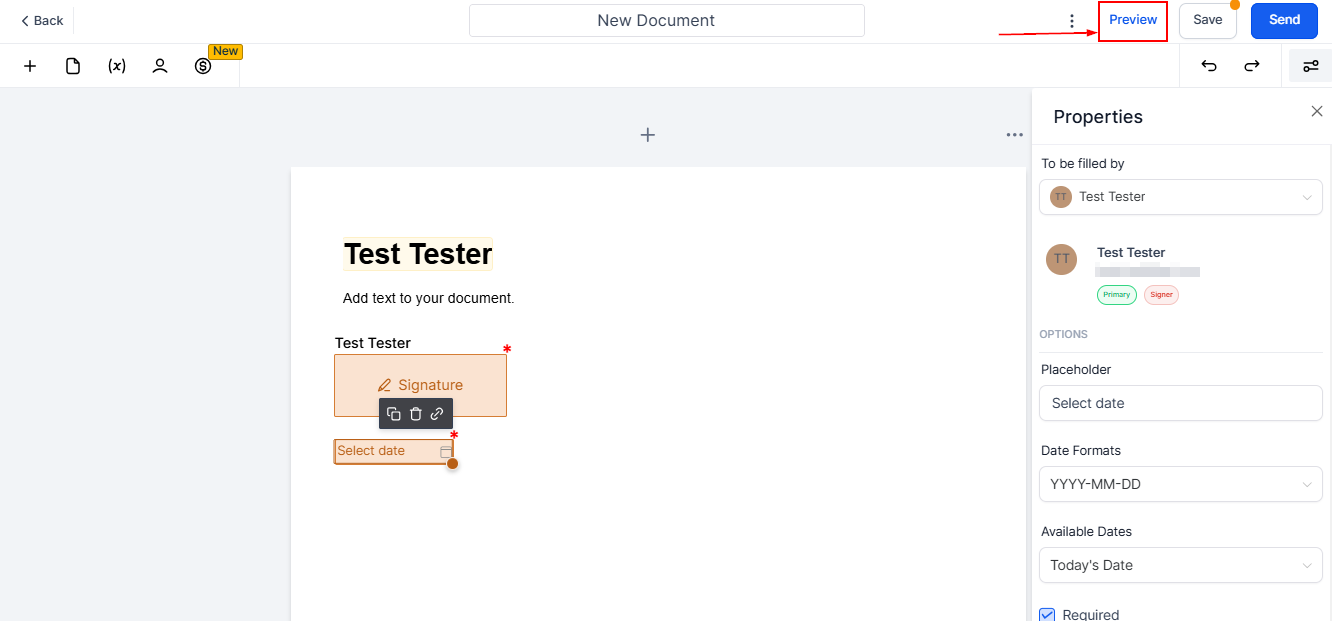
Below is what the document preview looks like.
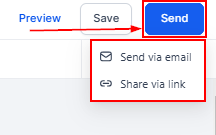
You can either send it via email or share the link with the client on your preferred messaging channel.
By following these steps, you can effectively customize your lease documents, contracts, and more, making the signing process more efficient and error-free.
Practical Example
Suppose you’re an organization that manages various types of agreements, like contracts or service agreements. With custom field support, you can design templates that include specific, fillable fields tailored for each party involved.
For instance, you could set up fields where different participants, such as clients or partners, can add their information—like contact details, terms, or dates—directly into the document. This setup captures all essential information without requiring manual adjustments, ensuring efficiency, accuracy, and compliance with necessary standards.
Troubleshooting and FAQs
Q: Can I move the text fields after assigning them to a recipient?
- A: Yes, you can adjust the placement of text fields even after assigning them. Ensure to preview the document to confirm the fields are correctly positioned.
Q: What if a recipient fills out the wrong field?
- A: The CRM allows for easy correction of such errors. Recipients can be instructed to clear the incorrect entry, and the field can be reassigned or corrected as needed.
Q: How many text fields can I add to a document?
- A: There is no set limit to the number of text fields you can add. However, for the sake of clarity and ease of completion, it’s advisable to only include the necessary fields.
Not a Funnelbud customer yet?
Try our all-in-one CRM for sales and marketing — free for 7 days, no commitment.