How to Add Custom Object Fields in Forms
Custom Objects allow you to collect structured, business-specific data that doesn’t fit into standard contact fields—such as Properties, Pets, or Vehicles. These records link back to contacts, enabling you to organize your CRM around the information that matters most to your operations.
The Company Object is a built-in object designed for managing business-level details, such as client organizations, agencies, or vendors. It allows you to associate multiple contacts with a single company for a clear view of business relationships.
Think of it this way:
- Custom Objects: Track any specialized or industry-specific data unique to your process.
- Company Object: Track who your contact represents or works for.
What You Can Do
With Custom Objects
- Add a variety of field types (text, number, date, dropdown, etc.).
- Link data directly to contacts using one-to-one, one-to-many, or many-to-many associations.
- Automatically sync updates across related records.
- Assign primary fields to maintain stable associations.
With the Company Object
- Access default fields like Name, Phone, and Email.
- Use Company Name as the automatic primary key.
- Associate companies with contacts (one company per contact).
- View company details directly from the contact record.
📌Note: You can use custom object fields in forms, surveys, and quizzes; however, limit each builder to one object type to prevent setup conflicts.
How to Use Them
Navigate to Settings > Custom Objects to create or manage objects.
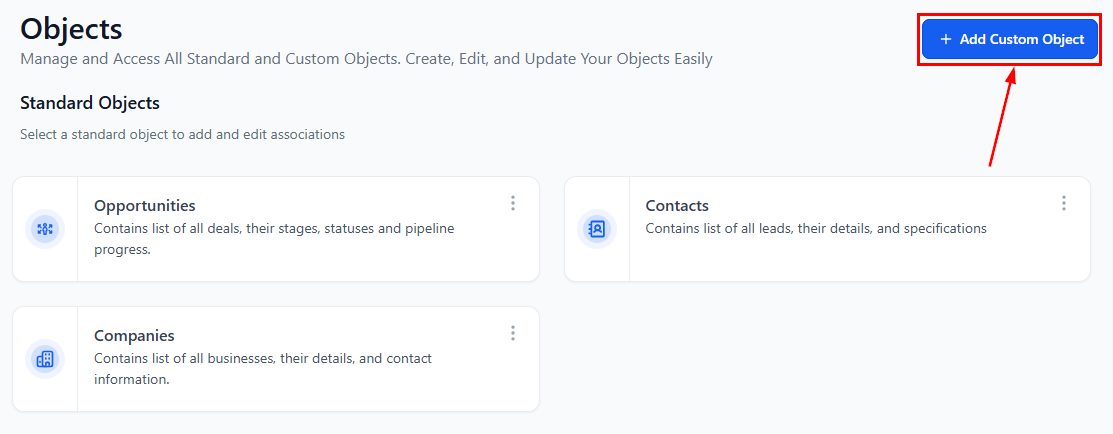
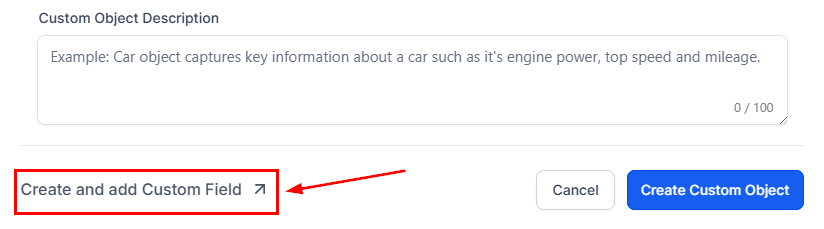
If you choose to create a new custom object, the setup window will display an option for configuring custom fields.
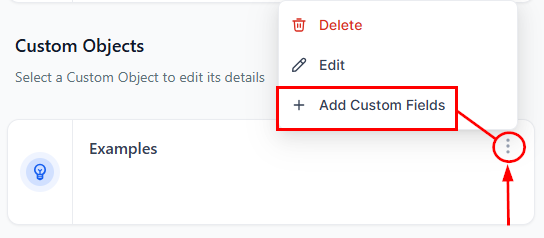
You will also see the option to add custom fields to an existing object on the bottom left of the object editor or via the actions menu.
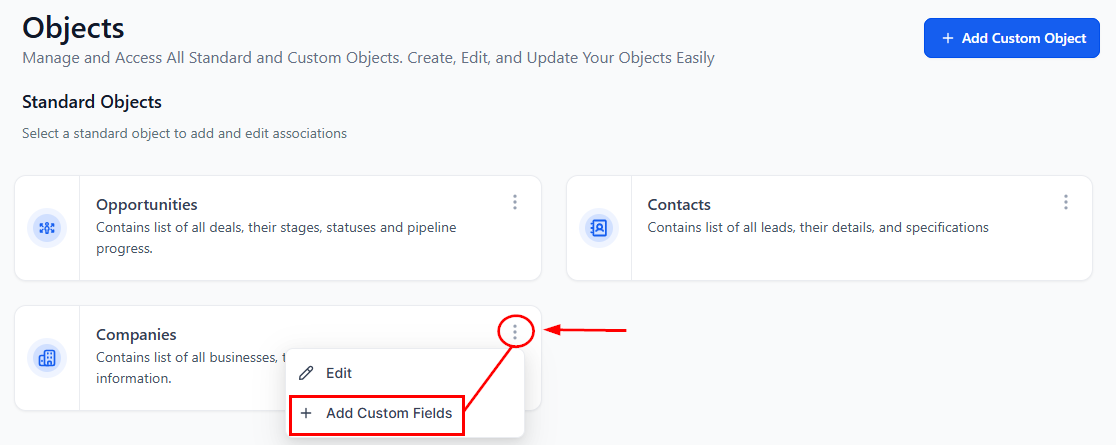
For company objects, you can add new fields by clicking the “Add Custom Fields” button from the companies action menu.
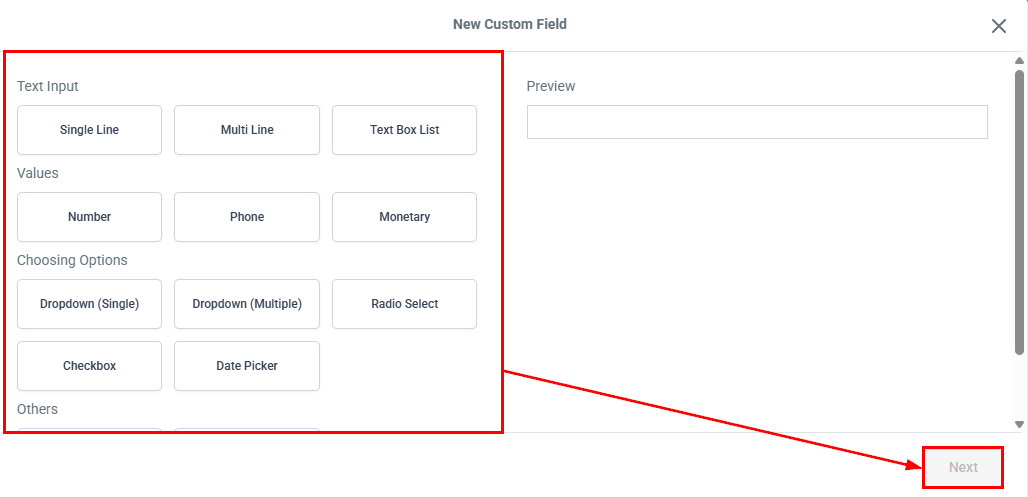
Next, select the custom field type and continue creating the custom field as normal. For guidance on how to do this, please refer to the “How to Add A Custom Field” article.
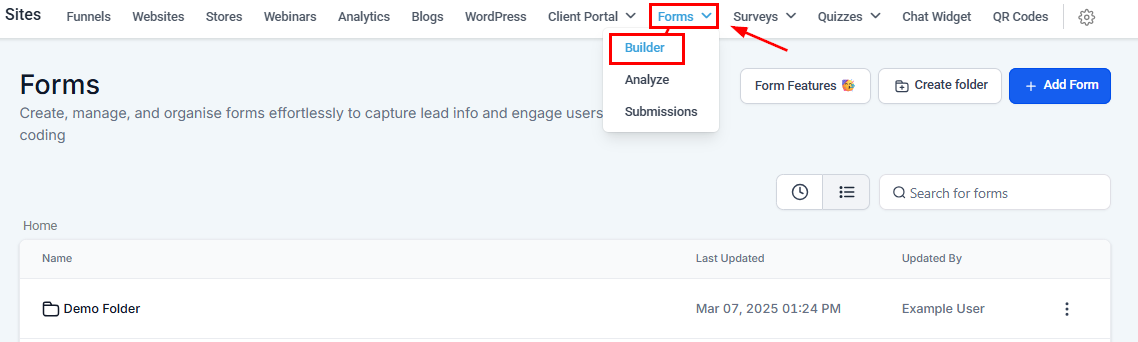
Once added, open the Form, Survey, or Quiz Builder and add a new asset or open an existing one.
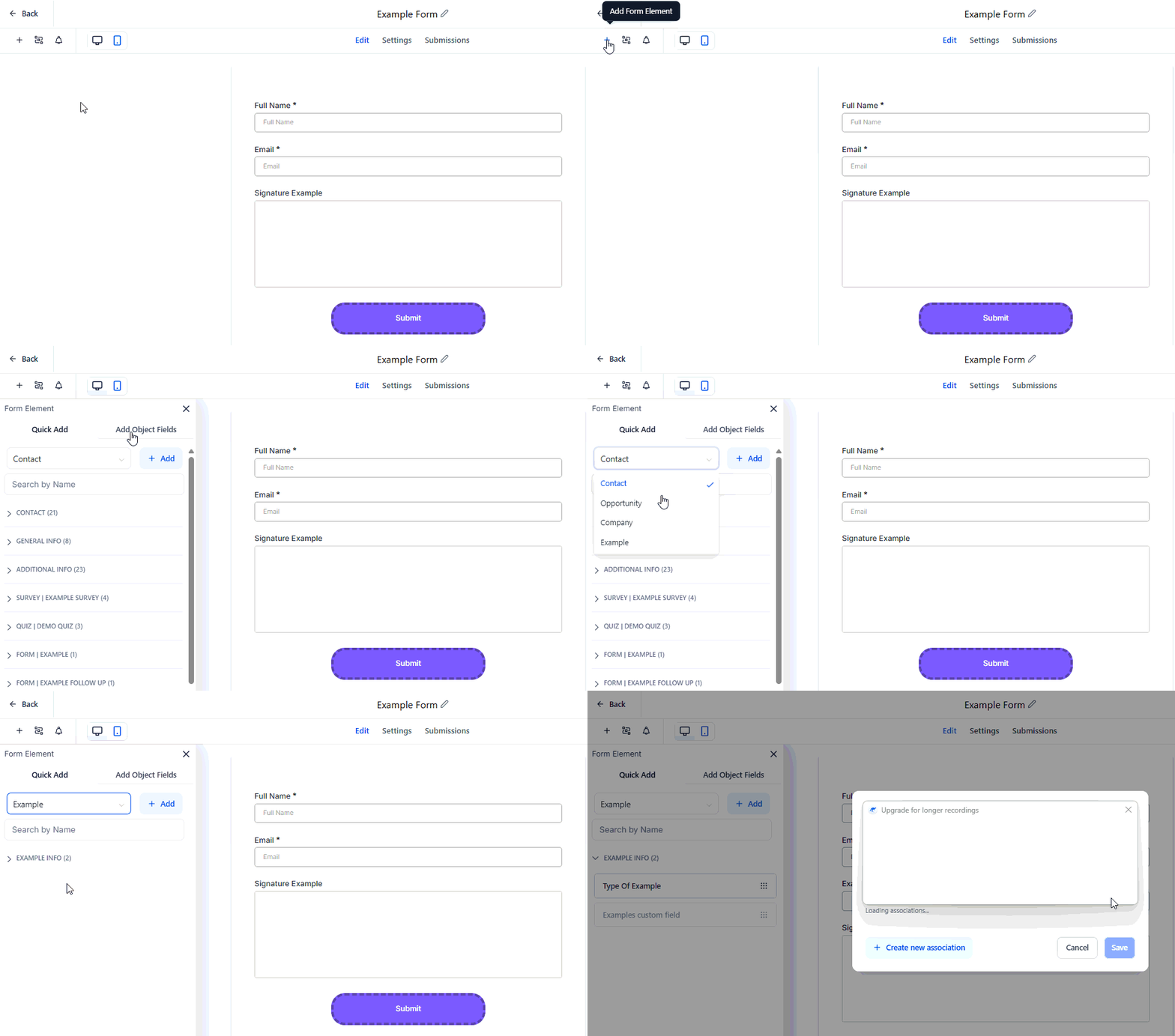
Add fields from your selected custom object.
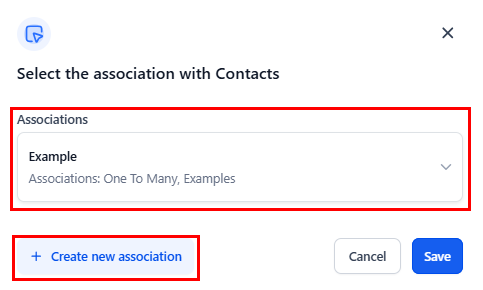
Choose how the object connects to the contact in the association settings window.
Save and publish—new submissions will link the contact to the custom object.
Best Practices
- Use only one object type per form, survey, or quiz.
- Define a primary field for all custom objects to avoid system defaults.
- Keep object names clear and consistent.
Won’t Work For
- Mixing multiple object types in a single form.
- Bulk updates or advanced reporting (not yet supported).
- Using Company or Custom Object fields inside templates from the Template Library.
- Adding custom values to custom object fields.
By understanding the strengths and intended uses of Custom Objects and the Company Object, you can design a CRM structure that accurately reflects your business model and enhances your workflows. When implemented thoughtfully, these tools ensure your data remains organized, meaningful, and ready to support smarter decisions across your entire system.
Troubleshooting Tips
Association not loading?
- Verify your internet connection or review object setup.
Mixed-object error?
- Remove old object fields before adding new ones.
Missing primary field?
- Define one in settings; otherwise, the system defaults to the first field.
Removed a primary field?
- All object fields will clear from the builder—re-add them manually.
Company not appearing?
- Confirm the company is created in Settings > Companies.
Not a Funnelbud customer yet?
Try our all-in-one CRM for sales and marketing — free for 7 days, no commitment.