Opportunity Settings
Managing your contacts and opportunities by assigning separate owners for contacts and opportunities within your system, allows for more nuanced management and delegation of responsibilities. This capability provides greater control and flexibility in your CRM, tailored to fit your organization’s unique structure and workflows.
Functionality Overview
- Default Opportunity Owner: By default, when creating a new opportunity, the owner will be set to the same person as the contact owner. However, this can be changed to reflect the appropriate ownership as needed.
- Sub-Setting: Two additional Sub-Settings are available to enhance functionality:
- Update Contact Follower Based on Opportunity Owner Change: Enable this setting to automatically update the contact follower when the opportunity owner is changed.
- Update Opportunity Follower Based on Contact Owner Change: Enable this setting to automatically update the opportunity follower when the contact owner is changed.
This functionality is also applicable when opportunities and contacts are created or updated via Automations and Bulk Actions.
Benefits of Separate Owners for Contacts and Opportunities
- Improved Customization: Tailor ownership settings to align with your organization’s specific structure and workflows.
- Efficient Communication: Automatically update followers based on ownership changes, ensuring seamless communication and collaboration.
How to Enable Separate Owners for Contacts and Opportunities
Follow these steps to activate this feature. Navigate to Settings and select the “Opportunities & Pipeline” section in your account settings.
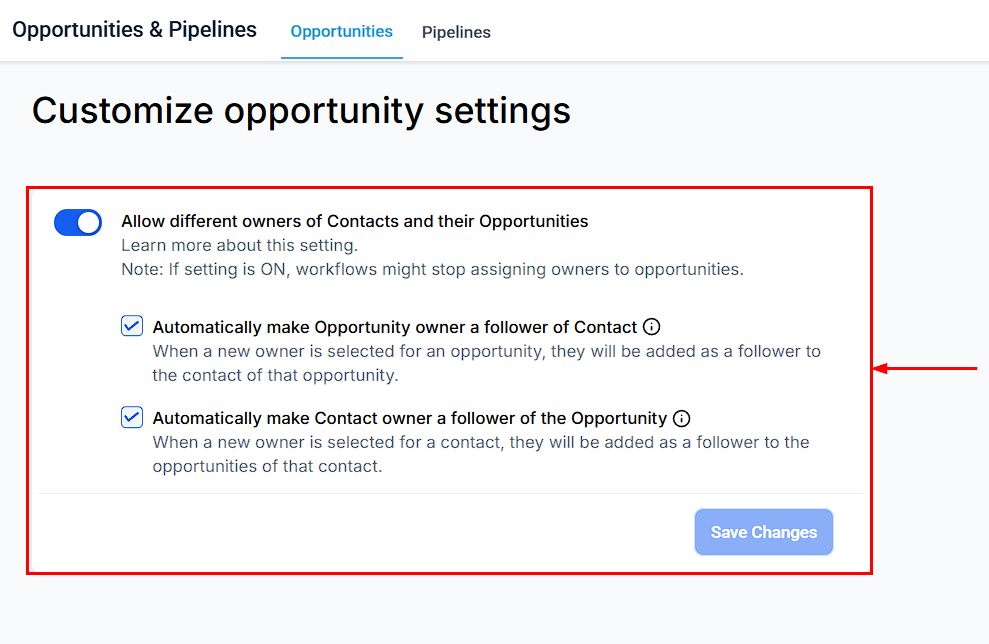
Enable the Feature
Find the option labeled “Allow different owners of Contacts and their Opportunities” and toggle the setting to “On.”
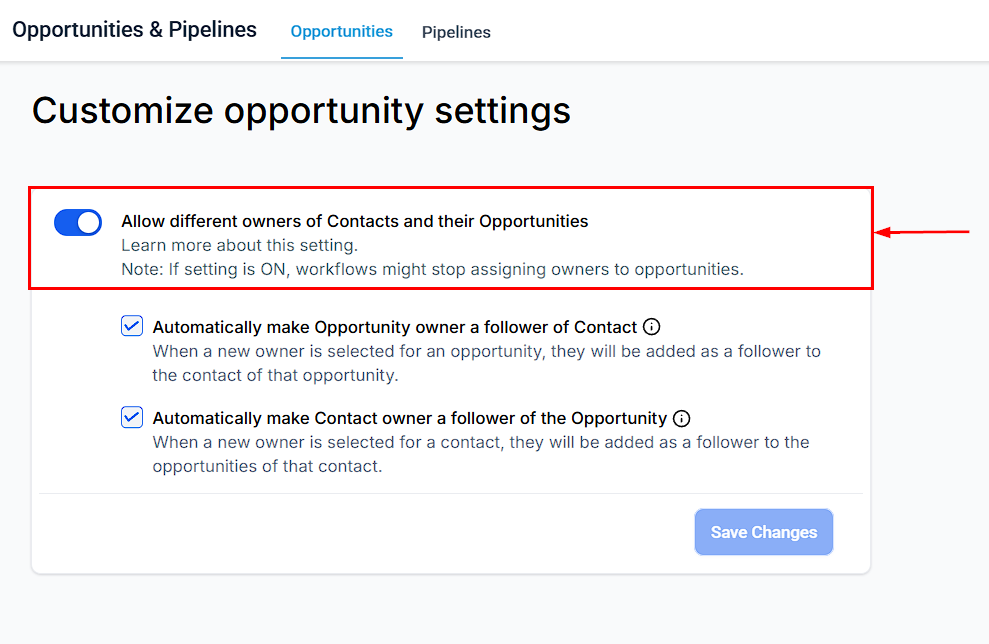
📌NOTE: Once the setting is enabled, automations that currently update owners may not update the opportunity owner. Therefore, review and adjust all relevant automations to ensure proper functionality.
By enabling separate owners for contacts and opportunities, you can enhance your CRM’s functionality, improving both customization and communication within your team. This feature is designed to streamline your workflow, ensuring efficient management of your sales pipeline.
FAQs
Q: Can I revert to the previous ownership settings after enabling this feature?
- Yes, you can toggle the setting off if you prefer to revert to having the same owner for both contacts and opportunities.
Q: Will the changes affect existing opportunities and contacts?
- No, the changes will apply only to new opportunities and contacts created after enabling the feature.
Q: How do I update automations that currently handle ownership changes?
- Review each automation that updates owners and modify the logic to ensure it addresses both contact and opportunity ownership as needed.
Troubleshooting Tips
- Automations Not Updating Opportunity Owners: If you notice that automations are not updating opportunity owners, double-check the automation settings and ensure they are configured correctly to handle separate ownerships.
- Followers Not Updating: Ensure that the Sub-Settings for updating followers based on ownership changes are enabled.
Not a Funnelbud customer yet?
Try our all-in-one CRM for sales and marketing — free for 7 days, no commitment.