How to Use Conversation Filters & Bulk Actions Overview
In the Conversations tab, we have a few handy tools to help you organize and handle your messages more effectively. These tools include Conversation Filters and Bulk Actions. This article will explain how to use them.
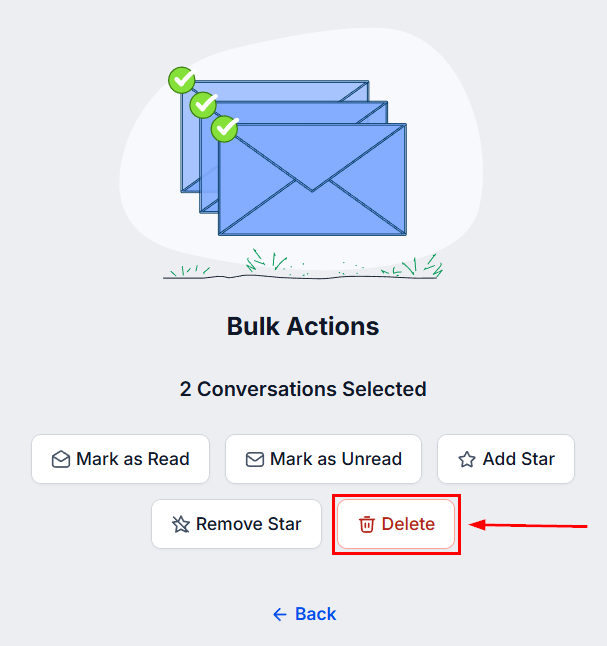
Using Bulk Actions
You can perform actions on multiple conversations at once. However, keep in mind that you can only apply these actions to a maximum of 100 conversations at a time. To use Bulk Actions, select the conversations you want to work with by checking the select box at the top, then manually selecting the desired contacts. Otherwise, double-click the box to select all contacts.
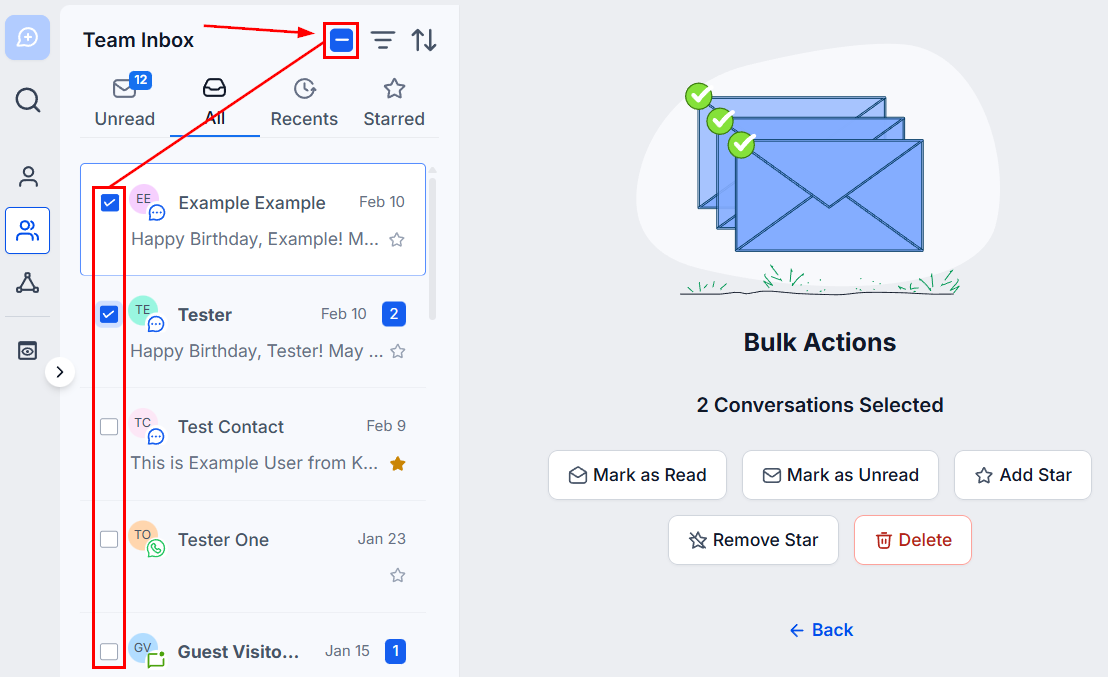
You can then choose from the following actions.
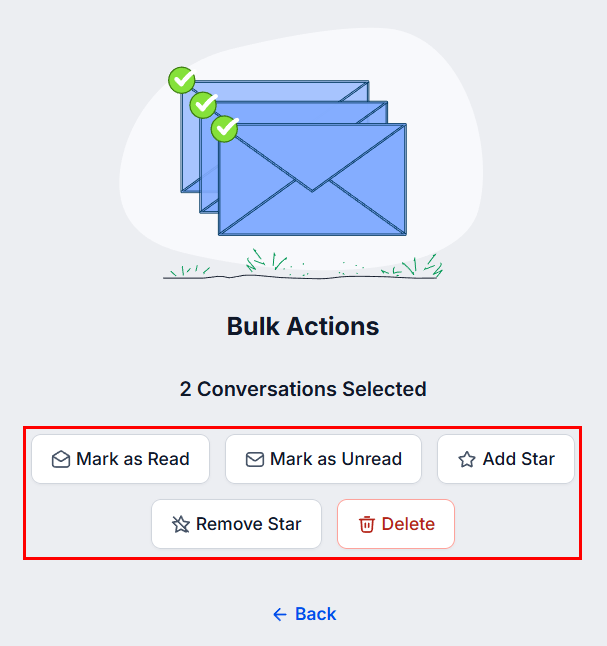
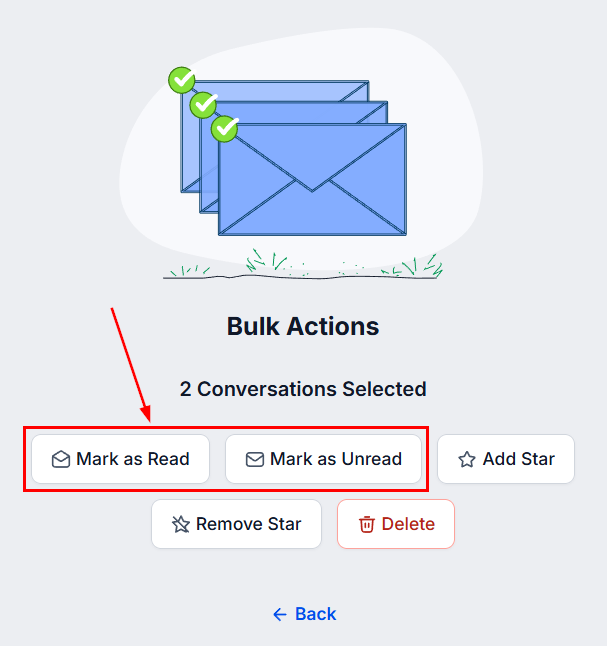
Mark As Read/Unread
This option will change the Read status for the message. If you select Mark As Read, the message will no longer show as needing a response. If you mark messages as Unread, they will start showing a notification.
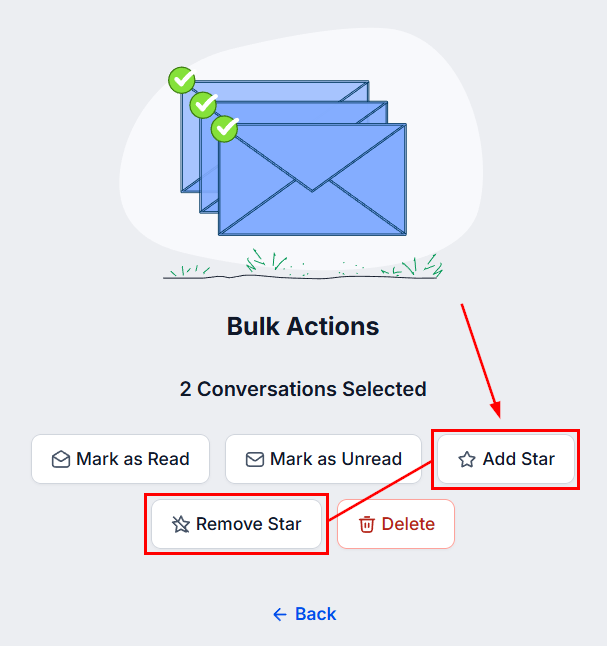
Starred Conversations
If you want to highlight important conversations for quick identification, use the star feature to move them to the Starred tab for easy access. If you’d like to remove conversations from that tab, select Unstarred.
Delete
Selecting this option will delete all messages and related activities from the CRM. After clicking, you will be prompted to confirm the deletion.
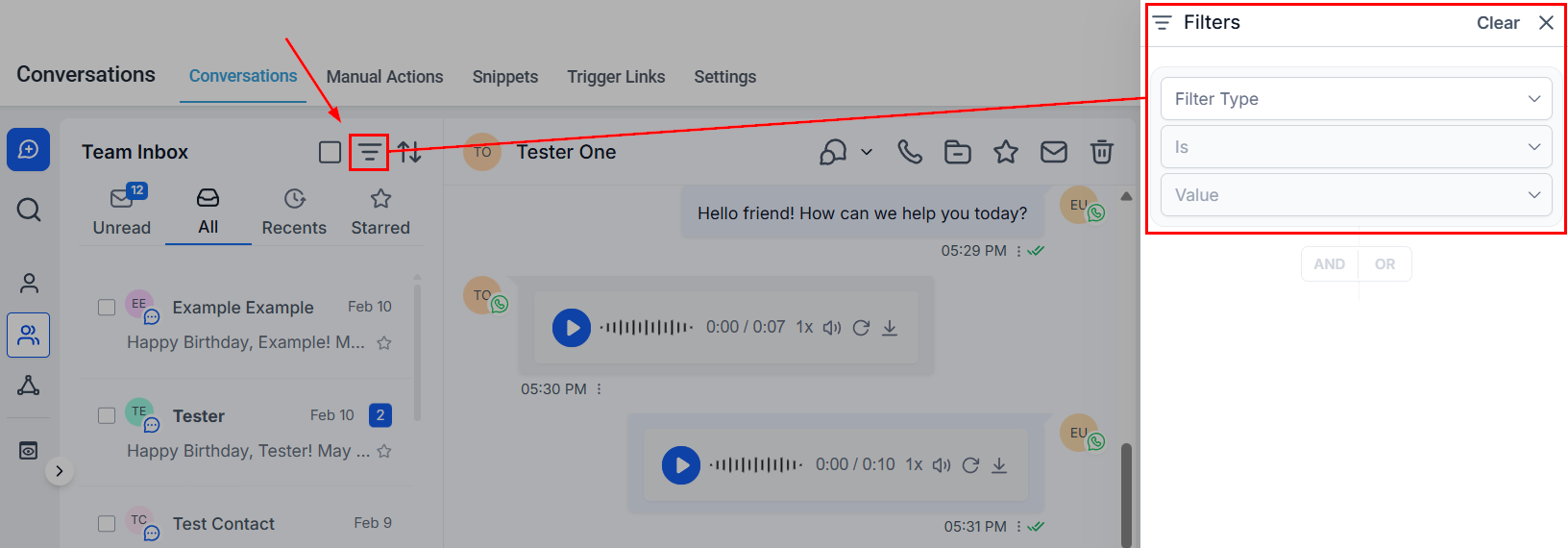
Filtering Conversations (Quick Filters)
Conversation Filters also allow you to narrow your view based on specific criteria. These filters help you find the conversations you need quickly.
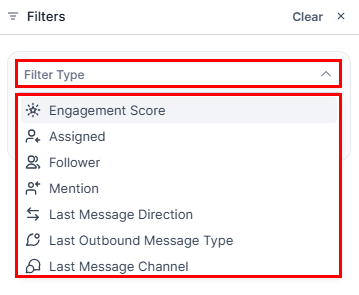
Here are the available filters:
- Engagement Score: This prioritizes conversations based on the level of interaction from the contact. Higher engagement scores indicate more active communication.
- Assigned: Separates the conversations based on the person responsible for the contact.
- Follower: This filters conversations according to who is following the contact. You can view contacts you follow or those followed by a specific user.
- Mention: This enables you to find conversations where specific users are mentioned, including mentions of yourself or another user.
- Last Message Direction: This separates the messages depending if the most recent one was inbound or outbound
- Last Outbound Message Type: This separates the messages from being sent manually or via automation.
- Last Message Channel: This separates the messages depending on the source of the most recent message.
- Tag: Filters conversations based on assigned tags, allowing you to quickly organize or locate messages associated with specific topics, campaigns, or categories.
- SLA: Sorts conversations according to their Service Level Agreement status, helping you monitor response times and ensure timely follow-ups in line with defined support standards.
Once you have selected your desired filters, click Apply.
Sorting Conversations
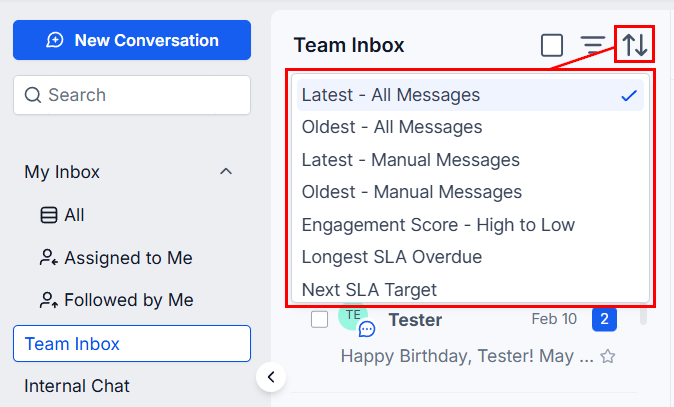
You can sort your conversations to make them easier to navigate. Sorting can be done in various ways by combining:
- Latest: This arranges conversations from the newest to the oldest.
- Oldest: This does the opposite, arranging conversations from the oldest to the newest.
- All messages: This shows all messages, automated and manual.
- Manual messages: This shows only manually sent messages.
- Engagement Score (High to Low): Here, you can rank conversations from the highest to the lowest engagement score.
- Longest SLA Overdue: Displays conversations with the most overdue Service Level Agreements first, allowing you to prioritize responses that are furthest past their due time.
- Next SLA Target: Shows conversations based on the upcoming SLA deadlines, helping you address those that are approaching their target response times.
You can also use sorting in combination with the Quick Filters mentioned earlier to help you structure your conversations more effectively.
By utilizing these Conversation Filters and Bulk Actions, you can better manage your messages, stay organized, and handle your conversations with efficiency. These tools are designed to make your communication tasks smoother and more manageable.
Not a Funnelbud customer yet?
Try our all-in-one CRM for sales and marketing — free for 7 days, no commitment.