AI Decision Maker Action
AI Decision Maker is an intelligent, AI-powered branching tool that replaces manual if/then logic in your automations. It interprets natural language instructions and evaluates contact data to determine the most appropriate workflow branch for each contact—helping you deliver smarter, faster, and more accurate responses at scale.
📌Note: The Decision Maker action is premium. Using this action will incur additional charges per execution.
Key Benefits
- Reduced Workflow Maintenance: AI dynamically adapts to changes in contact data, minimizing the need to frequently update filters or logic rules.
- Scalable and Efficient: Whether you’re processing hundreds or thousands of contacts, the AI ensures smooth routing without compromising performance.
- Minimizes Human Error: Logic-based automation eliminates inconsistencies caused by manual routing or outdated rules.
- Natural Language Input: Use plain English instructions instead of complex logic blocks—no technical knowledge required.
How to Set Up The AI Decision Maker
Inside the workflow builder, set up a workflow trigger (e.g., “Contact Changed” or “Form Submitted”) before adding the AI action.
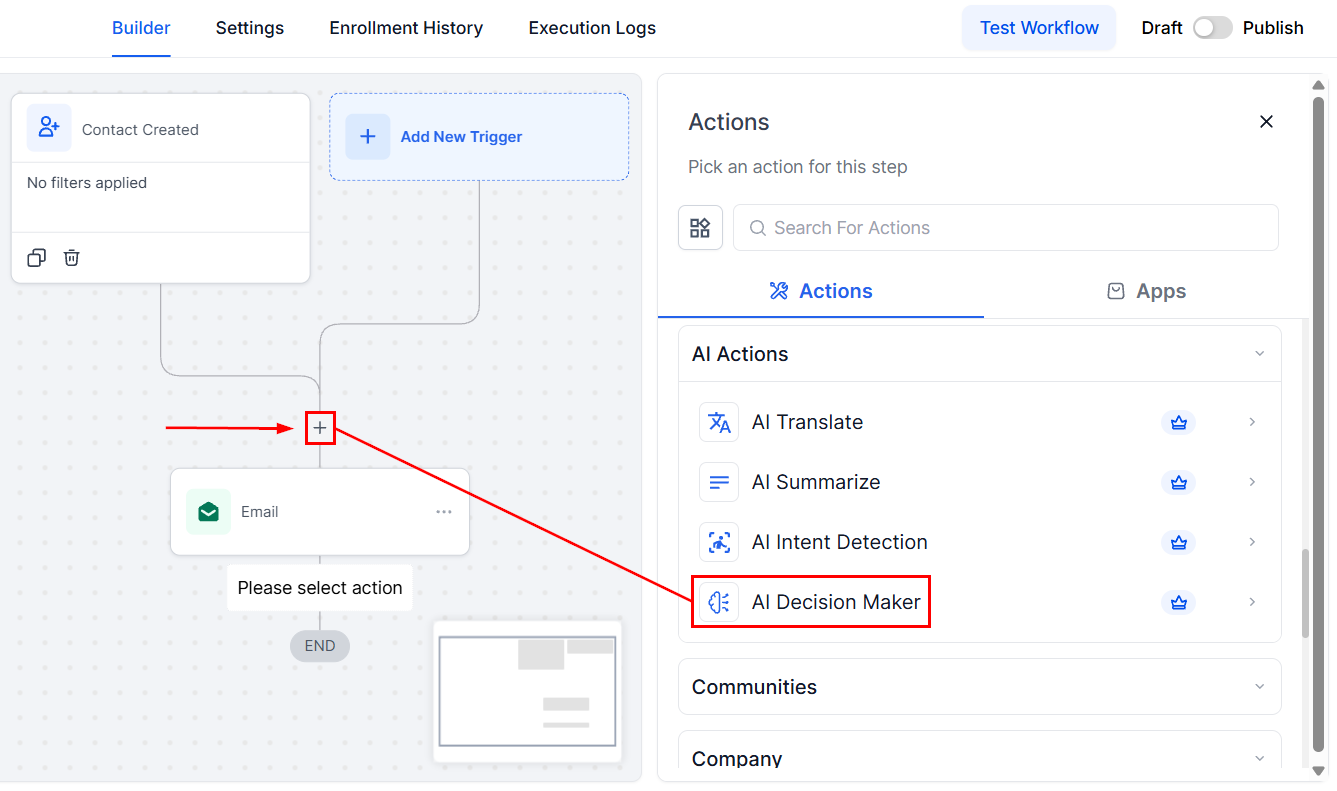
Next, click the + icon where you want the decision to occur. From the right panel, scroll to AI Actions and select AI Decision Maker.
Name the Action
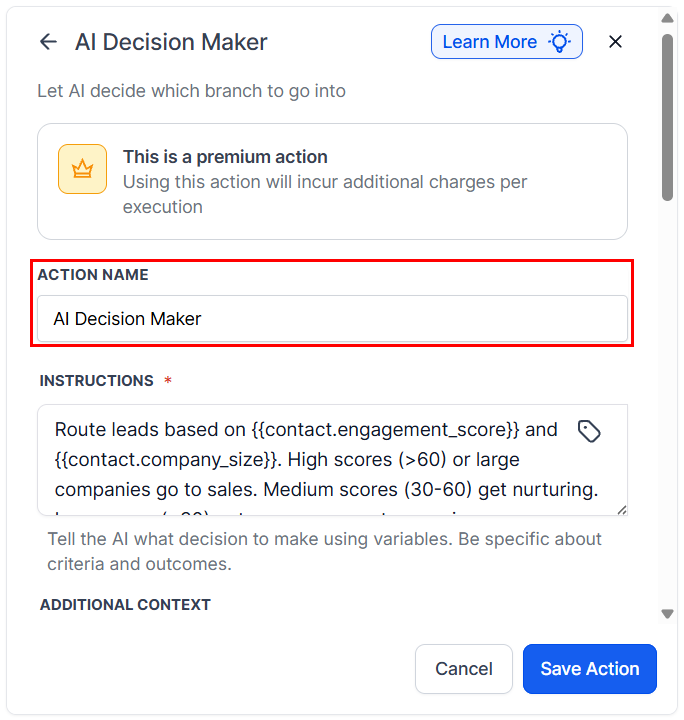
Provide a clear and descriptive name under Action Name to easily identify this step later, especially when using multiple branches or AI actions.
Write Clear Instructions for the AI
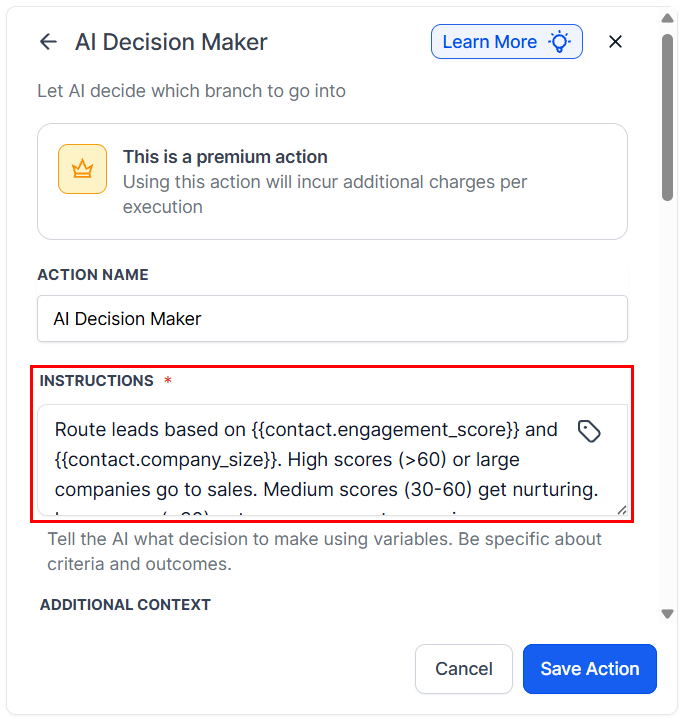
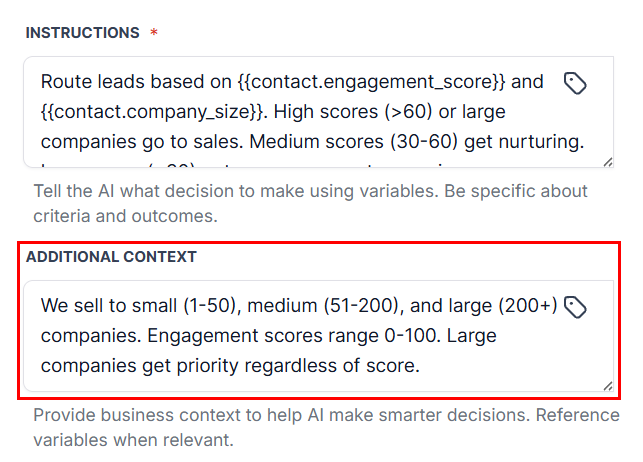
In the Instructions field, explain what the AI should consider when routing contacts. Be specific and use plain language.
Example: “Evaluate the contact’s engagement score and company size. If the score is above 60 or the company size is large, send to sales. If the score is between 30–60 and the company is small/medium, send to nurturing. If the score is below 30, send to re-engagement.”
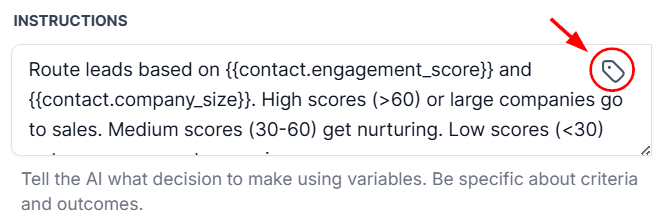
You can also insert dynamic fields using the custom value picker (tag icon) to reference actual contact data like: {{contact.engagement_score}}, {{contact.company_size}}, and {{contact.tags}}.
📌Note: Without relevant data, the AI cannot make accurate decisions. Always include key contact fields or workflow data.
Add Business Context
In the Information field, provide background about your business to improve the AI’s decision-making accuracy. This could include your product range, customer segments, or sales capacity.
Example: “We provide services to companies with 10–500 employees. Small = 1–50, Medium = 51–200, Large = 200+. Our sales team can manage up to 20 leads per week. Engagement scores range from 0–100.”
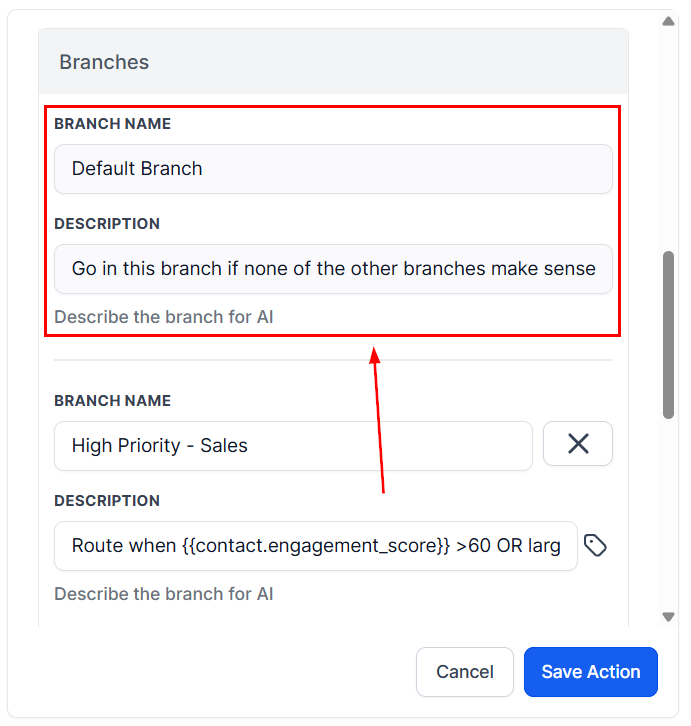
Default Branch (Mandatory)
The Default Branch is automatically included and serves as a fallback for any contact that doesn’t meet your defined rules.
- Name: Fixed as “Default Branch”
- Description: Explains fallback criteria
📌Note: The Default Branch cannot be renamed or deleted.
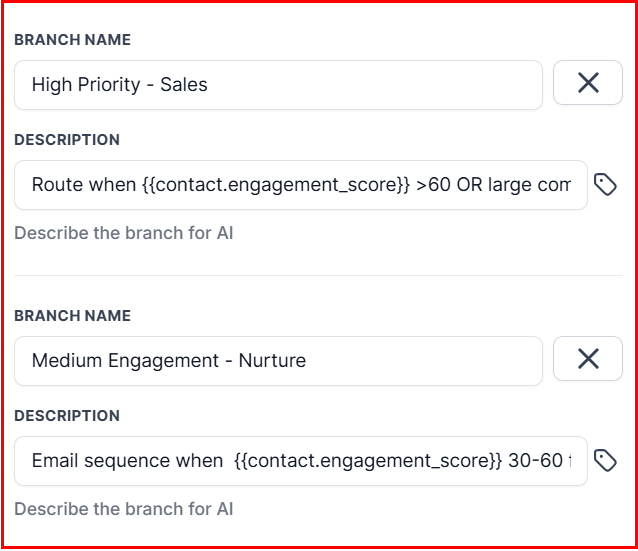
Add a Custom Branch
For each unique routing path, define a custom branch:
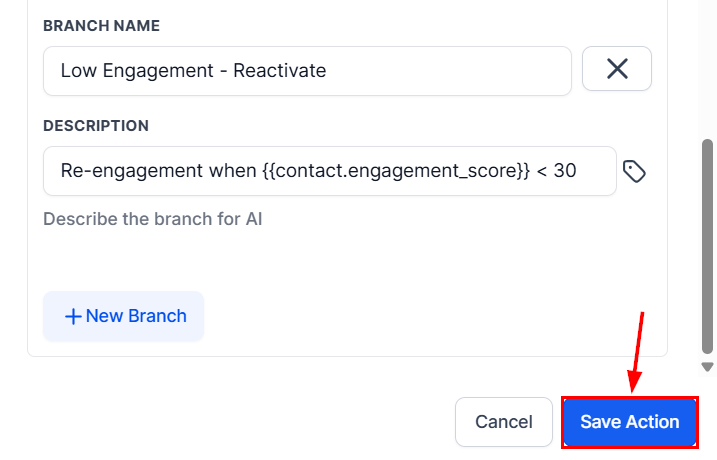
- Branch Name: e.g., “Send Discount Offer.”
- Description: Define the qualifying conditions.
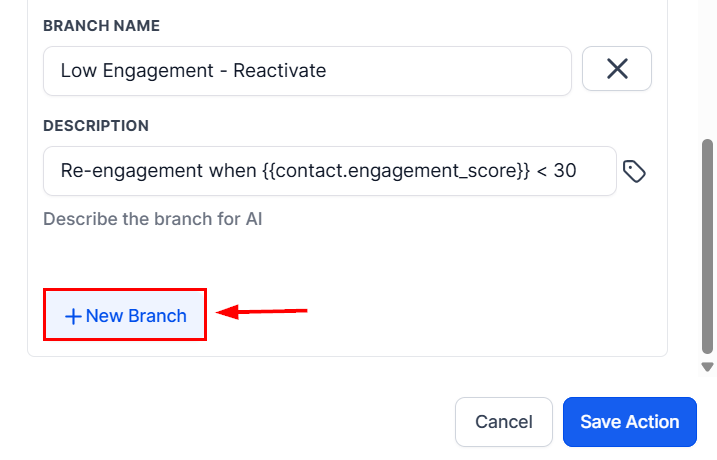
Add Additional Branches
Click + New Branch to create more paths. These can be used for different audience segments or actions like sending product education, re-engagement content, or promotional offers—based on contact data or behavior.
Save the Action
Once all branches and AI instructions are complete, click Save Action. Your AI Decision Maker is now active and ready to make smart routing choices within your workflow.
The AI Decision Maker transforms how you manage contact routing by replacing rigid, rule-based logic with flexible, intelligent automation. With minimal setup, you can scale personalized journeys, increase operational efficiency, and improve lead handling across your entire account. Whether you’re nurturing prospects, qualifying leads, or segmenting audiences, this tool ensures you’re always one step ahead—smartly and effortlessly.
Frequently Asked Questions
Q: How does the AI determine which branch to use?
- The AI reads your plain-language instructions and evaluates available contact data to determine the best-fit branch.
Q: What happens if a contact doesn’t match any rules?
- They are automatically routed to the Default Branch.
Q: Can I edit or delete the Default Branch?
- No. It’s a required safety net to ensure every contact has a valid path.
Q: How do I track which path a contact followed?
- Use the Execution Logs tab in the workflow to view the route taken by each contact.
Q: Can I use data from forms or surveys?
- Yes. You can include data from earlier workflow steps, form submissions, or surveys using the variable picker.
Not a Funnelbud customer yet?
Try our all-in-one CRM for sales and marketing — free for 7 days, no commitment.