Funnel Builder Overview & Settings
The Editor section is the heart of your funnel or website builder, offering a powerful suite of tools to bring your vision to life. Whether you’re designing a sleek landing page, a multi-step sales funnel, or a fully functional website, this section provides everything you need to create, customize, and optimize your pages.
Add Elements
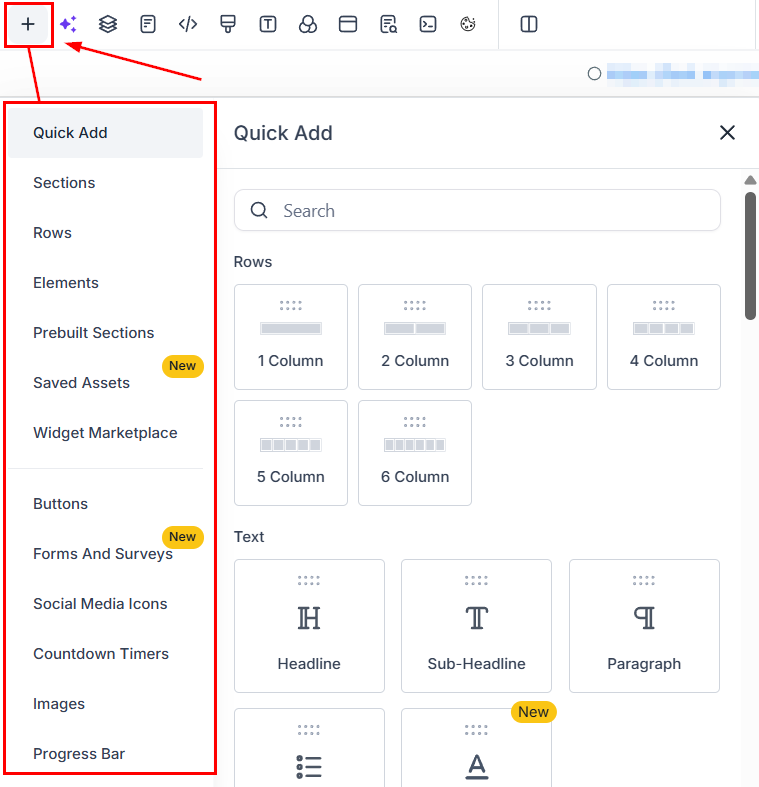
This is where you can add various components to your page. Here’s a breakdown of the options:
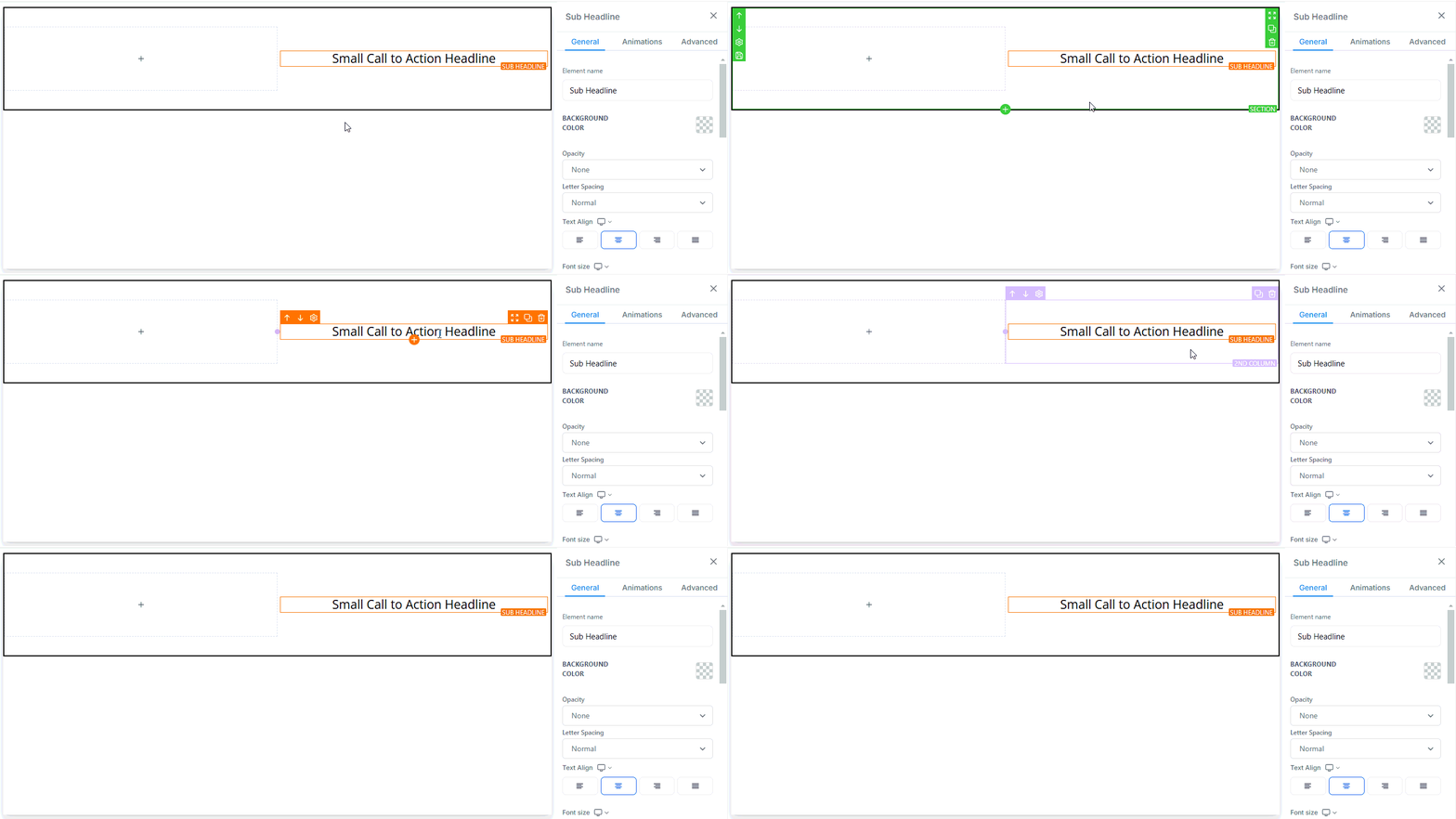
- Sections: Represented by green, these are the largest building blocks of your page.
- Rows: Shown in blue, rows help organize content horizontally within a section.
- Columns: Displayed in lilac, columns allow you to split rows into vertical sections.
- Elements: Marked in orange, these are the individual components like text, images, or buttons.
You’ll also find additional options like:
- Prebuilt Sections: Pre-designed layouts to speed up your workflow.
- Saved Sections: Reusable sections that can be applied across multiple pages.
- Widget Marketplace: A library of widgets to enhance your page’s functionality.
- Buttons: Add call-to-action buttons to guide your visitors.
- Forms and Surveys: Create, add, and manage forms or surveys directly within the builder.
- Social Media Icons: Integrate links to your social profiles.
- Countdown Timers: Create urgency with time-sensitive elements.
- Images: Insert visuals to make your page more engaging.
- Progress Bars: Show progress for goals, sign-ups, or other metrics.
Layers
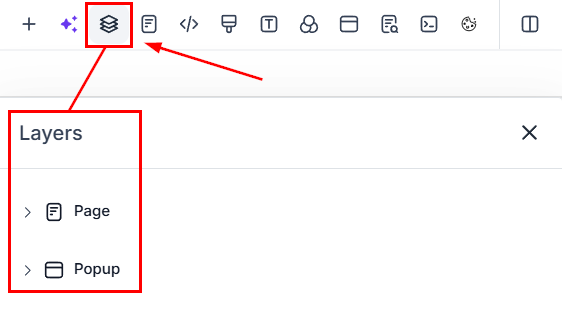
The Layers panel helps you manage the structure of your page:
- Page: View and organize the main content of your page.
- Popup: Manage popup layers for additional interactivity.
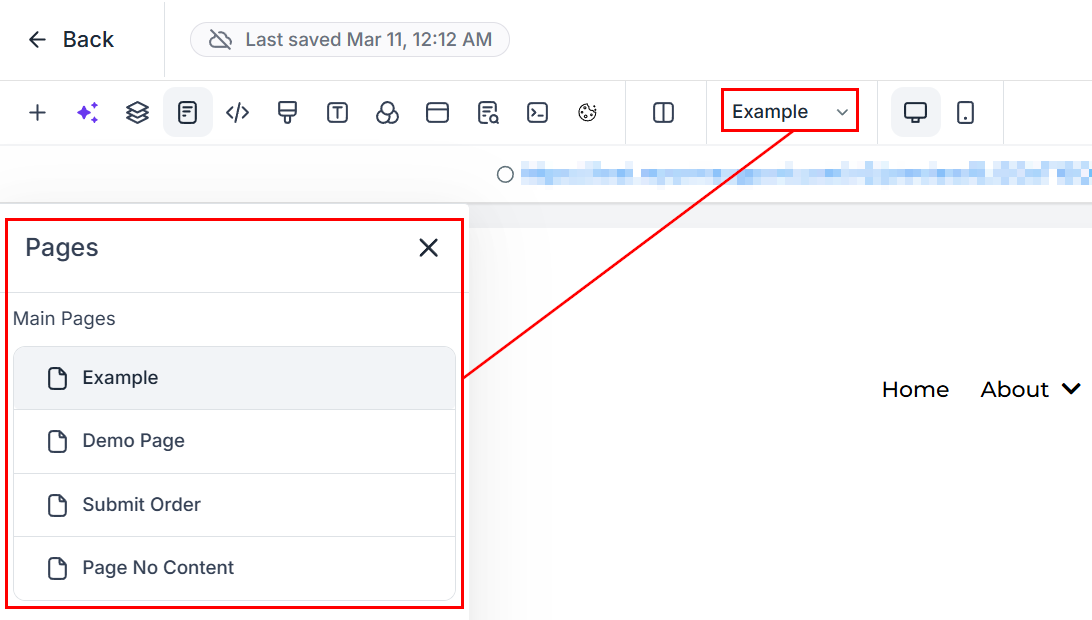
Pages
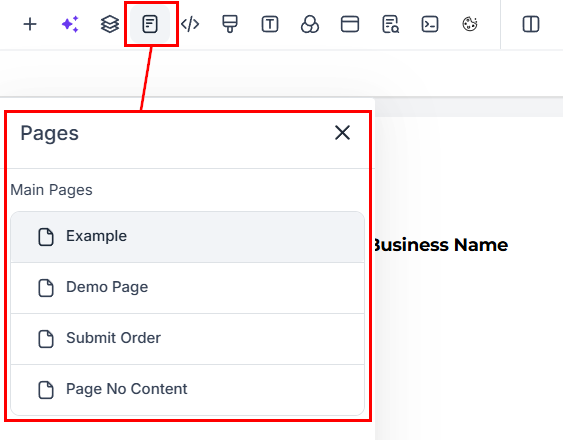
This section lists all the pages in your funnel or website. You can easily navigate between them to make edits or updates.
Tracking Code
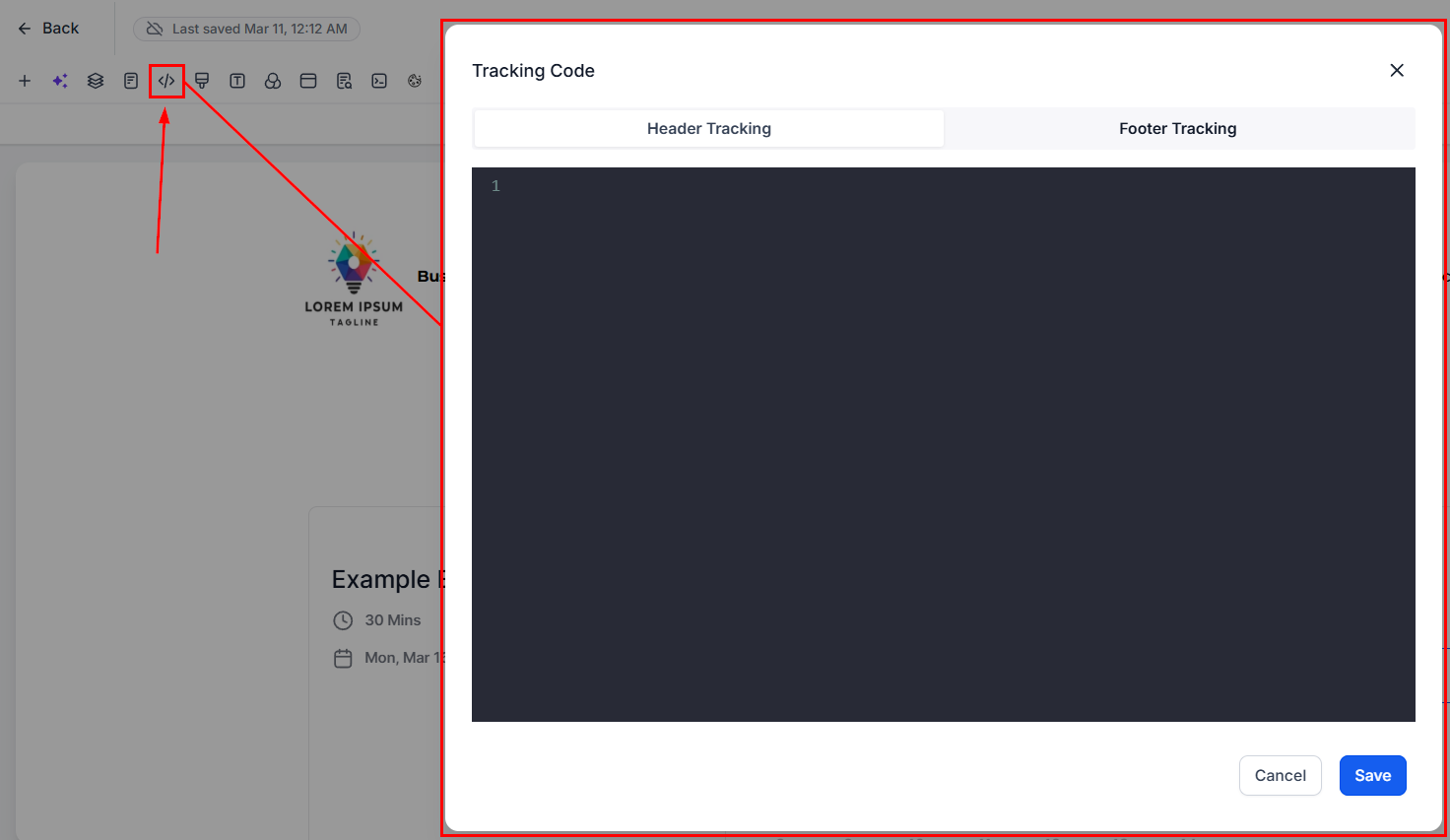
To add tracking codes to your page, click on the Tracking Code option from the page features. A popup will appear for you to import your Header or Footer code.
Custom CSS
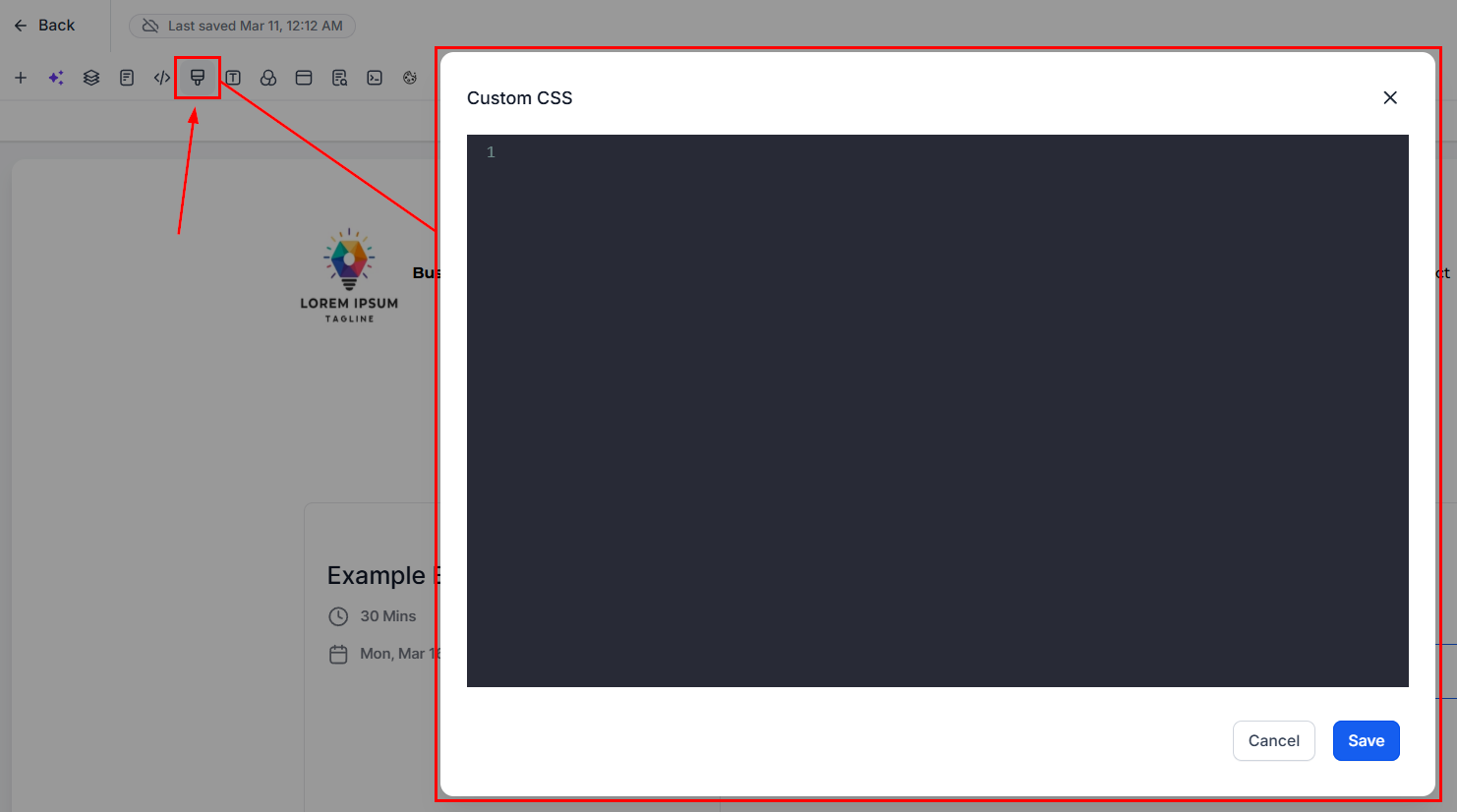
You can also add Custom CSS via the page features. A popup will appear here as well for you to input your custom CSS code.
Typography
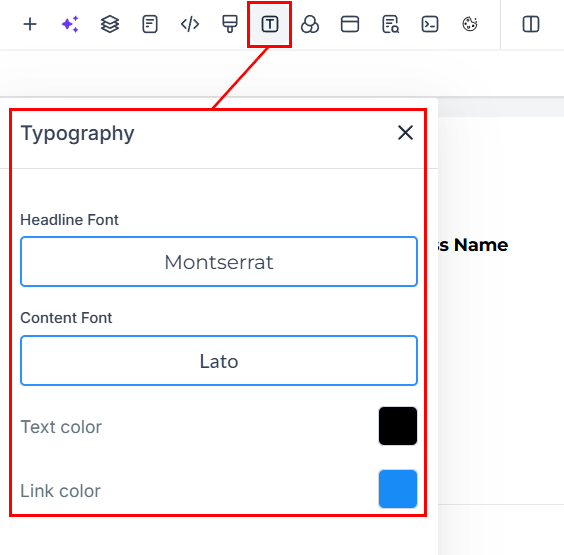
Access the Typography option among the features to modify the Text and Link color from the default Black or Blue to a color of your choice. However, keep in mind that you can only change the entire text to a single color. Additionally, you can adjust the font size of your Headlines and Content.
Background
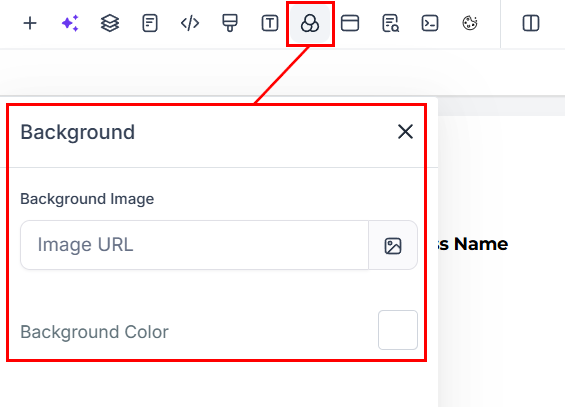
To change the appearance of your page, select the backgrounds option. This will allow you to modify the background color by choosing from a selection of colors. If the desired color is not available from the displayed options, you can add your custom color by selecting the option and typing in your custom color code.
Popup
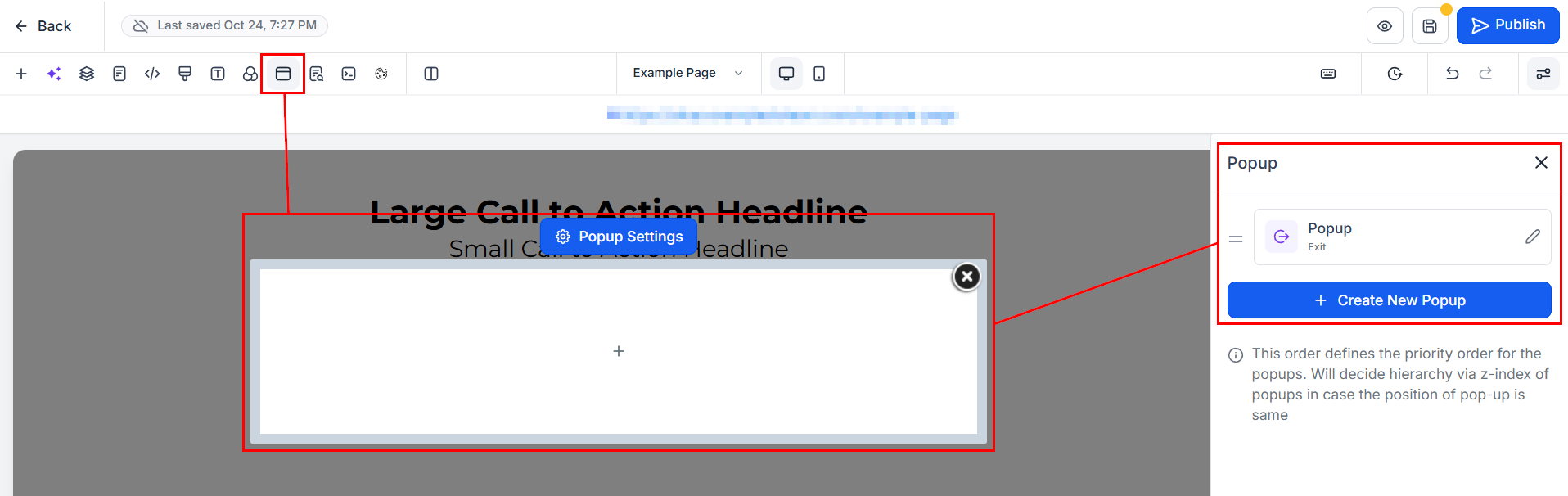
By selecting the pop-up button, you have the option to incorporate a pop-up into your funnel or website, providing an additional interactive element for your visitors. To make further adjustments to the pop-up, click the Open Popup Settings button, which allows you to customize its appearance and functionality according to your preferences and goals.
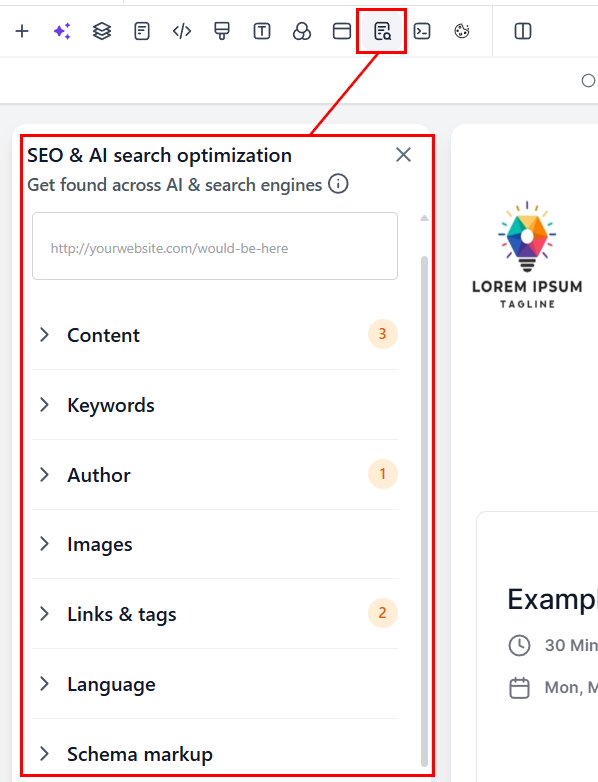
SEO Meta Data
📌NOTE: Change the Default SEO Page Title and description.
- SEO Preview: If you want to preview your SEO page, scroll down below the “SEO Preview” button. It gives you a sneak peek of what your website will look like in search results.
- Content: Add or edit the main content of your page to ensure it’s relevant and engaging for your audience.
- Keywords: Include common keywords in the Keywords field to help your page appear in relevant search results.
- Author: Enter the author’s name in the appropriate field to give credit and establish authority.
- Social Image: Upload an image or logo to represent your page when it’s shared on social media platforms.
- Link & Tags: Add relevant links and tags to improve navigation and categorization for both users and search engines.
- Language: Specify the language of your page to ensure it’s indexed correctly and reaches the right audience.
Preview Custom Code
For a view of any Custom Codes you’ve included, hit the Preview Custom Codes button.
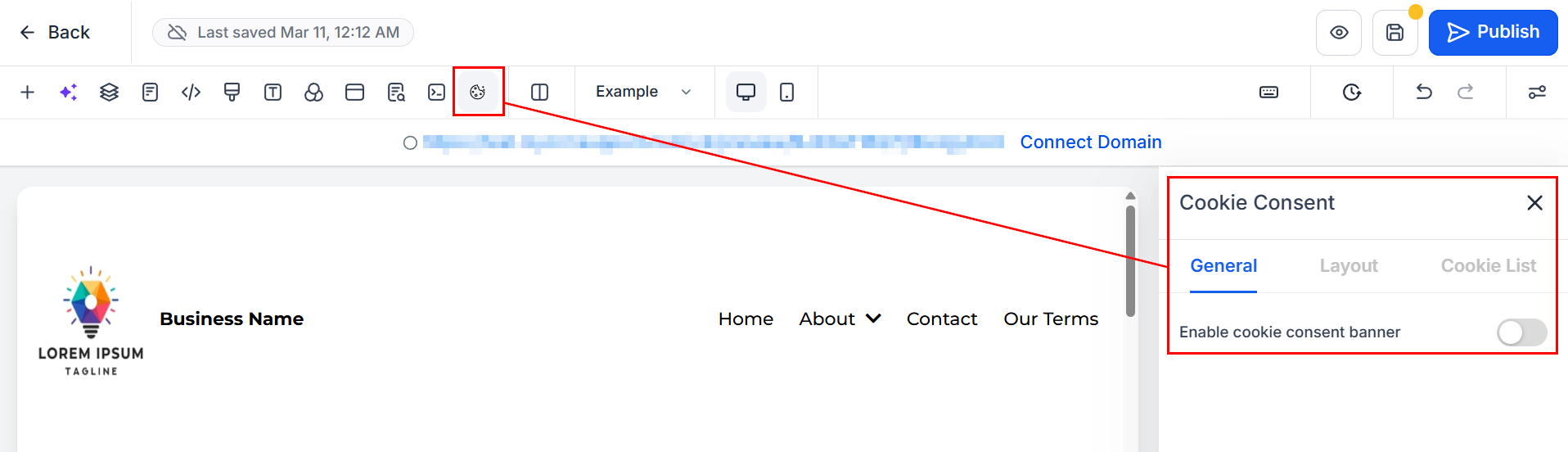
Cookie Consent
Add a cookie consent banner to comply with privacy regulations. This ensures your visitors are informed about how their data is used.
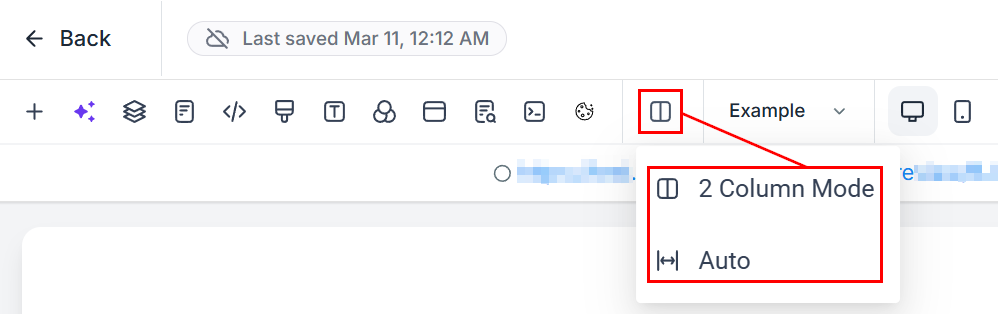
Columns
Use columns to organize content vertically within a row. This is especially useful for creating side-by-side layouts or dividing content into sections.
Pages Dropdown
The Pages Dropdown lets you quickly switch between different pages in your funnel or website, making it easy to manage multiple pages at once.
Desktop and Mobile View
In the middle of the page builder, you’ll find icons representing a phone and a desktop. Toggle between them to preview how your page looks on different devices, ensuring a seamless experience for all users.

Versions
The Versions button allows you to review past changes made to your page. This helps track progress or revert to a previous design.

Do and Undo
Use the Undo arrow to reverse your last action. If you change your mind, click the Redo arrow to reapply the change.

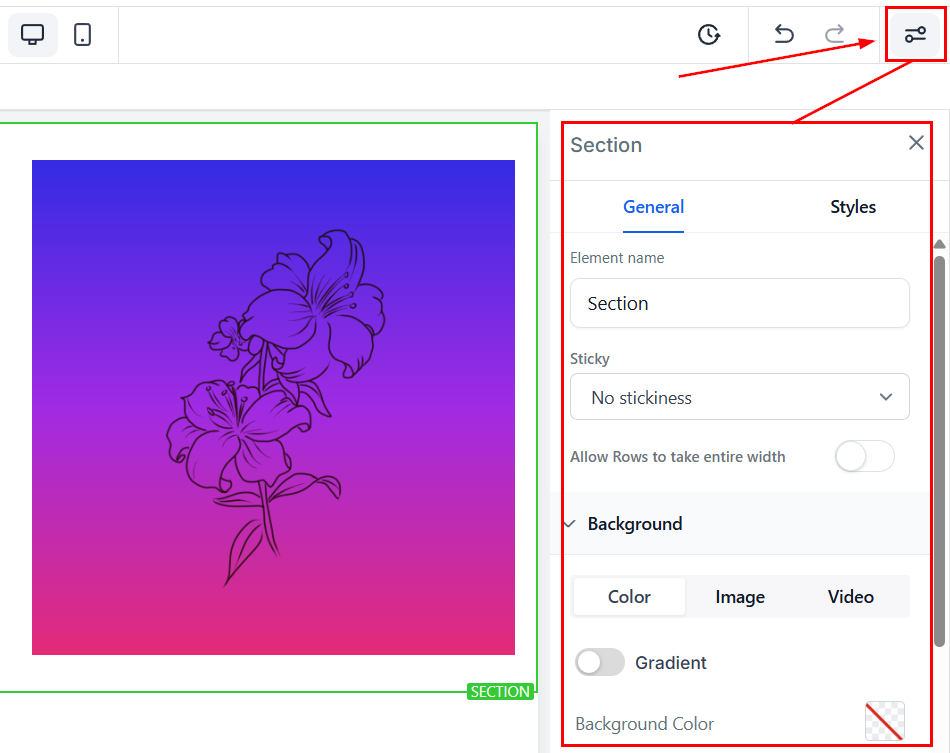
Option Settings
To access page settings, click the Settings dropdown menu located in the upper right corner of the page. Here, you can modify the general and advanced settings of any of your selected options (Section, Row, Column, and Element).
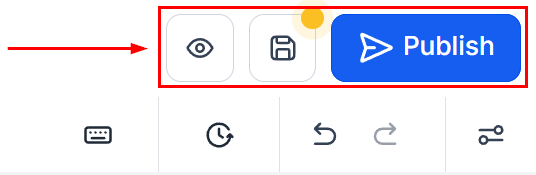
Lastly, the upper right corner of the page has several icons to help you manage your funnel. One is the Preview button that allows you to view how your funnel looks online. Don’t forget to save changes by clicking on the Save button and Publish the page to effect the changes to your funnel/website.
There you go, now you’re ready to tackle the funnel-building process with confidence!
Not a Funnelbud customer yet?
Try our all-in-one CRM for sales and marketing — free for 7 days, no commitment.