Meta Conversion API Action
Through the Meta Conversion API workflow action, advertisers can transmit web events directly to Meta from their servers. This feature bypasses the third-party block enforced by iOS, as well as Chrome and AdBlocker.
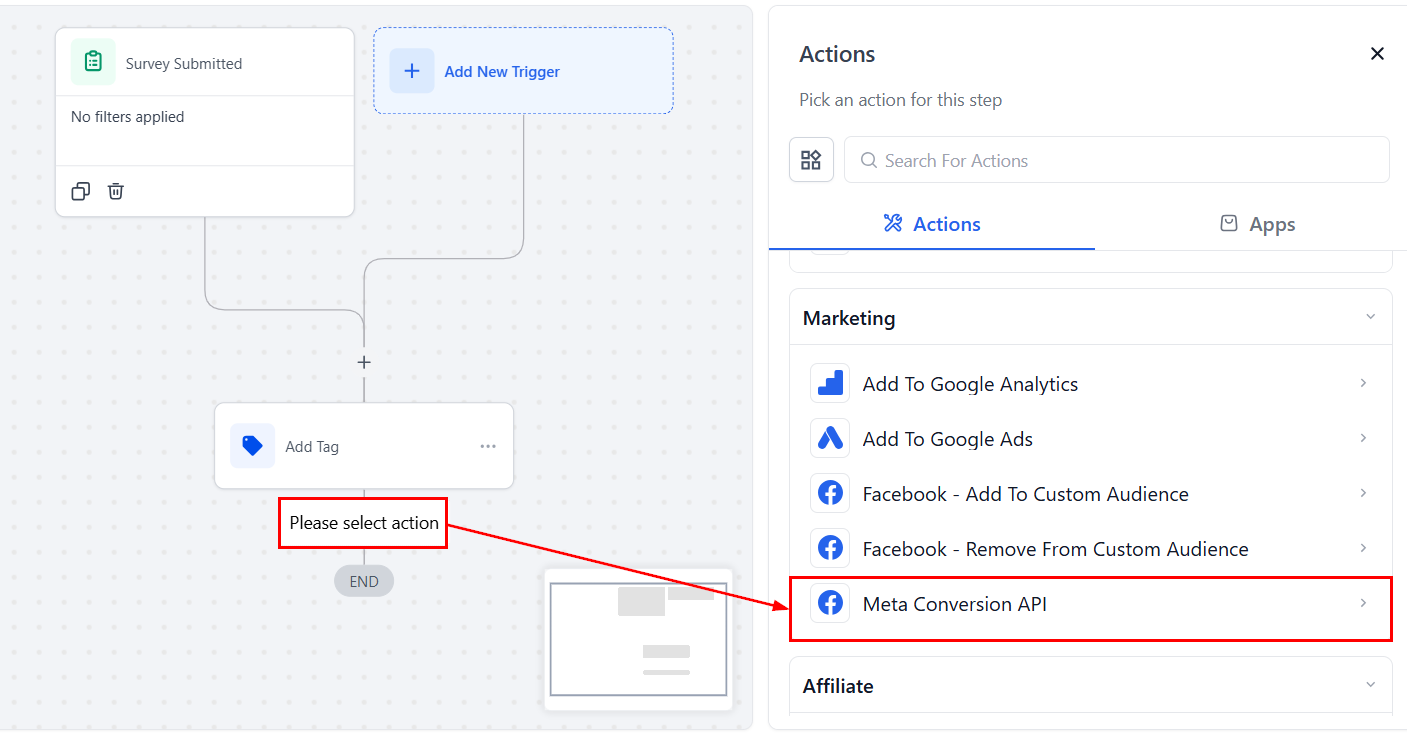
General Settings
Connection Type
Select the type you’d like to use for the Meta API; keep in mind that this will define the information you need to fill out.
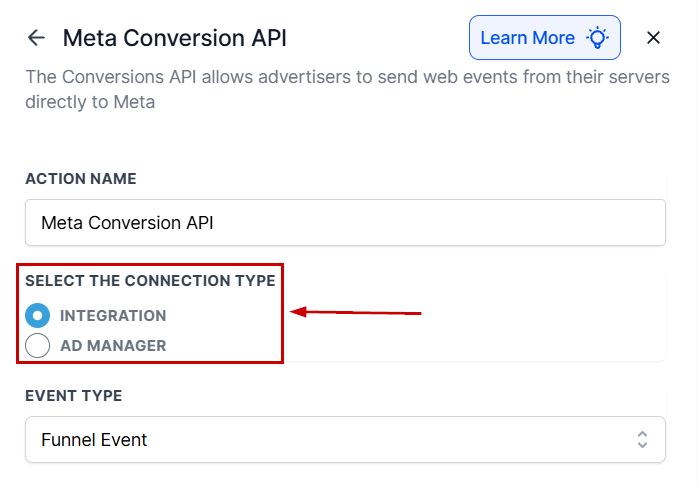
Select an Event Type; you have three options:
- Funnel Events: These events are sent from a web server to record when the user interacts with it.
- Lead Events: These events are triggered when a Lead moves across the pipeline stages.
- Instagram DM: These events track interactions that happen via Instagram Direct Messages.
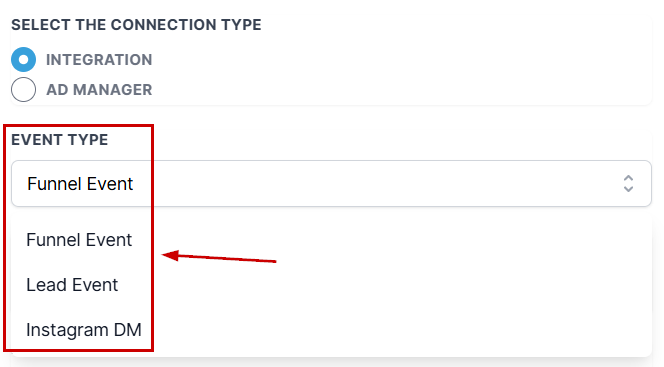
Access Token
To add an Access Token to your workflow for Meta’s Conversion API, begin by navigating to the Meta Business Manager section within your Meta account settings. Next, select Generate Access Token within the Conversion API category and copy the token. Finally, paste the token into the designated ‘Access Token’ field in your workflow.
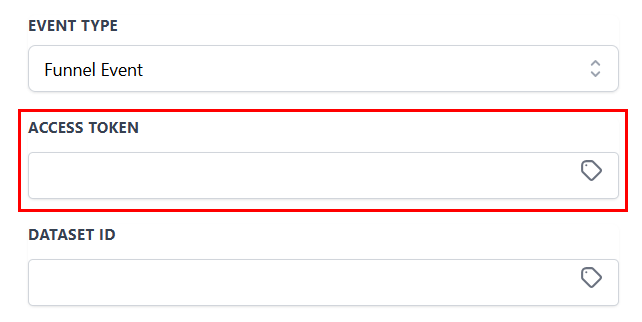
If the business page is new, it may be necessary to set up Social issue, electoral, or political ads settings to access the token. This process may require confirmation of identity.
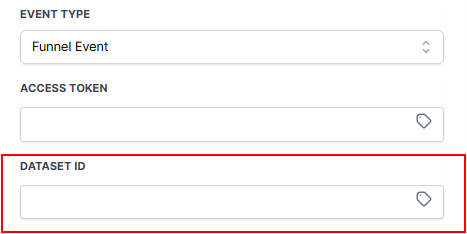
Dataset ID
To set up the Dataset ID for Meta Conversion API in your workflow, go to the Meta Business Manager’s settings and copy the ID under the details section. Then, paste the ID into the designated Dataset ID field in your workflow.
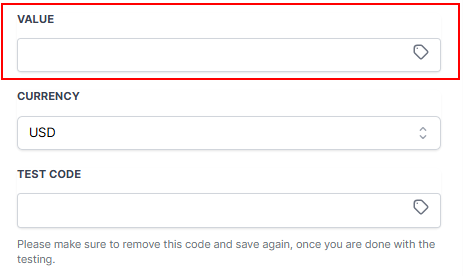
Value
In the Value field, insert the value of the event name selected above. This will create the lead value based on your preferences.
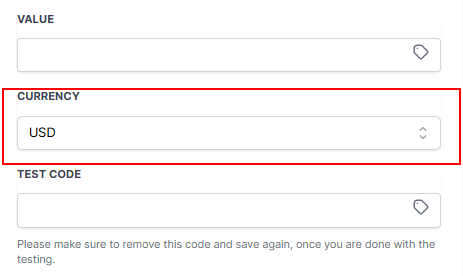
Currency
Add the appropriate currency type in the provided Currency field. The system will automatically set the currency type to USD, but you can change this to your country’s preference.
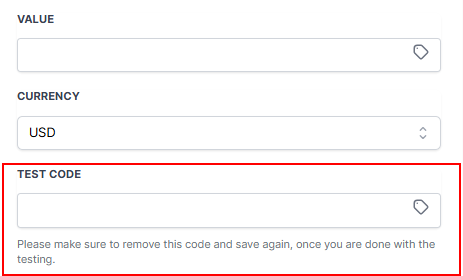
Test Code
To test the workflow, go back to the Business Manager account and click on Data Sources, then find the Pixel you have created. Copy the test code in the test event and paste it into the Test Code field.
Event Type Specific Settings
For the Funnel Event and Instagram DM types, you’ll additionally need to fill out these fields:
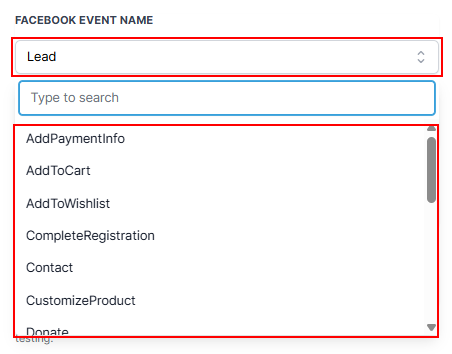
Facebook Event Name
In the Facebook Event Name section, select the appropriate event name from the available options. You can select from items such as contact, lead, add payment info, and more!
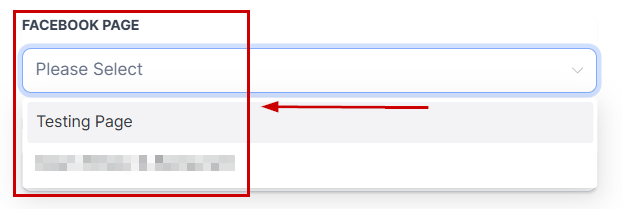
Facebook Page
Select from your connected Facebook pages to connect to your API.
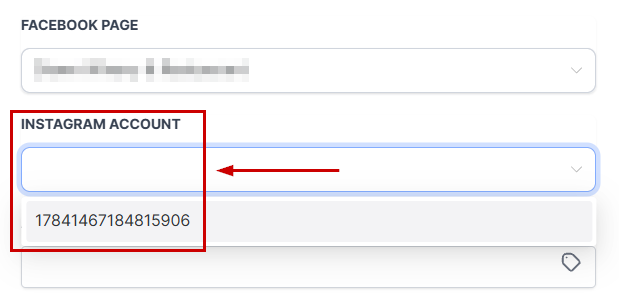
Instagram Account
Select from your connected Instagram Accounts to connect to your API.
Once testing is complete, delete the test code from the field and save the workflow.
Not a Funnelbud customer yet?
Try our all-in-one CRM for sales and marketing — free for 7 days, no commitment.