Update Opportunity Action
The Update Opportunity action allows you to modify key details of an existing opportunity. Whether you need to update the name, value, pipeline stage, or status, this action ensures seamless adjustments without the need for manual intervention.
Action Notes
- With this action, you can easily modify opportunity details, ensuring that your pipeline reflects the most up-to-date information.
- This action is useful for updating an opportunity’s status or moving it to a different stage after a lead takes action. Additionally, it enables seamless transitions between pipelines when opportunities need to be reassigned.
To use this workflow action, go to Automation > Workflows in your CRM and open an existing workflow or create a new one.
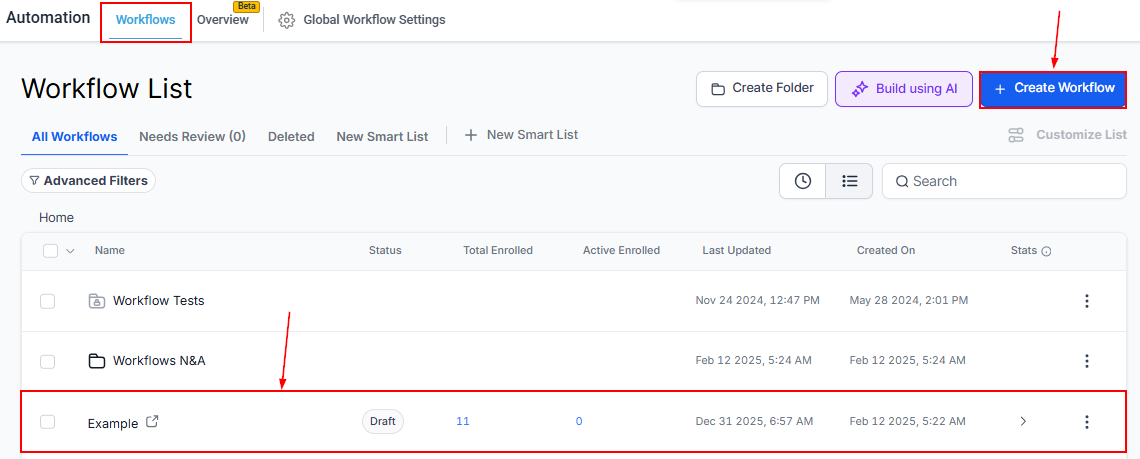
Start by selecting a Trigger to determine when the update should occur.
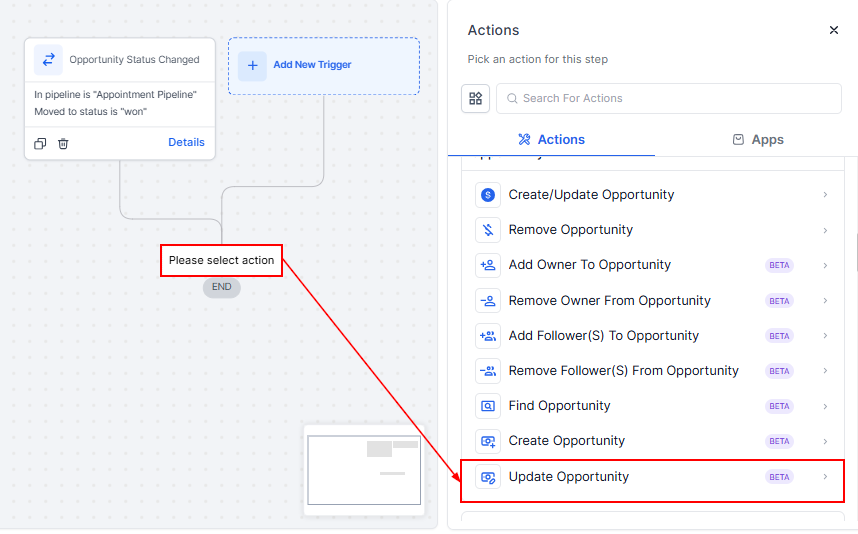
Then, click on the “+” icon to add an action, and search for and select Update Opportunity from the list.
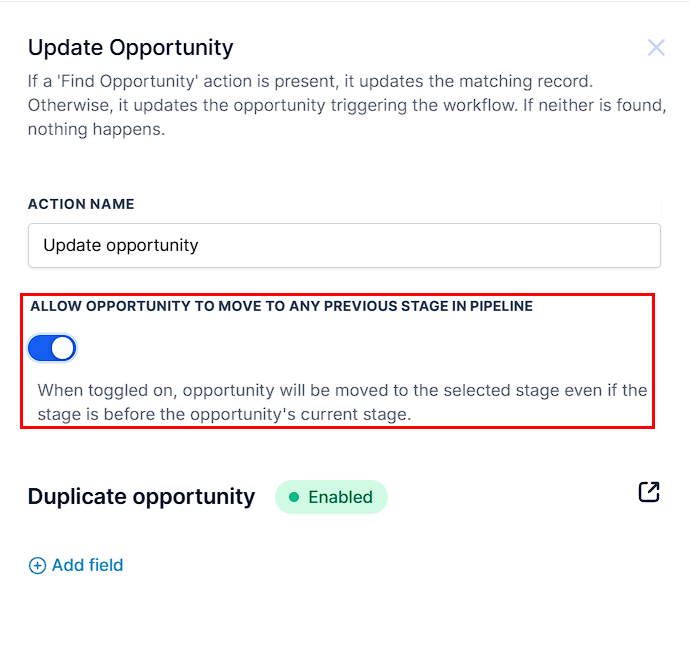
Allow Opportunity
This option lets you move an opportunity to a different stage in the pipeline as needed. When toggled on, the opportunity will be moved to the selected stage even if the stage is before the opportunity’s current stage. This is useful if a lead needs to be revisited or repositioned to an earlier step in the sales process.
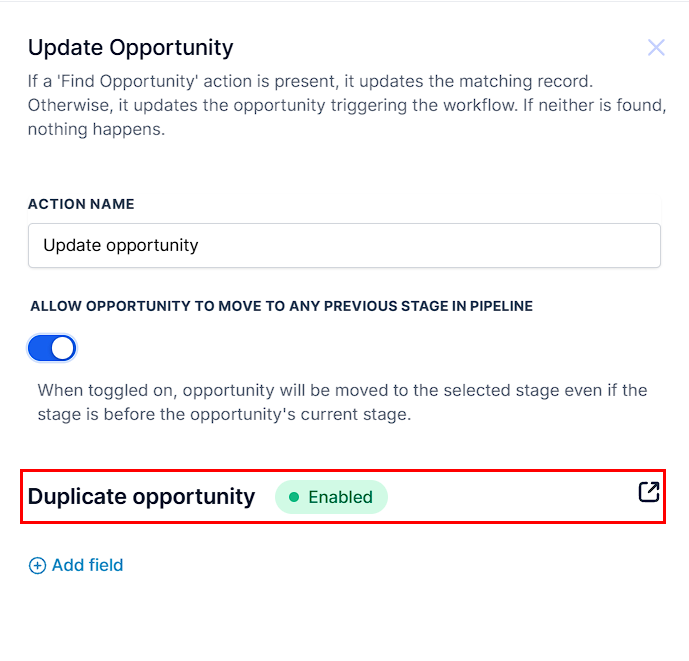
Duplicate Opportunity
This option follows a global rule for handling duplicates. If you click Duplicate Opportunity, you’ll be redirected to Opportunity settings. Once there, locate the Allow Multiple Opportunities for Contact option, then toggle it on or off based on your preference.
This ensures your system manages duplicate opportunities consistently.
Add Field
Select the Add Field option to filter by opportunity name, value, source, pipeline stage, pipeline, and more.
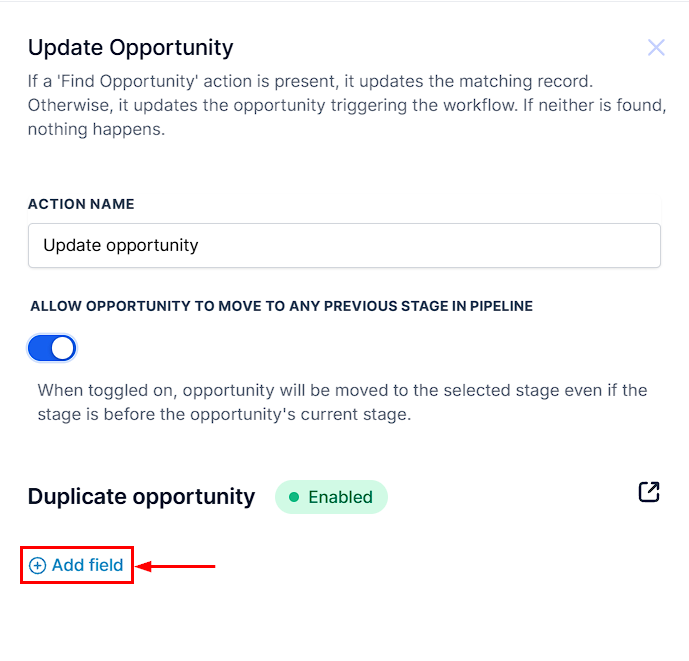
Fields
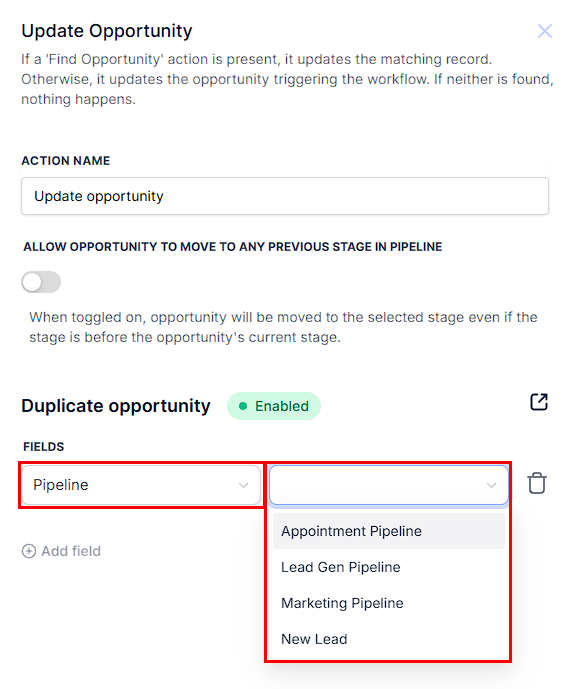
In the dropdown, you can see all available fields that can be modified within this action.
- Pipeline: Choose the pipeline where the opportunity should be updated. This must be selected first to ensure accurate pipeline stage options.
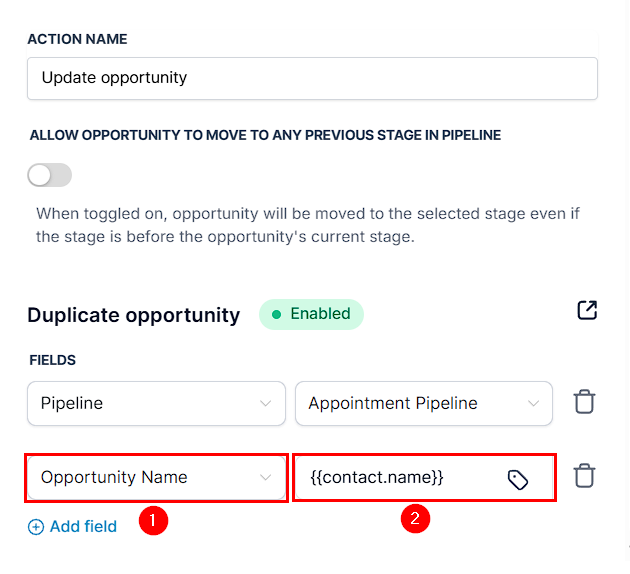
- Opportunity Name: Here, you can modify the name of the opportunity using Custom Fields.
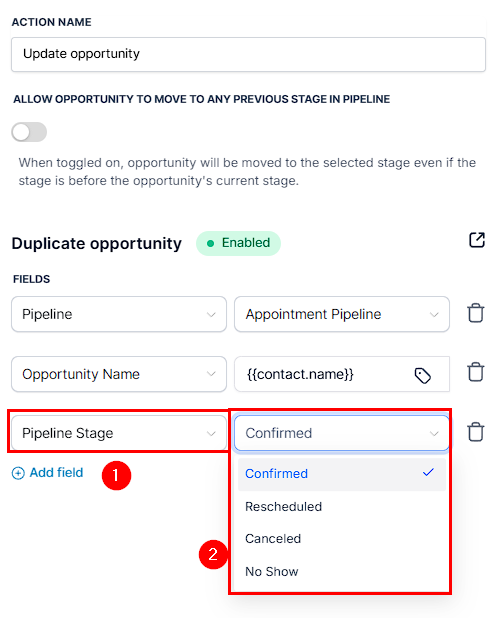
- Pipeline Stage: Adjust the stage of the opportunity within the pipeline. Since the pipeline stage depends on the selected pipeline, ensure the Pipeline field is added first.
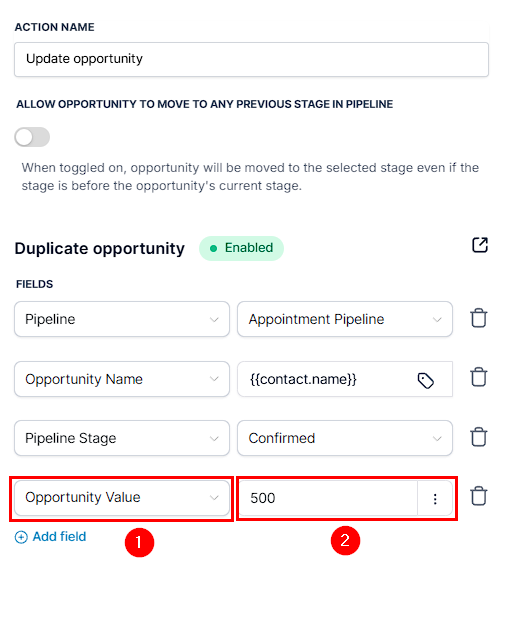
- Opportunity Value: Update the monetary value assigned to the opportunity.
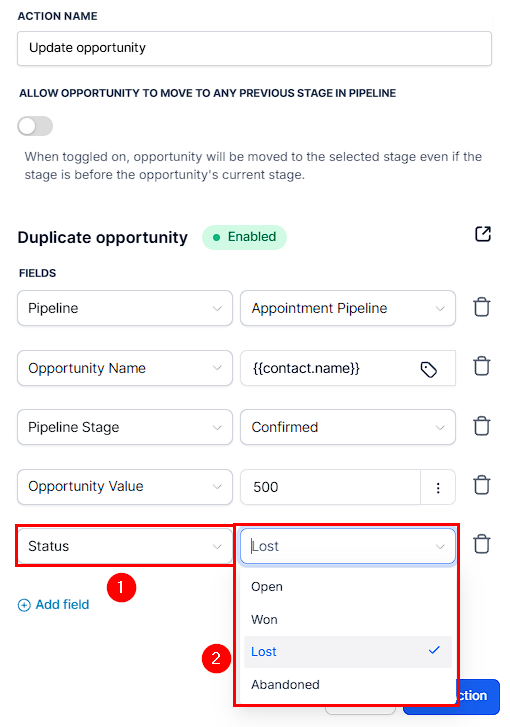
- Status: Change the opportunity’s status (e.g., Open, Closed, Won, Lost).
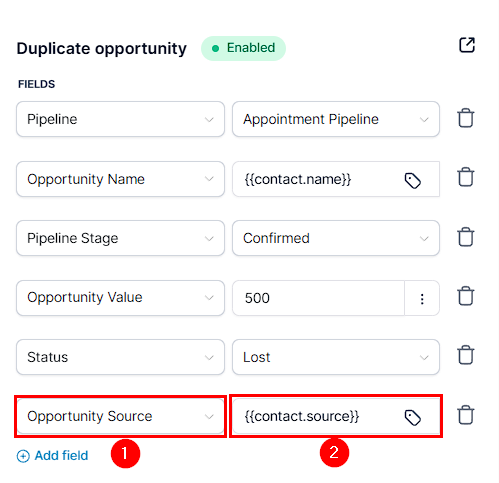
- Opportunity Source: Specify the lead source for tracking purposes.
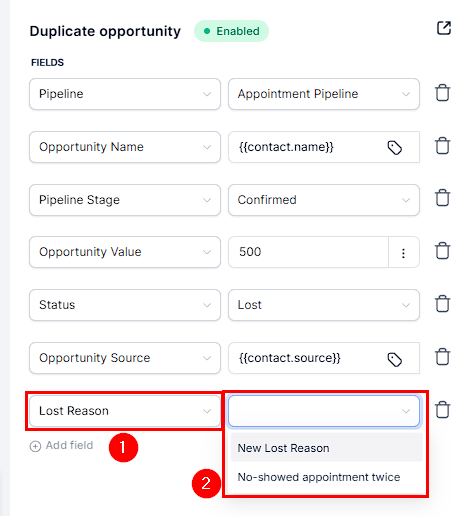
- Lost Reason: If the opportunity is marked as lost, provide a reason. You must add both the Status and Lost fields before specifying a Lost Reason.
Once you’ve configured everything, save the action and publish the workflow to apply the changes automatically.
Using the Update Opportunity action keeps your pipeline organized, reduces manual work, and ensures your opportunities always reflect their most up-to-date status.
Not a Funnelbud customer yet?
Try our all-in-one CRM for sales and marketing — free for 7 days, no commitment.