How to Set Up 2-way Email Sync for Outlook
Using 2-Way Sync for Outlook, FunnelBud Flow users can link their Outlook account with the CRM and sync emails to and from both platforms. Both platforms will create a connection when an email is first sent out from the CRM. All subsequent emails in the thread will be in sync between both platforms.
Steps to connect
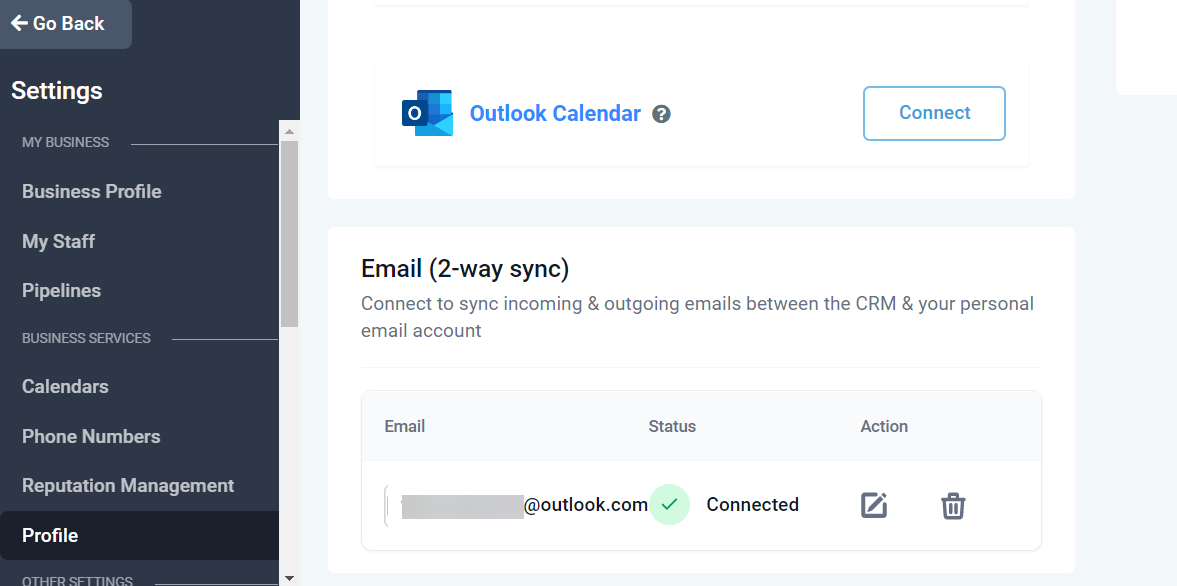
1. Please go to the Settings page. Go to the My Profile tab and scroll down to the section Email (2-way sync)
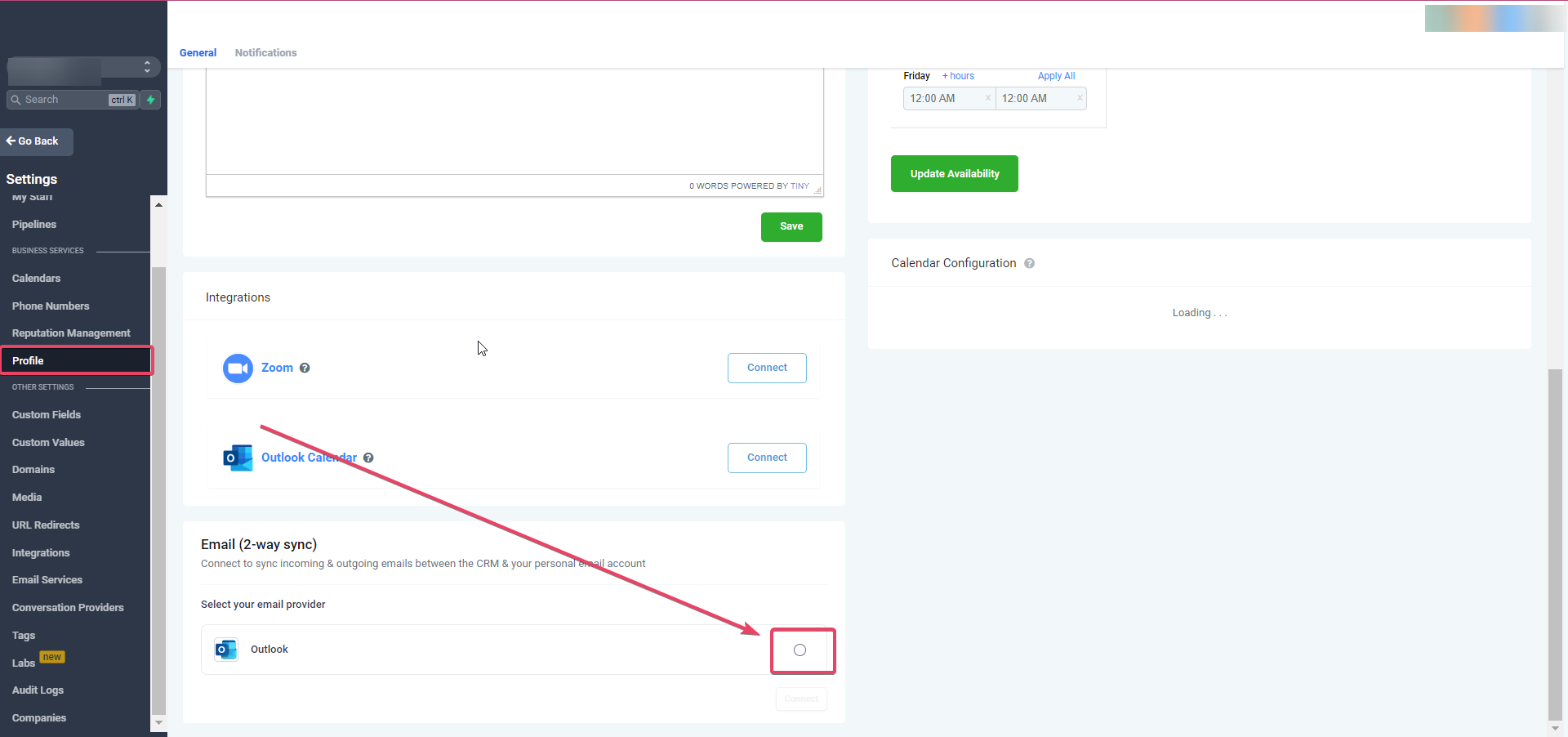
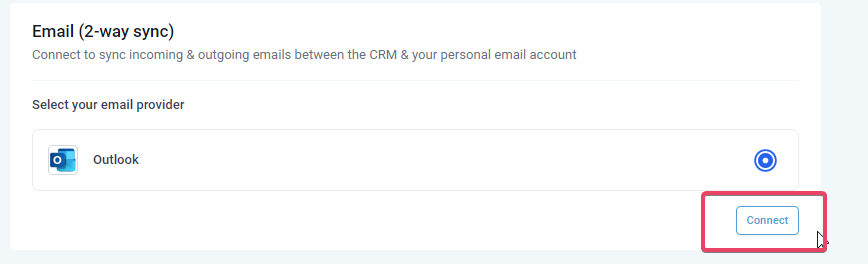
2. Select Outlook, your email provider & click on Connect.
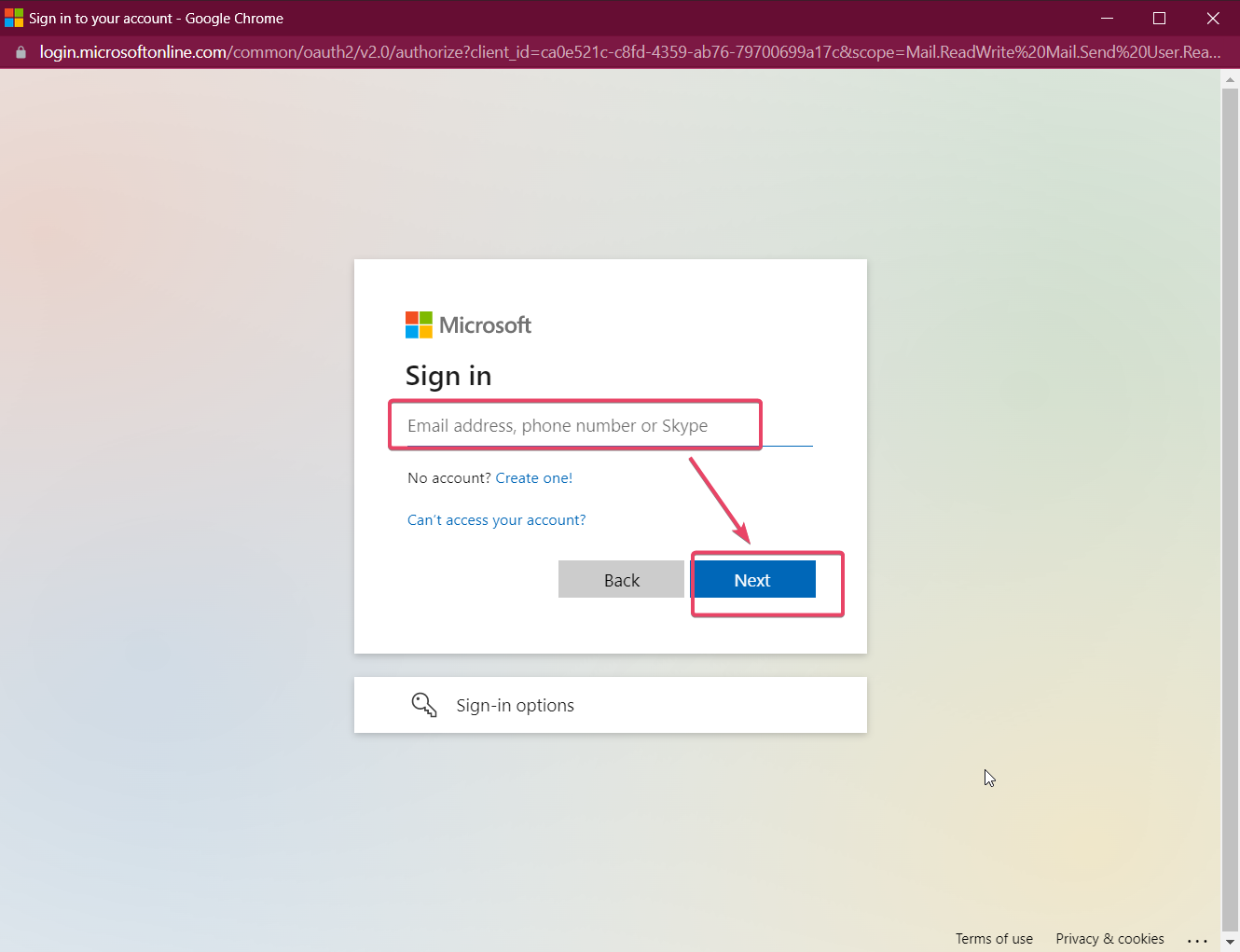
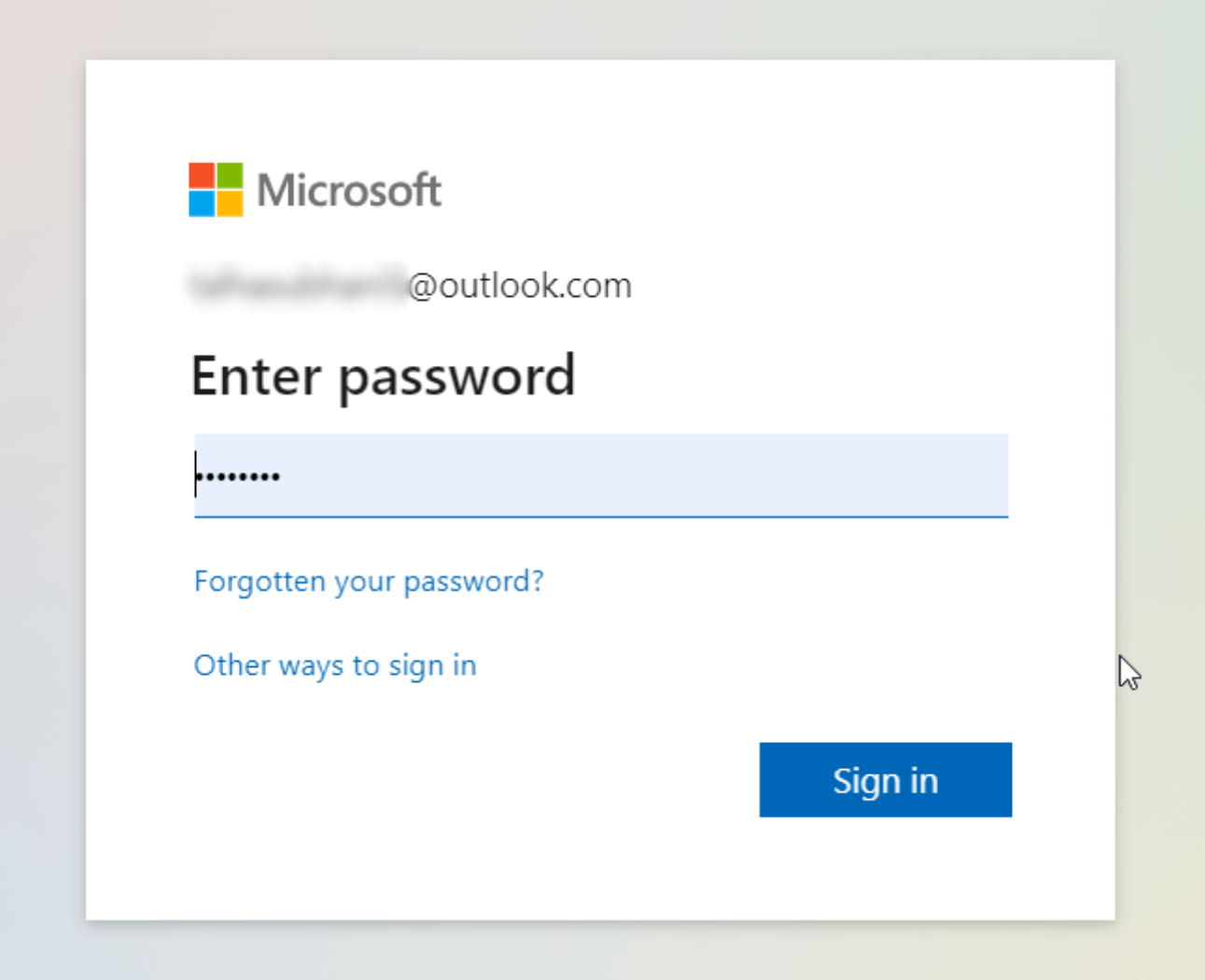
3. Complete the authorization by entering your Outlook email ID credentials.
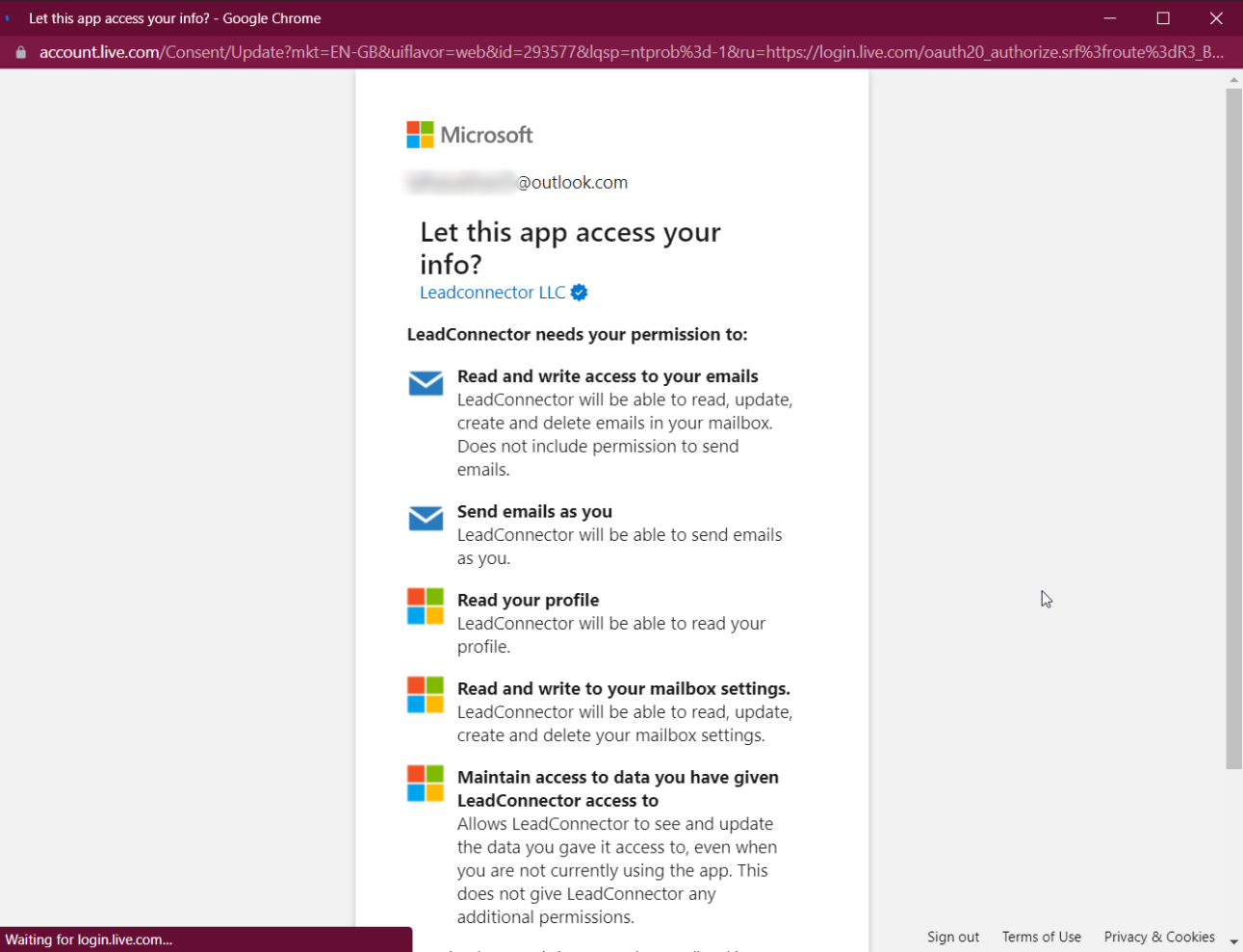
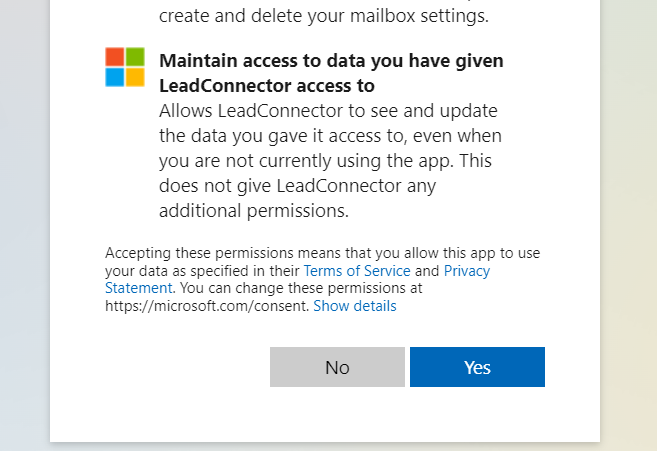
4. Approve for permissions requested for LeadConnector:
5. On the profile page, scroll down to the section Email (2-way sync) to view your email in the connection status.
How does the 2-way sync work between the CRM and your email account?
You would need to send an email to a contact from the CRM to initiate the sync between both platforms.
Please Note: The first outbound email needs to be initiated from the CRM to establish the sync
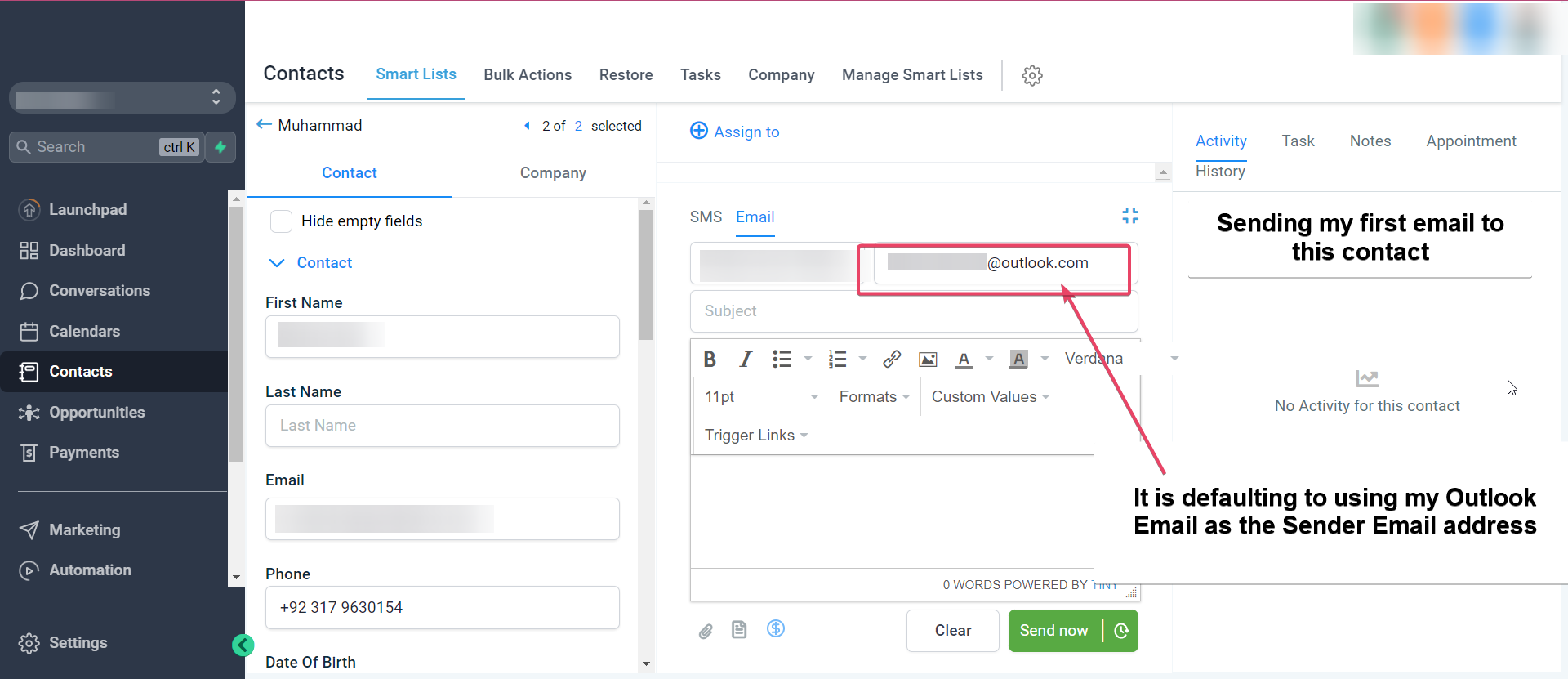
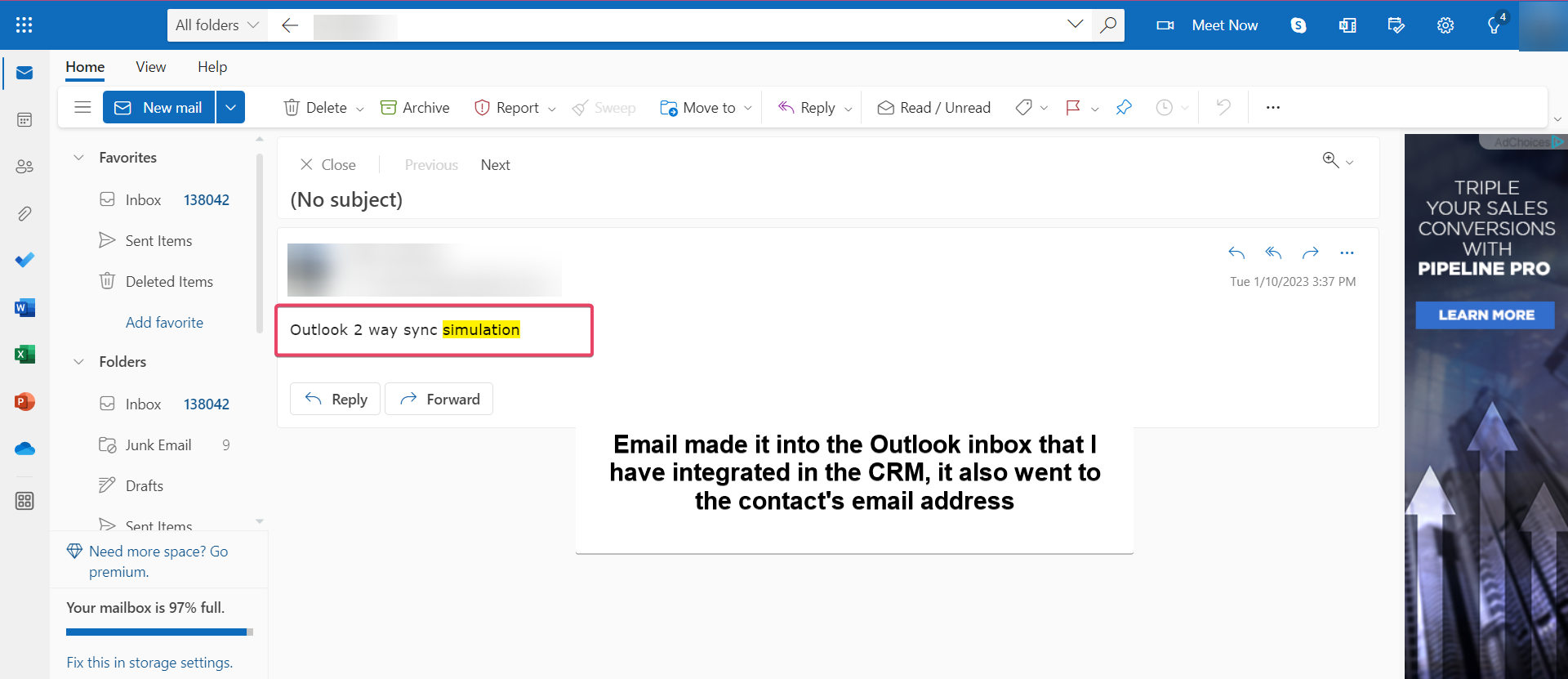
All subsequent messages in the email thread (initiated from the CRM) will be in sync. Outbound emails sent from your email will start reflecting in the CRM and vice versa.
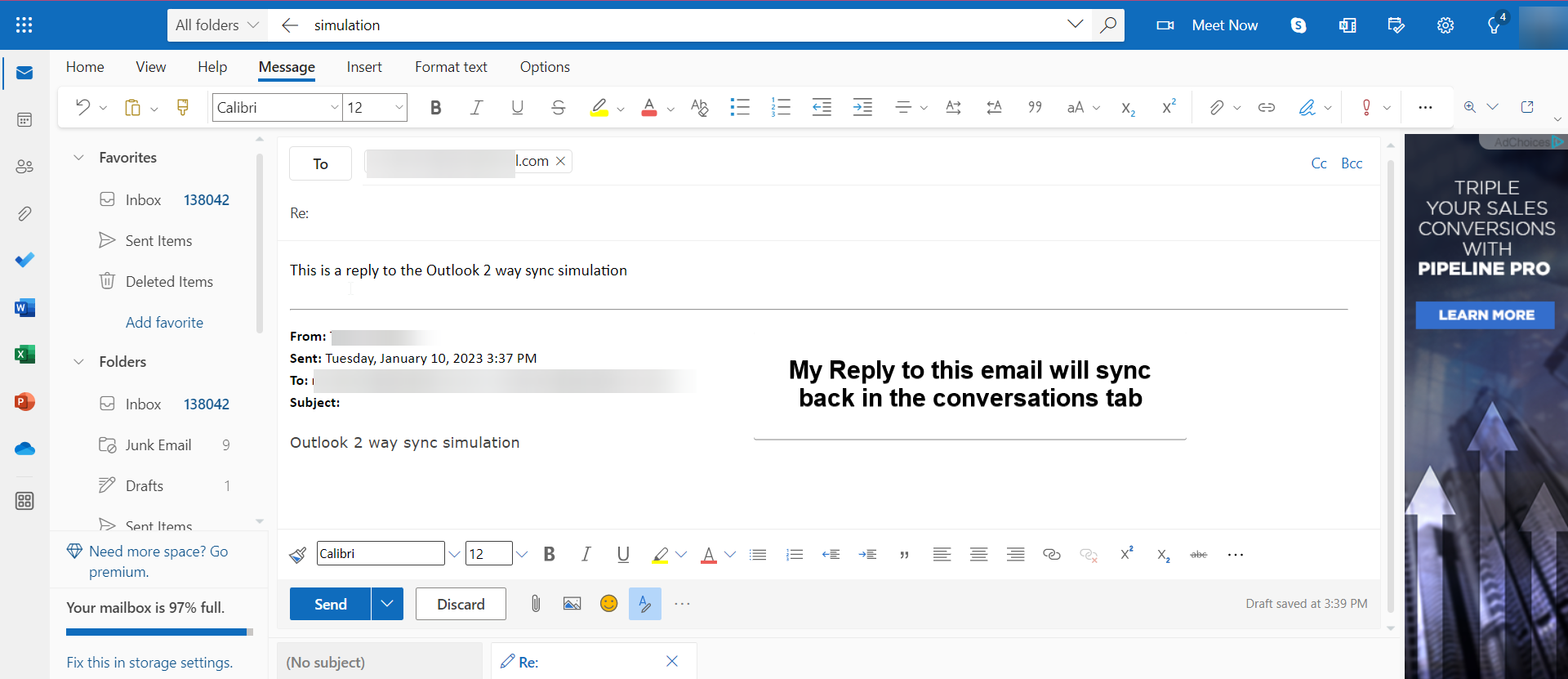
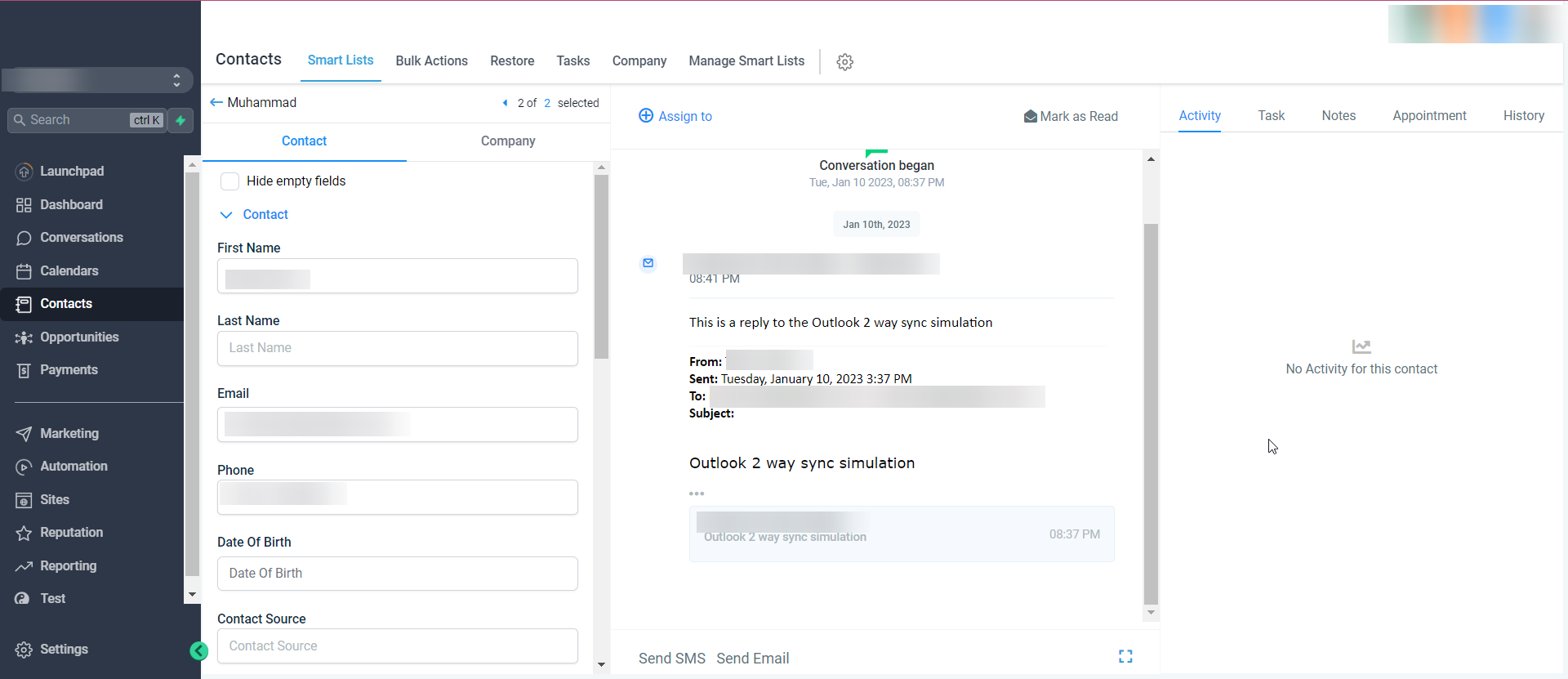
Please note: Attachments of up to 3 MB size work across this sync, any attachments larger than this size will cause the message to not sync over.
Supported file types: JPG, JPEG, PNG, MP4, MPEG, ZIP, RAR, PDF, DOC, DOCX, TXT
Other functionalities
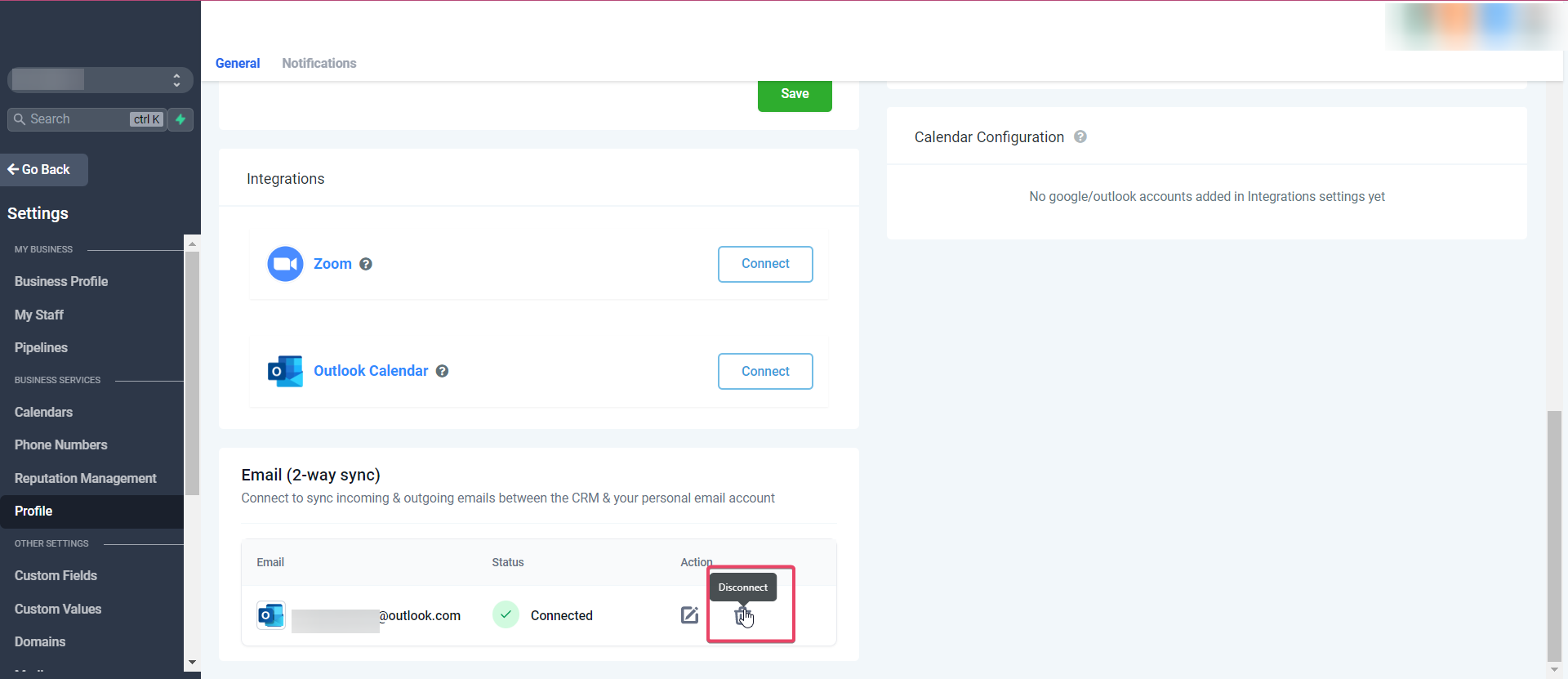
Update Email: This helps users change their connected email ID to another one without disconnecting the previous connection.
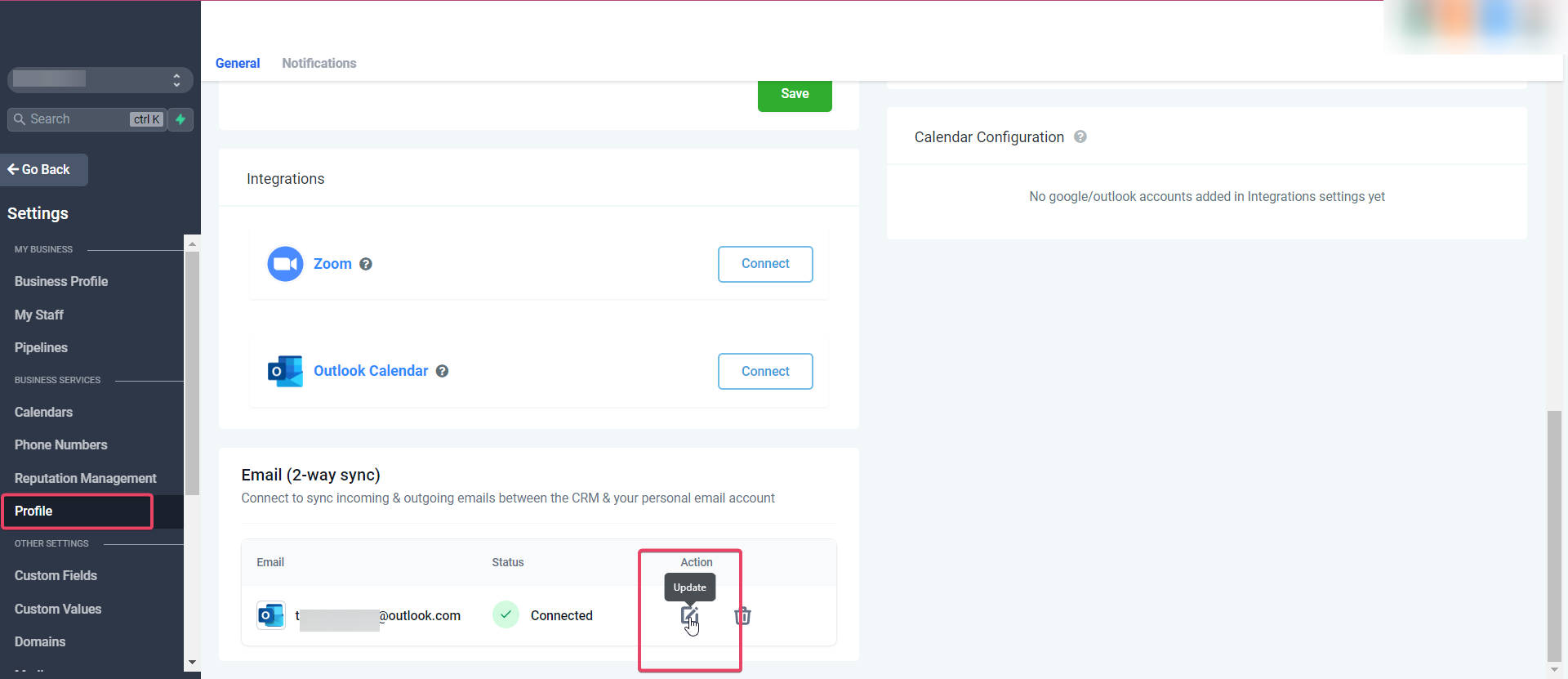
New outbound emails from the CRM will start syncing with the newly added email address. Upcoming messages in the previously connected email ID (same thread) will stop syncing between the CRM & personal email.
Disconnect Email: This helps users to disconnect their connection and stop the sync with the CRM. Post disconnect, emails or messages will not sync between both platforms.
Does Two-way sync only work with individual emails or bulk emails and workflows?
How the sender domain mapping works for different types of emails:
Individual Email: On connecting a personal email account (Outlook), the outlook email ID will be considered as the sender domain for the emails sent by the user for individual emails.
Bulk Email: If the user enters their email ID (after setting up the two-way sync) under the “From Field,” the user email ID will be considered the sender domain for the bulk emails. If the field is blank, the sub-account level provider will be considered the sender domain.
If the user enters an email ID different from their email ID connected (Outlook), it will consider the sub-account level provider as the sender domain.
Workflow & Automation: Emails will continue to go from sub-account level providers.
Not a Funnelbud customer yet?
Try our all-in-one CRM for sales and marketing — free for 7 days, no commitment.