How to Share Funnels and Websites Across Sub-Accounts
Sharing a funnel or website with a client or team member is a quick and efficient way to transfer projects without manually rebuilding them. Whether you’re handing off a completed website, moving a funnel from a test environment to a live one, or collaborating with your team, the share feature makes the process seamless. Here’s how to do it.
Accessing the Share Button
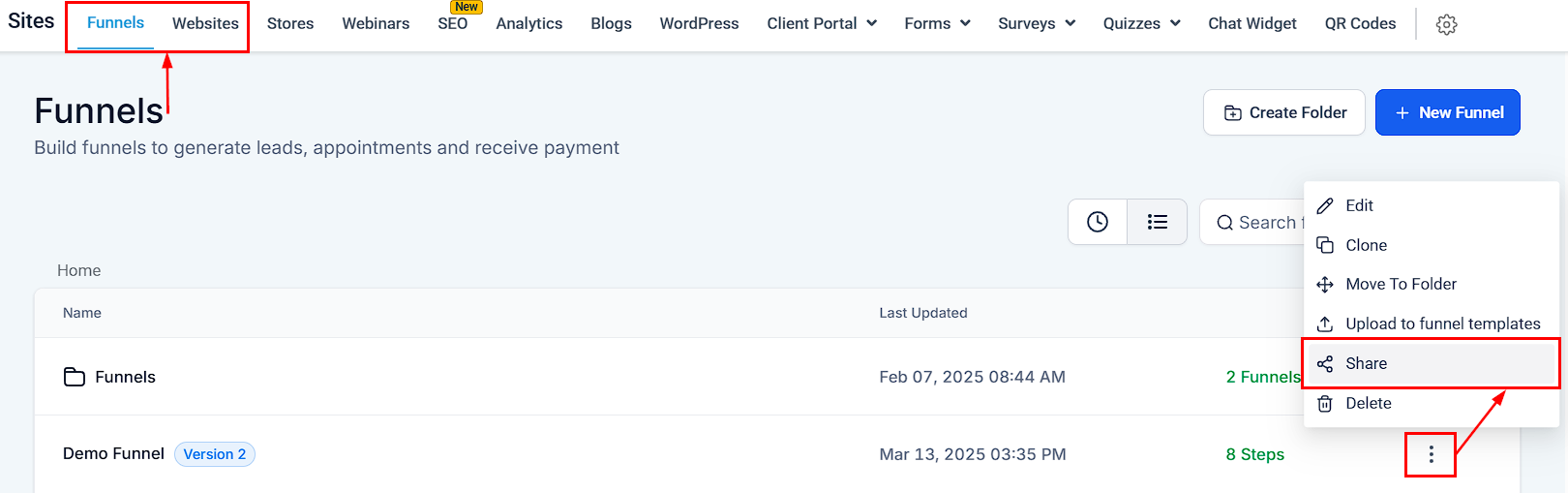
Navigate to the Funnel or Website you wish to share, then select the three-dotted actions button and click Share.
Generate the Share Link
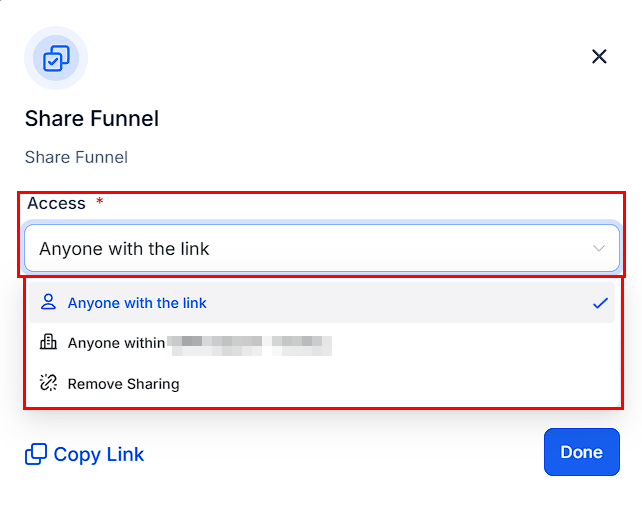
Upon clicking the share button, a link will be generated. This link can be configured to allow access to anyone with the link, or it can be restricted to users within a specific Sub-Account or agency.
Copy and Share the Link
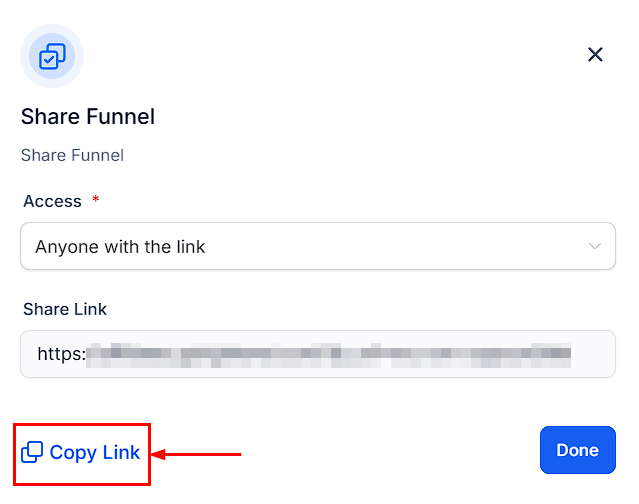
Copy the generated link and share it with the intended recipient. The recipient must be a user of the CRM for the link to work.
Recipient Adds the Funnel or Website
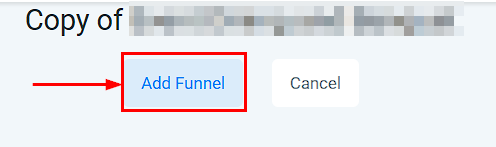
When the recipient clicks on the link, they will be prompted to add the funnel or website to their account by clicking the “Add Funnel” or “Add Website” button.
Cloning Process
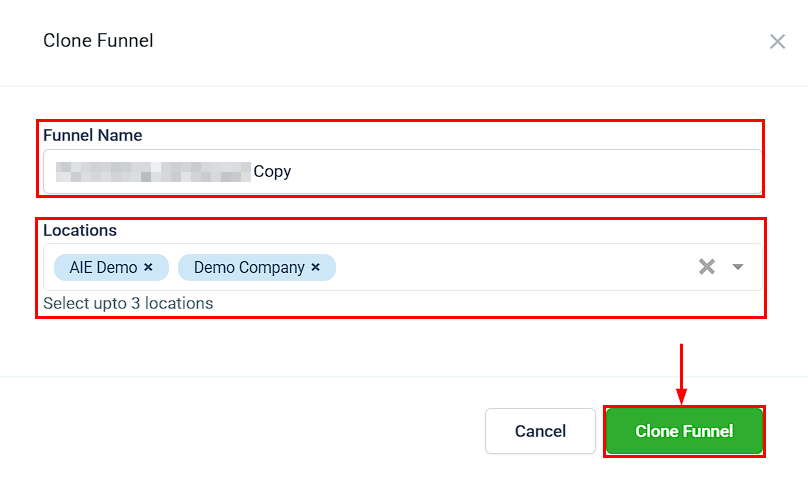
They can rename it and select up to three (3) Sub-Accounts they wish to add it to. The recipient completes the process by clicking “Clone Funnel,” effectively moving the project from one Sub-Account to another.
Practical Examples and Use Cases
- Agency to Client Transfer: After completing a website for a client within a test account, an agency can share the finished product with the client, allowing them to easily add it to their account.
- Testing to Deployment: Designers can move funnels from a testing sub-account to a live environment after ensuring everything works as intended.
- Collaboration Among Teams: Teams within an agency can share funnels and websites among themselves for review, feedback, or further development.
Sharing funnels and websites within your CRM system is a simple yet powerful way to enhance workflow efficiency. Whether transferring completed projects to clients, migrating funnels from testing to live environments, or collaborating within a team, the share feature streamlines the process.
Troubleshooting and FAQs
- What if the recipient cannot add the funnel or website? Ensure the recipient is a user of the CRM and that the share link hasn’t been restricted to a specific sub-account or agency.
- Can I revoke access to a shared funnel or website? Yes, you can remove the sharing permissions at any time by accessing the share settings and disabling the link.