How to send email campaigns using different sending domains
If your organization carries different brands and you want to be able to send emails reflecting these distinct brands as the sender, here’s how you can add multiple sending domains and use them in your campaigns:
Step 1. Go to Settings, then Email Services
Step 2. In the SMTP Service tab, click Dedicated Domain and IP button
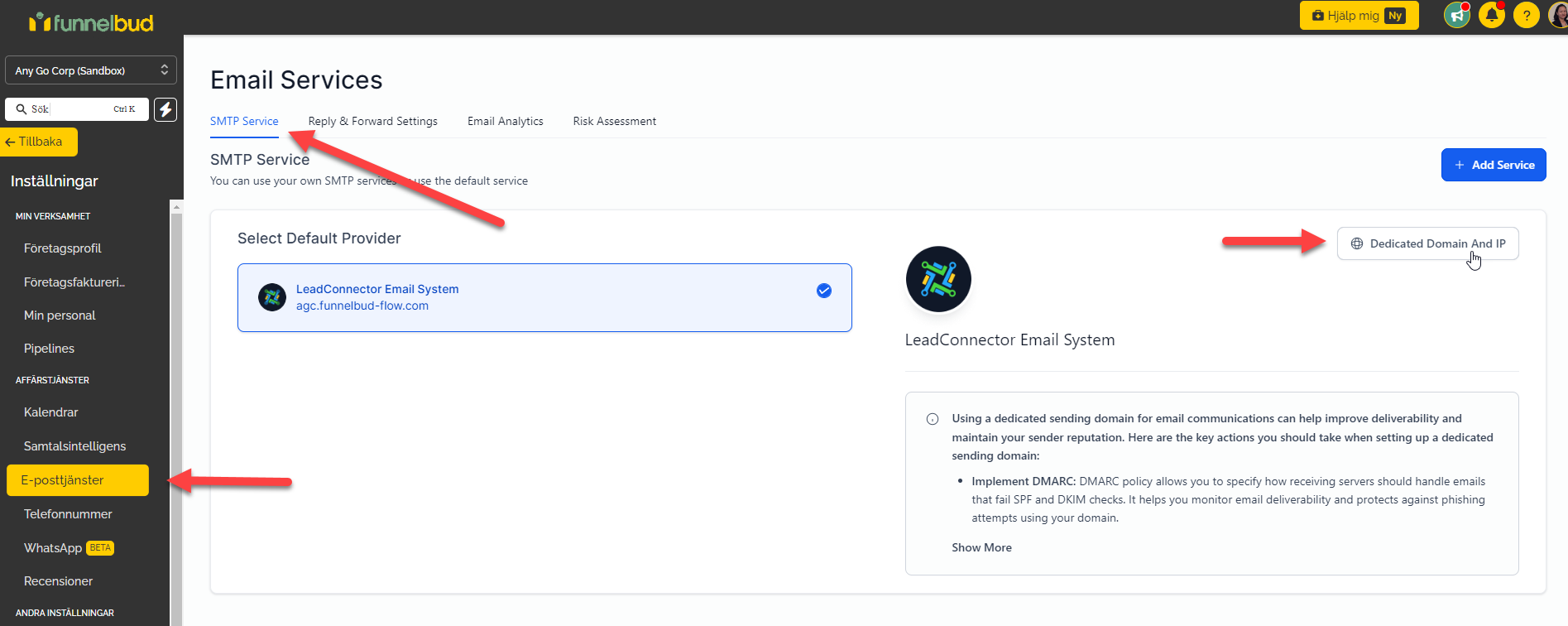 Settings > Email Services > SMTP Service > Dedicated Domain and IP
Step 3. If you haven’t added the new sending domain, click + Add Domain button. Add the provided DNS records to your organization’s DNS settings and verify. For complete instructions, please check this help article: https://kb.mycrmsupport.com/hjalpportal?article_id=2677
Step 4. When the new sending domain is already added, click Domain Configuration
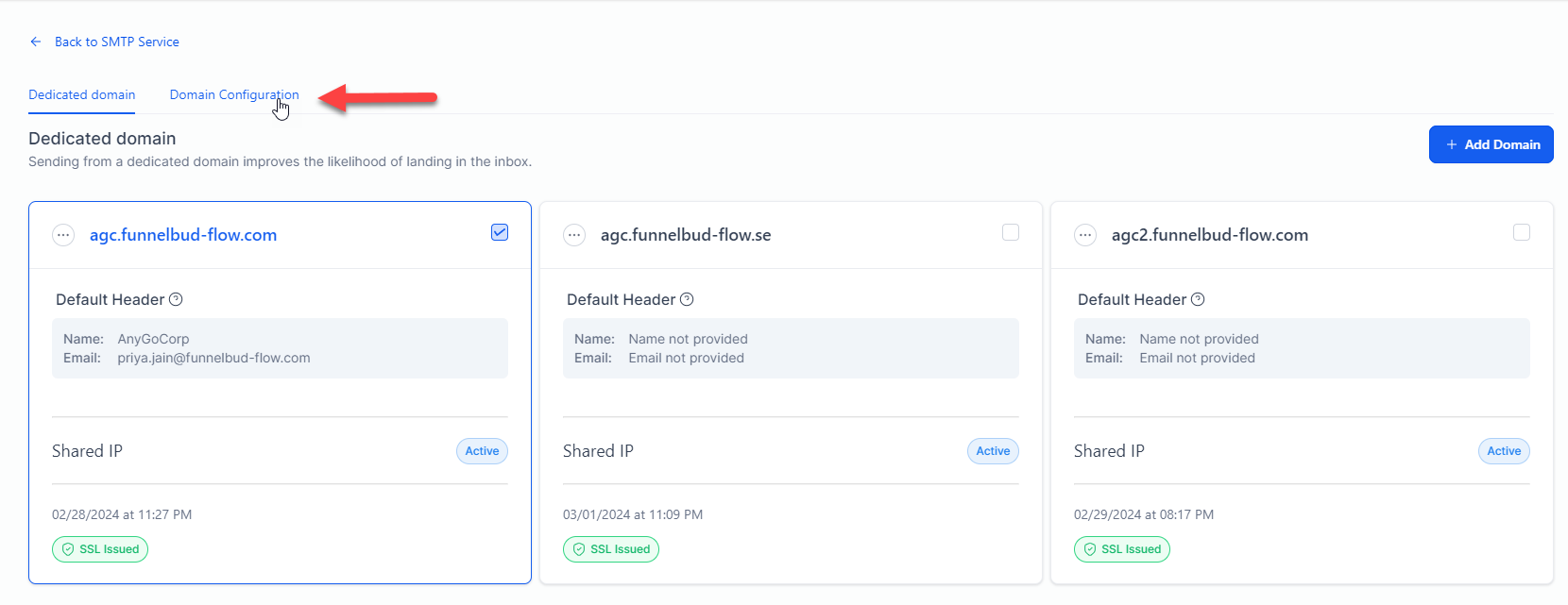 Domain Configuration
Step 5. In the Domain Configuration tab, go to Campaign Domain field and select the sending domain that you want to use in your email campaign
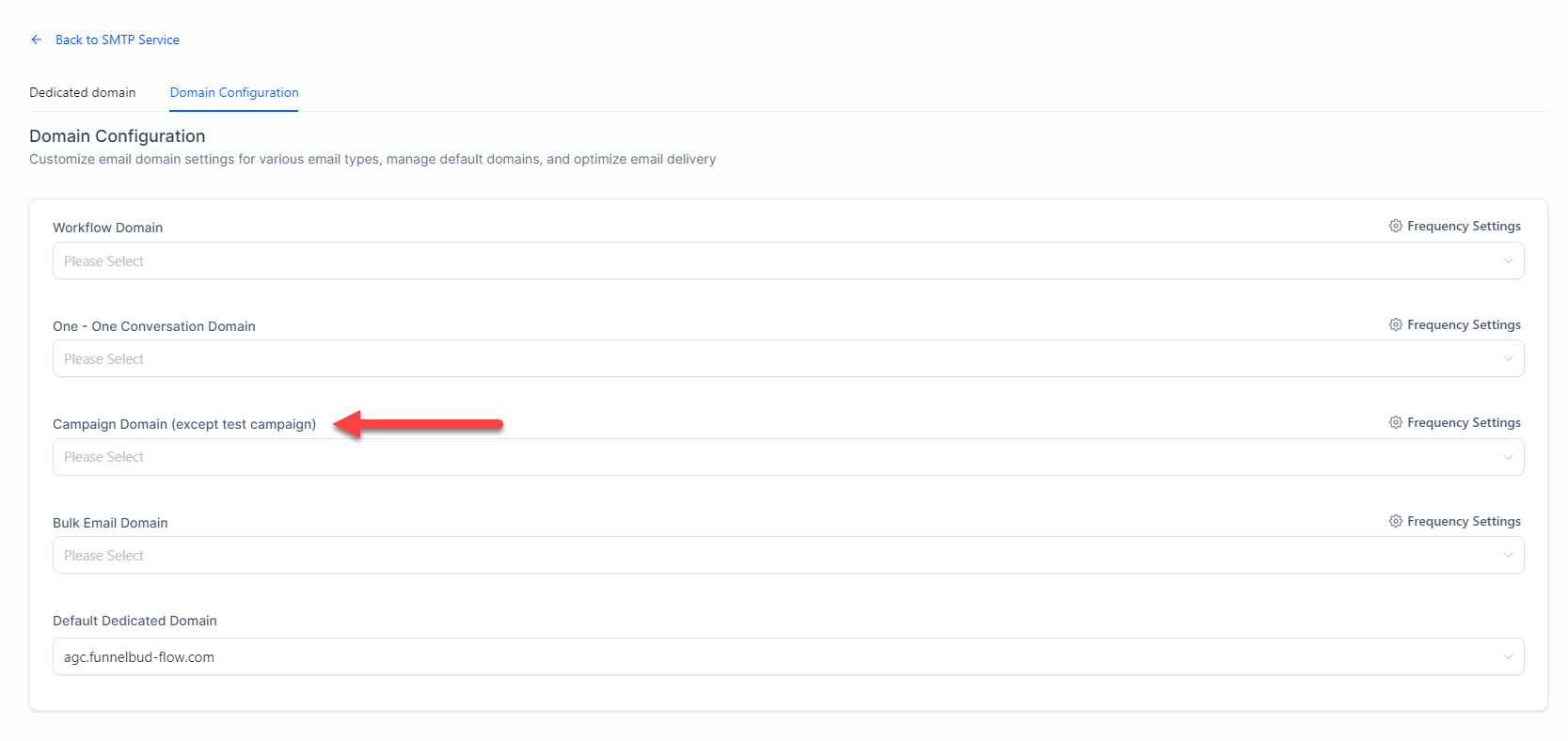
 All dedicated domains in your account will appear in the Campaign Domain picklist.
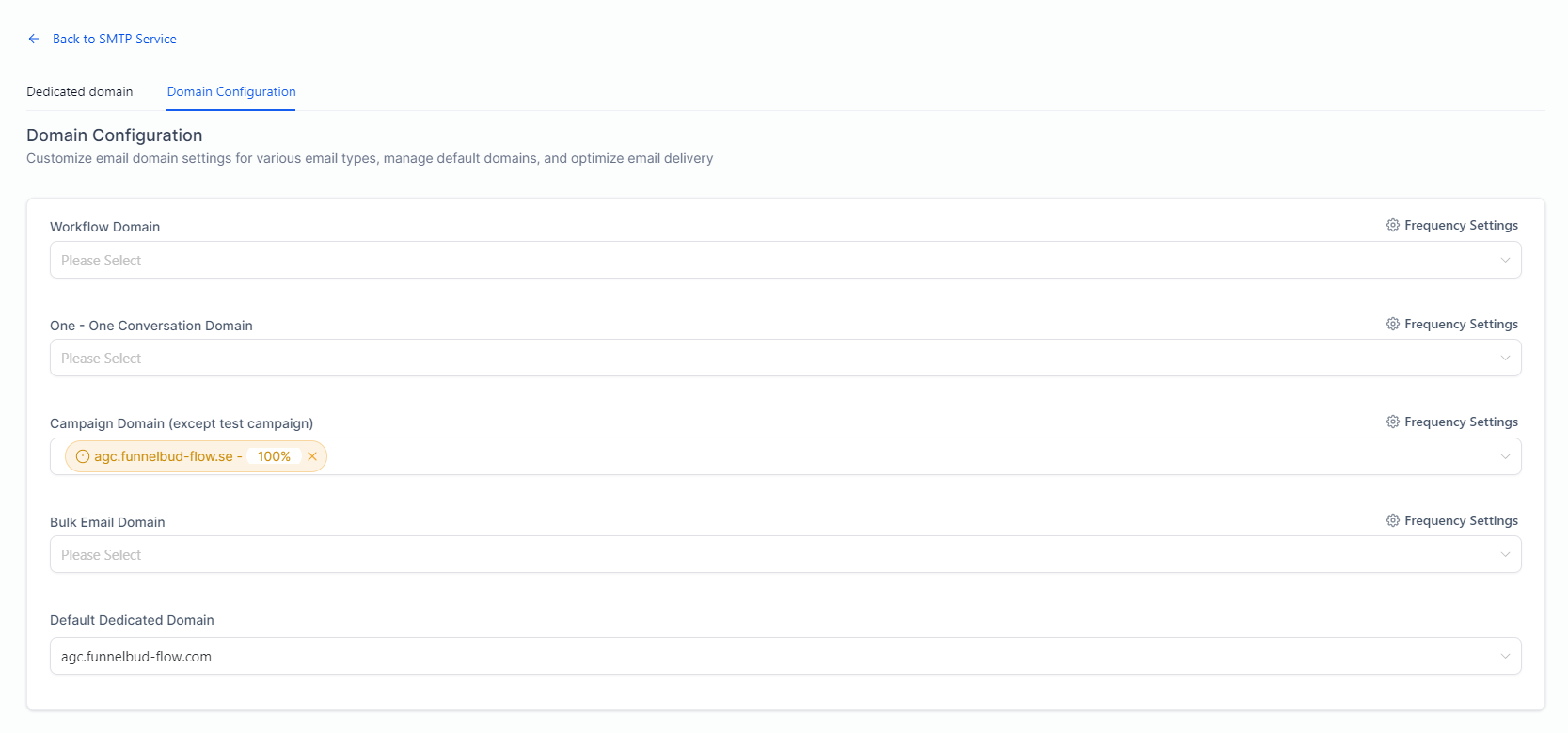 Select the domain you want to use
Step 6. Go back to the SMTP Service and click Reply and Forward Settings
Step 7. In the Reply Address field, add the email address where you want replies to be sent to
Step 8. Click Save
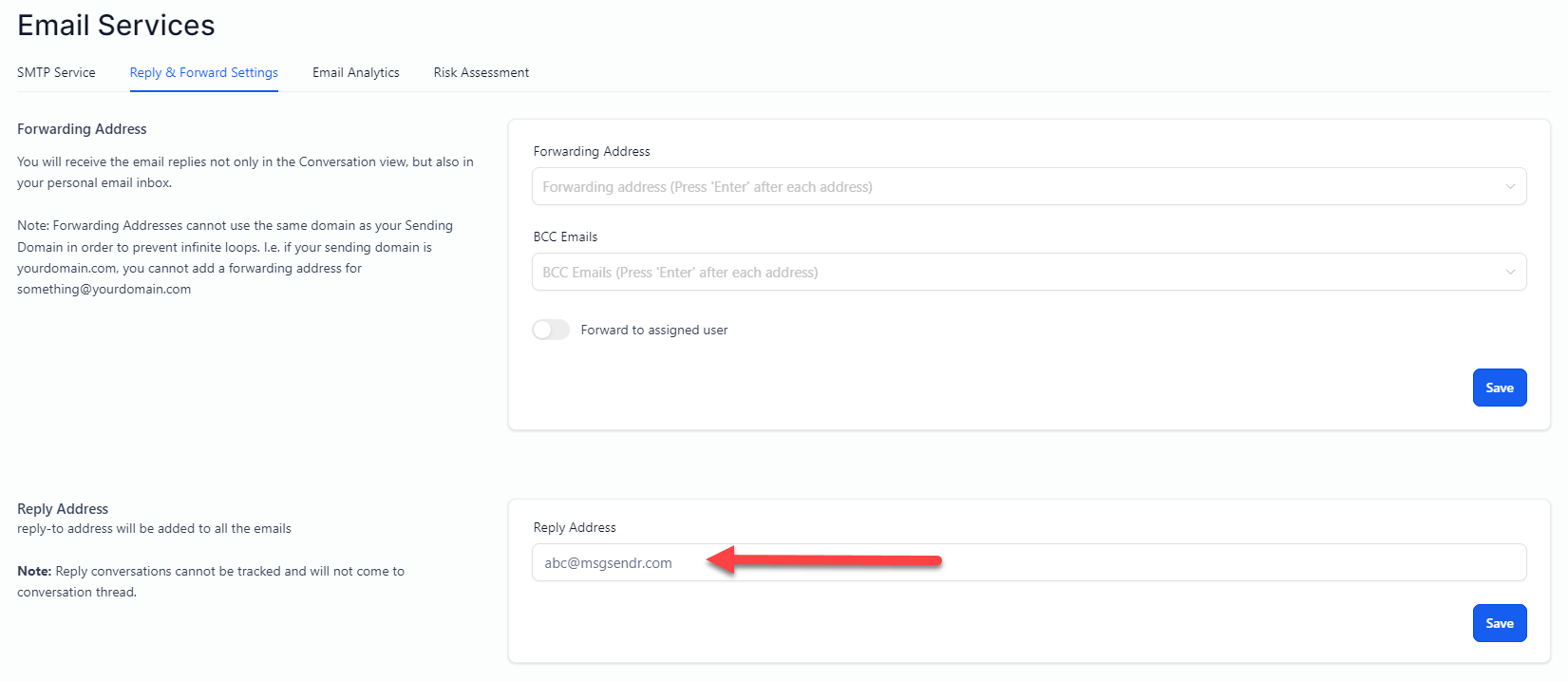 Reply Address
-----
How does it work?
When you send email campaigns, the system uses your default dedicated domain. When you add a new sending domain and update the Domain Configuration as outlined above, the new domain overwrites the default domain.
For example, if your default domain is m.anygocorp.com, you can use any email with @anygocorp.com domain as the sender in your email campaigns.
If you want to use another email domain, say m.company.com, and followed the instructions above - m.company.com overwrites m.anygocorp.com. You can now use any email with @company.com domain in your email campaigns.
-----
What if I want to use the default domain or use another domain?
You need to update the Domain Configuration again.
If you want to use the default domain, remove the new domain from Campaign Domain field so the system will revert to whatever is in the Default Dedicated Domain field. Don’t forget to update the Reply Address as well, if you have changed it previously.
If you want to use additional domains, follow the instructions outlined above.
-----
It is possible to add multiple domains in the Campaign Domain field?
Yes, it is possible to add up to 5 sending domains in the Campaign Domain field. You can use all these domains when sending emails.
However, please note that the system automatically distributes email sending workload across all the domains that you have added. This means you won’t be able to choose which domain the email will be sent from because the system will automatically select it for you.
Using the m.anygocorp.com and m.company.com again as examples. While you can add both domains in the Campaign Domain field, the system will automatically select if it will use m.anygocorp.com or m.company.com as the sending domain.
Let’s say the system selects m.anygocorp.com and you use info@anygocorp.com in the From field in your email. When the recipients receive the email, they will see that it’s from info@anygocorp.com.
However, if you use info@company.com instead, they see will in the From field: info@company.com via anygocorp.com or info=company.com@anygocorp.com on behalf of [From name].
This is called On Behalf Notation and it indicates that there’s a mismatch between the sending domain and the domain used in the From field. This happens because the system chose a different sending domain from the one you used in the From field of the email.
For this reason, we recommend using only 1 domain in the Campaign Domain field and replacing it if you need to use another sending domain so you can control which email domain will be used when sending the email.
Not a Funnelbud customer yet?
Try our all-in-one CRM for sales and marketing — free for 7 days, no commitment.