Abandoned Checkout in Orders
Abandoned checkouts are prominently listed on the Orders page, allowing business users to efficiently track and manage incomplete transactions. This capability provides detailed insights into customer activity and helps streamline efforts to recover lost sales.
Accessing Abandoned Checkouts
To view abandoned checkouts, follow these steps:
- Go to Payments: Click on the ‘Payments’ tab.
- Choose Abandoned Checkouts: From the Orders dropdown menu, choose ‘Abandoned Cart’. This section displays detailed information including customer details and items added to the cart of abandoned card orders.
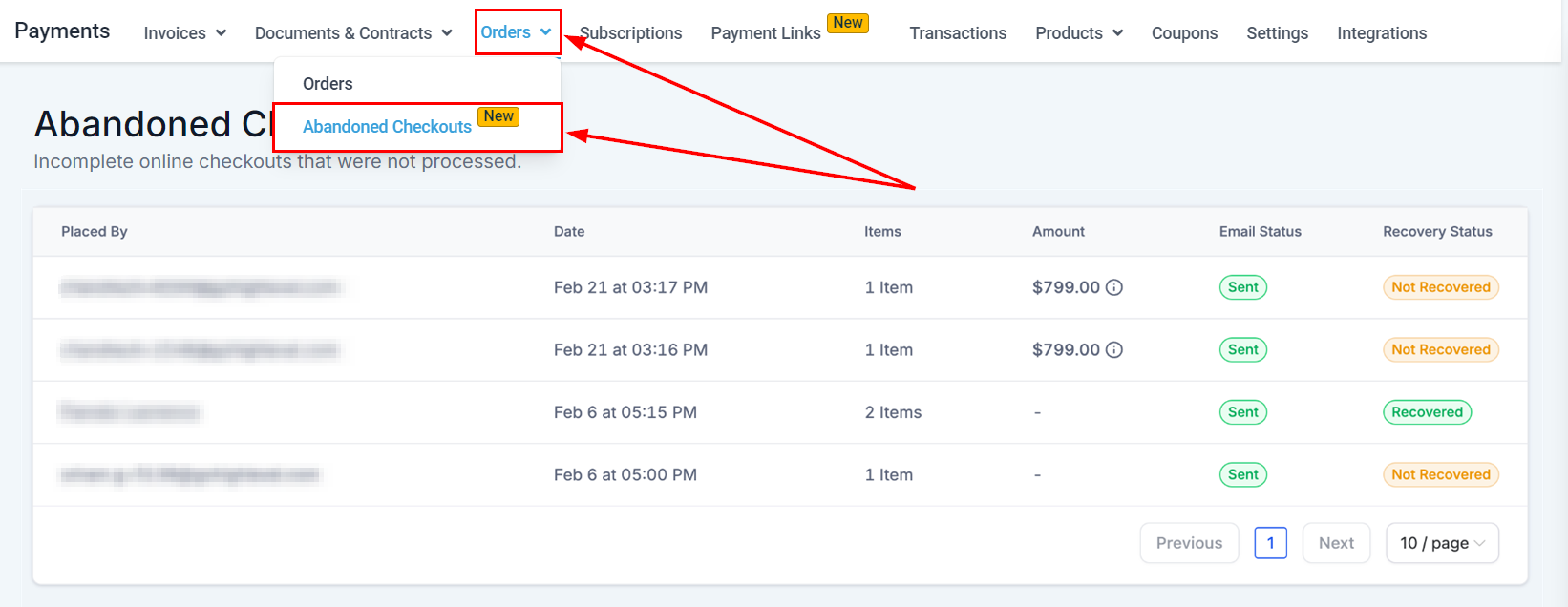
Placed By
This column displays the name of the customer who abandoned the checkout. If the name is not available, their email address will be shown instead.
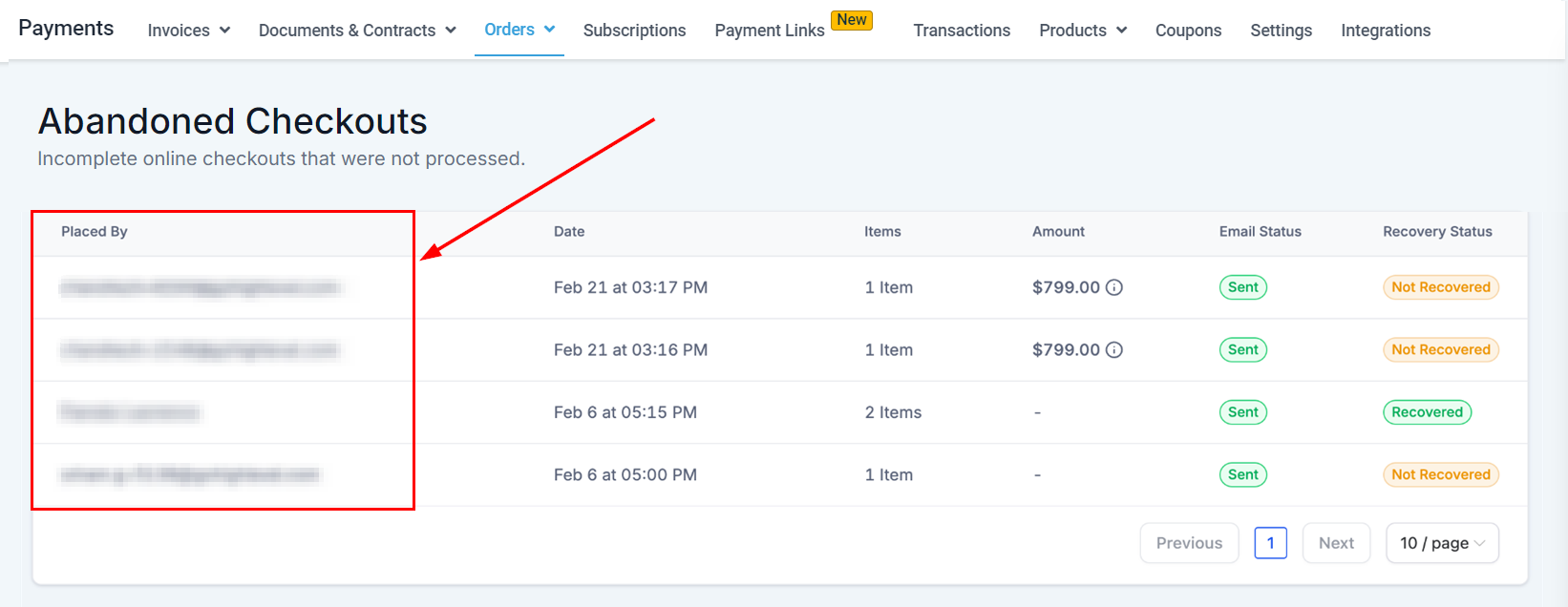
Date
This column displays the date on which the customer abandoned the checkout.
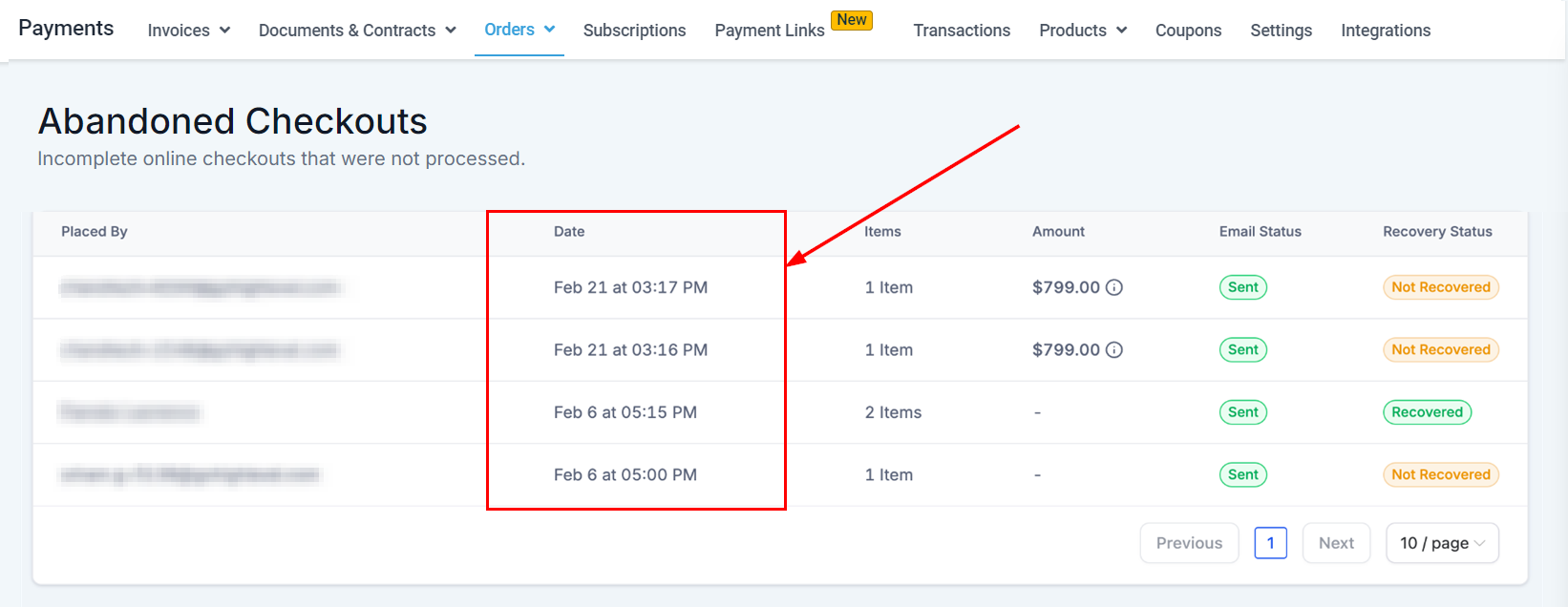
Items
The quantity of items in the cart will be displayed in this section.
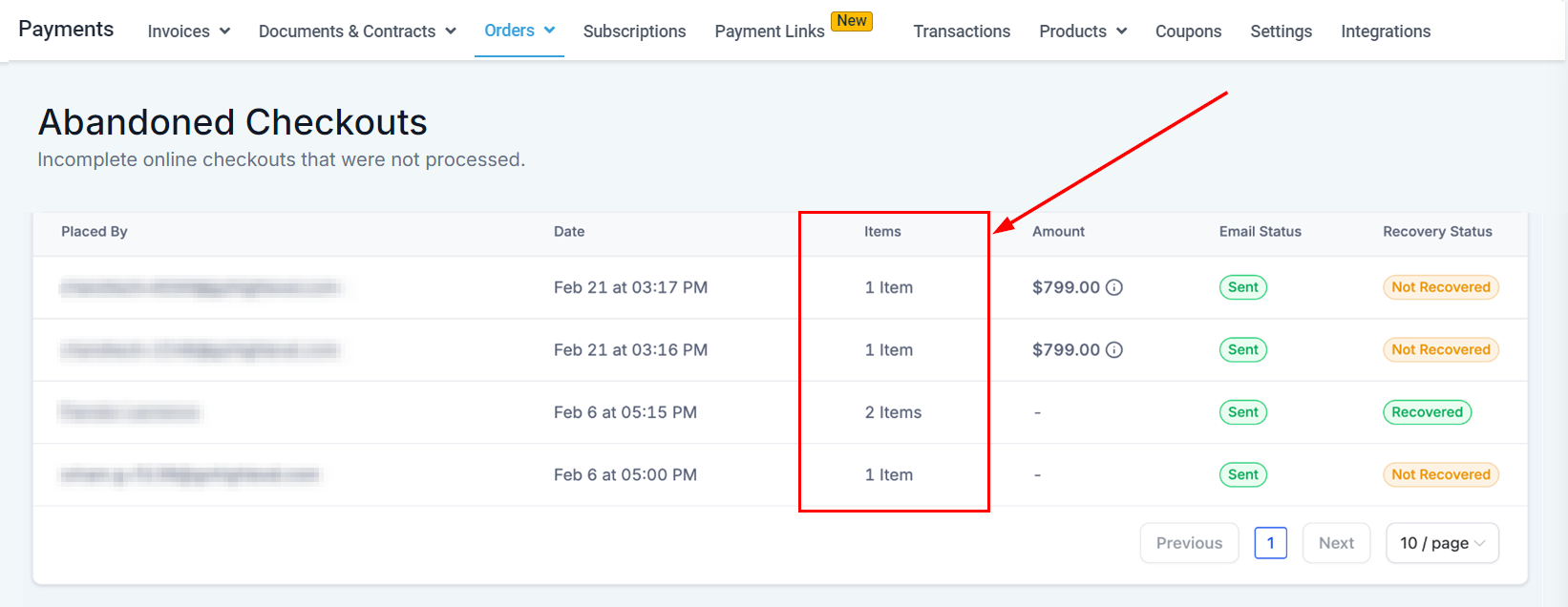
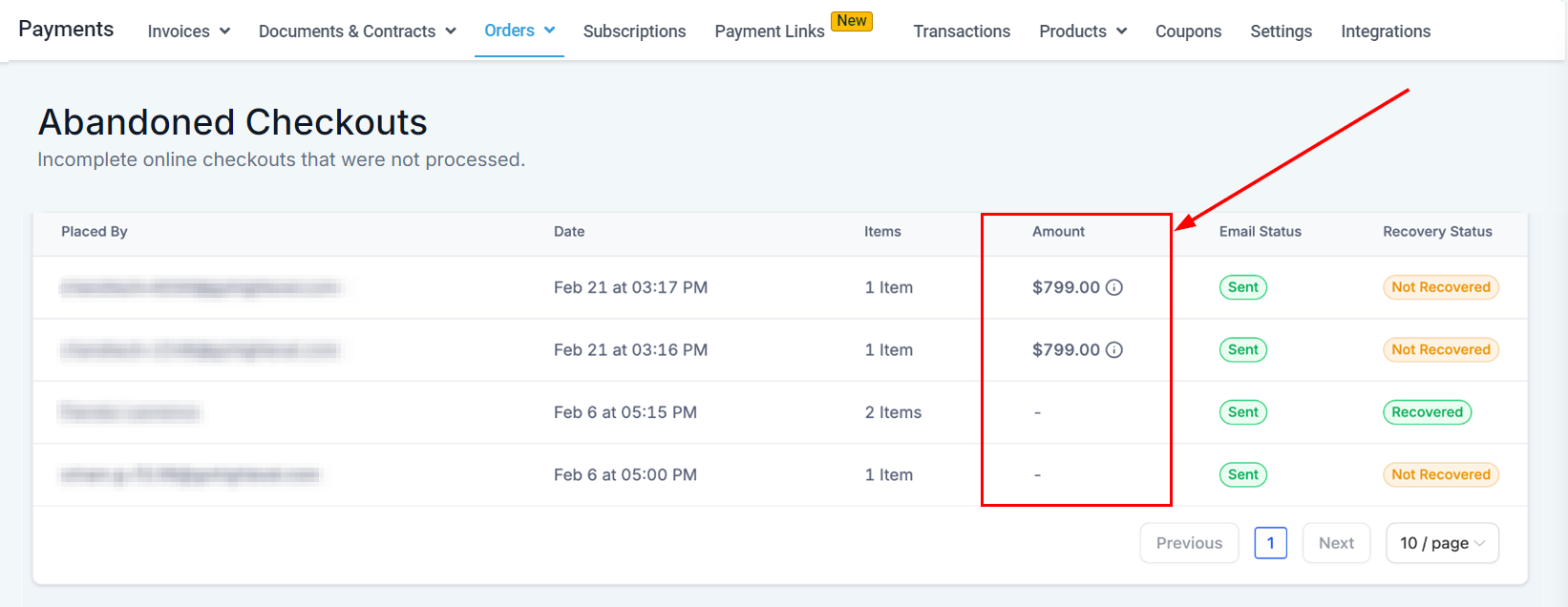
Amount
This section displays the total cost of the items in the cart.
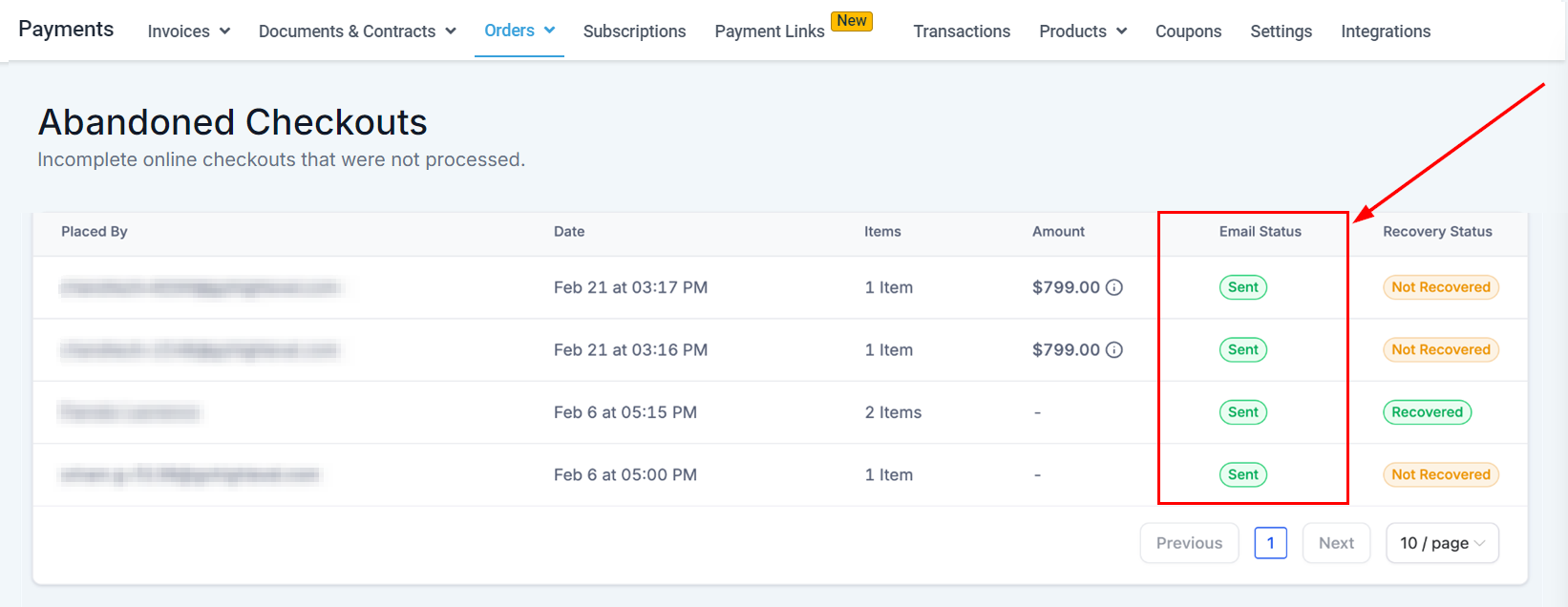
Email Status
The email status section indicates whether an automatic notification about the abandoned cart has been sent to the customer.
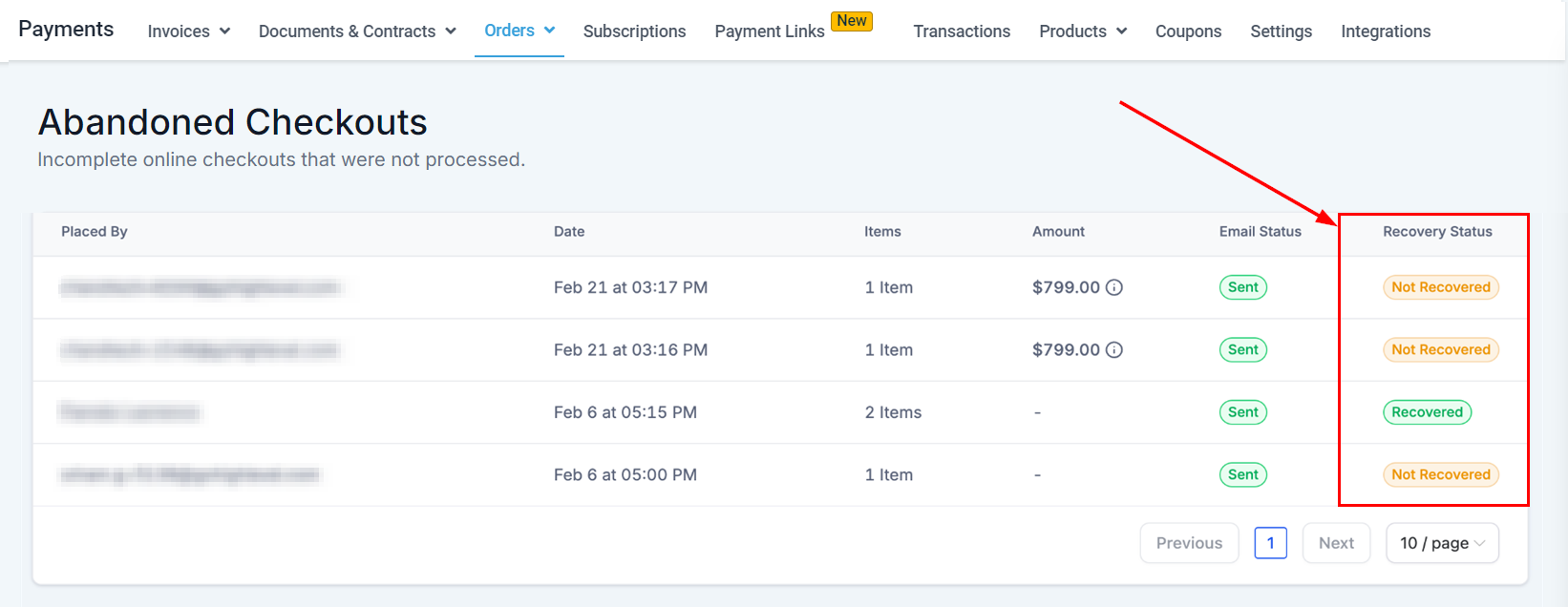
Recovery Status
If the transaction was completed after initially being abandoned, it will be marked as ‘recovered’ in this section.
By utilizing the abandoned checkout feature, business users can better manage and recover lost sales, improving overall store performance and customer engagement.
FAQs
Q: What are abandoned checkouts?
- Abandoned checkouts refer to transactions where a customer added items to their cart but did not complete the purchase. These are listed on the Orders page to help businesses track and recover these sales.
Q: How can I configure automatic notifications for abandoned carts?
- Configure automatic notifications by going to Settings -> Notifications and adjusting the relevant settings.
Troubleshooting Tips
No Abandoned Checkouts Listed
- If you do not see any abandoned checkouts, ensure that your online store is correctly configured to capture these events. Check that the feature is enabled in your settings and that there has been customer activity in your store.
Email Status Not Updating
- If the email status does not update correctly, verify that your notification settings are correctly configured. Ensure that your email system is functioning properly and that automatic notifications are enabled.
Inaccurate Recovery Status
- If the recovery status is not reflecting accurately, review the process used to recover the checkout. Confirm that the transaction has been properly completed and that all relevant details are up-to-date.
Not a Funnelbud customer yet?
Try our all-in-one CRM for sales and marketing — free for 7 days, no commitment.