WhatsApp Voice Notes
Voice notes are perfect for adding a personal touch to interactions. WhatsApp, one of the most widely used messaging platforms, allows businesses and individuals to send voice notes, enhancing the way they communicate with customers and clients. This guide will walk you through the process of sending a voice note via WhatsApp, explore its practical applications, and provide answers to common questions.
Use Cases for WhatsApp Voice Notes
- Customer Support: Use voice notes to address customer inquiries with detailed explanations. This method offers a more personal and human touch compared to text messages, improving customer satisfaction.
- Special Offers and Promotions: Announce exclusive offers or promotions with an enthusiastic voice note. This engaging approach can capture customers’ interest and drive higher engagement rates.
- Feedback Requests: Solicit feedback with a personal voice note, making customers feel valued and more inclined to respond. Personalized requests can lead to more meaningful and actionable insights.
Allow Microphone Permission
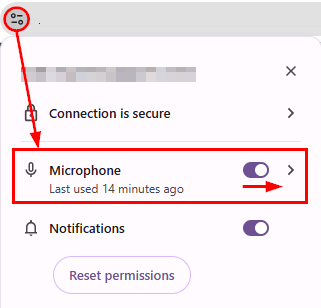
Before you can send a voice note, ensure that the CRM has permission to access your device’s microphone. This step is crucial as it enables the app to record audio. You will typically be prompted to grant this permission when you first attempt to record a voice note. If you’ve previously denied permission, you can adjust this setting in your device’s privacy or app permissions section.
Navigate to the Conversation
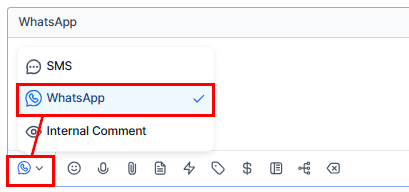
Go to the relevant conversation where you wish to send the voice note and switch the communication channel to WhatsApp.
Record the Audio
Once in the conversation, locate the microphone icon. Click the microphone icon to start recording your voice note. Speak clearly and ensure that your audio is well-recorded.
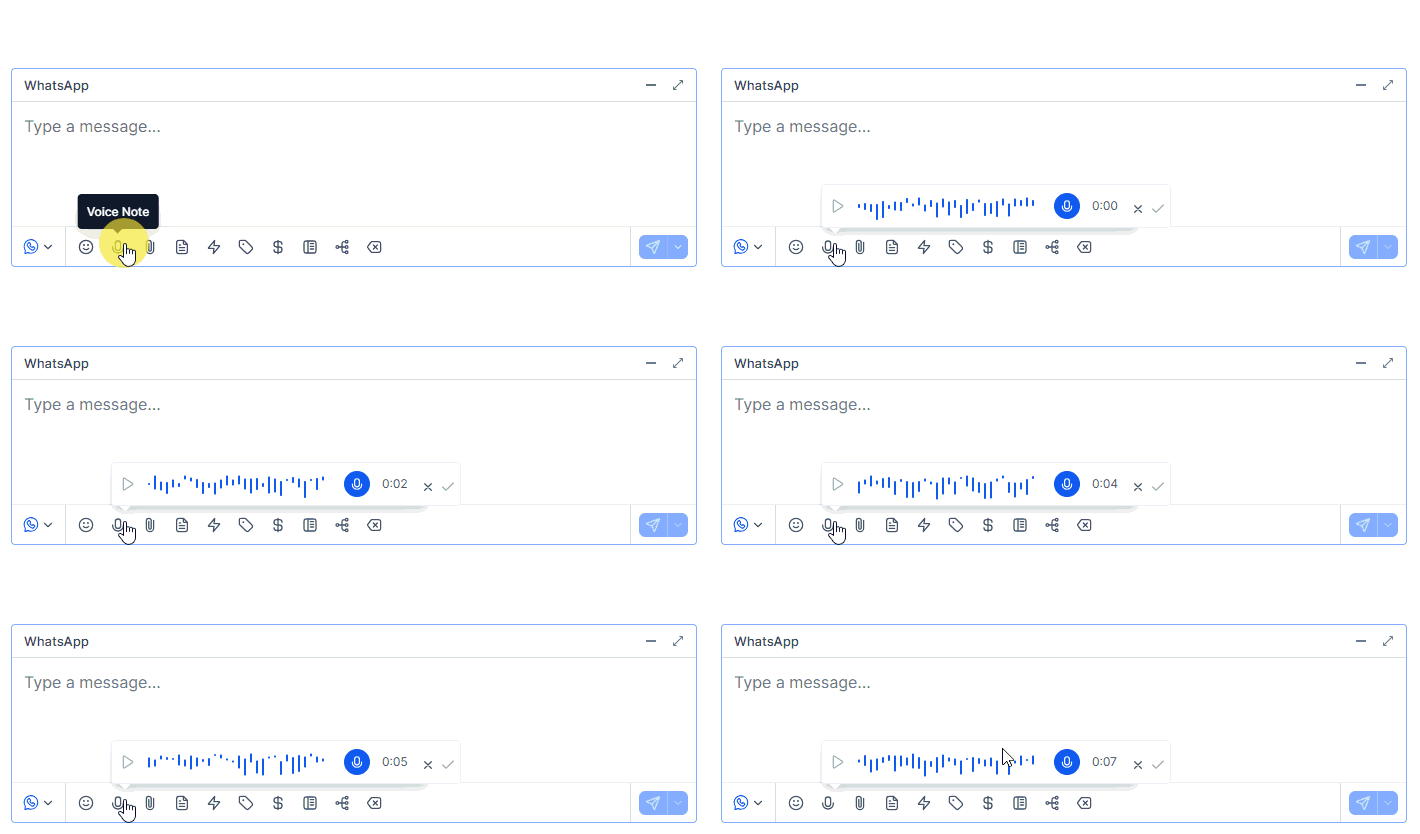
📌 Note: The maximum duration for a voice note is 10 minutes.
Send the Voice Note
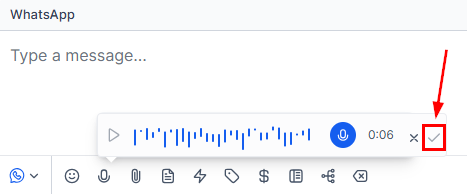
After recording, review your message if necessary, and then send the voice note by tapping the send button. Your voice note will be delivered to the recipient in real time, allowing for immediate communication.
By following these steps and utilizing voice notes effectively, you can enhance your communication strategies and provide a more engaging and personalized experience for your customers.
Frequently Asked Questions
Q: What is the maximum duration for a voice note?
- The maximum duration for a voice note is 10 minutes. This allows for detailed communication, whether you’re providing comprehensive information or addressing multiple points in a single recording.
Q: Can I send a voice note to a customer without an ongoing conversation?
- No, voice notes can only be sent when there is an open service conversation between your business and the customer. This ensures that all voice communications are relevant and contextually appropriate.
Q: How do I personalize voice notes for individual customers?
- To personalize voice notes, address the customer by their name and tailor the content to their specific needs or inquiries. This personalized approach enhances the customer experience and fosters stronger engagement.
Troubleshooting Tips
Check Microphone Permissions
- Ensure that WhatsApp has been granted permission to access your device’s microphone. You can verify and adjust this in your device’s privacy settings if necessary.
Verify Conversation Status
- Ensure that there is an active conversation with the recipient before attempting to send a voice note. Voice notes cannot be sent to contacts without an ongoing conversation.
Review Audio Quality
- If your voice note does not sound clear, check your recording environment for background noise and ensure you are speaking directly into the microphone.
Refresh the App
- If you encounter issues with sending voice notes, try restarting WhatsApp or your device to resolve temporary glitches or connectivity issues.
Not a Funnelbud customer yet?
Try our all-in-one CRM for sales and marketing — free for 7 days, no commitment.