Managing App Permissions for App Marketplace
The App Marketplace helps you expand the connection and usability of your system. However, to keep the experience on brand, you must have control over what your customers can see and access. Since there may be some apps that don’t fit in your business model or the industry you are servicing, let’s check how to remove them.
Marketplace Settings
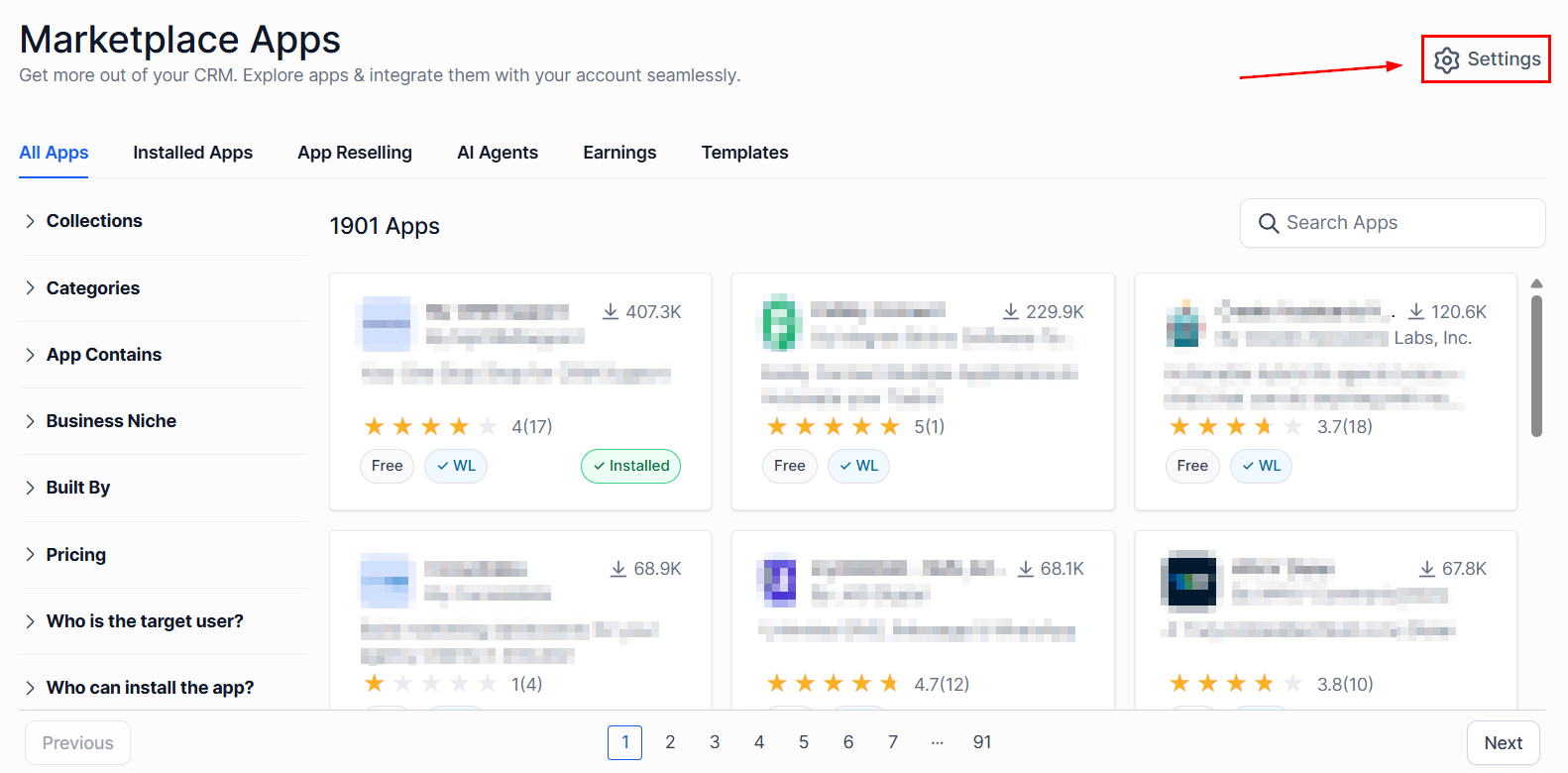
To control your clients’ access to the Marketplace, head to the App Marketplace section in your Agency View and click Settings.
Marketplace Visibility
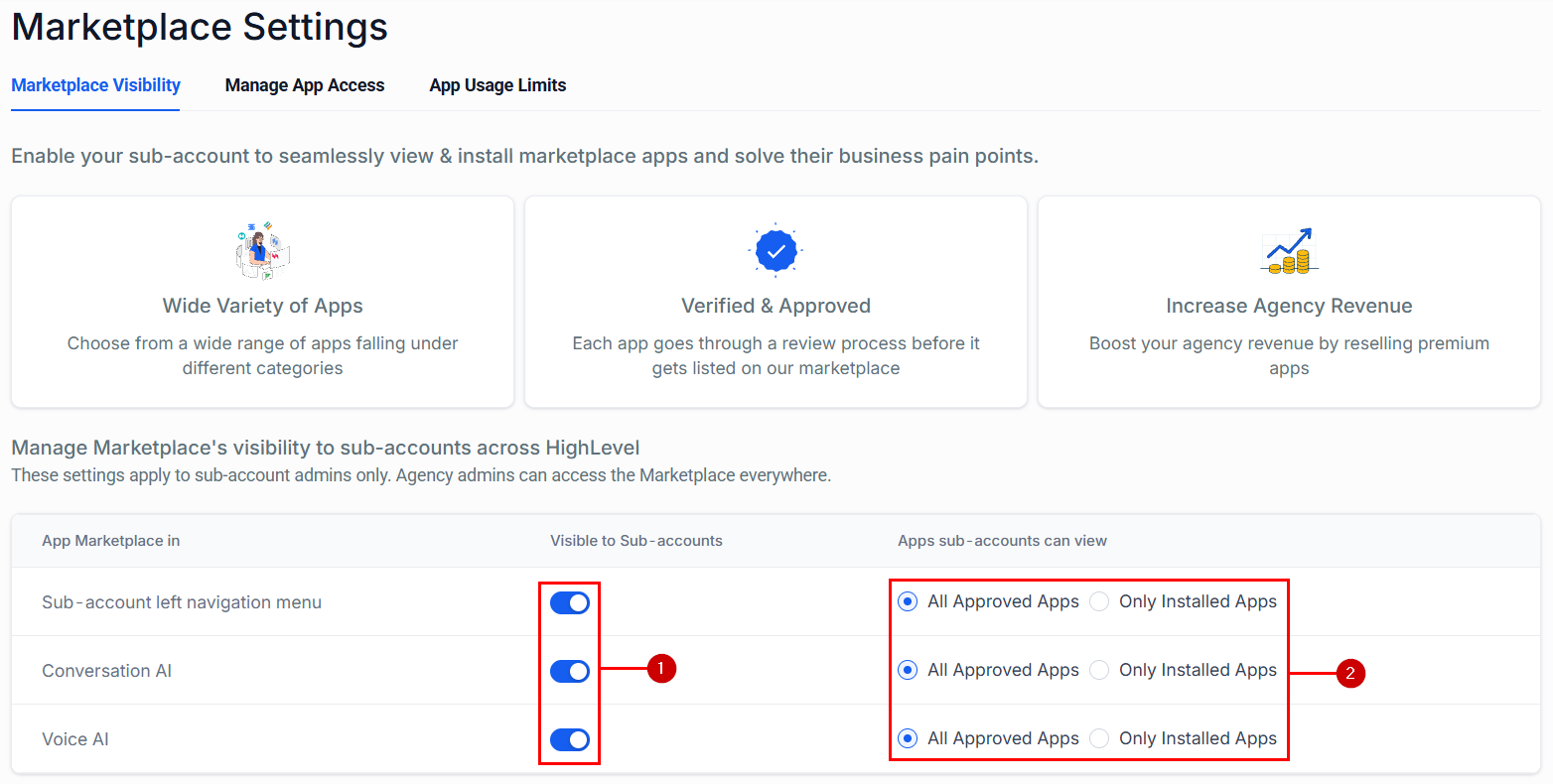
The Marketplace Visibility tab helps you manage where the app marketplace is visible (1) and limit what your customers see in the app marketplace (2)
Manage App Access
In this tab, you can manage whether apps are automatically approved once added to the marketplace with the toggle option.

If auto-approving all apps is disabled, you can permit LeadConnector apps to be an exception and be auto-approved.

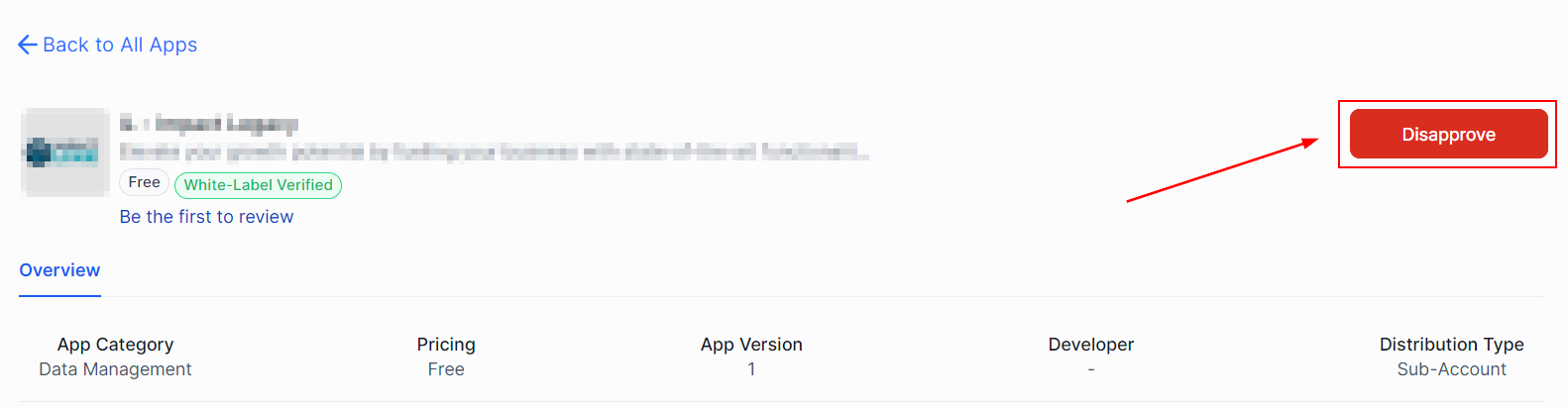
And, limit access to specific apps. To do so, click on the name of the desired app, which will open its profile.

Click the top-right corner button to change its status.
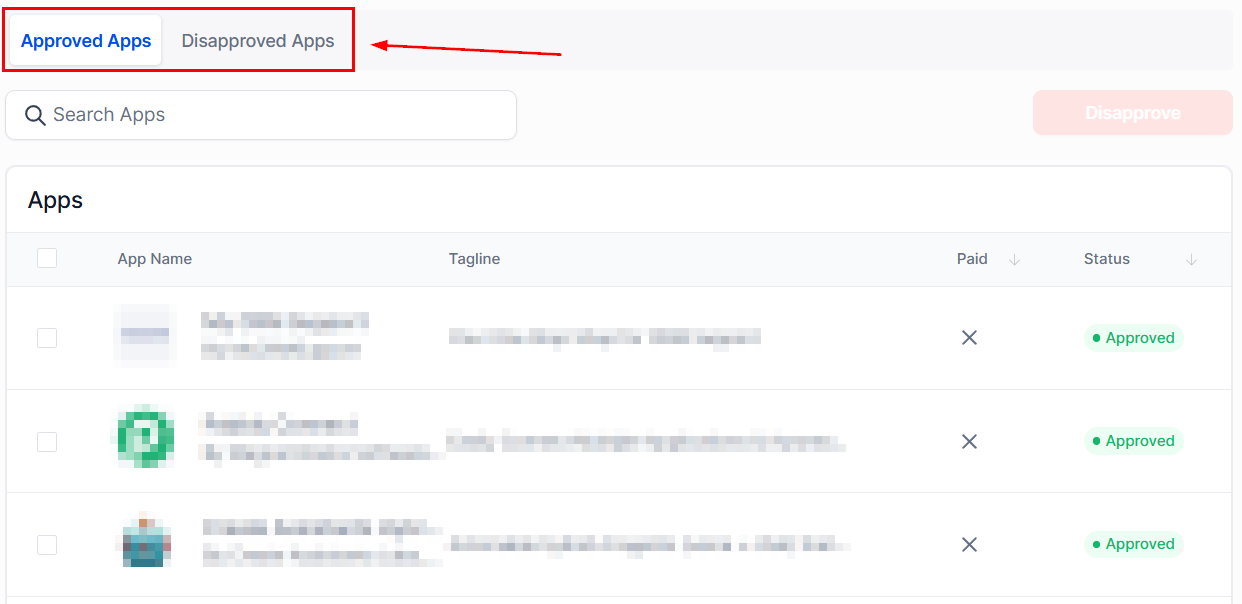
If you want to Approve/Disapprove multiple Apps, head over to the left bar and open the App State drop-down. In there, select a Status to change.
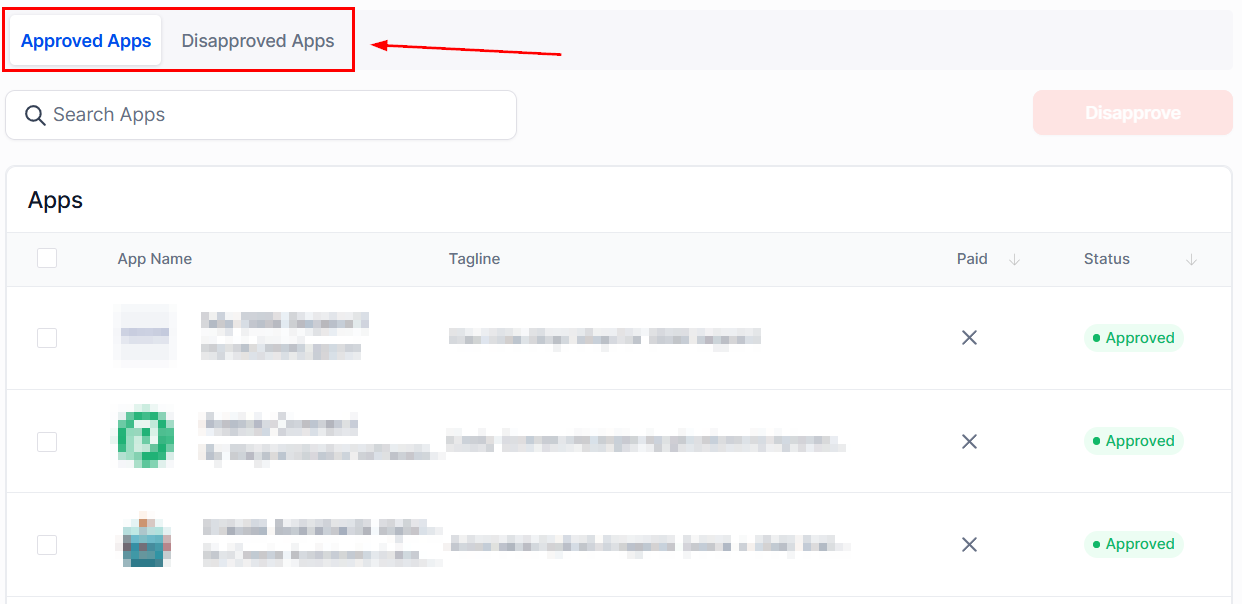
Click the checkbox next to the desired apps and click the button in the top right corner to change their status.
App Usage Limits
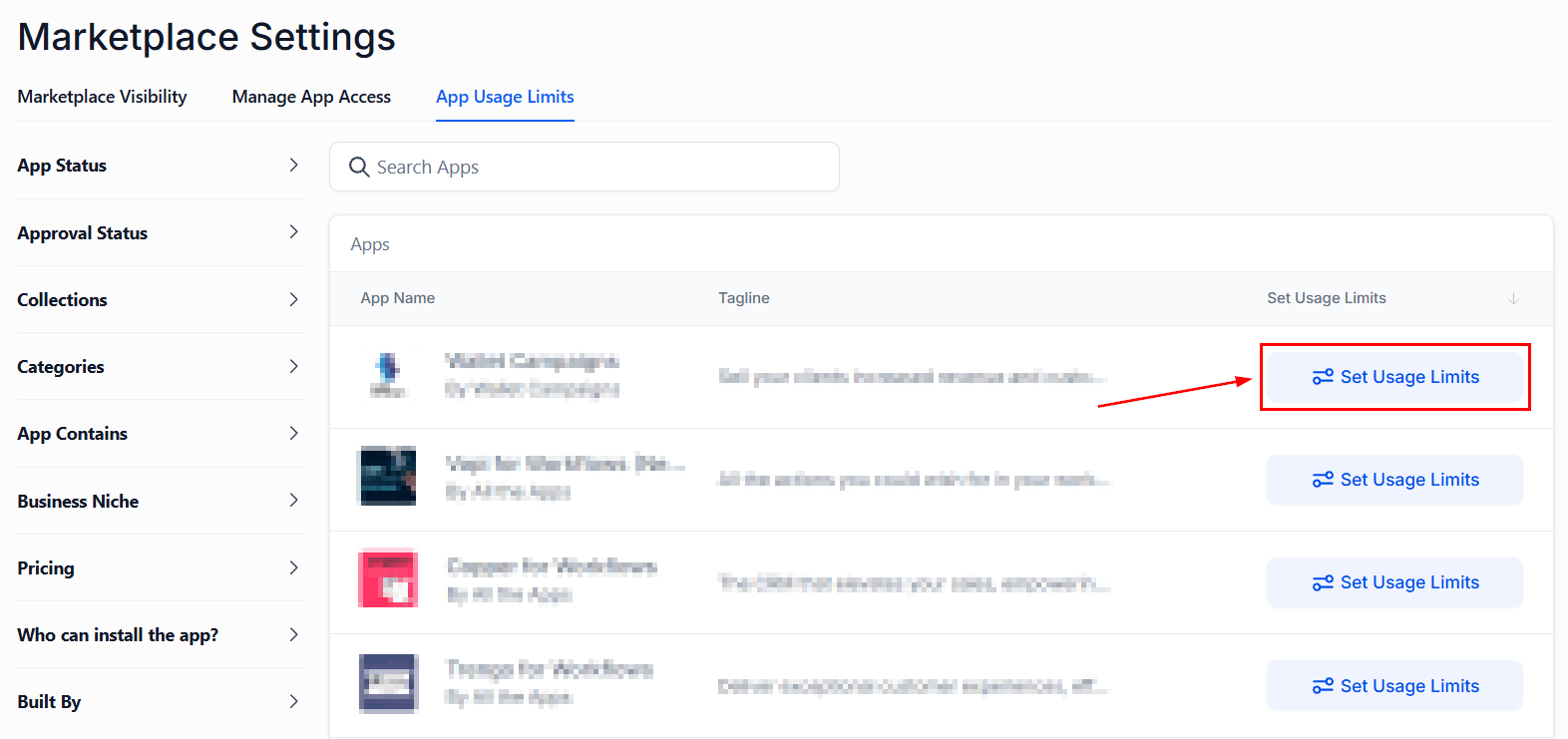
This section helps you define the daily usage limits for apps that have a usage-based pricing. To change the limits, click “Set Usage Limits” next to your desired app.
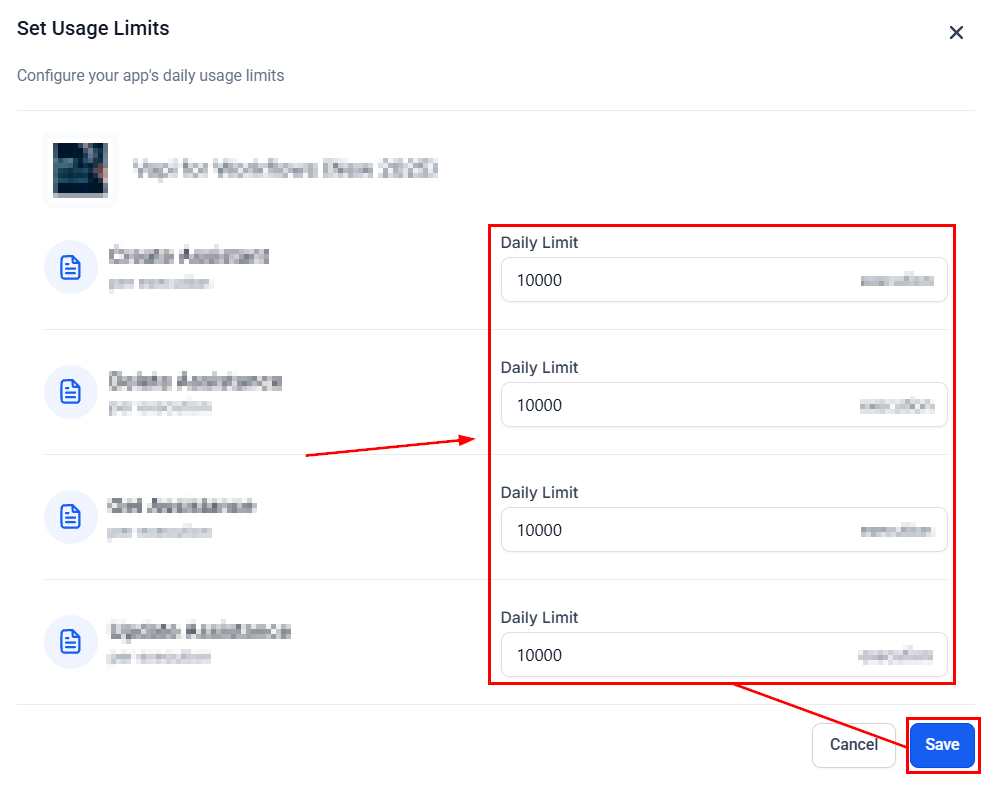
Type your desired usage limit for each action, then click save.
And there you go! Now you can handle the permission efficiently and fast, ensuring your clients receive the branded experience you want while enjoying the added ease of Apps.