How to Seamlessly Integrate Your Course and Funnel Checkout with Workflows
Connecting your course or product to a funnel checkout is an essential step in delivering a smooth purchase experience for your customers. Whether you’re using the Membership Offer toggle or creating a custom workflow, this guide outlines the steps to integrate your offers effectively.
The first step in connecting your course or product to your funnel checkout involves creating an offer within the membership editor area. Here’s how to do it:
Access the Membership Area
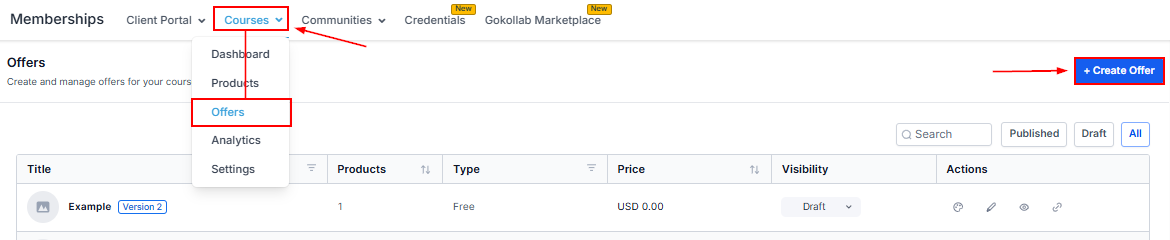
Navigate to Membership > Courses > Offers, and click +Create Offer.
Create Your Offer
Enter the title for your offer and select the applicable products from the dropdown. Optionally, choose the offer type and enter a custom phrase to describe the offer price.
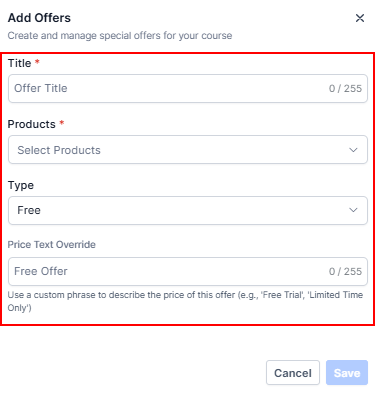
Be sure to update the visibility from draft to published once you have set up the offer to your liking!

📌Note: After creating your offer, you have two options to connect it to your funnel checkout: using a Workflow or the Membership Email Default.
Using the Membership Offer Toggle
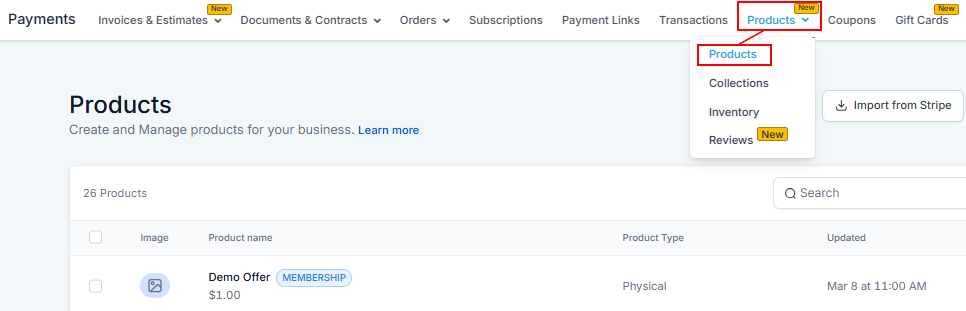
Now that you have set up your offer, navigate to the Payments > Products section of your account and select the product you wish to connect.
Click the price.
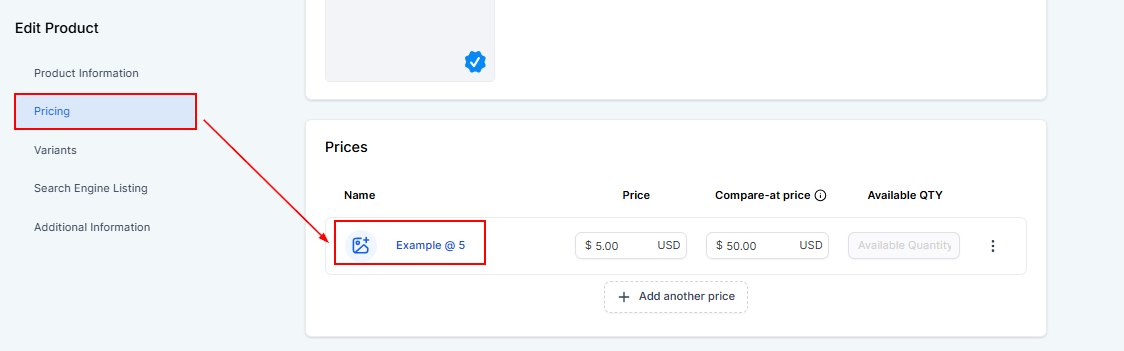
Next, scroll to the “Pricing” section and Toggle “Membership Offer” within the Additional Settings. This will allow you to choose the offer from the dropdown.
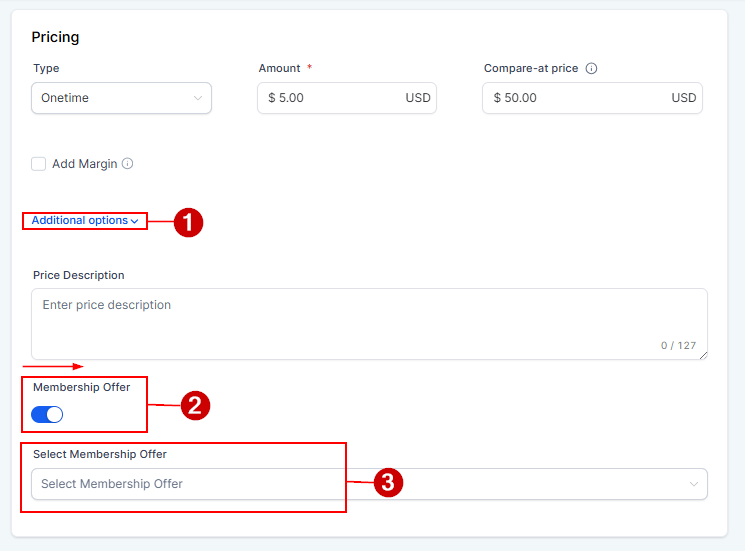
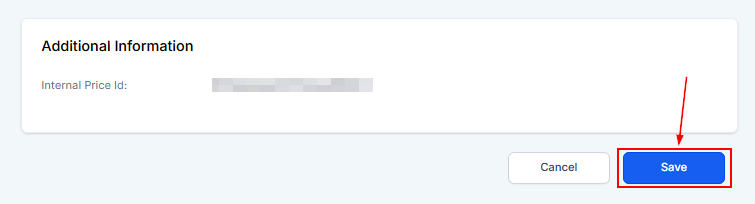
Confirm your changes by saving.
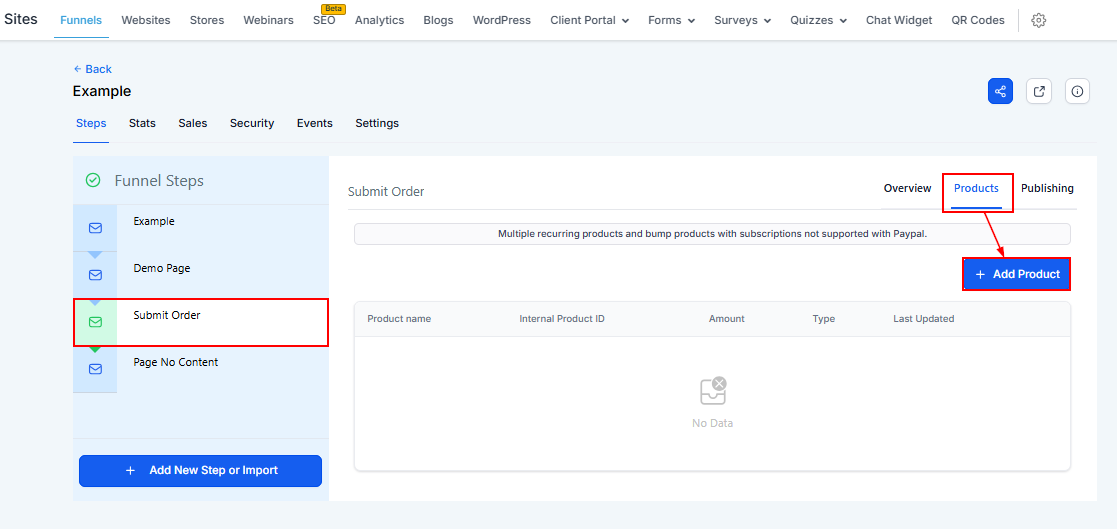
Remember to add or re-add the product to the funnel page with the order form to ensure it’s connected.
Integrating a Funnel With Workflows
Creating a Workflow
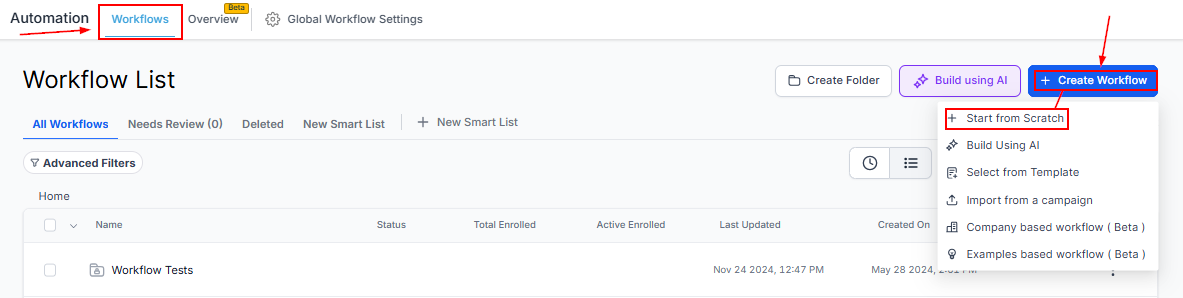
Creating a workflow allows for more customized automation in connecting your offer to a funnel checkout. Navigate to Automation > Workflows. Click “Create Workflow”, then choose “Start from scratch”.
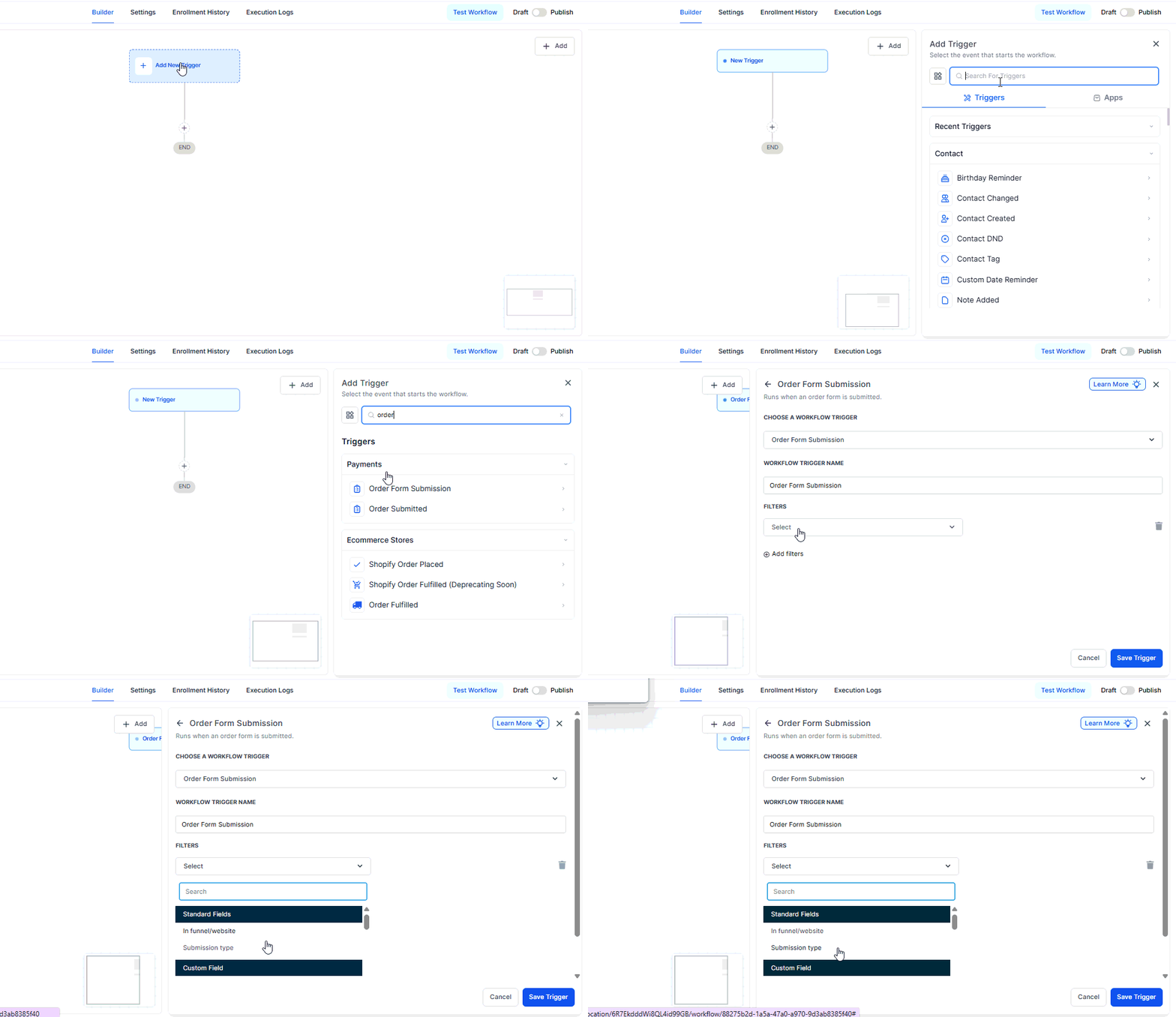
Add a trigger for “Order Form Submission.” In the Filter selection, within the Standard fields, select the “In funnel/website” filter. Choose your Funnel. Then select the page within the funnel/website, presumably the Checkout page, and choose the Submission type.
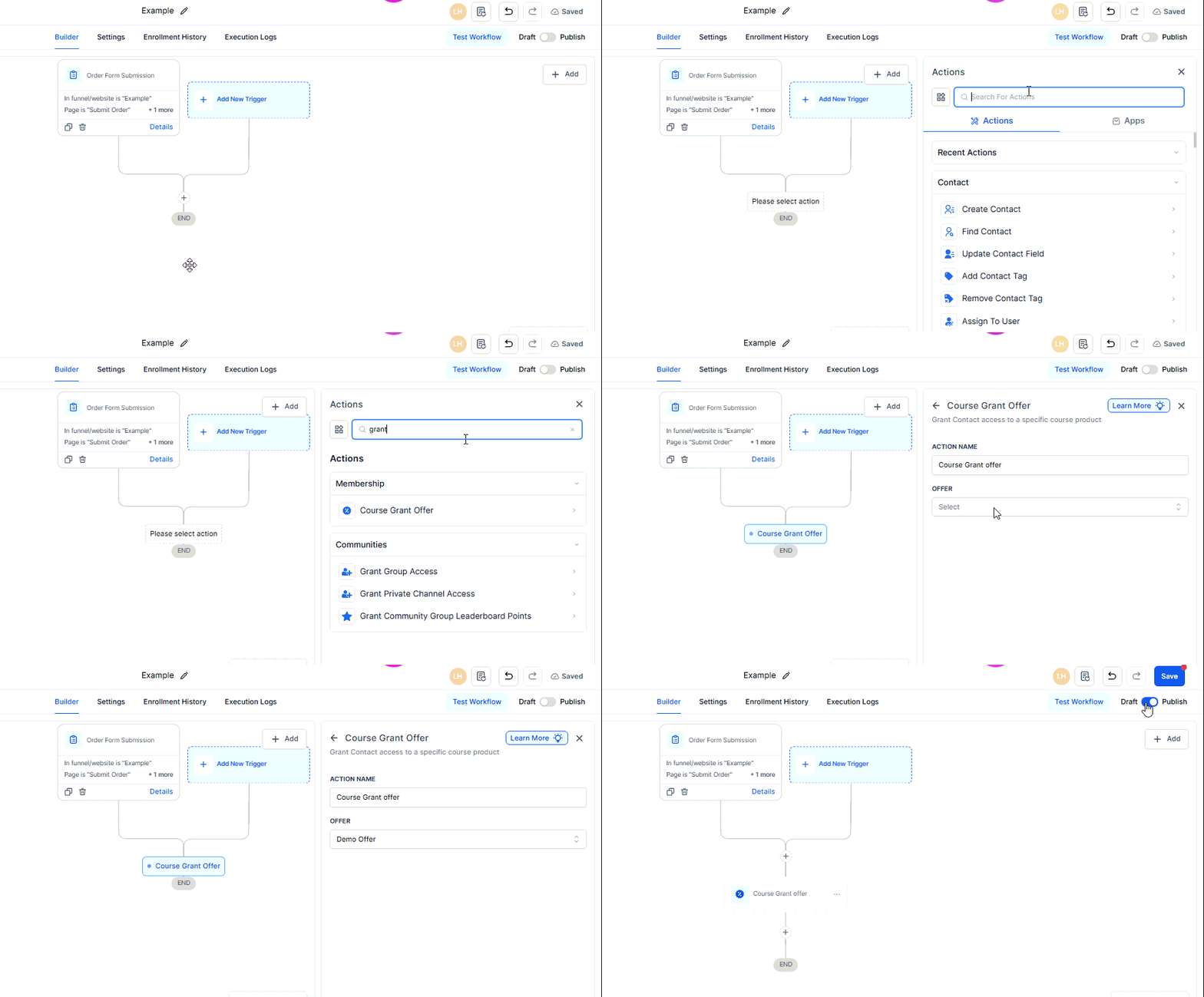
Add an Action for Course Grant Offer and select the offer you wish to connect. Ensure everything is saved and publish the workflow to activate it. Make sure the workflow isn’t in draft mode.
Connecting your course or product to your funnel checkout is a critical step to ensure a seamless customer journey. Whether you use the Membership Offer toggle or a customized workflow, both methods provide flexibility and control over the process.
Troubleshooting Tips and FAQs
Q: My offer isn’t showing up in the funnel checkout.
- Ensure that you’ve correctly added or re-added the product to the funnel page with the order form after making changes.
Q: Workflow not triggering?
- Verify that the workflow is not in draft mode and that all triggers and actions are correctly set up.
Not a Funnelbud customer yet?
Try our all-in-one CRM for sales and marketing — free for 7 days, no commitment.