Number Validation Trigger
Marketing is a numbers game; you always want to reach the largest number of people at the lowest possible expense. Validating the Numbers you’re reaching out to makes your SMS marketing more efficient and gives you the best return on your investments by noting any number that can’t be reached by SMS and allowing you to decide what happens next.
Adding the Number Validation Trigger
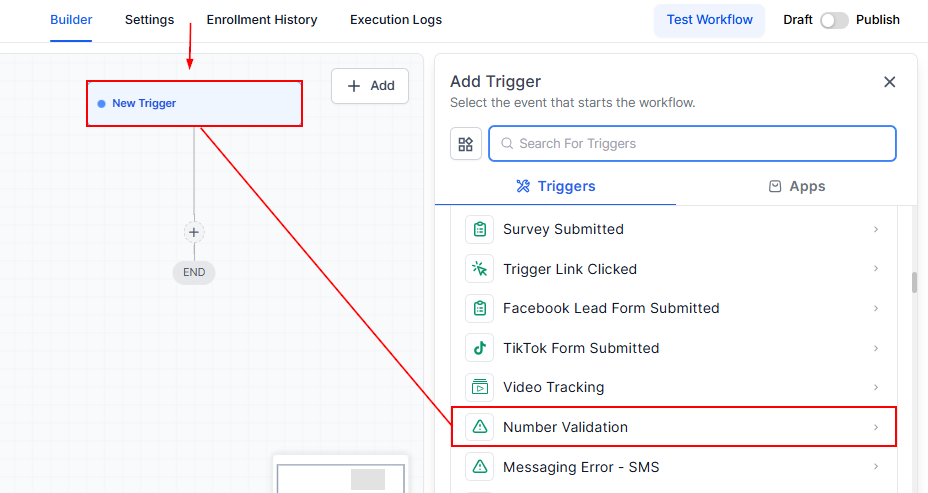
To begin automating your response to these errors, you’ll need to set up a new workflow trigger, click on “Add New Trigger”, search, and add the Number Validation option.
Filters
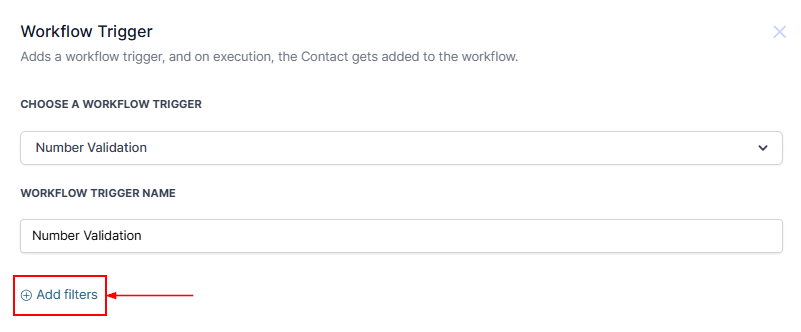
You can add filters within the trigger by clicking the “Add Filter” button.
Number Is
In the first dropdown, under Standard Field select “Number Type”. You can specify the error type in the second dropdown, such as “Not Valid” for invalid numbers or “SMS Incapable” for landlines.
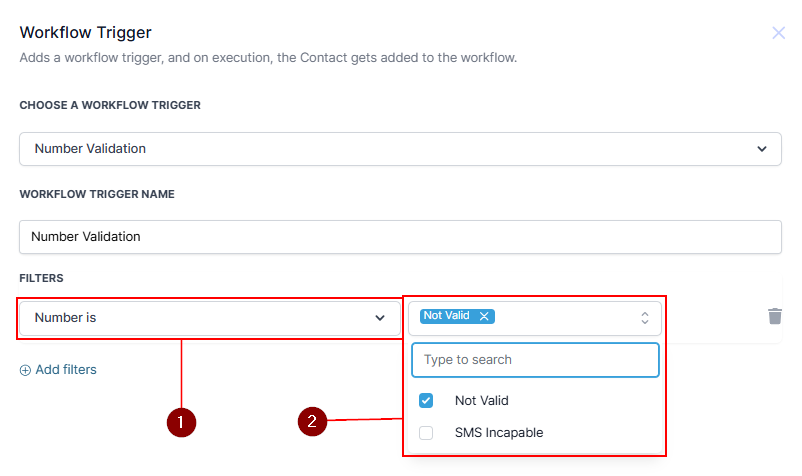
📌Note: For easy identification, name your trigger accordingly, e.g., “Not Valid” or “SMS Incapable.”
Adding Multiple Triggers
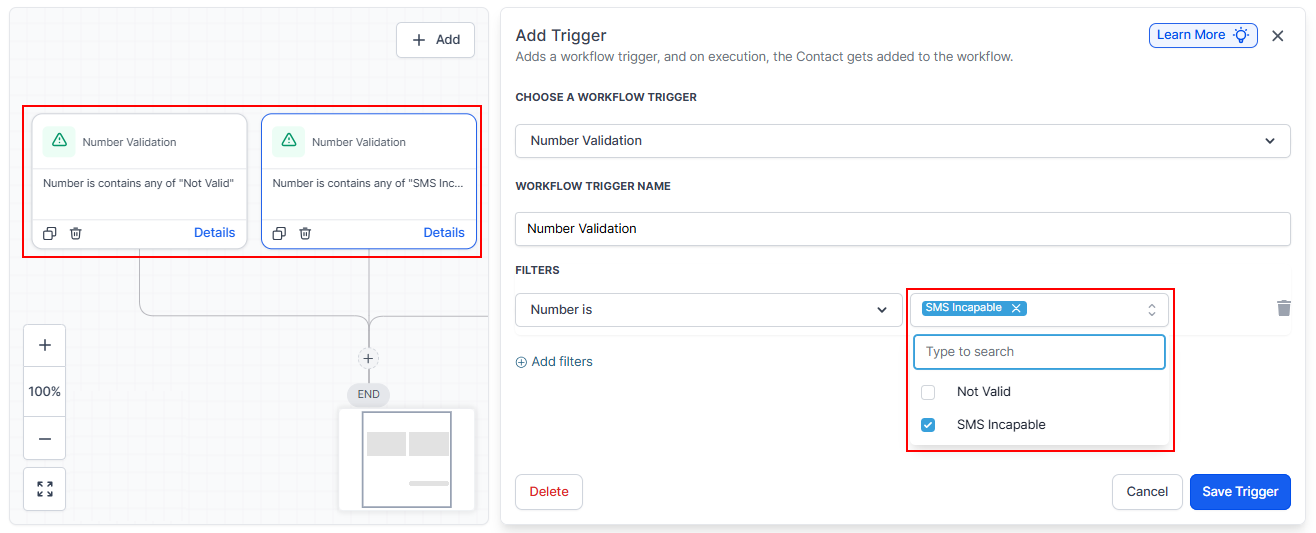
It’s possible to add multiple triggers within a single workflow to handle different types of errors separately:
For instance, you can create one trigger for “Not Valid” errors and another for “SMS Incapable” errors. This allows for more targeted actions based on the specific error encountered.
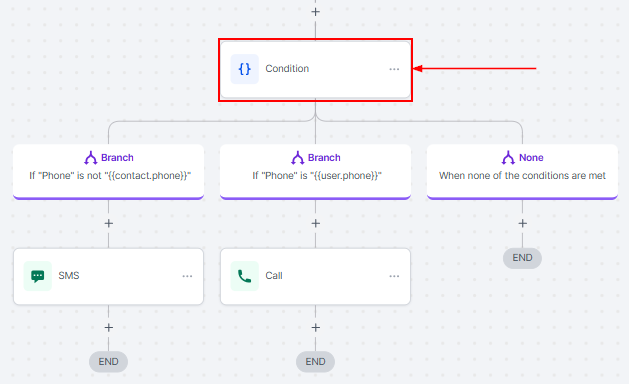
Implementing If-Else Actions
To further refine your workflow, consider using If-Else actions:
- These actions enable you to split the workflow based on the type of error detected.
- For example, if the error is “Not Valid,” you might instruct your team to attempt contact via email instead.
- Conversely, if the error is “SMS Incapable,” the workflow could advise calling the contact, as the number might still be a functional landline.
Practical Applications and Tips
- Team Notifications: Use the workflow to automatically notify your team about the nature of the error, suggesting alternative contact methods.
- Maintaining CRM Health: Automating responses to validation Errors helps keep your CRM account in good standing by avoiding repeated attempts to obtain unreachable numbers.
By using the Number Validation Trigger, you can streamline your SMS marketing efforts, avoid unnecessary costs, and ensure your messages reach the right audience. This simple addition helps maintain clean contact lists and improves overall campaign success.
Frequently Asked Questions
Q: What if I encounter errors setting up the workflow?
- Ensure you’ve correctly applied filters and named your triggers for clarity. Reviewing the specific error messages can also provide insights into necessary adjustments.
Q: Can I customize actions based on different errors?
- Yes, by using If-Else actions, you can tailor your workflow to respond uniquely to each type of Validation Error.
Not a Funnelbud customer yet?
Try our all-in-one CRM for sales and marketing — free for 7 days, no commitment.