Automatic Time Zone Capture on Forms and Surveys
Automatic Time Zone Capture simplifies the process of scheduling and messaging by automatically detecting and organizing the time zones of leads upon their submission of forms or surveys. This functionality eradicates the need for manual time zone entry, thereby boosting workflow efficiency and ensuring that messages reach clients at the most opportune moments.
Accessing the Form or Survey Builder
Navigate to the Sites tab from the left sidebar menu. Choose to create a new form or survey from scratch, use a template, or edit an existing one.
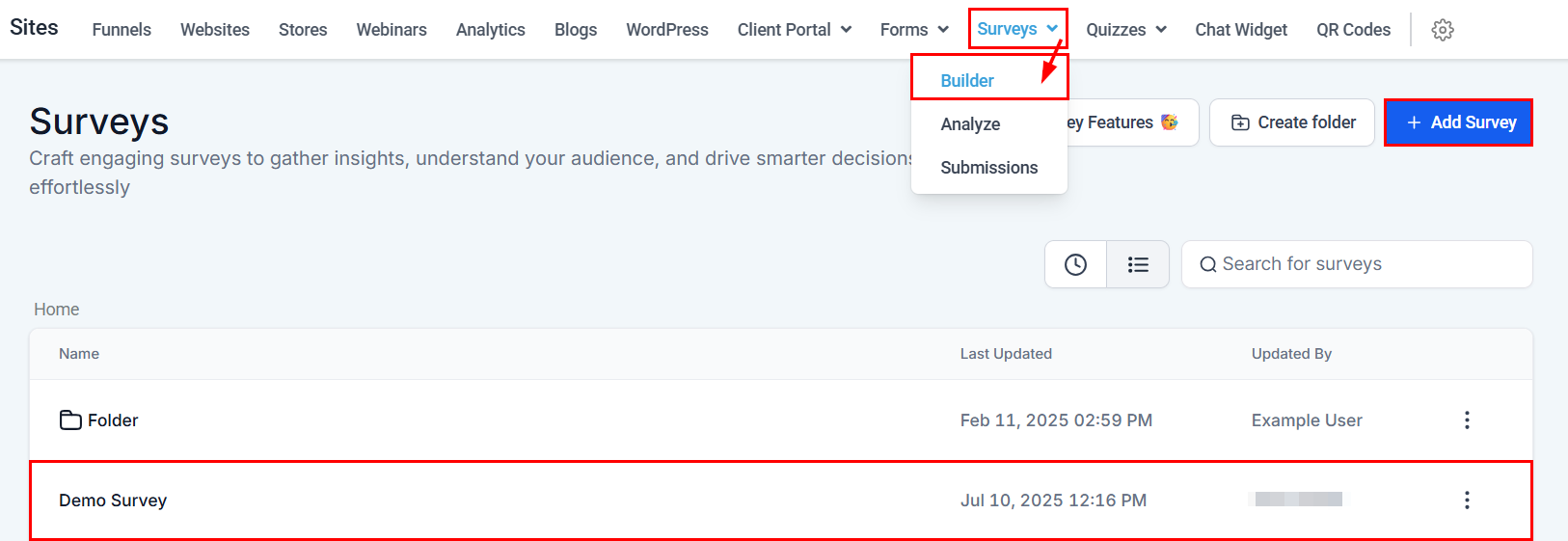
Creating or Editing a Form/Survey
Within the builder, add the necessary fields to your form or survey.
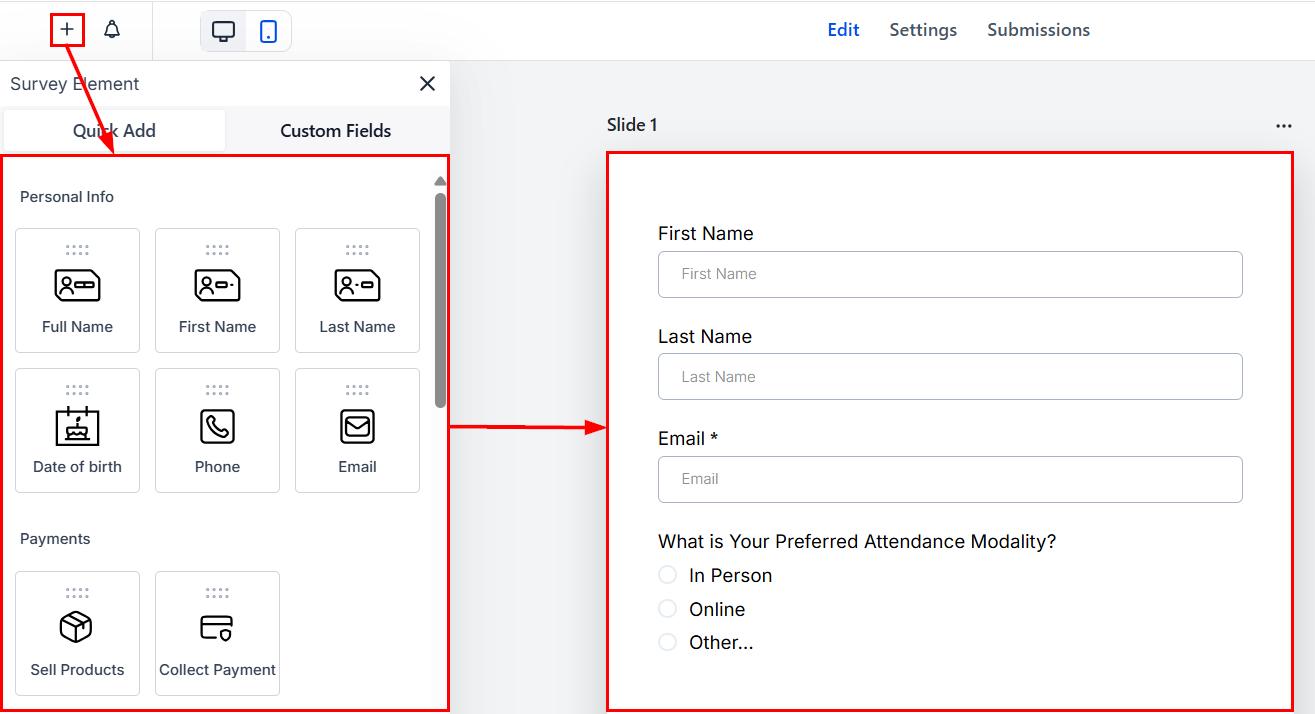
Enabling the Time Zone Feature
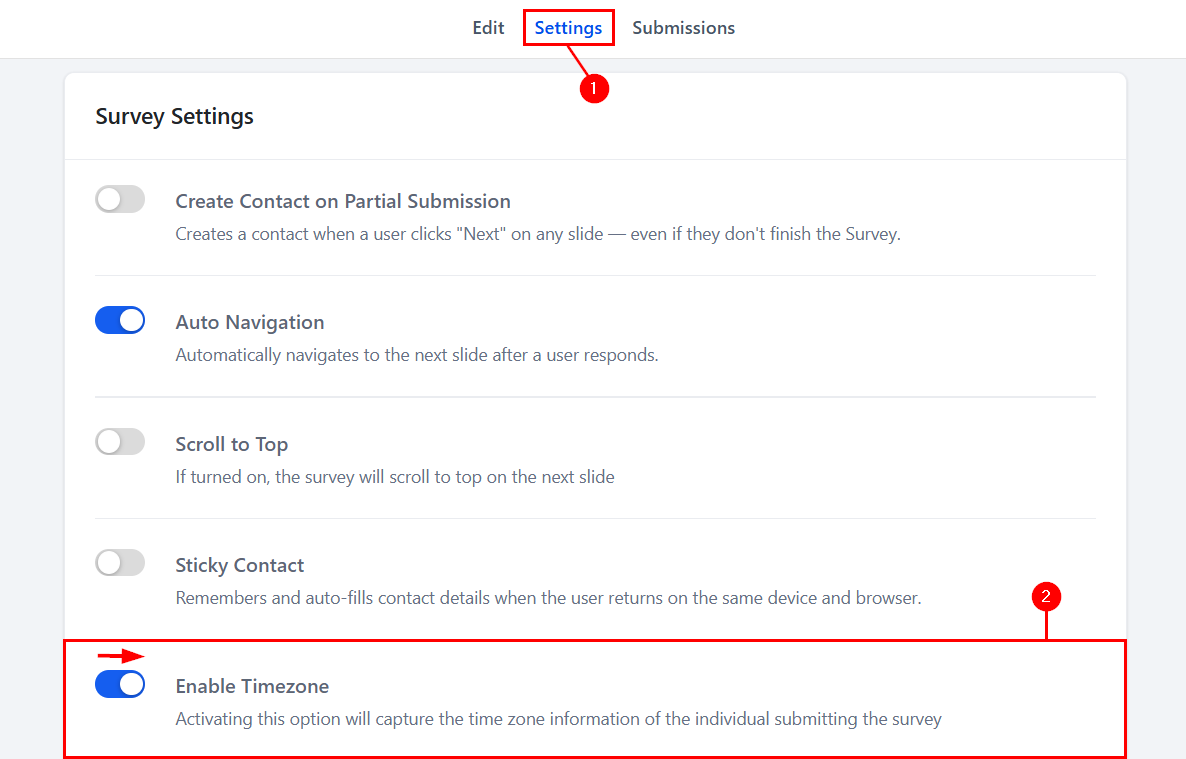
In the Settings menu, scroll down to locate the time zone feature toggle under Survey Settings. Toggle on the Enable Timezone option.
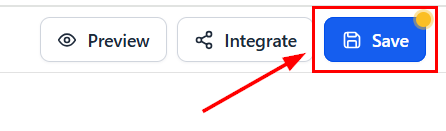
Click on the “Save” button to apply the settings. Then, select the “Back” button to return to the main menu.
Viewing Submissions
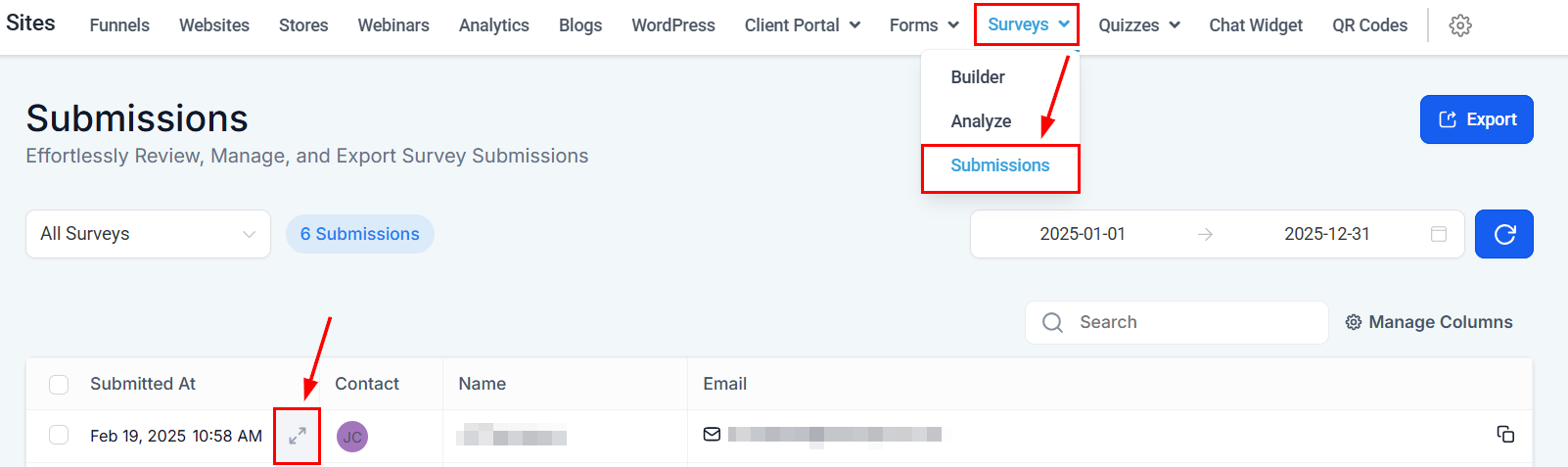
To check the details of submitted forms or surveys, click on the Survey/Forms tab in the top menu bar and select Submissions. Choose a form or survey from the list to view its details.
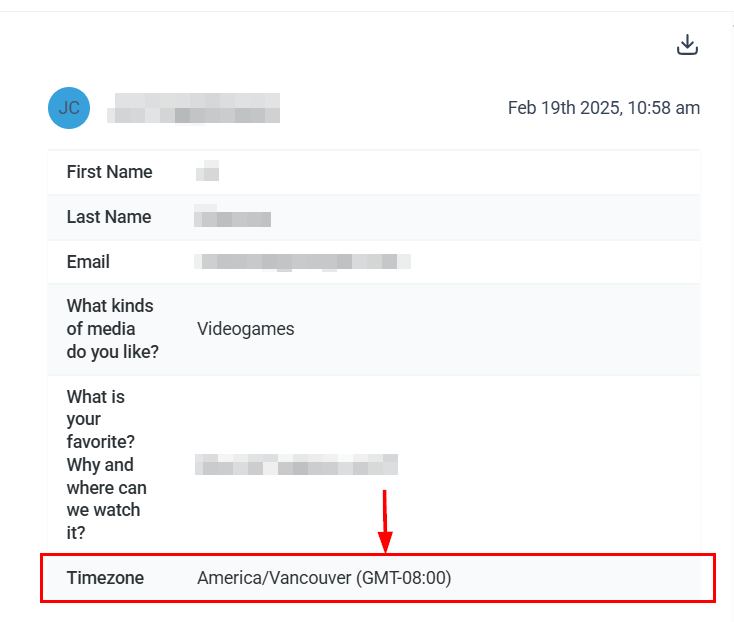
Scan the fields to see the time zone of the contact who submitted the form or survey.
Automatic Time Zone Capture is a powerful tool for businesses operating in a global landscape. By automating time zone detection, it ensures your messages are delivered at the right time, every time. This not only enhances client satisfaction but also streamlines your workflow, allowing you to focus on what matters most—building meaningful connections.
Primary Benefits
- Precision in Communication: Messages are delivered at appropriate times, respecting clients’ local time zones.
- Effortless Contact Management: The CRM automatically captures and organizes contact time zones, eliminating manual data entry.
- Enhanced Workflow Efficiency: With time zones automatically integrated into workflows, managing global communications becomes more effective.
Practical Examples and Use Cases
- Global Webinars: When participants register for a webinar, their time zones are automatically captured. This ensures reminder emails or SMS messages are sent at the right time, boosting attendance and engagement.
- International Campaigns: Schedule follow-ups or promotional messages based on the recipient’s local time, improving response rates.
- Customer Support: Automatically route support requests to agents available in the same time zone, reducing delays.
Troubleshooting Tips and FAQs
Q: What if the time zone doesn’t seem to be captured correctly?
- A: Ensure that the feature is enabled in the form or survey settings. If issues persist, verify the form’s configuration and the accuracy of the submission data.
Q: Can I manually adjust the time zone for a contact?
- A: Yes, contact time zones can be manually adjusted within their contact card if necessary.
Not a Funnelbud customer yet?
Try our all-in-one CRM for sales and marketing — free for 7 days, no commitment.