LC - Phone Messaging Policy
This policy outlines the rules and guidelines for sending messages through the LC-Phone platform within the CRM. It ensures that messages are delivered effectively and comply with legal and industry standards. Below is a detailed breakdown of the policy:
- Consent (“Opt-In”): Consent cannot be purchased, sold, or transferred. This means you cannot obtain permission to send messages by buying phone lists or using other indirect methods. Messages must only be sent to individuals who have explicitly agreed to receive them.
- Revocation of Consent (“Opt-Out”): The first message sent to a recipient must include clear opt-out language, such as “Reply STOP to unsubscribe.” This allows individuals to revoke consent by replying with a standard opt-out keyword.
- Sender Identification: Every initial message must identify the sender (the party that obtained the recipient’s consent). This requirement does not apply to follow-up messages in an ongoing conversation.
- Messaging Usage Restrictions: Messages related to alcohol, firearms, gambling, tobacco, or other adult content are prohibited.
- Filtering Evasion: Content designed to bypass spam filters or detection systems is prohibited. This includes using misspelled words, non-standard opt-out phrases, or spreading similar messages across multiple phone numbers to evade detection.
This policy applies to all users of LC-Phone messaging services to ensure compliance and maintain the integrity of the platform.
Handling Violations
When we identify violations of this policy, we will work with customers to help them comply. However, in cases of serious or repeated violations, we reserve the right to suspend or terminate access to the platform to protect the rights and privacy of all users.
Ramp-Up Model
Effective February 1, 2024, all sub-accounts created under LC-Phone will follow an updated 8-level ramp-up model. This model is designed to gradually increase SMS sending limits while ensuring compliance and preventing spam. Here’s how it works:
- Sub-accounts start at Level 1, with a daily limit of 100 SMS.
- To progress to the next level, the sub-account must send the full daily limit within 24 hours.
- After reaching the limit, the sub-account will be temporarily restricted from sending SMS for 24 hours.
- Once the restriction is lifted, the sub-account will advance to the next level with an increased sending limit.
Day | SMS Sending Limit |
|---|---|
1 | 100 |
2 | 250 |
3 | 500 |
4 | 750 |
5 | 1500 |
6 | 2250 |
7 | 3000 |
8th Day & Ongoing | 3000+ |
📌NOTES:
- The ramp-up process begins on the day the first successful SMS is sent, not the account creation date.
- One-to-one messages and missed call text-back messages now count toward the daily limit.
- During the 24-hour restriction period, no SMS can be sent, including one-to-one messages.
Why the Change?
This policy was introduced to prevent spam messages from fake signups, keep accounts safe from suspicious activity, and avoid legal issues due to excessive messaging to people who haven’t consented. Daily limits on bulk SMS sending ensure that accounts follow the rules and don’t get suspended.
Here are some error screens or notifications an account will see during a violation
- Conversation Error: You have exceeded your SMS sending limit.

- Bulk Action: You are allowed to send 5000 message(s) in a day. You have already sent 5000 messages. If you wish to proceed, 1 Message(s) will be failed.

Handling Spam Messages
In managing messages from accounts, it’s essential to understand the different statuses they can have. There are four key statuses for messages sent from an account:
- Sent: These are messages for which we haven’t received a response from the carrier. They can fall into one of the three statuses below.
- Delivered: These messages were successfully sent and reached the intended contact.
- Failed: These are messages that were either canceled or not forwarded to the carrier for delivery to the contact.
- Undelivered: Messages in this status are either suspicious or don’t comply with our messaging policy.
This feature will focus on Undelivered messages. These messages receive specific error codes, which we store at each message level. We use these codes to implement Temporary or Permanent Do-Not-Disturb (DND) settings at the contact level. This helps enhance your deliverability rate, which is crucial for successful messaging.
Below is a summary of Undelivered SMS error codes, their meanings, and the remedial actions we take:
Response Code | Code Description | Remediation |
|---|---|---|
30005 | User Inactive/Number does not exist | Enable Temporary DND |
30003 | Unreachable- Out of Service | Enable Temporary DND |
30004 | Do not want SMS/DND enabled | Enable Permanent DND |
30006 | Landline/Incapable to receive SMS | Enable Temporary DND |
30008 | None of the above scenarios matched | No action required |
- Temporary DND: This can be revoked by the agency or location. It’s a temporary restriction.
- Permanent DND: This restriction at the contact level can’t be revoked by the agency or location. It’s for contacts who can’t receive messages or have opted out.
- Opt-Out Keyword: Individuals should be able to withdraw their consent at any time by responding with a common opt-out keyword such as STOP or Unsubscribe. This action will also activate a permanent Do Not Disturb (DND) status for the contact.
Advantage
This will prevent the location from sending SMS messages to irrelevant contacts, ultimately improving deliverability rates and reducing the risk of being blocked. Messages will be sent only to contacts who have opted in.
Spam Messaging Error Screens
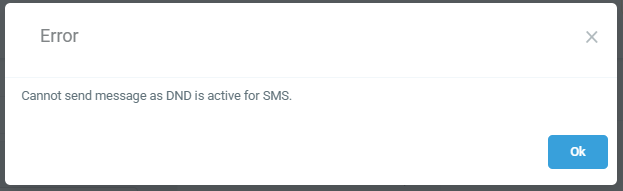
Conversation
Cannot send messages as DND is active for SMS.
Bulk Action
When sending SMS through workflows or bulk messaging features, the system will automatically exclude contacts marked with DND from the recipient list.”
Revoking the DND for a Contact
To disable Temporary DND, navigate to the contact details and uncheck the DND flag. A sample screenshot is provided below.
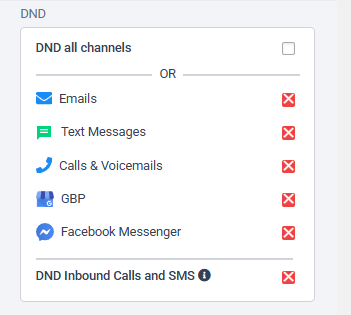
Permanent DND cannot be revoked through the UI. To remove it, ask the contact to reply with keywords like “START,” “YES,” or “UNSTOP” to the number. This should automatically lift the DND status from the contact.
📌NOTE: If the DND isn’t revoked after using the START keyword and messages are still failing to send or receive, please submit a support ticket.
Opt-Out Language Addition
Consent for receiving communications cannot be purchased; it must be obtained explicitly from the user for SMS campaigns and other messages. This consent is granted to a specific entity—in our case, the accounts that serve as the actual senders of these communications.
To comply with messaging policies, every initial message sent by the company to an end-user must include two mandatory pieces of information: the Sender ID and Opt-Out Language.
- Opt-Out Language: End-users must have the ability to withdraw their consent at any time. Therefore, each initial message should include opt-out keywords like STOP or UNSUBSCRIBE. Additionally, we will include the opt-out language: “Reply STOP to unsubscribe.”
📌 NOTE: The “Opt-Out Message” feature applies to Bulk Actions (Bulk SMS), Workflows, and Campaigns. It does not apply to one-on-one conversations unless it’s the first message being sent to a new contact who has never texted the LC phone number before.
How Can I Customize the Opt-out Message?
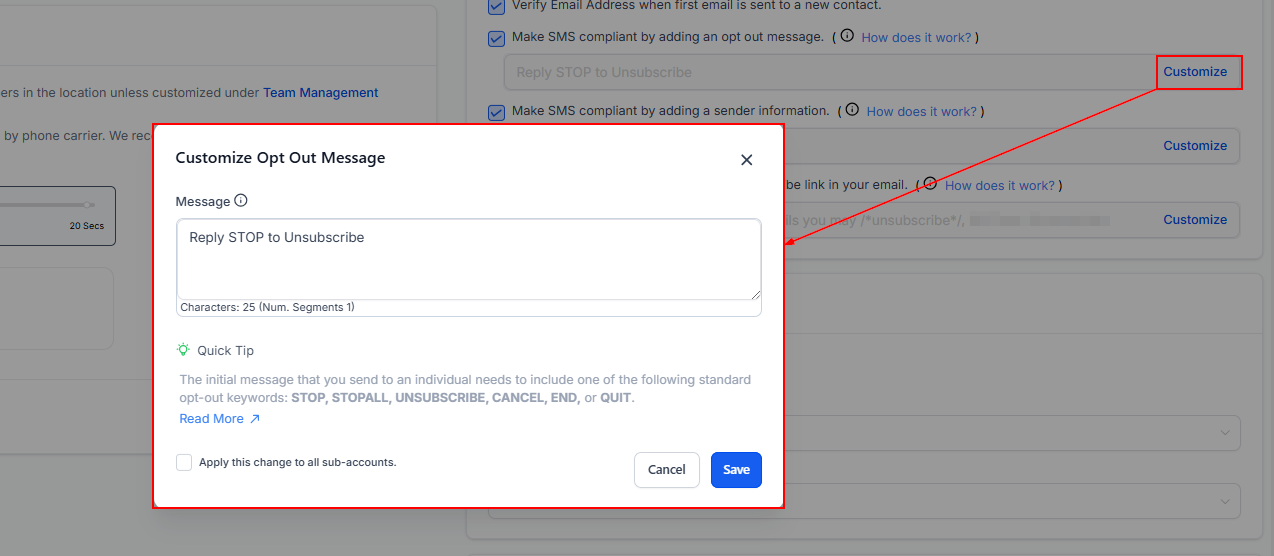
Navigate to Account > Settings > Business Profile > General to customize the opt-out message. A reference screenshot is provided below.
What Happens If My Message Already Has an Opt-out Keyword?
If your message already contains one of the opt-out keywords shown in the screenshot above, no additional opt-out keyword will be added from our side.
What Happens When an End-user Replies With the STOP Keyword?
When an individual replies with a standard opt-out keyword like STOP, their consent to receive SMS messages will be revoked. As a result, all future and queued messages will fail to deliver, and a permanent Do Not Disturb (DND) status will be activated for that contact.
📌NOTE: This is essential information that must be communicated to the end customer, making it a mandatory requirement for all initial messages.
Sender Information Addition
- The consent for sending out communications cannot be bought and the only way is to get explicit consent from the user for the SMS campaigns and communications.
- The consent is taken by a specific entity, in our case locations that are the actual sender of these communications.
- To comply with the messaging policies each of the initial messages sent out by the company to an end-user should have below two mandatory information, ie, Sender ID and opt-out Language:
- SenderID: Every message you send must identify you (the party that obtained the opt-in from the recipient) as the sender, except in follow-up messages of an ongoing conversation. We will add the sender info: “Thanks,
”.
📌NOTE: The “Sender ID” feature is only applicable to Bulk action (Bulk SMS), Workflow, and campaigns and does not apply to One-on-one conversation
Monitoring Errors and Opt-Out Rates
Our goal is to ensure reliable communication for our users. We monitor the account’s delivery rate to avoid any permanent carrier account suspensions due to misuse.
To maintain a healthy delivery rate, we take the following actions:
- Violation Email: When the error rate reaches 8% and the opt-out rate reaches 1%, we’ll send a notification email.
- Temporary Account Restriction: If the error rate hits 12.5% and the opt-out rate reaches 2.5%, we will temporarily suspend the account and notify you via email.
📌NOTE: During the temporary suspension, all outgoing SMS will fail until 00:00 AM UTC.
What to Do When You Receive a Violation Email
- Pause all workflows, campaigns, triggers, and bulk actions for contacts who haven’t explicitly opted in to receive messages from the account.
- Customize the Opt-Out language and Sender ID message for upcoming messages.
- Communicate with your client to refrain from sending bulk or cold prospecting messages before resolving the suspension.
Understanding Error and Opt-Out Rates
- A high Opt-Out Rate suggests user objections or spam reports. A good rate is usually between 0% and 1%. If it hits 2%, the account is locked for 24 hours.
- A high Delivery Error Rate indicates issues with the contact list or past sending behavior. A good rate is typically between 0% and 6%. If it hits 12%, the account is locked for 24 hours.
Early Account Suspension Removal
Temporary suspensions are lifted after 24 hours. If the account is permanently suspended, refer to our article on how to unsuspend it.
FAQs
Q: How often does the SMS limit reset?
- A: The limit refreshes every 24 hours. New accounts follow the ramp-up model until they reach Level 8.
Q: Can I respond to incoming messages after hitting the daily limit?
- A: No, all messaging activities, including one-to-one conversations, are restricted once the daily limit is reached.
Q: Can I revoke DND in bulk?
- A: No, DND settings are applied at the contact level to prevent bulk messaging to opted-out contacts.
Q: Does the auto-append feature apply to workflows or manual SMS?
- A: The feature applies to bulk actions, workflows, campaigns, and one-on-one messages sent to new contacts.