How To Integrate PayPal
Do you currently accept payments using PayPal? Take advantage of connecting your PayPal account to your CRM. Visit the Integration section – located within the Payments tab – to gain access to payment credentials used to authenticate and give permission for payment data flows between your CRM and PayPal.
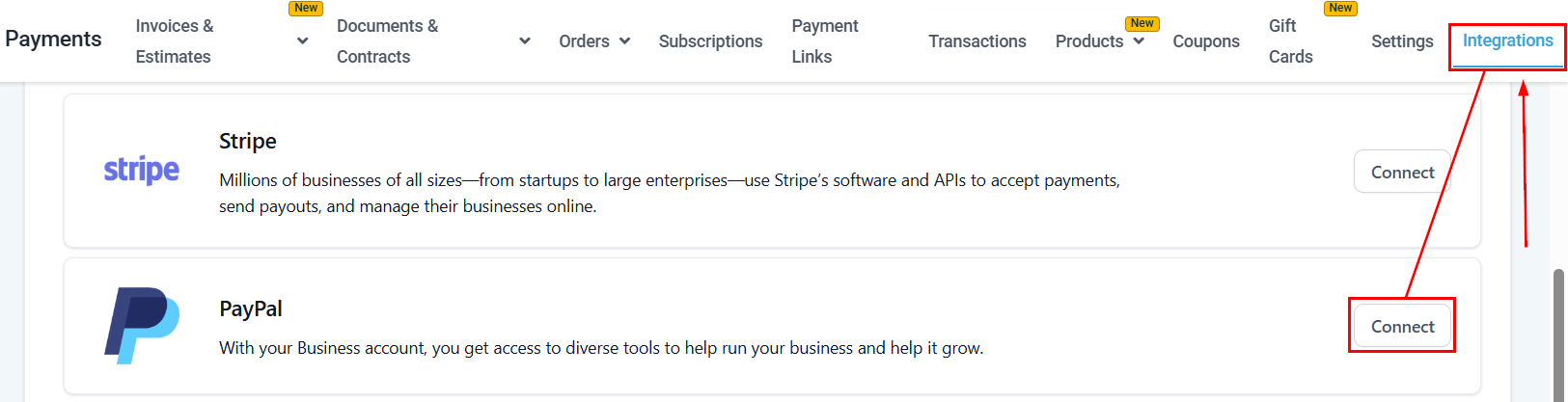
This will open the connection module, where you can choose between Live Mode or Test (Sandbox) Mode.
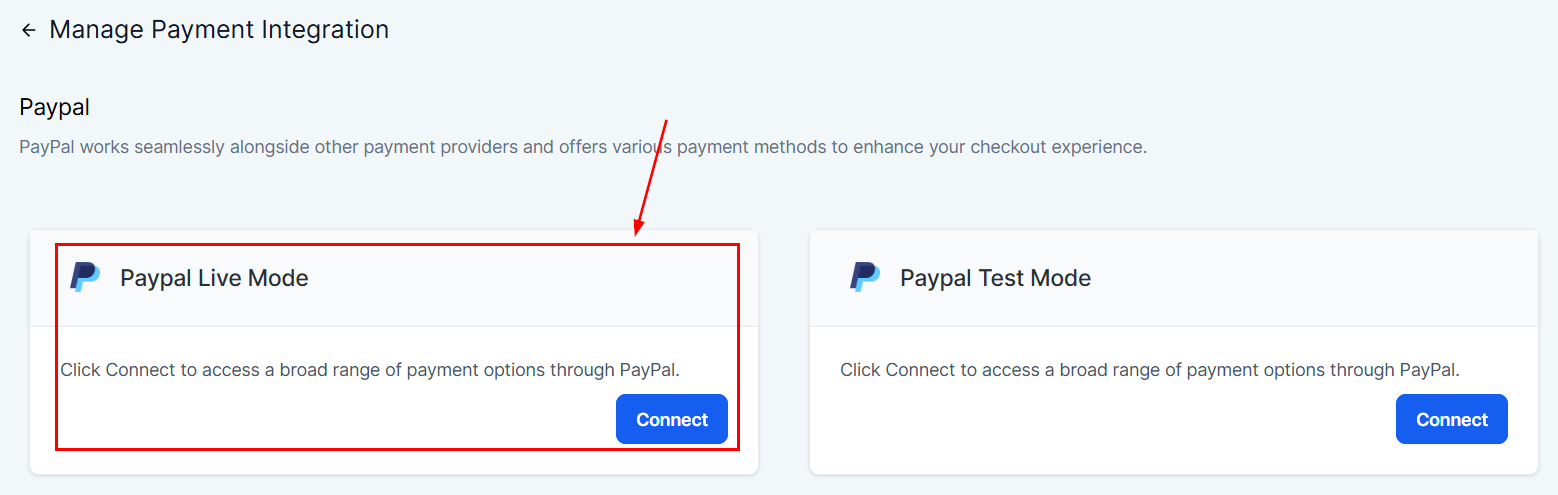
Live Mode
Activate the live mode when you’re prepared to begin accepting actual transactions from your clients by clicking Connect. This mode ensures that your payment processing system is fully functional and ready to handle real-world purchases, offering a smooth buying experience for your customers.
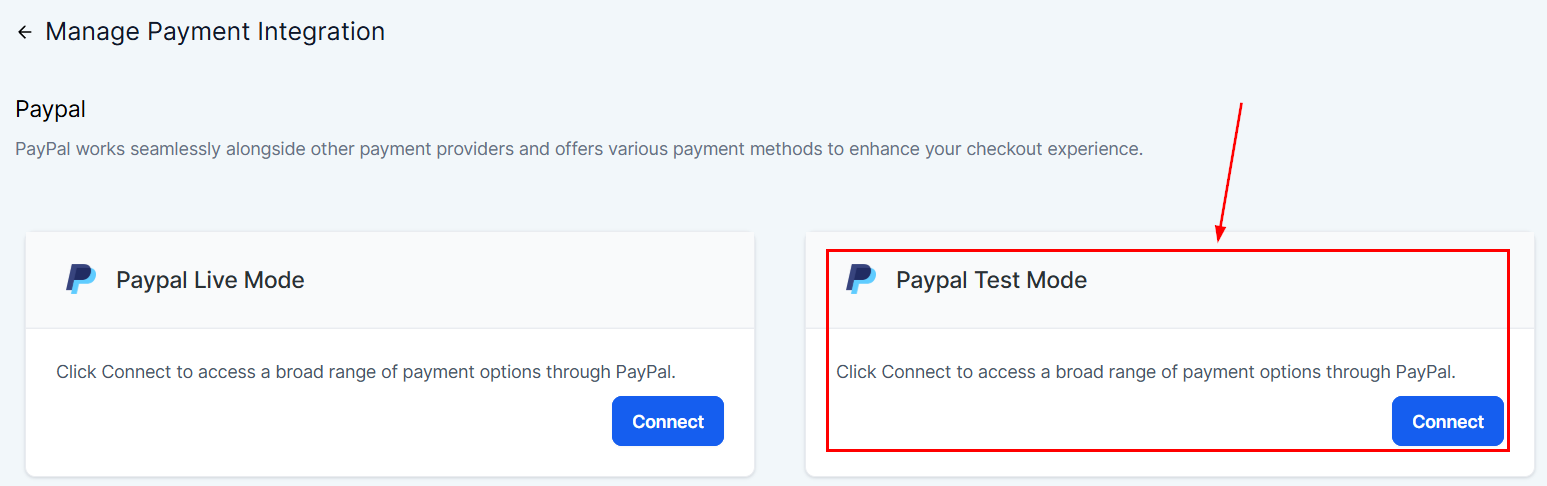
Sandbox Mode
Employ the sandbox mode when evaluating new products to prevent unintentional charges. This mode enables you to simulate transactions, allowing you to check whether your product setup and payment processes are functioning properly without actually processing any real payments.
Connecting Your Account
Once you’ve decided on the mode that suits you best, click Connect to get started.
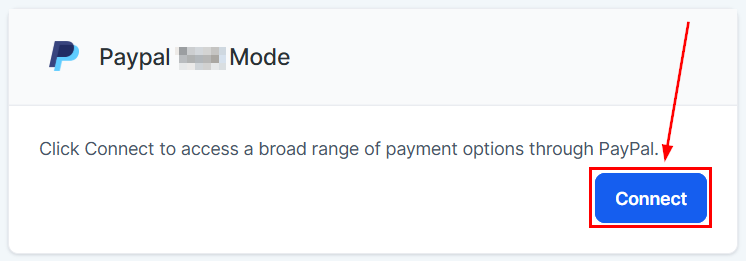
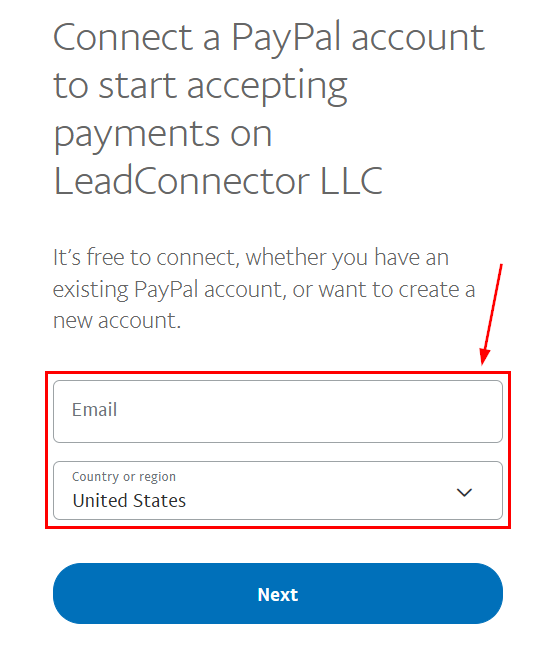
Enter your account’s email and region, then click next.
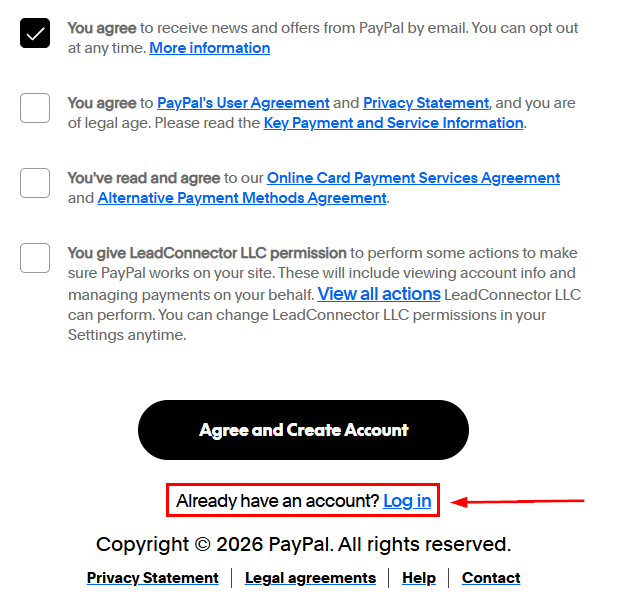
Scroll down and click Log in to use your existing account.
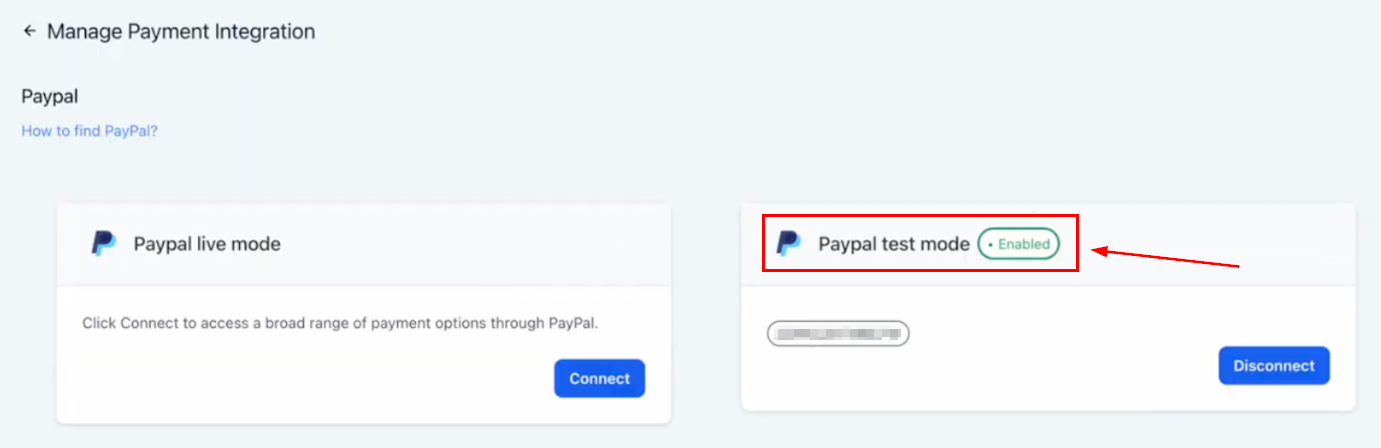
Once you’ve logged in, your connection will look like this.
Integrating PayPal with your CRM is a simple but effective way to streamline your payment process. With options to test in sandbox mode and fully launch in live mode, it ensures a secure and efficient way to handle transactions. Follow the steps outlined, and your business will be set up to accept payments through PayPal in no time!
Not a Funnelbud customer yet?
Try our all-in-one CRM for sales and marketing — free for 7 days, no commitment.