How to Apply A Manual Charge to A Contact
The manual charge feature provides a comprehensive solution for managing customer payments and evaluating their lifetime value. It is designed to streamline the payment process, deliver detailed insights into customer transactions, and support strategic decision-making based on customer value.
The key components include:
- Holistic Payment Insight: Gain access to an extensive payment history for each customer, enabling a deeper understanding of their transaction patterns and overall contribution to your business.
- Real-time Ad Hoc Charging: Execute transactions directly from the customer’s contact detail page, allowing for immediate charges without the need for external payment processing tools.
- Flexible Credit Card Management: Efficiently manage and process payments through saved credit cards, enhancing the effectiveness of phone transactions and on-the-fly charges.
How it Works
Accessing Customer Details
To begin, navigate to the Contacts tab from the left navigation menu. Then, select a contact by accessing the Smart Lists section.
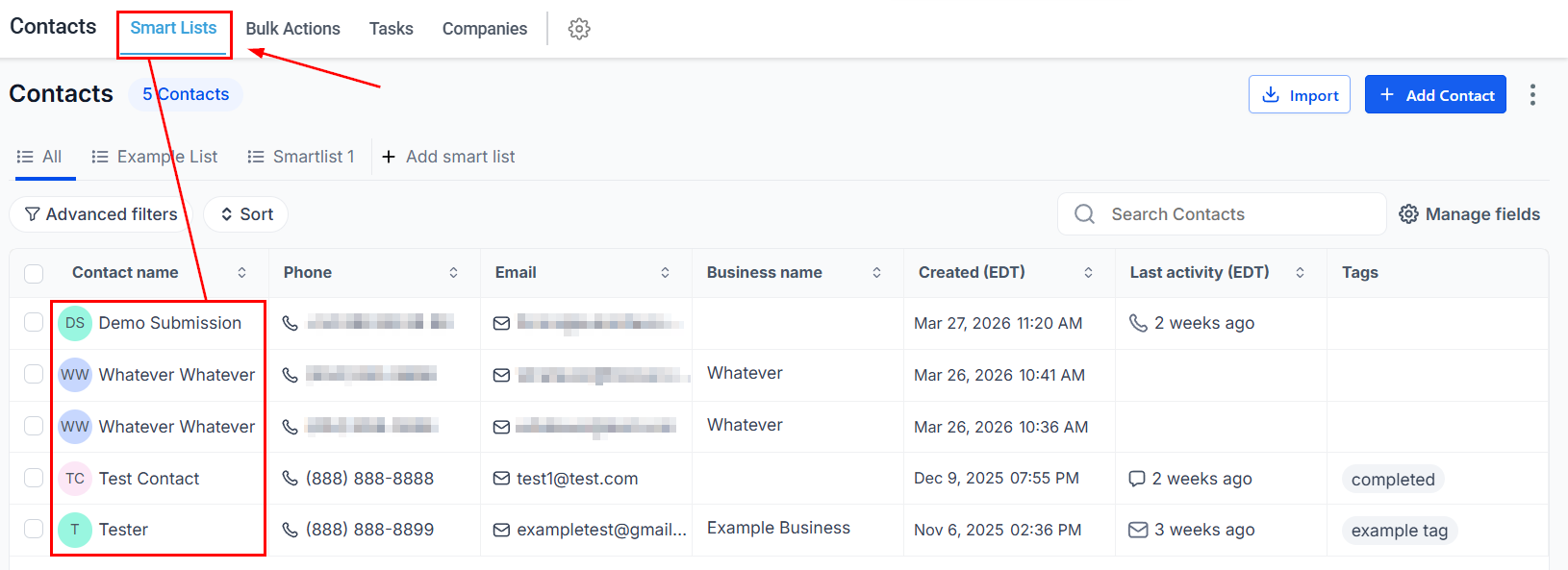
Processing the Payment
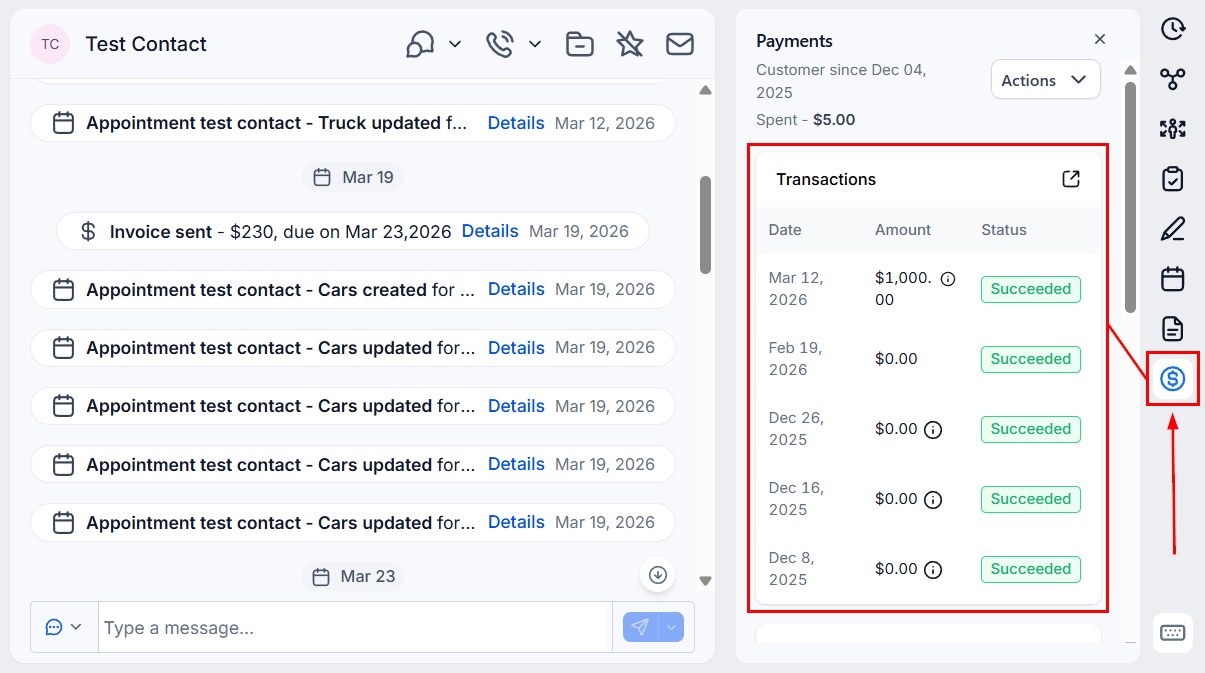
On the contact’s detail page, locate the Payments section.
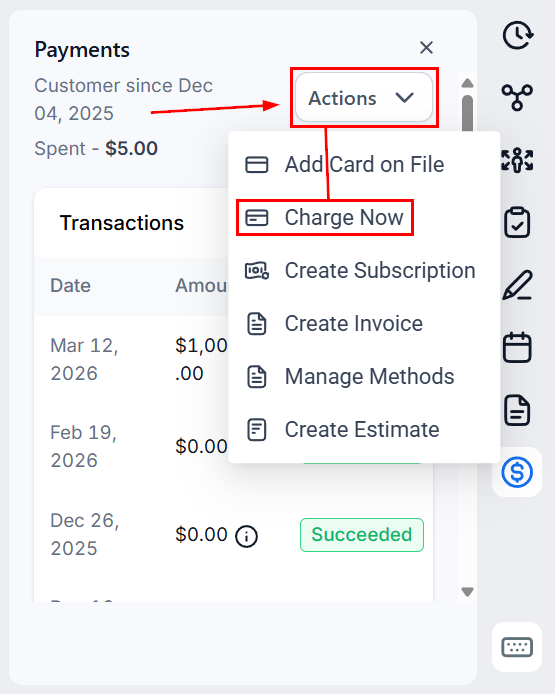
Click on “Charge Now” from the Actions Dropdown.
Enter the amount, and description, then select or add the payment method on the pop-up modal.
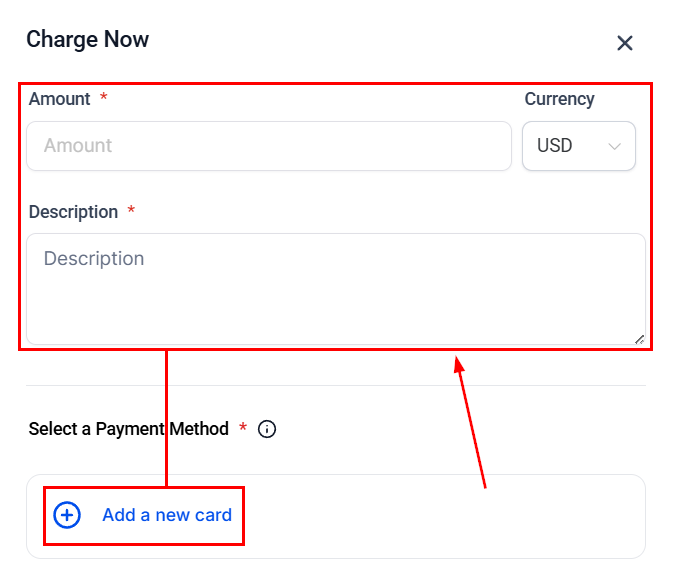
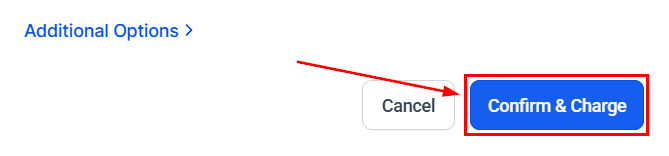
Click “Confirm & Charge” to proceed.
For any issues, such as a failed credit card charge, you can attempt to use an alternative saved card or contact the customer to update their payment details.
Viewing Transactions
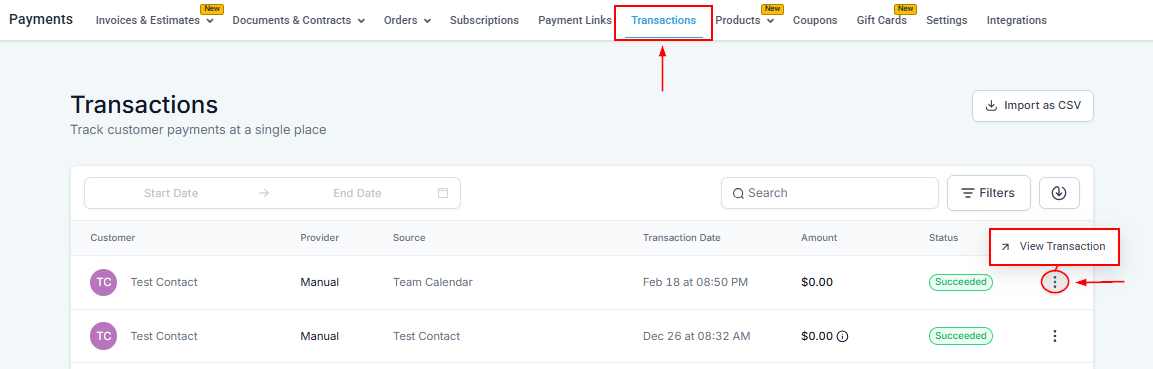
To review transaction details, start by navigating to the Payments tab from the left-side menu. Once in the Payments section, click on the Transactions tab located in the upper navigation menu. This will display a list of all transactions. Locate the contact associated with the payment you wish to examine, then click on the three dots next to their name to open a dropdown menu, and select “View Transaction.” This action will allow you to view the detailed information about the selected transaction.
The manual charge feature offers an effective solution for managing customer payments and assessing their lifetime value, streamlining transactions, and providing crucial insights for informed decision-making.
Practical Applications and Use Cases
This feature is particularly useful in scenarios where immediate payment processing is required, such as:
- Service Businesses: For businesses that offer services upon completion, this feature allows for immediate charging and payment confirmation.
- Product Sales: When selling products over the phone, businesses can quickly process payments without redirecting customers to external payment platforms.
- Consultations: Consultants can charge for their sessions immediately after they conclude, streamlining the payment process.
Frequently Asked Questions
Q: What if a customer’s saved credit card fails?
- Attempt to charge a different saved card or contact the customer to resolve the issue and update their payment information.
Q: How can I add a new credit card for a customer?
- Within the contact’s payment section, select “Add New Card” and follow the prompts to securely save the customer’s credit card information.
Not a Funnelbud customer yet?
Try our all-in-one CRM for sales and marketing — free for 7 days, no commitment.