Survey Builder Tab Overview
This tab allows you to surveys to capture data for all kinds of scenarios like capturing new leads on the website or collecting data when someone schedules on your calendar.
📌Note: Depending on your user permissions, you may not have access to all of the components.
Builder
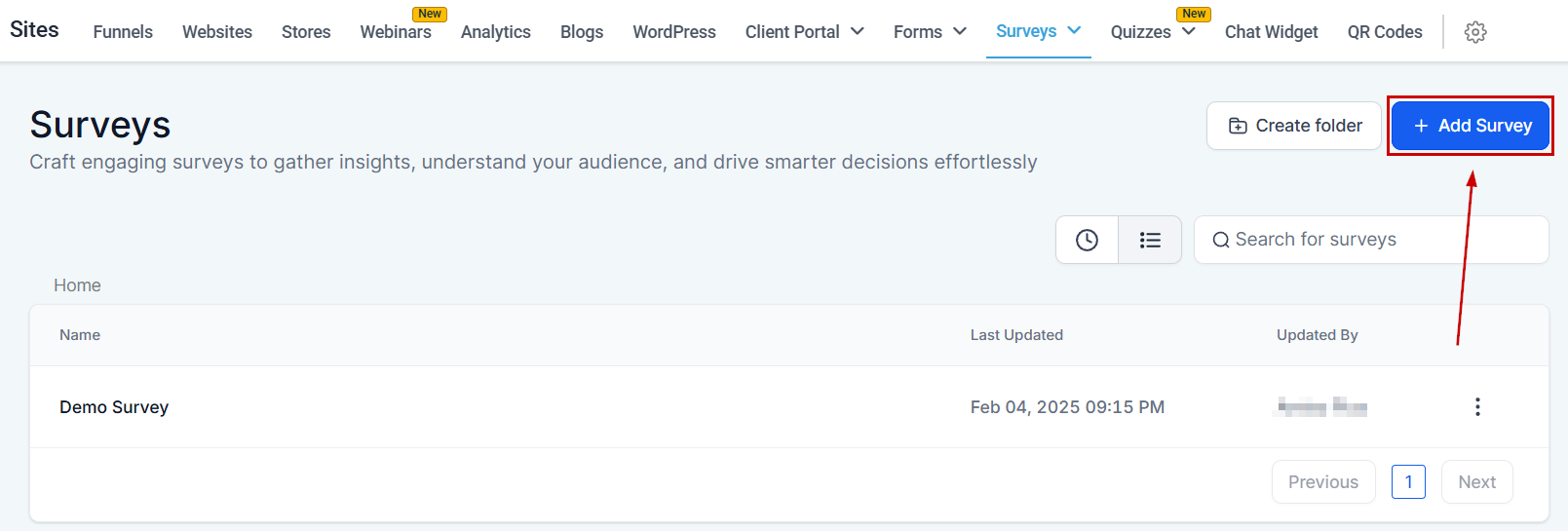
Add New Survey
When you are ready to create your own survey, you simply click the “Add new Survey” button!
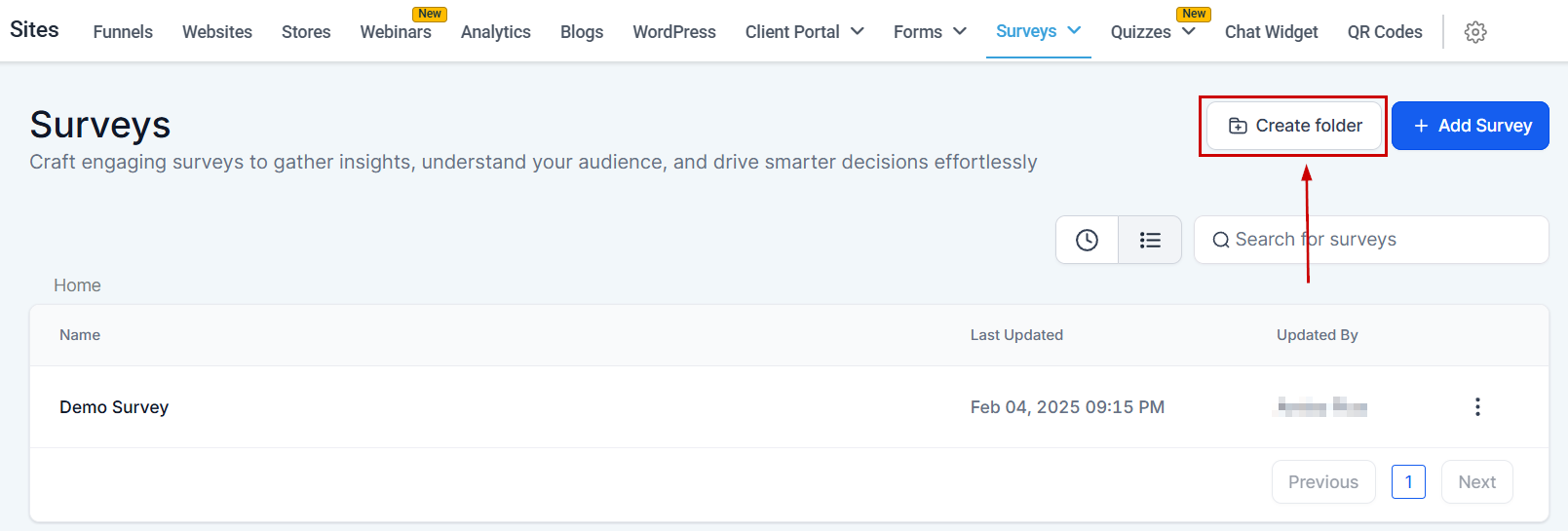
Create Folder
If you want to create a new folder click the “create folder” button.
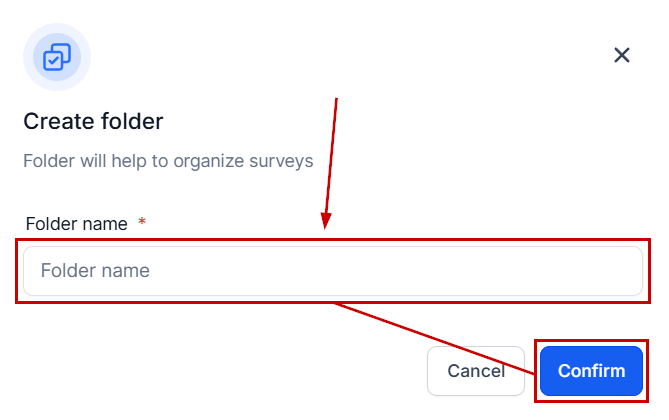
Give the folder a name then click “confirm” to save it!
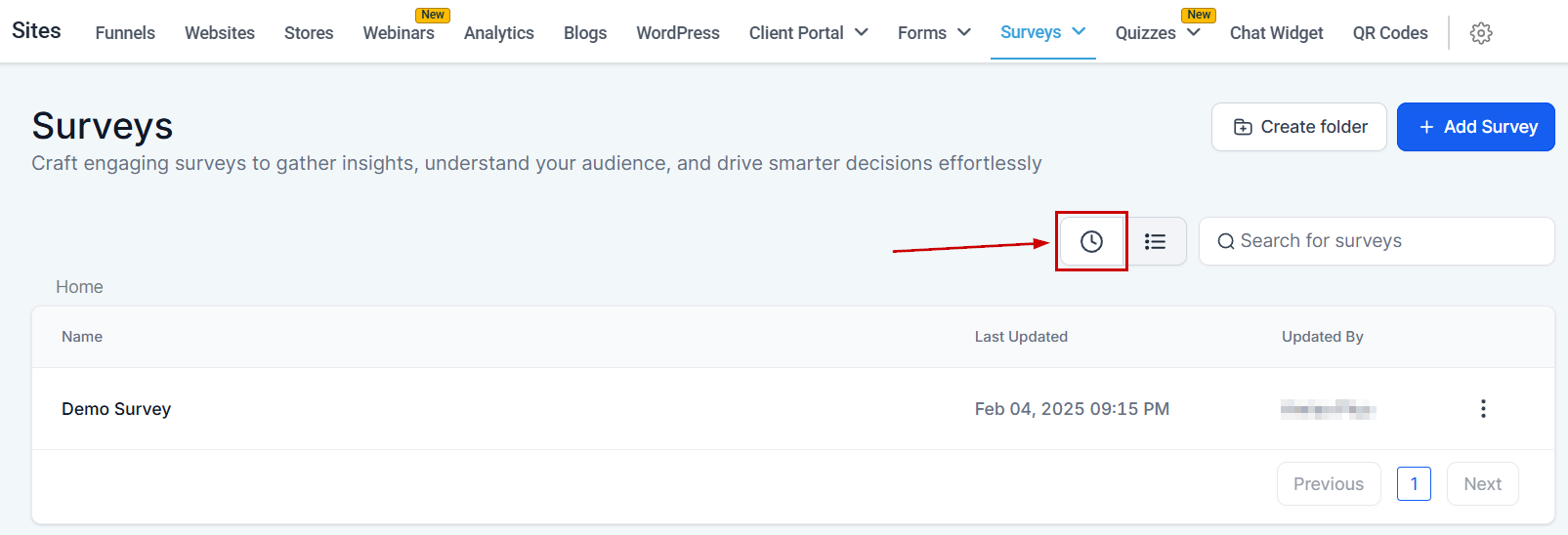
Recent tab
Click the clock icon to view the surveys you’ve accessed recently.
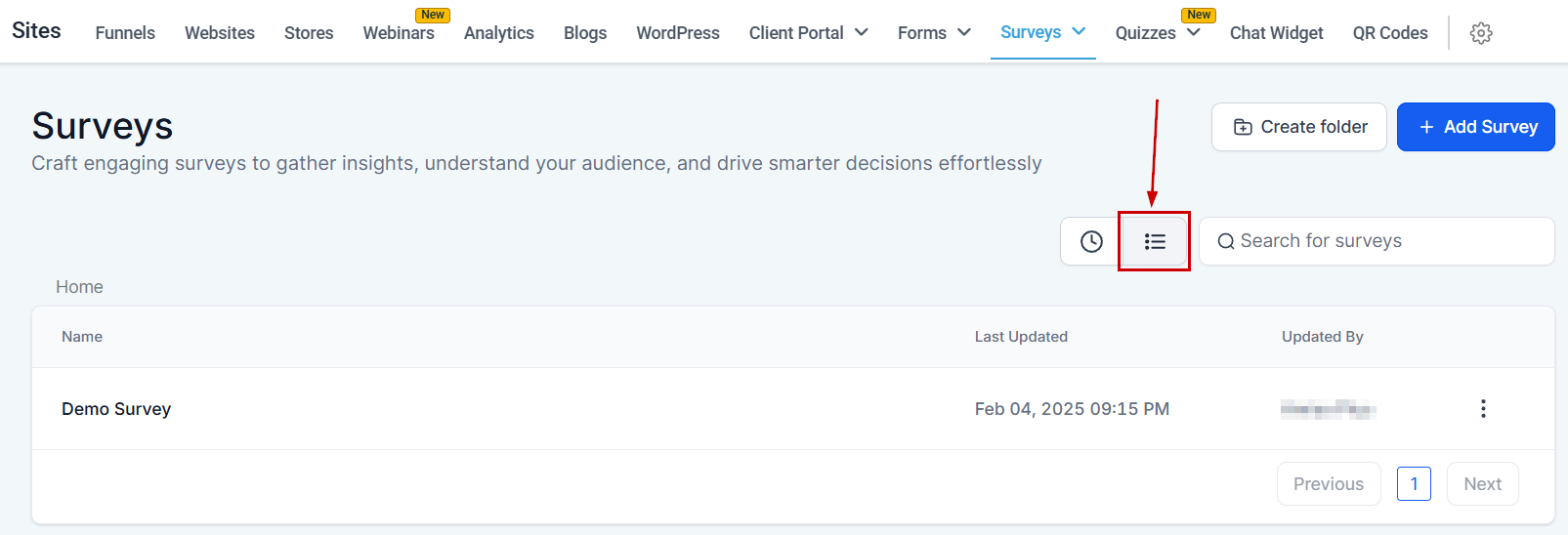
Survey List
This option organizes the surveys in alphabetical order.
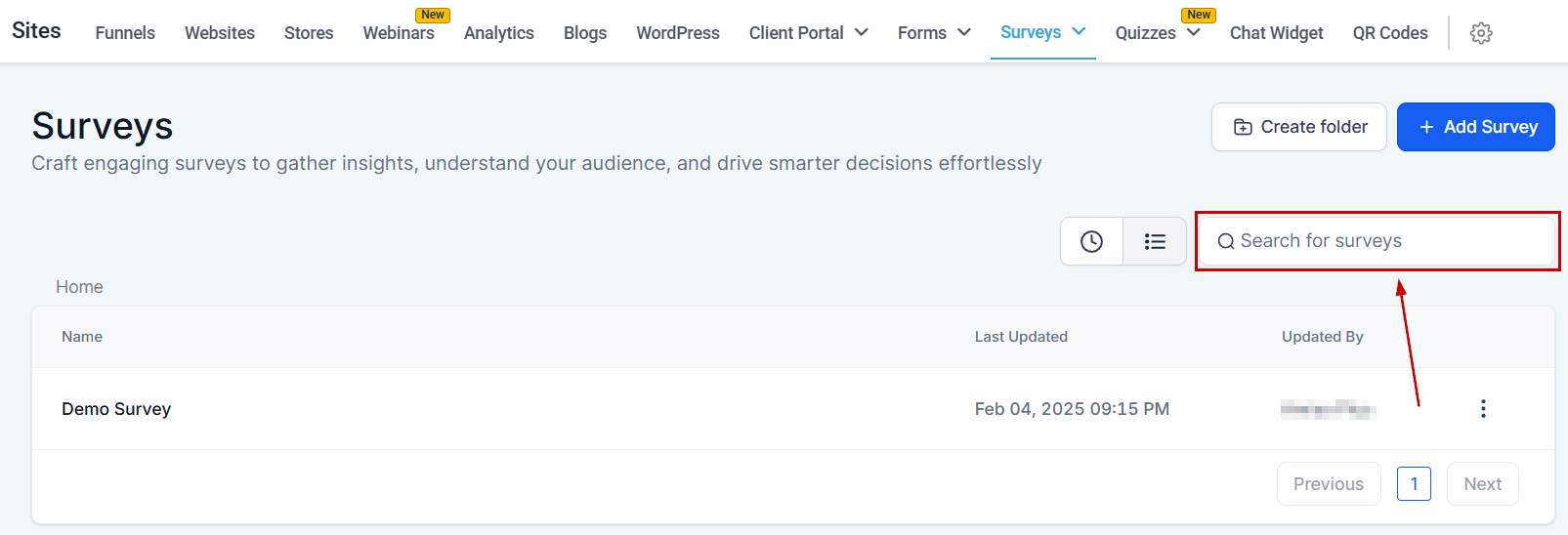
Search Surveys By Name
If you have a long list of surveys, you can search for a particular form by typing the name of that form here.
Survey List
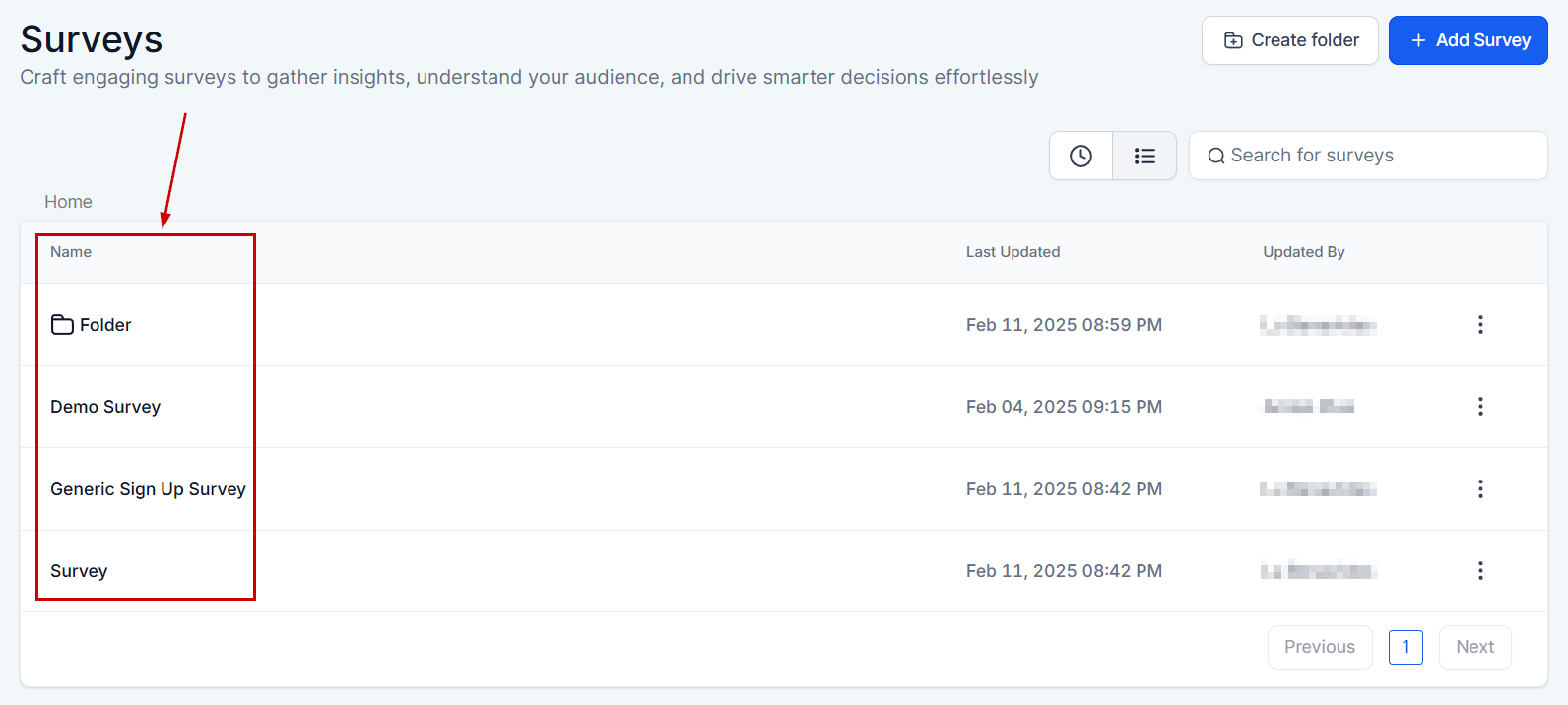
Name
You can see the name of each Survey or Survey Folder displayed here.
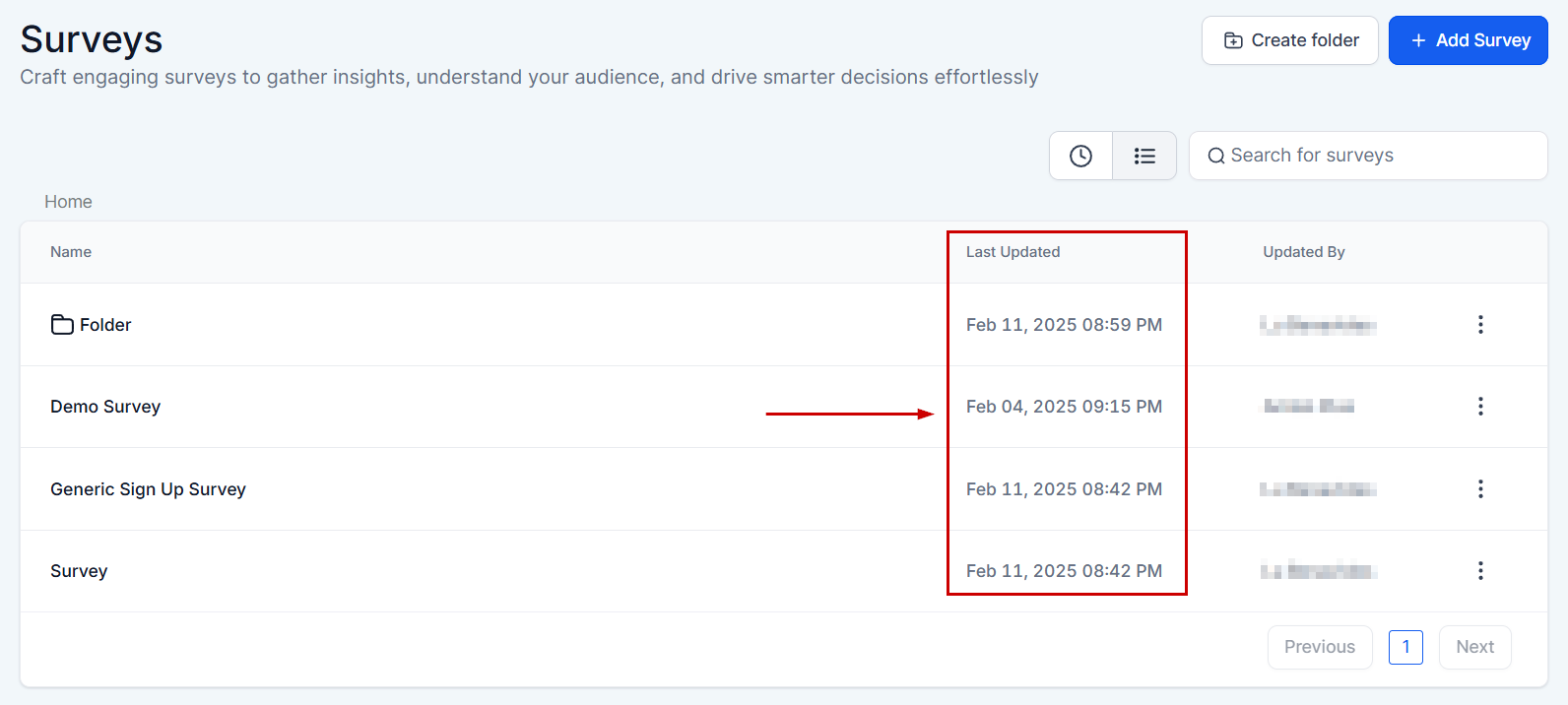
Last updated
This column shows you the date and time each survey or folder was updated.
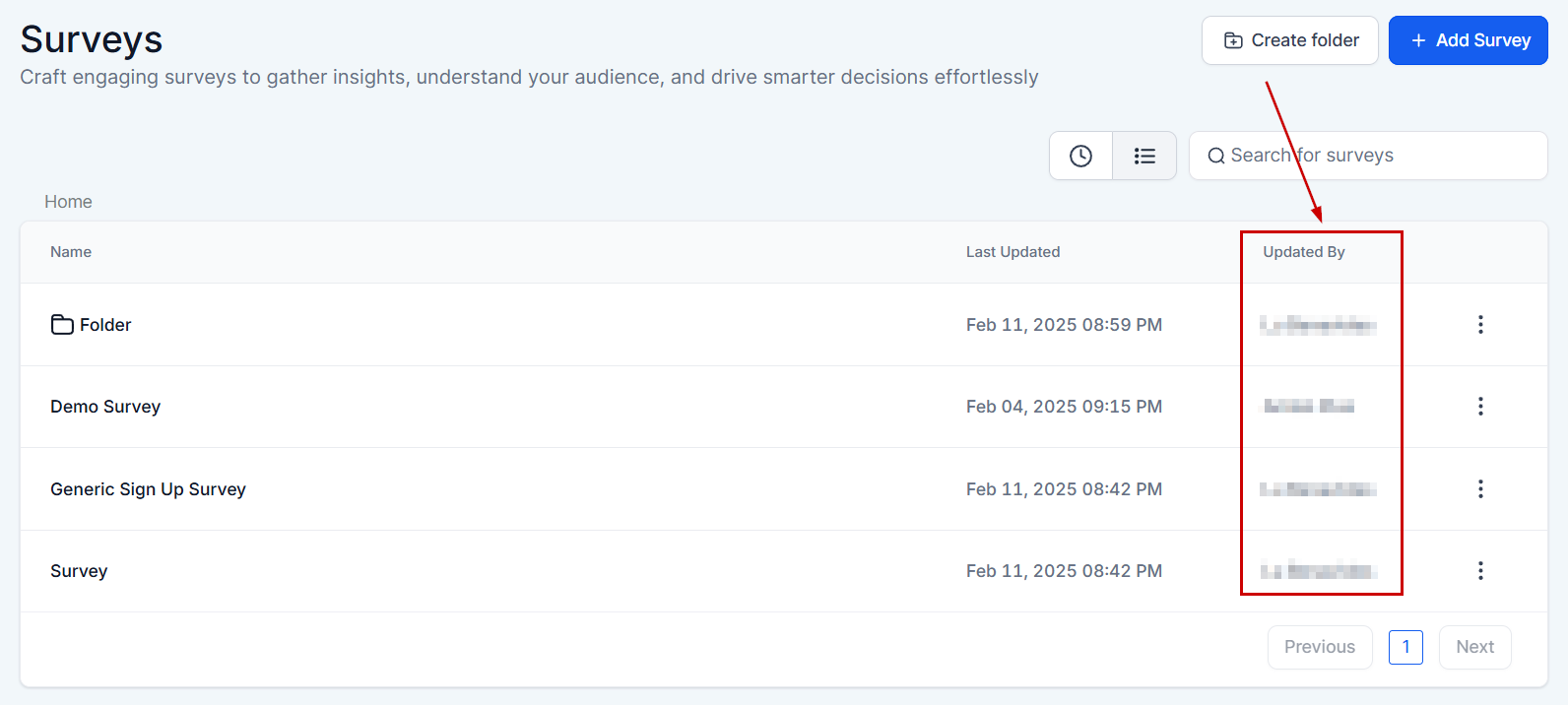
Updated By
In this column, you will see the name of the CRM user who last updated the survey or a folder.
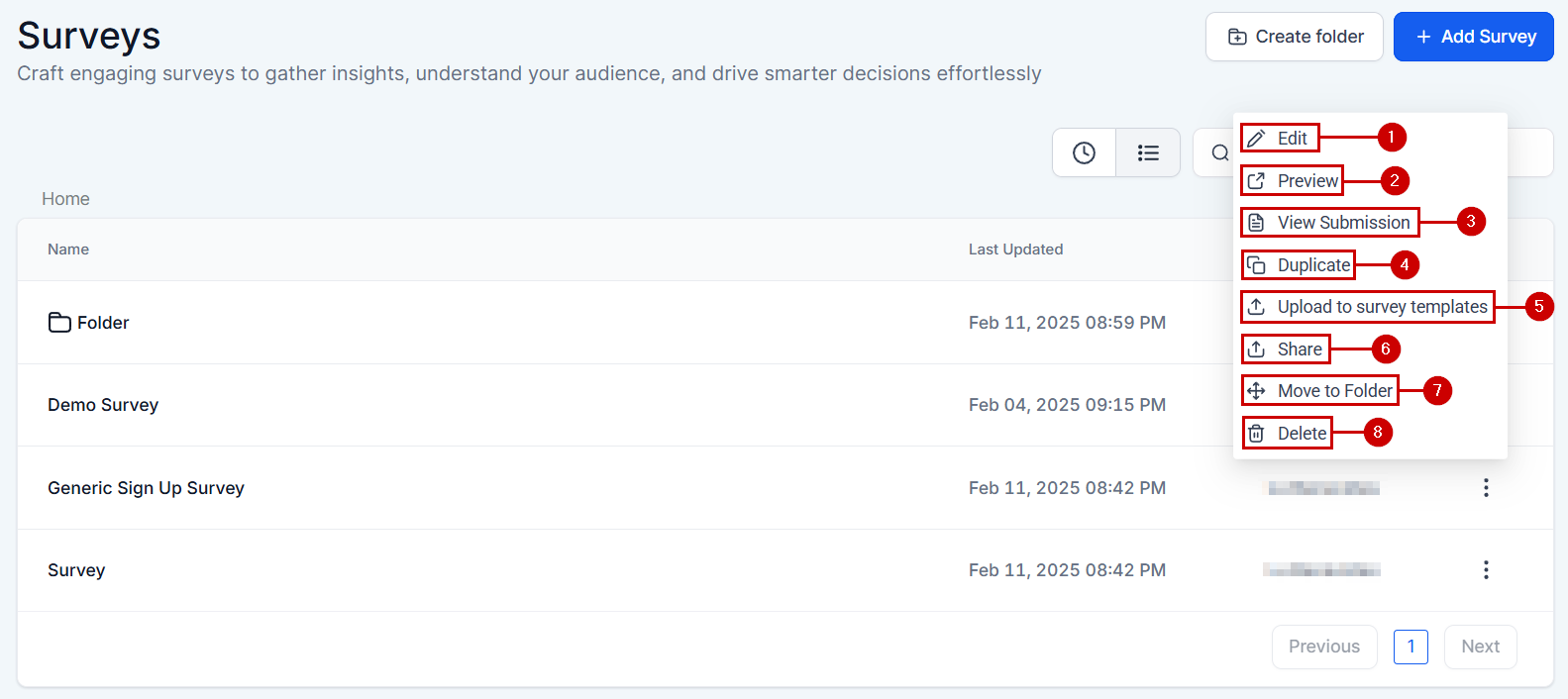
Survey Actions
- Edit: Click this button to edit a current survey.
- Preview:
- View Submission:
- Duplicate: Click “duplicate” If you’d like to have a copy of a survey.
- Upload to Survey Templates: If you have created a survey that you may want to use frequently then you can create a template out of it.
- Share: If you’d like to share a survey from this location or another within your CRM, click on the “Share” button and select the location you want.
- Move To Folder: If you’d like to move a survey from your list to a folder simply click on this button and select the folder.
- Delete: You can also select “delete” if you wish to delete this survey. If you delete a survey, it will be permanently deleted.
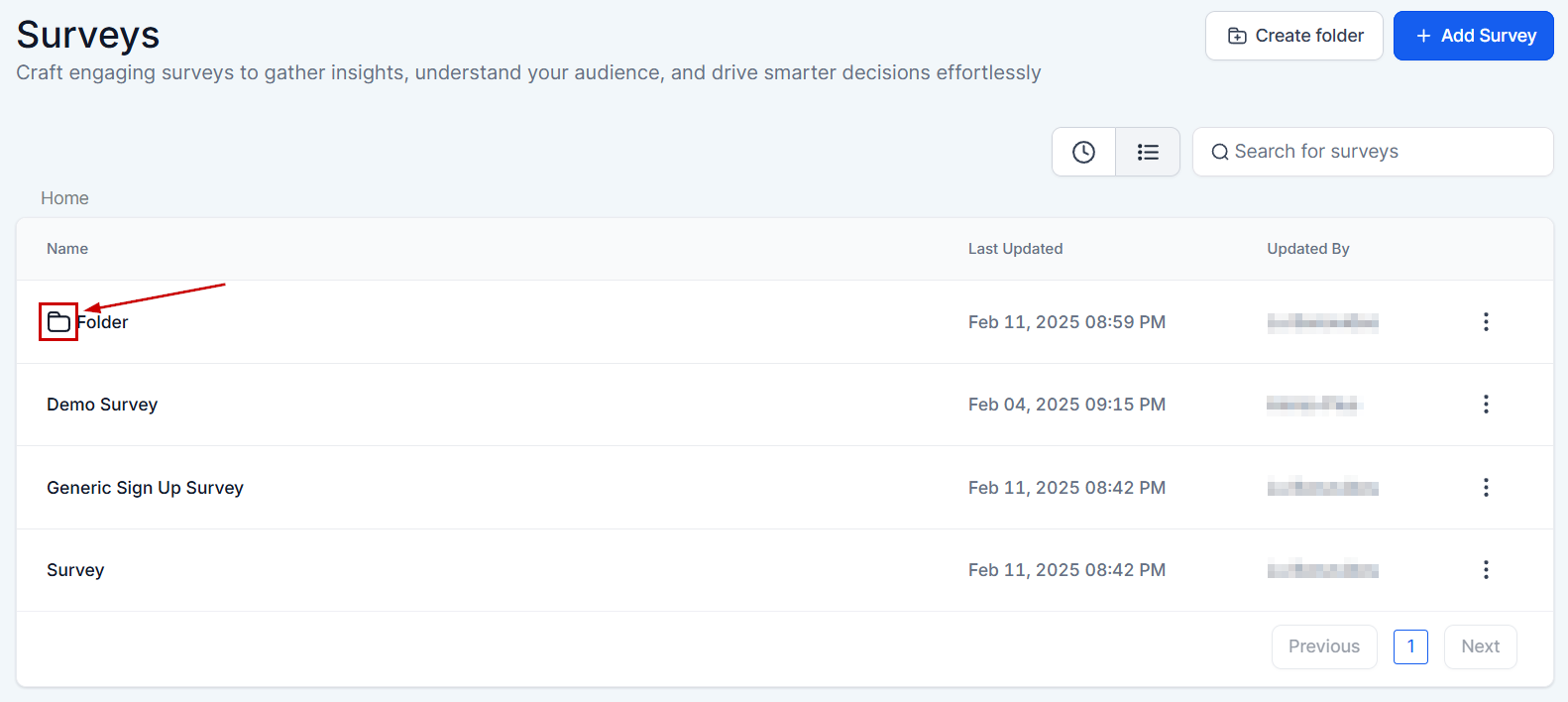
Survey Folder
All the survey folders you have created will have a folder icon like this.
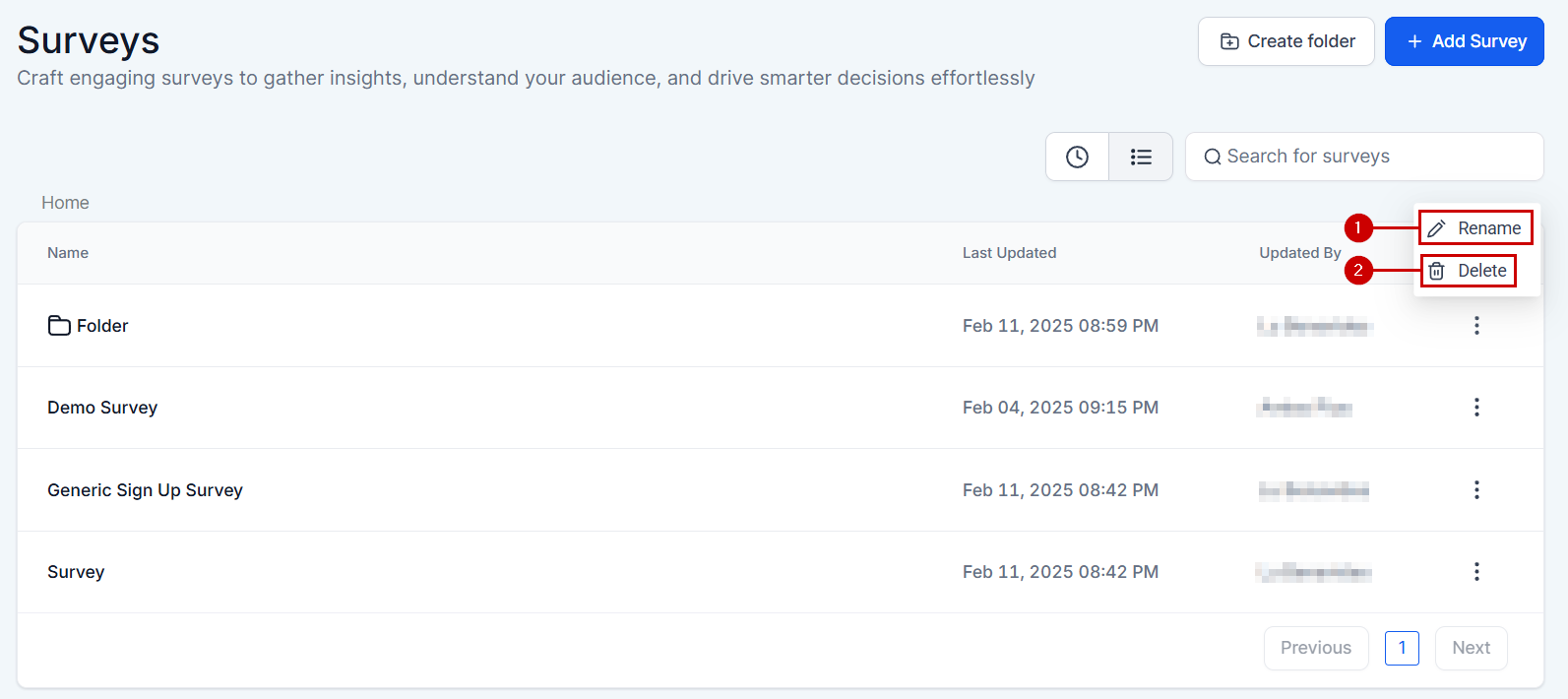
Folder Actions
- Edit: Click this button to edit a current survey folder.
- Delete: You can also select “delete” if you wish to delete this Survey. If you delete a survey, it will be permanently deleted.
There you have it, now you’re an expert on the Builder tab’s layout of your Survey builder!
Not a Funnelbud customer yet?
Try our all-in-one CRM for sales and marketing — free for 7 days, no commitment.