How To Create User Assigned Workflows
Efficiently managing contact assignments is crucial for ensuring seamless communication and follow-ups. A user-assigned workflow automates this process, enabling you to assign contacts to specific users and trigger personalized actions based on the assignment. In this guide, we’ll walk you through the steps to create and customize a user-assigned workflow.
Ensure a User Assignment Workflow Exists
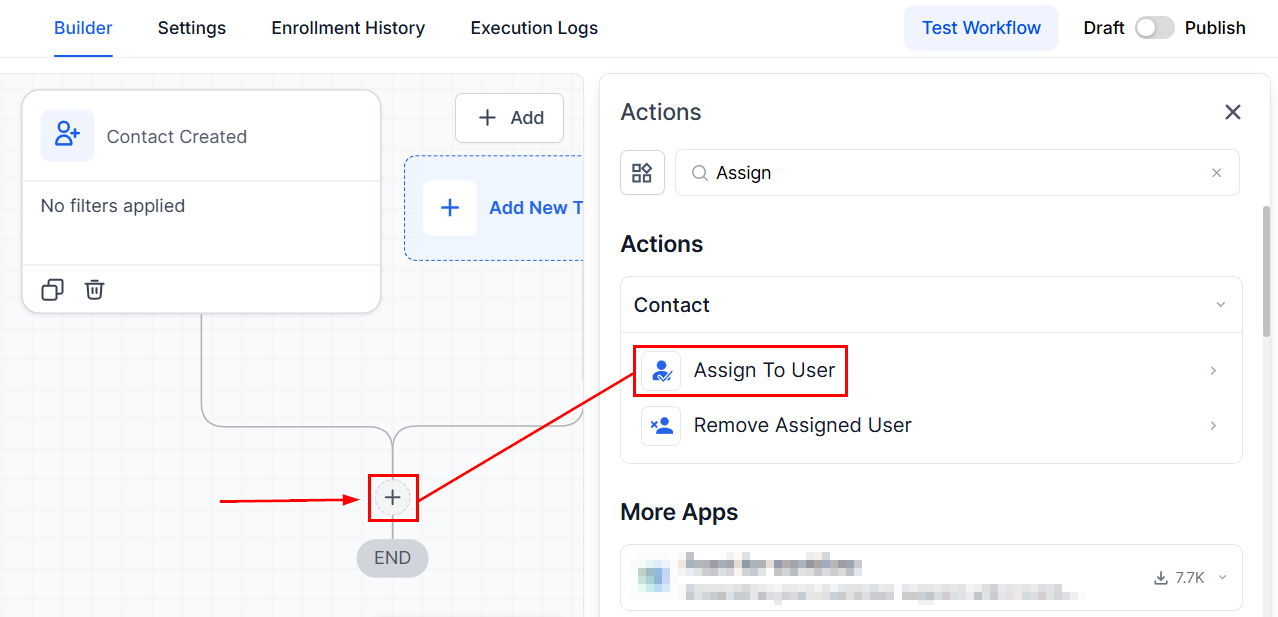
You must have an existing workflow that assigns users to contacts. Typically, this would trigger when a contact is created, with an action to assign the contact to a user. The workflow would contain the “Assign to User” action, which you can add by clicking the + sign.
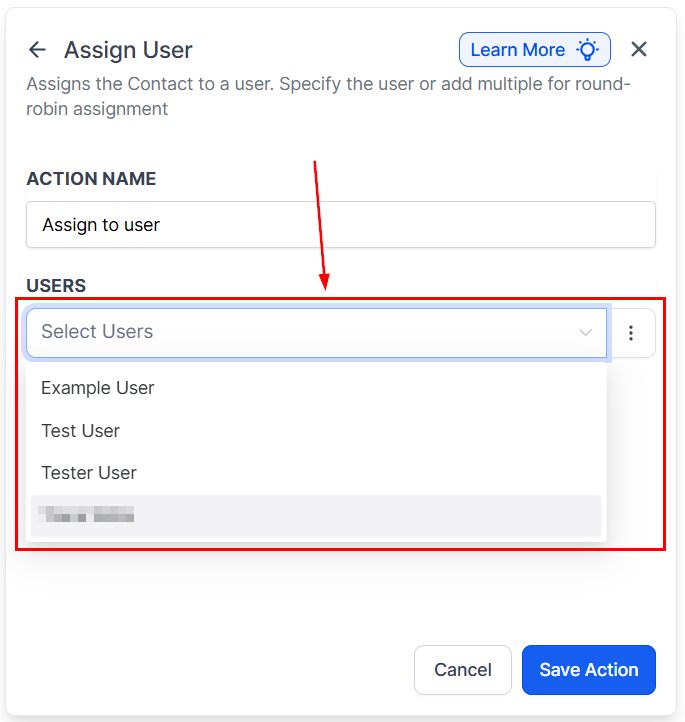
Pick the user(s) you’d like to assign new contacts to. If adding multiple users, the contact distribution will work in a round-robin system for equal assignment unless you explicitly select otherwise.
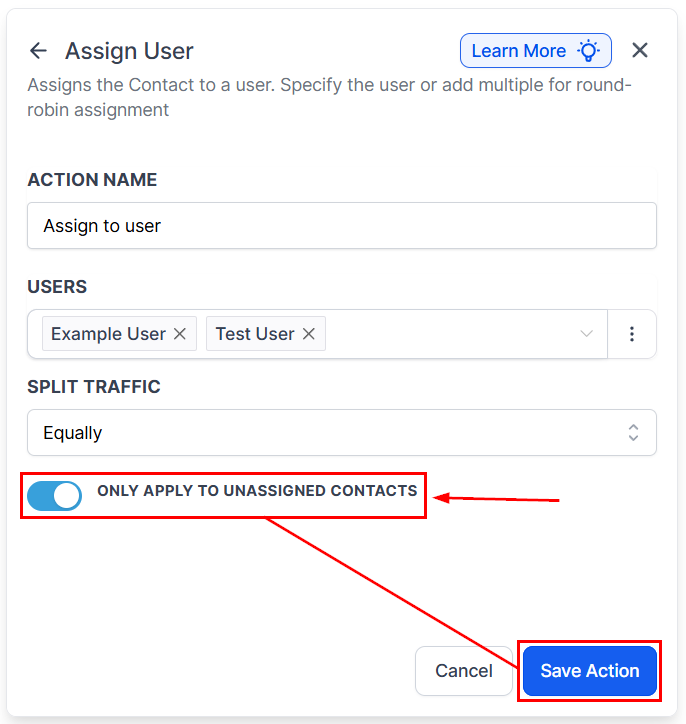
Toggle the “Only apply to unassigned Contacts” option, then save your action.
Publish and save your workflow before proceeding with the next steps.
Create a New Workflow
Navigate to the Workflow tab in the Automation section, click the + Create workflow, then select Start from Scratch.
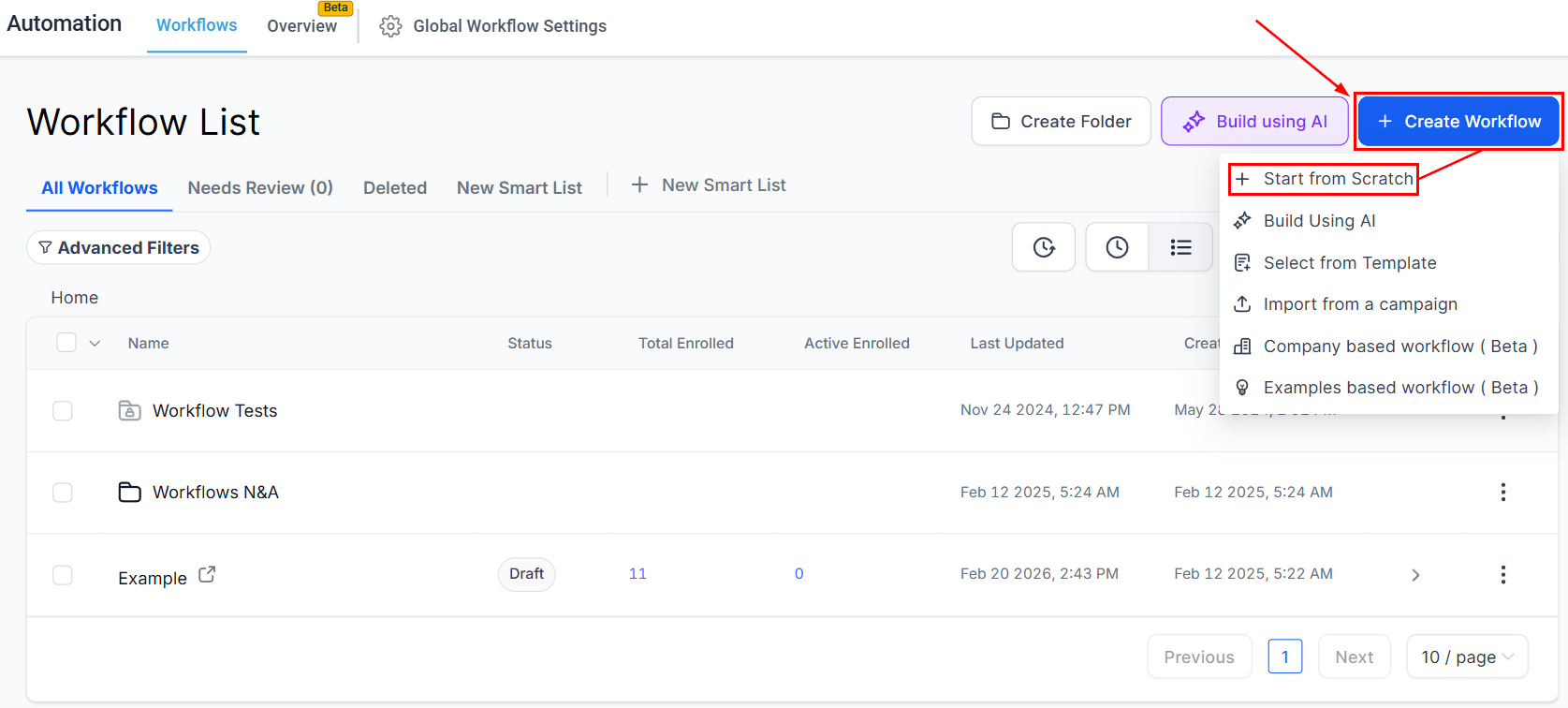
Select the Workflow Trigger
For the trigger, choose ‘contact changed’.
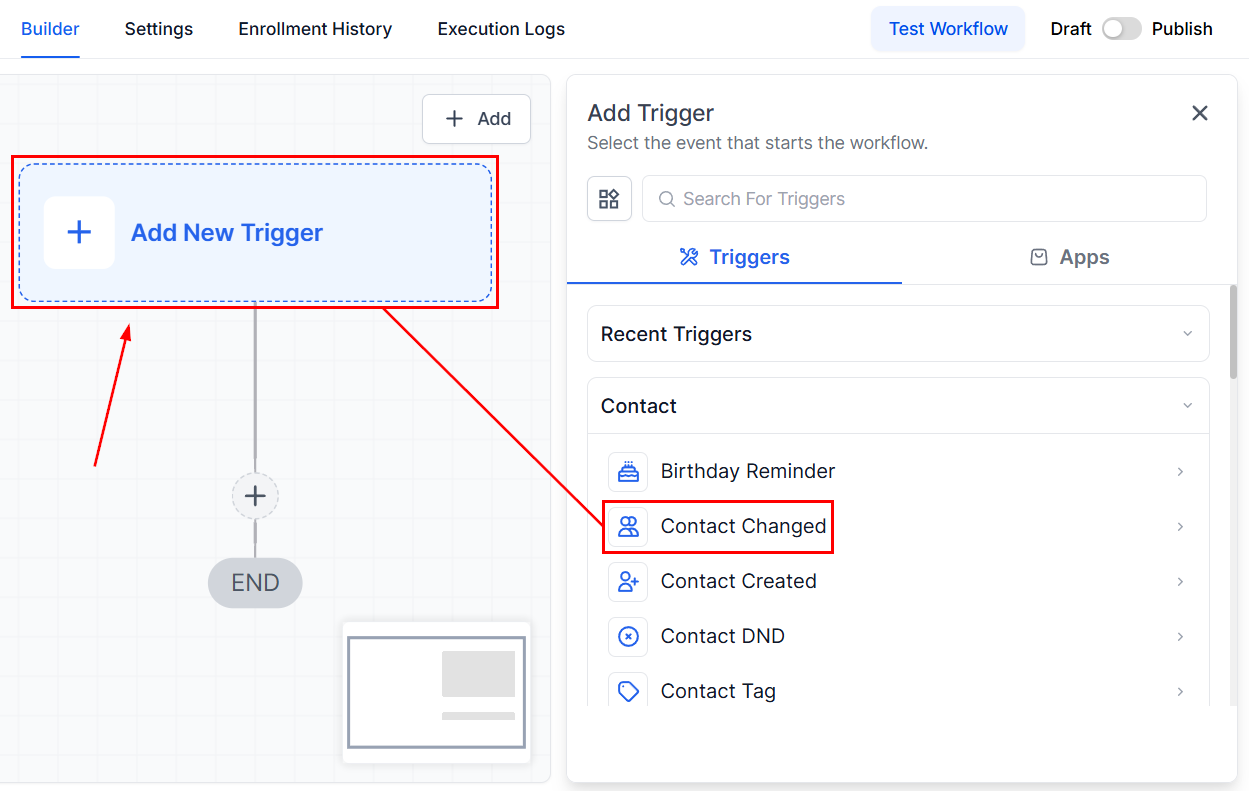
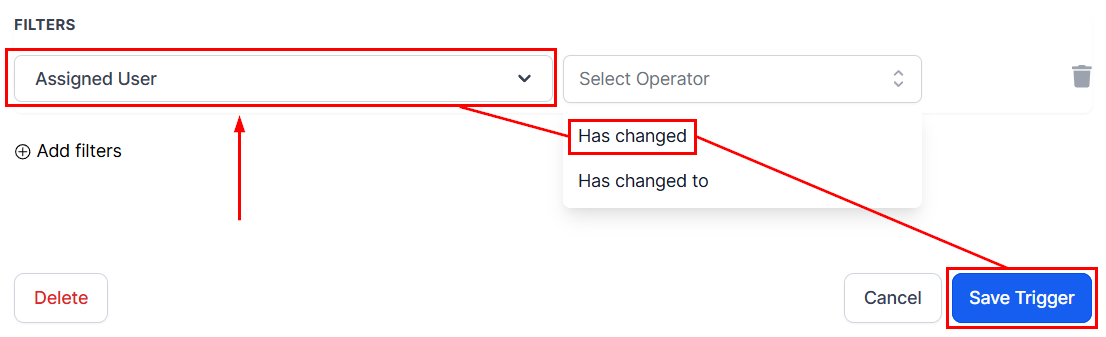
Apply the filter ‘assigned user has changed’. This ensures that the workflow triggers any time a contact is assigned to a user.
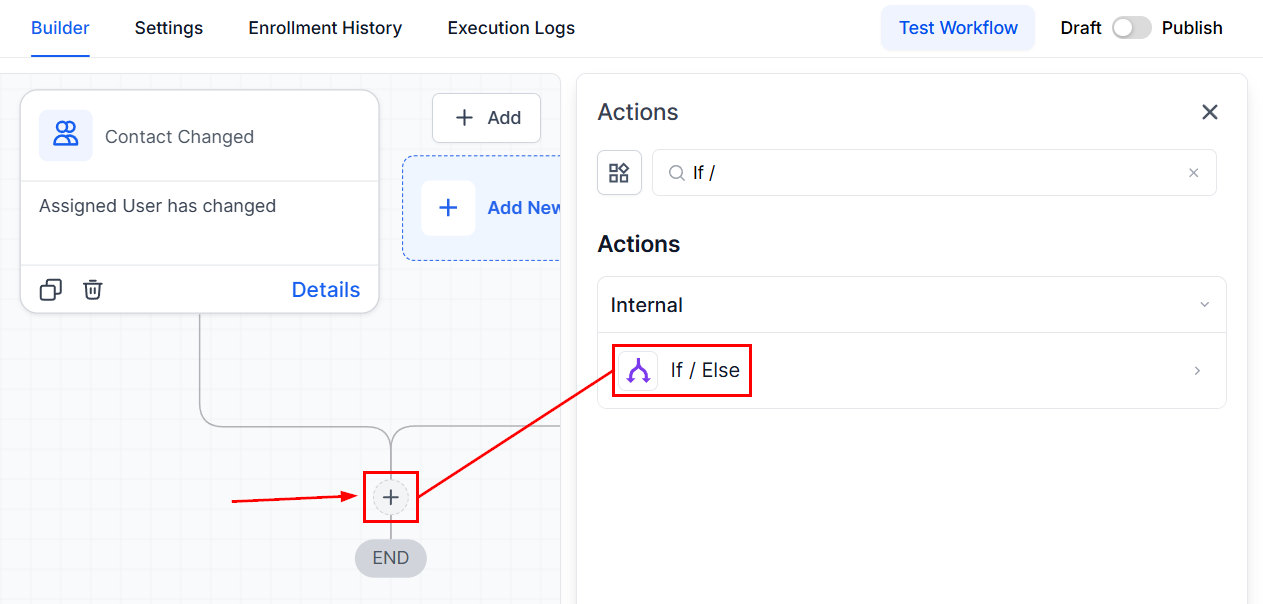
Add an If/Else Condition
Click the ’+’ sign to add a new action and select ‘If/Else’ from the internal tools section.
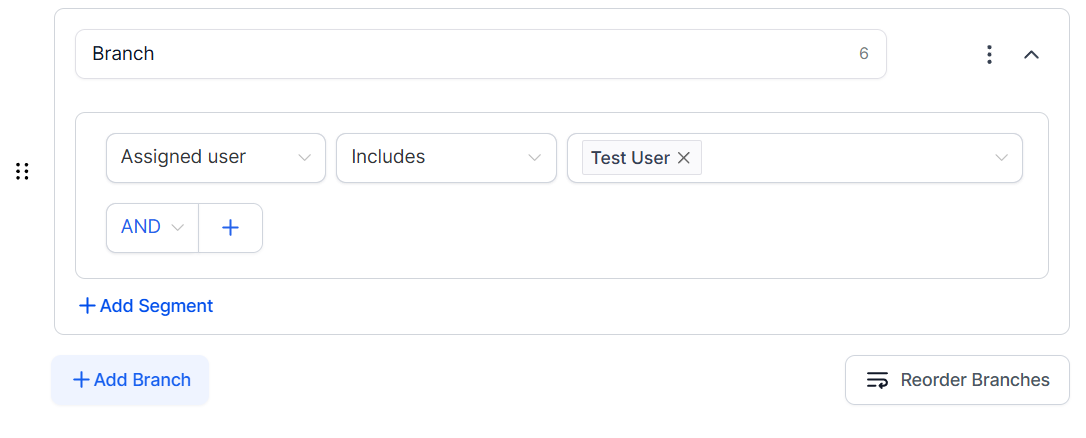
Set the condition to check if the “Assigned user Includes [specific user].” This will create a branch for actions specific to that user.
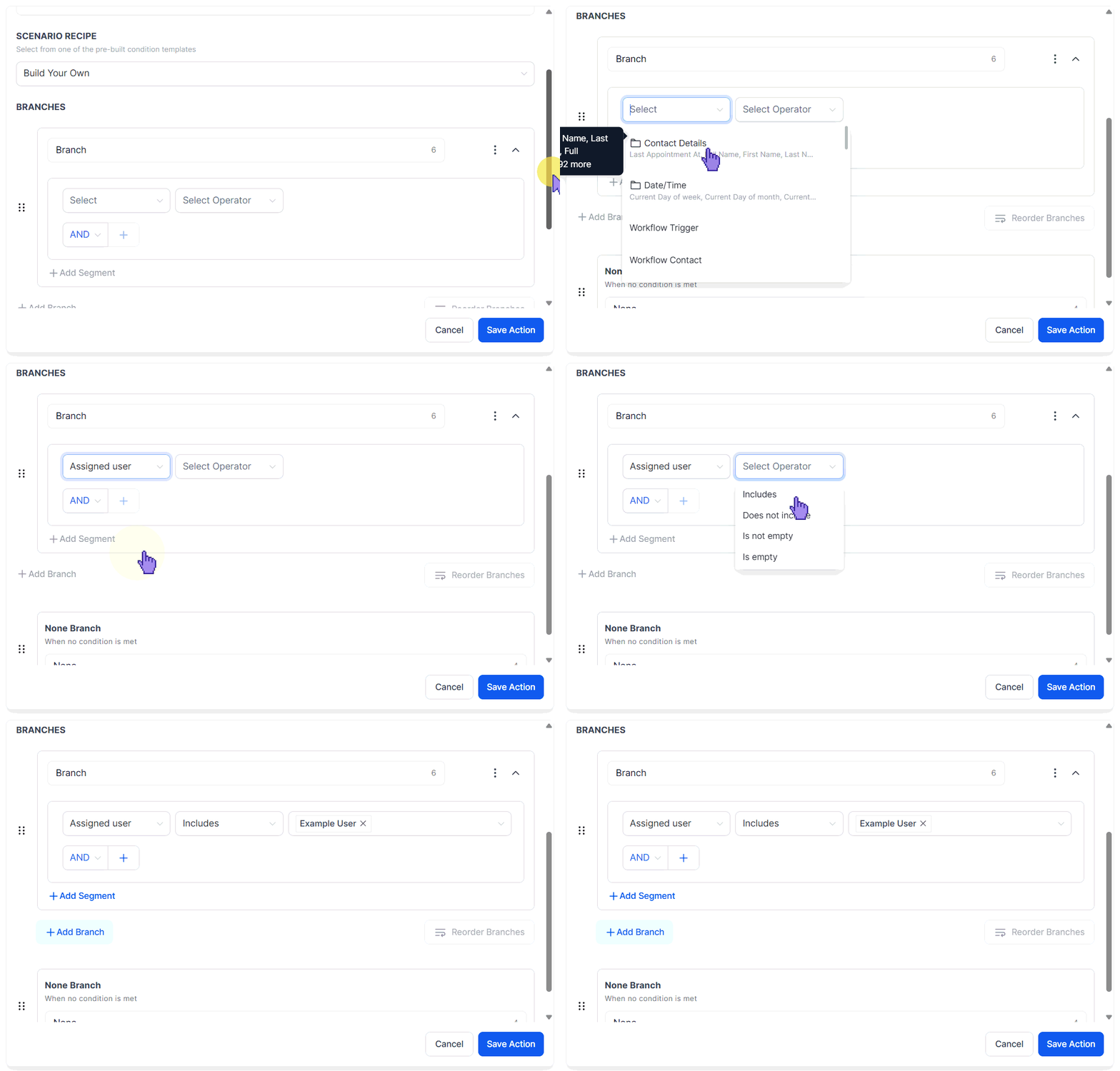
You can add as many branches as you need for each user.
Add Actions for Each User
Under each user’s branch, add the actions you want to occur for contacts assigned to that user, customizing the actions as necessary. Once you’re done, save the Action.
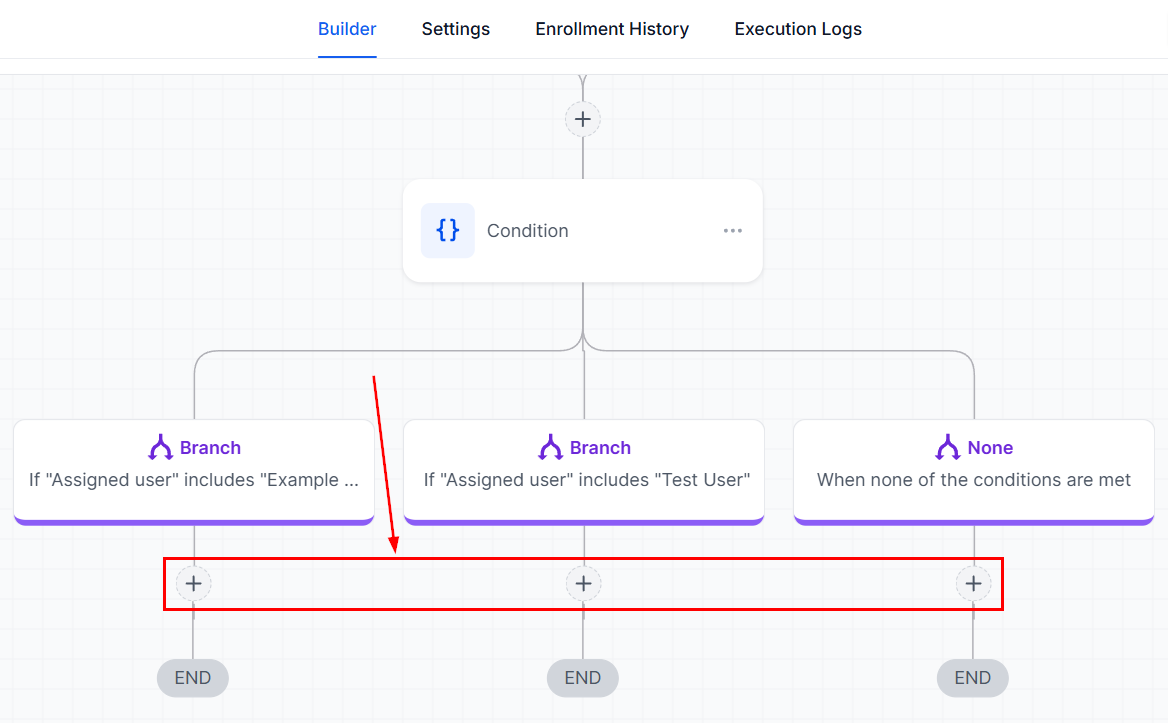
Once all conditions and actions are set, remember to publish your workflow to make it active.
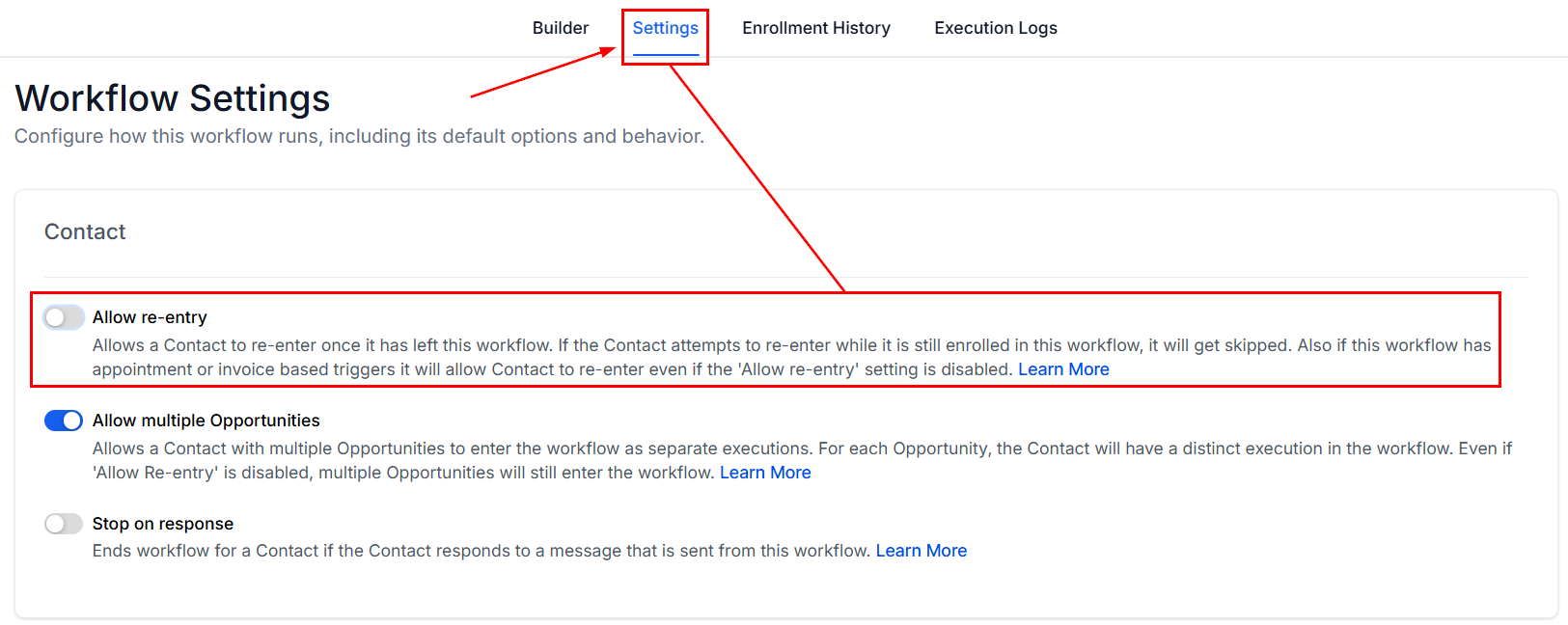
Re-Entry Settings
Generally, you won’t need to allow re-entry for this type of workflow since contacts are typically assigned to a user once. This keeps the process streamlined.
Customization
Tailor the actions within each user’s branch to fit their role or the type of contacts they handle. This could include sending personalized emails, setting tasks, or initiating follow-up sequences.
Troubleshooting and FAQs
Q: What if a contact gets reassigned to a different user?
- A: If reassignments are common in your workflow, consider enabling re-entry based on your CRM’s capabilities to accommodate updates.
Q: Can I use this workflow for team-based actions?
- A: Yes, you can create branches for teams by grouping users in your conditions, allowing for broader actions based on team assignments.
Not a Funnelbud customer yet?
Try our all-in-one CRM for sales and marketing — free for 7 days, no commitment.