Featured Products Element
The Featured Products element offers a dynamic way to spotlight specific products on store pages. With customizable placement, layout flexibility, and seamless product selection, it ensures your most important items are prominently displayed to engage customers quickly.
How It Works
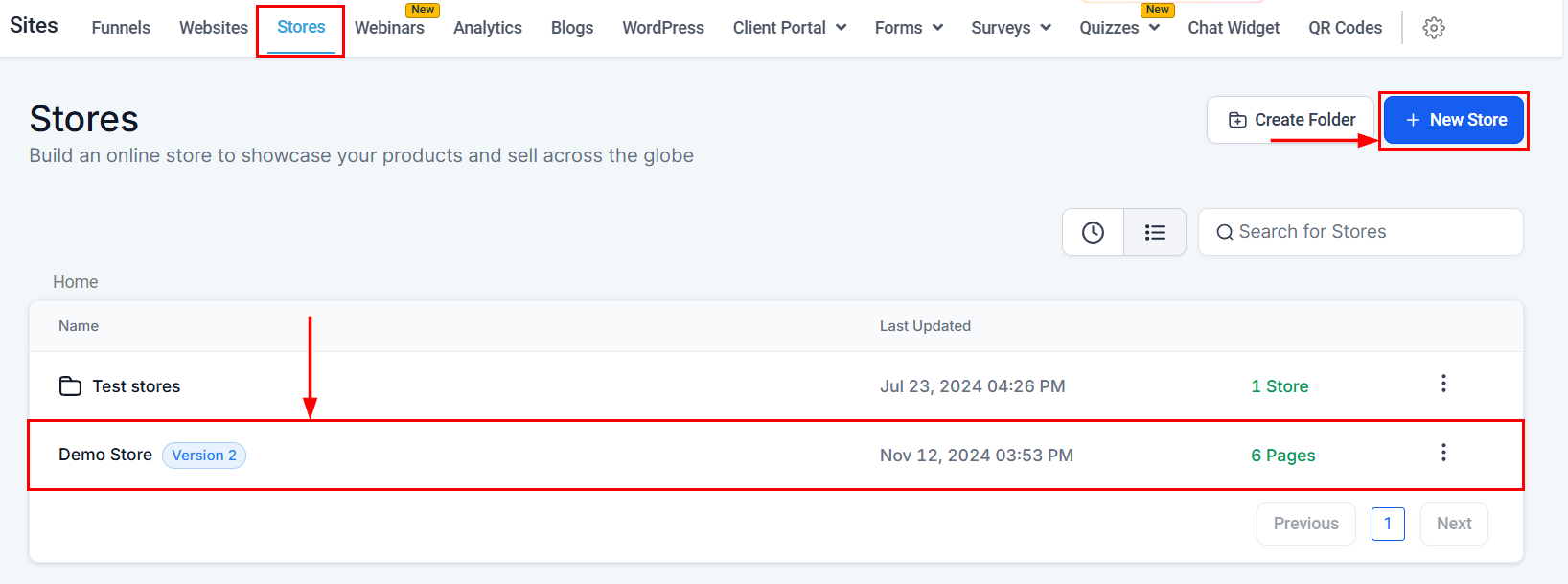
Navigate to the Sites > Stores section in your account, and proceed to create a new store, or click an existing store to modify it.
Add the Element
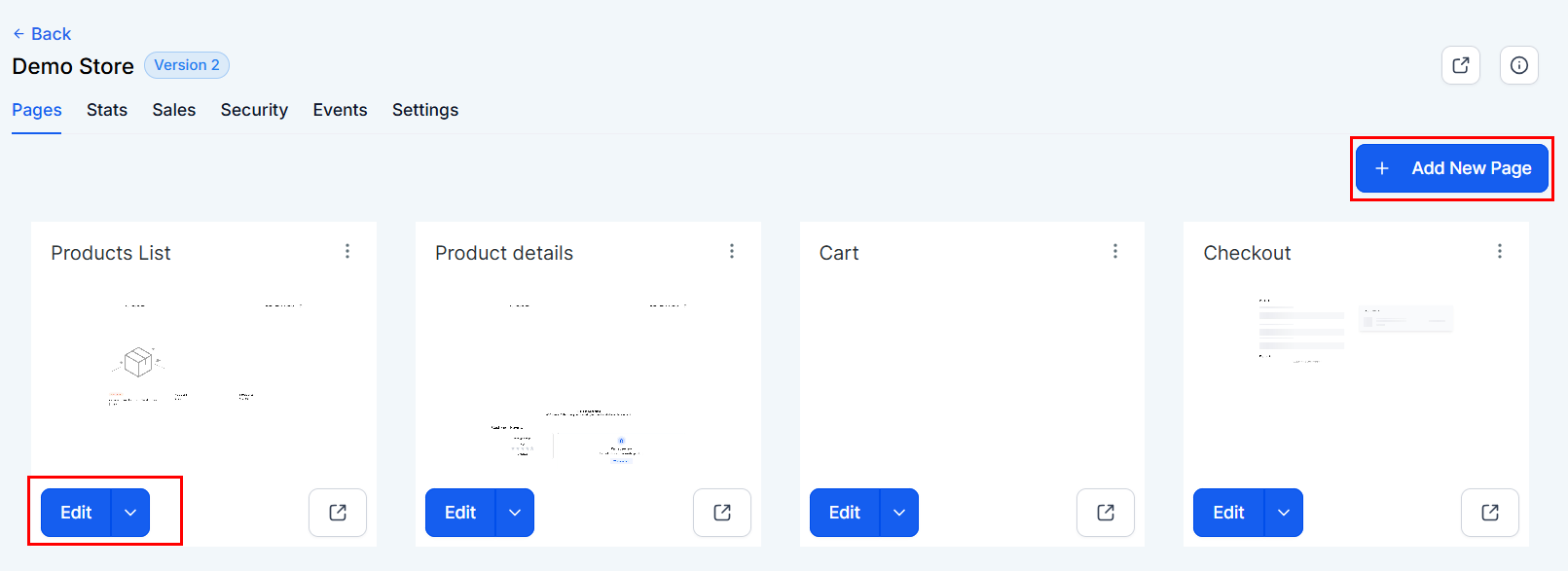
Open the page builder or create a new page.
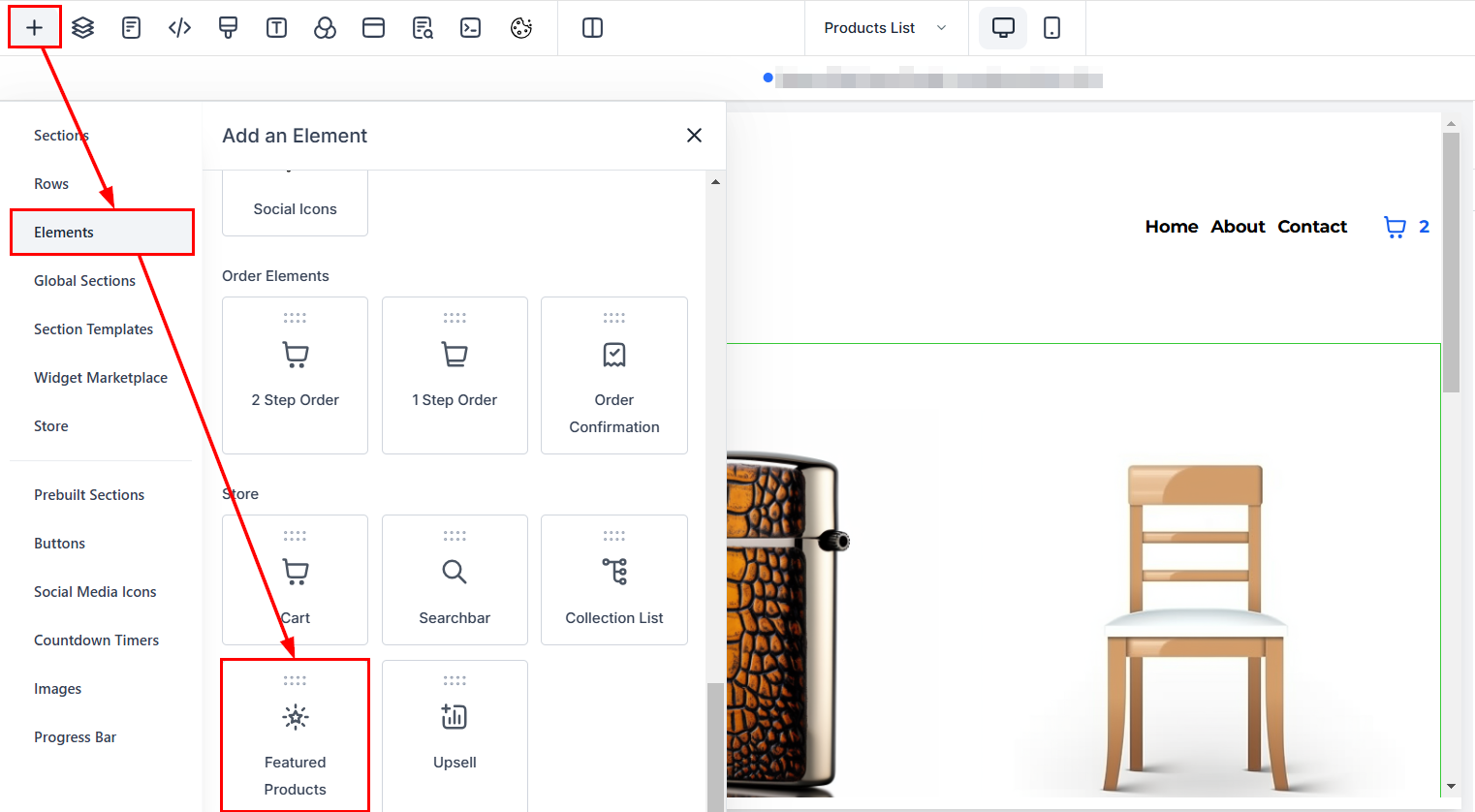
Select the option to Add an Element then locate the Featured Products element.
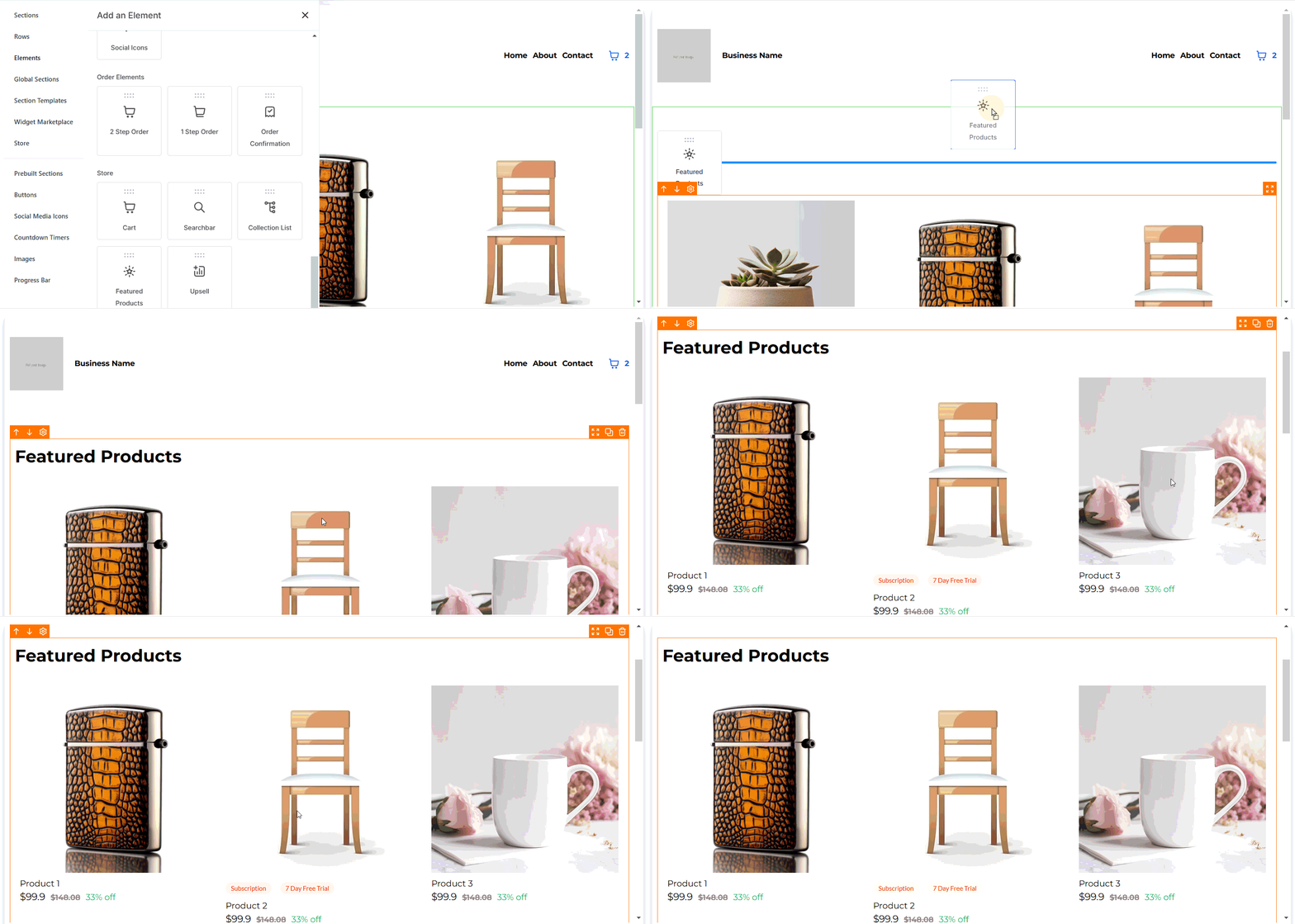
Drag and drop the element to the desired position to maximize visibility.
General Settings
Name
Configure the element’s name for easy identification.
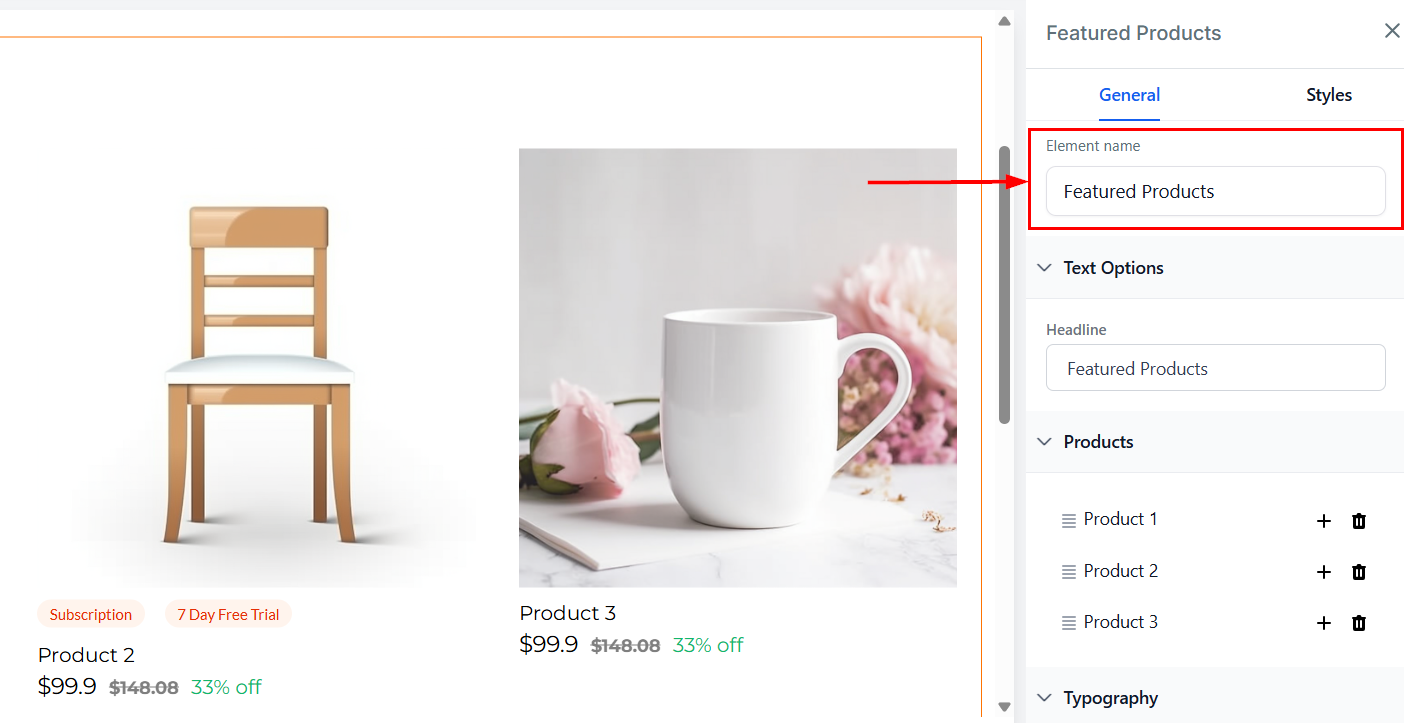
Text Options
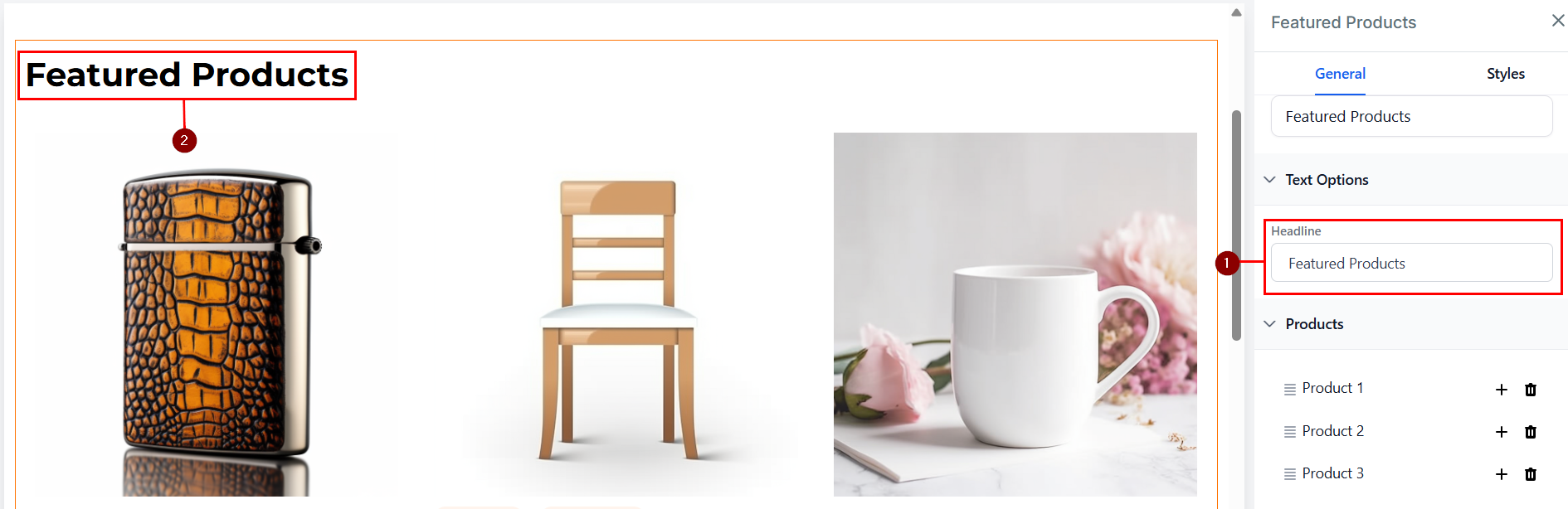
Customize the Featured Products headline by updating the text in the provided field. Any changes will be automatically populated in the builder as a preview.
Products
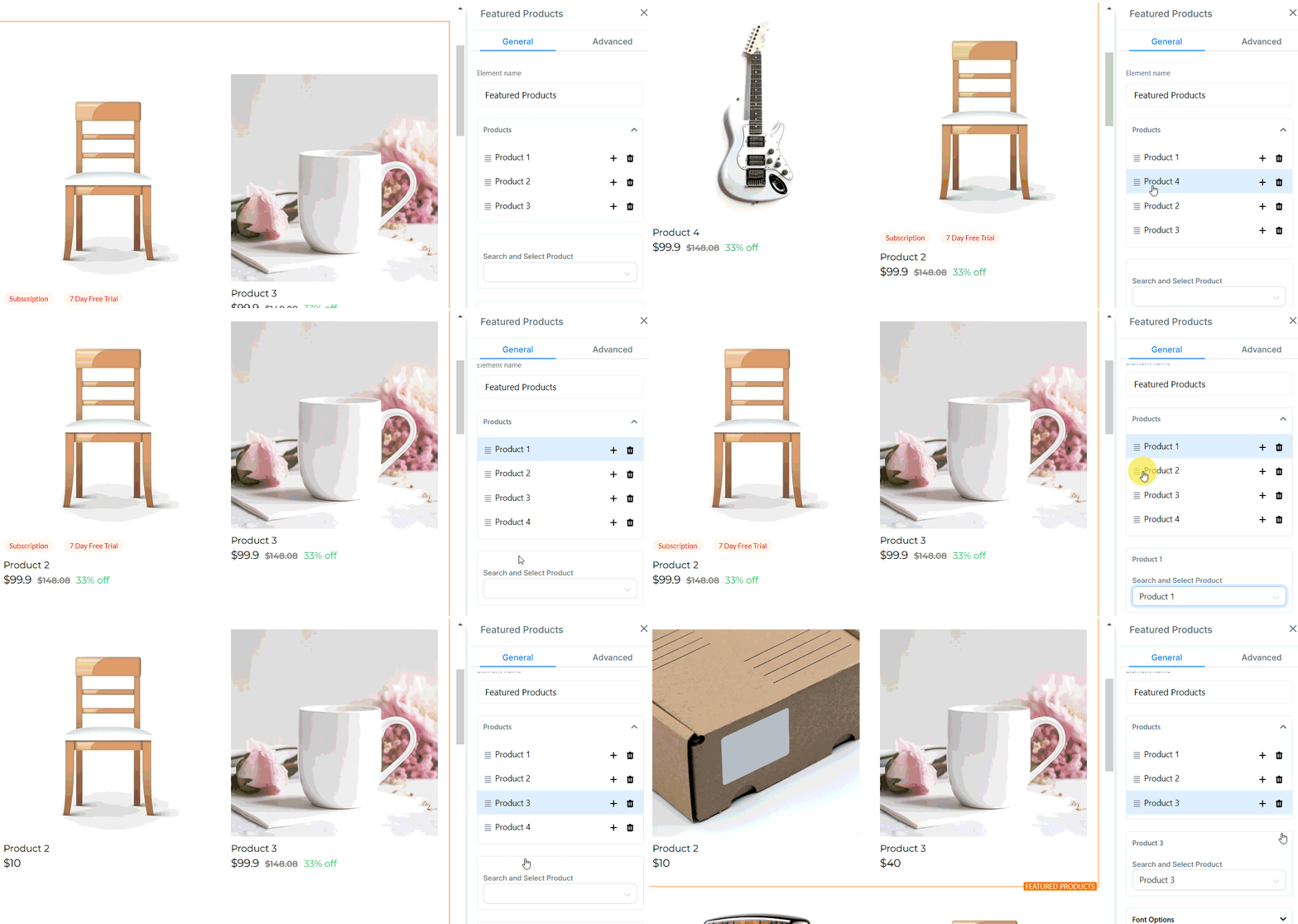
In this section, you can add additional products, rearrange the order in which they will appear, link products you have created, and delete products for effective management.
To link products, click any placeholder product in the builder under the Products group. Use the search bar to find and select the desired products to display. The selected products will replace the placeholders.
📌 Note: By default, the dropdown displays only 10 products. Use the search function to find additional items.
Double-click items on the canvas to select or configure them directly.
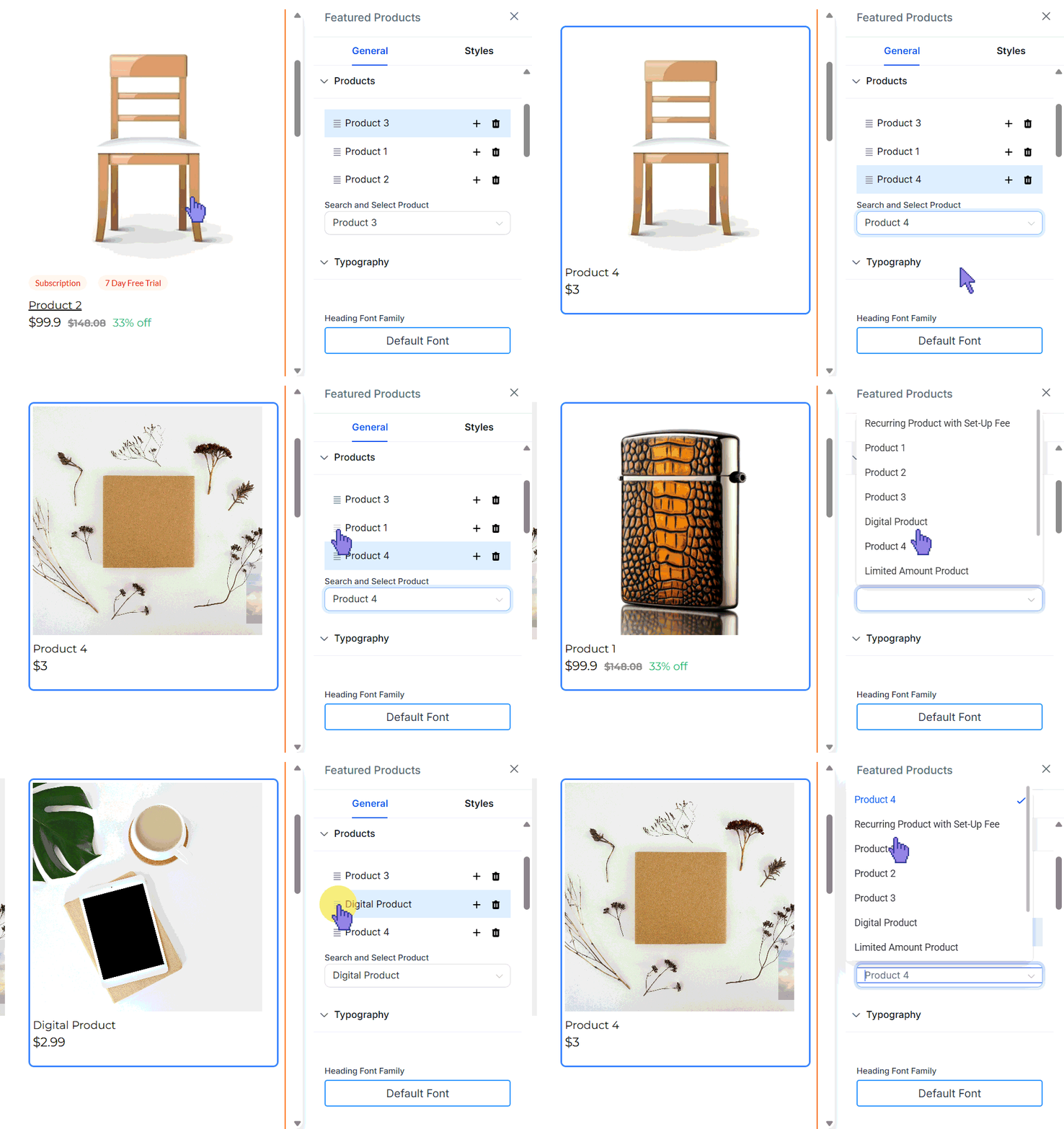
Ensure that each product is properly linked so it can be displayed on your store page!
Typography
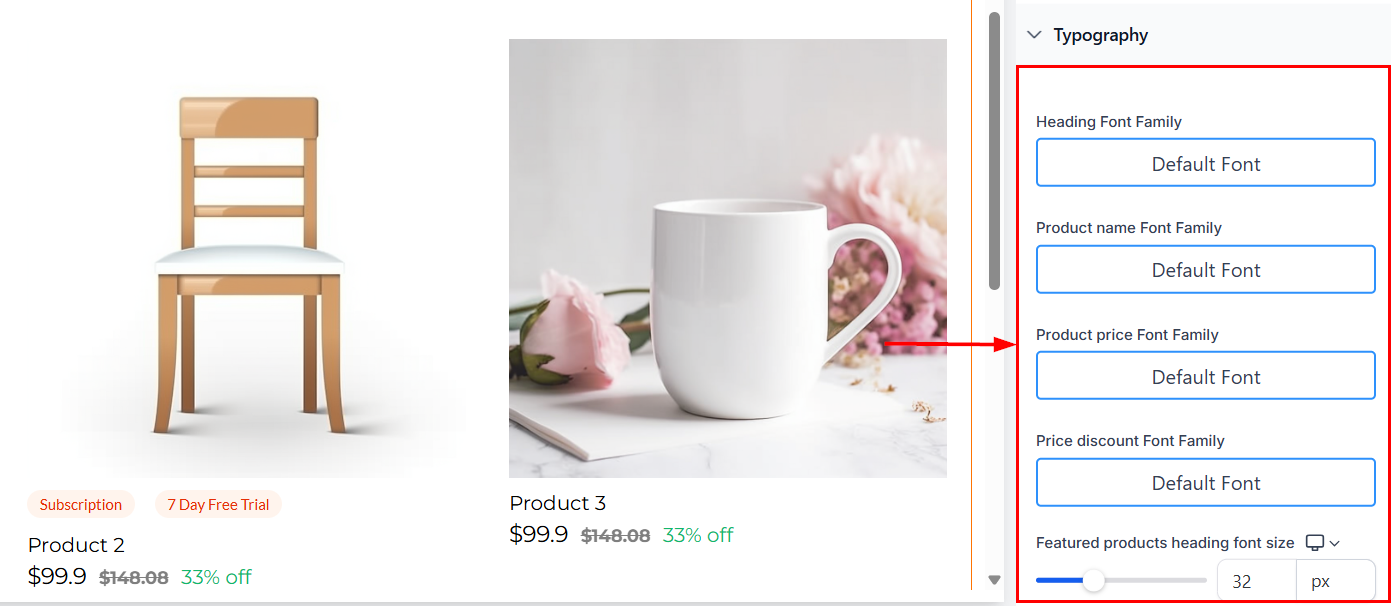
Choose the font family for your heading, product name, product price, and price discount, as well as their font weight and size for desktop and mobile.
Layout
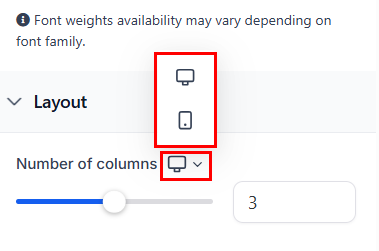
Adjust the number of products per row in the Layout tab. By default, 3 products are displayed per row, but this can be updated to a maximum of 5 on desktop and 2 on mobile.
Reviews and Ratings
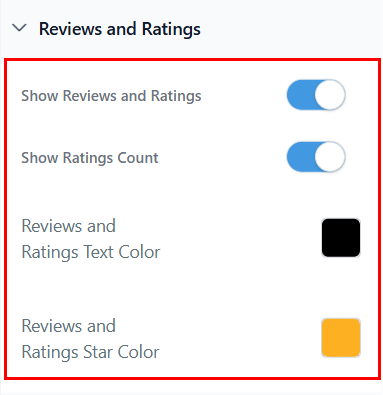
Choose whether to display reviews and ratings for the selected products to further market your offerings.
Wishlist Products
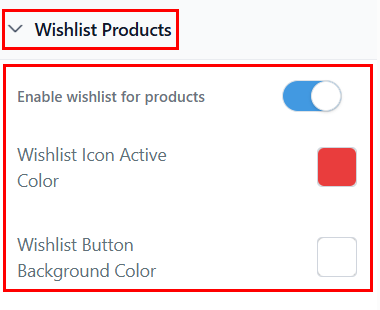
Enable the wishlist for products so logged-in clients can save the products they love to checkout at a later time.
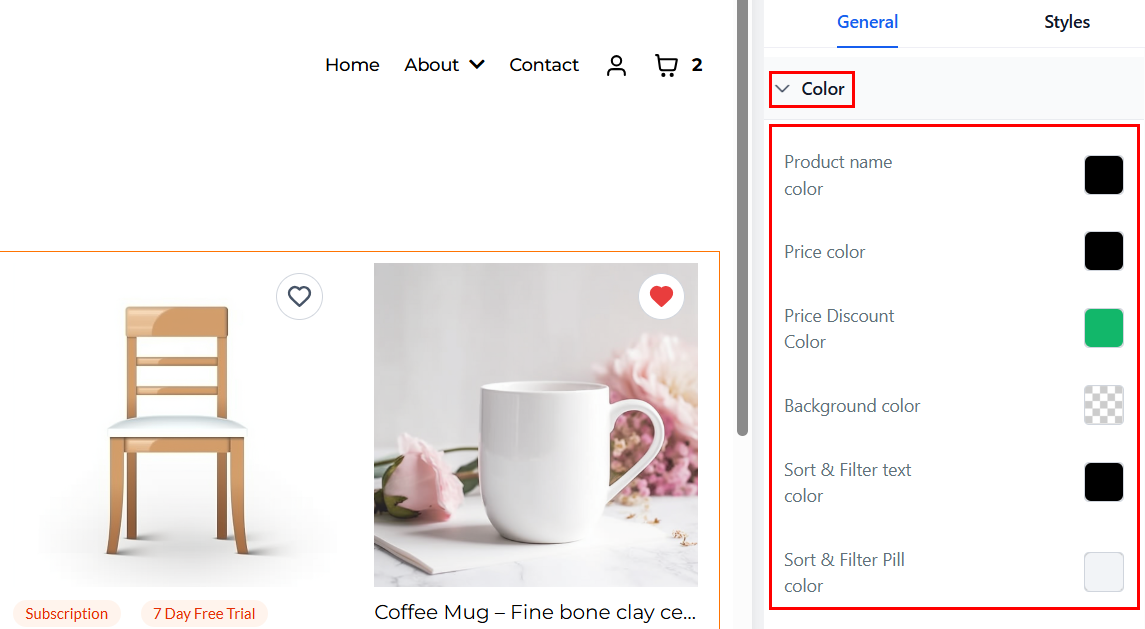
Color
Need to make any other color adjustments? Scroll to the bottom of the General settings to make your changes.
Styles
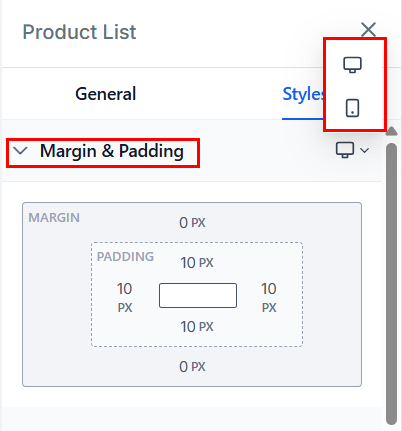
Margin & Padding
Switch to the Styles tab to customize the Margin & Padding of the element for both desktop and mobile views.
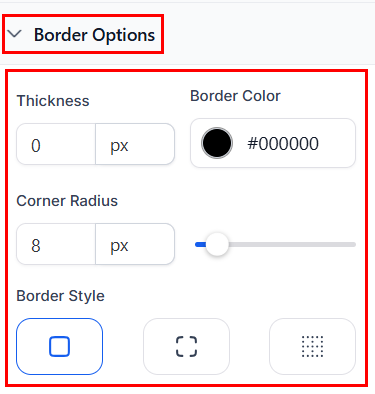
Border Options
Adjust the element’s border by modifying its color, thickness, radius, and style to match your design preferences.
Shadow
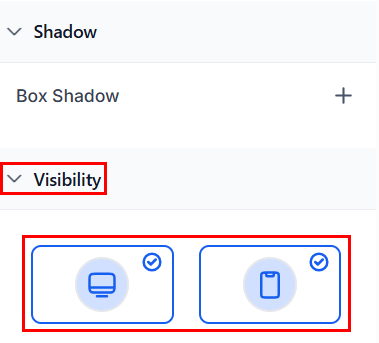
Enhance your design with box shadows. Click the plus button to apply a default outer shadow, which can be further tailored using custom shadow settings.
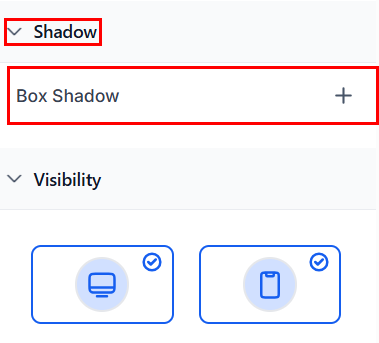
Visibility
Control whether the element is visible on desktop or mobile by adjusting the visibility settings.
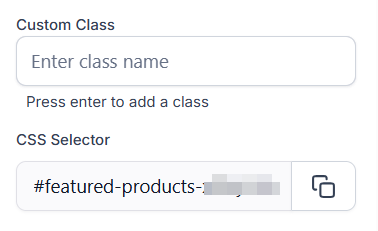
Custom Class and CSS Selector
Add a custom class in the designated field and copy the CSS selector if needed for advanced styling or integration.
Preview and Publish
Click Save to retain your changes, then review your live page to ensure the Featured Products element displays as intended. Clicking on a product redirects users to its detail page.
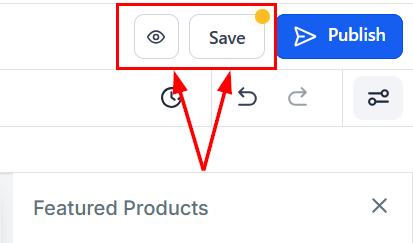
Once you are satisfied with the page configuration, click publish to view the element on your live page!
By incorporating this element into your store pages, you can effectively draw attention to specific items and enhance the shopping experience for your visitors.
✍️Important Notes
- Changes to product details, such as pricing or images, will automatically update in the Featured Products element.
- Product selection must be completed for live pages; placeholder products will not be displayed to users.
- Some text elements, like error messages, may not appear in the builder preview but can still be customized.
Not a Funnelbud customer yet?
Try our all-in-one CRM for sales and marketing — free for 7 days, no commitment.